mgdc
52 TopicsCapacity Template v2 with Microsoft Fabric
1. Capacity Scenario One of the most common scenarios for Microsoft Graph Data Connect (MGDC) for SharePoint is Capacity. This scenario focuses on identifying which sites and files are using the most storage, along with understanding the distribution of these large sites and files by properties like type and age. The MGDC datasets for this scenario are SharePoint Sites and SharePoint Files. If you’re not familiar with these datasets, you can find details in the schema definitions at https://aka.ms/SharePointDatasets. To assist you in using these datasets, the team has developed a Capacity Template. Initially published as a template for Azure Synapse, we now have a new Microsoft Fabric template that is simpler and offers more features. This SharePoint Capacity v2 Template, based on Microsoft Fabric, is now publicly available. 2. Instructions The template comes with a set of detailed instructions at https://aka.ms/fabriccapacitytemplatesteps. These instructions include: How to install the Microsoft Fabric and Microsoft Graph Data Connect prerequisites How to import the pipeline template from the Microsoft Fabric gallery and set it up How to import the Power BI template and configure the data source settings See below some additional details about the template. 3. Microsoft Fabric Pipeline After you import the pipeline template, it will look like this: 4. Pipeline in Microsoft Fabric The Capacity template for Microsoft Fabric includes a few key improvements: The new template uses delta datasets to update the SharePoint Sites and SharePoint Files datasets. It keeps track of the last time the datasets were pulled by this pipeline, requesting just what changed since then. The new template uses views to do calculations and create new properties like size bands or date bands. In our previous template, this was done in Power Query, when importing into Power BI. The new template also uses a view to aggregate file data, grouping the data by file extension. You can find details on how to find and deploy the Microsoft Fabric template in the instructions (see item 3). 5. Microsoft Fabric Report The typical result from this solution is a set of Power BI dashboards pulled from the Microsoft Fabric data source. Here are some examples: These dashboards serve as examples or starting points and can be modified as necessary for various visualizations of the data within these datasets. The instructions (see item 3) include details on how to find and deploy a few sample Power BI Capacity templates. 6. Conclusion I hope this provides a good overview of the Capacity template for Microsoft Fabric. You can read more about the Microsoft Graph Data Connect for SharePoint at https://aka.ms/SharePointData. There you will find many details, including a list of datasets available, other common scenarios and frequently asked questions.MGDC for SharePoint: New Columns in Q1 CY2025
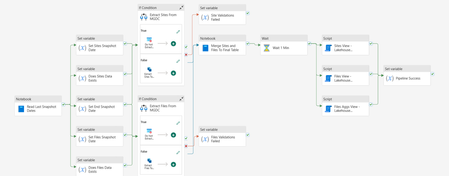
The MGDC for SharePoint team continues to improve the available datasets. This time around, we are introducing additional columns to some of our existing datasets. 2 new archive-related properties in the Sites dataset 2 new storage-related properties in the Sites dataset 4 new owner and member properties in the Groups dataset 1 new sharee property in the Permissions dataset Here is a summary of the 9 changes in the 3 datasets (Sites, Groups and Permissions): Dataset Column Type Description Sites SiteArchivedBy String Who archived the site. Null if not archived Sites SiteArchivedTime DateTime When the site was archived. Null if not archived Sites LastContentChange DateTime When the site contents were last changed (in UTC) Sites StorageMetrics. AdditionalFileStreamSize int64 Total size of additional file streams in bytes, excluding the latest version, previous versions and metadata Groups Owner. LoginName String Login name of group owner. If ending with _o, this should be expanded using the owners of the group, not the members Groups Owner. UPN String User Principal Name of group owner Groups Member. LoginName String Login name of group member. If ending with _o, this should be expanded using the owners of the group, not the members Groups Member. UPN String User Principal Name of group member Permissions SharedWith. UserLoginName String Login name for the sharee. If ending with _o, this should be expanded using the owners of the group, not the members * When the LoginName ends with _o, that means that this group should be expanded using the owners of the group, not the members of the group. These changes are non-breaking, which means that your existing pipelines will continue to run. We also let this change sit for 21 days, so that delta datasets are also not impacted. Anyone starting fresh with MGDC for SharePoint will automatically get the new columns in their pipelines. If you have existing pipelines and want to use the new columns, you will need to update your MGDC application, get that update approved and then update your pipeline to pull the new schema. For more details about updating your pipelines to include new columns, or to see how these can be leveraged in specific scenarios, see these articles: How can I track the lifecycle of a SharePoint site? How are SharePoint Groups and Security Groups used together? MGDC for SharePoint FAQ: How to deal with schema changes Main MGDC for SharePoint article: https://aka.ms/SharePointData To view the complete schema for all SharePoint datasets in MGDC, visit https://aka.ms/SharePointDatasetsMGDC for SharePoint: Richer data for read-locked and archived sites
We’re improving the Microsoft Graph Data Connect (MGDC) for SharePoint Sites dataset to provide more complete information for read-locked and archived sites. What’s changing Previously, read-locked and archived sites appeared as partial rows, with only a limited number of columns populated. With this update, these sites are fully populated with the same fields and level of detail as other sites in the dataset. What you’ll see in the data 1) Fully populated rows Standard fields that were previously empty for read-locked and archived sites will now contain their actual values. 2) A more accurate ReadLocked signal The ReadLocked field will now reflect the site’s actual lock state independently of its archival status: An archived site reports ReadLocked = false. A genuinely read-locked site reports ReadLocked = true. This makes it easier to distinguish archived sites from sites that are specifically read-locked. What’s not changing No schema changes: The structure of the MGDC SharePoint Sites dataset remains the same. No change in site coverage: The same sites continue to appear, so the row count remains unchanged. No change for normal sites: Sites that are neither archived nor read-locked continue to report the same values. This update only enriches rows that were previously partially populated. What to expect when the update is enabled The first snapshot after enablement will contain a one-time expected delta: Previously sparse rows will become fully populated. Archived sites will report their genuine lock state. For many archived sites, ReadLocked will change from true to false, because archival status will no longer mask the underlying lock state. If you are using MGDC for SharePoint Delta Datasets, note that the SharePoint Sites dataset will show a one-time increase in the Delta due to the changes described here. This will have no impact on other datasets. After this initial snapshot, subsequent snapshots will follow the updated behavior.MGDC for SharePoint: New Columns in September 2026
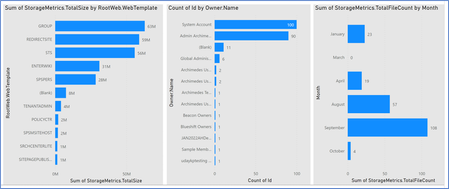
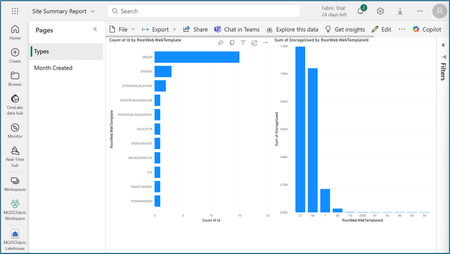
The MGDC for SharePoint team continues to improve the available datasets. This time around, we are introducing additional columns to some of our existing datasets. Here is a summary based on the different scenarios they support: Archive – Extends support for the SharePoint Archive feature. Includes a site property for size of archived files and a file property to indicate that the file is archived. E-signature – Supports the E-signature by adding a file to indicate there is a digital signature and the provider’s name. Filtering – The RootWebTemplateId was added to SharePoint Groups and SharePoint Permission dataset to facilitate filter by type of site, like it is currently available for Sites, Files and File Actions. Hub Site – Extends support for Hub Sites, introducing a column for ParentHubSiteId, to represent a hub site hierarchy. Restricted – Multiple columns indicating restricted flags in sites, including Restricted Access Control (RAC), Restricted Content Discovery (RCD) and Restricted Content Org-wide Search Policy. Retention – Support a set of file properties about Retention Labels, including label name, type, who applied it and when it was applied. Sharing – Extends the SharePoint Permissions properties to support the new sharing model. This includes information about the Main Link and Variants. Versions – Extends support for versions, including version storage metrics and version history policy. Here is a summary of all 26 columns in 4 datasets (Sites, Groups, Permissions and Files): Dataset Column Data type Description Sites ArchiveStorageUsed Number Total size of all archived storage in bytes Sites IsRestrictContentOrgWide SearchPolicyEnforcedOnSite Boolean Restricted Content Org-wide Search Policy Sites IsRestrictedAccess ControlPolicyEnabled Boolean Restricted Access Control Sites IsRestrictedContentDiscovery forCopilotAndAgentsEnabled Boolean Restricted Content Discovery Sites ParentHubSiteId String, GUID Parent hub site for this hub site Sites StorageMetrics, VersionCount Number Number of versions Sites StorageMetrics, VersionSize Number Total size of versions in bytes Sites StorageMetrics, VersionMetadataSize Number Total size of version metadata in bytes Sites VersionHistoryPolicy String Version history policy. Possible values: None, Automatic, Manual. If manual, uses “major version limit”. Sites MajorVersionLimit Number Limit for number of major versions Groups RootWebTemplateId Number Root web template id Groups Description String Description of the group Permissions RootWebTemplateId Number Root web template id Permissions SharingVariant String Sharing link variant. Possible values include: None, PasswordProtected, TrackLinkUsers, Embeddable, Ephemeral, RestrictToExistingRelationships, MainLink, NonDurableRedeem. Multiple values can be set at once. Permissions MainLinkAudience String Main link audience. Possible values include: Organization, Empty (people with existing access). Permissions MainLinkRole String Main link role. Possible values include View, Edit, others. Files RetentionLabel Object Retention label Files RetentionLabel, AppliedByEmail String Email of user who applied retention label Files RetentionLabel, AppliedByName String Name of user who applied retention label Files RetentionLabel, AppliedTime DateTme Time when retention label was applied Files RetentionLabel, Name String Name of retention label Files RetentionLabel, Type String Type of retention label. Possible values: Normal, Record or Regulatory Record Files HasDigitalSignature Boolean File has a digital signature Files DigitalSignatureProvider String Name of digital signature provider if digital Signature exist Files IsFileArchived Boolean File is Archived These changes are non-breaking, which means that your existing pipelines will continue to run. We also let this change sit for 21 days, so that delta datasets are also not impacted. Anyone starting fresh with MGDC for SharePoint will automatically get the new columns in their pipelines. If you have existing pipelines and want to use the new columns, you will need to update your MGDC application, get that update approved and then update your pipeline to pull the new schema. For more details about updating your pipelines to include new columns, or to see how these can be leveraged in specific scenarios, see these articles: Helpful blog on schema changes: MGDC for SharePoint FAQ: How to deal with schema changes Main MGDC for SharePoint article: https://aka.ms/SharePointData Updated schema for SharePoint datasets in MGDC: https://aka.ms/SharePointDatasetsMGDC for SharePoint FAQ: How to Run a PoC without Pulling Your Entire Tenant
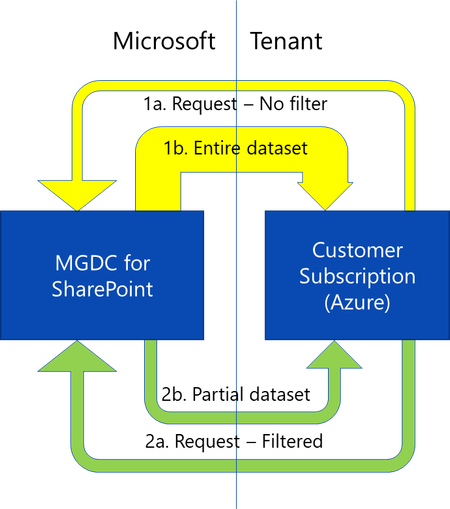
Overview When getting started with SharePoint data in Microsoft Graph Data Connect (MGDC) for SharePoint, many teams want to validate scenarios - such as reporting or analytics before committing to a full production deployment. A common first instinct is to pull a complete dataset from a production tenant. While this delivers the most comprehensive view of SharePoint usage, it also: Requires broad administrative authorization Consumes the most Azure compute and storage resources Increases MGDC extraction and processing costs Adds complexity to early experimentation Fortunately, MGDC for SharePoint provides multiple ways to run low‑cost experiments or proof‑of‑concept (POC) deployments using partial or scoped datasets. This guide presents these options using a uniform comparison model, helping you choose the right approach based on: Cost Representativeness of production behavior Implementation effort Dataset completeness Supported datasets Option 1: Use a Dev or Test Tenant Description Use an existing development or test tenant (or create a new trial tenant) to enable MGDC and run initial experiments. Pros Smaller datasets reduce MGDC and Azure costs Easier to obtain administrative permissions Lower operational impact Cons May not reflect production‑scale usage patterns Some SharePoint features or integrations may be missing Requires simulated user activity to generate meaningful data Trial tenants are time‑limited Learn More Microsoft 365 Trial Options Azure Trial Options Option 2: Start with the SharePoint Sites Dataset Description The Sites dataset is typically the smallest MGDC dataset for SharePoint and provides tenant‑wide metadata for all site collections. Pros Lower cost compared to Files or Permissions datasets Provides organization‑wide coverage Minimal MGDC configuration beyond standard onboarding Small dataset can be handled directly by a variety of analysis tools Cons Does not include permission or file details Limited insight compared to full datasets Learn More How can I estimate my Azure bill? Updated! Gather a detailed dataset on SharePoint Sites Option 3: Sample a Limited Number of Rows Description Some MGDC SharePoint datasets support returning only a subset of rows in query results. This is supported across the top 5 SharePoint datasets in MGDC (Sites, Permissions, Groups, Files and File Actions). Pros Minimal and predictable extraction cost Enables rapid schema inspection Provides total dataset row count in request metadata Cons Rows are not returned in a predictable order Sample is not randomized. It is not reproducible and could be biased Results should not be used to draw tenant‑level conclusions Learn More How can I sample or estimate the number of objects in a dataset? Option 4: Filter by SiteId Description Because SharePoint data is partitioned by site collection, MGDC filtering allows you to extract data from a single site or a small group of representative sites. This supports Sites, Permissions, Groups, Files and File Actions datasets. Pros Enables realistic workload simulation Reduces total extraction volume Simplifies downstream reporting Cons May introduce sampling bias Not suitable for tenant‑wide reporting Learn More How can I filter rows on a dataset? Option 5: Filter by TemplateId Description Instead of selecting individual sites, filter by site template to isolate specific workloads. For example, you could filter for OneDrives or SharePoint Embedded. Pros Consistent dataset scope Useful for workload‑specific analysis Cons Limited dataset support (supported only for Sites, Files and File Actions) May not reflect cross‑workload usage patterns Learn More How can I filter rows on a dataset? Option 6: Use Delta State Datasets Description Delta datasets allow you to retrieve only changes since your last data transfer for supported SharePoint State datasets. Pros Enables recurring analytics with lower extraction costs Supports daily or weekly trend analysis Reduces data movement after initial ingestion Cons Requires an initial full dataset pull Adds complexity to downstream merge processing Learn More How can I use Delta State Datasets? How do I process Deltas? Summary MGDC for SharePoint provides multiple approaches to extract targeted subsets of tenant data, allowing teams to: Run proof‑of‑concept deployments Validate analytics pipelines Test governance or migration scenarios Estimate ongoing MGDC and Azure costs By selecting the right combination of dataset scope, filtering strategy, sampling method or delta tracking, you can balance cost, representativeness, and implementation effort before scaling to a full production deployment. For additional guidance on MGDC for SharePoint, visit SharePoint Data in MGDC.Error: Consent not found
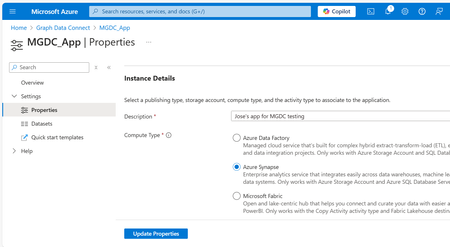
If you have been using Microsoft Graph Data Connect for a while, you might have configured a recurring pipeline that has been running for several months. In that case, you might run into this error: Operation on target <name> failed: ErrorCode=UserErrorOffice365DataLoaderError, 'Type=Microsoft.DataTransfer.Common.Shared.HybridDeliveryException, Message=Office365 data loading failed to execute. office365LoadErrorType: PermanentError. Consent not found. The consent for application [xx] was either never granted or expired. Learn more at https://aka.ms/mgdcdocs/appconsent., Source=Microsoft.DataTransfer.ClientLibrary,' The main error is really " The consent for application [x] was either never granted or expired.” If this is the first time you are running this pipeline, you could be missing the consent in Azure (it was not yet approved by your Microsoft 365 Administrator). If this was working before, it has likely been more than 6 months since it was approved, and the consent has expired. The solution is simple, done in just 2 steps: In the Azure Portal, go to the Microsoft Graph Data Connect application and update it. In the Microsoft 365 Admin Center, approve the application update. To update the application, search for the “Microsoft Graph Data Connect” service in the Azure Portal at https://portal.azure.com or navigate directly to https://aka.ms/MGDCinAzure to get started. Once there, click on the MGDC Application your created previously (that is the request for consent), click on Properties on the left navigation bar and then click on the “Update Properties” button. You do not need to change any of the properties. After you update the consent request, you need to approve the update in the Microsoft 365 Admin Center. This process is described in item “1h. Approve the Microsoft Graph Data Connect Application” in the step-by-step guide. Before you update the application properties in the Azure Portal, it will show in the list in the Microsoft 365 Admin Center as “Expired”. After you update the properties, it will show in the list as “Update Available”. Once you approve and everything is ready, it will show as “Approved.” Just click on the app and follow the steps to approve it. That is it! Now you can just run the pipeline again and everything will work as before. Until it is time to update the consent again in 6 months… You can avoid this issue completely by keeping track of the MGDC Application consent date and updating it ahead of time. You can update the application and continue to use the earlier consent until the Microsoft 365 Administrator approves the new one, allowing for this consent rotation to be done proactively. For more about MGDC for SharePoint, visit the main article at https://aka.ms/SharePointData.