managed instance
22 Topics
DMS - Support for Managed Identity for Azure SQL Managed Instance migration
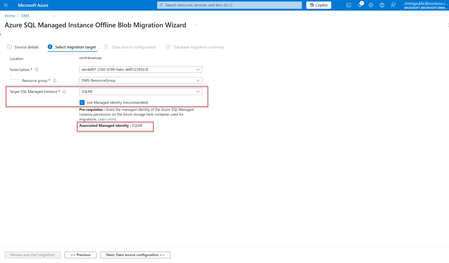
Azure Database Migration Service (DMS) has introduced a new feature that supports the use of Managed Identity for migrating to Azure SQL Managed Instance. This enhancement simplifies the migration process and ensures secure and seamless integration with Azure Database Migration services. In this blog post, we will dive into the prerequisites, permissions or role(s) required, and how to use this associated Managed identity for migrating to Azure SQL Managed Instance. Currently, this feature is supported through Azure Portal, PowerShell, and Az cmdlets. Prerequisites Before you begin the migration to Azure SQL Managed Instance using Managed identity, ensure that following prerequisites are in place: 1. The Target Azure SQL Managed Instance's associated Managed Identity: Azure Database Migration Service only supports Managed Identity that is associated with the target Azure SQL Managed Instance. How to identify the associated Managed Identity? Once you start the migration to Azure SQL Managed Instance using Azure Database Migration Service and on second page, select the target Azure SQL Managed instance, its associated Managed Identity will be displayed if "Use Managed Identity" is selected (default), as highlighted below. Alternatively, you can follow these steps: a) Go to the target Azure SQL Managed Instance's home page. b) On the left menu, under Security > Identity: If User-assigned Managed Identity is present, the associated Managed Identity will be same as selected under the Primary Identity. If there is no User-assigned Managed Identity and only System-assigned Managed Identity is enabled, the associated Managed Identity will be System-assigned Managed Identity and have the same name as the Azure SQL Managed Instance's name. For example, for ABCSQLMI - Azure SQL Managed Instance the System-assigned Managed Identity will be "ABCSQLMI". 2) Permissions: Assign the "Storage Blob Data Reader" role on the storage account to the target instance's associated Managed Identity. Steps to Assign Permissions In the Azure portal, go to the storage account that will be used in migration for keeping the backup files. On the left menu under Access Control (IAM), click on "+Add" > Add role assignment Select or search for builtin role "Storage Blob Data Reader", click Next. Assing this role access to Managed Identity by selecting the associated Managed Identity identified in the previous step as the member. Note: When migrating to Azure SQL Managed Instance or Azure SQL Virtual Machine via Azure portal make sure the signed in user has Storage Blob Data Reader access on the Blob container that contains the backup files. This permission is needed to list folders and files in the blob container during migration setup via Azure portal only. How to use associated Managed identity for migration? Upon initiating the migration to Azure SQL Managed Instance using Azure Database Migration Service, navigate to the second page and select the target Azure SQL Managed Instance. If the "Use Managed Identity" option is selected (default), the associated Managed Identity will be displayed and used for the migration (as shown in the first image above). Once Managed identity is used for the migration, DMS will utilize this Managed identity for reading the backup files on the Azure blob storage and thus removing the need for SAS keys. Limitations: Azure Database Migration Service supports Managed Identity that is associated with the target Azure SQL Managed Instance only. It can be either User assigned, or System assigned Managed identity. Currently, this feature is supported through Azure Portal only. Ensure that the storage account has the "Allow storage account key access" enabled. Benefits of using Managed Identity: Using Managed Identity for Azure SQL Managed Instance migrations offers several security benefits: Enhanced Security: Managed identities eliminate the need to use SAS key, reducing the risk of SAS key token exposure. Simplified Management: As associated Managed Identity of the target Azure SQL MI is used, it allows for seamless integration with Azure Database Migration services, making it easier to manage access permissions and roles. Improved Efficiency: The streamlined authentication process speeds up migrations and reduces the complexity of managing SAS keys. Improved Compliance: By using Managed Identity, user can ensure that they adhere to security best practices and compliance requirements, as it is managed securely by Azure. All the above benefits make Managed Identity better than SAS key token. Learn more. Conclusion The new feature supporting Managed Identity in Azure Database Migration Service for Azure SQL Managed Instance migrations offers a secure and efficient way to manage permissions during the migration process. By following the steps outlined above and leveraging the security benefits of Managed Identity, you can ensure a smooth and secure migration to Azure SQL Managed Instance.1.1KViews0likes0CommentsSSIS & Azure SQL Managed Instance with MFA
We've been testing out Azure SQL Managed Instance and created SSIS packages to run against it. We set connections using the ADO.Net connection manager and all worked well. We recently had to apply MFA to all logins and this is causing issues within SSIS as there is no MFA option for logins like there is in SSMS. We can connect if we use SQL Server Authentication but we'd rather not do that. When using Active Directory Integrated Authentication, all of our test connections fail and the package will not run locally. In SSMS, there is an integrated authentication with MFA option and that works from within SSMS. How can we use SSIS and connect to the database using Windows Authentication when MFA is required?563Views0likes0Comments
Azure SQL Managed Instance Business Critical Tier, Transactional Replication, and failing over
Hi all, My company is planning a migration from SQL Server onprem to Managed Instance on Azure, using the business critical tier with zone-redundancy for HA. We currently have a peer-to-peer replication setup where our data services team updates data on a second read/write node that is separate from our main application read/write node, and the replication keeps everything in sync. My question is: on Azure if we have a second read/write MI (for our data team) syncing with the main business-critical tiered MI and there is a failover there to one of the secondary read-only replicas, what is the impact on the transactional replication to the data team MI? Could it break? Or would it now just sync with the new primary read/write node? Thanks.630Views0likes0Comments
LicenseType parameter when you scale your Azure SQL Managed Instance
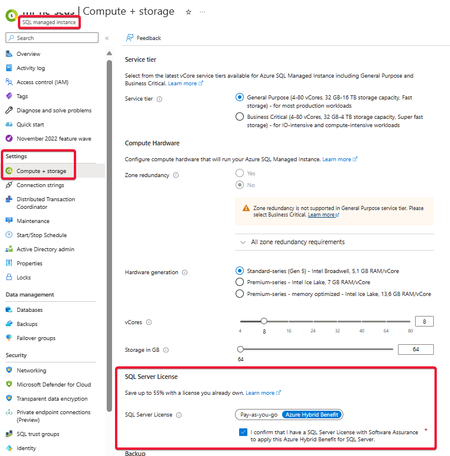
When you try to scale your Azure SQL Managed Instance and you face the following error message: "Configured pricing tier and vCore values require greater number of licenses than previous instance configuration. Please submit operation again with specified value for licenseType property." you have to review your License type.2KViews0likes0CommentsAzure SQL Database idle sessions are killed after about 30 minutes when "Proxy" connection policy
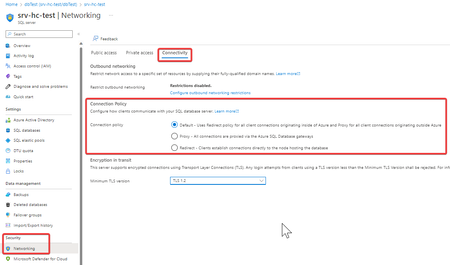
Let's see how the connection policy affects the idle sessions on our Azure SQL Database connections. As we will see, the Azure SQL Gateways will kill idle sessions after 30 minutes when "Proxy" connection policy is set.19KViews3likes5CommentsHow To Read/Write Files from/to Blob Storage with Storage Firewall enabled for Managed Instance
Background Previously, we have discussed about how to read files from blob storage with storage firewall enabled for Azure SQL Database. Please refer to the below online blog for more information. https://techcommunity.microsoft.com/t5/azure-sql-database/how-to-read-files-from-blob-storage-with-storage-firewall/m-p/1404901#M12 When configured firewall rules of storage accounts for Managed Instance, audit logs could no longer be recorded into atorage account, and user will received such email notification as below. "Audit logs for database 'xxxxxxx' on server 'xxxxxxx' are not being recorded in storage account 'xxxxxxx'" There is the option of 'Allow trusted Microsoft service to access this storage account' under storage account firewall configuration page, unfortunately, according to our online document, Managed Instance is not yet considered as trusted service. Refers to https://docs.microsoft.com/en-nz/azure/storage/common/storage-network-security#exceptions Moreover, comparing with SQL Azure, Managed Instance does not support Managed Identity with the error below in the errorlog. Guidance To enable the read/write access to Azure Storage with Firewall turned on, users need to add Managed Instance’s subnet to Storage Account Vnet firewall rules with leveraging the MI subnet delegation and Storage service endpoint. Firstly, users would need to determine which subnet the managed instance has been deployed on. After selecting the specific subnet, change the configuration of Subnet delegation to Managed Instances. Following, users can delegate this subnet to Managed Instance, please wait for approximately one hour, and arrange Storage as a service added to service endpoints. After both of the above steps have been performed successfully, add the configured Vnet/ Subnet to Virtual networks rules of storage account. Using this workaround, users are able to write audit logs to storage account with firewall rules configured. Please note, the above steps could only be performed when the storage account and the managed instance are in the same or paired region. In this case, the Managed Instance was deployed in East Asia, and the storage account is deployed in East US. While adding the configured Vnet/ Subnet to Virtual network rules of the storage account, user would not see any available virtual networks from the list and also portal will show a notification that only virtual networks in 'East US' and 'West US' will be listed, which is paired region. Terminology Behind the Guidance The workaround delegates the specific subnet to Managed Instance, and enables storage service endpoints on this subnet, thus, the subnet will be able to access the storage account through service endpoint. According to our online document, "Subnet delegation enables you to designate a specific subnet for an Azure PaaS service of your choice that needs to be injected into your virtual network. Subnet delegation provides full control to the customer on managing the integration of Azure services into their virtual networks." Refers to https://docs.microsoft.com/en-us/azure/virtual-network/subnet-delegation-overview Using the same terminology, can we access storage account to read files? Before adding the configured Vnet/subnet to storage account, users will have denied access to storage account to read files from a storage account which has configured firewall rules. BULK INSERT CSVtest FROM 'product.csv' WITH ( DATA_SOURCE = 'CSVInsert', Format='CSV' ); Msg 4861, Level 16, State 1, Line 40 Cannot bulk load because the file "product.csv" could not be opened. Operating system error code 5(Access is denied.). After performing the above workaround, users should be able to read files and access the storage account as the subnet of the Managed Instance has been whitelisted. Author: Marlon Jin <marlonj@microsoft.com>; Yvonne Zhou <wenzho@microsoft.com> Please feel free to contact us if any questions.5KViews0likes0Comments