managed instance
23 Topics
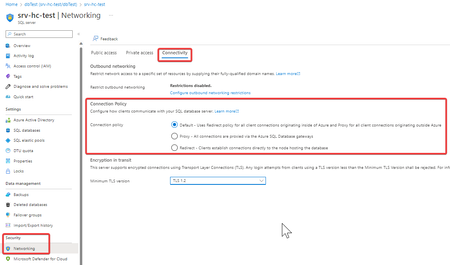
Azure SQL Database idle sessions are killed after about 30 minutes when "Proxy" connection policy
Let's see how the connection policy affects the idle sessions on our Azure SQL Database connections. As we will see, the Azure SQL Gateways will kill idle sessions after 30 minutes when "Proxy" connection policy is set.19KViews3likes5CommentsLesson Learned #110 Azure SQL Managed Instance and Azure DNS
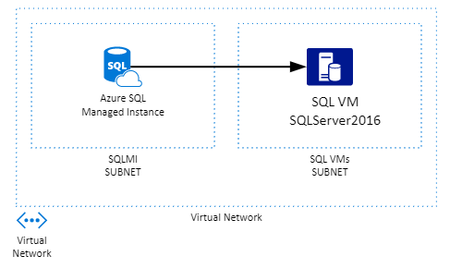
I got this recent case where customer wanted to create a transaction replication from Azure SQL Managed instance to another SQL Server inside the same virtual network, but in a different subnet, but all inside Azure. All communications that happens on Azure Network if not set a custom DNS will use Azure DNS to resolve name of resources inside the network. However there is something very important in the documentation https://docs.microsoft.com/en-us/azure/virtual-network/virtual-networks-name-resolution-for-vms-and-role-instances#azure-provided-name-resolution "Azure-provided name resolution Along with resolution of public DNS names, Azure provides internal name resolution for VMs and role instances that reside within the same virtual network or cloud service. VMs and instances in a cloud service share the same DNS suffix, so the host name alone is sufficient. But in virtual networks deployed using the classic deployment model, different cloud services have different DNS suffixes. In this situation, you need the FQDN to resolve names between different cloud services. In virtual networks deployed using the Azure Resource Manager deployment model, the DNS suffix is consistent across the virtual network, so the FQDN is not needed. DNS names can be assigned to both VMs and network interfaces. Although Azure-provided name resolution does not require any configuration, it is not the appropriate choice for all deployment scenarios, as detailed in the previous table." Consider a Azure Resource Manager deployment it would not be necessary to use FQDN, however the way that the deployment of Azure SQL Managed Instance happens it will not share the same DNS sufix and we can see connectivity errors There are some workarounds: use the private IP or the FQDN of the SQL VM. The default DNS sufix is documented in same article above ( https://docs.microsoft.com/en-us/azure/virtual-network/virtual-networks-name-resolution-for-vms-and-role-instances#name-resolution-that-uses-your-own-dns-server ) "When you are using Azure-provided name resolution, Azure Dynamic Host Configuration Protocol (DHCP) provides an internal DNS suffix (.internal.cloudapp.net) to each VM. This suffix enables host name resolution because the host name records are in the internal.cloudapp.net zone. When you are using your own name resolution solution, this suffix is not supplied to VMs because it interferes with other DNS architectures (like domain-joined scenarios). Instead, Azure provides a non-functioning placeholder (reddog.microsoft.com)." For this test I will create a linked server from SQL MI to SQL VM and we can see that I was able to connect with success to IP and VM.internal.cloudapp.net, but failing to simple VM name This behavior is also documented at https://docs.microsoft.com/en-us/azure/sql-database/sql-database-managed-instance-custom-dns "An Azure SQL Database Managed Instance must be deployed within an Azure virtual network (VNet). There are a few scenarios (for example, db mail, linked servers to other SQL instances in your cloud or hybrid environment) that require private host names to be resolved from the Managed Instance. In this case, you need to configure a custom DNS inside Azure. Since Managed Instance uses the same DNS for its inner workings, you need to configure the custom DNS server so that it can resolve public domain names. Important Always use fully-qualified domain names (FQDN) for the mail servers, SQL Servers, and other services even if they are within your private DNS zone. For example use smtp.contoso.com for mail server because simple smtp will not be properly resolved."6.5KViews2likes0CommentsLesson Learned #55: Azure SQL Managed Instance - Backup failed for Server "servername". Failed: 1117 -The request could not be performed because of an I/O device error
First published on MSDN on Jan 13, 2019 Hello,I found several service requests that our customers are trying to proceed with a backup of a Azure SQL Managed Instance to Azure Storage Account and they are facing an error, after reaching 40%: Backup failed for Server "servername".11KViews2likes0Comments
Azure SQL Managed Instance Next-gen: Severe Slowdowns During Backups
We recently upgraded our Azure SQL Managed Instance from legacy General Purpose to Next-gen General Purpose. Afterward, automatic full backups caused severe application slowdowns. I’m sharing our experience so others can evaluate this before upgrading. We had used legacy General Purpose for more than three years without SQL performance problems. We never paid attention to when the automatic backups ran because they had no noticeable impact. After upgrading, we experienced three consecutive Thursday afternoon slowdowns during full backups, severe enough that multiple customers asked whether we were having an outage. The important difference is how storage performance is allocated. On legacy General Purpose, each database file receives IOPS and throughput based on its allocated size. On Next-gen, IOPS are configured at the instance level, and the allocated IOPS also determine throughput. Our configuration is 4 vCores with 832 GB of reserved storage, primarily supporting one large production database. Its data file is approximately 703 GiB. Under legacy General Purpose, that file falls in the published tier providing 5,000 IOPS and 210 MB/s. After upgrading, the default Next-gen allocation was 2,496 IOPS, calculated as three IOPS per GB of reserved storage. Using Microsoft’s throughput formula of IOPS divided by 30, that provides approximately 83.2 MB/s shared across the instance. In other words, we went from an allowance of approximately 210 MB/s for our main data file alone to approximately 83 MB/s for the instance. Our backups typically run near 100 MB/s, so the reduced allowance left no room for application traffic and caused severe slowdowns. Reverting to legacy restored normal application performance. This will not necessarily affect every workload the same way. Instances with smaller databases may benefit from the different allocation model. Next-gen also allows additional IOPS to be purchased. However, Microsoft’s positioning of the upgrade as having no additional cost needs an important qualification: the upgrade itself may leave the bill unchanged, but maintaining comparable storage performance can require additional spending. Moreover, purchasing additional Next-gen IOPS alone would not restore our previous throughput allowance. Our 4-vCore Next-gen configuration has a maximum throughput of 145 MB/s, regardless of how many additional IOPS we purchase, compared with approximately 210 MB/s for our main data file on legacy. Reaching comparable throughput would therefore require increasing the vCore count as well. In our case, reverting restored acceptable performance, so we plan to remain on legacy for now. Before upgrading, compare your existing per-file IOPS and throughput allowances with the proposed Next-gen instance-wide allocation. Include automatic full backups in that assessment, even if ordinary application traffic is light and CPU utilization is low. The IOPS allocation rules are documented, but we did not find a clear warning that upgrading with the default settings could substantially reduce available throughput for an existing workload and turn previously unobtrusive backups into a major performance event. If anyone from Microsoft is reading, please make this tradeoff explicit in the upgrade guidance. An upgrade assessment that compares existing file-level allowances with the proposed instance-level limits would help customers avoid discovering this in production.105Views1like1CommentLesson Learned #63: It is possible to create Linked Server in Azure SQL Managed Instance?
First published on MSDN on Jan 19, 2019 The answer is Yes!!! and to create it you only need to follow up the instructions provided in this URL Unfortunately, nowadays, you only are able to use the SQL provider to connect to Azure SQL Database, SQL Server or Azure SQL Managed Instance.Lesson Learned #61: Using Schemas in Azure SQL Managed Instance
First published on MSDN on Jan 19, 2019 Hello Team,This week I worked on a service request where our customer asked about the compatibility feature using schemas and partitioning, for this reason and thanks to near 100% compatibility of SQL Server we have the option to create schemas and split tables among different filegroups.