machine learning
398 Topics
Should AI agents receive permissions dynamically instead of having fixed access?
Hi everyone, As AI agents move from simple chat-based assistants toward performing real actions—such as querying databases, creating resources, modifying configurations, sending notifications, or executing workflows—I have been thinking about how their permissions should be designed. A traditional application typically has a relatively well-defined permission model. An AI agent, however, may perform different tasks depending on the conversation and the user's request. For example: • Task A may only require read access. • Task B may require creating a resource. • Task C may require modifying an existing configuration. • Task D may involve a potentially destructive operation. This raises an interesting security question: Should an AI agent have a fixed set of permissions for its entire lifetime, or should permissions be granted progressively based on the task it is currently performing? For example: User → AI Agent → Read-only permissions Then, if the user explicitly requests a change: User approval → Temporary elevated permission → AI Agent performs the operation → Permission revoked I see some potential advantages to this approach: 1. Reduced blast radius if the agent behaves unexpectedly. 2. Better alignment between permissions and the actual task. 3. Easier auditing of elevated operations. 4. Reduced risk from prompt injection or unintended actions. 5. Human approval could be required only for high-impact operations. However, it also introduces additional complexity around identity, token issuance, approval workflows, session management, and auditing. I'm curious how others are approaching this. Would you prefer: A. Fixed least-privilege permissions for each agent B. Dynamic/task-based permissions C. Fixed permissions with human approval for sensitive operations D. A combination depending on the workload For production AI agents, which model do you think provides the best balance between security and usability? Would be particularly interested in experiences from people implementing agents in enterprise environments.65Views0likes0Comments
Your Agents Need More Than a Place to Run
In architecture reviews with enterprise teams moving their first agentic applications toward production, I often hear the same plan: the team has containerized their agent and intends to run it on the managed Kubernetes cluster the organization already trusts. The reasoning is sensible, since the platform team knows the tooling and security has approved the network model, and for the first use case or two it is often the right call. Having watched this unfold in my years leading AgenticAI customer engineers and forward deployed engineers, and now helping customers reach production on Azure, I want to describe what happens next, before leaders commit rather than after. One thing to note is Azure supports multiple ways to build and operate agents. Foundry Agent Service provides an integrated managed runtime around your agent code. Azure Kubernetes Service supports teams that need Kubernetes-level control or want to extend an established platform, while Azure Container Apps provides managed container hosting. These services can work together. The decision is which capabilities and responsibilities best fit the workload. Where the cluster is the right answer A stateless retrieval application, a document extraction pipeline, or a classification job is a web service that happens to call a model, and a container platform runs web services well. A large retail customer of mine ran an invoice extraction agent on containers for over a year with almost no issues, and I never suggested they move it. The cluster remains the right home for several other situations as well. LLM invocations embedded inside existing microservices, event driven, or batch pipelines fit container platforms naturally. Genuine constraints such as air-gapped or sovereign environment, regions where a managed service is not yet offered are a good reason to run your own stack, and strong engineering team that already operates at that level can be a real asset. Even when the agents themselves move to a managed runtime, the tool servers, business APIs, and data services those agents call, often stay on your cluster, so they are complementary far more often than they are competitors. The problem is that these early wins can make agents seem like just another workload. Where the wheels come off The first failure is the state. A research agent that plans, searches, and synthesizes for ninety minutes is a long-running stateful process, while a Kubernetes pod is a disposable container the scheduler may restart at any time. A financial services team I worked with lost costly research run to a routine node upgrade, and responded as capable engineers do by building checkpointing, a durable store, and a resume mechanism. It worked, but they now owned a piece of infrastructure they had to keep correct as their agent's framework changed beneath it. A managed agent runtime absorbs this. Hosted agents in Foundry Agent Service, as one example, give every session a VM-isolated sandbox with a persistent file system, a durable state store that survives crashes and restarts and can hold checkpoints for frameworks such as LangGraph or Microsoft Agent Framework, and a resilient execution mode that recovers long-running work after a process interruption. The second is the human-in-the-loop. A commercial insurance customer’s claims agent needed sign-off from an adjuster and sometimes a second reviewer, with days between steps. Stopping an agent cleanly at the moment it needs a decision, holding its full session for four days without paying to keep it running, and resuming it correctly when the approval arrives is not something a container orchestrator gives out the box. The team built agent session suspend and resume, a queue, a durable state store, notifications, and an approval interface, and ended up with a small workflow engine nobody had planned to own. In hosted agents, an idle session is deprovisioned with its state persisted and restored onto fresh compute when the same session ID returns, so an agent waiting on an approval cost nothing while it waits, and sessions are retained for up to thirty days of inactivity. The approval experience remains yours to design, which is where your engineers' time should go. The third is multi-turn conversation, which quietly pushes teams into building their own context management system. The first version appends each turn to history, and within few turns the history outgrows the context window while cost and latency climb. So, the team adds truncation, then summarization, then retrieval of earlier turns, then per-user and per-tenant scoping, then expiry and deletion rules for privacy. An industrial customer's safety compliance assistant, with conversations stretching across days, followed exactly this path and ended up with a bespoke thread store and summarization pipeline nobody had budgeted for. Its first serious incident came when a summary silently dropped a compliance-relevant instruction. With the Responses protocol in hosted agents in Foundry, conversation history is a durable, platform-managed record keyed by a conversation ID and reachable from any channel, so the thread store is no longer yours to build, although deciding what to summarize or retrieve remains a design choice for your agent. The fourth is identity. On a cluster, the path of least resistance is a shared service account, and in one review a security architect asked which actions had been taken on behalf of which user, only to learn that the logs could not say. Hosted agents create a dedicated Microsoft Entra agent identity for each agent at deploy time, use on-behalf-of flows to act with the user's delegated permissions in interactive scenarios and the agent's own identity in autonomous ones, and keep the agent identifiable for audit in both cases. The fifth is per-user session isolation, which is the difference between an agent that serves many people and an agent that mixes them up. Agents read files, run code, and hold working data, and on a shared pod the default is that many users share a process, a file system, and often a cache. Giving every user session its own sandboxed environment and storage, so that one person's documents and intermediate results can never surface in another's, means engineering hard isolation boundaries and proving them to your security team. Hosted agents make a VM-isolated sandbox per session the default, and their durable state store can partition items per end user, so one store is safe to share across the users of a multitenant agent. And lastly, Evaluation and optimization are where the gap widens. The largest difference between teams that scale and those that stall is evaluation. Because agents are probabilistic and multi-step, staging tests often miss failures such as a wrong tool choice or a policy violation deep in a task. One customer’s agent passed every offline check but degraded unnoticed for weeks after a model update because evaluation stopped at release. Mature teams continuously evaluate production traces, combine automated judges with sampled human review, and red-team regularly.Once quality is measurable, teams can deliberately balance prompts, models, tools, latency, and cost. One team cut per-task cost by routing simple steps to smaller models after evaluation confirmed quality held. Self-built stacks require teams to assemble and maintain tracing, datasets, judges, and release gates. Hosted agents instead combines default OpenTelemetry traces with continuous evaluation, adversarial testing, and datasets generated from agent instructions. Staged closed-loop optimization uses those traces to improve instructions, tool descriptions, and model selection without extra plumbing. The real cost is the velocity gap Leaders usually expect me to quantify the initial build, and that is the smaller number. A team of four building the first agent often becomes ten or twelve within a year, and a growing share of them are maintaining a runtime for agents rather than building agents that serve the business. The enterprise has quietly created an internal agent infrastructure company in a field where the patterns for memory, tools, evaluation, and safety are rewritten every few months, while hyperscalers put hundreds of engineers on exactly this problem and ship at a cadence no single platform group can match. Foundry Agent Service, for instance, bundle content safety guardrails into the runtime and route outbound traffic through a customer virtual network, capabilities that platform teams otherwise assemble one integration at a time. This plumbing does not differentiate your organization, so the question is whether your scarcest engineers should spend years on it or on the workflows, data, and judgment only your company has. This is also why the technology companies held up as examples are a poor template. Many built their own runtimes because managed options did not yet exist and had large platform organizations to carry the load. Even they tend to invest in a custom runtime for the first handful of use cases and then migrate as managed services mature, because the maintenance burden compounds while the strategic value of owning the plumbing does not. What I would do as the leader I am not arguing against Kubernetes or for moving everything tomorrow. Comparable managed runtimes exist across the hyperscalers, and I use hosted agents as the running example only because it is the one I know best from the inside. Managed agent services are still maturing, some workloads have real data residency or customization needs, and abstraction always constrains something. What I am arguing for is a deliberate choice for each use case, guided by three questions: whether the agent must outlive a single request by running long, waiting on humans, or remembering across sessions whether it must act with its own identity, auditable delegation, and policy enforcement whether your team would be building anything a managed service already provides, and who will still maintain it in two years. Key takeaways Match the runtime to the workload. Containers on your existing cluster suit stateless, short-lived agents, while long-running, human-in-the-loop, and memory-dependent agents need capabilities your platform team was never hired to build. Count the hidden team. The real cost of self-hosting is the growing group of engineers maintaining state, identity, memory, guardrails, and tracing instead of solving business problems. Make evaluation continuous and connected to production traces. Pre-release testing alone will miss the drift and trajectory failures that hurt you, and optimization of quality, cost, and latency depends on that evaluation data. Follow the pattern of the leaders, not their early architecture. Companies that built custom runtimes did so before managed options matured, and most of them move toward managed services as those options improve. A practical place to begin is your roadmap for the next twelve months. Sort each use case into stateless and short-lived or long-running and human-dependent, and for every agent in the second group put a price on the engineers who would maintain the runtime rather than the business logic. I would like to hear how you have drawn this line, and where a managed service was not yet ready for something you needed.781Views2likes0Comments
AssuredTest(tm) - Incremental Testing in CI/CD Lower Stages
I have introduced a new pair of products, AssuredTest(tm) and AssuredTest-C(tm). They are both ML driven but by functor models, not stochastic. This is an https://github.com/AutonomicAI/functor-resnet on GitHub for anyone interested. There are some various features with these products that my patent attorney advised me to only disclose under NDA. Knowing the features would be very easy to develop indepently for any competitor in incremental testing. The AssuredTest-C is a highly optimized companion to AssuredCode-C which generates bare metal MISRA C code in a benchmarked mean of 0.36 ms and I have created "https://www.functormodel.ai/assuredprocess" which uses blue-green digital twins, and I can support safe end-end generate to deploy in under 10 ms. This is not in competition with LLMs as AssuredCode-C is spec-based and has no NLP built in. AssuredTest will not run a test when there has been no code, dependency, configuration, or environment change that could affect its result, much like an incremental compiler. It maintains an internal registry of test results and their relevant dependencies. When nothing affecting a test has changed, AssuredTest returns the most recent valid result rather than unnecessarily executing the test again. This can significantly reduce the compute and energy consumed by large regression test suites. Some other features guarantee 100% code line coverage. Your team can avoid writing so many unit tests and focus on real business cases. A Cucumber/Gherkhin interface is used for "look ahead" style testing which may need to happen if the code is being generated. Through the years working with CI/CD I did always feel it was a design smell to have the same test executed so many times when the outcome was unquestionably known. I will say upfront as well, I am environmentally minded so I like to "invent green". I asked GPT how much energy would be saved if every IT shop in America used this instead of rerunning unit test harnesses in their dev & test environments? It estimated a potential 5 TWh. Of course that's a guesstimate in many ways, depending on many factors and of course advanced test environments like UAT and production are not included. I would obviously not advise anything other than running a certified test harness for production systems.The Gap Between Applications and Analytics, and "How Lakebase Solves It"
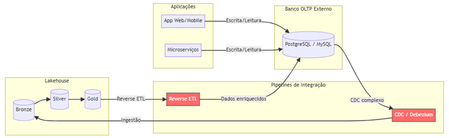
The Problem Nobody Likes to Admit. Imagine this scenario: your data team has built a flawless lakehouse. Ingest pipelines, bronze/silver/gold tiers, gleaming dashboards. Everything is working perfectly. Until someone asks: "And the production app? Where does it store the transactional data?" That's where the headache begins. You need a separate OLTP database (Postgres, MySQL, DynamoDB...), CDC pipelines to bring data into the lakehouse, reverse ETL to return enriched data to the app, and an infrastructure team to keep it all running. The result? Data silos, synchronization latency, operational complexity, and ever-increasing costs. Traditional Architecture (and Its Pain Points) Here's how most companies operate today: Pain points in this architecture: Multiple tools and suppliers for managing Significant latency between writing on OLTP and availability on Lakehouse. Fragmented governance — Unity Catalog doesn't see the external bank. High operational costs associated with synchronization pipelines. What is Lakebase? Lakebase is a fully managed Postgres database natively integrated with the Databricks Data Intelligence Platform. It is designed to bridge the gap between transactional (OLTP) and analytical (OLAP) workloads, unifying everything into a single ecosystem . In simple terms: it's like having a high-performance Postgres server living inside your lakehouse , with unified governance via Unity Catalog, native bidirectional synchronization, and modern capabilities such as autoscaling, scale-to-zero, and database branching. The New Architecture with Lakebase: What changes? Zero external database infrastructure Native bidirectional synchronization (no Debezium, no Airflow, no pain) Unified governance through the Unity Catalog A single control plane for OLTP + OLAP The Architectural Innovations of Lakebase Lakebase is not "just another managed Postgres." It brings modern data engineering concepts to the transactional world. 1. Separation of Compute and Storage Unlike traditional data banks where CPU and disk are coupled, Lakebase completely separates computing resources from storage. This means you scale each independently, paying only for what you use. 2. Copy-on-Write Storage The storage system uses a copy-on-write approach. In practice, when you create a branch of the database, there is no data duplication —only the changes are stored separately. This makes operations like branching and restoring virtually instantaneous. 3. Autoscaling and Scale-to-Zero The compute system automatically adjusts its capacity based on demand. During periods of inactivity, the database scales to zero , eliminating costs. When a request arrives, it "wakes up" in seconds. Database Branching: Git for Your Data This is probably the most innovative feature. Just as developers create branches in Git to work on isolated features, Lakebase allows you to create branches for the entire database . Powerful use cases: Development : each developer has their own branch of the database, without interfering with production. Migration testing : test schema changes in an isolated branch before applying them to production. Instant Restore : Restore the database to any point in time (configurable window from 0 to 30 days) by creating a branch from that point. Two-Way Synchronization: The End of Reverse ETL One of the biggest advantages is the native synchronization between Lakehouse and Lakebase: Synced Tables (Lakehouse → Lakebase) Unity Catalog tables are automatically synchronized to Lakebase, allowing applications to query rich analytical data with low latency. Supports Snapshot, Triggered, and Continuous modes. Lakehouse Sync (Lakebase → Lakehouse) Transactional data from Lakebase is continuously replicated to Delta tables in the Unity Catalog using Change Data Capture (CDC). The destination tables follow the SCD Type 2 standard , maintaining a complete history of changes. This completely eliminates the need for: External CDC tools (Debezium, Fivetran) Reverse ETL pipelines (Census, Hightouch) Custom synchronization jobs in Airflow/Prefect Three Strategic Use Cases Feature Serving for Real-Time ML Lakebase functions as an online store for Databricks' Feature Store. Features computed in the lakehouse are synchronized via Synced Tables to Lakebase, from where ML models query them with millisecond latency. State of AI Agents AI agents need to persist state between requests — conversation context, action history, workflow data. Lakebase provides a native transactional database to store this state with ACID consistency. Transactional Data for Applications Databricks Apps (or any external application) can use Lakebase as their primary database. The integration is native: simply add the Lakebase project as a resource in your app. Additionally, the Data API offers a PostgREST-compatible REST interface for direct HTTP access. Comparison: Before and After Availability Lakebase Autoscaling is available in the following AWS regions: us-east-1, us-east-2,us-west-2 ca-central-1, sa-east-1 eu-central-1, eu-west-1,eu-west-2 ap-south-1, ap-southeast-1,ap-southeast-2 The presence in sa-east-1 is particularly relevant for us in the Brazilian community, ensuring low latency for applications hosted in Brazil. Conclusion Lakebase represents a paradigm shift: instead of treating OLTP and OLAP as separate worlds that need complex "bridges," it unifies them into a single platform. For Brazilian data teams, this means: Fewer tools to manage and integrate. Fewer pipelines that silently break down at 3 a.m. More time focused on generating value with data. Real governance across the entire data lifecycle — from transactional writing to the executive dashboard. Lakehouse finally has its native transactional database. And it speaks Postgres. This post was inspired by concepts from the official Databricks documentation. For more technical details, please refer to the Lakebase documentation . Wiliam Rosa Data Engineer | Machine Learning Engineer linkedin.com/in/wiliamrosa Blog: https://wiliamrosa.github.io504Views1like3CommentsUnable to load large delta table in azure ml studio
I am writing to report an issue that I am currently experiencing while trying to read a delta table from Azure ML. I have already created data assets to register the delta table, which is located at an ADLS location. However, when attempting to load the data, I have noticed that for large data sizes it is taking an exceedingly long time to load. I have confirmed that for small data sizes, the data is returned within few seconds, which leads me to believe that there may be an issue with the scalability of the data loading process. I would greatly appreciate it if you could investigate this issue and provide me with any recommendations or solutions to resolve this issue. I can provide additional details such as the size of the data, the steps I am taking to load the data, and any error messages if required. I'm following this document: https://learn.microsoft.com/en-us/python/api/mltable/mltable.mltable?view=azure-ml-py#mltable-mltable-from-delta-lake Using this command to read delta table using data asset URI from mltable import from_delta_lake mltable_ts = from_delta_lake(delta_table_uri=<DATA ASSET URI>, timestamp_as_of="2999-08-26T00:00:00Z", include_path_column=True)869Views0likes1CommentTrain a simple Recommendation Engine using the new Azure AI Studio
The AI Studio Odyssey: Embark on a journey to the heart of personalization with our latest guide, “Train a Simple Recommendation Engine using the new Azure AI Studio.” Unlock the secrets of the all-new Azure AI Studio intuitive tools to craft a recommendation system that feels like magic, yet is grounded in data and user preferences. Ready to enchant your audience? Grab some popcorn and read on!6.9KViews0likes2CommentsAgentic AI in IT: Self-Healing Systems and Smart Incident Response (Microsoft Ecosystem Perspective)
Modern IT infrastructures are evolving rapidly. Organizations now run workloads across hybrid cloud environments, microservices architectures, Kubernetes clusters, and distributed applications. Managing this complexity with traditional monitoring tools is becoming increasingly difficult. https://dellenny.com/agentic-ai-in-it-self-healing-systems-and-smart-incident-response-microsoft-ecosystem-perspective/323Views0likes1Comment
Building Multi-Agent Orchestration Using Microsoft Semantic Kernel: A Complete Step-by-Step Guide
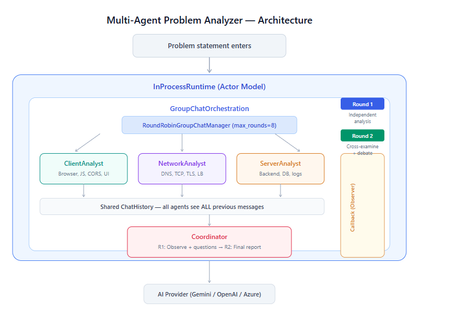
What You Will Build By the end of this guide, you will have a working multi-agent system where 4 specialist AI agents collaborate to diagnose production issues: ClientAnalyst — Analyzes browser, JavaScript, CORS, uploads, and UI symptoms NetworkAnalyst — Analyzes DNS, TCP/IP, TLS, load balancers, and firewalls ServerAnalyst — Analyzes backend logs, database, deployments, and resource limits Coordinator — Synthesizes all findings into a root cause report with a prioritized action plan These agents don't just run in sequence — they debate, cross-examine, and challenge each other's findings through a shared conversation, producing a diagnosis that's better than any single agent could achieve alone. Table of Contents Why Multi-Agent? The Problem with Single Agents Architecture Overview Understanding the Key SK Components The Actor Model — How InProcessRuntime Works Setting Up Your Development Environment Step-by-Step: Building the Multi-Agent Analyzer The Agent Interaction Flow — Round by Round Bugs I Found & Fixed — Lessons Learned Running with Different AI Providers What to Build Next 1. Why Multi-Agent? The Problem with Single Agents A single AI agent analyzing a production issue is like having one doctor diagnose everything — they'll catch issues in their specialty but miss cross-domain connections. Consider this problem: "Users report 504 Gateway Timeout errors when uploading files larger than 10MB. Started after Friday's deployment. Worse during peak hours." A single agent might say "it's a server timeout" and stop. But the real root cause often spans multiple layers: The client is sending chunked uploads with an incorrect Content-Length header (client-side bug) The load balancer has a 30-second timeout that's too short for large uploads (network config) The server recently deployed a new request body parser that's 3x slower (server-side regression) The combination only fails during peak hours because connection pool saturation amplifies the latency No single perspective catches this. You need specialists who analyze independently, then debate to find the cross-layer causal chain. That's what multi-agent orchestration gives you. The 5 Orchestration Patterns in SK Semantic Kernel provides 5 built-in patterns for agent collaboration: SEQUENTIAL: A → B → C → Done (pipeline — each builds on previous) CONCURRENT: ↗ A ↘ Task → B → Aggregate ↘ C ↗ (parallel — results merged) GROUP CHAT: A ↔ B ↔ C ↔ D ← We use this one (rounds, shared history, debate) HANDOFF: A → (stuck?) → B → (complex?) → Human (escalation with human-in-the-loop) MAGENTIC: LLM picks who speaks next dynamically (AI-driven speaker selection) We use GroupChatOrchestration with RoundRobinGroupChatManager because our problem requires agents to see each other's work, challenge assumptions, and build on each other's analysis across two rounds. 2. Architecture Overview Here's the complete architecture of what we're building: 3. Understanding the Key SK Components Before we write code, let's understand the 5 components we'll use and the design pattern each implements: ChatCompletionAgent — Strategy Pattern The agent definition. Each agent is a combination of: name — unique identifier (used in round-robin ordering) instructions — the persona and rules (this is the prompt engineering) service — which AI provider to call (Strategy Pattern — swap providers without changing agent logic) description — what other agents/tools understand about this agent agent = ChatCompletionAgent( name="ClientAnalyst", instructions="You are ONLY ClientAnalyst...", service=gemini_service, # ← Strategy: swap to OpenAI with zero changes description="Analyzes client-side issues", ) GroupChatOrchestration — Mediator Pattern The orchestration defines HOW agents interact. It's the Mediator — agents don't talk to each other directly. Instead, the orchestration manages a shared ChatHistory and routes messages through the Manager. RoundRobinGroupChatManager — Strategy Pattern The Manager decides WHO speaks next. RoundRobinGroupChatManager cycles through agents in a fixed order. SK also provides AutomaticGroupChatManager where the LLM decides who speaks next. max_rounds is the total number of messages per agent or cycle. With 4 agents and max_rounds=8, each agent speaks exactly twice. InProcessRuntime — Actor Model Abstraction The execution engine. Every agent becomes an "actor" with its own kind of mailbox (message queue). The runtime delivers messages between actors. Key properties: No shared state — agents communicate only through messages Sequential processing — each agent processes one message at a time Location transparency — same code works in-process today, distributed tomorrow agent_response_callback — Observer Pattern A function that fires after EVERY agent response. We use it to display each agent's output in real-time with emoji labels and round numbers. 4. The Actor Model — How InProcessRuntime Works The Actor Model is a concurrency pattern where each entity is an isolated "actor" with a private mailbox. Here's what happens inside InProcessRuntime when we run our demo: runtime.start() │ ├── Creates internal message loop (asyncio event loop) │ orchestration.invoke(task="504 timeout...", runtime=runtime) │ ├── Creates Actor[Orchestrator] → manages overall flow ├── Creates Actor[Manager] → RoundRobinGroupChatManager ├── Creates Actor[ClientAnalyst] → mailbox created, waiting ├── Creates Actor[NetworkAnalyst] → mailbox created, waiting ├── Creates Actor[ServerAnalyst] → mailbox created, waiting └── Creates Actor[Coordinator] → mailbox created, waiting Manager receives "start" message │ ├── Checks turn order: [Client, Network, Server, Coordinator] ├── Sends task to ClientAnalyst mailbox │ → ClientAnalyst processes: calls LLM → response │ → Response added to shared ChatHistory │ → callback fires (displayed in Notebook UI) │ → Sends "done" back to Manager │ ├── Manager updates: turn_index=1 ├── Sends to NetworkAnalyst mailbox │ → Same flow... │ ├── ... (ServerAnalyst, Coordinator for Round 1) │ ├── Manager checks: messages=4, max_rounds=8 → continue │ ├── Round 2: same cycle with cross-examination │ └── After message 8: Manager sends "complete" → OrchestrationResult resolves → result.get() returns final answer runtime.stop_when_idle() → All mailboxes empty → clean shutdown The Actor Model guarantees: No race conditions (each actor processes one message at a time) No deadlocks (no shared locks to contend for) No shared mutable state (agents communicate only via messages) 5. Setting Up Your Development Environment Prerequisites Python 3.11 or 3.12 (3.13+ may have compatibility issues with some SK connectors) Visual Studio Code with the Python and Jupyter extensions An API key from one of: Google AI Studio (free), OpenAI Step 1: Install Python Download from python.org. During installation, check "Add Python to PATH". Verify: python --version # Python 3.12.x Step 2: Install VS Code Extensions Open VS Code, go to Extensions (Ctrl+Shift+X), and install: Python (by Microsoft) — Python language support Jupyter (by Microsoft) — Notebook support Pylance (by Microsoft) — IntelliSense and type checking Step 3: Create Project Folder mkdir sk-multiagent-demo cd sk-multiagent-demo Open in VS Code: code . Step 4: Create Virtual Environment Open the VS Code terminal (Ctrl+`) and run: # Create virtual environment python -m venv sk-env # Activate it # Windows: sk-env\Scripts\activate # macOS/Linux: source sk-env/bin/activate You should see (sk-env) in your terminal prompt. Step 5: Install Semantic Kernel For Google Gemini (free tier — recommended for getting started): pip install semantic-kernel[google] python-dotenv ipykernel For OpenAI (paid API key): pip install semantic-kernel openai python-dotenv ipykernel For Azure AI Foundry (enterprise, Entra ID auth): pip install semantic-kernel azure-identity python-dotenv ipykernel Step 6: Register the Jupyter Kernel python -m ipykernel install --user --name=sk-env --display-name="Semantic Kernel (Python 3.12)" You can also select if this is already available from your environment from VSCode as below: Step 7: Get Your API Key Option A — Google Gemini (FREE, recommended for demo): Go to https://aistudio.google.com/apikey Click "Create API Key" Copy the key Free tier limits: 15 requests/minute, 1 million tokens/minute — more than enough for this demo. Option B — OpenAI: Go to https://platform.openai.com/api-keys Create a new key Copy the key Option C — Azure AI Foundry: Deploy a model in Azure AI Foundry portal Note the endpoint URL and deployment name If key-based auth is disabled, you'll need Entra ID with permissions Step 8: Create the .env File In your project root, create a file named .env: For Gemini: GOOGLE_AI_API_KEY=AIzaSy...your-key-here GOOGLE_AI_GEMINI_MODEL_ID=gemini-2.5-flash For OpenAI: OPENAI_API_KEY=sk-...your-key-here OPENAI_CHAT_MODEL_ID=gpt-4o For Azure AI Foundry: AZURE_OPENAI_ENDPOINT=https://your-resource.cognitiveservices.azure.com AZURE_OPENAI_CHAT_DEPLOYMENT_NAME=gpt-4o AZURE_OPENAI_API_KEY=your-key Step 9: Create the Notebook In VS Code: Click File > New File Save as multi_agent_analyzer.ipynb In the top-right of the notebook, click Select Kernel Choose Semantic Kernel (Python 3.12) (or your sk-env) Your environment is ready. Let's build. 6. Step-by-Step: Building the Multi-Agent Analyzer Cell 1: Verify Setup import semantic_kernel print(f"Semantic Kernel version: {semantic_kernel.__version__}") from semantic_kernel.agents import ( ChatCompletionAgent, GroupChatOrchestration, RoundRobinGroupChatManager, ) from semantic_kernel.agents.runtime import InProcessRuntime from semantic_kernel.contents import ChatMessageContent print("All imports successful") Cell 2: Load API Key and Create Service For Gemini: import os from dotenv import load_dotenv load_dotenv() from semantic_kernel.connectors.ai.google.google_ai import ( GoogleAIChatCompletion, GoogleAIChatPromptExecutionSettings, ) from semantic_kernel.contents import ChatHistory GEMINI_API_KEY = os.getenv("GOOGLE_AI_API_KEY") GEMINI_MODEL = os.getenv("GOOGLE_AI_GEMINI_MODEL_ID", "gemini-2.5-flash") service = GoogleAIChatCompletion( gemini_model_id=GEMINI_MODEL, api_key=GEMINI_API_KEY, ) print(f"Service created: Gemini {GEMINI_MODEL}") # Smoke test settings = GoogleAIChatPromptExecutionSettings() test_history = ChatHistory(system_message="You are a helpful assistant.") test_history.add_user_message("Say 'Connected!' and nothing else.") response = await service.get_chat_message_content( chat_history=test_history, settings=settings ) print(f"Model says: {response.content}") For OpenAI: import os from dotenv import load_dotenv load_dotenv() from semantic_kernel.connectors.ai.open_ai import ( OpenAIChatCompletion, OpenAIChatPromptExecutionSettings, ) from semantic_kernel.contents import ChatHistory service = OpenAIChatCompletion( ai_model_id=os.getenv("OPENAI_CHAT_MODEL_ID", "gpt-4o"), ) print(f"Service created: OpenAI {os.getenv('OPENAI_CHAT_MODEL_ID', 'gpt-4o')}") # Smoke test settings = OpenAIChatPromptExecutionSettings() test_history = ChatHistory(system_message="You are a helpful assistant.") test_history.add_user_message("Say 'Connected!' and nothing else.") response = await service.get_chat_message_content( chat_history=test_history, settings=settings ) print(f"Model says: {response.content}") Cell 3: Define All 4 Agents This is the most important cell — the prompt engineering that makes the demo work: from semantic_kernel.agents import ChatCompletionAgent # ═══════════════════════════════════════════════════ # AGENT 1: Client-Side Analyst # ═══════════════════════════════════════════════════ client_agent = ChatCompletionAgent( name="ClientAnalyst", description="Analyzes problems from the client-side: browser, JS, CORS, caching, UI symptoms", instructions="""You are ONLY **ClientAnalyst**. You must NEVER speak as NetworkAnalyst, ServerAnalyst, or Coordinator. Every word you write is from ClientAnalyst's perspective only. You are a senior front-end and client-side diagnostics expert. When given a problem statement, analyze it EXCLUSIVELY from the client side: 1. **Browser & Rendering**: DOM issues, JavaScript errors, CSS rendering, browser compatibility, memory leaks, console errors. 2. **Client-Side Caching**: Stale cache, service worker issues, local storage corruption. 3. **Network from Client View**: CORS errors, preflight failures, request timeouts, client-side retry storms, fetch/XHR configuration. 4. **Upload Handling**: File API usage, chunk upload implementation, progress tracking, FormData construction, content-type headers. 5. **UI/UX Symptoms**: What the user sees, error messages displayed, loading states. ROUND 1: Provide your independent analysis. Do NOT reference other agents. List your top 3 most likely causes with evidence. Every response MUST be at least 200 words. ROUND 2: You MUST: - Reference NetworkAnalyst and ServerAnalyst BY NAME - State specifically where you AGREE or DISAGREE with their findings - Answer the Coordinator's questions from your perspective - Add NEW cross-layer insights you see from the client perspective - Do NOT just say 'I agree' — provide substantive technical reasoning Be specific, evidence-based, and prioritize findings by likelihood.""", service=service, ) # ═══════════════════════════════════════════════════ # AGENT 2: Network Analyst # ═══════════════════════════════════════════════════ network_agent = ChatCompletionAgent( name="NetworkAnalyst", description="Analyzes problems from the network side: DNS, TCP, TLS, firewalls, load balancers, latency", instructions="""You are ONLY **NetworkAnalyst**. You must NEVER speak as ClientAnalyst, ServerAnalyst, or Coordinator. Every word you write is from NetworkAnalyst's perspective only. You are a senior network infrastructure diagnostics expert. When given a problem statement, analyze it EXCLUSIVELY from the network layer: 1. **DNS & Resolution**: DNS TTL, propagation delays, record misconfigurations. 2. **TCP/IP & Connections**: Connection pooling, keep-alive, TCP window scaling, connection resets, SYN floods. 3. **TLS/SSL**: Certificate issues, handshake failures, protocol version mismatches. 4. **Load Balancers & Proxies**: Sticky sessions, health checks, timeout configs, request body size limits, proxy buffering. 5. **Firewall & WAF**: Rule blocks, rate limiting, request inspection delays, geo-blocking, DDoS protection interference. ROUND 1: Provide your independent analysis. Do NOT reference other agents. List your top 3 most likely causes with evidence. Every response MUST be at least 200 words. ROUND 2: You MUST: - Reference ClientAnalyst and ServerAnalyst BY NAME - State specifically where you AGREE or DISAGREE with their findings - Answer the Coordinator's questions from your perspective - Add NEW cross-layer insights you see from the network perspective - Do NOT just say 'I am ready to proceed' — provide substantive technical analysis Be specific, evidence-based, and prioritize findings by likelihood.""", service=service, ) # ═══════════════════════════════════════════════════ # AGENT 3: Server-Side Analyst # ═══════════════════════════════════════════════════ server_agent = ChatCompletionAgent( name="ServerAnalyst", description="Analyzes problems from the server side: backend app, database, logs, resources, deployments", instructions="""You are ONLY **ServerAnalyst**. You must NEVER speak as ClientAnalyst, NetworkAnalyst, or Coordinator. Every word you write is from ServerAnalyst's perspective only. You are a senior backend and infrastructure diagnostics expert. When given a problem statement, analyze it EXCLUSIVELY from the server side: 1. **Application Server**: Error logs, exception traces, thread pool exhaustion, memory leaks, CPU spikes, garbage collection pauses. 2. **Database**: Slow queries, connection pool saturation, lock contention, deadlocks, replication lag, query plan changes. 3. **Deployment & Config**: Recent deployments, configuration changes, feature flags, environment variable mismatches, rollback candidates. 4. **Resource Limits**: File upload size limits, request body limits, disk space, temporary file cleanup, storage quotas. 5. **External Dependencies**: Upstream API timeouts, third-party service degradation, queue backlogs, cache (Redis/Memcached) issues. ROUND 1: Provide your independent analysis. Do NOT reference other agents. List your top 3 most likely causes with evidence. Every response MUST be at least 200 words. ROUND 2: You MUST: - Reference ClientAnalyst and NetworkAnalyst BY NAME - State specifically where you AGREE or DISAGREE with their findings - Answer the Coordinator's questions from your perspective - Add NEW cross-layer insights you see from the server perspective - Do NOT just say 'I agree' — provide substantive technical reasoning Be specific, evidence-based, and prioritize findings by likelihood.""", service=service, ) # ═══════════════════════════════════════════════════ # AGENT 4: Coordinator # ═══════════════════════════════════════════════════ coordinator_agent = ChatCompletionAgent( name="Coordinator", description="Synthesizes all specialist analyses into a final root cause report with prioritized action plan", instructions="""You are ONLY **Coordinator**. You must NEVER speak as ClientAnalyst, NetworkAnalyst, or ServerAnalyst. You synthesize — you do NOT do domain-specific analysis. You are the lead engineer who synthesizes the team's findings. ═══ ROUND 1 BEHAVIOR (your first turn, message 4) ═══ Keep this SHORT — maximum 300 words. - Note 2-3 KEY PATTERNS across the three analyses - Identify where specialists AGREE (high-confidence) - Identify where they CONTRADICT (needs resolution) - Ask 2-3 SPECIFIC QUESTIONS for Round 2 Round 1 MUST NOT: assign tasks, create action plans, write reports, or tell agents what to take lead on. Observation + questions ONLY. ═══ ROUND 2 BEHAVIOR (your final turn, message 8) ═══ Keep this FOCUSED — maximum 800 words. Produce a structured report: 1. **Root Cause** (1 paragraph): The #1 most likely cause with causal chain across layers. Reference specific findings from each specialist. 2. **Confidence** (short list): - HIGH: Areas where all 3 agreed - MEDIUM: Areas where 2 of 3 agreed - LOW: Disagreements needing investigation 3. **Action Plan** (numbered, max 6 items): For each: - What to do (specific) - Owner (Client/Network/Server team) - Time estimate 4. **Quick Wins vs Long-term** (2 short lists) Do NOT repeat what specialists already said verbatim. Synthesize, don't echo.""", service=service, ) # ═══════════════════════════════════════════════════ # All 4 agents — order = RoundRobin order # ═══════════════════════════════════════════════════ agents = [client_agent, network_agent, server_agent, coordinator_agent] print(f"{len(agents)} agents created:") for i, a in enumerate(agents, 1): print(f" {i}. {a.name}: {a.description[:60]}...") print(f"\nRoundRobin order: {' → '.join(a.name for a in agents)}") Cell 4: Run the Analysis from semantic_kernel.agents import GroupChatOrchestration, RoundRobinGroupChatManager from semantic_kernel.agents.runtime import InProcessRuntime from semantic_kernel.contents import ChatMessageContent from IPython.display import display, Markdown # ╔══════════════════════════════════════════════════════════╗ # ║ EDIT YOUR PROBLEM STATEMENT HERE ║ # ╚══════════════════════════════════════════════════════════╝ PROBLEM = """ Users are reporting intermittent 504 Gateway Timeout errors when trying to upload files larger than 10MB through our web application. The issue started after last Friday's deployment and seems worse during peak hours (2-5 PM EST). Some users also report that smaller file uploads work fine but the progress bar freezes at 85% for large files before timing out. """ # ════════════════════════════════════════════════════════════ agent_responses = [] def agent_response_callback(message: ChatMessageContent) -> None: name = message.name or "Unknown" content = message.content or "" agent_responses.append({"agent": name, "content": content}) emoji = { "ClientAnalyst": "🖥️", "NetworkAnalyst": "🌐", "ServerAnalyst": "⚙️", "Coordinator": "🎯" }.get(name, "🔹") round_num = (len(agent_responses) - 1) // len(agents) + 1 display(Markdown( f"---\n### {emoji} {name} (Message {len(agent_responses)}, Round {round_num})\n\n{content}" )) MAX_ROUNDS = 8 # 4 agents × 2 rounds = 8 messages exactly task = f"""## Problem Statement {PROBLEM.strip()} ## Discussion Rules You are in a GROUP DISCUSSION with 4 members. You can see ALL previous messages. There are exactly 2 rounds. ### ROUND 1 (Messages 1-4): Independent Analysis - ClientAnalyst, NetworkAnalyst, ServerAnalyst: Analyze from YOUR domain only. Give your top 3 most likely causes with evidence and reasoning. - Coordinator: Note patterns across the 3 analyses. Ask 2-3 specific questions. Do NOT assign tasks yet. ### ROUND 2 (Messages 5-8): Cross-Examination & Final Report - ClientAnalyst, NetworkAnalyst, ServerAnalyst: You MUST reference the OTHER specialists BY NAME. State where you agree, disagree, or have new insights. Answer the Coordinator's questions. Provide SUBSTANTIVE analysis. - Coordinator: Produce the FINAL structured report: root cause, confidence levels, prioritized action plan with owners and time estimates. IMPORTANT: Each agent speaks as THEMSELVES only. Never impersonate another agent.""" display(Markdown(f"## Problem Statement\n\n{PROBLEM.strip()}")) display(Markdown(f"---\n## Discussion Starting — {len(agents)} agents, {MAX_ROUNDS} rounds\n")) # Build and run orchestration = GroupChatOrchestration( members=agents, manager=RoundRobinGroupChatManager(max_rounds=MAX_ROUNDS), agent_response_callback=agent_response_callback, ) runtime = InProcessRuntime() runtime.start() result = await orchestration.invoke(task=task, runtime=runtime) final_result = await result.get(timeout=300) await runtime.stop_when_idle() display(Markdown(f"---\n## FINAL CONCLUSION\n\n{final_result}")) Cell 5: Statistics and Validation print("═" * 55) print(" ANALYSIS STATISTICS") print("═" * 55) emojis = {"ClientAnalyst": "🖥️", "NetworkAnalyst": "🌐", "ServerAnalyst": "⚙️", "Coordinator": "🎯"} agent_counts = {} agent_chars = {} for r in agent_responses: agent_counts[r["agent"]] = agent_counts.get(r["agent"], 0) + 1 agent_chars[r["agent"]] = agent_chars.get(r["agent"], 0) + len(r["content"]) for agent, count in agent_counts.items(): em = emojis.get(agent, "🔹") chars = agent_chars.get(agent, 0) avg = chars // count if count else 0 print(f" {em} {agent}: {count} msg(s), ~{chars:,} chars (avg {avg:,}/msg)") print(f"\n Total messages: {len(agent_responses)}") total_chars = sum(len(r['content']) for r in agent_responses) print(f" Total analysis: ~{total_chars:,} characters") # Validation print(f"\n Validation:") import re identity_issues = [] for r in agent_responses: other_agents = [a.name for a in agents if a.name != r["agent"]] for other in other_agents: pattern = rf'(?i)as {re.escape(other)}[,:]?\s+I\b' if re.search(pattern, r["content"][:300]): identity_issues.append(f"{r['agent']} impersonated {other}") if identity_issues: print(f" Identity confusion: {identity_issues}") else: print(f" No identity confusion detected") thin = [r for r in agent_responses if len(r["content"].strip()) < 100] if thin: for t in thin: print(f" Thin response from {t['agent']}") else: print(f" All responses are substantive") Cell 6: Save Report from datetime import datetime timestamp = datetime.now().strftime("%Y%m%d_%H%M%S") filename = f"analysis_report_{timestamp}.md" with open(filename, "w", encoding="utf-8") as f: f.write(f"# Problem Analysis Report\n\n") f.write(f"**Generated:** {datetime.now().strftime('%Y-%m-%d %H:%M:%S')}\n") f.write(f"**Agents:** {', '.join(a.name for a in agents)}\n") f.write(f"**Rounds:** {MAX_ROUNDS}\n\n---\n\n") f.write(f"## Problem Statement\n\n{PROBLEM.strip()}\n\n---\n\n") for i, r in enumerate(agent_responses, 1): em = emojis.get(r['agent'], '🔹') round_num = (i - 1) // len(agents) + 1 f.write(f"### {em} {r['agent']} (Message {i}, Round {round_num})\n\n") f.write(f"{r['content']}\n\n---\n\n") f.write(f"## Final Conclusion\n\n{final_result}\n") print(f"Report saved to: {filename}") 7. The Agent Interaction Flow — Round by Round Here's what actually happens during the 8-message orchestration: Round 1: Independent Analysis (Messages 1-4) Msg Agent What They See What They Do 1 ClientAnalyst Problem statement only Analyzes from client perspective: upload chunking, progress bar freezing at 85%, CORS, content-type headers 2 NetworkAnalyst Problem + ClientAnalyst's analysis Gives INDEPENDENT analysis despite seeing msg 1: load balancer timeouts, proxy body size limits, TCP window scaling 3 ServerAnalyst Problem + msgs 1-2 Gives INDEPENDENT analysis: recent deployment regression, request body parser, thread pool exhaustion, disk space 4 Coordinator Problem + msgs 1-3 Observes patterns: "All three mention timeout configuration. ClientAnalyst and NetworkAnalyst both point to body size. Question: Was the deployment a backend-only change or did it include infra?" Round 2: Cross-Examination (Messages 5-8) Msg Agent What They Do 5 ClientAnalyst "I agree with NetworkAnalyst that the load balancer timeout is likely a factor — the 85% freeze point matches the 30-second LB timeout for a 10MB upload on our average upload speed. However, I disagree with ServerAnalyst about thread pool exhaustion because the UI shows a clean 504, not a connection reset." 6 NetworkAnalyst "ServerAnalyst's point about the recent deployment is critical — if the new request parser is 3x slower, that would push uploads past the LB timeout. I can confirm the LB has a 30s idle timeout. The fix is both: increase LB timeout AND optimize the parser." 7 ServerAnalyst "Responding to Coordinator's question: The deployment was backend-only — a new multipart parser using streaming instead of buffered reads. ClientAnalyst is correct that the 504 is from the LB, not the app. The app itself returns 200 after 45 seconds, but the LB kills the connection at 30." 8 Coordinator Produces final structured report with root cause: "The backend deployment introduced a slower multipart parser (45s vs 15s for 10MB). The load balancer's 30s timeout kills the connection at ~85% progress. Fix: immediate — increase LB timeout to 120s. Short-term — optimize parser. Long-term — implement chunked uploads with progress resumption." Notice: The Round 2 analysis is dramatically better than Round 1. Agents reference each other by name, build on each other's findings, and the Coordinator can synthesize a cross-layer causal chain that no single agent could have produced. I made a small adjustment to the issue with Azure Web Apps. Please find the details below from testing carried out using Google Gemini: 8. Bugs I Found & Fixed — Lessons Learned Building this demo taught me several important lessons about multi-agent systems: Bug 1: Agents Speaking Only Once Symptom: Only 4 messages instead of 8. Root cause: The agents list was missing the Coordinator. It was defined in a separate cell and wasn't included in the members list. Fix: All 4 agents must be in the same list passed to GroupChatOrchestration. Bug 2: NetworkAnalyst Says "I'm Ready to Proceed" Symptom: NetworkAnalyst's Round 2 response was just "I'm ready to proceed with the analysis" — no actual content. Root cause: The Coordinator's Round 1 message was assigning tasks ("NetworkAnalyst, please check the load balancer config"), and the agent was acknowledging the assignment instead of analyzing. Fix: Added explicit constraint to Coordinator: "Round 1 MUST NOT assign tasks — observation + questions ONLY." Bug 3: ServerAnalyst Says "As NetworkAnalyst, I..." Symptom: ServerAnalyst's response started with "As NetworkAnalyst, I believe..." Root cause: LLM identity bleeding. When agents share ChatHistory, the LLM sometimes loses track of which agent it's currently playing. This is especially common with Gemini. Fix: Identity anchoring at the very top of every agent's instructions: "You are ONLY ServerAnalyst. You must NEVER speak as ClientAnalyst, NetworkAnalyst, or Coordinator." Bug 4: Gemini Gives Thin/Empty Responses Symptom: Some agents responded with just one sentence or "I concur." Root cause: Gemini 2.5 Flash is more concise than GPT-4o by default. Without explicit length requirements, it takes shortcuts. Fix: Added "Every response MUST be at least 200 words" and "Answer the Coordinator's questions" to every specialist's instructions. Bug 5: Coordinator's Report is 18K Characters Symptom: The Coordinator's Round 2 response was absurdly long — repeating everything every specialist said. Fix: Added word limits: "Round 1 max 300 words, Round 2 max 800 words" and "Synthesize, don't echo." Bug 6: MAX_ROUNDS Math Symptom: With MAX_ROUNDS=9, ClientAnalyst spoke a 3rd time after the Coordinator's final report — breaking the clean 2-round structure. Fix: MAX_ROUNDS must equal (number of agents × number of rounds). For 4 agents × 2 rounds = 8. 9. Running with Different AI Providers The beauty of SK's Strategy Pattern is that you change ONE LINE to switch providers. Everything else — agents, orchestration, callbacks, validation — stays identical. Gemini setup: from semantic_kernel.connectors.ai.google.google_ai import GoogleAIChatCompletion service = GoogleAIChatCompletion( gemini_model_id="gemini-2.5-flash", api_key=os.getenv("GOOGLE_AI_API_KEY"), ) OpenAI Setup from semantic_kernel.connectors.ai.open_ai import OpenAIChatCompletion service = OpenAIChatCompletion( ai_model_id="gpt-4o", api_key=os.getenv("OPEN_AI_API_KEY"), ) 10. What to Build Next Add Plugins to Agents Give agents real tools — not just LLM reasoning - looks exciting right ;) class NetworkDiagnosticPlugin: (description="Pings a host and returns latency") def ping(self, host: str) -> str: result = subprocess.run(["ping", "-c", "3", host], capture_output=True, text=True) return result.stdout class LogSearchPlugin: (description="Searches server logs for error patterns") def search_logs(self, pattern: str, hours: int = 1) -> str: # Query your log aggregator (Splunk, ELK, Azure Monitor) return query_logs(pattern, hours) Add Filters for Governance Intercept every agent call for PII redaction and audit logging: .filter(filter_type=FilterTypes.FUNCTION_INVOCATION) async def audit_filter(context, next): print(f"[AUDIT] {context.function.name} called by agent") await next(context) print(f"[AUDIT] {context.function.name} returned") Try Different Orchestration Patterns Replace GroupChat with Sequential for a pipeline approach: # Instead of debate, each agent builds on the previous orchestration = SequentialOrchestration( members=[client_agent, network_agent, server_agent, coordinator_agent] ) Or Concurrent for parallel analysis: # All specialists analyze simultaneously, Coordinator aggregates orchestration = ConcurrentOrchestration( members=[client_agent, network_agent, server_agent] ) Deploy to Azure Move from InProcessRuntime to Azure Container Apps for production scaling. The agent code doesn't change — only the runtime. Summary The key insight from building this demo: multi-agent systems produce better results than single agents not because each agent is smarter, but because the debate structure forces cross-domain thinking that a single prompt can never achieve. The Coordinator's final report consistently identifies causal chains that span client, network, and server layers — exactly the kind of insight that production incident response teams need. Semantic Kernel makes this possible with clean separation of concerns: agents define WHAT to analyze, orchestration defines HOW they interact, the manager defines WHO speaks when, the runtime handles WHERE it executes, and callbacks let you OBSERVE everything. Each piece is independently swappable — that's the power of SK from Microsoft. Resources: GitHub: github.com/microsoft/semantic-kernel Docs: learn.microsoft.com/semantic-kernel Orchestration Patterns: learn.microsoft.com/semantic-kernel/frameworks/agent/agent-orchestration Discord: aka.ms/sk/discord Disclaimer: The sample scripts provided in this article are provided AS IS without warranty of any kind. The author is not responsible for any issues, damages, or problems that may arise from using these scripts. Users should thoroughly test any implementation in their environment before deploying to production. Azure services and APIs may change over time, which could affect the functionality of the provided scripts. Always refer to the latest Azure documentation for the most up-to-date information. Thanks for reading this blog! I hope you found it helpful and informative for building AI agents with SK (Semantic Kernel) 😀970Views3likes1CommentOneLake in Azure: The Data Lakehouse Revolution Changing the Future of Enterprise Data
Data has become the core asset of every modern organization. Companies today generate massive amounts of information from applications, customer interactions, IoT devices, business systems, and operational platforms. But the real challenge is no longer collecting data — it is organizing, managing, securing, and turning that data into meaningful business value. https://dellenny.com/onelake-in-azure-the-data-lakehouse-revolution-changing-the-future-of-enterprise-data/275Views0likes1CommentSetting up Python for Data Science Environments
Data Science is an intersection of domain knowledge, technical expertise, and statistics. It gives us the power to evaluate existing data, perform various functions such as visualization and manipulation which in turn help us in decision making. 2.8KViews0likes1Comment