machine learning
3 TopicsDeploy Secure Azure AI Studio with a Managed Virtual Network
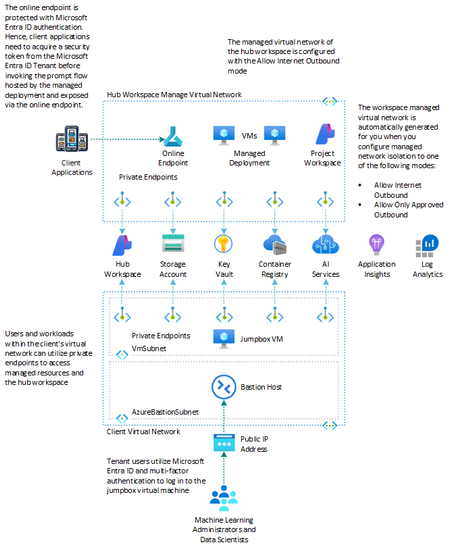
This article and the companion sample demonstrates how to set up an Azure AI Studio environment with managed identity and Azure RBAC to connected Azure AI Services and dependent resources and with the managed virtual network isolation mode set to Allow Internet Outbound. For more information, see How to configure a managed network for Azure AI Studio hubs. For more information, see: Azure AI Studio Documentation Azure Resources You can use the Bicep templates in this GitHub repository to deploy the following Azure resources: Resource Type Description Azure Application Insights Microsoft.Insights/components An Azure Application Insights instance associated with the Azure AI Studio workspace Azure Monitor Log Analytics Microsoft.OperationalInsights/workspaces An Azure Log Analytics workspace used to collect diagnostics logs and metrics from Azure resources Azure Key Vault Microsoft.KeyVault/vaults An Azure Key Vault instance associated with the Azure AI Studio workspace Azure Storage Account Microsoft.Storage/storageAccounts An Azure Storage instance associated with the Azure AI Studio workspace Azure Container Registry Microsoft.ContainerRegistry/registries An Azure Container Registry instance associated with the Azure AI Studio workspace Azure AI Hub / Project Microsoft.MachineLearningServices/workspaces An Azure AI Studio Hub and Project (Azure ML Workspace of kind 'hub' and 'project') Azure AI Services Microsoft.CognitiveServices/accounts An Azure AI Services as the model-as-a-service endpoint provider including GPT-4o and ADA Text Embeddings model deployments Azure Virtual Network Microsoft.Network/virtualNetworks A bring-your-own (BYO) virtual network hosting a jumpbox virtual machine to manage Azure AI Studio Azure Bastion Host Microsoft.Network/virtualNetworks A Bastion Host defined in the BYO virtual network that provides RDP connectivity to the jumpbox virtual machine Azure NAT Gateway Microsoft.Network/natGateways An Azure NAT Gateway that provides outbound connectivity to the jumpbox virtual machine Azure Private Endpoints Microsoft.Network/privateEndpoints Azure Private Endpoints defined in the BYO virtual network for Azure Container Registry, Azure Key Vault, Azure Storage Account, and Azure AI Hub Workspace Azure Private DNS Zones Microsoft.Network/privateDnsZones Azure Private DNS Zones are used for the DNS resolution of the Azure Private Endpoints You can select a different version of the GPT model by specifying the openAiDeployments parameter in the main.bicepparam parameters file. For details on the models available in various Azure regions, please refer to the Azure OpenAI Service models documentation. The default deployment includes an Azure Container Registry resource. However, if you wish not to deploy an Azure Container Registry, you can simply set the acrEnabled parameter to false . Network isolation architecture and isolation modes When you enable managed virtual network isolation, a managed virtual network is created for the hub workspace. Any managed compute resources you create for the hub, for example the virtual machines of online endpoint managed deployment, will automatically use this managed virtual network. The managed virtual network can also utilize Azure Private Endpoints for Azure resources that your hub depends on, such as Azure Storage, Azure Key Vault, and Azure Container Registry. There are three different configuration modes for outbound traffic from the managed virtual network: Outbound mode Description Scenarios Allow internet outbound Allow all internet outbound traffic from the managed virtual network. You want unrestricted access to machine learning resources on the internet, such as python packages or pretrained models. Allow only approved outbound Outbound traffic is allowed by specifying service tags. You want to minimize the risk of data exfiltration, but you need to prepare all required machine learning artifacts in your private environment. * You want to configure outbound access to an approved list of services, service tags, or FQDNs. Disabled Inbound and outbound traffic isn't restricted. You want public inbound and outbound from the hub. The Bicep templates in the companion sample demonstrate how to deploy an Azure AI Studio environment with the hub workspace's managed network isolation mode configured to Allow Internet Outbound . The Azure Private Endpoints and Private DNS Zones in the hub workspace managed virtual network are automatically created for you, while the Bicep templates create the Azure Private Endpoints and relative Private DNS Zones in the client virtual network. Managed Virtual Network When you provision the hub workspace of your Azure AI Studio with an isolation mode equal to the Allow Internet Outbound isolation mode, the managed virtual network and the Azure Private Endpoints to the dependent resources will not be created if public network access of Azure Key Vault, Azure Container Registry, and Azure Storage Account dependent resources is enabled. The creation of the managed virtual network is deferred until a compute resource is created or provisioning is manually started. When allowing automatic creation, it can take around 30 minutes to create the first compute resource as it is also provisioning the network. For more information, see Manually provision workspace managed VNet. If you initially create Azure Key Vault, Azure Container Registry, and Azure Storage Account dependent resources with public network enabled and then decide to disable it later, the managed virtual network will not be automatically provisioned if it is not already provisioned, and the private endpoints to the dependent resources will not be created. In this case, if you want o create the private endpoints to the dependent resources, you need to reprovision the hub manage virtual network in one of the following ways: Redeploy the hub workspace using Bicep or Terraform templates. If the isolation mode is set to Allow Internet Outbound and the dependent resources referenced by the hub workspace have public network access disabled, this operation will trigger the creation of the managed virtual network, if it does not already exist, and the private endpoints to the dependent resources. Execute the following Azure CLI command az ml workspace provision-network to reprovision the managed virtual network. The private endpoints will be created with the managed virtual network if the public network access of the dependent resources is disabled. az ml workspace provision-network --name my_hub_workspace_name --resource-group At this time, it's not possible to directly access the managed virtual network via the Azure CLI or the Azure Portal. You can see the managed virtual network indirectly by looking at the private endpoints, if any, under the hub workspace. You can proceed as follows: Go to the Azure Portal and select your Azure AI hub. Click on Settings and then Networking . Open the Workspace managed outbound access tab. Expand the section titled Required outbound rules . Here, you will find the private endpoints that are connected to the resources within the hub managed virtual network. Ensure that these private endpoints are active. You can also see the private endpoints hosted by the manage virtual network of your hub workspace inside the Networking settings of individual dependent resources, for example Key Vault: Go to the Azure Portal and select your Azure Key Vault. Click on Settings and then Networking . Open the Private endpoint connections tab. Here, you will find the private endpoint created by the Bicep templates in the client virtual network along with the private endpoint created in the hub managed virtual network of the hub. Also note that when you create a hub workspace with the Allow Internet Outbound isolation mode, the creation of the managed network is not immediate to save costs. The managed virtual network needs to be manually triggered via the az ml workspace provision-network command, or it will be triggered when you create a compute resource or private endpoints to dependent resources. At this time, the creation of an online endpoint does not automatically trigger the creation of a managed virtual network. An error occurs if you try to create an online deployment under the workspace which enabled workspace managed VNet but the managed VNet is not provisioned yet. Workspace managed VNet should be provisioned before you create an online deployment. Follow instructions to manually provision the workspace managed VNet. Once completed, you may start creating online deployments. For more information, see Network isolation with managed online endpoint and Secure your managed online endpoints with network isolation. Limitations The current limitations of managed virtual network are: Azure AI Studio currently doesn't support bringing your own virtual network, it only supports managed virtual network isolation. Once you enable managed virtual network isolation of your Azure AI, you can't disable it. Managed virtual network uses private endpoint connections to access your private resources. You can't have a private endpoint and a service endpoint at the same time for your Azure resources, such as a storage account. We recommend using private endpoints in all scenarios. The managed virtual network is deleted when the Azure AI is deleted. Data exfiltration protection is automatically enabled for the only approved outbound mode. If you add other outbound rules, such as to FQDNs, Microsoft can't guarantee that you're protected from data exfiltration to those outbound destinations. Using FQDN outbound rules increases the cost of the managed virtual network because FQDN rules use Azure Firewall. For more information, see Pricing. FQDN outbound rules only support ports 80 and 443. When using a compute instance with a managed network, use the az ml compute connect-ssh command to connect to the compute using SSH. Pricing According to the documentation, the hub managed virtual network feature is free. However, you will be charged for the following resources used by the managed virtual network: Azure Private Link - Private endpoints used to secure communications between the managed virtual network and Azure resources rely on Azure Private Link. For more information on pricing, see Azure Private Link pricing. FQDN outbound rules - FQDN outbound rules are implemented using Azure Firewall. If you use outbound FQDN rules, charges for Azure Firewall are included in your billing. Azure Firewall SKU is standard. Azure Firewall is provisioned per hub. NOTE The firewall isn't created until you add an outbound FQDN rule. If you don't use FQDN rules, you will not be charged for Azure Firewall. For more information on pricing, see Azure Firewall pricing. Secure Access to the Jumpbox Virtual Machine The jumpbox virtual machine is deployed with Windows 11 operating system and the Microsoft.Azure.ActiveDirectory VM extension, a specialized extension for integrating Azure virtual machines (VMs) with Microsoft Entra ID. This integration provides several key benefits, particularly in enhancing security and simplifying access management. Here's an overview of what the Microsoft.Azure.ActiveDirectory VM extension offers: Microsoft.Azure.ActiveDirectory VM extension is specialized for integrating Azure virtual machines (VMs) with Microsoft Entra ID. This integration provides several key benefits, particularly in enhancing security and simplifying access management. Here's an overview of the features and benefits of this VM extension: Enables users to sign in to a Windows or Linux virtual machine using their Microsoft Entra ID credentials. Facilitates single sign-on (SSO) experiences, reducing the need for managing separate local VM accounts. Supports multi-factor authentication, increasing security by requiring additional verification steps during login. Integrates with Azure RBAC, allowing administrators to assign specific roles to users, thereby controlling the level of access and permissions on the virtual machine. Allows administrators to apply conditional access policies to the VM, enhancing security by enforcing controls such as trusted device requirements, location-based access, and more. Eliminates the need to manage local administrator accounts, simplifying VM management and reducing overhead. For more information, see Sign in to a Windows virtual machine in Azure by using Microsoft Entra ID including passwordless. Make sure to enforce multi-factor authentication on your user account in your Microsoft Entra ID Tenant, as shown in the following screenshot: Then, specify at least an authentication method in addition to the password for the user account, for example the phone number, as shown in the following screenshot: To log in to the jumpbox virtual machine using a Microsoft Entra ID tenant user, you need to assign one of the following Azure roles to determine who can access the VM. To assign these roles, you must have the Virtual Machine Data Access Administrator role, or any role that includes the Microsoft.Authorization/roleAssignments/write action, such as the Role Based Access Control Administrator role. If you choose a role other than the Virtual Machine Data Access Administrator, it is recommended to add a condition to limit the permission to create role assignments. Virtual Machine Administrator Login: Users who have this role assigned can sign in to an Azure virtual machine with administrator privileges. Virtual Machine User Login: Users who have this role assigned can sign in to an Azure virtual machine with regular user privileges. To allow a user to sign in to the jumpbox virtual machine over RDP, you must assign the Virtual Machine Administrator Login or Virtual Machine User Login role to the user at the subscription, resource group, or virtual machine level. The virtualMachine.bicep module assigns the Virtual Machine Administrator Login to the user identified by the userObjectId parameter. To log in to the jumpbox virtual machine via Azure Bastion Host using a Microsoft Entra ID tenant user with multi-factor authentication, you can use the az network bastion rdp command as follows: az network bastion rdp \ --name <bastion-host-name> \ --resource-group <resource-group-name> \ --target-resource-id <virtual-machine-resource-id> \ --auth-type AAD After logging in to the virtual machine, if you open the Edge browser and navigate to the Azure Portal or Azure AI Studio, the browser profile will automatically be configured to the tenant user account used for the VM login. Bicep Parameters Specify a value for the required parameters in the main.bicepparam parameters file before deploying the Bicep modules. Here is the markdown table extrapolating the name, type, and description of the parameters from the provided Bicep code: Name Type Description prefix string Specifies the name prefix for all the Azure resources. suffix string Specifies the name suffix for all the Azure resources. location string Specifies the location for all the Azure resources. hubName string Specifies the name Azure AI Hub workspace. hubFriendlyName string Specifies the friendly name of the Azure AI Hub workspace. hubDescription string Specifies the description for the Azure AI Hub workspace displayed in Azure AI Studio. hubIsolationMode string Specifies the isolation mode for the managed network of the Azure AI Hub workspace. hubPublicNetworkAccess string Specifies the public network access for the Azure AI Hub workspace. connectionAuthType string Specifies the authentication method for the OpenAI Service connection. systemDatastoresAuthMode string Determines whether to use credentials for the system datastores of the workspace workspaceblobstore and workspacefilestore. projectName string Specifies the name for the Azure AI Studio Hub Project workspace. projectFriendlyName string Specifies the friendly name for the Azure AI Studio Hub Project workspace. projectPublicNetworkAccess string Specifies the public network access for the Azure AI Project workspace. logAnalyticsName string Specifies the name of the Azure Log Analytics resource. logAnalyticsSku string Specifies the service tier of the workspace: Free, Standalone, PerNode, Per-GB. logAnalyticsRetentionInDays int Specifies the workspace data retention in days. applicationInsightsName string Specifies the name of the Azure Application Insights resource. aiServicesName string Specifies the name of the Azure AI Services resource. aiServicesSku object Specifies the resource model definition representing SKU. aiServicesIdentity object Specifies the identity of the Azure AI Services resource. aiServicesCustomSubDomainName string Specifies an optional subdomain name used for token-based authentication. aiServicesDisableLocalAuth bool Specifies whether to disable the local authentication via API key. aiServicesPublicNetworkAccess string Specifies whether or not public endpoint access is allowed for this account. openAiDeployments array Specifies the OpenAI deployments to create. keyVaultName string Specifies the name of the Azure Key Vault resource. keyVaultNetworkAclsDefaultAction string Specifies the default action of allow or deny when no other rules match for the Azure Key Vault resource. keyVaultEnabledForDeployment bool Specifies whether the Azure Key Vault resource is enabled for deployments. keyVaultEnabledForDiskEncryption bool Specifies whether the Azure Key Vault resource is enabled for disk encryption. keyVaultEnabledForTemplateDeployment bool Specifies whether the Azure Key Vault resource is enabled for template deployment. keyVaultEnableSoftDelete bool Specifies whether soft delete is enabled for this Azure Key Vault resource. keyVaultEnablePurgeProtection bool Specifies whether purge protection is enabled for this Azure Key Vault resource. keyVaultEnableRbacAuthorization bool Specifies whether to enable the RBAC authorization for the Azure Key Vault resource. keyVaultSoftDeleteRetentionInDays int Specifies the soft delete retention in days. acrEnabled bool Specifies whether to create the Azure Container Registry. acrName string Specifies the name of the Azure Container Registry resource. acrAdminUserEnabled bool Enable admin user that have push/pull permission to the registry. acrPublicNetworkAccess string Specifies whether to allow public network access. Defaults to Enabled. acrSku string Specifies the tier of your Azure Container Registry. acrAnonymousPullEnabled bool Specifies whether or not registry-wide pull is enabled from unauthenticated clients. acrDataEndpointEnabled bool Specifies whether or not a single data endpoint is enabled per region for serving data. acrNetworkRuleSet object Specifies the network rule set for the container registry. acrNetworkRuleBypassOptions string Specifies whether to allow trusted Azure services to access a network-restricted registry. acrZoneRedundancy string Specifies whether or not zone redundancy is enabled for this container registry. storageAccountName string Specifies the name of the Azure Storage Account resource. storageAccountAccessTier string Specifies the access tier of the Azure Storage Account resource. The default value is Hot. storageAccountAllowBlobPublicAccess bool Specifies whether the Azure Storage Account resource allows public access to blobs. The default value is false. storageAccountAllowSharedKeyAccess bool Specifies whether the Azure Storage Account resource allows shared key access. The default value is true. storageAccountAllowCrossTenantReplication bool Specifies whether the Azure Storage Account resource allows cross-tenant replication. The default value is false. storageAccountMinimumTlsVersion string Specifies the minimum TLS version to be permitted on requests to the Azure Storage account. The default value is TLS1_2. storageAccountANetworkAclsDefaultAction string The default action of allow or deny when no other rules match. storageAccountSupportsHttpsTrafficOnly bool Specifies whether the Azure Storage Account resource should only support HTTPS traffic. virtualNetworkResourceGroupName string Specifies the name of the resource group hosting the virtual network and private endpoints. virtualNetworkName string Specifies the name of the virtual network. virtualNetworkAddressPrefixes string Specifies the address prefixes of the virtual network. vmSubnetName string Specifies the name of the subnet which contains the virtual machine. vmSubnetAddressPrefix string Specifies the address prefix of the subnet which contains the virtual machine. vmSubnetNsgName string Specifies the name of the network security group associated with the subnet hosting the virtual machine. bastionSubnetAddressPrefix string Specifies the Bastion subnet IP prefix. This prefix must be within the virtual network IP prefix address space. bastionSubnetNsgName string Specifies the name of the network security group associated with the subnet hosting Azure Bastion. bastionHostEnabled bool Specifies whether Azure Bastion should be created. bastionHostName string Specifies the name of the Azure Bastion resource. bastionHostDisableCopyPaste bool Enable/Disable Copy/Paste feature of the Bastion Host resource. bastionHostEnableFileCopy bool Enable/Disable File Copy feature of the Bastion Host resource. bastionHostEnableIpConnect bool Enable/Disable IP Connect feature of the Bastion Host resource. bastionHostEnableShareableLink bool Enable/Disable Shareable Link of the Bastion Host resource. bastionHostEnableTunneling bool Enable/Disable Tunneling feature of the Bastion Host resource. bastionPublicIpAddressName string Specifies the name of the Azure Public IP Address used by the Azure Bastion Host. bastionHostSkuName string Specifies the name of the Azure Bastion Host SKU. natGatewayName string Specifies the name of the Azure NAT Gateway. natGatewayZones array Specifies a list of availability zones denoting the zone in which the NAT Gateway should be deployed. natGatewayPublicIps int Specifies the number of Public IPs to create for the Azure NAT Gateway. natGatewayIdleTimeoutMins int Specifies the idle timeout in minutes for the Azure NAT Gateway. blobStorageAccountPrivateEndpointName string Specifies the name of the private link to the blob storage account. fileStorageAccountPrivateEndpointName string Specifies the name of the private link to the file storage account. keyVaultPrivateEndpointName string Specifies the name of the private link to the Key Vault. acrPrivateEndpointName string Specifies the name of the private link to the Azure Container Registry. hubWorkspacePrivateEndpointName string Specifies the name of the private link to the Azure Hub Workspace. vmName string Specifies the name of the virtual machine. vmSize string Specifies the size of the virtual machine. imagePublisher string Specifies the image publisher of the disk image used to create the virtual machine. imageOffer string Specifies the offer of the platform image or marketplace image used to create the virtual machine. imageSku string Specifies the image version for the virtual machine. authenticationType string Specifies the type of authentication when accessing the virtual machine. SSH key is recommended. vmAdminUsername string Specifies the name of the administrator account of the virtual machine. vmAdminPasswordOrKey string Specifies the SSH Key or password for the virtual machine. SSH key is recommended. diskStorageAccountType string Specifies the storage account type for OS and data disk. numDataDisks int Specifies the number of data disks of the virtual machine. osDiskSize int Specifies the size in GB of the OS disk of the VM. dataDiskSize int Specifies the size in GB of the data disk of the virtual machine. dataDiskCaching string Specifies the caching requirements for the data disks. enableMicrosoftEntraIdAuth bool Specifies whether to enable Microsoft Entra ID authentication on the virtual machine. enableAcceleratedNetworking bool Specifies whether to enable accelerated networking on the virtual machine. tags object Specifies the resource tags for all the resources. userObjectId string Specifies the object ID of a Microsoft Entra ID user. We suggest reading sensitive configuration data such as passwords or SSH keys from a pre-existing Azure Key Vault resource. For more information, see Create parameters files for Bicep deployment Getting Started To set up the infrastructure for the secure Azure AI Studio, you will need to install the necessary prerequisites and follow the steps below. Prerequisites Before you begin, ensure you have the following: An active Azure subscription Azure CLI installed on your local machine. Follow the installation guide if needed. Appropriate permissions to create resources in your Azure account Basic knowledge of using the command line interface Step 1: Clone the Repository Start by cloning the repository to your local machine: git clone <repository_url> cd bicep Step 2: Configure Parameters Edit the main.bicepparam parameters file to configure values for the parameters required by the Bicep templates. Make sure you set appropriate values for resource group name, location, and other necessary parameters in the deploy.sh Bash script. Step 3: Deploy Resources Use the deploy.sh Bash script to deploy the Azure resources via Bicep. This script will provision all the necessary resources as defined in the Bicep templates. Run the following command to deploy the resources: ./deploy.sh --resourceGroupName <resource-group-name> --location <location> --virtualNetworkResourceGroupName <client-virtual-network-resource-group-name> How to Test By following these steps, you will have Azure AI Studio set up and ready for your projects using Bicep. If you encounter any issues, refer to the additional resources or seek help from the Azure support team. After deploying the resources, you can verify the deployment by checking the Azure Portal or Azure AI Studio. Ensure all the resources are created and configured correctly. You can also follow these instructions to deploy, expose, and call the Basic Chat prompt flow using Bash scripts and Azure CLI.3.5KViews3likes2Comments
02 Model and capability evaluation (pre-fab, OSS, fine-tuning, bespoke training)
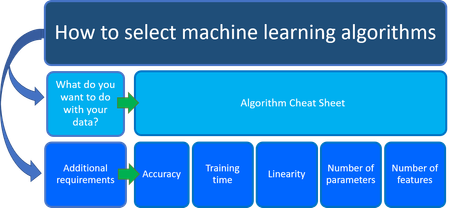
Azure Machine Learning When you start using Azure Machine Learning (AML), you have many options to choose from. One option is Azure Machine Learning Designer, which is easy to use and doesn't require coding. Another option is Azure Machine Learning Automated Machine Learning, which uses Python. You can also use the AML Studio, which has a graphical user interface. If you prefer using open-source models like ScikitLearn or Tensorflow, you can easily integrate them into AML. AML also has MLFlow, which helps you track and monitor your models. If you want to deploy a custom model, AML provides tools and resources to make it easier. Azure Machine Learning gives you lots of choices to find the best approach for your needs and preferences. Azure Machine Learning Designer Let's start with Azure Machine Learning designer, a useful tool for data science. It has a simple interface where you can easily drag and drop datasets from different sources like Azure Blob Storage, Azure Data Lake Storage, Azure SQL, or local files. You can also preview and visualize the data with just one click. It offers various built-in modules to preprocess data and do feature engineering. You can build and train machine learning models using advanced algorithms for computer vision, text analytics, recommendations, and anomaly detection. You have the option to use pre-built models or customize them with Python and R code. You can execute machine learning pipelines interactively, cross-validate models, and visualize performance. Troubleshooting and debugging are made easier with graphs, log previews, and outputs. Deploying models for real-time and batch inferencing is streamlined, and models and assets are securely stored in a central registry for tracking and lineage. With Azure Machine Learning designer, you have endless possibilities to achieve data-driven success. AML Designer Model Selection When it comes to data science, one common question is, "Which machine learning algorithm should I use?" The answer depends on two important factors. First, you need to understand what you want to achieve with your data. This means identifying the business question you want to answer by analyzing historical data. Second, you need to evaluate the specific requirements of your data science scenario. This includes considering accuracy, training time, linearity, number of parameters, and number of features that your solution can handle. By considering these factors, you can make a well-informed decision about the best machine learning algorithm for your situation. To help you figure out what you want to do with your data, you can use the Azure Machine Learning Algorithm Cheat Sheet. It's a useful resource that helps you find the right machine learning model for your predictive analytics solution. The Azure Machine Learning Designer offers a wide range of algorithms, such as Multiclass Decision Forest, Recommendation systems, Neural Network Regression, Multiclass Neural Network, and K-Means Clustering. Each algorithm is designed to solve specific machine learning problems. You can find a comprehensive list of these algorithms and detailed documentation on their functionality and parameter optimization in the Machine Learning Designer algorithm and component reference. https://learn.microsoft.com/en-us/azure/machine-learning/media/algorithm-cheat-sheet/machine-learning-algorithm-cheat-sheet.png?view=azureml-api-1#lightbox Algorithm Accuracy Training time Linearity Parameters Notes Classification family Two-Class logistic regression Good Fast Yes 4 Two-class decision forest Excellent Moderate No 5 Shows slower scoring times. Suggest not working with One-vs-All Multiclass. Two-class boosted decision tree Excellent Moderate No 6 Large memory footprint Two-class neural network Good Moderate No 8 Two-class averaged perceptron Good Moderate Yes 4 Two-class support vector machine Good Fast Yes 5 Good for large feature sets Multiclass logistic regression Good Fast Yes 4 Multiclass decision forest Excellent Moderate No 5 Shows slower scoring times Multiclass boosted decision tree Excellent Moderate No 6 Tends to improve accuracy with some small risk of less coverage Multiclass neural network Good Moderate No 8 One-vs-all multiclass - - - - See properties of the two-class method selected Regression family Linear regression Good Fast Yes 4 Decision forest regression Excellent Moderate No 5 Boosted decision tree regression Excellent Moderate No 6 Large memory footprint Neural network regression Good Moderate No 8 Clustering family K-means clustering Excellent Moderate Yes 8 A clustering algorithm Azure Machine Learning Designer Evaluation In this section, we will provide an overview of the metrics available for evaluating different types of models in the Evaluate Model framework. This includes classification models, regression models, and clustering models. By understanding the specific metrics for each model type, we can better assess their performance. Whether you need to evaluate the accuracy of a regression model, the precision and recall of a classification model, or the clustering quality of a clustering model, this section will help you effectively analyze and evaluate your model results. Evaluation of Classification Models When evaluating binary classification models, a set of crucial metrics are reported to assess their performance accurately. Accuracy, the first metric, gauges the effectiveness of a classification model by measuring the proportion of true results in relation to the total number of cases examined. Precision, on the other hand, quantifies the ratio of true positive results to all positive results, providing insights into the model's ability to correctly identify positive instances. Recall, the third metric, calculates the fraction of relevant instances that are accurately retrieved by the model. The F1 score, a weighted average of precision and recall, offers a comprehensive evaluation of the model's performance, with a perfect score of 1 indicating optimal accuracy. Additionally, the area under the curve (AUC) is measured by plotting true positives against false positives. This metric is particularly valuable as it allows for the comparison of models across different types, providing a single numerical value to assess performance. Notably, AUC is classification-threshold-invariant, meaning it assesses the predictive quality of the model regardless of the chosen classification threshold. By considering these metrics, one can gain a comprehensive understanding of the binary classification models under evaluation and make informed decisions based on their performance characteristics. Evaluation of Regression Models When assessing regression models, the metrics returned are specifically designed to estimate the amount of error present. A well-fitted model is characterized by a minimal difference between observed and predicted values. However, examining the residuals, which represent the difference between each predicted point and its corresponding actual value, provides valuable insights into potential bias within the model. The evaluation of regression models entails the consideration of several key metrics. The mean absolute error (MAE) measures the proximity of predictions to the actual outcomes, with a lower score indicating better accuracy. The root mean squared error (RMSE) condenses the overall error into a single value, disregarding the distinction between over-prediction and under-prediction by squaring the differences. Relative absolute error (RAE) is determined by dividing the mean difference between expected and actual values by the arithmetic mean. Similarly, the relative squared error (RSE) normalizes the total squared error of predicted values by dividing it by the total squared error of actual values. Furthermore, the coefficient of determination, commonly referred to as R2, serves as an indicator of the model's predictive power, ranging from 0 to 1. A value of 0 signifies a random model that explains nothing, while a value of 1 signifies a perfect fit. However, caution must be exercised when interpreting R2 values, as low values can be entirely normal and high values can raise suspicions. By thoroughly considering these metrics, one can effectively evaluate the performance of regression models and make informed decisions based on their error estimation and predictive capability. Evaluation of Clustering Models When it comes to clustering models, they exhibit notable distinctions from classification and regression models, which is why Evaluate Model provides a distinct set of statistics tailored specifically for clustering models. The statistics furnished for clustering models offer valuable insights into various aspects, including the allocation of data points to each cluster, the degree of separation between clusters, and the compactness of data points within each cluster. These statistics are computed by averaging over the entire dataset and are accompanied by additional rows that present cluster-specific statistics. The evaluation of clustering models entails the consideration of the following metrics: The "Average Distance to Other Center" column displays the average proximity of each point within a cluster to the centroids of all other clusters. This metric provides an indication of the overall closeness between points from one cluster and those from other clusters. The "Average Distance to Cluster Center" column quantifies the average distance between all points within a cluster and the centroid of that specific cluster. This metric serves as a measure of the compactness of points within each cluster. The "Number of Points" column showcases the count of data points assigned to each cluster, along with the total number of data points across all clusters. If the assigned data points are fewer than the total available data points, it signifies that certain points could not be allocated to any cluster. The "Maximal Distance to Cluster Center" column represents the maximum distance between each point and the centroid of its corresponding cluster. A higher value indicates a more widely dispersed cluster. It is advisable to review this statistic in conjunction with the "Average Distance to Cluster Center" to assess the spread of the cluster. Additionally, at the conclusion of each section of results, a consolidated evaluation score called the "Combined Evaluation" score is provided. This score presents the average performance of the clusters created within the specific model. By analyzing these statistics, one can gain valuable insights into the effectiveness of clustering models, facilitating the assessment of cluster characteristics, inter-cluster separations, and the overall quality of the clustering process. Azure Machine Learning AutoML Automated machine learning, also known as automated ML or AutoML, revolutionizes the development of machine learning models by automating the laborious and iterative tasks involved. This powerful capability empowers data scientists, analysts, and developers to construct ML models with remarkable scalability, efficiency, and productivity, all without compromising model quality. The implementation of automated ML within Azure Machine Learning is the result of a groundbreaking innovation stemming from Microsoft Research. With this cutting-edge technology, the process of building ML models is streamlined, enabling professionals to focus on higher-level tasks and leverage the full potential of machine learning to drive impactful outcomes. In Azure Machine Learning, the training process incorporates the creation of multiple pipelines in parallel, where each pipeline explores different algorithms and parameters. These iterations involve pairing ML algorithms with feature selections, resulting in models that produce training scores. The model's fitness to the data is determined by the score of the desired metric, with higher scores indicating better performance. The training process continues until the experiment's defined exit criteria are met. To conduct automated ML training experiments using Azure Machine Learning, the following steps can be followed: Identify the specific ML problem that needs to be addressed, such as classification, forecasting, regression, computer vision, or NLP. Choose between a code-first experience or a no-code studio web experience. For users who prefer a code-first approach, the Azure Machine Learning SDKv2 or the Azure Machine Learning CLIv2 can be utilized. A helpful starting point is the tutorial on training an object detection model with AutoML and Python. Users who prefer a limited/no-code experience can leverage the web interface available in Azure Machine Learning studio at https://ml.azure.com. A tutorial on creating a classification model with automated ML in Azure Machine Learning is available to get started. Specify the source of the labeled training data, which can be imported into Azure Machine Learning in various ways to suit your requirements. Configure the parameters for automated machine learning, including the number of iterations for testing different models, hyperparameter settings, advanced preprocessing/featurization techniques, and the metrics to consider when determining the best model. Submit the training job to initiate the automated ML process. Review the results to gain insights into the performance and effectiveness of the trained models, allowing you to make informed decisions based on the experiment's outcomes. By following these steps, you can effectively design and execute automated ML training experiments using Azure Machine Learning, empowering you to address a wide range of ML challenges with ease and efficiency. AutoML Classification Classification is a fundamental aspect of supervised learning, where models are trained on existing data and utilize that knowledge to make predictions on new data. Azure Machine Learning offers specialized featurizations designed specifically for classification tasks, such as deep neural network text featurizers tailored to enhance the accuracy of classification models. Exploring the available featurization options can provide valuable insights into optimizing the performance of classification algorithms. Additionally, AutoML in Azure Machine Learning supports a wide range of algorithms for classification tasks, offering flexibility and versatility in model development. Classification models have a wide array of applications, including fraud detection, handwriting recognition, and object detection, among others. To gain a practical understanding of classification and automated machine learning, you can refer to a Python notebook that provides an illustrative example and further exploration of these concepts. By delving into the world of classification and automated machine learning, you can unlock powerful techniques to make accurate predictions and drive impactful outcomes in diverse domains. https://github.com/Azure/azureml-examples/blob/main/sdk/python/jobs/automl-standalone-jobs/automl-classification-task-bankmarketing/automl-classification-task-bankmarketing.ipynb AutoML Regression Regression tasks, similar to classification, are an essential component of supervised learning. Azure Machine Learning provides specialized featurization techniques tailored specifically for regression problems, offering a comprehensive set of options to enhance the performance of regression models. Familiarizing yourself with these featurization options can provide valuable insights into optimizing regression algorithms. Additionally, AutoML in Azure Machine Learning supports a diverse range of algorithms for regression tasks, ensuring flexibility and adaptability in model development. Unlike classification, where predicted values are categorical, regression models aim to predict numerical output values based on independent predictors. The primary objective of regression is to establish the relationship among these independent variables by estimating how one variable influences the others. For instance, a regression model can predict automobile prices based on features such as gas mileage, safety ratings, and more. By leveraging regression techniques in Azure Machine Learning, you can uncover valuable insights and make accurate predictions in various domains, enhancing decision-making processes and driving impactful outcomes. https://github.com/Azure/azureml-examples/blob/main/sdk/python/jobs/automl-standalone-jobs/automl-regression-task-hardware-performance/automl-regression-task-hardware-performance.ipynb https://github.com/Azure/MachineLearningNotebooks/blob/master/tutorials/regression-automl-nyc-taxi-data/regression-automated-ml.ipynb AutoML Time-Series Forecasting Forecasting plays a crucial role in the operations of any business, whether it involves predicting revenue, inventory levels, sales, or customer demand. By harnessing the power of automated ML, businesses can leverage a combination of techniques and approaches to obtain high-quality, recommended time-series forecasts. The list of supported algorithms for automated ML can be found here, providing a diverse range of options to suit specific forecasting requirements. In the context of automated time-series experiments, a multivariate regression framework is employed. Historical time-series values are transformed into additional dimensions for the regressor, alongside other predictors. This approach offers a significant advantage over classical time series methods as it naturally incorporates multiple contextual variables and their interrelationships during the training process. Automated ML constructs a single model, often with internal branching, to accommodate all items and prediction horizons within the dataset. This approach allows for a more robust estimation of model parameters, enabling better generalization to unseen series. Furthermore, advanced forecasting configurations encompass various features, such as holiday detection and featurization. Time-series and deep neural network (DNN) learners, including Auto-ARIMA, Prophet, and ForecastTCN, provide diverse options to cater to different forecasting needs. Grouping functionality extends support to many models, while rolling-origin cross-validation enables robust model evaluation. Configurable lags and rolling window aggregate features further enhance the forecasting capabilities of automated ML. By utilizing these advanced configurations and techniques, businesses can harness the power of automated ML to generate accurate and insightful time-series forecasts. This empowers decision-makers to make informed choices, optimize operations, and drive success in a wide range of industries. https://github.com/Azure/azureml-examples/blob/main/sdk/python/jobs/automl-standalone-jobs/automl-forecasting-task-energy-demand/automl-forecasting-task-energy-demand-advanced.ipynb AutoML Computer Vision The support for computer vision tasks in Azure Machine Learning offers a seamless and efficient approach to generating models trained on image data, catering to various scenarios such as image classification and object detection. By leveraging this capability, users can effortlessly integrate with the data labeling feature in Azure Machine Learning. This integration enables the utilization of labeled data to train and generate accurate image models. Additionally, the performance of these models can be optimized by specifying the desired model algorithm and fine-tuning the hyperparameters to achieve the best possible results. Once the model generation process is complete, users have the flexibility to download the resulting model or deploy it as a web service within Azure Machine Learning. This allows for easy access and utilization of the generated models in practical applications. To ensure scalability and operational efficiency, Azure Machine Learning provides MLOps and ML Pipelines capabilities. These powerful features enable users to operationalize their computer vision models at scale, streamlining the deployment and management processes. The authoring of AutoML models for vision tasks is facilitated through the Azure Machine Learning Python SDK, providing a user-friendly and intuitive development experience. Furthermore, the Azure Machine Learning studio UI allows easy access to experimentation jobs, models, and outputs, providing a comprehensive and accessible interface for managing and analyzing computer vision projects. These tasks include multi-class image classification, multi-label image classification, object detection, and instance segmentation. In multi-class image classification, the goal is to classify an image into a single label from a predefined set of classes. For example, an image can be classified as a 'cat,' 'dog,' or 'duck' based on its content. https://github.com/Azure/azureml-examples/tree/main/sdk/python/jobs/automl-standalone-jobs/automl-image-classification-multiclass-task-fridge-items On the other hand, multi-label image classification involves assigning multiple labels to an image from a given set of labels. This means an image can be labeled as both a 'cat' and a 'dog' simultaneously, based on its characteristics. https://github.com/Azure/azureml-examples/tree/main/sdk/python/jobs/automl-standalone-jobs/automl-image-classification-multilabel-task-fridge-items For object detection tasks, the objective is to identify and locate objects within an image by drawing bounding boxes around them. For instance, an algorithm can be used to detect and locate all instances of 'dogs' and 'cats' within an image, outlining each object with a bounding box. https://github.com/Azure/azureml-examples/tree/main/sdk/python/jobs/automl-standalone-jobs/automl-image-object-detection-task-fridge-items Lastly, instance segmentation tasks involve identifying objects within an image at the pixel level. This means drawing a polygon around each object present in the image, providing a more precise delineation of their boundaries. https://github.com/Azure/azureml-examples/tree/main/sdk/python/jobs/automl-standalone-jobs/automl-image-instance-segmentation-task-fridge-items By harnessing the support for computer vision tasks in Azure Machine Learning, users can unlock the potential of image data and build powerful models for image classification and object detection. This empowers businesses to leverage visual information for enhanced decision-making, automation, and transformative experiences across various domains. https://learn.microsoft.com/en-us/azure/machine-learning/how-to-auto-train-image-models?view=azureml-api-2&tabs=cli AutoML Natural Language Processing The support for natural language processing (NLP) tasks in automated ML within Azure Machine Learning offers a seamless and efficient approach to generating models trained on text data. This capability caters to various scenarios, including text classification and named entity recognition. By leveraging automated ML, users can easily author and train NLP models using the Azure Machine Learning Python SDK. This user-friendly development experience enables the creation of powerful NLP models for a wide range of applications. The resulting experimentation jobs, models, and outputs can be conveniently accessed and managed through the Azure Machine Learning studio UI. This intuitive interface provides a comprehensive overview of NLP projects, allowing users to analyze and optimize their models effectively. The NLP capability within Azure Machine Learning encompasses several key features. It supports end-to-end deep neural network training with the latest pre-trained BERT models, ensuring state-of-the-art performance in NLP tasks. Additionally, seamless integration with Azure Machine Learning data labeling simplifies the process of using labeled data for generating NLP models. The NLP capability also offers multi-lingual support, with the ability to process text in 104 different languages. Finally, distributed training with Horovod enables efficient and scalable NLP model training. By leveraging the NLP support in Azure Machine Learning, businesses can unlock the power of text data and build sophisticated models for tasks such as text classification and named entity recognition. This empowers organizations to extract valuable insights from textual information, automate processes, and make informed decisions in a wide range of industries and domains. https://learn.microsoft.com/en-us/azure/machine-learning/how-to-auto-train-nlp-models?view=azureml-api-2&tabs=cli Open Source Models Once you have selected a model that suits your needs, Azure Machine Learning offers a suite of tools to enhance your model development and deployment process. This flexibility allows you to leverage popular frameworks such as SciKitLearn, TensorFlow, PyTorch, and XGBoost to create and train your own custom models. Whether you are starting from scratch and training a machine learning model using scikit-learn, or you already have an existing model that you want to bring into the cloud, Azure Machine Learning provides the infrastructure to scale out your training jobs using elastic cloud compute resources. This ensures that you can efficiently handle large-scale training tasks and take full advantage of the cloud's scalability. Furthermore, Azure Machine Learning enables you to build, deploy, version, and monitor production-grade models seamlessly. With robust tools and functionalities, you can ensure the smooth transition from model development to deployment, and effectively manage and monitor your models in a production environment. By leveraging Azure Machine Learning's support for custom models and its comprehensive set of tools, you can accelerate your model development process, improve scalability, and seamlessly deploy and manage your models in production. This empowers data scientists and developers to deliver cutting-edge machine learning solutions and drive impactful outcomes in various industries and domains. https://learn.microsoft.com/en-us/azure/machine-learning/how-to-train-scikit-learn?view=azureml-api-2 https://github.com/sqlshep/PredictiveMaintenance/tree/main/XGBoost https://github.com/sqlshep/PredictiveMaintenance/tree/main/LSTM Open Source and MLFlow Managing the complete lifecycle of machine learning models can be a complex task. However, with MLflow, an open-source framework, this process becomes much more streamlined. MLflow offers a comprehensive solution for efficiently managing models across various platforms, ensuring a consistent set of tools regardless of where your experiments are running. One of the standout features of MLflow is its ability to train and serve models on different platforms. Whether you're conducting experiments on your local computer, a remote compute target, a virtual machine, or an Azure Machine Learning compute instance, MLflow allows you to utilize the same set of tools. This flexibility enables you to focus on your tasks without worrying about the underlying platform. For users of Azure Machine Learning workspaces, MLflow compatibility is a game-changer. It means that you can leverage Azure Machine Learning workspaces just as you would an MLflow server. This compatibility offers several advantages: No need for hosting MLflow server instances: With Azure Machine Learning workspaces, the hassle of setting up and managing MLflow server instances is eliminated. The workspace effortlessly communicates in the MLflow API language, making the entire process seamless. Azure Machine Learning workspaces as tracking servers: Regardless of whether your MLflow code runs on Azure Machine Learning or not, you can configure MLflow to point to your Azure Machine Learning workspace for tracking purposes. This allows you to take advantage of Azure Machine Learning's robust tracking capabilities effortlessly. Seamless integration with Azure Machine Learning: Thanks to MLflow compatibility, you can seamlessly run any training routine that utilizes MLflow on Azure Machine Learning without any modifications. This ensures a smooth integration of MLflow into your existing workflows on the Azure Machine Learning platform. https://learn.microsoft.com/en-us/azure/machine-learning/concept-mlflow?view=azureml-api-2 Sample Notebooks using MLFlow Training and tracking an XGBoost classifier with MLflow https://github.com/Azure/azureml-examples/blob/main/sdk/python/using-mlflow/train-and-log/xgboost_classification_mlflow.ipynb Hyper-parameter optimization using HyperOpt and nested runs in MLflow https://github.com/Azure/azureml-examples/blob/main/sdk/python/using-mlflow/train-and-log/xgboost_nested_runs.ipynb Logging models with MLflow https://github.com/Azure/azureml-examples/blob/main/sdk/python/using-mlflow/train-and-log/logging_and_customizing_models.ipynb Manage runs and experiments with MLFlow https://github.com/Azure/azureml-examples/blob/main/sdk/python/using-mlflow/runs-management/run_history.ipynb Principal author: Shep Sheppard | Senior Customer Engineer, FastTrack for ISV and Startups Other contributors: Yoav Dobrin Principal Customer Engineer, FastTrack for ISV and Startups Jones Jebaraj | Senior Customer Engineer, FastTrack for ISV and Startups Olga Molocenco-Ciureanu | Customer Engineer, FastTrack for ISV and Startups2.2KViews1like0Comments01 Getting Started with Data in Azure Machine Learning
The Azure Machine Learning Datastore Azure Machine Learning (AML) has a concept of a datastore that allows you to easily reference an existing storage account via API that offers a wide range of capabilities for interacting with various storage types, such as Blob, Files, and ADLS. Notably, this API is designed to facilitate the effortless discovery of valuable datastores within team operations, thereby enhancing operational efficiency. One salient feature of this API is its implementation of a secure approach to connection information management. Users can leverage credential-based access, whether through a service principle, SAS (shared access signatures), or key, to ensure the confidentiality and integrity of their data. By employing this methodology, the need to embed sensitive connection details within scripts is eliminated, mitigating potential security risks. Datastores become very useful when you start to setup automation using AML Pipelines or start your journey into MLOps (Machine Learning Ops). Datastores give you the ability to access Azure Blob storage, ADLS Gen 2, Azure Files, and Microsoft Fabric OneLake. The following repo will get you started on creating your first AML Datastore. Github Repo https://github.com/Azure/azureml-examples/blob/main/sdk/python/resources/datastores/datastore.ipynb Azure Machine Learning “Connections” In certain scenarios, data may not be housed within Azure Blob Storage or OneLake, but rather in S3. In such cases, Azure Machine Learning (AML) offers a viable solution by enabling the creation of connections to data residing in Snowflake, Azure SQL DB, or even AWS S3. When data is stored in Snowflake, Azure SQL DB, or AWS S3, AML presents the option to create a connection, seamlessly bridging the gap between external data sources and AML's analytical capabilities. By establishing a connection, users can effortlessly access and analyze data from these disparate sources, without the burden of intricate configuration or manual intervention. AML prioritizes data security and ensures that credentials are securely stored. The Connection feature in AML securely stores credentials within the Workspace Key Vault. Once credentials are stored, direct interaction with the Key Vault becomes unnecessary, as AML handles authentication and authorization seamlessly in the background. This approach ensures the confidentiality and integrity of your credentials, bolstering the overall security posture of your data. Github repository, https://github.com/Azure/azureml-examples/blob/main/sdk/python/resources/connections/connections.ipynb Azure Machine Learning Data Asset An Azure Machine Learning data asset can be likened to web browser bookmarks or favorites. Rather than having to recall lengthy storage paths (URIs) that direct you to your frequently accessed data, you have the option to create a data asset and conveniently access it using a friendly name. When a data asset is created, it not only establishes a reference to the data source location but also retains a copy of its metadata. Since the data remains in its original location, there are no additional storage costs incurred, and the integrity of the data source is not compromised. Data assets can be created from various sources such as Azure Machine Learning datastores, Azure Storage, public URLs, or local files. Azure Data Assets can be created using the Azure CLI, Python SDK or in the AML Studio. Azure Machine Learning MLTable With Azure Machine Learning, you can utilize a Table type (mltable) to create a blueprint that specifies the process of loading data files into memory as either a Pandas or Spark data frame. An MLTable file is a YAML-based file that serves as a blueprint for data loading. It allows you to define various aspects of the data loading process. Within the MLTable file, you have the flexibility to specify the storage location(s) of the data, which can be local, in the cloud, or on a public http(s) server. You can utilize globbing patterns over cloud storage to specify sets of filenames using wildcard characters (*). This provides a convenient way to handle multiple files within a specified location. The MLTable file also allows you to define read transformations, such as specifying the file format type (delimited text, Parquet, Delta, json), delimiters, headers, and more. This ensures that the data is read correctly based on its format. Lastly, you have the ability to define subsets of data to load. This includes filtering rows, keeping or dropping specific columns, and taking random samples. These options provide flexibility in loading only the necessary data for your specific needs. Github Repo https://github.com/Azure/azureml-examples/tree/main/sdk/python/using-mltable Reading from a Delta Table Delta table is a significant component of the Delta Lake open-source data framework. Typically employed in data lakes, Delta tables facilitate data ingestion through streaming or large batch processes. They serve as an open-source storage layer that enhances the reliability of data lakes by introducing a transactional storage layer atop cloud storage systems such as AWS S3, Azure Storage, and GCS. This integration enables features like ACID (atomicity, consistency, isolation, durability) transactions, data versioning, and rollback capabilities, streamlining the handling of both batch and streaming data in a unified manner. Delta tables, built on this storage layer, offer a table abstraction that simplifies working with extensive structured data using SQL and the DataFrame API. AML MLTable also supports the Delta format for reading data and even converting it to a Pandas Dataframe. Git Repo https://github.com/Azure/azureml-examples/blob/main/sdk/python/using-mltable/delta-lake-example/delta-lake-example.ipynb Azure machine learning – Managed Feature store Managed feature store in azure machine learning provides a centralized repository that enables data scientists and machine learning professionals to independently develop, productionize and also share features with other business units within your organizations. Features serve as the input data for your model. With a feature set specification, the system handles serving, securing, and monitoring of the features. This frees you from the overhead of underlying feature engineering pipeline set-up and management. Feature store allows you to search and reuse features created by your team, to avoid redundant work and deliver consistent predictions. Any new derived features created with transformations, can address feature engineering requirements in an agile, dynamic way across multiple workspaces when shared. The system operates and manages the feature engineering pipelines required for transformation and materialization to free your team from the operational aspects. https://techcommunity.microsoft.com/t5/ai-machine-learning-blog/announcing-managed-feature-store-in-azure-machine-learning/ba-p/3823043 Conclusion: This blog has covered several mechanisms for accessing data across a variety of sources. Each method offers features such as convenience, security, or cost savings which should be balanced against the requirements of the situation. In each case, a GitHub resource has been provided as a practical example to assist in learning about data management in the cloud. Principal author: Shep Sheppard | Senior Customer Engineer, FastTrack for ISV and Startups Other contributors: Yoav Dobrin Principal Customer Engineer, FastTrack for ISV and Startups Jones Jebaraj | Senior Customer Engineer, FastTrack for ISV and Startups Olga Molocenco-Ciureanu | Customer Engineer, FastTrack for ISV and Startups2.9KViews0likes0Comments