mac
141 Topics
Office Home & Business 2019 license no longer recognized after reinstall ("No license found")
Hello everyone, I'm looking for some help because Microsoft Support has not been able to solve this issue. I own a genuine perpetual license of Office Home & Business 2019 for Mac, linked to my Microsoft account since August 2019. The license is still listed under Services & Subscriptions, but Office no longer activates. My hardware MacBook Pro (Retina, 13-inch, Late 2012) Model: MacBookPro10,2 Intel Core i5 8 GB RAM macOS Ventura 13.7.8 Installed using OpenCore Legacy Patcher Office version originally working: 16.78 Later tested with 16.101 and 16.93 Same result on every version What happened Office had already been successfully activated and worked normally. I was able to: create documents edit documents save documents After restarting the Mac, Office suddenly requested activation again. Since then it has never activated successfully. Initially Office failed to activate with an unknown error. After completely uninstalling and reinstalling Office using Microsoft's installer, the activation process changed. I can now successfully sign in with my Microsoft account, but after authentication Office displays: "No license found for this account." My Office Home & Business 2019 license is still present in my Microsoft account under Services & Subscriptions. Even though my Microsoft account clearly owns Office Home & Business 2019 for Mac. Microsoft account The license appears correctly under: Services & Subscriptions Office Home & Business 2019 for Mac Added to my account on August 7, 2019. The website instructs me to open an Office application and sign in to activate. Everything I've already tried Uninstalled Office completely Installed Office again using Microsoft's installer Installed Office 16.78 Installed Office 16.93 Updated to Office 16.101 Removed Office containers Removed Group Containers Deleted OneAuth cache Deleted Entrabroker cache Removed activation tokens Cleared Office preferences Signed out and signed back into Microsoft account Deleted Office credentials from Keychain Reinstalled Microsoft AutoUpdate Verified no MDM profile exists Verified Internet Accounts Verified Microsoft account Microsoft Support remotely accessed my Mac and repeated all troubleshooting steps Nothing solved the issue. Additional information Running: defaults read com.microsoft.office returns: OfficeActivationLicense = NoLicense although: OfficeActivationEmailAddress = email address removed for privacy reasons is correctly detected. The activation window successfully reaches Microsoft's login page. Office now asks for my Microsoft account credentials. Authentication completes successfully. After a few seconds Office reports: "No license found for this account." It then offers only two options: Buy Microsoft 365 Use another account Microsoft Support remotely connected to my Mac, completely removed Office, installed a newer official installer, and the problem remained exactly the same. My question Has anyone experienced this after reinstalling Office 2019? Could this be: a licensing server issue? an incompatibility introduced after Office 2019 reached end of support? an activation problem related to OpenCore Legacy Patcher? something else? I would really appreciate any suggestions. Thank you very much. Additional notes: The Office license has been associated with the same Microsoft account since 2019. The same installation was successfully activated and worked normally before the problem started. The issue only appeared after restarting the Mac. Microsoft Support has already remotely accessed my computer and could not resolve the problem.1.4KViews2likes9Comments
[Update on Microsoft 365 Copilot Mac app issue]
We have identified the root cause of the issue currently affecting some users on Microsoft 365 Copilot Mac app, starting with version 1.2601 released on January 27. A fix has been prepared for the same and will be delivered via Microsoft AutoUpdate (MAU) within the next 48 hours. Please note that the app may not function as expected if MAU configurations are being managed through MDM. To mitigate, tenant administrators can remove the LCID key from their MAU configuration, as illustrated below. Kindly let us know if the issue persists for you beyond this timeline.
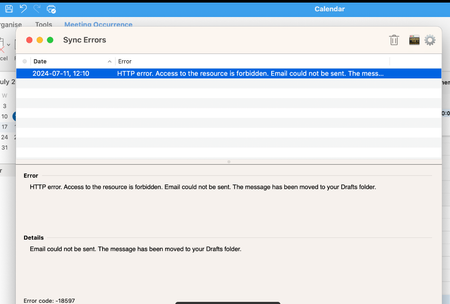
Mac Legacy Outlook - Emails moves to Draft folder
Hi All, Has anyone observed/faced an issue with the Legacy version of Outlook for MAC? When sending an email, it gets moved to the Draft folder with the Error "HTTP error. Access to the resource is forbidden. Mail could not be sent. The message has been moved to your Drafts folder.” But when you go to the Draft folder and resend it, it goes or even switches to a new outlook works perfectly fine.
Office 365 apps are closing randomly on MacOS
Hi, is anyone currently experiencing issues with all MS Office 365 apps (Outlook, Excel, Powerpoint, OneNote, Word) in the way that they close all at once, randomly, and you are probably losing work due to the unexpected shutdown. I got a new MacBook Pro with M3 Max with Sonoma 14.5 recently, and after using it for a few hours, it seems that sporadically, all O365 apps mentioned above that are open at the moment are closing all at once, randomly, without any error message, without any prior notice or any user interaction. ALL other applications except Office are working fine, also OneDrive and MS Teams stay open without any issues. After using the MacBook for a few days, it seems that it's maybe more likely to happen when the Mac is going to standby / lid closed and is woken up afterwards? Steps I already tried without any change of the behavior, each also including a complete reboot of the machine, in the following order. Updating Office with the MS AutoUpdater application Simple uninstall of MS Office applications Reinstallation by using a clean new O365 download Manual uninstallation using https://support.microsoft.com/en-us/office/uninstall-office-for-mac-eefa1199-5b58-43af-8a3d-b73dc1a8cae3 Clean reinstallation after complete manual uninstallation After uninstalling again, I tried to install it manually with deselection of the MS Defender which is included in the O365 installer package (Defender is already installed by default on the Mac). Renaming the MacBooks hostname from XXX-MBP-ABC123DEF to XXXMBPABC123DEF and renaming the SSD name from Macintosh HD to MacintoshHD. Complete wipe of the MacBook with my IT department and reinstall / setup of the machine, followed by starting auto updater and updating everything to the latest version. None of these steps is working, and Office keeps shutting down / crashing without any prior notice at random times, most likely after a sleep. It is enough to just open up some office applications and leave the Mac alone, after return you will find the Mac with all office applications closed (except Teams and Onedrive as mentioned above). Furthermore, I already set the network availability during sleep within my energy saving settings: Wake for network access from "Only on Power adapter" to "Always" Does anyone have any further ideas for analysis or a solution? On my private MBP with M1 Pro and Sonoma 14.5 there are no issues at all. Thank you!!!Solved36KViews5likes95Comments
Need Suggestions in implementing Employee Experience using MSOffice 365 tools
Hey Everyone, I'm eager to develop a universal portal for certain users, resembling a webpage with a more intuitive user interface and a more robust user experience. What pre-built solutions within the Microsoft Office 365 suite could facilitate this? I want to host it as a Desktop application as well as a website. As per my analysis: 1) Sharepoint Online - A better handy solution - But I need to customise a lot. Not a ready made solution. 2) Power Pages - I dont have much knowledge on this one. 3) Viva Connections - It does solves those problems. But it mainly depends on MS Teams. I need it to be detached from Teams. Thanks in advance !Visibility of private items in outlook
Hi, I have the following issue. Private calendar Appointments of a shared or with full access permissions mailbox can be viewed.With REST (not MAPI) protocol. Calendar is added to outlook via shared calendar. "delegate can see private items" at delegate is not setup. Enable shared calendar enhancement is active in microsoft 365 features in outlook account settings. (for REST) not "optimal" from data protection. is there any info about the problem? Thanks in advance and i appreciate ur feedback-suggestion.1.3KViews0likes0CommentsWord templates from SharePoint 365 asset library not showing on ONE client
We mainly run Mac clients with Microsoft 365 desktop clients installed, all E3 and E5 licenses. For myself, I use the Preview channel. We keep organisational Office templates in a SharePoint 365 asset library, and it is generally working well. That is, until the 16.62 updates were released. Now the organisational Office templates for Word specifically are no longer showing up on one specific client computer. The computer was recently reinstalled clean (e.g. from a USB stick) with macOS Monterey (Intel). The templates still shows up in PowerPoint etc. It's only in Word they don't show up. That is, the company section under the templates does show up, but instead of containing a series of folders with all the different templates, it only shows the Blank template. If I use a different computer (still a Mac) with my own user, I can see all the templates. I've tried reinstalling all the desktop apps but nothing helps. What can be the cause of this behaviour?2.4KViews0likes0CommentsCannot edit Word document in Template
My Word for Mac seems to have changed. I have Filofax page sized templates onto which I pasted text content. Some of this text required spaces into which I could add written notes but if I paste my text now, it comes out as ordinary text, not within the template. Even old templates no longer appear as such. Oddly, if I then print it, it will print onto the right sized page. But I cannot edit it. Why has it changed? Can I revert to an older version of Word. I am using it on a Mac. The version is 16.59. I hope I am making myself clear.603Views0likes0CommentsMS-Word Mac Table issus
A client has sent me data in the Windows version of MS Excel. I copied the data, and when I paste it into MS Word for Mac, it becomes a table. So far, so good. The MS-Word for Mac table thus created is giving me fits! Nothing I apply in "table properties" will stick. For example, I have table cells with half-a-page of white space below the text. I've gone into each column, and there are no excess line feeds in any of the cells. I've also tried table properties where I tell Word not to specify any row height. As soon as I apply the "no row height" option in "table properties," the rows initially discard all the white space. But within a second or two, the white space reappears. When I look at table properties again, the "specify row height" box is semi-checked (telling me that at least some cells have auto-magically reapplied a minimum height setting)! I've also looked in "format paragraph" settings to ensure that no pre or post-text spacing is applied. I set all such paragraph settings to zero, but nothing changes in my document. But the next time I open the "format paragraph" box, all of my manual paragraph entries are gone and all the paragraph formatting entry cells have defaulted to blank. Any ideas? Thanks!
Mac Excel v16.59 VBA crashes on M1 Apple Silicon
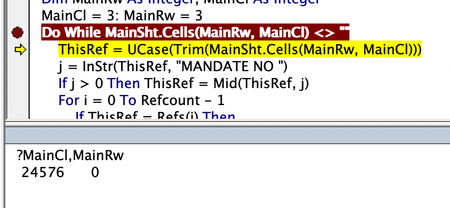
For now, I have to configure Excel to run under Rosetta as a workaround for this problem but I would prefer to run Excel natively. Excel VBA code which runs fine on Mac under Rosetta (or under Windows) displays strange behaviour and then crashes. Variables values are being changed, and this seems to then cause the crash. Any advice? This is using the latest Mac Excel v16.59.