ios
63 Topics
enrolling in Intune MacBook Pro with an M5 Pro
Hi everyone We have tested the Wi-Fi and ethernet profile without success with Apple businesses manager. The Wi-Fi and the ethernet connection itself works, but the enrollment process into Intune does not complete successfully. At this stage, we cannot sign in, and neither the Wi-Fi nor the Ethernet connection appears to be working. The device is a 14-inch MacBook Pro with an M5 Pro chip, running macOS 26.5.1 the device connects to the server, the settings begin to apply, but the process suddenly stops, and we are then unable to log in. These are steps followed : Synchronize the device from Apple Business Manager to Intune. Assign the enrollment profile to the device. Perform a device wipe/reset. Start Automated Device Enrollment (ADE). Complete the device setup and user sign-in. The device successfully enrolls into Intune. Intune begins deploying configuration profiles, compliance policies, security policies, and applications. During the policy application process, Wi-Fi connectivity stops responding. The device loses network connectivity and cannot continue synchronizing policies. We are unable to sign in because the enrolment process has not been finalized. As a result, we have to wipe the Mac and start the process again each time. We have disabled some policies, but we are still experiencing the same issue. Have anyone experienced any issues like that ? Regards,476Views1like3Comments
Problems identifying managed iOS devices when using APP
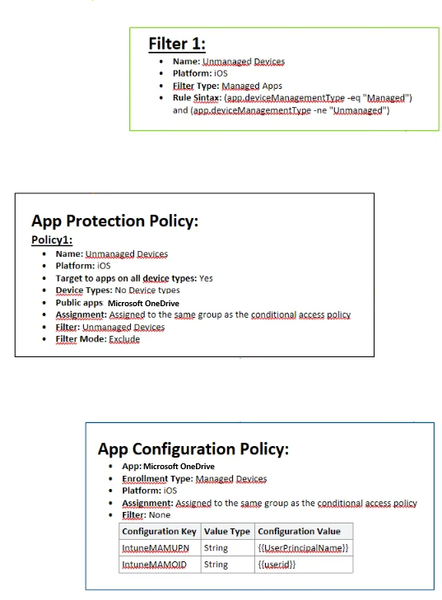
Hello, As the title says i am having a hard time getting this to work. We have been using APP for a long time, but it has not been necessary for us to have different policies for managed (we only use iOS) and unmanaged devices (all mobile device types). Now i want to remove APP from managed devices all together, and only enforce this on unmanaged devices (BYOD) Please see attached image of how it is configured today. I also have an CA policy which requires APP when using MS apps, where i have added and "Filter for devices" exclude with following syntax: device.enrollmentProfileName -contains "iOS standard profile" (which cover our enrollment profiles, both are fully managed) When enrolling a managed device, APP still is enforced. Does anyone have any tips? I wanted to try here before submitting a ticket to MS. As far as i have found out , the app.devicemanagmenttype is the only rule that can be used to filter managed devices when used with APP.621Views0likes1Comment
Have OneDrive or SharePoint files/folders on home screen of iPad without internet connection?
This. I'm on a big iOS project. We have several users who need files on an ipad when traveling, and be able to open them when there is no internet connectivity. These files aren't intended to be edited, just 'read only.' These files do not contain any sensitive corporate data. The content lives in SharePoint online and I'm using OneDrive as a bridge to their sharepoint site. BUT the files can only be viewed on the ipad within the OneDrive app without internet access. These are devices using user affinity enrollment. Initially, the solution for users was to use the 'Mark Offline' feature within the OneDrive iOS app. I used Power Automate to have it fetch new files found in OneDrive and move them to the teams SharePoint site. These shared devices are locked down (an understatement). These will be used by the least computer savy/literate people and so having them dive through OneDrive folder after folder, even offline, is a tall order to ask. I totally get it and don't want them doing that either. So now I have to move onto plan B. How can we put the files that live within OneDrive/Sharepoint onto the home screen without an internet connection when the ipad is 'out in the field.?' This would make it infinitely easier for them. The key here is to not have end users manually moving files around. We don't want them to even have to go into OneDrive and mark folders/files offline, if possible. We don't have the SharePoint app on them. I tried the SP app a while back, and it is a hot mess of garbage. I could revisit it. Whatever I can get to work of course we'll have to modify our Intune polices. Thoughts?381Views0likes1CommentOutlook for iOS + Caller Identification
Hey folks, i'm struggling at this for years, as you can see in my previus post from 2020. Let me shorten this: Scenario We have iOS Devices with Outlook for iOS installed. The users have many contacts in their EXO Mailboxes When a user gets a call from one of his contacts, the phone number is presented instead of the name (no Caller identification) Approaches I already know this MS articles belonging to Contact Sync. So i've learned that this leads to a running contact sync without the need of an icloud Account. The contacts could be written directly between Outlook for iOS and the native contacts app. (Better than nothing ) The Problem is, that if contact sync is in use ANY App could see these contacts. (Including Whatsapp, etc...) Because of GDPR this is a no-brainer. Many other solutions are using Apple Call-Kit, so that the incoming call is identified (name is shown) just without any need of contacts to be present in the native contact app. I didn't found anything belonging Call-Kit or any other possible solution for this issue, yet. There MUST be any better solutions except syncronizing all the contacts, isn't it? ANY Answer is highly appreciated. (At least the positive ones ) Regards, Patrick!7.5KViews2likes10CommentsiOS managed contacts - how to deal with that?
Hi everyone, the last years i've already tried to solve the problem with the managed contacts. Because this was not possible earlier i forgot about that. Now i want to readress this issue. A very important article i've found is this one: Techcommunity Success: New contact sync scenario available with Outlook for iOS on enrolled devices With this thread i would like to discuss some unanswered questions of myself. I would really appreaciate any answer of you guys. 🙂 Goals: Business contacts should be able to be read through contacts app (because of caller-id) 3rd Party Messengers should not see these business contacts Thesises: It is not possible to achive this with Outlook for iOS and it's contact sync feature, right? (Because of these contacts are going to be synced through icloud, therefore these contacts are marked as "unmanaged contacts.) It is possible to achive these goals by using: an device configuration profile which configures an active sync account which only synchronizes the contacts of the users mailbox. These contacts are considdered as "managed contacts" an app configuration profile which disables the "sync contacts" feature for "outlook for ios" An App protection policy which disables "Viewing corporate documents in unmanaged apps Because of the fact this is only working for enrolled and managed devices, we need to tell the users: Caller identification is only possible if you enroll your device in Intune. (in relation to the previous points) So far, so good, but the bad news is: Because of the incopatibility with conditional access policies, we're hence not able to restrict the user from using other apps to connect their EXO account. Right? I would be very thankful if anyone can discuss this with me. (I think the best way to adress the different topics is to quote my post and answer inline.) Greetings, Patrick8.5KViews0likes7Comments
IOS - Embedded Webkit - Not Reporting Correct Device info
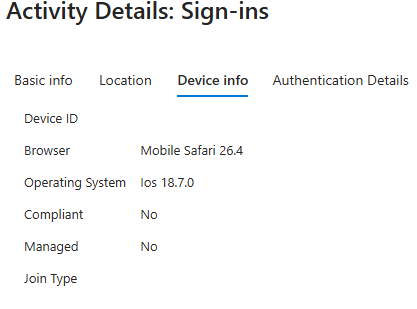
It appears that with the latest iOS versions (26.3.1 through 26.4), applications that rely on an embedded WebKit for sign-in are no longer reporting accurate device details within Device Info. Users have company-issued phones that are successfully enrolled in Intune, but when they attempt to sign in to Apple Mail, Conditional Access is denying the login. After reviewing the logs, iOS is reporting the OS version as 18.7.0 to Intune, even though the device is actually running iOS 26.4. Additionally, the device information is coming through as blank, so attributes are not being evaluated. When looking at other logins via the outlook app on that device it all appears normal and works. Has anyone else observed this behavior where WebKit is sending incorrect data to Intune? Does anyone know of a workaround other than relaxing Conditional Access policies?Solved3.3KViews2likes7CommentsIntune MAM - Restrict Application Access to Specific Biometric Profiles
We want our employees to be able to restrict access to company apps on private devices to only specific biometric profiles on the devices. If needed: Are you working together with Apple to make this possible? (e.g. via tiered device control levels / admin password in iOS)185Views1like1Comment
Intune - Issues with Account-Driven User Enrollment Issues on iOS 18.5
Hello everyone, Since the release of iOS 18, Apple has deprecated profile-based user enrollment via the Company Portal app, requiring the use of Account-Driven User Enrollment. While this change enhances user experience, I'm encountering challenges in implementing it. Steps Taken: Apple Business Manager (ABM) Account: Created and linked the ABM account to Intune using the token. Corporate devices are successfully appearing in Intune. MDM Server Configuration: Set Intune as the default MDM server for all devices in ABM. Domain Federation: Established Entra ID federation in ABM to synchronize all users. Intune Enrollment Profile: Created an 'Enrollment Type Profile' of type 'Account-Driven User Enrollment.' MDM Push Certificate: Configured and validated the MDM Push certificate. Issue Encountered: According to https://support.apple.com/guide/deployment/account-driven-enrollment-methods-dep4d9e9cd26/web, starting with iOS 18.2, hosting a service discovery file on a web server is no longer mandatory. The device should automatically contact the ABM organization associated with the Managed Apple ID if no web server is found. On an iOS 18.5 device, I navigate to: Settings > General > VPN & Device Management > Sign in to Work or School Account After entering my Microsoft email address (which matches my Managed Apple ID due to federation), I consistently receive the error: "Your Apple ID does not support the expected services on this device." In ABM, under "Access Management" > "Apple Services," all services are activated. Could I be missing a crucial step in the configuration? Any guidance or insights would be greatly appreciated. Thank you in advance for your help. Best regards,3.2KViews1like8CommentsHow best to configure ipad as kiosk for single web page?
I know I can configure Kiosk mode through intune to lock the ipad to a single app, but if that single app is Safari I need to restrict it to accessing a specified web site or sites. Is this possible via Intune? If not, does anyone have experience with a 3rd party browser for iOS with these capabilities that they would recommend?Solved27KViews0likes6CommentsRemove iOS device from assigned enrollment profile
Dear forum members, We all know we could assign a supervised device with a enrollment profile. In the https://go.microsoft.com/fwlink/?linkid=2109431, choose Devices > iOS > iOS enrollment > Enrollment Program Tokens > choose a token in the list. Choose Devices > choose devices in the list > Assign profile. Under Assign profile, choose a profile for the devices > Assign But how do you remove the device from a certain profile? When you select the device, you option is to choose which enrollment profile you want to assign to, but you can't choose blank. You have to choose a profile for the device. What I have been doing is delete the device from Intune and run the sync between ABM and Intune again to bring it back. This is obviously not ideal and probably not the right way to do. Can anyone please advise? Thank you!Solved26KViews0likes7Comments