Require Google Workspace authentication on Android Enterprise devices with Microsoft Intune
By: Samuel Vara, Software Engineer & Mayur Jadhav, Product Manager | Microsoft Intune We’re excited to announce that organizations using Android Enterprise can now require users on managed devices to authenticate with a managed Google Account. This capability is generally available in Microsoft Intune and helps organizations use their Google Workspace identities as the primary management identity on supported Android Enterprise devices. The new policy supports organizations that have upgraded their Managed Google Play enterprise to a managed Google domain enterprise. Use managed Google Accounts on enrolled devices Android Enterprise has traditionally used managed Google Play accounts solely to enroll and manage devices and distribute corporate apps, rather than as user identities for accessing Google services outside the managed device. With this policy, admins can now require users to enroll and authenticate with their organization’s managed Google Workspace Account instead of using the device’s managed Google Play account. This gives users access to Google apps and services with their organizational identity. This feature doesn‘t impact the Microsoft Entra account associated with the managed device. This capability supports the following Android Enterprise enrollment types: Corporate-owned, fully managed devices Corporate-owned devices with a work profile Note: Corporate-owned dedicated devices aren't supported because they aren't associated with an individual user. Prepare your environment Before you configure the policy, complete these prerequisites: Verify your organization's Google Workspace domain. Admins can verify an organization's domain on the Google Admin console by following the instructions from Verify your domain for Google Workspace | Domain management | Google Workspace Help Upgrade the Managed Google Play enterprise to a managed Google domain enterprise, if required, using the Upgrade button on the Intune admin center. Customers can follow the instructions in the blog New onboarding flow to managing Android Enterprise devices with Microsoft Intune to upgrade or onboard their tenant. Note that the admin performing the upgrade must have "Super Admin" rolein Google Workspace during the upgrade process. More instruction on how to assign such permission to a user can be found in Prebuilt administrator roles | User management | Google Workspace Help If users don't already have managed Google Accounts created in the enterprise's Google Workspace domain, create them following the instructions in the "Domain verified" section of Add an account for a new user | User management | Google Workspace Help Use an account with at least the Policy and Profile Manager role in Intune for the above oprations within the Intune admin center. Configure the policy in Microsoft Intune In the Intune admin center, Create a policy using settings catalog in Microsoft Intune or follow the instructions below: Go to Devices > Manage devices > Configuration > Create > New policy. For Platform, select Android Enterprise. For Profile type, select Settings catalog. In Configuration settings, open Device restrictions > Users and Accounts. Add Require users to authenticate with a Google Workspace account and set it to True. ssign the policy to groups containing users that want to use the managed Google accounts for authentication and enrollment on their Intune managed Android devices. Review and create the policy. You can assign the policy before enrollment or to devices that are already enrolled. If you assign it before enrollment, the authentication prompt appears after enrollment. On an enrolled device, the prompt appears after the device receives the policy. What users experience After the policy reaches the device, the user receives a Sign in with your work account prompt on the device. The user clicks on the prompt and adds a managed Google Account from the organization's enterprise domain and completes authentication. Until the user completes the prompt and authenticates with the Google Account, the policy setting reports an "Error" state, and the Gmail app, if present on the device, is disabled. This policy's non-compliance doesn't change the device's overall compliance state. Once a Google Account is chosen the user completes authentication, the managed Google Play account is replaced on the device by the chosen Google Account. ndroid phone lock screen showing a Device Policy notification prompting the user to "Sign in with a work account". Verify deployment Administrators can monitor the policy from Devices > Manage devices > Configuration > Policies in the Intune admin center. Select the policy to review device and user check-in status, device assignment status, and per-setting status. After the user completes authentication, confirm that the managed Google Account is available on the device. Conclusion This new Intune capability gives organizations greater control over how users access Google apps and services on supported corporate-owned Android Enterprise devices. By requiring authentication with a managed Google Account from the organization’s Google Workspace domain, admins can provide a consistent organizational identity and give users access to the Google Workspace resources and services assigned to that account, while retaining Microsoft Entra as the device’s management identity. Review the prerequisites, configure the settings catalog policy, and monitor deployment to bring this experience to your users.902Views0likes0Comments
Digital Takeover/Lockdown
My web developer has taken over my M365 & Copilot (along with my domain, google workspace, GitHub, Manus.im account, Stripe, Shopify, my financial accounts, and so on) and made has made himself Super admin and/or created an enterprise hierarchy that then turns myself, THE OWNER, into a USER; if he allows me access at all. I have been in an active digital lockout for going on 5 months now. I am at the local library currently trying to find a solution to regaining control. I have been dealing with redirected and limited browsers, blocked accounts, email accounts forwarded and new emails created, and then, even my calls and texts are being forwarded and/or blocked. From taking over my account's admin, a malicious DNS change, using rootkit malware, harmful scripts, injected code, utilizing my API's and tokens to gain access and then lock me out, to deploying autonomous ai agents onto my desktop...It only gets worse! He is also a third-party service provider and has led this persistent attack on my business by hacking EVERY mobile device I have purchased by using my location, Bluetooth, and sharing apps to hack my network and take control. No, this is not a joke. This is my VERY REAL AND VERY CURRENT NIGHTMARE! PLEASE, HELP ME! -Brittany Hamm Diary of a Momtrepreneur/Cullmanspaces.com/brittanyhamm.base44.app420Views0likes1Comment
Google Workspace to microsoft 365 migration
When we are migrating from Google workspace to Microsoft 365 using Microsoft automated migration method, what are the chances of emails getting duplicated if in Google an email has multiple labels tagged. And also, what's the limit of user data we can migrate per day and how many concurrent users we can migrate?1.8KViews0likes8CommentsCreating a Fun Multi-Agent Content Strategy System with Microsoft Agent Framework
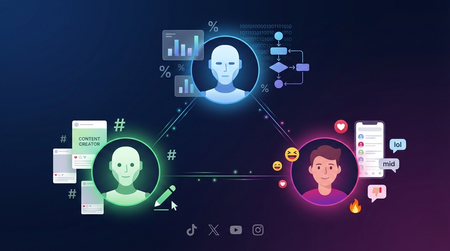
This tutorial walks you through building a multi-agent content strategy system using Microsoft's AutoGen framework. Three specialised AI agents — a Content Creator, an Algorithm Simulator, and an Audience Persona — collaborate to help gaming content creators pressure-test their social media posts before publishing. Using live Google Trends data and platform-specific scoring rubrics for TikTok, Twitter/X, YouTube, and Instagram, the system generates content, predicts how each platform's algorithm would distribute it, and simulates authentic audience reactions. The tutorial covers core multi-agent patterns including role specialisation, structured evaluation, iterative feedback loops, and resilient tool integration — all running on GitHub Models' free tier.1.2KViews0likes0CommentsGoogle Meet Links Not Opening on Intune-Managed Devices
We recently encountered an issue where Google Meet links could not be opened on devices managed via Microsoft Intune. This behavior was consistent across multiple users and devices, and it raised questions about whether this was a configuration issue, a policy conflict, or something else entirely. Symptoms Clicking a Google Meet link (e.g., https://meet.google.com/xyz-abc-def) results in no action. Tried to open it from Outlook, Gmail or Google-Calendar When Opening with the Browser, we get a Redirection to Google-Play-Store, but the Google-Meet App ist already installed. Behavior is consistent across Outlook, Teams, and other apps that handle links. We tried different Default Browers (Edge and Chrome) and Outlook, Gmail, Google Calendar and Google Meets are configured as managed Apps Is this a known Issue or can this be fixed with Intune Configurations? Looking forward to your feedback.587Views0likes5Comments
Google Play Web apps in Edge
Hi Community, We build quite a lot of Webapps in Managed Google Play and assign those to our Android devices managed in Intune as Dedicated with Entra ID Shared device mode. We run MS Edge as the default browser. Lately we have discovered that Webapps, pointing to web sites where you write text in a input field, especially if the text box is at the bottom of the screen, doesn´t behave as we expect. When the virtual keyboard is activated it often hides the text box, making it impossible to see what you write. If we open Edge and manually browse to the same site, it behaves better. I have also tested to open the Web app in Chrome which works as expected. It doesnt matter if I create the Web app with "Fullscreen" "Standalone" or "Minimal UI" display mode. First image shows the site opened manually in Edge. The textbox is moved above the keyboard Same site opened as a Web app. When activating the keyboard, the text box becomes hidden under the keyboard141Views0likes0Comments
Android enrolment stuck at installing apps
Hi, We are seeing some issues lately with device enrolment on Android with the wizard getting stuck at installing required apps, even with one app (Intune). I've seen a few posts at the start of the year where this issue also persisted which suggested it was a Google issue, which would seem true here as the issue occurs across multiple tenants. So far we've tried: Leaving the device for 2 hours to install apps Different Android enrolment profiles (Dedicated is primary method) Enrolling via Knox and QR methods Multiple devices Multiple Wi-Fi networks Multiple tenants (one being completely green-field) Removing all entries of the device in Intune and Entra ID before attempting re-enrolment Removed all apps from configuration, leaving just the Intune app as default Unassigned all enrolment restrictions Intune does create a device entry for the device despite not reaching the home screen, with configuration policies showing as successfully applied. Registering the device with Entra is more temperamental though. As mentioned, Dedicated enrolment is our primary method. We did see that a previously enrolled device did successfully enrol when using Fully Managed but this doesn't help us. A new device that had never been enrolled before did enrol successfully and quickly but have yet to it again. We are using Samsung devices running Android 14.1.9KViews0likes3Comments
Issue setting up Managed Google Play in Intune Endpoint
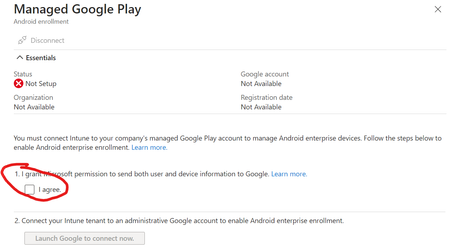
When trying to setup Managed Google Play in Intune Endpoint, it sometimes lets me check the box, and sometimes it is greyed out. After I select to Launch when I can check the box it either asks for my google account which I put in my business account after having signed in to the page per https://learn.microsoft.com/en-us/mem/intune/enrollment/connect-intune-android-enterprise and it comes up and says the page has expired. Refresh on your EMM console. Have tried a couple times and not getting anywhere. There has been some discussions on Reddit and such in the last 24 hours about this so wondering if there is an issue somewhere? I don't see anything in the M365 system health about an issue.1.6KViews0likes1Comment