foundry
27 Topics
cosmos_vnet_blocked error with BYO standard agent setup
Hi! We've tried deploying the standard agent setup using terraform as described in the https://learn.microsoft.com/en-us/azure/ai-foundry/agents/how-to/virtual-networks?view=foundry-classic and using the terraform sample available https://github.com/azure-ai-foundry/foundry-samples/tree/main/infrastructure/infrastructure-setup-terraform/15a-private-network-standard-agent-setup/code as a basis to give the necessary support in our codebase. However we keep getting the following error: cosmos_vnet_blocked: Access to Cosmos DB is blocked due to VNET configuration. Please check your network settings and make sure CosmosDB is public network enabled, if this is a public standard agent setup. Has anyone experienced this error?961Views8likes7CommentsBuild Smarter with Azure HorizonDB
By: Maxim Lukiyanov, PhD, Principal PM Manager; Abe Omorogbe, Senior Product Manager; Shreya R. Aithal, Product Manager II; Swarathmika Kakivaya, Product Manager II Today, at Microsoft Ignite, we are announcing a new PostgreSQL database service - Azure HorizonDB. You can read the announcement here, and in this blog you can learn more about HorizonDB’s AI features and development tools. Azure HorizonDB is designed for the full spectrum of modern database needs - from quickly building new AI applications, to scaling enterprise workloads to unprecedented levels of performance and availability, to managing your databases efficiently and securely. To help with building new AI applications we are introducing 3 features: DiskANN Advanced Filtering, built-in AI model management, and integration with Microsoft Foundry. To help with database management we are introducing a set of new capabilities in PostgreSQL extension for Visual Studio Code, as well as announcing General Availability of the extension. Let’s dive into AI features first. DiskANN Advanced Filtering We are excited to announce a new enhancement in the Microsoft’s state of the art vector indexing algorithm DiskANN – DiskANN Advanced Filtering. Advanced Filtering addresses a common problem in vector search – combining vector search with filtering. In real-world applications where queries often include constraints like price ranges, ratings, or categories, traditional vector search approaches, such as pgvector’s HNSW, rely on multiple step retrieval and post-filtering, which can make search extremely slow. DiskANN Advanced Filtering solves this by combining filter and search into one operation - while the graph of vectors is traversed during the vector search, each vector is also checked for filter predicate match, ensuring that only the correct vectors are retrieved. Under the hood, it works in a 3-step process: first creating a bitmap of relevant rows using indexes on attributes such as price or rating, then performing a filter-aware graph traversal against the bitmap, and finally, validating and ordering the results for accuracy. This integrated approach delivers dramatically faster and more efficient filtered vector searches. Initial benchmarks show that enabling Advanced Filtering on DiskANN reduces query latency by up to 3x, depending on filter selectivity. AI Model Management Another exciting feature of HorizonDB is AI Model Management. This feature automates Microsoft Foundry model provisioning during database deployment and instantly activates database semantic operators. This eliminates tens of setup and configuration steps and simplifies the development of new AI apps and agents. AI Model Management elevates the experience of using semantic operators within PostgreSQL. When activated, it provisions key models for embedding, semantic ranking and generation via Foundry, installs and configures the azure_ai extension to enable the operators, establishes secure connections, integrates model management, monitoring and cost management within HorizonDB. What would otherwise require significant manual effort and context-switching between Foundry and PostgreSQL for configuration, management, and monitoring is now possible with just a few clicks, all without leaving the PostgreSQL environment. You can also continue to bring your own Foundry models, with a simplified and enhanced process for registering your custom model endpoints in the azure_ai extension. Microsoft Foundry Integration Microsoft Foundry offers a comprehensive technology stack for building AI apps and agents. But building modern agents capable of reasoning, acting, and collaborating is impossible without connection to data. To facilitate that connection, we are excited to announce a new PostgreSQL connector in Microsoft Foundry. The connector is designed using a new standard in data connectivity – Model Context Protocol (MCP). It enables Foundry agents to interact with HorizonDB securely and intelligently, using natural language instead of SQL, and leveraging Microsoft Entra ID to ensure secure connection. In addition to HorizonDB this connector also supports Azure Database for PostgreSQL (ADP). This integration allows Foundry agents to perform tasks like: Exploring database schemas Retrieving records and insights Performing analytical queries Executing vector similarity searches for semantic search use cases All through natural language, without compromising enterprise security or compliance. To get started with Foundry Integration, follow these setup steps to deploy your own HorizonDB (requires participation in Private Preview) or ADP and connect it to Foundry in just a few steps. PostgreSQL extension for VS Code is Generally Available We’re excited to announce that the PostgreSQL extension for Visual Studio Code is now Generally Available. This extension garnered significant popularity within the PostgreSQL community since it’s preview in May’25 reaching more than 200K installs. It is the easiest way to connect to a PostgreSQL database from your favorite editor, manage your databases, and take advantage of built-in AI capabilities without ever leaving VS Code. The extension works with any PostgreSQL whether it's on-premises or in the cloud, and also supports unique features of Azure HorizonDB and Azure Database for PostgreSQL (ADP). One of the key new capabilities is Metrics Intelligence, which uses Copilot and real-time telemetry of HorizonDB or ADP to help you diagnose and fix performance issues in seconds. Instead of digging through logs and query plans, you can open the Performance Dashboard, see a CPU spike, and ask Copilot to investigate. The extension sends a rich prompt that tells Copilot to analyze live metrics, identify the root cause, and propose an actionable fix. For example, Copilot might find a full table scan on a large table, recommend a composite index on the filter columns, create that index, and confirm the query plan now uses it. The result is dramatic: you can investigate and resolve the CPU spike in seconds, with no manual scripting or guesswork, and with no prior PostgreSQL expertise required. The extension also makes it easier to work with graph data. HorizonDB and ADP support open-source graph extension Apache AGE. This turns these services into fully managed graph databases. You can run graph queries against HorizonDB and immediately visualize the results as an interactive graph inside VS Code. This helps you understand relationships in your data faster, whether you’re exploring customer journeys, network topologies, or knowledge graphs - all without switching tools. In Conclusion Azure HorizonDB brings together everything teams need to build, run, and manage modern, AI-powered applications on PostgreSQL. With DiskANN Advanced Filtering, you can deliver low-latency, filtered vector search at scale. With built-in AI Model Management and Microsoft Foundry integration, you can provision models, wire up semantic operators, and connect agents to your data with far fewer steps and far less complexity. And with the PostgreSQL extension for Visual Studio Code, you get an intuitive, AI-assisted experience for performance tuning and graph visualization, right inside the tools you already use. HorizonDB is now available in private preview. If you’re interested in building AI apps and agents on a fully managed, PostgreSQL-compatible service with built-in AI and rich developer tooling, sign-up for Private Preview: https://aka.ms/PreviewHorizonDB.1.8KViews4likes0CommentsNasdaq builds thoughtfully designed AI for board governance with PostgreSQL on Azure
Authored by: Charles Federssen, Partner Director of Product Management for PostgreSQL at Microsoft and Mohsin Shafqat, Senior Manager, Software Engineering at Nasdaq When people think of Nasdaq, they usually think of markets, trading floors, and financial data moving at extraordinary speed. But behind the scenes, Nasdaq also plays an equally critical role in how boards of directors govern, deliberate, and make decisions. Nasdaq Boardvantage® is the company’s governance platform, used by more than 4,400 organizations worldwide—including nearly half of the Fortune 100. It’s where directors review board books, collaborate in an environment designed with robust security, and prepare for meetings that often involve some of the most sensitive information a company has. In recent years, Nasdaq set out to modernize Nasdaq Boardvantage with AI, without compromising security and reliability. That journey was featured in a Microsoft Ignite session, “Nasdaq Boardvantage: AI-Driven Governance on PostgreSQL and Foundry.” It offers a practical look at how Azure Database for PostgreSQL can support AI-driven applications where precision, isolation, and data control are non-negotiable. Introducing AI where trust is everything Board governance isn’t a typical productivity workload. Board packets can run 400 to 600 pages, meeting minutes are legal records, and any AI-generated insight must be confined to a customer’s own data. “Our customers trust us with some of their most strategic, sensitive data,” said Mohsin Shafqat, Senior Manager of Software Development at Nasdaq. That trust meant tackling several core challenges upfront, including: How do you minimize AI hallucinations in a governance context? How do you guarantee tenant isolation at scale? How do you keep data regional across a global customer base? A cloud foundation built for governance Before adding intelligence, Nasdaq decided to re-architect Nasdaq Boardvantage on Microsoft Azure, using Azure Kubernetes Service (AKS) to run containerized, multi-tenant workloads with strong isolation boundaries. Microsoft Foundry provides the managed foundation for deploying, governing, and operating AI models across this architecture, adding consistency, security, and control as intelligence is introduced. At the data layer, Azure Database for PostgreSQL and Azure Database for MySQL became the backbone for governance data. PostgreSQL, in particular, plays a central role in managing structured governance information alongside vector embeddings that support AI-driven features. Together, these services give Nasdaq the performance, security, and operational control required for a highly regulated, multi-tenant environment, while still moving quickly. Key architectural choices included: Tenant isolation by design, with separate databases and storage Regional deployments to align with data residency requirements High availability and managed operations, so teams could focus on product innovation instead of infrastructure maintenance PostgreSQL and pgvector: Powering context-aware AI With that foundation in place, Nasdaq was ready to carefully introduce AI. One of the first AI capabilities was intelligent document summarization. Board materials that once took hours to review could now be condensed into concise, contextually accurate summaries. Under the hood, this required more than just calling an LLM. Nasdaq uses pgvector, natively supported in Azure Database for PostgreSQL, to store and query embeddings generated from board documents. This allows the platform to perform hybrid searches that combine traditional SQL queries with vector similarity to retrieve the most relevant context before sending anything to a language model. Instead of treating AI as a black box, the team built a pipeline where: Documents are processed with Azure Document Intelligence to preserve structure and meaning Content is chunked and embedded Embeddings are stored in PostgreSQL with pgvector Vector similarity searches retrieve precise context for each AI task Because this runs inside PostgreSQL, the same database benefits from Azure’s built-in high availability, security controls, and operational tooling – delivering tangible results, including a 25% reduction in overall board preparation time and internal testing shows 91–97% accuracy for AI-generated summaries and meeting minutes. From summaries to an AI Board Assistant With summarization working in production, Nasdaq expanded further. The team is now building an AI-powered Board Assistant that will help directors prepare for upcoming meetings by surfacing trends, risks, and insights from prior discussions. This introduces a new level of scale. Years of board data across thousands of customers translate into millions of embeddings. PostgreSQL continues to anchor this architecture, storing vectors for semantic retrieval while MySQL supports complementary non-vector workloads. Across Nasdaq Boardvantage, users are advised to always review AI outputs, and no customer data is shared or used to train external models. “We designed AI for governance, not the other way around,” Shafqat said. More importantly, customers trust the system because security, isolation, and data control were engineered in from day one. Looking ahead Nasdaq’s work shows how Azure Database for PostgreSQL can support AI workloads that demand both intelligence and integrity. With PostgreSQL at the core, Nasdaq has built a governance platform that scales globally, respects regulatory boundaries, and introduces AI in a way that feels dependable and not experimental. What started as a modernization of Nasdaq Boardvantage is now influencing how Nasdaq approaches AI across the enterprise. To dive deeper into the architecture and hear directly from the engineers behind it, watch the Ignite session and check out these resources: Watch the Ignite breakout session for a technical walkthrough of how Nasdaq Boardvantage is built, including PostgreSQL on Azure, pgvector, and Microsoft Foundry in production. Read the case study to see how Nasdaq introduced AI into board governance and what changed for directors, administrators, and decision-making. Watch the Ignite broadcast for a candid discussion on Azure Database for PostgreSQL, Azure HorizonDB, and what it takes to scale AI-driven governance.Building ShadowQuest: A Multi-Agent RPG
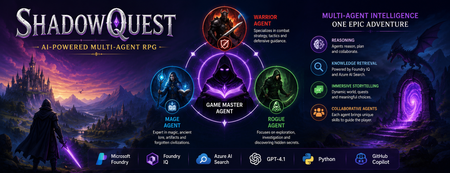
Artificial Intelligence is rapidly evolving beyond traditional chatbots. Today, developers are building intelligent systems where multiple AI agents collaborate, retrieve knowledge, and solve problems together. Microsoft's Agents League Hackathon provided the perfect opportunity to explore this new approach through the Reasoning Agents challenge. For this challenge, I built ShadowQuest, a fantasy role-playing game (RPG) powered by Microsoft Foundry, Foundry IQ, Azure AI Search, GPT-4.1, and GitHub Copilot. The project demonstrates how specialized AI agents can work together while using Retrieval-Augmented Generation (RAG) to deliver accurate and context-aware responses. About the Challenge Microsoft Agents League is a global developer challenge designed to encourage developers to build intelligent AI applications using Microsoft's latest AI technologies. Participants could choose from three tracks: Creative Apps, Reasoning Agents, and Enterprise Agents. I selected the Reasoning Agents track because I wanted to explore how multiple AI agents could collaborate instead of relying on a single large language model. Another important requirement for this year's challenge was integrating at least one Microsoft Intelligence Layer. For ShadowQuest, I chose Foundry IQ as the project's intelligence layer. The Idea Behind ShadowQuest Fantasy RPGs are built around storytelling, exploration, and collaboration between different characters. Every character usually has a unique role, whether it's a warrior protecting the team, a mage interpreting magical knowledge, or a rogue discovering hidden paths. I wanted to recreate this experience using AI. Instead of building one AI assistant responsible for everything, I designed a system where multiple specialized agents collaborate to create a richer and more immersive adventure. ShadowQuest is set in a fantasy world filled with magical artifacts, forgotten kingdoms, mysterious locations, and story-driven quests. Players can ask questions about the world, explore different locations, and learn about the game's lore through conversations with AI agents. Building the Multi-Agent Architecture The architecture follows a simple but scalable design. At the center of the system is the Game Master Agent, which acts as the orchestrator. Every player interaction starts with the Game Master. It receives the player's request, determines what information is needed, retrieves additional knowledge when required, and generates the final response. Supporting the Game Master are three specialized agents: Warrior Agent – Focuses on combat strategy and tactical decisions. Mage Agent – Provides magical knowledge, world lore, and information about ancient artifacts. Rogue Agent – Specializes in exploration, investigation, and discovering hidden information. Each agent has a clearly defined responsibility, making the system easier to understand, maintain, and extend in the future. Using Foundry IQ as the Knowledge Layer One of the most important parts of the project was integrating Foundry IQ. Instead of storing every piece of game information inside prompts, I created a dedicated knowledge base containing information about characters, magical artifacts, locations, quests, and the history of the ShadowQuest world. This approach separates knowledge from reasoning. Whenever a player asks a question, the Game Master Agent first retrieves relevant information from the knowledge base before generating a response. This ensures that answers remain consistent with the game's world while reducing hallucinations. Foundry IQ became the central source of truth for the entire project, making it easy to manage and expand the game world without constantly modifying prompts. Azure AI Search and Retrieval-Augmented Generation To enable intelligent retrieval, I connected Foundry IQ with Azure AI Search. The RPG documents were indexed, and vector embeddings were generated using Microsoft's embedding models. This enables semantic search, allowing the system to understand the meaning behind a player's question instead of relying only on keyword matching. For example, if a player asks about a magical relic without mentioning its exact name, Azure AI Search can still retrieve the correct information based on semantic similarity. The complete workflow looks like this: The player submits a question. The Game Master Agent receives the request. Foundry IQ queries Azure AI Search. Relevant documents are retrieved. GPT-4.1 generates a grounded response using the retrieved context. This Retrieval-Augmented Generation (RAG) approach significantly improves the quality and reliability of responses. Accelerating Development with GitHub Copilot GitHub Copilot played an important role throughout the development process. It helped generate Python classes, improve documentation, create helper functions, and speed up repetitive coding tasks. During the live demonstration, I also showed how Copilot could quickly generate a new Healer Agent, demonstrating how AI-assisted development makes it easier to extend a multi-agent application while maintaining a consistent architecture. Rather than replacing the developer, Copilot acted as an intelligent coding assistant, allowing me to focus more on architecture and design decisions. Demonstrating ShadowQuest During the Microsoft Agents League Reasoning Agents Battle, I demonstrated the Game Master Agent by asking questions about the ShadowQuest world, magical artifacts, and game lore. One of the most interesting parts of the demonstration was observing the retrieval process. Before generating a response, the Game Master Agent called the knowledge retrieval function through Foundry IQ. This confirmed that the system was retrieving relevant information from the indexed knowledge base rather than relying only on GPT-4.1's internal knowledge. This demonstrated how RAG can create more grounded, reliable, and context-aware AI experiences. Lessons Learned Building ShadowQuest taught me that designing multi-agent systems is as much about architecture as it is about AI models. Clearly defining responsibilities for each agent made the application easier to maintain and opened the door for future expansion. I also learned how valuable Retrieval-Augmented Generation can be for applications that depend on structured knowledge. Separating reasoning from knowledge allows AI systems to remain accurate while making it easier to update information over time. Finally, participating in the Microsoft Agents League was an incredible opportunity to experiment with Microsoft's latest AI technologies, learn from other developers, and share ideas with a global community passionate about agentic AI. Looking Ahead ShadowQuest is only the beginning. In future iterations, I plan to expand the project by introducing additional agents such as a Merchant Agent and Healer Agent, implementing persistent player memory, adding dynamic quest generation, improving combat mechanics, and enabling deeper collaboration between agents. These improvements will make the game world more immersive while continuing to explore the possibilities of agent-based AI systems. Conclusion ShadowQuest demonstrates how Microsoft Foundry, Foundry IQ, Azure AI Search, GPT-4.1, and GitHub Copilot can be combined to build intelligent multi-agent applications. More importantly, the project reinforced an important idea: the future of AI is not a single assistant performing every task, but a team of specialized agents collaborating with shared knowledge to solve increasingly complex problems. Participating in the Microsoft Agents League was an inspiring experience that allowed me to explore the next generation of AI development while building a project that combines storytelling, reasoning, and knowledge retrieval. I look forward to continuing this journey and discovering new ways to build intelligent applications using Microsoft's growing AI ecosystem.459Views1like0Comments8 Architectural Pillars to Boost GenAI LLM Accuracy and Performance in Low Cost
Smarter AI architecture, not bigger LLM models - how engineering teams push LLM accuracy and high performance in low cost. Enterprises using LLM (Large Language Models) hits the same ceiling and paying big price! A raw API call to a frontier model- GPT-4, Claude, Gemini delivers only 35-40% accuracy on structured output tasks like code generation, NL to DAX query generation, domain-specific reasoning. Prompt engineering pushes that to ~60%. But the final 35+ percentage points? Those come from system architecture, not model upgrades. This guide presents 8 architectural pillars, distilled from production Gen AI systems, that compound to close the accuracy gap. These patterns are model-agnostic and domain-agnostic, they apply equally to chatbots, coding assistants, content/query generators, automation agents, and any application where an LLM produces structured or semi-structured output. It’s based on my recent Gen AI projects. The key takeaway: use the LLM as one component in a larger system, not as the system itself. Surround it with deterministic guardrails, verified knowledge, and feedback loops. Pillar 1: Enhance Prompts with Verified Knowledge Context Impact: +35–40% accuracy (based on production use cases; may vary by domain) Top source of LLM errors in production is hallucinated identifiers knowledgebase, the model invents names, references, or structures that don't exist in the target system. This happens because LLMs are trained on general knowledge but deployed against specific, private enterprise systems they've never seen local database and knowledgebase. The fix is straightforward: inject verified, system-specific context (type definitions, API specs, ontologies, configuration schemas, entity catalogues) directly into the prompt so the model composes from known-good elements rather than recalling from training data. Use Knowledge Graph for better sematic knowledge. How to Implement Provide explicit context, never implicit- Whatever the LLM needs to reference identifiers, valid values, semantic knowledge, structures must appear verbatim in the prompt or retrieved context window. Filter aggressively. A full knowledge base with thousands of entities overwhelms the context window and confuses the model. Use intelligent filtering to surface only needed 5-10 most relevant elements per request. Store structured semantic knowledge in a graph or searchable index. This enables relationship-aware retrieval: "given entity X, what related entities, attributes, and constraints are also needed?" Include rich Semantic metadata. Names alone are insufficient. Include types, constraints, valid value ranges, relationships, and usage notes to minimize ambiguity. Keep context fresh. Stale context causes a different class of hallucination the model generates valid-looking output that references outdated structures. Sync your knowledge store with your source of truth. Why This Works LLMs excel at composition and reasoning combining elements, applying logic, following patterns. They are unreliable at recall of specific identifiers exact names, valid values, structural constraints. By offloading recall to a deterministic retrieval system and giving the LLM only composition tasks, you play to each system's strengths. Pillar 2: Tiered LLM Approach: Route Deterministically First, Use LLMs Last Impact: 80% cost reduction, 85% latency reduction, eliminates non-deterministic errors for most traffic. The most impactful architectural insight: most production requests don't need an LLM at all. A well-designed system handles 60-70% of traffic with deterministic logic templates, composition rules, cached results and reserves expensive, non-deterministic LLM calls only for genuinely novel inputs. The Three-Tier Model These metrics are from a real use case to convert NLP to Power BI DAX query. Tier Strategy Uses LLM ? Latency Accuracy Tier 0 Template slot-filling - handles requests that match known patterns exactly the system fills slots in a pre-built template with extracted parameters. No LLM, no non-determinism, near-perfect accuracy, sub-100ms response. No ~50ms 95-98% Tier 1 Compose from pre-validated fragments- handles requests that combine known patterns in new ways. The system retrieves pre-validated building blocks via search, composes them using deterministic rules, and validates the result. Still no LLM call. No ~200ms 90-95% Tier 2 Full LLM generation with enriched context- is reserved for genuinely novel requests that can't be served deterministically. Even here, the LLM receives maximum support: filtered context, relevant examples, explicit rules, and structured planning. Yes (1 call) 2-5s 88-93% Complexity-Based Routing A lightweight scoring function (evaluated in <1ms) routes each incoming request: Factors: reasoning depth, number of components, cross-references, constraints, nesting depth, novelty (distance from known patterns) Score 0-39: Tier 0 (deterministic template) Score 40-59: Tier 1 if confidence ≥ 85%, else Tier 2 Score 60+: Tier 2 (LLM generation) This routing achieves 96%+ accuracy in tier assignment and ensures the expensive path is only taken when necessary. Why This Matters Cost: 70-80% of requests cost zero LLM tokens Latency: Majority of responses in <200ms instead of 2-5s Reliability: Deterministic tiers produce identical output for identical input. Scalability: Deterministic tiers scale horizontally with trivial compute Pillar 3: Encode Prompt Anti-Patterns as Explicit Rules Impact: +8-10% accuracy, ~80% reduction in common structural errors LLM mistakes are patterned, not random. In any domain, 80% of errors cluster around a small set of 6-13 recurring structural mistakes. Instead of hoping the model avoids them through general instruction-following, compile these mistakes into explicit WRONG => CORRECT rules embedded directly in the system prompt. How to Implement Collect error data. Run 100+ requests through your system and categorize the failures. You'll find the same 6-13 patterns appearing repeatedly. Write concrete rules. For each pattern, show the exact wrong output and the exact correct alternative, with a one-line explanation of why. Embed in system prompt. Place rules prominently after the task description, before examples. Use formatting that's hard to ignore (headers, bold, explicit "NEVER" language). Keep the list short. 6-13 rules maximum. Beyond that, attention dilutes and the model starts ignoring rules. Prioritize by frequency. Refresh continuously. As the system improves (via other pillars), some errors disappear. New error types emerge. Update the rule set quarterly. Why This Works LLMs respond strongly to explicit negative examples. A generic instruction like "be careful with X" has minimal impact. But showing the exact wrong output the model tends to produce, paired with the correction, creates a strong avoidance signal. It's analogous to unit tests. Pillar 4: Retrieve Few-Shot Examples Dynamically Impact: +5-15% accuracy depending on domain complexity Static examples hardcoded in a prompt become stale, irrelevant of context tokens. Dynamic few-shot retrieval selects the 3-5 most relevant examples for each specific request, maximizing the signal-to-noise ratio in the prompt. Hybrid Retrieval Architecture The most effective approach combines two search strategies for intent search to understand natural language (NL) context: Keyword search (BM25) Finds examples with exact matching terms, identifiers, and domain vocabulary Vector search (semantic similarity) Finds examples with similar intent and structure, even if wording differs Rank fusion Merges results from both strategies, re-ranking by combined relevance This hybrid approach outperforms either strategy alone because keyword search catches exact identifier matches that vector search dilutes, while vector search captures semantic similarity that keyword search misses entirely. Best Gen AI Architectural Practices Match complexity to complexity. Simple requests should see simple examples. Complex requests should see complex examples. Mismatched examples confuse the model. Include negative examples. For the detected request type, include 1-2 "wrong => correct" pairs alongside positive examples. This reinforces Pillar 3's anti-pattern rules with concrete, contextually relevant demonstrations. Pre-compute embeddings. Generate vector embeddings at indexing time, not at query time. Cache retrieval results for repeated patterns. Curate quality over quantity. 3 excellent, diverse examples beat 10 mediocre ones. Each example should demonstrate a distinct pattern or edge case. Keep examples current. As your system evolves, old examples may demonstrate outdated patterns. Review and refresh the example store periodically. Pillar 5: Feedback Loop- Validate and Auto-Fix Every Output Deterministically Impact: +3-5% accuracy as a safety net, plus continuous improvement via feedback No matter how well-prompted, LLMs will occasionally produce outputs with minor structural errors - wrong casing, missing delimiters, references to slightly-incorrect identifiers, or subtle format violations. A deterministic post-processing pipeline catches and fixes these without any additional LLM calls. The Validation Pipeline LLM Output => Parse (grammar/AST) => Rule-Based Fixes => Compliance Check/validation => Final Output Each stage is fully deterministic: Parsing: Use a formal grammar or AST parser (ANTLR, tree-sitter, language-native parsers) to structurally analyse the output. Never regex-parse structured output - it's fragile and misses edge cases. Rule-based fixes: 10-20 deterministic transformation rules that correct known error patterns - name normalization, casing fixes, missing delimiters, structural repairs. Compliance check: Verify every identifier referenced in the output actually exists in the provided context. Flag unknown references. Design Principles Zero LLM calls in the fix pipeline. Every fix is a regex, an AST transformation, or a lookup table operation. Instant, free, deterministic, 100% reliable. Fail safe. If a fix is ambiguous (multiple valid corrections possible), pass through rather than corrupt. A minor error is better than a confident wrong "fix." Log everything. Track every fix applied, categorized by type. This data drives the feedback loop. The Critical Feedback Loop- The validation pipeline's most important function isn't fixing outputs, it's generating improvement signals: This creates a feedback loop: the auto-fix catches errors → the errors get promoted to upstream prevention → fewer errors reach the auto-fix → the system continuously tightens. Pillar 6: Multi-Agent Orchestration with Fewer Agents and Clear Contracts Impact: Reduced latency, clearer debugging, fewer failure modes The multi-agent pattern is powerful but commonly over-applied. The counter-intuitive lesson from production systems: fewer agents with well-defined responsibilities outperform many fine-grained agents. Why Fewer Is Better Each agent handoff introduces: Latency - serialization, network calls, context assembly Context loss - information dropped between boundaries Failure modes - each handoff is a potential error point Debugging complexity - tracing issues across many agents is exponentially harder Multi-Agent Orchestration Principles Merge agents that always run sequentially. If Agent A always feeds into Agent B with no branching or conditional logic, they should be one agent with two internal steps. Parallelize independent operations. Context retrieval and example lookup are independent, run them concurrently to halve retrieval latency. Route sub-tasks to cheaper models. Decomposed sub-problems are simpler by design. Use a smaller, faster, cheaper model (3x cost savings, 2x speed improvement). Define strict contracts. Each agent boundary should have an explicit schema defining inputs and outputs. No implicit assumptions about what crosses the boundary. Only 2 of 4 agents should call an LLM. The rest are purely deterministic. This minimizes non-deterministic behavior and cost. Pillar 7: Multi-Agent Cache at Multiple Hierarchical Levels Impact: 40-50% faster responses, 85%+ combined hit rate, significant cost reduction A single cache layer captures only one type of repetition. Production systems need hierarchical caching where multiple levels catch different repetition patterns , from exact duplicates to semantic near-misses. with -> A single cache layer captures only one type of repetition. Production systems need multi-level caching to handle exact matches, similar requests, and reusable fragments. or -> with Production systems need hierarchical caching where multiple levels handle exact matches, similar requests, and reusable fragments. Pillar 8: Measure Everything, Learn Continuously Impact: Enables data-driven iteration and prevents accuracy regressions. Architecture without observability is guesswork. The final pillar ensures every other pillar stays effective over time through comprehensive metrics and automated feedback loops. This isn't a one-time setup; it's a perpetual feedback loop. Every week, the top error patterns shift slightly. The auto-fix metrics tell you exactly where to focus next. Over months, this flywheel compounds into dramatic accuracy gains that no single prompt rewrite could achieve. Auto-Learning for New Domains When extending your system to new domains or knowledge areas: Auto-classify elements using naming conventions, type analysis, and structural patterns Auto-generate templates from universal patterns (transformations, comparisons, compositions, sequences) Bootstrap few-shot examples from successful template outputs Monitor for the first 100 requests, then curate only the edge cases manually This reduces domain onboarding from days of manual work to minutes of automated bootstrapping plus focused human review of outliers. Key Takeaways Architecture beats model size. A well-architected system with a smaller model outperforms a raw frontier model call on structured tasks at a fraction of the cost. Deterministic systems should do the heavy lifting. Reserve LLMs for genuinely novel, creative tasks. 70-80% of production requests should never touch an LLM. Verified knowledge is your top accuracy lever. Ground every prompt in context the model can trust. Errors are patterned, not random- Track them, compile them, and explicitly forbid them. Build feedback loops, not static systems- Every auto-fix, every cache miss, every routing decision is a signal for improvement. Fewer agents, done well- Fewer agents with strict contracts outperform 9 agents with fuzzy boundaries in accuracy, latency, and debuggability. Measure what matters and iterates- The system that wins isn't the one with the best day-one prompt, it's the one that improves fastest over time. Production-grade GenAI isn't about finding the perfect prompt or waiting for the next LLM model release. It's about building architectural guardrails that make failure nearly impossible and when failure does occur, the system learns from it automatically. These 8 pillars, applied together, transform any LLM from an unreliable black box into a precise, efficient, and continuously improving production system. -> Production Gen AI success is not about perfect prompts or waiting for the next LLM release. It comes from designing strong system guardrails that reduce failures and ensure consistent output. Even when failures happen, the system learns and improves automatically. When applied together, these 8 pillars turn an LLM into a reliable, efficient, and continuously improving production system.Foundry IQ: Give Your AI Agents a Knowledge Upgrade
If you’re learning to build AI agents, you’ve probably hit a familiar wall: your agent can generate text, but it doesn’t actually know anything about your data. It can’t look up your documents, search across your files, or pull facts from multiple sources to answer a real question. That’s the gap Foundry IQ fills. It gives your AI agents structured access to knowledge, so they can retrieve, reason over, and synthesize information from real data sources instead of relying on what’s baked into the model. Why Should You Care? As a student or early-career developer, understanding how AI systems work with external knowledge is one of the most valuable skills you can build right now. Retrieval-Augmented Generation (RAG), knowledge bases, and multi-source querying are at the core of every production AI application, from customer support bots to research assistants to enterprise copilots. Foundry IQ gives you a hands-on way to learn these patterns without having to build all the plumbing yourself. You define knowledge bases, connect data sources, and let your agents query them. The concepts you learn here transfer directly to real-world AI engineering roles. What is Foundry IQ? Foundry IQ is a service within Azure AI Foundry that lets you create knowledge bases, collections of connected data sources that your AI agents can query through a single endpoint. Instead of writing custom retrieval logic for every app you build, you: Define knowledge sources — connect documents, data stores, or web content (SharePoint, Azure Blob Storage, Azure AI Search, Fabric OneLake, and more). Organize them into a knowledge base — group multiple sources behind one queryable endpoint. Query from your agent — your AI agent calls the knowledge base to get the context it needs before generating a response. This approach means the knowledge layer is reusable. Build it once, and any agent or app in your project can tap into it. The IQ Series: A Three-Part Learning Path The IQ Series is a set of three weekly episodes that walk you through Foundry IQ from concept to code. Each episode includes a tech talk, visual doodle summaries, and a companion cookbook with sample code you can run yourself. 👉 Get started: https://aka.ms/iq-series Episode 1: Unlocking Knowledge for Your Agents (March 18, 2026) Start here. This episode introduces the core architecture of Foundry IQ and explains how AI agents interact with knowledge. You’ll learn what knowledge bases are, why they matter, and how the key components fit together. What you’ll learn: The difference between model knowledge and retrieved knowledge How Foundry IQ structures the retrieval layer The building blocks: knowledge sources, knowledge bases, and agent queries Episode 2: Building the Data Pipeline with Knowledge Sources (March 25, 2026) This episode goes deeper into knowledge sources, the connectors that bring data into Foundry IQ. You’ll see how different content types flow into the system and how to wire up sources from services you may already be using. What you’ll learn: How to connect sources like Azure Blob Storage, Azure AI Search, SharePoint, Fabric OneLake, and the web How content is ingested and indexed for retrieval Patterns for combining multiple source types Episode 3: Querying Multi-Source Knowledge Bases (April 1, 2026) The final episode shows you how to bring it all together. You’ll learn how agents query across multiple knowledge sources through a single knowledge base endpoint and how to synthesize answers from diverse data. What you’ll learn: How to query a knowledge base from your agent code How retrieval works across multiple connected sources Techniques for synthesizing information to answer complex questions Get Hands-On with the Cookbooks Every episode comes with a companion cookbook in the GitHub repo, complete with sample code you can clone, run, and modify. This is the fastest way to go from watching to building. 👉 Explore the repo: https://aka.ms/iq-series Inside you’ll find: Episode links — watch the tech talks and doodle recaps Cookbooks — step-by-step code samples for each episode Documentation links — official Foundry IQ docs and additional learning resources What to Build Next Once you’ve worked through the series, try applying what you’ve learned: Study assistant — connect your course materials as knowledge sources and build an agent that can answer questions across all your notes and readings. Project documentation bot — index your team’s project docs and READMEs into a knowledge base so everyone can query them naturally. Research synthesizer — connect multiple data sources (papers, web content, datasets) and build an agent that can cross-reference and summarize findings. Start Learning The IQ Series is designed to take you from zero to building knowledge-driven AI agents. Watch the episodes, run the cookbooks, and start experimenting with your own knowledge bases. 👉 https://aka.ms/iq-series605Views1like0CommentsMicrosoft Foundry Model Router: A Developer's Guide to Smarter AI Routing
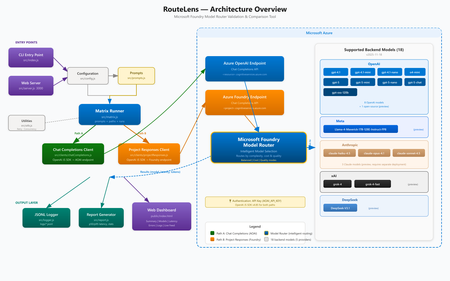
Introduction When building AI-powered applications on Azure, one of the most impactful decisions you make isn't about which model to use, it's about how your application selects models at runtime. Microsoft Foundry Model Router, available through Microsoft Foundry, automatically routes your inference requests to the best available model based on prompt complexity, latency targets, and cost efficiency. But how do you know it's actually routing correctly? And how do you compare its behavior across different API paths? That's exactly the problem RouteLens solves. It's an open-source Node.js CLI and web-based testing tool that sends configurable prompts through two distinct Azure AI runtime paths and produces a detailed comparison of routing decisions, latency profiles, and reliability metrics. In this post, we'll walk through what Model Router does, why it matters, how to use the validator tool, and best practices for designing applications that get the most out of intelligent model routing. What Is Microsoft Founry Model Router? Microsoft Foundry Model Router is a deployment option in Microsoft Foundry that sits between your application and a pool of AI models. Instead of hard-coding a specific model like gpt-4o or gpt-4o-mini , you deploy a Model Router endpoint and let Azure decide which underlying model serves each request. How It Works Your application sends an inference request to the Model Router deployment. Model Router analyzes the request (prompt complexity, token count, required capabilities). It selects the most appropriate model from the available pool. The response is returned transparently — your application code doesn't change. Why This Matters Cost optimization — Simple prompts get routed to smaller, cheaper models. Complex prompts go to more capable (and expensive) ones. Latency reduction — Lightweight prompts complete faster when they don't need a heavyweight model. Resilience — If one model is experiencing high load or throttling, traffic can shift to alternatives. Simplified application code — No need to build your own model-selection logic. The Two Runtime Paths Microsoft Foundry offers two distinct endpoint configurations for hitting Model Router. Even though both use the Chat Completions API, they may have different routing behaviour: Path SDK Endpoint AOAI + Chat Completions OpenAI JS SDK https://.cognitiveservices.azure.com/openai/deployments/ Foundry Project + Chat Completions OpenAI JS SDK (separate client) https://.cognitiveservices.azure.com/openai/deployments/ Understanding whether these two paths produce the same routing decisions is critical for production applications. If the same prompt routes to different models depending on which endpoint you use, that's a signal you need to investigate. Introducing RouteLens RouteLens is a Node.js tool that automates this comparison. It: Sends a configurable set of prompts across categories (echo, summarize, code, reasoning) through both paths. Logs every response to structured JSONL files for post-hoc analysis. Computes statistics including p50/p95 latency, error rates, and model-choice distribution. Highlights routing differences — where the same prompt was served by different models across paths. Provides a web dashboard for interactive testing and real-time result visualization. The Web Dashboard The built-in web UI makes it easy to run tests and explore results without parsing log files: The dashboard includes: KPI Dashboard — Key metrics at a glance: Success Rate, Avg TPS, Gen TPS, Peak TPS, Fastest Response, p50/p95 Latency, Most Reliable Path, Total Tokens Summary view — Per-path/per-category stats with success rate, TPS, and latency Model Comparison — Side-by-side view of which models were selected by each path Latency Charts — Visual bar charts comparing p50 and p95 latencies Error Analysis — Error distribution and detailed error messages Live Feed — Real-time streaming of results as they come in Log Viewer — Browse and inspect historical JSONL log files Model Comparison — See which models were selected by each routing path for every prompt: Live Feed — Real-time streaming of results as they come in: Log Viewer — Browse and inspect historical JSONL log files with parsed table views: Mobile Responsive — The UI adapts to smaller screens: Getting Started Prerequisites Node.js 18+ (LTS recommended) An Azure subscription with a Foundry project Model Router deployed in your Foundry project An API key from your Azure OpenAI / Foundry resource The API version (e.g. 2024-05-01-preview ) Setup # Clone and install git clone https://github.com/leestott/modelrouter-routelens/ cd modelrouter-routelens npm install # Configure your endpoints cp .env.example .env # Edit .env with your Azure endpoints (see below) Configuration The .env file needs these key settings: # Your Foundry / Cognitive Services deployment endpoint # Format: https://<resource>.cognitiveservices.azure.com/openai/deployments/<deployment> # Do NOT include /chat/completions or ?api-version FOUNDRY_PROJECT_ENDPOINT=https://<resource>.cognitiveservices.azure.com/openai/deployments/model-router AOAI_BASE_URL=https://<resource>.cognitiveservices.azure.com/openai/deployments/model-router # API key from your Azure OpenAI / Foundry resource AOAI_API_KEY=your-api-key-here # Azure OpenAI API version AOAI_API_VERSION=2024-05-01-preview</resource></resource></deployment></resource> Running Tests # Full test matrix — sends all prompts through both paths npm run run:matrix # 408 timeout diagnostic — focuses on the Responses path timeout issue npm run run:repro408 # Web UI — interactive dashboard npm run ui # Then open http://localhost:3002 (or the port set in UI_PORT) Understanding the Results Latency Comparison The latency charts show p50 (median) and p95 (tail) latency for each path and prompt category: Key things to look for: Large p50 differences between paths suggest one path has consistently higher overhead. High p95 values indicate tail latency problems — possibly timeouts or retries. Category-specific patterns — If code prompts are slow on one path but fast on another, that's a routing difference worth investigating. Model Comparison The model comparison view shows which models were selected for each prompt: When both paths select the same model, you see a green "Match" indicator. When they differ, it's flagged in red — these are the cases you want to investigate. Error Analysis The errors view helps diagnose reliability issues: Common error patterns: 408 Timeout — The Responses path may take longer for certain prompt categories 401 Unauthorized — Authentication configuration issues 429 Rate Limited — You're hitting throughput limits 500 Internal Server Error — Backend model issues Best Practices for Designing Applications with Model Router 1. Design Prompts with Routing in Mind Model Router makes decisions based on prompt characteristics. To get the best routing: Keep prompts focused — A clear, single-purpose prompt is easier for the router to classify than a multi-part prompt that spans multiple complexity levels. Use system messages effectively — A well-structured system message helps the router understand the task complexity. Separate complex chains — If you have a multi-step workflow, make each step a separate API call rather than one massive prompt. This lets the router use a cheaper model for simple steps. 2. Set Appropriate Timeouts Different models have different latency profiles. Your timeout settings should account for the slowest model the router might select: // Too aggressive — may timeout when routed to a larger model const TIMEOUT = 5000; // 5s // Better — allows headroom for model variation const TIMEOUT = 30000; // 30s // Best — use different timeouts based on expected complexity function getTimeout(category) { switch (category) { case 'echo': return 10000; case 'summarize': return 20000; case 'code': return 45000; case 'reasoning': return 60000; default: return 30000; } } 3. Implement Robust Retry Logic Because the router may select different models on retry, transient failures can resolve themselves: async function callWithRetry(prompt, maxRetries = 3) { for (let attempt = 0; attempt < maxRetries; attempt++) { try { return await client.chat.completions.create({ model: 'model-router', messages: [{ role: 'user', content: prompt }], }); } catch (err) { if (attempt === maxRetries - 1) throw err; // Exponential backoff await new Promise(r => setTimeout(r, 1000 * Math.pow(2, attempt))); } } } 4. Monitor Model Selection in Production Log which model was selected for each request so you can track routing patterns over time: const response = await client.chat.completions.create({ model: 'model-router', messages: [{ role: 'user', content: prompt }], }); // The model field in the response tells you which model was actually used console.log(`Routed to: ${response.model}`); console.log(`Tokens: ${response.usage.total_tokens}`); 5. Use the Right API Path for Your Use Case Based on our testing with RouteLens, consider: Chat Completions path — The standard path for chat-style interactions. Uses the openai SDK directly. Foundry Project path — Uses the same Chat Completions API but through the Foundry project endpoint. Useful for comparing routing behaviour across different endpoint configurations. Note: The Responses API ( /responses ) is not currently available on cognitiveservices.azure.com Model Router deployments. Both paths in RouteLens use Chat Completions. 6. Test Before You Ship Run RouteLens as part of your pre-production validation: # In your CI/CD pipeline or pre-deployment check npm run run:matrix -- --runs 10 --concurrency 4 This helps you: Catch routing regressions when Azure updates model pools Verify that your prompt changes don't cause unexpected model selection shifts Establish latency baselines for alerting Architecture Overview RouteLens sends configurable prompts through two distinct Azure AI runtime paths and compares routing decisions, latency, and reliability. The Matrix Runner dispatches prompts to both the Chat Completions Client (OpenAI JS SDK → AOAI endpoint) and the Project Responses Client ( azure/ai-projects → Foundry endpoint). Both paths converge at Azure Model Router, which intelligently selects the optimal backend model. Results are logged to JSONL files and rendered in the web dashboard. Key Benefits of Model Router Benefit Description Cost savings Automatically routes simple prompts to cheaper models, reducing spend by 30-50% in typical workloads Lower latency Simple prompts complete faster on lightweight models Zero code changes Same API contract as a standard model deployment — just change the deployment name Future-proof As Azure adds new models to the pool, your application benefits automatically Built-in resilience Routing adapts to model availability and load conditions Conclusion Azure Model Router represents a shift from "pick a model" to "describe your task and let the platform decide." This is a natural evolution for AI applications — just as cloud platforms abstract away server selection, Model Router abstracts away model selection. RouteLens gives you the visibility to trust that abstraction. By systematically comparing routing behavior across API paths and prompt categories, you can deploy Model Router with confidence and catch issues before your users do. The tool is open source under the MIT license. Try it out, file issues, and contribute improvements: GitHub Repository Model Router Documentation Microsoft Foundry1.2KViews1like0CommentsFunction Calling with Small Language Models
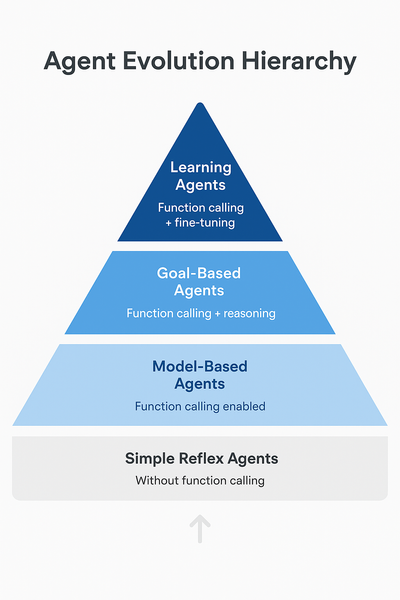
In our previous article on running Phi-4 locally, we built a web-enhanced assistant that could search the internet and provide informed answers. Here's what that implementation looked like: def web_enhanced_query(question): # 1. ALWAYS search (hardcoded decision) search_results = search_web(question) # 2. Inject results into prompt prompt = f"""Here are recent search results: {search_results} Question: {question} Using only the information above, give a clear answer.""" # 3. Model just summarizes what it reads return ask_phi4(endpoint, model_id, prompt) Today, we're upgrading to true function calling. With this, we have ability to transform small language models from passive text generators into intelligent agents that can: Decide when to use external tools Reason which tool bests fit each task Execute real-world actions thrugh apis Function calling represents a significant evolution in AI capabilities. Let's understand where this positions our small language models: Agent Classification Framework Simple Reflex Agents (Basic) React to immediate input with predefined rules Example: Thermostat, basic chatbot Without function calling, models operate here Model-Based Agents (Intermediate) Maintain internal state and context Example: Robot vacuum with room mapping Function calling enables this level Goal-Based Agents (Advanced) Plan multi-step sequences to achieve objectives Example: Route planner, task scheduler Function calling + reasoning enables this Learning Agents (Expert) Adapt and improve over time Example: Recommendation systems Future: Function calling + fine-tuning As usual with these articles, let's get ready to get our hands dirty! Project Setup Let's set up our environment for building function-calling assistants. Prerequisites First, ensure you have Foundry Local installed and a model running. We'll use Qwen 2.5-7B for this tutorial as it has excellent function calling support. Important: Not all small language models support function calling equally. Qwen 2.5 was specifically trained for this capability and provides a reliable experience through Foundry Local. # 1. Check Foundry Local is installed foundry --version # 2. Start the Foundry Local service foundry service start # 3. Download and run Qwen 2.5-7B foundry model run qwen2.5-7b Python Environment Setup # 1. Create Python virtual environment python -m venv venv source venv/bin/activate # Windows: venv\Scripts\activate # 2. Install dependencies pip install openai requests python-dotenv # 3. Get a free OpenWeatherMap API key # Sign up at: https://openweathermap.org/api ``` Create `.env` file: ``` OPENWEATHER_API_KEY=your_api_key_here ``` Building a Weather-Aware Assistant So in this scenario, a user wants to plan outdoor activities but needs weather context. Without function calling, You will get something like this: User: "Should I schedule my team lunch outside at 2pm in Birmingham?" Model: "That depends on weather conditions. Please check the forecast for rain and temperature." However, with fucntion-calling you get an answer that is able to look up the weather and reply with the needed context. We will do that now. Understanding Foundry Local's Function Calling Implementation Before we start coding, there's an important implementation detail to understand. Foundry Local uses a non-standard function calling format. Instead of returning function calls in the standard OpenAI tool_calls field, Qwen models return the function call as JSON text in the response content. For example, when you ask about weather, instead of: # Standard OpenAI format message.tool_calls = [ {"name": "get_weather", "arguments": {"location": "Birmingham"}} ] You get: # Foundry Local format message.content = '{"name": "get_weather", "arguments": {"location": "Birmingham"}}' This means we need to parse the JSON from the content ourselves. Don't worry—this is straightforward, and I'll show you exactly how to handle it! Step 1: Define the Weather Tool Create weather_assistant.py: import os from openai import OpenAI import requests import json import re from dotenv import load_dotenv load_dotenv() # Initialize Foundry Local client client = OpenAI( base_url="http://127.0.0.1:59752/v1/", api_key="not-needed" ) # Define weather tool tools = [ { "type": "function", "function": { "name": "get_weather", "description": "Get current weather information for a location", "parameters": { "type": "object", "properties": { "location": { "type": "string", "description": "The city or location name" }, "units": { "type": "string", "description": "Temperature units", "enum": ["celsius", "fahrenheit"], "default": "celsius" } }, "required": ["location"] } } } ] A tool is necessary because it provides the model with a structured specification of what external functions are available and how to use them. The tool definition contains the function name, description, parameters schema, and information returned. Step 2: Implement the Weather Function def get_weather(location: str, units: str = "celsius") -> dict: """Fetch weather data from OpenWeatherMap API""" api_key = os.getenv("OPENWEATHER_API_KEY") url = "http://api.openweathermap.org/data/2.5/weather" params = { "q": location, "appid": api_key, "units": "metric" if units == "celsius" else "imperial" } response = requests.get(url, params=params, timeout=5) response.raise_for_status() data = response.json() temp_unit = "°C" if units == "celsius" else "°F" return { "location": data["name"], "temperature": f"{round(data['main']['temp'])}{temp_unit}", "feels_like": f"{round(data['main']['feels_like'])}{temp_unit}", "conditions": data["weather"][0]["description"], "humidity": f"{data['main']['humidity']}%", "wind_speed": f"{round(data['wind']['speed'] * 3.6)} km/h" } The model calls this function to get the weather data. it contacts OpenWeatherMap API, gets real weather data and returns it as a python dictionary Step 3: Parse Function Calls from Content This is the crucial step where we handle Foundry Local's non-standard format: def parse_function_call(content: str): """Extract function call JSON from model response""" if not content: return None json_pattern = r'\{"name":\s*"get_weather",\s*"arguments":\s*\{[^}]+\}\}' match = re.search(json_pattern, content) if match: try: return json.loads(match.group()) except json.JSONDecodeError: pass try: parsed = json.loads(content.strip()) if isinstance(parsed, dict) and "name" in parsed: return parsed except json.JSONDecodeError: pass return None Step 4: Main Chat Function with Function Calling and lastly, calling the model. Notice the tools and tool_choice parameter. Tools tells the model it is allowed to output a tool_call requesting that the function be executed. While tool_choice instructs the model how to decide whether to call a tool. def chat(user_message: str) -> str: """Process user message with function calling support""" messages = [ {"role": "user", "content": user_message} ] response = client.chat.completions.create( model="qwen2.5-7b-instruct-generic-cpu:4", messages=messages, tools=tools, tool_choice="auto", temperature=0.3, max_tokens=500 ) message = response.choices[0].message if message.content: function_call = parse_function_call(message.content) if function_call and function_call.get("name") == "get_weather": print(f"\n[Function Call] {function_call.get('name')}({function_call.get('arguments')})") args = function_call.get("arguments", {}) weather_data = get_weather(**args) print(f"[Result] {weather_data}\n") final_prompt = f"""User asked: "{user_message}" Weather data: {json.dumps(weather_data, indent=2)} Provide a natural response based on this weather information.""" final_response = client.chat.completions.create( model="qwen2.5-7b-instruct-generic-cpu:4", messages=[{"role": "user", "content": final_prompt}], max_tokens=200, temperature=0.7 ) return final_response.choices[0].message.content return message.content Step 5: Run the script Now put all the above together and run the script def main(): """Interactive weather assistant""" print("\nWeather Assistant") print("=" * 50) print("Ask about weather or general questions.") print("Type 'exit' to quit\n") while True: user_input = input("You: ").strip() if user_input.lower() in ['exit', 'quit']: print("\nGoodbye!") break if user_input: response = chat(user_input) print(f"Assistant: {response}\n") if __name__ == "__main__": if not os.getenv("OPENWEATHER_API_KEY"): print("Error: OPENWEATHER_API_KEY not set") print("Set it with: export OPENWEATHER_API_KEY='your_key_here'") exit(1) main() Note: Make sure Qwen 2.5 is running in Foundry Local in a new terminal Now let's talk about Model Context Protocol! Our weather assistant works beautifully with a single function, but what happens when you need dozens of tools? Database queries, file operations, calendar integration, email—each would require similar setup code. This is where Model Context Protocol (MCP) comes in. MCP is an open standard that provides pre-built, standardized servers for common tools. Instead of writing custom integration code for every capability, you can connect to MCP servers that handle the complexity for you. With MCP, You only need one command to enable weather, database, and file access npx @modelcontextprotocol/server-weather npx @modelcontextprotocol/server-sqlite npx @modelcontextprotocol/server-filesystem Your model automatically discovers and uses these tools without custom integration code. Learn more: Model Context Protocol Documentation EdgeAI Course - Module 03: MCP Integration Key Takeaways Function calling transforms models into agents - From passive text generators to active problem-solvers Qwen 2.5 has excellent function calling support - Specifically trained for reliable tool use Foundry Local uses non-standard format - Parse JSON from content instead of tool_calls field Start simple, then scale with MCP - Build one tool to understand the pattern, then leverage standards Documentation Running Phi-4 Locally with Foundry Local Phi-4: Small Language Models That Pack a Punch Microsoft Foundry Local GitHub EdgeAI for Beginners Course OpenWeatherMap API Documentation Model Context Protocol Qwen 2.5 Documentation Thank you for reading! I hope this article helps you build more capable AI agents with small language models. Function calling opens up incredible possibilities—from simple weather assistants to complex multi-tool workflows. Start with one tool, understand the pattern, and scale from there.1.4KViews1like0CommentsRunning Phi-4 Locally with Microsoft Foundry Local: A Step-by-Step Guide
In our previous post, we explored how Phi-4 represents a new frontier in AI efficiency that delivers performance comparable to models 5x its size while being small enough to run on your laptop. Today, we're taking the next step: getting Phi-4 up and running locally on your machine using Microsoft Foundry Local. Whether you're a developer building AI-powered applications, an educator exploring AI capabilities, or simply curious about running state-of-the-art models without relying on cloud APIs, this guide will walk you through the entire process. Microsoft Foundry Local brings the power of Azure AI Foundry to your local device without requiring an Azure subscription, making local AI development more accessible than ever. So why do you want to run Phi-4 Locally? Before we dive into the setup, let's quickly recap why running models locally matters: Privacy and Control: Your data never leaves your machine. This is crucial for sensitive applications in healthcare, finance, or education where data privacy is paramount. Cost Efficiency: No API costs, no rate limits. Once you have the model downloaded, inference is completely free. Speed and Reliability: No network latency or dependency on external services. Your AI applications work even when you're offline. Learning and Experimentation: Full control over model parameters, prompts, and fine-tuning opportunities without restrictions. With Phi-4's compact size, these benefits are now accessible to anyone with a modern laptop—no expensive GPU required. What You'll Need Before we begin, make sure you have: Operating System: Windows 10/11, macOS (Intel or Apple Silicon), or Linux RAM: Minimum 16GB (32GB recommended for optimal performance) Storage: At least 5 - 10GB of free disk space Processor: Any modern CPU (GPU optional but provides faster inference) Note: Phi-4 works remarkably well even on consumer hardware 😀. Step 1: Installing Microsoft Foundry Local Microsoft Foundry Local is designed to make running AI models locally as simple as possible. It handles model downloads, manages memory efficiently, provides OpenAI-compatible APIs, and automatically optimizes for your hardware. For Windows Users: Open PowerShell or Command Prompt and run: winget install Microsoft.FoundryLocal For macOS Users (Apple Silicon): Open Terminal and run: brew install microsoft/foundrylocal/foundrylocal Verify Installation: Open your terminal and type. This should return the Microsoft Foundry Local version, confirming installation: foundry --version Step 2: Downloading Phi-4-Mini For this tutorial, we'll use Phi-4-mini, the lightweight 3.8 billion parameter version that's perfect for learning and experimentation. Open your terminal and run: foundry model run phi-4-mini You should see your download begin and something similar to the image below Available Phi Models on Foundry Local While we're using phi-4-mini for this guide, Foundry Local offers several Phi model variants and other open-source models optimized for different hardware and use cases: Model Hardware Type Size Best For phi-4-mini GPU chat-completion 3.72 GB Learning, fast responses, resource-constrained environments with GPU phi-4-mini CPU chat-completion 4.80 GB Learning, fast responses, CPU-only systems phi-4-mini-reasoning GPU chat-completion 3.15 GB Reasoning tasks with GPU acceleration phi-4-mini-reasoning CPU chat-completion 4.52 GB Mathematical proofs, logic puzzles with lower resource requirements phi-4 GPU chat-completion 8.37 GB Maximum reasoning performance, complex tasks with GPU phi-4 CPU chat-completion 10.16 GB Maximum reasoning performance, CPU-only systems phi-3.5-mini GPU chat-completion 2.16 GB Most lightweight option with GPU support phi-3.5-mini CPU chat-completion 2.53 GB Most lightweight option, CPU-optimized phi-3-mini-128k GPU chat-completion 2.13 GB Extended context (128k tokens), GPU-optimized phi-3-mini-128k CPU chat-completion 2.54 GB Extended context (128k tokens), CPU-optimized phi-3-mini-4k GPU chat-completion 2.13 GB Standard context (4k tokens), GPU-optimized phi-3-mini-4k CPU chat-completion 2.53 GB Standard context (4k tokens), CPU-optimized Note: Foundry Local automatically selects the best variant for your hardware. If you have an NVIDIA GPU, it will use the GPU-optimized version. Otherwise, it will use the CPU-optimized version. run the command below to see full list of models foundry model list Step 3: Test It Out Once the download completes, an interactive session will begin. Let's test Phi-4-mini's capabilities with a few different prompts: Example 1: Explanation Phi-4-mini provides a thorough, well-structured explanation! It starts with the basic definition, explains the process in biological systems, gives real-world examples (plant cells, human blood cells). The response is detailed yet accessible. Example 2: Mathematical Problem Solving Excellent step-by-step solution! Phi-4-mini breaks down the problem methodically: 1. Distributes on the left side 2. Isolates the variable terms 3. Simplifies progressively 4. Arrives at the final answer: x = 11 The model shows its work clearly, making it easy to follow the logic and ideal for educational purposes Example 3: Code Generation The model provides a concise Python function using string slicing ([::-1]) - the most Pythonic approach to reversing a string. It includes clear documentation with a docstring explaining the function's purpose, provides example usage demonstrating the output, and even explains how the slicing notation works under the hood. The response shows that the model understands not just how to write the code, but why this approach is preferred - noting that the [::-1] slice notation means "start at the end of the string and end at position 0, move with the step -1, negative one, which means one step backwards." This showcases the model's ability to generate production-ready code with proper documentation while being educational about Python idioms. To exit the interactive session, type `/bye` Step 4: Extending Phi-4 with Real-Time Tools Understanding Phi-4's Knowledge Cutoff Like all language models, Phi-4 has a knowledge cutoff date from its training data (typically several months old). This means it won't know about very recent events, current prices, or breaking news. For example, if you ask "Who won the 2024 NBA championship?" it might not have the answer. The good thing is, there's a powerful work-around. While Phi-4 is incredibly capable, connecting it to external tools like web search, databases, or APIs transforms it from a static knowledge base into a dynamic reasoning engine. This is where Microsoft Foundry's REST API comes in. Microsoft Foundry provides a simple API that lets you integrate Phi-4 into Python applications and connect it to real-time data sources. Here's a practical example: building a web-enhanced AI assistant. Web-Enhanced AI Assistant This simple application combines Phi-4's reasoning with real-time web search, allowing it to answer current questions accurately. Prerequisites: pip install foundry-local-sdk requests ddgs Create phi4_web_assistant.py: import requests from foundry_local import FoundryLocalManager from ddgs import DDGS import json def search_web(query): """Search the web and return top results""" try: results = list(DDGS().text(query, max_results=3)) if not results: return "No search results found." search_summary = "\n\n".join([ f"[Source {i+1}] {r['title']}\n{r['body'][:500]}" for i, r in enumerate(results) ]) return search_summary except Exception as e: return f"Search failed: {e}" def ask_phi4(endpoint, model_id, prompt): """Send a prompt to Phi-4 and stream response""" response = requests.post( f"{endpoint}/chat/completions", json={ "model": model_id, "messages": [{"role": "user", "content": prompt}], "stream": True }, stream=True, timeout=180 ) full_response = "" for line in response.iter_lines(): if line: line_text = line.decode('utf-8') if line_text.startswith('data: '): line_text = line_text[6:] # Remove 'data: ' prefix if line_text.strip() == '[DONE]': break try: data = json.loads(line_text) if 'choices' in data and len(data['choices']) > 0: delta = data['choices'][0].get('delta', {}) if 'content' in delta: chunk = delta['content'] print(chunk, end="", flush=True) full_response += chunk except json.JSONDecodeError: continue print() return full_response def web_enhanced_query(question): """Combine web search with Phi-4 reasoning""" # By using an alias, the most suitable model will be downloaded # to your device automatically alias = "phi-4-mini" # Create a FoundryLocalManager instance. This will start the Foundry # Local service if it is not already running and load the specified model. manager = FoundryLocalManager(alias) model_info = manager.get_model_info(alias) print("🔍 Searching the web...\n") search_results = search_web(question) prompt = f"""Here are recent search results: {search_results} Question: {question} Using only the information above, give a clear answer with specific details.""" print("🤖 Phi-4 Answer:\n") return ask_phi4(manager.endpoint, model_info.id, prompt) if __name__ == "__main__": # Try different questions question = "Who won the 2024 NBA championship?" # question = "What is the latest iPhone model released in 2024?" # question = "What is the current price of Bitcoin?" print(f"Question: {question}\n") print("=" * 60 + "\n") web_enhanced_query(question) print("\n" + "=" * 60) Run It: python phi4_web_assistant.py What Makes This Powerful By connecting Phi-4 to external tools, you create an intelligent system that: Accesses Real-Time Information: Get news, weather, sports scores, and breaking developments Verifies Facts: Cross-reference information with multiple sources Extends Capabilities: Connect to databases, APIs, file systems, or any other tool Enables Complex Applications: Build research assistants, customer support bots, educational tutors, and personal assistants This same pattern can be applied to connect Phi-4 to: Databases: Query your company's internal data APIs: Weather services, stock prices, translation services File Systems: Analyze documents and spreadsheets IoT Devices: Control smart home systems The possibilities are endless when you combine local AI reasoning with real-world data access. Troubleshooting Common Issues Service not running: Make sure Foundry Local is properly installed and the service is running. Try restarting with foundry --version to verify installation. Model downloads slowly: Check your internet connection and ensure you have enough disk space (5-10GB per model). Out of memory: Close other applications or try using a smaller model variant like phi-3.5-mini instead of the full phi-4. Connection issues: Verify that no other services are using the same ports. Foundry Local typically runs on http://localhost:5272. Model not found: Run foundry model list to see available models, then use foundry model run <model-name> to download and run a specific model. Your Next Steps with Foundry Local Congratulations! You now have Phi-4 running locally through Microsoft Foundry Local and understand how to extend it with external tools like web search. This combination of local AI reasoning with real-time data access opens up countless possibilities for building intelligent applications. Coming in Future Posts In the coming weeks, we'll explore advanced topics using Hugging Face: Fine-tuning Phi models on your own data for domain-specific applications Phi-4-multimodal: Analyze images, process audio, and combine multiple data types Advanced deployment patterns: RAG systems and multi-agent orchestration Resources to Explore EdgeAI for Beginners Course: Comprehensive 36-45 hour course covering Edge AI fundamentals, optimization, and production deployment Phi-4 Technical Report: Deep dive into architecture and benchmarks Phi Cookbook on GitHub: Practical examples and recipes Foundry Local Documentation: Complete technical documentation and API reference Module 08: Foundry Local Toolkit: 10 comprehensive samples including RAG applications and multi-agent systems Keep experimenting with Foundry Local, and stay tuned as we unlock the full potential of Edge AI! What will you build with Phi-4? Share your ideas and projects in the comments below!4.9KViews1like1CommentExploring Azure AI Foundry's Model Router: How It Automatically Optimizes Costs and Performance
A few days ago, I stumbled upon Azure AI Foundry's Model Router (preview) and was fascinated by its promise: a single deployment that automatically selects the most appropriate model for each query. As a developer, this seemed revolutionary no more manually choosing between GPT ( at the moment only work with OpenAI family), or the new o-series reasoning models. I decided to conduct a comprehensive analysis to truly understand how this intelligent router works and share my findings with the community. What is Model Router? Model Router is essentially a "meta-model" that acts like an orchestra conductor. When you send it a query, it evaluates in real-time factors such as: Query complexity Whether deep reasoning is required Necessary context length Request parameters It then routes your request to the most suitable model, optimizing both cost and performance. Test I developed a Python script that performs over 50 different tests, grouped into 5 main categories. Here's what I discovered (I´m form Spain, so i tested in Spanish. Sorry for that) The router proved to be surprisingly intelligent. For simple questions like "What is the capital of France?", it consistently selected more economical . But when I posed complex math or programming problems, it automatically scaled up to GPT-4 or even o-series reasoning models. Advantages I Found: Automatic cost optimization: Significant savings by using economical models when possible No added complexity: A single endpoint for all your needs Better performance: o-series models activate automatically for complex problems Transparency: You can always see which model was used in response.model Billing information When you use model router today, you're only billed for the use of the underlying models as they're recruited to respond to prompts: the model routing function itself doesn't incur any extra charges. Starting August 1, the model router usage will be charged as well. You can monitor the costs of your model router deployment in the Azure portal.