formulas and functions
25426 TopicsWelcome to the Excel Community
The Excel Community is a place we've built for all of you. You can learn more about how to do something with Excel, discuss your work, and connect with experts that build and use the product. With over half a billion Excel customers, we want to engage with you in fundamentally different ways and the community is a starting point for that. Our community helps answer your product questions with responses from other knowledgeable community members. We love hearing feedback and feature requests from you which helps us build the best version of Excel ever. If you have found an outage or a bug please post at our Answers forum. We look forward to getting to know you! Sangeeta Mudnal & Olaf Hubel on behalf of the Excel Team67KViews30likes106CommentsBraille Translator Challenge
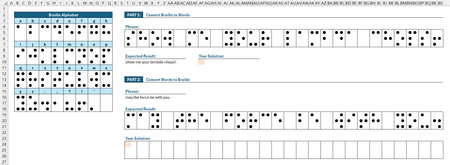
Using the Braille Alphabet lookup table provided: Part 1 - convert the given phrase from Braille to words. Part 2 - convert the given phrase from words to Braille. ✅ Solutions should be in the form of a single-cell formula. ✅ Generalized Lambda functions are welcome, provided the function definitions are included with your solution. ✅ Keep in mind, the "best" solution is not necessarily the shortest... Strive for conciseness, if you wish; just don't let your solutions be ordinary. 😉 Good luck and have fun!966Views1like22Comments
Webservice function
Hello. I want to use the WEBSERVICE function to geolocate an IP address. The address is in cell A1, and the function is in A2. The function looks like this: =WEBSERVICE("https://ip-api.com/csv/" & A1). Unfortunately, the result is #ARG!. I have no idea what is wrong. Can you help me? Best regards, Piotr83Views0likes3Comments
Linked data not updating
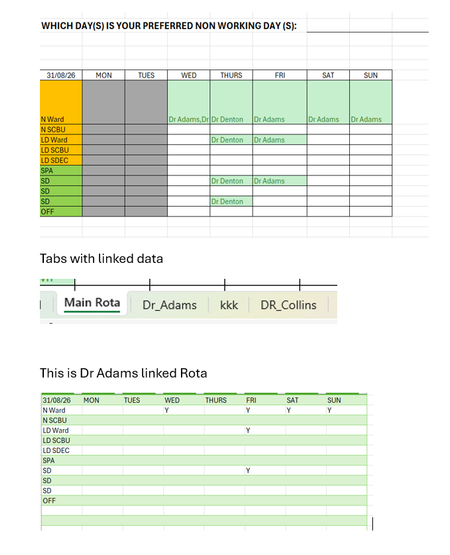
Hi I have a rostering spreadsheet where each person has their own spreadsheet with their rota they select a shift in their spreadhseet. I have a main spreadhseet where I link each spreadhseet to my my main rota so I can see what shifts they have selecteeneed and be able to resolve any conflicts i.e 2 peole selecting sam eshift. The issue is when data is updated in the individual spreadhseet it is not pulling through to my main spreadsheet. I used Data and get data form Excel file to link the workbooks. Not sure what I am doing wrong When Dr Adams adds a Y in Thursday it is not showing in my spreadhseet139Views0likes2CommentsFormulas Challenge for 365
Thank you for reading this post! I propose a formulas challenge (The shorter the better). Attached is a workbook in need of two formulas. I have solutions for each (Formula 1 is 66 characters, Formula 2 is 72) but would like to compare notes with others and maybe learn some new things. Formula 1: Rollup data from 5 sheets. Must be sorted A-Z, no blank rows, and must include header. Formula 2: Find the j+ max for each agent. This sounds simple but you'll have to see the workbook. The arrangement is based off a client's workbook that crossed my desk several years ago. The rules are simple. For this challenge the following are restricted: vba, PowerQuery, fill handle, use of named items, and alteration of existing data. Functions available on the Beta channel are fair game. Note: You may find this exercise difficult if you're not on 365 with Insider. The goal of this exercise is to explore some of the newest functions Excel has to offer. Have at it!5.9KViews1like16Comments
Referenced cells do not identify themselves with color
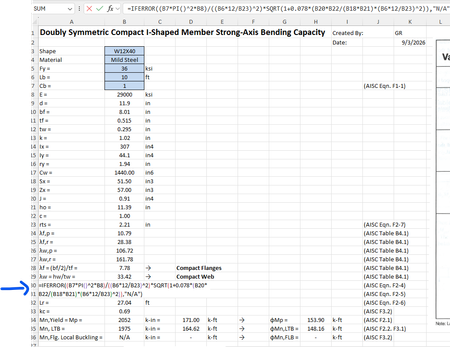
For some reason when I create a formula that references other cells, I cannot get those cells to "identify" themselves with a specific color. For example, in the image below the formula references cells B7, B8, B6, etc but they are just black text and don't show up in color per standard excel documents. Usually they "glow" with a specific color so you can find them easily in big spreadsheets. How do I get the colors back?Solved209Views0likes2CommentsBigSpill: A 92‑Function Excel LAMBDA Library for Dynamic Arrays
What is BigSpill? BigSpill is an Excel LAMBDA library containing 92 functions across 10 categories, built from extensive experimentation with dynamic arrays. The goal is to provide elegant, efficient tools that make sheet‑level formulas easier to read, more modular, and more dynamic. The library includes a mix of: quality‑of‑life helpers essential primitives mid‑level operators developer‑level tools a few functions you might not expect to see in Excel Who is it for? Everyone. BigSpill aims to make complex operations more approachable and expressive. A few examples from the library: Pairwiseλ Staircaseλ Grainλ PolarGridλ Convolveλ Foldλ Tessellateλ Revealλ Knapsackλ Magnifyλ Traverseλ The repository includes full documentation and 11 sample workbooks so you can explore the functions without setup. If you’re interested in experimenting with dynamic arrays, or LAMBDA workflows, feel free to take a look. Feedback and suggestions are always welcome. I've attached 1 onboarding workbook. There are 10 more at the link below. GitHub: BigSpill630Views3likes13Comments