firewall
25 Topics
Microsoft Foundry External MCP Server Traffic Routing via Corporate Firewall
The customer would like to confirm whether traffic from an Azure AI Foundry agent to an external MCP server can be routed through a corporate firewall and whether this scenario is officially supported. To validate this scenario, I configured the following in my lab: Deployed an Azure AI Foundry resource using the Standard Agent Service with network injection. Created a dedicated subnet for the Foundry Agent Service and delegated it to Microsoft.App/environments. Associated a route table with the Foundry Agent subnet to route outbound traffic through Azure Firewall. Configured the required application and network rules on Azure Firewall. The Foundry agent is able to successfully retrieve data from the external MCP server. However, no corresponding traffic is visible in the Azure Firewall logs. Could you please confirm whether outbound traffic from the Foundry agent to an external MCP server can be routed through Azure Firewall or a corporate firewall? Also, is this routing scenario officially supported? Appreciate your support!OPNsense Firewall as Network Virtual Appliance (NVA) in Azure
This blog is available as a video on YouTube: youtube.com/watch?v=JtnIFiB7jkE Introduction to OPNsense In today’s cloud-driven world, securing your infrastructure is more critical than ever. One powerful solution is OPNsense. OPNsense is a powerful open-source firewall that can be used to secure your virtual networks. Originally forked from pfSense, which itself evolved from m0n0wall. OPNsense could run on Windows, MacOS, Linux including OpenBSD and FreeBSD. It provides a user-friendly web interface for configuration and management. What makes OPNsense Firewall stand out is its rich feature set: VPN Support for point-to-site and site-to-site connections using technologies like WireGuard and OpenVPN. DNS Management with options such as OpenDNS and Unbound DNS. Multi-network handling enabling you to manage different LANs seamlessly. Advanced security features including intrusion detection and forward proxy integration. Plugin ecosystem supporting official and community extensions for third-party integrations. In this guide, you’ll learn how to install and configure OPNsense Firewall on an Azure Virtual Machine, leveraging its capabilities to secure your cloud resources effectively. We'll have three demonstrations: Installing OPNsense on an Azure virtual machine Setting up point-to-site VPN using WireGuard Here is the architecture we want to achieve in this blog, except the Hb and Spoke configuration which is planned for the second part coming soon. 1. Installing OPNsense on an Azure Virtual Machine There are three ways to have OPNsense in a virtual machine. Create a VM from scratch and install OPNsense. Install using the pre-packaged ISO image created by Deciso the company that maintains OPNsense. Use a pre-built VM image from the Azure Marketplace. In this demo, we will use the first approach to have more control over the installation and configuration. We will create an Azure VM with FreeBSD OS and then install OPNsense using a shell script through the Custom Script Extension. All the required files are in this repository: github.com/HoussemDellai/azure-network-course/205_nva_opnsense. The shell script configureopnsense.sh will install OPNsense and apply a predefined configuration file config.xml to set up the firewall rules, VPN, and DNS settings. It will take 4 parameters: GitHub path where the script and config file are hosted, in our case it is /scripts/. OPNsense version to install, currently set to 25.7. Gateway IP address for the trusted subnet. Public IP address of the untrusted subnet. This shell script is executed after the VM creation using the Custom Script Extension in Terraform represented in the file vm_extension_install_opnsense.tf. OPNsense is intended to be used an NVA so it would be good to apply some of the good practices. One of these practices is to have two network interfaces: Trusted Interface: Connected to the internal network (spokes). Untrusted Interface: Connected to the internet (WAN). This setup allows OPNsense to effectively manage and secure traffic between the internal network and the internet. Second good practice is to start with a predefined configuration file config.xml that includes the basic settings for the firewall, VPN, and DNS. This approach saves time and ensures consistency across deployments. It is recommended to start with closed firewall rules and then open them as needed based on your security requirements. But for demo purposes, we will allow all traffic. Third good practice is to use multiple instances of OPNsense in a high-availability setup to ensure redundancy and failover capabilities. However, for simplicity, we will use a single instance in this demo. Let's take a look at the resources that will be created by Terraform using the AzureRM provider: Resource Group Virtual Network (VNET) named vnet-hub with two subnets: Trusted Subnet: Internal traffic between spokes. Untrusted Subnet: Exposes the firewall to the internet. Network Security Group (NSG): attached to the untrusted subnet, with rules allowing traffic to the VPN, OPNsense website and to the internet. Virtual Machine: with the following configuration: FreeBSD OS image using version 14.1. VM size: Standard_D4ads_v6 with NVMe disk for better performance. Admin credentials: feel free to change the username and password with more security. Two NICs (trusted and untrusted) with IP forwarding enabled to allow traffic to pass through the firewall. NAT Gateway: attached to the untrusted subnet for outbound internet connectivity. Apply Terraform configuration To deploy the resources, run the following commands in your terminal from within the 205_nva_opnsense directory: terraform init terraform apply -auto-approve Terraform provisions the infrastructure and outputs resource details. In the Azure portal you should see the newly created resources. Accessing the OPNsense dashboard To access the OPNsense dashboard: Get the VM’s public IP from the Azure portal or from Terraform output. Paste it into your browser. Accept the TLS warning (TLS is not configured yet). Log in with Username: root and Password: opnsense you can change it later in the dashboard. You now have access to the OPNsense dashboard where you can: Monitor traffic and reports. Configure firewall rules for LAN, WAN, and VPN. Set up VPNs (WireGuard, OpenVPN, IPsec). Configure DNS services (OpenDNS, UnboundDNS). Now that the OPNsense firewall is up and running, let's move to the next steps to explore some of its features like VPN. 2. Setting up Point-to-Site VPN using WireGuard We’ll demonstrate how to establish a WireGuard VPN connection to OPNsense firewall. The configuration file config.xml used during installation already includes the necessary settings for WireGuard VPN. For more details on how to set up WireGuard on OPNsense, refer to the official documentation. We will generate a Wireguard peer configuration using the OPNsense dashboard. Navigate to VPN > WireGuard > Peer generator then add a name for the peer, fill in the IP address for the OPNsense which is the public IP of the VM in Azure, use the same IP if you want to use the pre-configured UnboundDNS. Then copy the generated configuration and click on Store and generate next and Apply. Next we'll use that configuration to set up WireGuard on a Windows client. Here you can either use your current machine as a client or create a new Windows VM in Azure. We'll go with this second option for better isolation. We'll deploy the client VM using Terraform file vpn_client_vm_win11.tf. Make sur it is deployed using command terraform apply -auto-approve. Once the VM is ready, connect to it using RDP, download and install WireGuard. Alternatively, you can install WireGuard using the following Winget command: winget install -e --id WireGuard.WireGuard --accept-package-agreements --accept-source-agreements Launch WireGuard application, click on Add Tunnel > Add empty tunnel..., then paste the peer configuration generated from OPNsense and save it. Then click on Activate to start the VPN connection. We should see the data transfer starting. We'll verify the VPN connection by pinging the VM, checking the outbound traffic passes through the Nat Gateway's IPs and also checking the DNS resolution using UnboundDNS configured in OPNsense. ping 10.0.1.4 # this is the trusted IP of OPNsense in Azure # Pinging 10.0.1.4 with 32 bytes of data: # Reply from 10.0.1.4: bytes=32 time=48ms TTL=64 # ... curl ifconfig.me/ip # should display the public IP of the Nat Gateway in Azure # 74.241.132.239 nslookup microsoft.com # should resolve using UnboundDNS configured in OPNsense # Server: UnKnown # Address: 135.225.126.162 # Non-authoritative answer: # Name: microsoft.com # Addresses: 2603:1030:b:3::152 # 13.107.246.53 # 13.107.213.53 # ... The service endpoint ifconfig.me is used to get the public IP address of the client. You can use any other similar service. What's next ? Now that you have OPNsense firewall set up as an NVA in Azure and have successfully established a WireGuard VPN connection, we can explore additional features and configurations such as integrating OPNsense into a Hub and Spoke network topology. That will be covered in the next part of this blog. Special thanks to 'behind the scene' contributors I would like to thank my colleagues Stephan Dechoux thanks to whom I discovered OPNsense and Daniel Mauser who provided a good lab for setting up OPNsense in Azure available here https://github.com/dmauser/opnazure. Disclaimer The sample scripts are not supported under any Microsoft standard support program or service. The sample scripts are provided AS IS without warranty of any kind. Microsoft further disclaims all implied warranties including, without limitation, any implied warranties of merchantability or of fitness for a particular purpose. The entire risk arising out of the use or performance of the sample scripts and documentation remains with you. In no event shall Microsoft, its authors, or anyone else involved in the creation, production, or delivery of the scripts be liable for any damages whatsoever (including, without limitation, damages for loss of business profits, business interruption, loss of business information, or other pecuniary loss) arising out of the use of or inability to use the sample scripts or documentation, even if Microsoft has been advised of the possibility of such damages.
SQL Cluster Connecting to Linked Server over a firewall.
Hi, Scenario: SQL FCI Cluster --> firewall (stateful) --> SQL Linked Server SQL cluster needs to connect to linked server at the other side of a firewall. Question: What needs to be opened on the firewall? SQL VIP --> SQL VIP or are the cluster node IP's required too? SQL VIP --> SQL VIP Node1 --> SQL VIP Node2 --> SQL VIP Many thanksSolved341Views0likes2Comments
Hotspot through Windows Defender Firewall
I would like to know ALL ports and protocols, services, etc... that need to be whitelisted for hotspot to work with windows defender firewall. Or otherwise the baseline/recommended procedure I have tested to enable the below so far: Inbound/Outbound: UDP:67,68,53, 5355 TCP:443,80, 53 ICMP4/6: protocols 1/58 Types and codes: 0/8 Services: icssvc I still get drop events here and there in Windows Defender firewall logs for ports 80/ICMP, etc...... Any Idea what could be the reason and what is the best way to set this up to allow hotspot access from the device.234Views0likes0CommentsFirewall Off despite policy being enabled
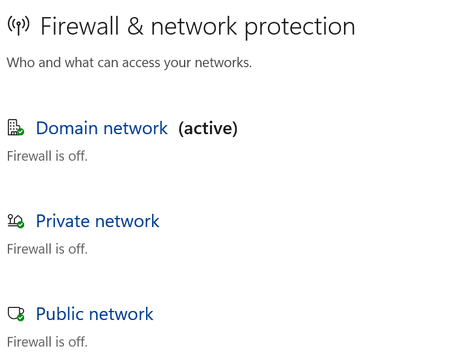
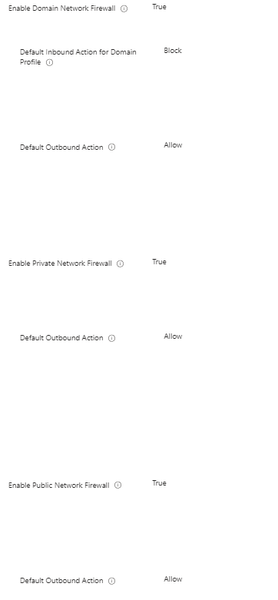
In Firewall and network protection, It says Firewall is off for all Network types. However it should be on. Is this normal/expected? However, In Sec. providers, Firewall is enabled. ========== In PS, Firewall appears to be enabled too. C:\Windows\System32>netsh advfirewall Show allprofiles Domain Profile Settings: ---------------------------------------------------------------------- State ON Firewall Policy BlockInbound,AllowOutbound LocalFirewallRules N/A (GPO-store only) LocalConSecRules N/A (GPO-store only) InboundUserNotification Enable RemoteManagement Disable UnicastResponseToMulticast Enable Logging: LogAllowedConnections Disable LogDroppedConnections Disable FileName %systemroot%\system32\LogFiles\Firewall\pfirewall.log MaxFileSize 4096 Private Profile Settings: ---------------------------------------------------------------------- State ON Firewall Policy BlockInbound,AllowOutbound LocalFirewallRules N/A (GPO-store only) LocalConSecRules N/A (GPO-store only) InboundUserNotification Enable RemoteManagement Disable UnicastResponseToMulticast Enable Logging: LogAllowedConnections Disable LogDroppedConnections Disable FileName %systemroot%\system32\LogFiles\Firewall\pfirewall.log MaxFileSize 4096 Public Profile Settings: ---------------------------------------------------------------------- State ON Firewall Policy BlockInbound,AllowOutbound LocalFirewallRules N/A (GPO-store only) LocalConSecRules N/A (GPO-store only) InboundUserNotification Enable RemoteManagement Disable UnicastResponseToMulticast Enable Logging: LogAllowedConnections Disable LogDroppedConnections Disable FileName %systemroot%\system32\LogFiles\Firewall\pfirewall.log MaxFileSize 4096 Ok. =========== In the Intune Firewall Policy the three options are enabled:Solved933Views0likes6Comments
Creating virtual Azure environment for teams toolkit VS code for teams toolkit.
Hi everyone, I am working on a project to create a teams bot app for my institute. I am using Teams Toolkit for VS code, and I have MS 365 app upload permission allocated. I was trying to create " https://github.com/OfficeDev/Microsoft-Teams-Samples/tree/main/samples/bot-conversation-sso-quickstart/js" using Teams Toolkit. However, after debugging the app with option of 'Debug in Edge' or 'Debug in Chrome' I faced issue with devtunnel, that the devtunnel is unable to create tunnel service use 'Test Tool' Instead. I communicated same issue with my team and came to know that firewall is blocking any tunneling service in our tenant. Then, my IT Admin suggested to create a Shared Virtualized Environment in Azure in which I should develop and deploy app for testing and production. Now I am quite confused about how to do this, because teams toolkit for VS code is installed on VS code of my local device and it's debugging will happen locally, how I should create Shared Virtualized Environment in Azure for creating, debugging and deploying Teams Bot App. Your answers are highly appreciated, this is very important project for my institute.88Views0likes0Comments
Enable Domain Network FW via Intune
Hello Experts, I've been trying to implement some defender recommendations and can't figure out why " Secure Microsoft Defender Firewall domain profile" does not have any effect on the endpoints... I have followed the guide and configured Firewall policy in Intune / Endpoint Security. I've assigned it to few testing users/machines... Now, it looks like below: when I open the policy I see it was "Succeeded" on all devices... no error no conflict reported when I check in Endpoint security -> Firewall -> "MDM devices running Windows 10 or later with firewall off", all devices have Firewall status "Disabled" The configuration is very simple and looks like the below It is assigned to a group of users When I check on testing machine, I see the below I'm confused as it all seems to be "succeeded" but it has no effect on the end user device looks like. Any idea what am I missing here?Solved2.9KViews0likes9CommentsHow to identify the firewall filter based on ID
Hi, We started to have strange problem and looks like Windows Firewall start blocking traffic even there is rules for the traffic. When I run the command netsh wfp show netevents I found from the XML file what this generates the following drop related to my traffic: <item> <filterId>1910059</filterId> <subLayer>FWPP_SUBLAYER_INTERNAL_FIREWALL_WF</subLayer> <actionType>FWP_ACTION_BLOCK</actionType> </item> Anybody knows how to identify what is this filter?853Views0likes0CommentsWindows Firewall rules in intune vs local Firewall rules
Hi Team I have a device that is fully managed by Intune. I have created some firewall rules policies to allow certain applications and block others. Before enrolling the device into Defender for Endpoint, there were some firewall rules created locally on the Windows device. My question is: will these manually created firewall rules still work as intended, or will only the policies published through Intune take over?Solved3.8KViews0likes3Comments