export
26 TopicsBug fixes in Microsoft Access - Current Channel Version 2605 (Build 16.0.20026.20118)
Bug Name Issue Fixed Edge Browser Control didn't render PDFs on some machines When the Edge Browser Control was used to display a PDF, on some machines the PDF would not render at all if the registry value "HKEY_CLASSES_ROOT\.pdf\Content Type" was missing. Access now provides the missing content type, so the Edge Browser Control can render the PDF. Export to SharePoint failed for tables with both lookup fields and attachment columns When exporting an Access table to a SharePoint list, if the table contained both a lookup field and an attachment column, the export could fail with an error. The export now handles this combination correctly, so the export completes successfully. Conditional Formatting color picker showed a reduced palette in Version 2604 A regression introduced in Version 2604 caused the Conditional Formatting color picker to display a smaller set of color choices than previous versions. The full legacy color palette has been restored. Some Unicode characters displayed incorrectly in objects exported to Excel When exporting an Access object whose name contained certain extended Unicode characters, the resulting file's sheet name displayed the characters incorrectly. These characters are now preserved correctly during export. Power BI Gateway couldn't refresh semantic models from .accdb files Refreshing a Power BI semantic model that connected to a .accdb file via the on-premises gateway could fail with "Unspecified error". Connection setup has been adjusted so the gateway can successfully refresh the model. Monaco SQL view: Ctrl+Z didn't undo Ctrl+Shift+K line deletion In the new Monaco-based SQL editor, pressing Ctrl+Shift+K to delete the current line removed the line, but a subsequent Ctrl+Z would not restore it. Undo now works correctly for this and similar editing operations. Document tab text didn't scale with Windows text-size setting When the Windows display setting for text size was increased, document tab labels and the record navigation bar continued to render at the standard size, while other Access UI scaled correctly. The document tabs and record navigation bar now honor the system text-size setting. Error when editing a Long Text field after a write conflict When a write conflict occurred on a record containing a Long Text field, subsequent attempts to edit the field could fail with an error. The data path now refreshes the cached field values correctly after a conflict so that further edits succeed. Access terminated unexpectedly when reading Edge Browser Control properties in form design view In form design view, retrieving the ReadyState or LocationUrl property on an Edge Browser Control could cause Access to terminate unexpectedly. Both properties now return safely in design view. "Copy" prefix was prepended instead of appended to copied object names When duplicating a database object, Access named the copy "Copy of Form1" instead of "Form1 - Copy". This made copies of related objects sort apart from their originals in the Navigation Pane. Copy-of names now append the suffix, so related objects stay together when sorted alphabetically.1.1KViews3likes8Comments
ImportExportJobError, SQL72012, SQL72014, SQL72045.
When trying to Import .bacpac file via Azure Portal, it fails with below error: 'code': 'ImportExportJobError', 'message': 'The ImportExport operation with Request Id '' failed due to 'The ImportExport operation with Request Id '' failed due to 'Could not import package.\\nWarning SQL72012: The object [data_0] exists in the target, but it will not be dropped even though you selected the 'Generate drop statements for objects that are in the target database but that are not in the source' check box.\\nWarning SQL72012: The object [log] exists in the target, but it will not be dropped even though you selected the 'Generate drop statements for objects that are in the target database but that are not in the source' check box.\\nError SQL72014: Framework Mi'.'.' The DAC framework hit a hard error and failed due to conflicts with existing system objects in the target database. The generated error does not show much information, except a Warning without enough detail to pinpoint the root cause. ⚠️ What the warnings mean (SQL72012) The object [data_0] exists in the target, but it will not be dropped… The object [log] exists in the target, but it will not be dropped… Retrying the import from the portal doesn’t help—the job fails consistently with the same outcome. To understand the exact cause of error, you can use SQLPackage.exe tool and follow steps below: Download SqlPackage for Windows. To extract the file by right clicking on the file in Windows Explorer, and selecting 'Extract All...', and select the target directory. Open a new Terminal window and cd to the location where SqlPackage was extracted: Import: sqlpackage.exe /Action:Import /tsn:ServerName.database.windows.net /tdn:sqlimporttestDB /tu:sql-user /tp:password /sf:"C:\test\DB-file.bacpac" /d:True /df:C:\test\df.txt TSN: Target server name, where the database will be imported. Tdn: Target database name, the name of the new database that will be created. Tu: user Tp: password Sf: source file, where the bacpac file is located. d: diagnostic, this parameter will help us to obtain detailed information for the import/export process. Df: where the diagnostic file will be saved and the name of it, please change the folder location to the same used on the source file. Note: .bacpac file needs to be present locally on your machine for this command. In the diagnostic file generated, we got a clear error indicating that Script "CREATE USER [EntraUser1@contoso.com] FOR EXTERNAL PROVIDER" failed to execute and only connections established with Entra accounts can create other Entra users. Microsoft.Data.Tools.Diagnostics.Tracer Error: 0 : 2026-01-22T06:56:50 : Error encountered during import operation Exception: Microsoft.SqlServer.Dac.DacServicesException: Could not import package. Error SQL72014: Core Microsoft SqlClient Data Provider: Msg 33159, Level 16, State 1, Line 1 Principal 'EntraUser1@contoso.com' could not be created. Only connections established with Active Directory accounts can create other Active Directory users. Error SQL72045: Script execution error. The executed script: CREATE USER [EntraUser1@contoso.com] FOR EXTERNAL PROVIDER; You’ll also notice the database gets created, but none of the schema or tables are deployed—leaving you with an online but completely blank database. SSMS shows the same behavior, the database appears online after creation, but the import ultimately fails and the resulting database is empty. When explicitly executing this script in database, you'll face the exact same error: If the source database contains only Contained Entra users, you typically won’t see this issue. For contained users, the import job uses a different user-creation script—one that can be executed even when the import connection is established using SQL authentication. CREATE USER [EntraUser2@contoso.com] WITH SID = 'User-SID-Here' , TYPE = E; The issue occurs when the Exported database contains Entra Server logins and a corresponding User is created in the User Database. To mitigate this issue: You need to initiate the Import request using Microsoft Entra Account since SQL Authentication account cannot create a user from an External Provider which is Microsoft Entra in this case. Make the Entra Users 'Contained' in User Database before exporting and then use SQL Authentication account for importing the DB. The second option is especially useful if you prefer importing through the Azure portal but your Entra account has MFA enforced. In that case, using SQL authentication for the import workflow can be a practical path forward. REFERENCES: Import a BACPAC File to Create a Database in Azure SQL Database - Azure SQL Database & Azure SQL Managed Instance | Microsoft Learn SqlPackage Import - SQL Server | Microsoft Learn598Views2likes0CommentsWorkload by week/ month export to Excel
I like to use Visual report, but that doesn’t work.. I have MSProject 2016 and office 365. so I have tried to use save as (export) as xls. But I can’t get the load or week or month. anyone that can help out setup in table format. I think… the I can build the rest in Excel if needed br runeSolved671Views0likes4Comments
Exporting Project - Resource Usage table with phased time data to excel
Hi Experts, Is there a way to export tasks to excel while retaining the phased time cost data? In an ideal world I would like to export this info and for it to look like this in excel: Export wizard is not doing the trick. Good old copy paste is copying the Resource list, but not the time phase. Any ideas?2.9KViews0likes7CommentsGet-MailboxExportRequest doesn't accept Export from date A to date B
Hi everyone, I'm faceing a strange error, when I want to export between 2 dates. We've tried infinite ways of exporting between 2 dates, but me and my colleagues can't get it. For easier reading, I reduced the following code to the minimum. We are successfully exporting with Case 1, but as soon as we want to set a end date, it will automatically fail with the wildest excuses. (See 2nd code) #Define Dates $start = (Get-Date -Day 1 -month 6 -year 2021 -Hour 00 -Minute 00) $end = (Get-Date -Day 31 -month 12 -year 2023 -Hour 23 -Minute 59) #Case 1: Export the MB works with following command WORKS. (So Export from Date X until today): New-MailboxExportRequest -Mailbox "PrimarySmtpAddress" -ContentFilter "((Received -ge '$start') -and (Sent -ge '$start'))" -FilePath "Path\file.pst" #Case 2: To keep it simple, I'll just export the received Messages (Export from Date X to Date Y (NOT NOW) doesn't work.: New-MailboxExportRequest -Mailbox "PrimarySmtpAddress" -ContentFilter "((Received -ge '$start') -and (Received -le '$end'))" -FilePath "Path\file.pst" Get-MailboxExportStatistics Error: ContentFilter is invalid. The value "31.12.2023 23:59:00" could not be converted to type System.DateTime. --> The value "31.12.2023 23:59:00" could not be converted to type System.DateTime. $end is definitely a system.datetime type; We've also used different System Cultures, f.e.: [System.Threading.Thread]::CurrentThread.CurrentCulture = "en-US" I've been working on this for a long time, please only respond, if you were able to reproduce this in your own Exchange Environment, since I want a confirmation, that this is a (currently) unhandable bug. Best regards, Florian edit: I updated the official MS docs.1KViews0likes0CommentsHow to view and manage your Microsoft passwords on Linux/Chrome/ChromeOS (Without Edge or mobile)
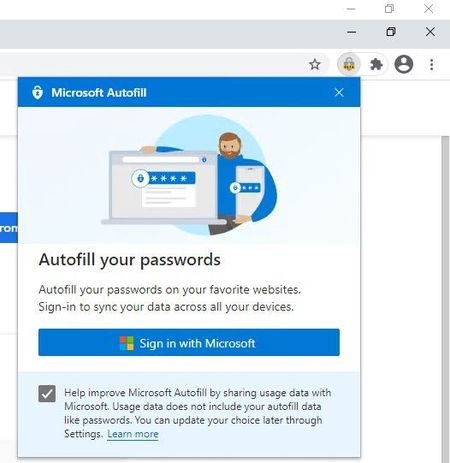
1. install Google Chrome (or other Chromium based browsers, including Edge itself) 2. install Microsoft Autofill extension 3. Sign into your Microsoft account in the extension 4. Access your Passwords safely and hassle-free * you do Not need to sign in to Google account for this. ** this works on Mac and Windows too, basically any environment where you can install this extension in. The extension also has Import feature, so you can import your passwords at once from a file and save them to your Microsoft account. Questions & answers about Microsoft Authenticator app - Azure AD | Microsoft Docs Q: How are my passwords protected by the Authenticator app? A: Authenticator app already provides a high level of security for multi-factor authentication and account management, and the same high security bar is also extended to managing your passwords. Strong authentication is needed by Authenticator app: Signing into Authenticator requires a second factor. This means that your passwords inside Authenticator app can't be accessed even if someone has your Microsoft account password. Autofill data is protected with biometrics and passcode: Before you can autofill password on an app or site, Authenticator requires biometric or device passcode. This ensures that even if someone else has access to your device, they cannot fill or see your password, as they’d be unable to provide the biometric or device PIN. Furthermore, a user cannot open the Passwords page unless they provide biometric or PIN, even if they turn off App Lock in app settings. Encrypted Passwords on the device: Passwords on device are encrypted, and encryption/decryption keys are never stored and always generated on-the-fly. Passwords are only decrypted when user wants to, that is, during autofill or when user wants to see the password, both of which require biometric or PIN. Cloud and network security: Your passwords on the cloud are encrypted and decrypted only when they reach your device. Passwords are synced over an SSL-protected HTTPS connection, which ensures no attacker can eavesdrop on sensitive data when it is being synced. We also ensure we check the sanity of data being synced over network using cryptographic hashed functions (specifically, hash-based message authentication code).11KViews2likes4CommentsSS28: selection to bookmarks + vivaldi example of what i reported you previously
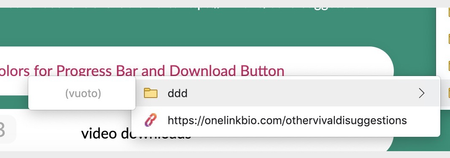
Suggestion (SS): 28 Classification: Bookmarks PRIORITY IN MY OPINION: 4 on a scale from 1 (low) to 10 (high) Here my idea i got after visiting a suggestion in vivaldi about add current tab to a folder (which is available for vivaldi and edge). I tested it out and in edge is available, but creates problem, like where you continuosly add it under ddd instead inside ddd. only 1 time you added it in ddd. PS: is not the first time i see problems with other bookmarks, you should check if all functions really work correctly with other bookmarks. Same if i do that you should avoid to show me that for the creation of folders. <<<<<<< second: i tried to select 3 tabs, and then do the same. is not possible. <<<<<<< third: i still think vivaldi add to bookmark option without right click is much better. please consider to implement it to edge too. <<<< because we are talking about vivaldi, here other points i like reload miniature (i suggested this to you only for bookmarks bar) like i suggested you with shortcut for bookmarks and other things (i noticed only after sending you the suggestions, that vivaldi has already such option, but still limited compared to what i told you, which is much more complex) this is similar to what i told you too, but vivaldi show us directly the webpage, is not a second bookmarks bar ability to change default bookmarks bar. (NEW SUGGESTION, but less important, since i use different profile. it still remains cool) same like i wrote you yesterday to remove things from the bar position of new tab, like i suggested you keep last tab open, like i suggested you a lot of option like i suggested you (or better some things are not available in vivaldi too) show me only icons inside bookmarks bar, full name in other bookmarks or when you hide url from bookmarks bar (like suggested). i still think a way to add personal customized folder color to bookmarks is usefull too even if i don't really like to use shortcuts (via keyboard with crtl alt etc., not things like <ddd $dd) ... but i like how they do. trackpad gesture, like suggested is much more clean search always in new tab (NEW SUGGESTION) .... PS: until now i don't use vivaldi, because they create library folders problems. so i just use it as a normal second browser for quick searches. this is why maybe the list of good features is not complete. once devs fix such problem, i can send more vivaldi based suggestion too. i still think main points are now available in this post, a lot is already included in previous submitted suggestions. Here even what i don't like previews different colours for each tab ... other ... (yes, you can disable such things). about the download suggestion, something like where i can set "save to /user/ccc/applications" and then "save this website always in this folder" or "if /externaldrive/... is not available, use /user/ccc/applications instead".1.5KViews0likes0Comments