excel
45118 Topics
Excel Nested Arrays: Find the Nesting Depth of Uniform and Ragged Arrays ARRDEPTH() & ISRAGGED()
Hey everyone! I’ve been diving deep into Excel’s new nested arrays features lately, and I absolutely love the flexibility they bring to data structuring. However, managing them can get a bit tricky, so I figured I’d build some specialized tools to handle them seamlessly. Public Interfaces & Arguments =ISRAGGED(array) Argument Description Default Behavior array Target nested structure to validate. Required =ARRDEPTH(array, [is_ragged]) Argument Description Default Behavior array Target nested structure to measure. Required [is_ragged] TRUE: Scans all branches for the deepest path. FALSE: Speed test on the first path only. FALSE (Omitted) TL;DR (What makes it tick): Function Name Type What It Does ARRDEPTH Public UI Returns nesting depth. Supports deep checking or fast linear testing. ISRAGGED Public UI Structural validator. Returns TRUE if array branches have uneven nesting. ANALYZE_NESTING Hidden Core Engine Multi-process recursive parser that tracks tree structure geometries. LINEARDEPTH Hidden Utility High-speed depth checker that evaluates the first element path exclusively. You can get both functions from my GitHub Gist: https://gist.github.com/Medohh2120/9cdf939036942c9672c57ccd6de696d3404Views1like8CommentsHalloween 2026 Scheduling Challenge 🎃
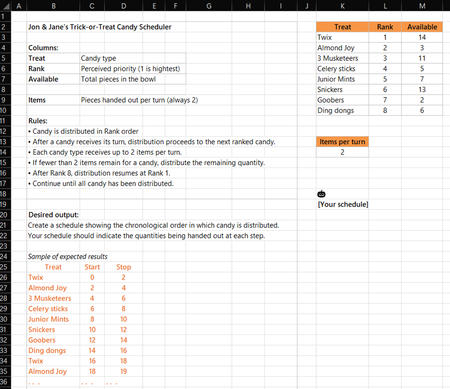
Happy Halloween! You'll find the rules in the screen capture below and in the attached workbook. Creative solutions are encouraged. Feel free to use any functions available in the Beta channel. I won't post my solution immediately so submissions aren't influenced. Enjoy!158Views1like9Comments
excel crashes changing font color
hi all, here is a good one. in excel (via microsoft365) I can open a speadsheet and enter data into a cell. I can't change anything with the font, color etc from the ribbon or the right click menu. It works with keyboard short cuts. Excel just hangs until I am forced to crash. I have tried with an existing spreadsheet on a different PC and it works fine. I have tried with a new blank spreadsheet with entry only in one cell, same. repaired MS 365, fast and slow, uninstalled and reinstalled to no avail. I am at a loss, any clues or directions? cheers21KViews2likes17Comments
Excel “Trace Dependents” stops working in XLSX files generated by ChatGPT
Excel “Trace Dependents” stops working in XLSX files generated by ChatGPT – Cause and tested solution Problem When opening Microsoft Excel workbooks (.xlsx) generated by ChatGPT, the Trace Dependents feature may stop working, reporting that a cell has no dependents even when other cells explicitly reference it. The Trace Precedents feature may continue to function normally. In our testing, the problem was particularly difficult to diagnose because: It occurred repeatedly with Excel workbooks generated by ChatGPT. Opening an affected workbook caused Trace Dependents to stop working even in other workbooks that had previously worked correctly. The malfunction persisted after closing the affected workbook. Recalculating formulas, rebuilding the calculation chain and reconstructing the workbook did not consistently resolve the issue. Root cause identified The affected XLSX files generated by ChatGPT contained the following setting in xl/workbook.xml: forceFullCalc="1" This setting enables forced full calculation, bypassing Excel's normal dependency-based calculation mechanism. Tested solution Close Excel completely, including any remaining EXCEL.EXE processes. Open the affected XLSX file as a ZIP archive. Locate xl/workbook.xml. Find the <calcPr> element. Change forceFullCalc="1" to forceFullCalc="0", or remove the attribute. Save the corrected XLSX file. Restart Excel in a clean session. Open only the corrected workbook and test Formulas → Trace Dependents. Experimental confirmation We verified that: An original ChatGPT-generated workbook containing forceFullCalc="1" triggered the malfunction. The problem affected the entire Excel session and persisted after closing the original workbook. A corrected version containing forceFullCalc="0" worked when opened in a clean Excel session. The same issue was reproduced through multiple tests, including Excel Safe Mode. Recommendation for ChatGPT and XLSX-generation developers ChatGPT's spreadsheet-generation workflows should explicitly prevent the unnecessary activation of forceFullCalc=True. Before delivering generated XLSX files, the system should inspect xl/workbook.xml and ensure that persistent forced full calculation is disabled unless specifically required. This check is particularly important because the problem may affect not only the generated workbook but also other Excel workbooks opened in the same session. Scope and limitation This issue was repeatedly observed in workbooks generated through ChatGPT in our testing. The results do not establish that all ChatGPT-generated Excel files are affected, nor that this setting is responsible for every Trace Dependents malfunction. Nevertheless, the relationship between forceFullCalc="1" and the observed behavior was confirmed experimentally in the tested environment. Conclusion A ChatGPT-generated XLSX workbook with forceFullCalc="1" can trigger a persistent malfunction of Excel's Trace Dependents feature. Disabling this setting and restarting Excel restored the functionality in our tests.88Views0likes1Comment
Conditional formatting
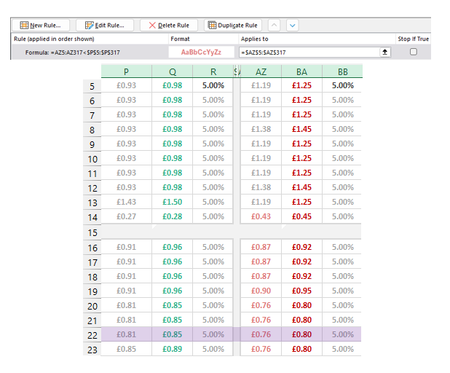
I'm making a rule to Highlight cells in Column AZ when the value is lower than Adjacent cells in Column P. For the most part it works except for two cells in AZ (1 shown as an example) that are higher than P but are being picked up by the conditional formatting. The two cells I'm focusing on here are P14 (£0.27) and AZ14 (£0.43). £0.43 should not be being highlighted pink as it isn't lower than £0.27. This has to be something obvious but I have looked at it too long. Please help if you can :)Solved70Views0likes3Comments
copy paste issue in excel 2016
Dear Team, the copy paste issue comming since yesterday 14 oct 2016 after updating security update kb5127648 and security update for microsoft excel 2016 kb5002934, if i copy any cell from sheet2 and paste it on sheet1 it work well but if copy any cell from sheet1 and paste on the other sheet or on the same sheet is not performing while it paste normaly in notepad file, also copy anything from notepad and paste in the sheet1 is work well134Views0likes3Comments
Excel workbook search issue
When searching a spread sheet that has several tabs I always use the "find" feature and set it to search the entire workbook. Sometimes, however, it just returns a result of "not found" even when I know for sure that the line is on the spreadsheet. Strange thing is that everything will work fine at first and then for no apparent reason it will not find anything. Does anyone have a clue as to what can cause this?2.8KViews1like6CommentsContent Not Permitted, two-four-seven is not allowed in the community. Remove it & try again.
What does this mean? "Content Not Permitted, two-four-seven is not allowed in the community. Remove it and try again." My post had text and snipping-tool images from my Excel spreadsheet - that's all. What is "two-four-seven"? How can I display images from my spreadsheet without triggering this error? And as I tried to publish this question, I got the same warning! So I have spelled out the numerals.Solved79Views0likes3CommentsFind mismatches
I want a way to flag or highlight a cell in Column B if the content does not exactly match the content on the same row in Column A. My spreadsheet has hundreds of rows of data, and just a few mismatches, and I'd like an easy way to find them. Seems like Conditional Formatting would offer an option, but I don't see one. Is there a way to do this?212Views0likes5Comments