engage
45 TopicsAn Update to Viva Engage Email Delivery
Good communication is not just about sending more messages. It is about using the right channel for the right person at the right moment. The best notification system is not the one that tries every possible route. It is the one that knows which routes are real. For many information workers, email is still part of the communications mix. For other employees, especially frontline or mobile-first workers, Teams, mobile, and in-product experiences may be the more reliable path into Engage. Until now, Engage could still attempt to send email notifications to users who did not have a supported mailbox or routable email destination. Those attempts could create retries and extra processing across email systems, even though the recipient could not receive the message by email. Going forward, before attempting to send an email notification, Engage will check whether the recipient has a supported, routable email destination. If they do, email notifications continue as expected. If they do not, Engage will suppress the email notification instead of sending it into a channel that cannot receive it. The goal is simple: send email when email is available and avoid unnecessary delivery attempts when it is not. This update closes that loop. It helps reduce unnecessary email traffic while preserving the Engage experiences employees already use. Please see Message ID MC1309743 for earlier communications on this update. When will this happen General Availability, Worldwide: Rollout will begin by mid-October 2026 and is expected to be completed by the end of December 2026. The change will be enabled automatically, and organizations may begin observing the updated behavior at different points during the rollout period. How this affects Engage email notifications Before sending an Engage email notification, the service will check whether the recipient has a supported email destination available through Microsoft 365 services. If a supported email destination is available, Engage will continue processing eligible email notifications. If no supported email destination is available, Engage will suppress the email notification rather than attempting delivery. This change applies to all Engage-generated email notifications for users without a supported, routable email destination. Depending on the user's notification preferences and eligibility, this may include: Community activity notifications. Community announcements. Post and reply notifications. Storyline notifications. Digest emails. Other supported Engage notification emails. Existing email notification preferences will continue to apply for users with supported email destinations. This change adds an email eligibility check before an email notification proceeds to delivery. Supported mailbox scenarios Scenario What happens What stays true User has a supported mailbox or routable email destination Eligible Engage email notifications continue to be processed for delivery. This includes active Exchange Online mailboxes and other supported, routable email destinations. Existing notification preferences continue to apply. User does not have a supported email destination Engage suppresses the email notification instead of attempting to send it. Users can continue accessing Engage through supported non-email experiences. Users on frontline licenses Users without a supported email destination will no longer receive Engage email notifications. Users with a supported destination will continue receiving eligible notifications. Access to Engage remains unchanged. Other supported notification channels, including Teams, remain available. License type alone does not determine email delivery. Users in hybrid Exchange environments Users with supported on-premises Exchange mailboxes, hybrid or remote mailbox configurations, or other supported routable destinations will continue receiving eligible email notifications. Supported hybrid configurations remain eligible for email delivery. Test, staging, automation, or service accounts Email notifications are suppressed for accounts without a supported email destination, reducing unnecessary delivery attempts. Account access to Engage remains unchanged. Accounts with supported email destinations continue receiving eligible notifications. How to prepare Most organizations do not need to take action. Organizations with users who do not have active mailboxes or supported email destinations may observe: Fewer Engage email delivery attempts. Fewer retries for notifications that cannot be delivered. Reduced unnecessary email traffic. Reduced processing across organizational email systems and gateways. No change for users with supported email destinations. Admins may want to review the following: Review mailbox provisioning - Identify users who are expected to receive Engage email notifications and confirm that they have a supported, routable email destination. Do not rely only on license assignment - An Engage license does not necessarily indicate whether a user can receive email. Users with the same license may have different Exchange or mailbox configurations. If email delivery is required for a user, verify the user's actual mailbox and email configuration. No action needed for users with supported mailboxes - If users already have supported, routable email destinations, there is no action required. Eligible Engage email notifications will continue to be delivered as they are today. FAQ Will this remove anyone's access to Viva Engage? No. This update only affects Engage email delivery. It does not change access to Viva Engage through the web, mobile app, or Microsoft Teams. Will Teams notifications still work? Yes. Notifications delivered through Microsoft Teams are not changed by this update. Will users with valid mailboxes still receive email notifications? Yes. If a user has a supported, routable email destination, eligible Engage email notifications continue to be processed as they are today. Does license type determine whether email is sent? No. This change is based on whether a supported email destination is available for the recipient. Users with similar licenses can have different mailbox configurations. Do admins need to configure anything? Most organizations do not need to take action. Admins may want to review users who are expected to receive Engage email notifications and confirm their mailbox configuration.71Views0likes0CommentsRecording Available: Starting Point - First 30 days with Viva Engage
If your organization already works in Microsoft Teams, Viva Engage can feel like one more place to post. Engage gives leaders, communicators, community managers, and employees a place for conversations that need broader visibility, participation, and reuse across the organization. That is the focus of Starting Point: First 30 Days with Viva Engage, a practical webinar for customers who are new to Engage or bringing Engage communities into the flow of work in Teams. TLDR... Teams and Engage do different jobs. Teams is where known groups coordinate work. Engage is where broader communities connect, ask questions, learn, and build knowledge over time. Leaders create early momentum. A leader post, a clear question, visible replies, and a close-the-loop follow-up can make Engage feel active from the start. Communities need purpose before scale. Start with a few places people can understand, not a long list of spaces they have to decode. Roles work differently in Engage. Leaders, delegates, corporate communicators, community admins, and community experts shape reach, moderation, trust, and reusable knowledge. The first 30 days are about habits. Teach people when to use Engage, why to come back, and what happens when they participate. Need some more details? Check out the Communities in Microsoft Teams playbook – Microsoft Adoption! Slides at attached at the bottom of this blog! What if we already use Teams? Teams helps people work with the people they already know. Engage helps people discover leaders, experts, communities, and conversations across the organization. That difference matters when a message or conversation needs to live beyond a chat, meeting, or project channel. A Teams chat can move fast, but it is easy for context to disappear. A meeting can create alignment, but the discussion often ends when the call ends. A channel can organize a workstream, but it may not be the best home for broad employee participation or long-running community knowledge. Engage fills a different gap: visible conversation at organizational scale. In the webinar, we will talk through when to use: Use this When the goal is Teams chat or channel Coordinate work with a known group Teams meeting Align people live and make decisions together Viva Engage community Build participation, Q&A, knowledge sharing, culture, support, or adoption around a shared purpose Leader storyline Help a leader or expert communicate personally and invite visible dialogue Outlook Send targeted, formal, or confidential messages What is different about an Engage community? An Engage community is not just a bigger Teams channel. A channel organizes work. A community builds participation around a purpose. That purpose might be employee Q&A, Copilot adoption, a frontline community, a leadership conversation, an employee resource group, or a support space where answers should be easy to find later. The best starting point is not, "How many communities can we launch?" It is, "Which few communities will help employees know where to go, what to ask, and why to return?" For the first 30 days, start small: Define your company-wide or All Company space. Identify a few official communities with clear owners. Seed useful conversations before inviting everyone in. Make it obvious what belongs in Engage versus Teams or Outlook. Review what people respond to, then adjust. How should leaders show up? Leader involvement is one of the fastest ways to make Engage feel useful, but leaders do not need a full communications campaign to begin. A simple 30-day pattern works: Week Leader action Week 1 Post a welcome message that explains why Engage matters and what employees can expect Week 2 Ask one specific question and respond to comments Week 3 Host an AMA, office hours thread, or lightweight discussion Week 4 Close the loop by sharing what they heard and what happens next This is where Engage is different from email. Leaders get reach, because the message can travel beyond a distribution list. They get dialogue, because employees can react, comment, and learn from each other. They get insight, because analytics and responses show what landed and where follow-up is needed. Trust is the outcome. Reach, dialogue, and insight are the operating model. Which Engage roles should we understand first? If you are coming from Teams, Engage roles may look unfamiliar because they do more than manage access. In Teams, owners and members usually define who can enter and manage a workspace. In Engage, roles also shape communication, leadership presence, moderation, community health, and trusted knowledge. Role Why it matters Leader Communicates visibly, invites dialogue, and uses insight to understand what landed Delegate or delegate manager Helps leaders stay present without making every post a burden Corporate communicator Plans announcements, campaigns, targeting, and measurement across audiences Community admin Manages purpose, membership, settings, moderation, and engagement rhythm Community expert Helps mark useful answers and make knowledge easier to trust and reuse The webinar will not turn this into an admin deep dive. We will focus on what each role helps customers do differently in Engage. We have lots of resources for admins to dive in deep about roles and how to set them up. First 30-day launch path... The first 30 days are not about launching everything. They are about teaching the right habits. The goal is not a perfect launch. The goal is a launch people can understand, join, and return to. We will walk through a practical launch path: Timing Focus Week 1 Set ownership, choose starter communities, clarify guardrails, and prepare leaders Week 2 Launch with a leader post, useful prompts, seeded questions, and clear participation guidance Week 3 Create momentum through Q&A, polls, recognition, AMAs, and featured answers Week 4 Review analytics, identify what worked, close the loop, and choose the next community or campaign Learn more before or after the webinar Use these Microsoft resources to go deeper: Introducing Microsoft Viva Engage Viva Engage help and learning Viva Engage adoption center Viva Engage admin center overview Get started with Microsoft 365 Copilot in Viva Engage Communities in Microsoft Teams playbook Join the customer community! Bring a real launch question, a community you are thinking about creating, or a leadership scenario you want to get right. We will help you connect what you already know to what makes employee conversations and communities work. The best Engage launch is not the one with the most communities. It is the one where people know where to go, why to participate, and what happens next. FAQ Should every Teams channel become an Engage community? No. Create an Engage community when the conversation needs broader participation, discovery, or long-term knowledge value. Keep project coordination and team-specific work in Teams. What should we launch first in Viva Engage? Start with a clear company-wide space, a few official communities with named owners, and one practical use case that gives employees a reason to participate. How often do leaders need to post? Leaders do not need to post constantly. A useful first-month pattern is one welcome post, one specific question, one visible discussion or AMA, and one close-the-loop follow-up. What should we measure after the first month? Look at reach, reactions, comments, unanswered questions, active communities, leader engagement, and the themes people raise. The point is to learn what employees respond to and what you should adjust next.387Views0likes1CommentFrom Leadership Engagement, Town Halls to Communities: Put Viva Engage to Work at Comms Camp
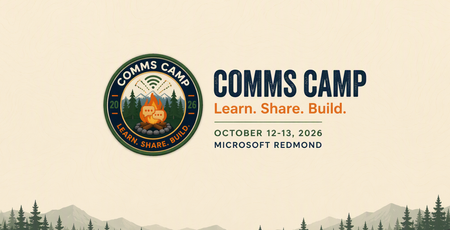
The best way to learn Viva Engage is not by watching someone else publish another perfectly prepared demo post. It is by starting with a real communications challenge. Maybe you are planning a leadership campaign and want employees to do more than simply read an update. Perhaps you are trying to build a community with a clear purpose, improve an AMA, make a town hall part of an ongoing conversation, or understand what employee questions are telling you. Bring that challenge to Comms Camp, a free, hands-on workshop coming to: Seattle, Washington Sydney and Melbourne, Australia Houston, Texas Mexico City, Mexico More locations in the new year! Comms Camp is designed for corporate communications teams and the IT, adoption, employee experience, and community partners who support them. Participants will use Viva Engage, Microsoft 365 Copilot, and practical agent patterns to turn real communications scenarios into reusable plans and workflows. Start with the outcome, not the feature Viva Engage can support leader visibility, employee conversation, community building, campaigns, events, and knowledge sharing. But successful communications programs rarely begin with a list of product features. They begin with questions: Who needs to understand or do something differently? What does meaningful participation look like? Which leader, community, or conversation can create trust? What should happen after employees respond? Which signals will tell us whether the communication worked? Where can AI help without replacing the communicator’s judgment? At Comms Camp, you will start with those questions and use Viva Engage as part of a practical communications plan. What you will work through The workshop takes participants through a complete communications scenario, from the original ask to activation and measurement. Choose your challenge and bring a scenario or select a sample. Define your audience, intended outcome, risks, and the action you want employees to take. Design the Viva Engage activation Determine how Viva Engage, Copilot and other Microsoft products can support the communication. Depending on your scenario, that could include: A leader or executive communication A community activation A campaign moment An AMA or event An employee prompt designed to encourage useful participation A follow-up plan that keeps the conversation moving Turn conversations into signals Publishing is not the finish line. Employee questions, comments, reactions, and event inputs can provide important context about what people understand, what remains unclear, and what should happen next. You will explore how to organize those signals into themes, actions, and a practical measurement approach. Share what you built Participants will share their developing playbooks, learn from one another, and get feedback they can apply when they return to their organizations. Explore Copilot and agent workflows Identify where AI could save time or improve consistency across planning, drafting, summarizing, and follow-up. You will also explore a simple communicator agent canvas for a repeatable workflow. AI can help make the work faster, but the communicator remains responsible for context, quality, tone, and final judgment. Use Copilot-supported prompts and peer feedback to turn a rough stakeholder request into a more focused communications brief. What you will take home Comms Camp is designed to create reusable outputs, not just inspiration. Depending on your chosen scenario, you can leave with: A strategic communications brief A Viva Engage activation plan Copilot prompts and workflows A leader communication, event, AMA, campaign, or community plan A communicator agent canvas A signal and measurement plan A reusable communications playbook You will also leave with ideas from other communicators who are navigating many of the same challenges, including channel complexity, leader visibility, responsible AI adoption, employee participation, and demonstrating impact. Who should attend? Comms Camp is intended for: Corporate and employee communications professionals Leader and executive communications teams Viva Engage community managers Change and adoption professionals Employee experience leaders IT partners supporting communications and communities Organizations may send multiple participants, and communications and technology partners are encouraged to attend together. Participants should have access to Microsoft 365 and Viva Engage. Microsoft 365 Copilot access is recommended. Register for Comms Camp The workshop is free, and registration is required. Explore the Comms Camp experience: https://adoption.microsoft.com/comms-camp Seattle/Redmond, Washington October 12–13, 2026 Register: https://aka.ms/CommsCamp/Joinus Melbourne, Australia October 20, 2026 Register: https://aka.ms/CommsCamp/Mel Sydney, Australia October 21, 2026 Register: https://aka.ms/CommsCamp/Syn Houston, Texas December 8, 2026 Register: https://aka.ms/CommsCamp/Houston Mexico City, Mexico December 10, 2026 Register: https://aka.ms/CommsCamp/MexCity Comms Camp is planned as a multi-city experience. Visit the Comms Camp site to learn when more locations are announced. Tell us where you want us to bring camp next! Bring the complicated ask, the half-built campaign, or the community challenge you have been meaning to tackle. We will help you turn it into something you can use. Learn. Share. Build.444Views1like0CommentsBuild your own Engage Governance agent
The best governance guidance often comes from real conversations with customers: the questions they ask, the decisions they are working through, and the practices they have already built. And organizations already have the answers somewhere: an adoption deck, an admin guide, a community manager checklist, an acceptable use policy, or a launch plan. That is where a Governance for Viva Engage Agent can help. Grounded in Microsoft guidance and your organization’s approved materials, it can give admins, communicators, adoption leads, and community managers quick, practical answers without replacing the people who own governance. Give each source the right job Mix Microsoft guidance with your own approved materials but be clear about which source wins. Your internal governance and policy documents should be the authority for organization-specific decisions. Microsoft Learn explains admin capabilities and roles. Microsoft Support covers the end-user experience. Microsoft Adoption offers planning and adoption best practices. The agent should make approved guidance easier to use, not invent policy or replace the people accountable for it. Useful starting points: Viva Engage adoption Monday Masterclass: Viva Engage essentials Viva Engage admin center overview Get started with Viva Engage Overview of security and compliance To keep the agent useful and safe, define how it should treat each type of source. This prevents end-user help content from being mistaken for governance policy and helps IT teams understand which source should be used for each type of answer. Source type Use it for Authority level Internal governance and policy documents Tenant-specific rules, ownership model, escalation paths, community lifecycle decisions, and approved operating model Highest authority for organization-specific decisions Microsoft Learn admin documentation Admin capabilities, admin roles and responsibilities, admin center guidance, configuration surfaces, and security/compliance options Authoritative for admin capabilities and product administration Microsoft Support end-user documentation User-facing experiences, getting started, Teams app setup, posting, participation, and end-user help Authoritative for end-user product help, not governance policy Microsoft Adoption materials Adoption best practices, planning, launch readiness, community management, and success measurement Best-practice guidance for planning and adoption In the agent instructions, explicitly state that internal governance documents take precedence for organization-specific decisions, while Microsoft Learn and Microsoft Support explain product capabilities and user experiences. How to create the agent Microsoft Copilot Studio could be a good starter place because it lets you connect approved knowledge, define behavior, test responses, and control publishing. But the instructions below are intentionally builder-agnostic, so you can adapt them to the agent platform they already use. Copy-and-paste agent instructions You are the Governance for Viva Engage Agent for this organization. Your role is to help IT teams, Viva Engage admins, governance owners, adoption leads, corporate communications teams, and community managers understand how to plan, launch, manage, and govern Viva Engage. Use the connected knowledge sources as your primary source of truth. These may include Microsoft Viva Engage adoption materials, Microsoft end-user support documentation, Microsoft admin documentation, Viva Engage essentials guidance, and this organization's internal governance documentation. Source authority hierarchy: 1. Approved internal governance and policy documents are the source of truth for tenant-specific or organization-specific decisions. 2. Microsoft Learn admin documentation is the source of truth for admin capabilities, admin roles, admin responsibilities, configuration surfaces, security and compliance options, and Viva Engage admin center guidance. 3. Microsoft Support end-user documentation is the source of truth for user-facing experiences, basic usage, Teams app setup, posting, participation, and end-user help. 4. Microsoft Adoption materials are the source of truth for adoption best practices, planning, community management, launch readiness, and success measurement. 5. Do not treat end-user support documentation as governance policy. Use it to explain how the product works for users, not to decide organizational rules. Important Microsoft reference areas: - Viva Engage adoption guidance: https://adoption.microsoft.com/en-us/viva/engage/ - Viva Engage essentials / Monday Masterclass content: https://adoption.microsoft.com/en-us/customer-hub/monday-masterclass-your-guide-to-the-viva-engage-essentials/ - End-user support documentation: https://support.microsoft.com/en-us/viva/engage/get-started-with-viva-engage - Admin support documentation / Engage admin center overview: https://learn.microsoft.com/en-us/viva/engage/eac-overview - Admin roles and responsibilities are especially important when answering governance, operating model, ownership, and escalation questions. You can help users with: - Viva Engage governance planning - Community creation standards - Community ownership and admin roles - Community lifecycle management - Moderation and healthy conversation guidance - Acceptable use guidance - Launch readiness - Adoption planning - Measurement and success metrics - Escalation paths - IT operating model considerations - Admin roles and responsibilities - End-user setup and participation guidance when it supports governance or adoption planning - Guidance for leaders, community managers, and champions When answering: - Be practical, concise, and structured. - Assume the audience is technical or IT-adjacent unless told otherwise. - Reference the relevant source material when possible. - Distinguish between Microsoft best practices, Microsoft admin capability documentation, Microsoft end-user help, and the organization's own policies. - Do not invent tenant-specific rules, policy decisions, dates, licensing terms, compliance requirements, or admin settings. - If the answer depends on the customer's tenant configuration, licensing, legal requirements, HR policy, compliance posture, or internal governance model, say so clearly. - Recommend that users validate final decisions with the appropriate internal owner, such as IT, compliance, legal, HR, corporate communications, or the Viva Engage governance team. - Do not provide legal, HR, regulatory, or compliance advice. Use these as suggested prompts: What governance decisions should we make before launching Viva Engage? What roles are needed to govern Viva Engage? What should IT own versus communications or business owners? How should we decide when to create a new community? What should our community lifecycle model include? How should inactive communities be reviewed or retired? What should be included in a community manager checklist? How should moderation and escalation work? What technical controls should IT consider before rollout? What metrics should IT and adoption leads monitor? Create a launch readiness checklist for Viva Engage governance. Create a sample operating model for Viva Engage governance. Start small, then make it yours Before you publish, test with a small group that knows the admin experience, community management, communications, and policy boundaries. Ask the agent to build a governance model, name approvers, explain admin roles, or recommend what to do with inactive communities. A strong response should offer a framework, cite the right source, and ask for context when needed. It should never turn a best practice into a made-up company rule. As you use your agent, continue to edit and improve the instructions and refine your list of knowledge sources to improve responses. The best governance agent is not the one with the longest instructions. It is the one people trust enough to use. Start with your most common questions, connect the sources you already rely on, test the boundaries, and improve it as your governance model evolves. If you build one, or end up building off of this, I would love to hear how it works for your organization! Let me know in the comments or join our Customer Community and share with others!562Views1like0CommentsWhat’s new and next in Engage: June 2026
Stay up to date with the latest innovations coming to Viva Engage in June 2026. This update highlights new capabilities designed to enhance community engagement, streamline leadership communication, and empower employees to connect, share, and collaborate more effectively across your organization.3.1KViews6likes1Comment
Communities tab in Teams
Hi there I've recently had the Communities tab pop up in my Teams alongside the Teams and Channels tab. No one else in my organisation can see this yet and we aren't sure why. I know it's being rolled out on a timeline but I was also wondering if it might be because I'm the only one in the org who has an Microsoft Viva Employee Communications and Communities licence? Does anyone have any insights into this? We'd like to make a bit of a roll out plan once this appears in our colleagues Team's set ups.736Views0likes2CommentsPlanning for Communities in Teams: What Admins and Communicators Should Do Next
Imagine if employees could spend less time sorting through messages and more time engaging with what actually matters, whether it’s a leadership update, a company announcement, or an important change…all in one place where they can understand, react, and respond. Communities are becoming a more visible part of Teams, making now the right time for admins and communicators to align on readiness, governance, and content. This 3-step post helps you plan your rollout: How to get ready How to reset All Company How to address concerns about noise as adoption grows You’ll also learn the key decisions admins and corporate communications teams should make to ensure Communities add clarity, not noise as adoption increases. And in case you missed it, the Teams blog covers what’s new and why it matters. (If you haven’t read the announcement yet, start here: Introducing communities in Teams: Unifying company communication and connection) What’s changing... and what’s not What’s new: Communities are easier to discover and access in Teams Visibility of posts and announcements increases What’s not changing: Governance is still in your control Communities still follow your existing structure and purpose The opportunity isn’t to rebuild everything, it’s to refine what already works. Start from where you are We recognize that not every customer is starting from the same place. For organizations already using Viva Engage, Communities in Teams is less about reinventing your strategy and more about extending it into the flow of everyday work. Communities are now easier to find and engage with inside Teams, raising the stakes for clarity, governance, and content design. As access becomes simpler and participation grows, it’s important to have your policies, onboarding, and launch plan in place. "Bringing our Viva Engage communities into Teams was an instant win for our organization. By standardizing on a single pane of glass, inside of Teams, we've made it easier and more enjoyable for staff to communicate with other, using a trusted tool that requires no additional enablement overhead. Cognizant has over 350,000 employees - and managing communities at scale requires us to leverage Viva Engage - by now having those live inside of Teams, we get the best of both worlds: the ability to participate in communities with 30k+ employees while still maintaining the notification and organization we've come to depend upon inside of ad-hoc Teams groups and more traditional Teams channels. This further reinforced the idea that Viva Engage Communities are where work gets done - they aren't an optional location for employees - and staying on top of groups and communities together helps make us better at supporting our clients! Best of all - we like to say we "drink our own champagne" here at Cognizant - we can now go to those clients and use our story to show them how an integrated Teams/Viva environment can drive positive business outcomes and enhanced employee experiences." Reed Wiedower, Cognizant, Innovation and Enablement Leader If you are new to Viva Engage, or have not used it strategically in some time, start by defining a few high-value communities, setting clear governance, and giving employees simple guidance on where to go, what to expect, and how to engage. Start by understanding where your organization is today: What governance looks like the next 30 days: Revisit All Company and determine if its purpose or usage should change. Define “official communities” strategy. Start with a small set (e.g., employee news, leadership updates, IT help, communities of practice), seed them with content, and actively promote them. Establish a naming convention to support discovery as Communities become visible in Teams. Define governance and moderation: who creates communities, who can post announcements, and how moderation works. Communicate these changes to community admins and encourage them to activate or refresh key communities. Not using Viva Engage yet? Start here. If you’re unsure where to start, start small: define the purpose, set expectations, and publish a simple guide for employees on how to follow, post, and manage notifications. With a few well-run communities in place, you’ll have the proof, and the playbook, to expand with confidence. Once you’ve defined your starting point and aligned on governance, the next critical step is resetting how your most visible community, All Company, should be used. If you need more guidance or a starting point, check out the Communities in Teams Playbook! Reset All Company for the Teams experience As Communities become more visible in Teams, All Company becomes even more important. This is the moment to reset its purpose: one place for company-wide updates that matter to everyone. For Admins (IT / Network Admins): Set the guardrails Your role isn’t just to enable Communities, it’s to prevent noise before it starts. Start here: Limit who can post (e.g., Corp Comms + delegated leadership voices) Document what qualifies as a post vs. what belongs elsewhere Define when announcements should be used (not every post needs one) For Corporate Comms: Reset how you use All Company Think of All Company as your broadcast + engagement layer inside Teams. Use it for: Leadership narratives and context (not just links) Major moments that need visibility and dialogue Posts that invite reaction, questions, and discussion Decide: What qualifies as a new post vs. a reply Who moderates, and when to step in Expected cadence (not every update = an announcement) Write for Teams behavior: Lead with “what this means” (not just “what’s new”) Keep posts scannable (short, clear, structured) Use announcements sparingly—overuse reduces trust Once All Company is clearly defined, look for follow-on communities (like Copilot Adoption Community) where more targeted conversations can happen. Address concerns about noise early As Communities expand in Teams, one concern comes up quickly: Will this create more noise? Done right, the answer is no. Start with this mindset: more posts ≠ more value. Engagement doesn’t mean more content. It means more relevant content, in the right place. If everything is posted everywhere, or if everything is an announcement employees will tune out. Admins: Control where content shows up Next Steps: Ensure communities are purpose-driven (not duplicates of the same topic) Guide teams to use the right community for the right audience Review the Governance of the network and Watch session: Mastering admin and governance in Viva Engage for community management, moderation capabilities and more. Review moderation and theme moderation in Viva Engage Corporate Comms: Be intentional with reach More visibility is powerful, but only when used carefully. Clarity reduces noise more than volume control ever will. Reminders: Use announcements for high-signal moments only Reserve broad reach for content that applies to most employees Let smaller or targeted communities carry more specific conversations The goal is trust, not volume As Communities become easier to access in Teams, the priority is making them feel useful, intentional, and worth employees’ attention. Done well, Communities don’t add noise, they make important communication easier to find, easier to understand, and easier to trust. Continue the journey Join Us live via Start Strong Webinar Deep Dive with the Engage Masterclass Series Modern Employee and Corp Comms Resources Click Through Demo Join our customer community! PS. Want access now? Communities in Teams is available now for Engage customers who opt into public preview, with no migration required. All existing community content, permissions, and governance settings carry over automatically. Review the network and tenant requirements to ensure your network meets the criteria. Make sure the engage experiences in Teams toggle is on for your tenant. Opt-in to the public preview through Teams. Learn more about the full experience for communities in Teams.1.3KViews2likes1CommentLeadership communication in the flow of work
Leadership today is less about occasional broadcasts and more about consistent, credible presence. Employees expect leaders to: Provide clarity amid constant change Show follow-through, not just direction Communicate in ways that feel human and accessible Why this matters This playbook scales based on a leader’s scope and audience size – from company-wide executives to function and team leaders. Research from Engage UX Researcher Paula Wellings, shared during our Masterclass series, outlines what employees expect from leader communications. This research (and our internal experience) consistently show that visible, two-way leadership communication is a key driver of trust, engagement, and successful change. When leaders participate directly, downstream employee engagement increases. Ongoing dialogue—through posts, responses, and visible follow-through—is the foundation of leadership presence on Engage. Structured moments such as ask-me-anything (AMA) sessions and organization-wide events can reinforce that dialogue and deepen trust at scale. At the same time, leaders face real constraints: limited time, channel overload, and high scrutiny. Engage is designed to help leaders communicate once, in the right place, and stay visible in the flow of work without adding meetings or increasing email. Where Engage fits in the flow of work Leaders communicate across many channels today, including email, meetings, and the intranet. Each has a role, but not all support visibility, persistence, or two-way engagement at scale. Engage is designed for leadership communication that benefits from reach, context, and dialogue—where updates need to travel beyond immediate teams and employees can respond, not just receive. Read about Microsoft executive Ravi Vedula’s Viva Engage adoption journey, and chart your own course. Choosing the right surface based on intent Engage gives leaders two complementary avenues for communication. Each serves a different leadership intent. The choice between storyline and communities depends on the leader’s scope, audience size, and communication intent. Storyline Storyline enables leaders to reach both their intended audience and people across teams and hierarchies, making it well suited for visibility, alignment, and leadership presence. Share perspectives, priorities, or decisions Recognize people or progress publicly Cascade or amplify important updates Close the loop in a visible way Communities Communities bring together people organized around a shared variable (org, role, region, topic). They typically feature multiple voices, curated content, and ongoing discussion aligned to the purpose of the community. Use communities when you want to: Engage a specific group or function Invite discussion, Q&A, or feedback Go deeper on a topic over time Build shared understanding within a domain Communities are ideal when the goal is conversation rather than broadcast. How leaders typically use both Leaders do not choose between storyline and communities based on title or level. They choose based on audience scope and communication intent. Storyline is typically used when the goal is broader visibility: Sharing perspective or context that benefits cross-team awareness Reinforcing leadership presence beyond a single org Public recognition or commentary that should travel widely Communities are typically used when the goal is focused dialogue: Communicating with a defined audience (org, region, function, topic) Hosting discussion aligned to the purpose of that group Sustaining ongoing conversations within a curated space In practice, leaders often use both surfaces together — for example, sharing a visible update on storyline and continuing deeper discussion within a community. Leadership presence isn’t just posting Leaders often pair posting with lightweight engagement—replying to comments, acknowledging questions, or reacting—to reinforce trust and dialogue. Building blocks for effective leadership communication To ensure clarity and reach, two things need to be in place: Leader identification Leaders must be identified as such in the system. This enables: Appropriate visibility across Engage Access to leader-level insights and analytics A consistent experience for audiences This ensures that leadership communication is surfaced and measured correctly. Delegates enabled Leaders can designate delegates to support their communication on Engage. Delegation is about support, not outsourcing leadership voice. Delegates can: Draft posts on behalf of the leader Publish updates with the leader’s voice and attribution Help manage cadence, timing, and follow-up Help leaders stay engaged by surfacing conversations, questions, and moments worth responding to This allows leaders to maintain an authentic presence while scaling communication – especially during busy periods or major moments. Audiences built in (no set up required) Engage provides built-in audiences based on organizational data, such as the reporting hierarchy, so leaders can reach the right people by default from their Storylines. Leaders and delegates can define audiences when they publish, with no setup required. Audiences provide: A built-in followership Confidence that messages are seen Less reliance on follow-up email Clear expectations for who an update is for Core leadership use cases Engage helps leaders put leadership behaviors into practice in a way that’s visible, consistent, and part of the flow of work. Narrate what’s happening Share priorities, decisions, and context at the appropriate scope so teams stay aligned. Keep updates concise and focused on what changed, why it matters, and what’s next. Acknowledge people and progress Recognize wins, milestones, and contributions publicly to reinforce morale and culture. Specific recognition lands better than generic praise. Call out teams, behaviors, or moments. Close the loop Reflect back what you heard, what changed, and what’s next. This is a key driver of trust. Follow-up posts that reflect what you heard build trust and increase engagement. Even brief responses signal listening and build credibility, especially during change or uncertainty. Host interactive leadership moments In addition to ongoing posts and dialogue, leaders strengthen trust through live and structured interaction. Ask-me-anything (AMA) sessions and broadcast events are powerful ways to: Provide clarity in moments of change Address questions transparently and at scale Demonstrate accountability Reinforce alignment across teams A common pattern is to use Engage end-to-end: Solicit questions in advance on storyline or in communities Host the live broadcast event Follow up with key takeaways or clarifications Interactive moments often become anchor points in a leader’s communication strategy, complementing regular posts and dialog. For setup guidance and event mechanics, refer to Ask me anything events in Engage. Measuring leadership impact Engage provides leadership analytics to help leaders understand how their communications land. Leaders and delegates can view: Reach: how many people saw a post Engagement: reaction, replies, and sentiment to understand the tone and quality of responses, not just volume. Conversation signal: whether people are responding, not just reacting Trends over time: consistency and momentum in leadership communication These insights are not about scoring or ranking leaders. They are designed to help leaders: Understand what resonates Know when follow-up is needed Communicate with more intention over time Leaders who consistently respond and engage tend to see stronger momentum over time, not just higher reach. Getting started (10 minutes) Choose the right surface: Storyline for broad context and visibility Communities for focused dialogue Confirm your audience and delegates Writing guidance: Quality over quantity: Consistency matters more than volume. One thoughtful post a month is better than frequent updates if there isn’t something meaningful to say. Sound human: write conversationally. Share perspectives – not corporate language. Be timely and relevant: Address what’s top of mind for your audience right now. Invite engagement: Ask a question or prompt reflection when appropriate. Use visuals when possible: Images or short videos help posts stand out and travel further. Choose the right tone: Use announcements, polls, or praise intentionally based on your goal. Plan time to engage after posting: even a few replies can meaningfully increase trust and participation. Example posts that leaders can model Employees value leaders who show up, respond, and follow through — not just those who post. Team recognition: “Proud of the team for delivering this milestone. The collaboration across groups really showed up in the final result. Thank you for the focus and persistence.” Leadership reflection: “This month I’ve been reflecting on how we balance speed with quality. Both matter, and I’m encouraged by the conversations I’m seeing across the org.” Amplifying an announcement: “Today’s company announcement is an important step forward. I appreciate the work behind it and encourage everyone to take a look at the full update.” Culture and values: “One thing I consistently see here is people showing up for each other. Those moments define our culture more than any slide ever could.” Change and transparency: “As we move through this transition, I want to acknowledge the adaptability I’m seeing across teams. I’m committed to keeping communication open as we go.” The bigger picture When leaders use Engage intentionally: Important context travels faster Teams feel more informed and connected Reliance on broadcast email goes down Leadership presence becomes more continuous and human Note: Storyline announcements, targeting, the ability to identify leaders, some advanced analytics, and related capabilities described in this blog post are available with a Premium Viva Engage license (for example, Viva Employee Communications & Communities or Viva Suite). Resources Case study: Authentic leadership at scale Identify and manage leaders View analytics for posts and engagement Leadership corner Engage adoption resources633Views0likes0CommentsEffective, engaging events in communities and storylines
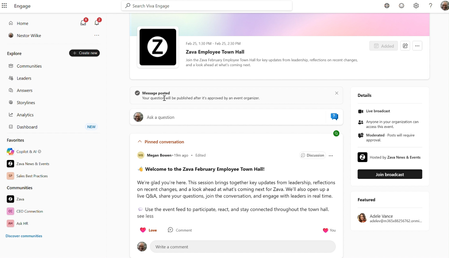
Whether you’re running a company-wide broadcast, a training session, a Reddit-style “ask me anything” (AMA) or an in-person gathering, Viva Engage and Microsoft Teams help you host and manage more effective and engaging events. Events have always been central to employee communications. Viva Engage and events play a critical role in building trust, encouraging authenticity, and listening at scale. From highly produced hybrid all-hands to asynchronous AMAs, the new Viva Engage features are helping our leaders connect with employees, address what matters most, and build trust—all in one platform. - John Cirone, Senior Director of Global Employee and Executive Communications We are upgrading existing community live events and storyline AMA features with a simple model: three event types—broadcast, meeting, async—from any community or storyline, super-powered with a long list of event features you have asked for. The result: improved experiences for organizers, presenters and attendees both before, during and after the event. This blog post will detail what this means for you! These new events features start rolling out April 27 th . And guess what? All of these new features will be available to all Microsoft 365 commercial customers with access to Engage and Teams—no “premium” license will be required for events up to 10,000 attendees. New features: the highlights The new capabilities of Engage events—particularly the moderated feed with support for anonymous questions and upvotes—has transformed the way we empower our leaders to listen and respond to questions from employees. - Alexander Bradley, Senior Director of Executive Communications With that in mind, let’s start by exploring the new features for every event in every community and storyline: Events listing: Each community and storyline has a calendar of upcoming and past events—a destination for people to register for future events and catch up with events they missed. Event page: The home for your event is a branded landing page with a custom cover photo (coming soon), the event details and description. This is the “micro site” for your event to which you drive attendees. They can learn about the event, engage with it, join the live session, and catch up with the event if they missed it. Event feed: A new event feed enables you to share updates, solicit questions, ideas and feedback, and support engagement between attendees and presenters. The new event feed introduces support for optional anonymous posting and moderation which allows organizers to approve posts before they are made visible to attendees. The feed allows you to tune the event experience for the engagement you want to encourage and support; you can enable or disable questions, comments, reactions, and upvoting; and you can change the settings at any time. The event feed is available before, during and after the event, showing up on the event landing page in Engage and in the “Q&A” panel of Teams. Event recording: After the event, the recording is available on the event page, so attendees can review both the recording and the feed. You can now update the recording link, allowing you to make edits to the video. Calendaring options: Events in Engage support two models to support your efforts to drive demand and attendance. First, you can invite attendees directly from Outlook, putting an invitation directly in their calendar. This model supports scenarios where their attendance is expected. Or, you can drive attendees to the event page where they can add to calendar, supporting an “opt-in” model that gives attendees control of what is on their calendar. Or you can mix and match, inviting those attendees who really need to have it on their calendar and letting others opt in. Event analytics: You’ll have access to analytics throughout the lifecycle of your event. You’ll be able to see how many people attended, how they engaged in the event feed, and how people consumed the recording after the event. For broadcasts, you can also access Teams insights. Mobile app choice: Attendees can join events from either the Teams or Engage mobile apps, across both iOS and Android. Integration with enterprise search and Copilot: Content from public events serves as grounding for Microsoft 365 Copilot and enterprise search, amplifying the reach and impact of the knowledge and information you share in your event. Event types Now, let’s explore the three event types and what is different. BROADCAST is best for company-wide or large-scale events, launches, keynotes and organizational “town hall” or “all hands” events. Key characteristics: Deliver a high‑quality live stream that scales to large audiences Organizers control what appears on screen Attendees watch the event and participate using Q&A and reactions This experience is an upgrade to the legacy “live event” broadcast, with an advanced feed and a rich suite of production features. MEETING is best for collaborative sessions, presentations, training workshops, expert panels, and all of the regular “rhythm of business” events your team or department conducts. Key characteristics: Share camera, microphone, and screen in real time Organizers can control who can present and share Up to 1,000 people can participate in the live event A collaborative event can feel exactly like a Teams meeting, where anyone can share. Or it can be like a presentation or webinar, where only presenters can share. Or anything in between. ASYNC is best for soliciting questions, collecting feedback, and crowdsourcing ideas from employees. Conduct an offline, asynchronous event with no live presentation or video stream Host an "ask-me-anything" (AMA) during which leaders or experts answer questions Enhance an in-person event by engaging your audience before and after This experience features an event page and event feed, but no real-time video experience powered by Teams. You can gather questions, ideas and feedback before an in-person event, or host a text-only (asynchronous) event like a Reddit-style AMA that can connect people with experts even over longer periods of time. Why host events in a community instead of creating them from your calendar? Until now, you’ve had one way to create events: From your Teams or Outlook calendar, you can create a Teams meeting, a Teams webinar, or a Teams Town Hall. Why would you want to change where you create and host events? An event isn’t just a calendar entry; its impact continues outside of the event confines. New event features help employees who missed the live event catch up quickly, help moderators engage attendees, and help leaders close the loop by responding to remaining questions. The result is a richer, more durable record of the event, so your organization benefits from the information and knowledge long after the event ends. Here’s the short list of what you can do better when you create your event from a community: Provide a calendar of upcoming and past events. Communicate effectively to drive awareness and attendance. Engage your audience before, during and after the event. Leverage event analytics to measure and improve effectiveness. Amplify information and knowledge shared at the event, after the event. Integration with community objectives and experiences. If you have experience with Microsoft 365 and events, think of it this way: By creating an event in a community, you’re taking a Teams event and wrapping it with the superpowers of Engage to reach and engage your audience at scale, before, during and after your event. And remember communities are not just for Engage anymore! Communities (powered by Engage) will be available in Teams Chat, alongside your chats, channels, and meetings; so, your events and their content will be seamlessly integrated into the flow of work in Teams. Preview customers have used these new event capabilities at scale, for company-wide “all hands” events, departmental rhythm-of-business meetings, and an extraordinary number of internal AI learning events. We look forward to celebrating your successful events as you apply these features to share news and information, train people, and engage employees. Resources Organize an Engage event - Microsoft Support Attend an Engage event - Microsoft Support Monday Masterclass Season 2 – Week 4 Designing Events Employees Remember | Microsoft Community Hub1.2KViews3likes0Comments