endpoint
13 TopicsMicrosoft Purview Referential Architecture Diagrams
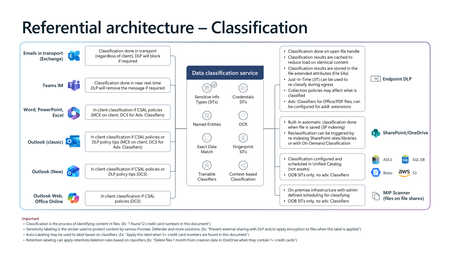
Microsoft Purview architecture diagrams provide a reference view of how classification, sensitivity labelling, Data Loss Prevention (DLP), Insider Risk Management, and Microsoft 365 Copilot protections work together across Microsoft 365 workloads. They illustrate how organisations can consistently identify, label, and protect sensitive data across endpoints, email, collaboration services, browsers, and AI‑assisted workflows—without prescribing a single deployment model. Classification generates sensitivity signals, labels express organizational protection intent, and DLP enforces that intent in real time across devices, apps, and services. Together, these patterns show how Copilot inherits existing security controls so AI‑generated content remains governed within the same compliance boundaries as organizational data.22KViews24likes9Comments
Set Up Endpoint DLP Evidence Collection on your Azure Blob Storage
Endpoint Data Loss Prevention (Endpoint DLP) is part of the Microsoft Purview Data Loss Prevention (DLP) suite of features you can use to discover and protect sensitive items across Microsoft 365 services. Microsoft Endpoint DLP allows you to detect and protect sensitive content across onboarded Windows 10, Windows 11 and macOS devices. Learn more about all of Microsoft's DLP offerings. Before you start setting up the storage, you should review Get started with collecting files that match data loss prevention policies from devices | Microsoft Learn to understand the licensing, permissions, device onboarding and your requirements. Prerequisites Before you begin, ensure the following prerequisites are met: You have an active Azure subscription. You have the necessary permissions to create and configure resources in Azure. You have setup endpoint Data Loss Prevention policy on your devices Configure the Azure Blob Storage You can follow these steps to create an Azure Blob Storage using the Azure portal. For other methods refer to Create a storage account - Azure Storage | Microsoft Learn Sign in to the Azure Storage Accounts with your account credentials. Click on + Create On the Basics tab, provide the essential information for your storage account. After you complete the Basics tab, you can choose to further customize your new storage account, or you accept the default options and proceed. Learn more about azure storage account properties Once you have provided all the information click on the Networking tab. In network access, select Enable public access from all networks while creating the storage account. Click on Review + create to validate the settings. Once the validation passes, click on Create to create the storage Wait for deployment of the resource to be completed and then click on Go to resource. Once the newly created Blob Storage is opened, on the left panel click on Data Storage -> Containers Click on + Containers. Provide the name and other details and then click on Create Once your container is successfully created, click on it. Assign relevant permissions to the Azure Blob Storage Once the container is created, using Microsoft Entra authorization, you must configure two sets of permissions (role groups) on it: One for the administrators and investigators so they can view and manage evidence One for users who need to upload items to Azure from their devices Best practice is to enforce least privilege for all users, regardless of role. By enforcing least privilege, you ensure that user permissions are limited to only those permissions necessary for their role. We will use portal to create these custom roles. Learn more about custom roles in Azure RBAC Open the container and in the left panel click on Access Control (IAM) Click on the Roles tab. It will open a list of all available roles. Open context menu of Owner role using ellipsis button (…) and click on Clone. Now you can create a custom role. Click on Start from scratch. We have to create two new custom roles. Based on the role you are creating enter basic details like name and description and then click on JSON tab. JSON tab gives you the details of the custom role including the permissions added to that role. For owner role JSON looks like this: Now edit these permissions and replace them with permissions required based on the role: Investigator Role: Copy the permissions available at Permissions on Azure blob for administrators and investigators and paste it in the JSON section. User Role: Copy the permissions available at Permissions on Azure blob for usersand paste it in the JSON section. Once you have created these two new roles, we will assign these roles to relevant users. Click on Role Assignments tab, then on Add + and on Add role assignment. Search for the role and click on it. Then click on Members tab Click on + Select Members. Add the users or user groups you want to add for that role and click on Select Investigator role – Assign this role to users who are administrators and investigators so they can view and manage evidence User role – Assign this role to users who will be under the scope of the DLP policy and from whose devices items will be uploaded to the storage Once you have added the users click on Review+Assign to save the changes. Now we can add this storage to DLP policy. For more information on configuring the Azure Blob Storage access, refer to these articles: How to authorize access to blob data in the Azure portal Assign share-level permissions. Configure storage in your DLP policy Once you have configured the required permissions on the Azure Blob Storage, we will add the storage to DLP endpoint settings. Learn more about configuring DLP policy Open the storage you want to use. In left panel click on Data Storage -> Containers. Then select the container you want to add to DLP settings. Click on the Context Menu (… button) and then Container Properties. Copy the URL Open the Data Loss Prevention Settings. Click on Endpoint Settings and then on Setup evidence collection for file activities on devices. Select Customer Managed Storage option and then click on Add Storage Give the storage name and copy the container URL we copied. Then click on Save. Storage will be added to the list. Storage will be added to the list for use in the policy configuration. You can add up to 10 URLs Now open the DLP endpoint policy configuration for which you want to collect the evidence. Configure your policy using these settings: Make sure that Devices is selected in the location. In Incident reports, toggle Send an alert to admins when a rule match occurs to On. In Incident reports, select Collect original file as evidence for all selected file activities on Endpoint. Select the storage account you want to collect the evidence in for that rule using the dropdown menu. The dropdown menu shows the list of storages configured in the endpoint DLP settings. Select the activities for which you want to copy matched items to Azure storage Save the changes Please reach out to the support team if you face any issues. We hope this guide is helpful and we look forward to your feedback. Thank you, Microsoft Purview Data Loss Prevention Team4.9KViews6likes2CommentsFrom Oversharing to Enforcement: A Practical Guide to AI Data Security with Microsoft Purview
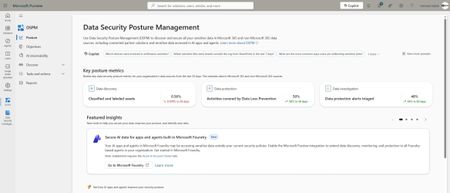
Why AI Changed the Data Security Problem AI does not create entirely new categories of risk—it supercharges existing ones. Traditional data leakage stems from ordinary behavior: sharing a document too broadly, sending an email to the wrong person, copying regulated data to an uncontrolled device. Generative AI amplifies all of these because of the power and speed with which it can proactively surface content that may be obsolete, over-permissioned, or ungoverned. DSPM exists to help with exactly this challenge: it continuously scans your environment to identify sensitive data, assess risk, and recommend actions to reduce exposure. Oversharing at Scale Before AI, an overshared SharePoint file might sit unnoticed. Now, Copilot can summarize it in response to a casual prompt, distributing its contents far beyond the original audience. Prompt Leakage Users can inadvertently expose sensitive information—financial account numbers, health records, project code names—simply by typing them into a Copilot prompt. Because AI interactions feel conversational, users tend to drop their guard. Shadow AI Beyond sanctioned tools, employees experiment with unapproved AI services. Autonomous Agents Autonomous agents expand the data security threat surface by acting independently on sensitive information across systems and boundaries. Their ability to access and share data without direct user interaction increases the risk of oversharing, exfiltration, and unauthorized access, while also introducing complex behavior patterns that are harder to monitor, govern, and control using traditional security models. What Microsoft Purview Now Brings Together Data Security Posture Management (DSPM) DSPM consolidates insights from Data Loss Prevention (DLP), Insider Risk Management, Information Protection, and Data Security Investigations into a single view for monitoring data risks, policy coverage, and posture trends. Now also in Public Preview, DSPM extends coverage to third-party SaaS and IaaS platforms such as Google Cloud Platform, Snowflake, and Databricks, and integrates with partner solutions including Cyera, BigID, and OneTrust for comprehensive risk insights. A central innovation in this version is data security objectives—prominent, selectable cards that each represent a specific security goal. Selecting an objective guides administrators through an end-to-end workflow that groups together the most relevant Purview solutions—information protection, DLP, Insider Risk Management, and eDiscovery—so teams can focus on achieving a specific data security outcome rather than navigating separate solutions. Each Outcome card displays key metrics such as the percentage of data covered by policies, the number of risky sharing incidents, and improvements over time. Within each outcome, DSPM surfaces suggested prioritized actions—applying sensitivity labels, configuring DLP policies, or investigating alerts—all tailored to the organization's data. Administrators can take action directly from the workflow, including remediating oversharing, configuring one-click policies, or launching investigations into suspicious activity. DLP Integration for AI Interactions DLP is one of the core solutions integrated into DSPM's unified approach. The Activity Explorer's AI activities tab captures events where DLP rules were matched during AI interactions—including prompts, responses, and browsing to generative AI sites. DSPM can automate remediation steps such as removing public sharing links or applying data loss prevention policies to help prevent incidents before they happen. AI Observability and Agent Governance Dedicated dashboards and metrics monitor risks associated with AI apps and agents. AI observability enables tracking of agent-specific activities—oversharing, exfiltration, and unusual access patterns—across both Microsoft and third-party environments. Enhanced reporting provides advanced filtering and customizable views, supporting granular analysis of sensitive data usage, DLP activity, and posture trends. Audit logs and activity explorer features help track interactions with AI apps and agents, supporting compliance investigations and incident response. AI-Powered Security Operations DSPM not only secures and governs AI apps and agents but also uses Microsoft Security Copilot and AI agents to help secure and govern data. AI analyzes access patterns, sharing behaviors, and policy gaps to surface actionable risks and can detect unusual activity such as excessive sharing or suspicious downloads. Under administrator guidance, AI agents can take direct action on detected risks—removing public sharing links, applying DLP policies, or revoking permissions. These actions are always audited. To streamline investigations, AI-driven triage agents review alerts from DLP and Insider Risk Management solutions, filtering out noise and highlighting the most critical threats. Three Practical Starting Points For many organizations adopting generative AI, the biggest hurdle isn't recognizing new risks—it's figuring out where to begin. A "boil the ocean" approach can stall progress, while tackling a few targeted areas delivers quicker wins. The best early moves are those that reduce exposure quickly, improve visibility, and build a foundation for stronger governance over time. Starting Point 1: Enable prompt-level protection for Microsoft 365 Copilot An effective first step is to put guardrails on the prompts users enter into AI. Microsoft Purview DLP allows administrators to restrict Microsoft 365 Copilot and Copilot Chat from processing prompts that contain sensitive information. In practice, users are often more comfortable pasting data into a chat prompt than attaching it to an email, which means a well-meaning employee could inadvertently feed a confidential file or personal data into Copilot. Enabling prompt-level DLP creates an immediate safety net: if a user's prompt includes, say, a credit card number or a customer's national ID, Copilot will detect it and refuse to process or share that content. DSPM provides suggested prioritized actions—including configuring DLP policies—that can be activated directly from the workflow, and recommended policies can start in simulation mode. Simulation mode lets you see what would have been blocked or flagged, without actually interrupting users, so you can fine-tune the policy and prepare your helpdesk for any questions. Once you're comfortable with the results, switching to enforcement mode will actively block disallowed prompts and log those events for review. By activating this one control, you've significantly reduced the most immediate oversharing risk—the "oops, I pasted the wrong data" scenario—within hours of starting your AI governance program. Tradeoff: Simulation mode provides safety but delays enforcement. For organizations with imminent regulatory exposure, consider shortening the simulation window and monitoring alert volumes closely. Starting Point 2: Gain visibility into shadow AI usage before broad enforcement The second step is to illuminate what's happening in the shadows. Before rushing into blocking every unsanctioned AI tool, it's crucial to understand how and where AI is being used across the organization. In most enterprises, there's an official layer of AI usage and an often larger, unofficial layer—employees experimenting with free online AI chatbots, writing assistants, or code generators. DSPM provides this visibility. The Discover > Apps and agents dashboard shows AI apps used across the organization, including the top 20 most recently used agents, with details about sensitive data they accessed and how they are protected by Purview policies. The AI observability page provides a broader inventory of all AI apps and agents with activity in the last 30 days, including how many are high risk and the total with sensitive interactions. The Activity Explorer's AI activities tab shows when users browsed to generative AI sites, the prompts and responses involved, whether sensitive information was present, and whether DLP rules were matched. Armed with this insight, you can make informed decisions. If you discover that the majority of "AI consumption" comes from just two external apps, you might focus your immediate controls on those two. Conversely, if the data shows most unsanctioned usage is low-risk, you might decide to monitor rather than block it. The key is visibility first, enforcement second—letting real data guide where to tighten controls versus where to offer secure alternatives. Tradeoff: Visibility without timely follow-through can create a false sense of security. Set a defined window (e.g., 30 days) after which findings must translate into at least one concrete policy action. Starting Point 3: Operationalize DSPM objectives for Copilot A stronger third starting point is to use DSPM as your operational guide, not just a dashboard of charts. DPSM introduces data security objectives—each one a focused end-to-end workflow for a specific outcome. Rather than configuring individual features in isolation, you select an objective and let Purview navigate you through achieving that outcome with the relevant tools. For generative AI, the key objective to leverage early is "Prevent data exposure in Microsoft 365 Copilot and Microsoft Copilot interactions". By selecting this objective in the Purview portal, you're effectively telling Purview, "help me implement whatever is needed to make Copilot safe with our data." The DSPM interface then groups together the critical pieces: it may prompt you to enable a DLP policy, suggest applying or refining sensitivity labels on content, or surface an Insider Risk Management policy template for detecting AI-related risky behavior. It also surfaces metrics so you can track progress—for example, the percentage of data covered by policies, or the number of risky sharing incidents that have been remediated. Using DSPM objectives keeps your team aligned on a clear goal from day one. It shifts the conversation from "what knobs do we turn on?" to "how do we achieve this outcome?" You follow a guided plan curated by the platform's intelligence rather than navigating five different admin pages and hoping it adds up to protection. Tradeoff: Objectives streamline the path but can obscure the underlying complexity. Teams should periodically step outside the guided workflow to review the full policy landscape and ensure no coverage gaps exist between objectives. From Visibility to Remediation: Turning Insights into Action Automated Remediation at Scale DSPM can automate remediation steps such as removing public sharing links or applying data loss prevention policies to prevent incidents before they happen. Under administrator guidance, AI agents within DSPM can take direct action on detected risks—removing sharing links, applying DLP policies, or revoking permissions—and these actions are always audited. This moves the operating model from manual, one-at-a-time fixes to systematic, policy-driven remediation. Closing the Loop: From Risk to Standing Policy DSPM's data security objectives surface suggested prioritized actions such as applying sensitivity labels, configuring DLP policies, or investigating alerts, all tailored to the organization's data. Reporting and analytics are organized by outcome, making it easier to identify and report improvements, compliance, and risk reduction. This turns recurring findings into standing preventive controls. Instead of re-running assessments and manually fixing the same patterns, administrators create durable policies that enforce the desired state going forward. Alert-Driven Investigation and Tuning Audit logs and activity explorer features help track interactions with AI apps and agents, supporting compliance investigations and incident response. Integrated investigation and forensics tools support rapid incident response and root cause analysis for data security events. Impact prediction visuals and progress tracking for remediation steps are surfaced throughout DSPM, enabling administrators to quantify the effect of their actions and adjust course. The closed-loop process is: Discover (DSPM scans and risk assessments) → Remediate (automated actions and bulk fixes) → Prevent (create or tighten DLP and auto-labeling policies) → Monitor (alert review, investigation, and policy tuning). What "Good" Looks Like in a Regulated or Risk-Aware Organization A mature AI governance posture is defined by measurable outcomes and sustainable operating rhythms—not feature count: Clear, communicated AI usage policies. Users know what is and is not acceptable in AI interactions because the tools reinforce the rules. DLP policy tips delivered at the moment of a violation are a primary training mechanism—they remind users in context why their prompt was blocked and what to do instead. Measured enablement over blanket bans. Leading organizations allow Copilot with appropriate controls and restrict only truly unacceptable scenarios. Policies deployed initially in simulation mode provide data to calibrate enforcement thresholds before blocking. This avoids productivity backlash while preserving security posture. High data hygiene and classification rates. Purview's AI protections depend heavily on sensitivity labels. If everything is unlabeled or "General," label-based controls have nothing to act on. Mature organizations invest in auto-labeling and mandatory labeling to close this gap before deploying AI at scale. DSPM's data security objectives include suggested actions such as applying sensitivity labels, directly tying classification to governance outcomes. Quantifiable risk reduction. Security leadership can produce metrics from Purview that show trend lines: DSPM Outcome cards display the percentage of data covered by policies, the number of risky sharing incidents, and improvements over time. These figures feed directly into compliance reporting and audit evidence. Key metrics are tracked over time, supporting continuous improvement of the organization's data security posture. Cross-functional governance. AI governance is not a solo IT Security effort. Stakeholders from security, compliance, legal, and business units review AI usage patterns, discuss policy tuning, and evaluate new Purview capabilities as they release. Role-based access controls within DSPM provide granular access to features and AI content for delegated administration and compliance, enabling this cross-functional model without overexposing sensitive data to every participant. Tradeoff: Strict enforcement can frustrate power users and slow AI adoption. Organizations should explicitly define escalation paths—if a legitimate use case is blocked by DLP, there must be a fast process to review and adjust, rather than a permanent "no." A Phased Adoption Model Phase Focus Key Activities Phase 1 — Quick Wins (weeks) Visibility and baseline safeguards Enable prompt-level DLP for Copilot in simulation mode. Run first DSPM data risk assessment for oversharing. Enable shadow AI discovery via DSPM's Apps and agents dashboard and AI observability page. Start from the DSPM objective "Prevent data exposure in Microsoft 365 Copilot and Microsoft Copilot interactions." Phase 2 — Broad Enforcement (months) Acting on findings Switch DLP policies from simulation to enforcement. Use automated remediation actions (removing sharing links, applying DLP policies, revoking permissions). Expand sensitive information type definitions and add custom types. Rollout user communications explaining new controls and escalation paths. Phase 3 — Mature Governance (ongoing) Continuous improvement and AI-powered operations Leverage AI-driven triage agents to filter alert noise and highlight critical threats. Conduct periodic DSPM posture reviews using Outcome card metrics. Tune policies based on impact prediction visuals and progress tracking. Extend protections to new AI apps and agents as they are adopted—DSPM's AI observability tracks agent-specific activities across Microsoft and third-party environments. Formalize cross-functional AI governance cadence. *Phase 1 should take weeks, not months—the objective is to establish a baseline before risk accumulates. *Phase 2 is where enforcement generates measurable risk reduction. *Phase 3 is ongoing: as Microsoft continues extending Purview to additional AI apps and agent types, the governance framework must evolve in tandem. The DSPM preview's integration with third-party SaaS and IaaS platforms (Google Cloud Platform, Snowflake, Databricks) and partner solutions (Cyera, BigID, OneTrust) means the governance perimeter can expand alongside the organization's AI footprint. Conclusion AI adoption and data protection are not opposing forces. Microsoft Purview now provides the visibility, policy controls, and remediation workflows to move from discovering AI risk to actively governing Copilot, third-party AI apps, and agents at scale. DSPM surfaces oversharing and AI usage patterns through unified dashboards, data risk assessments, and AI observability. DLP blocks sensitive data in prompts and restricts AI access to labeled content. Insider Risk Management detects adversarial AI behavior. AI-driven triage and remediation agents close the gap between identifying a problem and fixing it—with every automated action audited. The path forward starts with practical actions: enable prompt-level DLP, illuminate shadow AI usage, and operationalize DSPM's "Prevent data exposure in Microsoft 365 Copilot and Microsoft Copilot interactions" objective. From there, enforce what you find, measure the results using DSPM's outcome-based metrics, and progressively mature your governance posture. Organizations that operationalize this loop will be in a strong position: able to say, "We use AI to work smarter—and we have the safeguards in place to do it safely."2.9KViews5likes2Comments
Microsoft Defender for Endpoint (MDE) Live Response and Performance Script.
Importance of MDE Live Response and Scripts Live Response is crucial for incident response and forensic investigations. It enables analysts to: Collect evidence remotely. Run diagnostics without interrupting users. Remediate threats in real time. For more information on MDE Live Response visit the below documentation. Investigate entities on devices using live response in Microsoft Defender for Endpoint - Microsoft Defender for Endpoint | Microsoft Learn PowerShell scripts enhance this capability by automating tasks such as: Performance monitoring. Log collection. Configuration validation. This automation improves efficiency, consistency, and accuracy in security operations. For more details on running performance analyzer visit the below link. Performance analyzer for Microsoft Defender Antivirus - Microsoft Defender for Endpoint | Microsoft Learn While performance analyzer is run locally on the system to collect Microsoft Defender Anti-Virus performance details , in this document we are describing on running the performance analyzer from MDE Live Response console. This is a situation where Security administrators do not have access to the servers managed by Infra administrators. Prerequisites Required Roles and Permissions To use Live Response in Microsoft Defender for Endpoint (MDE), specific roles and permissions are necessary. The Security Administrator role, or an equivalent custom role, is typically required to enable Live Response within the portal. Users must possess the “Manage Portal Settings” permission to activate Live Response features. Permissions Needed for Live Response Actions Active Remediation Actions under Security Operations: Take response actions Approve or dismiss pending remediation actions Manage allowed/blocked lists for automation and indicators Unified Role-Based Access Control (URBAC): From 16/02/2025, new customers must use URBAC. Roles are assigned to Microsoft Entra groups. Access must be assigned to device groups for Live Response to function properly. Setup Requirements Enable Live Response: Navigate to Advanced Features in the Defender portal. Only users with the “Manage Portal Settings” permission can enable this feature. Supported Operating System Versions: Windows 10/11 (Version 1909 or later) Windows Server (2012 R2 with KB5005292, 2016 with KB5005292, 2019, 2022, 2025) macOS and Linux (specific minimum versions apply) Actual Script Details and Usage The following PowerShell script records Microsoft Defender performance for 60 seconds and saves the output to a temporary file: # Get the default temp folder for the current user $tempPath = [System.IO.Path]::GetTempPath() $outputFile = Join-Path -Path $tempPath -ChildPath "DefenderTrace.etl" $durationSeconds = 60 try { Write-Host "Starting Microsoft Defender performance recording for $durationSeconds seconds..." Write-Host "Recording will be saved to: $outputFile" # Start performance recording with duration New-MpPerformanceRecording -RecordTo $outputFile -Seconds $durationSeconds Write-Host "Recording completed. Output saved to $outputFile" } catch { Write-Host "Failed to start or complete performance recording: $_" } 🔧 Usage Notes: Run this script in an elevated PowerShell session. Ensure Defender is active, and the system supports performance recording. The output .etl file can be analyzed using performance tools like Windows Performance Analyzer. Steps to Initiate Live Response Session and Run the script. Below are the steps to initiate a Live Response session from Security.Microsoft.com portal. Below screenshot shows that console session is established. Then upload the script file to console library from your local system. Type “Library” to list the files. You can see that script got uploaded to Library. Now you execute the script by “run <file name>” command. Output of the script gets saved in the Library. Run “getfile <path of the file>” to get the file downloaded to your local system download folder. Then you can run Get-MpPerformanceReport command from your local system PowerShell as shown below to generate the report from the output file collected in above steps. Summary and Benefits This document outlines the use of MDE Live Response and PowerShell scripting for performance diagnostics. The provided script helps security teams monitor Defender performance efficiently. Similar scripts can be executed from Live Response console including signature updates , start/stop services etc. These scripts are required as a part of security investigation or MDE performance troubleshooting process. Benefits: Faster incident response through remote diagnostics. Improved visibility into endpoint behaviour. Automation of routine performance checks. Enhanced forensic capabilities with minimal user disruption.Purview Webinars
REGISTER FOR ALL WEBINARS HERE Upcoming Microsoft Purview Webinars JULY 15 (8:00 AM) Microsoft Purview | How to Improve Copilot Responses Using Microsoft Purview Data Lifecycle Management Join our non-technical webinar and hear the unique, real life case study of how a large global energy company successfully implemented Microsoft automated retention and deletion across the entire M365 landscape. You will learn how the company used Microsoft Purview Data Lifecyle Management to achieve a step up in information governance and retention management across a complex matrix organization. Paving the way for the safe introduction of Gen AI tools such as Microsoft Copilot. 2025 Past Recordings JUNE 10 Unlock the Power of Data Security Investigations with Microsoft Purview MAY 8 Data Security - Insider Threats: Are They Real? MAY 7 Data Security - What's New in DLP? MAY 6 What's New in MIP? APR 22 eDiscovery New User Experience and Retirement of Classic MAR 19 Unlocking the Power of Microsoft Purview for ChatGPT Enterprise MAR 18 Inheriting Sensitivity Labels from Shared Files to Teams Meetings MAR 12 Microsoft Purview AMA - Data Security, Compliance, and Governance JAN 8 Microsoft Purview AMA | Blog Post 📺 Subscribe to our Microsoft Security Community YouTube channel for ALL Microsoft Security webinar recordings, and more!2.5KViews2likes0CommentsMaintain connectivity for essential services with selective network isolation
Network isolation refers to how Microsoft Defender for Endpoint restricts a compromised device’s communication within the network in order to contain threats and prevent lateral movement. But oftentimes when isolating devices, certain critical services like management tools or security solutions need to remain operational. That's why Defender for Endpoint has launched selective isolation exclusions, which allow you to exclude specific devices, processes, IP addresses, or services from unilateral network isolation actions. This allows essential functions (e.g., remote remediation or monitoring) to continue in the event of a breach, while limiting broader network exposure. Isolation Modes There are two modes available: Full isolation: In this mode, the device is completely isolated from the network, and no exceptions are allowed. All traffic is blocked, except for essential communications with the Defender agent. Exclusions cannot be applied in full isolation mode. This is the most secure option, suitable for scenarios where a high level of containment is necessary. [New] Selective isolation: Selective isolation allows administrators to apply exclusions to ensure that critical tools and network communications can still function, even while maintaining the device’s isolated state. ⚠️ Note: Any exclusion weakens device isolation and increases security risks. To minimize risk, configure exclusions only when absolutely necessary. Regularly review and update exclusions to align with security policies. To get started, read the isolation exclusions documentation. Learn more To learn more about Microsoft Security solutions, visit our website. Bookmark the Security blog to keep up with our expert coverage on security matters. Also, follow us on LinkedIn (Microsoft Security) and X (@MSFTSecurity) for the latest news and updates on cybersecurity.
Looking to be certified
Good morning everyone, I used to be an Altiris administrator and was briefly an SCCM administrator 10 years ago. I was self-employed for a long time and I’m trying to get back into the tech field. More particularly, I want to get back into operating system and software deployment and packaging. Do you guys have any recommendations on how to achieve this? I’ve been looking for courses or boot camps that have a certification test at the end of it to no avail. I noticed that Microsoft has some training classes, but I wasn’t sure how far that would get me. Thank you!489Views0likes3Comments
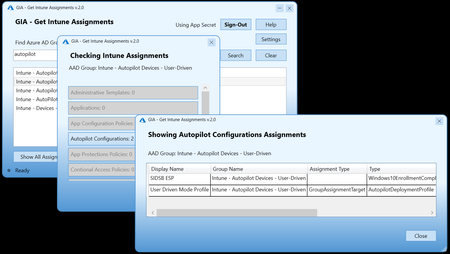
GIA - 2.0 - Get Intune Assignments
GIA - Get Intune Assignments Hello everyone I just released a new version from my App. https://github.com/sibranda/GetIntuneAssignments/releases/tag/v2.0 It's a C#.NET application developed for Intune to query MS Graph Information from Intune Assignments who target the Azure Ad Groups. You can export the data to CSV file if you wish. In this new version you can get information from the following types of assignments: Adm Templates; Applications; App Config Policies; Autopilot Configurations (new on 2.0); App Protection; Conditional Access; Compliance Policies; Configuration Profiles; Settings Catalog; Endpoint Security Policies; Enrollment Restrictions (new on 2.0); iOS App Provisioning (new on 2.0); Policy Sets; PowerShell Scripts; Proactive Remediations (new on 2.0). All this from a Graphic Interface with just a few clicks. https://github.com/sibranda/GetIntuneAssignments/releases/tag/v2.0 Please send me any feedback you want. This can help me to fix bugs and make better solutions to help everyone.1.7KViews0likes0Comments
Intune Read Role
Hi guys, I hope you guys could help me with this weird lil issue. I've assigned a security group for the Read Only Operator role in Endpoint/Intune. I've added three members to the group. In the Audit logs in the AAD it states that the membership is succeeded. For some strange reason, they can't see/"read" devices in the Endpoint manager portal and in the notification it states "You haven't enabled device management yet. Click here to start". I've tried to test it with a test-account, works perfectly. Have any of your experienced this?Solved5KViews0likes8Comments