endpoint security
10 TopicsUnpacking Endpoint Management: Episodes Available On Demand
Over the course of the Unpacking Endpoint Management series, we brought together experts from across Microsoft Intune, Security, and Customer Experience teams to share practical strategies, lessons learned, and honest conversations about modern endpoint management. While the series has now concluded, the insights remain as relevant as ever. We invite you to explore past episodes on demand and continue connecting with the Intune community through Tech Community, Microsoft Learn, and future opportunities to engage with Microsoft experts. A quick update on the hosts Danny Guillory, a familiar face to the community and a Product Manager for Intune and Configuration Manager, hosted the series alongside Rachelle Blanchard. Together, they brought a strong mix of technical expertise, community engagement, and customer perspective to each episode. Rachelle helped surface real customer questions and guide conversations toward practical outcomes, ensuring each discussion reflected how endpoint management works in the real world. Thank you to everyone who participated Thank you to everyone who participated in Unpacking Endpoint Management and helped shape the conversations throughout the series. Catch up on demand You may have missed them, but you don't have to miss out on the learnings. Watch and learn when it's convenient for you. Policy: from hybrid to cloud-native Device security with Microsoft Intune Trends in endpoint management (live from Tech Takeoff 2026) Not sure where to start? Watch our most recent episode, App management at scale with Intune, now on demand! Watch on demand All episodes of Unpacking Endpoint Management are now available on demand via: aka.ms/JoinUEM. The series brought together experts from across Microsoft Intune, Security, and Customer Experience teams to share practical guidance, lessons learned, and real-world experiences from endpoint management. Continue the conversation While Unpacking Endpoint Management has concluded, there are many ways to stay connected with the Intune team and broader community. Join the Microsoft Intune Community here on Tech Community, and follow us on LinkedIn or @MSIntune and @IntuneSuppTeam on X to engage with experts, discover new content, and stay informed about the latest Intune guidance, best practices, and innovations. A Note from the Team Thank you for being part of the series. We're incredibly grateful to our customers, IT professionals, community members, guest speakers, and Microsoft experts who helped make Unpacking Endpoint Management such a valuable experience. Your questions, feedback, and real-world insights shaped every conversation and helped create meaningful discussions for the broader endpoint management community. Although the series has come to a close, our commitment to listening, learning, and engaging with our community remains unchanged. We look forward to continuing those conversations through the Microsoft Intune Community, Tech Community blogs, Microsoft Learn, events, and future opportunities to connect with Intune product, engineering, and customer success teams. Join the Community to get early insight into what's coming for Intune, connect with experts, and share real-world feedback that helps shape the product. 👉 aka.ms/JoinIntuneCommunity3.5KViews2likes1CommentSpeed where it matters: How Microsoft Intune helps IT prioritize time-sensitive actions
By: Albert Cabello Serrano | Principal Product Manager - Microsoft Intune A closer look at how Intune delivers updates to devices and the investments we’re making to help important changes move faster and more predictably. A common concern we hear from IT admins is, “How quickly will this change actually reach my device?” In many cases, the answer is much faster than expected. Today, 90% of policy updates, app deployments, and device actions in Intune are completed in under an hour. So where does the idea of “8-hour latency” come from? That number reflects a routine maintenance check-in used when devices are idle - not how Intune processes meaningful changes. Intune uses notification-based, priority-driven processing so that high-impact actions, like security policy changes or remediation steps, are handled promptly and reliably as possible. In this context, latency isn’t about making every action instant - it’s about providing predictable, prioritized delivery at global scale. The sections below break down how Intune prioritizes different types of updates and recent investments that are helping time-sensitive changes complete more consistently. How Intune delivers changes to devices Cloud-based device management is designed for real-world conditions; devices are not always online, fully charged, or on stable networks. Intune uses an eventual consistency model so devices can continue to be productive while converging to the desired state over time, without management actions unnecessarily disrupting users or workflows. Because devices operate in different conditions, not all device activity is handled the same way. To manage change reliably at scale, Intune uses different types of device check-ins depending on what needs to happen. Types of device check-ins in Intune Device check-ins generally fall into several categories, each triggered by a different type of action: Single‑device check‑ins: Occurs when an admin or user initiates an action on a specific device, such as starting a device action or installing an app from the Intune Company Portal. Change‑based check‑ins: Push‑triggered check‑ins used to deliver meaningful changes to devices as soon as possible. Client‑initiated check‑ins: Background activity that helps keep devices healthy, such as when a user signs in to a device or when malware status changes. Maintenance check-ins: Scheduled syncs that occur at predetermined intervals and can be client or service-initiated, depending on the platform. These typically occur approximately every 8 hours. Regardless of what triggers a check-in, any pending changes will be applied to the device when it occurs. What happens when an admin makes a change When an admin makes a change in Intune, such as updating a device compliance policy, deploying an app, or setting a configuration, Intune identifies the devices impacted by that change and initiates a change‑based check‑in for affected devices. For online devices, Intune sends a push notification prompting the device to establish a management session with the service, apply the change, and report enforcement status back to Intune. If a device is offline or unreachable, the change is applied when the device next checks in through available mechanisms. Four investments that help critical updates move forward faster The following product changes focus on reducing device‑change latency by shortening the time between an admin action in Intune and enforcement on the device, especially during peak or constrained conditions. 1. Check-in prioritization focused on what matters most Not all device activity carries the same urgency. Routine background check-ins can compete for service resources with devices that have important pending changes, such as compliance updates, remediation actions, or administrator-initiated configuration changes. Intune evaluates the potential impact of delaying a device check-in on security posture, compliance state or user productivity, and dynamically prioritizes processing accordingly. This real-time prioritization model ensures that high-impact actions move forward without being delayed by lower‑impact background activity. Prioritization adapts as conditions change, helping important updates reach devices more quickly and predictably without being delayed by lower-impact background activity. 2. Built-in resilience when multiple changes occur in quick succession Change activity often happens in bursts, with several related updates occurring in rapid succession. These periods of activity may be driven by operational needs or background processes, and can involve adjusting assignments, updating multiple policies, or rolling out configuration changes across the same set of devices. Intune dynamically coordinates notifications, so that each change requiring action triggers a corresponding device notification, even during high-activity periods. This helps improve consistency when applying multiple updates and reduces delays across consecutive changes on devices. Over the next several months, these improvements will extend to additional payloads delivered through the Intune Management Extension (IME), including scripts, Win32 apps, and custom compliance across both Windows and macOS platforms. 3. More timely notifications on Windows Intune notifies devices to check-in when changes require action. If the device is offline, on an unstable network, or low on battery, notifications may be delayed. This can cause missed check-ins or delayed actions. When notification services are delayed, blocked, or unavailable, devices may fall back to scheduled maintenance check‑ins to apply changes. For timely delivery, required notification service endpoints need to remain accessible so devices can receive management signals when updates occur. On Windows devices, Intune complements the Windows Notification Service (WNS) with the same notification protocol that powers Microsoft Teams via the Intune Management Extension. This helps increase the likelihood that devices receive management notifications when they’re online and reachable, improving visibility into whether policy updates or device actions have reached their destination. For more information, see the network endpoints for Intune documentation. 4. Optimized maintenance check-ins for iOS devices Background check-ins are still important to keep devices healthy when nothing else is going on. Unlike Windows devices, iOS devices don’t have client scheduled check‑ins and depend on service‑initiated maintenance check‑ins to ensure device health and compliance. During peak usage periods, these maintenance check‑ins can account for a significant portion of overall traffic, which can compete with devices that require immediate updates. Intune considers device activity in the scheduling of maintenance check‑ins during peak activity, making room for higher‑impact updates, while continuing to ensure devices check in regularly. This helps manage traffic and improves responsiveness when applying policies or remediation actions. What this means for you For IT admins: No additional configuration or workflow changes are required to benefit from Intune’s built-in notification system. When bidirectional communication with notification service endpoints is open, devices can receive and act on updates as they become available. For security teams: Faster delivery of device changes helps shorten the time between a policy update, a tightened Conditional Access rule, an updated compliance baseline, and a remediation action. For Zero Trust frameworks, where posture signals drive access decisions, this helps narrow the window during which a device could be out of compliance or vulnerable. Together, these improvements reflect how Intune is evolving into a more intelligent, priority-aware system. Rather than making every action instant, the focus is on prioritizing high-impact updates so they are delivered without unnecessary delays. This approach is expanding across a number of scenarios to provide a more consistent and predictable experience, helping reduce delays for key updates. Resources to learn more For another perspective on this topic, read an MVP’s take on demystifying the “8-hour” timing myth in this LinkedIn post. You can also watch the recent Tech Takeoff about this same topic to learn more about these improvements. Also, in the April edition of the What's New in Intune blog, we introduced a new segment called Myth vs. Reality. This post is part of that series. To stay current on new capabilities and updates as they ship, follow the What's New in Microsoft Intune blog. What myth should we debunk next? Leave a comment below or reach out to us on X @IntuneSuppTeam or @MSIntune.15KViews3likes7CommentsTriage vulnerabilities with the Vulnerability Remediation Agent, now in public preview
As automation and AI accelerate the pace of vulnerability discovery, the window between disclosure and exploitation continues to shrink. For IT and security teams, the challenge is no longer just finding vulnerabilities - it's prioritizing the ones that matter and acting on them before they can be exploited. To help organizations close that gap, we're pleased to announce that the Vulnerability Remediation Agent for Security Copilot in Microsoft Intune is now in public preview and rolling out to all customers. Following a successful limited preview, the agent is now broadly available. This release brings agentic vulnerability remediation out of an early-access cohort and into the hands of every eligible organization - an important step in our continued investment in helping admins reduce exposure faster and with greater confidence. View eligibility prerequisites here. How the agent helps you identify and triage vulnerabilities The Vulnerability Remediation Agent uses data from Microsoft Defender Vulnerability Management to identify Common Vulnerabilities and Exposures (CVEs) across your Intune-managed Windows devices and apps, then prioritizes them for remediation. Rather than leaving admins to sift through lengthy CVE lists with little context, the agent surfaces a prioritized set of recommendations directly in the Intune admin center - accessible from both the Agents and Endpoint security pages. When the agent runs, it evaluates vulnerability data and ranks threats based on factors such as CVSS scores, exposure impact, and affected device count, so the most critical issues rise to the top. Drilling into any suggestion provides: The count of associated CVEs A Copilot-assisted summarized impact analysis Suggested actions and affected systems Exposed devices and potential impact Step-by-step guidance for remediating the threat using Intune After acting on a recommendation, admins can mark it as applied, allowing the agent to retain a record for tracking remediation actions over time. The result is a meaningful reduction in the time it takes to investigate, prioritize, and remediate - strengthening overall security posture. Introducing agentic identity for the Vulnerability Remediation Agent With this release, the agent now operates under Microsoft Entra agentic identity - a meaningful advancement in how autonomous agents are governed and secured. What it is. Agentic identity is a specialized identity in Microsoft Entra ID that allows the agent to operate securely and independently. During setup, the agent provisions a dedicated agentic identity and a corresponding agentic user in your tenant's Microsoft Entra directory. The agent then runs under the permissions delegated to that agentic user rather than under a human user account. Why it matters. Agentic identity decouples the agent from any one person, ensuring its behavior is strictly bound to the permissions and scope you delegate to it. This delivers clearer accountability, a cleaner audit trail, and enterprise-grade governance for autonomous operations. How it helps. Admins remain firmly in control. After setup, delegate the required read permissions to the agentic user in the Microsoft Intune and Microsoft Defender admin centers, then use the built-in Readiness Check to confirm everything is configured correctly before the agent runs. Learn more in Agent identity. Getting started: Connect → Enable → Run → Remediate → Track One of the design goals behind the Vulnerability Remediation Agent is to make agentic security approachable, not complex. Rather than stitching together signals across multiple tools and admin centers, the agent guides admins through a clear, repeatable flow - from connecting your data to tracking measurable improvement over time. Connect — bring Defender and Intune data together. The agent draws on Microsoft Defender Vulnerability Management for CVE intelligence and Microsoft Intune for device and configuration context. With the required Microsoft Defender and Microsoft Intune plugins in place, your vulnerability and management signals work as one. Learn more on what is needed to connect the experience. Enable — turn on the agent. From the Agents node in the Microsoft Intune admin center, set up the agent in a few guided steps. During setup, the agent provisions its Microsoft Entra agentic identity and surfaces the permissions and plugins it needs, so you know exactly what to delegate before the first run. Run — let automated prioritization do the heavy lifting. Once permissions are delegated and the Run Readiness Check passes, you can configure the agent to run on demand or schedule it to run automatically in the background on a cadence you define; scheduling is a unique capability that helps teams stay ahead of emerging risks without requiring constant manual intervention. Each run analyzes your environment and produces a prioritized list of recommendations ranked by CVSS score, exposure impact, and affected device count so the most critical risks rise to the top automatically. Remediate — act with guided, Intune-ready actions. Each recommendation includes a Copilot-assisted impact summary, exposed devices, and step-by-step guidance for remediating the threat using Intune. Admins move directly from insight to action, without leaving the admin center. Track — measure improvement over time. Recommendations can be marked as applied, and the agent retains a record of your remediation actions. The outcome is a streamlined operating model: connect once, enable with confidence, and let the agent drive a continuous cycle of prioritization, remediation, and view progress. For full prerequisites, licensing, plugin, and role requirements, see Vulnerability Remediation Agent overview and set up. The Vulnerability Remediation Agent represents a meaningful step toward a more proactive, AI-assisted security posture, one where admins spend less time sifting through CVE lists and more time acting on what matters most. We invite you to try the public preview today, connect your Defender and Intune data, and experience how agentic remediation can help your team stay ahead of emerging threats. As always, we'd love to hear your feedback as we continue investing in making security in Intune faster, smarter, and more accessible. Share your tips and lessons learned in the comments below or reach out to us on X @IntuneSuppTeam. Join our community! Discuss real-world scenarios, get expert guidance, connect with peers, and influence the future of Microsoft Security products. Learn more at aka.ms/JoinIntuneCommunity.3.5KViews0likes1CommentBuild a patch strategy for today’s threat pace with Microsoft
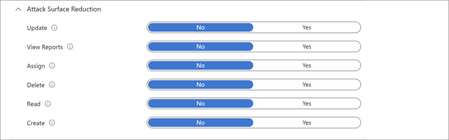
AI-accelerated vulnerability discovery and remediation are changing how organizations manage risk. As discussed in Pavan Davuluri’s recent blog, Microsoft is investing across the vulnerability lifecycle to help organizations identify, validate, and respond faster. For IT and security teams, one challenge lies downstream: deploying fixes quickly across endpoints to reduce exposure. Each update needs to be evaluated, piloted, monitored, and enforced across a mixed fleet of devices and apps. Some parts of the estate can move quickly; others cannot because of compliance requirements, approved change windows, and business-critical dependencies. As organizations adopt AI tools and agents across their environment, maintaining a current and hardened endpoint estate becomes increasingly important. In this context, patching becomes an ongoing operational discipline that combines OS, app, and driver updates with compliance enforcement, access control, and security baseline hardening. To keep pace, organizations need a patch strategy that helps in 3 stages: Mitigate: automate updates that can move quickly Assess: prioritize risk based on exposure and severity Contain: enforce compliance and limit exposure Operationalizing a patch strategy requires coordinated capabilities across endpoint management and security tools. Microsoft Intune brings these capabilities together in a single admin center, alongside the broader Microsoft security ecosystem, and is available with qualifying Microsoft 365 subscriptions 1 . In this post, we show how organizations can use these capabilities to build a patch strategy that helps reduce the time between update release and deployment across their endpoint estate. 1. Mitigate: automate updates that can move quickly A patch strategy is not about pushing every update everywhere at once. It’s about identifying the parts of your estate that can move quickly, then using automation, rings, monitoring, and enforcement to help those updates move with confidence. Regulations, approved change windows, validation needs, and business dependencies will shape what’s possible, but the strategy starts by separating repeatable update work from the exceptions that need deeper review. For OS, app, and driver updates that can move quickly, modern tools can help shorten the time between update release and deployment; without manual rollouts, ticket-driven packaging, or reboot disruption. Operationalize in Intune Windows Autopatch orchestrates ring-based update rollouts to reduce manual effort and keep Windows devices current. To help monitor risk, the Autopatch report visualizes how quickly devices apply updates based on the configured deployment cadence. In this report, devices are categorized as current within three days of update release, at risk between three and seven days, and at critical risk beyond seven days, based on the reporting model used by Windows Autopatch. Learn more about ring-based rollout updates or how to reassess Windows OS updates using this report. Hotpatch (enabled by default for 24H2+ in Intune) applies critical updates without requiring a reboot, helping reduce security gaps while keeping users productive. Figure 1: Watch the latest Microsoft Mechanics episode to see how Windows Autopatch and Hotpatch help organizations accelerate update deployment, reduce operational overhead, and keep devices secure. Intune Enterprise App Management (EAM) supports keeping Windows apps current through auto-updates, including the guided upgrade supersedence reporting, which surfaces outdated versions or version changes. EAM auto-updates are now generally available; details are included in the June Intune What’s new blog. Figure 2: Watch how Intune helps you move from update release to deployment to accelerate responses to vulnerabilities with Windows app management. The enhanced application inventory in the All apps page shows the app version installed on each managed Windows device, refreshed multiple times per day on most active devices, helping teams target app-specific vulnerabilities and confirming when fixes have been applied. The Vulnerability Remediation Agent in Security Copilot uses data from Defender Vulnerability Management to prioritize Common Vulnerabilities and Exposures (CVEs) across Intune-managed Windows devices and apps, and provides recommended remediation actions within Intune. The Vulnerability Remediation Agent is currently in public preview, read the blog to learn more. Figure 3: Watch this video to see how the Vulnerability Remediation Agent in Security Copilot, within Microsoft Intune, helps make agentic security easier to adopt and use. Extend across your endpoint estate Apple devices can be configured for automatic OS updates on managed devices, including enforcing updates to the latest version and deploying Background Security Improvement patches through the settings catalog. App updates can be managed by configuring volume-purchased App Store apps to update automatically and deploy updated app packages to keep apps current across macOS, iPhone, and iPad devices. Android devices can be managed using built-in update policies in Intune, including configuring install windows and freeze periods. For corporate Android fleets, Intune also integrates with OEM firmware management solutions - including Zebra LifeGuard Over-the-Air and Samsung E-FOTA - to enable more granular update control. Managed Google Play also supports configurable app auto-update modes, allowing admins to define whether updates install automatically, on Wi-Fi only, or manually. 2. Assess: prioritize risk based on exposure and severity The first step is reducing exposure across the parts of your estate that can move quickly. But not every system, application, or vulnerability can be addressed through broad update deployment. Teams also need a way to determine which risks require immediate action and which ones can be addressed over time. A calendar-based approach can treat every CVE equally. However, it doesn’t account for severity, exposure, or business impact. As AI accelerates vulnerability discovery, this can lead to effort being spent on lower-risk updates while higher-risk updates remain unaddressed. Risk-based service level objectives (SLOs) help bring prioritization to address this challenge. Instead of patching on a fixed schedule, IT and security teams can align response timeframes by severity, moving quickly on actively exploited or critical vulnerabilities, and applying a more measured approach where risk or impact is lower. This stage creates a clearer prioritization of remediation and helps bridge the view between the security teams that identify threats and the IT teams that act on them. Operationalize in Intune and Microsoft Defender The security update status dashboard in Intune provides an aggregated view of update compliance across Windows clients, Windows servers, and Microsoft 365 Apps. It shows overall counts of devices in different states across Intune-endpoints and helps teams identify where remediation should be focused. These status categories reflect how quickly devices apply updates based on a configured deployment cadence and internal SLOs. Figure 4: Security update dashboard showing patch status for Windows clients, servers, and Microsoft 365 apps. Microsoft Defender Vulnerability Management surfaces CVEs, affected devices, vulnerable software, and recommended remediation actions, offering a shared view of risk and progress across IT and security teams. Translate Defender recommendations into targeted Intune actions described in the mitigate section, such as updating software or moving devices through expedited remediation workflows so teams can focus on vulnerabilities that are actively exploited or most likely to affect an organization. Extend across your endpoint estate For Apple devices, use the Apple software update report in Intune to monitor update status across macOS, iOS, and iPadOS. For Android, compliance reporting surfaces devices that fall behind on OS version or security patch level. 3. Contain: enforce patch compliance and limit exposure Even with automated deployments and prioritized triage, gaps can remain. Some devices are unsupported, fall behind, operate on slower deployment rings, and others can’t be patched quickly. A patch strategy needs to focus on including containment for those surfaces. Compliance controls, conditional access, and device hardening act as an always-on safety net that limits risks that can fall through gaps. Compliance policies and Conditional Access can use a patch state as a signal for resource access, preventing non-compliant devices from accessing corporate resources. Security baselines reduce the attack surface by limiting risky defaults and common attack patterns. Together, these controls shift enforcement from a periodic activity to a continuous condition across a fleet. Operationalize in Intune and Defender Use compliance policies in Intune to define what "current" means, including minimum OS build, required update levels, risk status, and encryption state. Use Conditional Access (managed in Microsoft Entra, accessible from the Intune admin center) to control access to company resources based on user and device health. Combined with threat signals from Microsoft Defender, these policies help prevent non-compliant devices from accessing corporate resources. Use Microsoft Defender Vulnerability Management and Microsoft Security Exposure Management insights to identify exposed assets, prioritize remediation, and apply recommended protections where patching must move more slowly. Apply Intune security baselines to establish Microsoft-recommended configurations on Windows devices, such as disabling risky defaults, blocking common attack techniques, and reducing configuration drift. Watch this demo on security baselines being applied in the Zero Trust workshop. Use attack surface reduction policies in Intune to deploy Microsoft Defender for Endpoint protections, such as ASR rules and network protection, that help block common attack techniques on devices that can't be patched right away. Figure 5: Watch this Demo on how you can manage devices and implement Conditional Access with Intune. Extend across your endpoint estate Compliance policies and Conditional Access controls apply across Windows, macOS, iOS/iPadOS, and Android. Intune app protection policies extend compliance requirements and data protections to managed apps used for work on personal devices and add an additional layer of data protection on corporate devices. Use the settings catalog and configuration profiles to apply the same hardening intent on macOS, iOS/iPadOS, and Android, reducing configuration drift across platforms. Stay ahead with a patch strategy As vulnerability discovery and response continue to accelerate, organizations need an operational strategy that balances speed, risk, and resilience. By automating updates where possible, prioritizing remediation based on exposure, and limiting exposure through compliance and security controls, teams can reduce risk across their endpoint estate. Intune helps simplify this approach by bringing these capabilities together alongside the rest of your Microsoft security tools and ecosystem. Get started with Microsoft Secure Now to assess risk across your digital estate. Explore the new security update status dashboard in Intune. Harden the admin plane and review the best practices for securing Microsoft Intune. 1 Licensing and requirements Feature availability and included capabilities vary by Microsoft 365 subscription plan and feature. Some Microsoft capabilities referenced in this post may require specific licenses or additional enablement. Advanced Microsoft Intune capabilities are now included in Microsoft 365 E5, with select capabilities available in Microsoft 365 E3 as part of updates effective July 1, 2026. Existing customers will receive a 30-day notice in the Microsoft Admin Center prior to availability, with access beginning by August 2026. Microsoft Security Copilot and related AI capabilities may require separate licensing, learn more here. Stay up to date! Bookmark the Microsoft Intune Blog and follow us on LinkedIn or @MSIntune and @IntuneSuppTeam on X to continue the conversation.5.5KViews1like1CommentHow Enterprise App Management secures your App Catalog from ingestion to device
By: Joe Lurie, Sr. Product Manager | Microsoft Intune One of the most common questions I get from customers when I talk about Enterprise App Management is some version of: "Okay, but how do I know these apps are safe?" It's a fair question. You're trusting a catalog of pre-packaged Win32 apps to land on thousands of managed devices across your organization. If you're responsible for endpoint security, you should be asking that question. This post explains how Enterprise App Management works behind the scenes, how apps get into the catalog, what happens before they're visible to your tenant, and why the architecture matters for your security posture. The architecture: Not a new system, but an extension of what you already trust An important design decision with Enterprise App Management is that it's not a separate app delivery system. It's an extension of the existing Intune Win32 app architecture. From the admin perspective, everything starts in the Intune admin center. But behind the scenes, there's a clean separation between the control plane and the data plane: Control plane: For each app being added to the Enterprise App Management catalog, Intune curates app metadata, including app version, install commands, uninstall commands, detection logic, requirements, and supported configurations. This metadata is validated and normalized before it shows up in your tenant. That's why catalog apps behave consistently whether you're deploying to 50 devices or 50,000. Data plane: Once an app is assigned by an admin, it flows through the same Win32 app delivery and enforcement pipeline you already rely on. Your devices don't know they're installing an "Enterprise App Management app" - they're enforcing a Win32 app with well-defined intent. Same Enrollment Status Page support, same reporting, same retry logic, same Intune Management Extension. No new agent. No new runtime. And finally, Enterprise App Management apps have the same support for App Control for Business with Managed Installer which can automatically tag the apps as safe. This is important because it means Enterprise App Management inherits all the trust and operational maturity of Win32 app management in Intune. Curated content is delivered through established, reliable infrastructure. How Enterprise App Management apps are delivered: The ingestion pipeline This section walks through what happens from the moment an app is sourced to the moment it appears in your catalog. Content ingestion It starts with the catalog. Microsoft receives app metadata, including install and uninstall commands, version info, and download URLs. The data is then ingested, flattened, transformed, and Microsoft's own identifiers are applied. After the data lands in the database, eligibility and filtering gates are applied through allow and deny lists. Apps on the allow list are permitted to download content from controlled internet locations. This process handles both net-new apps and version updates to apps already in the catalog. Security and functional validation This is the part that answers the "how do I know it's safe?" question. Once content ingestion is complete, every app is submitted for security and functional validation. This is a queue-driven service that runs two parallel tracks: Static malware detection scans the installer and related artifacts for malicious content, assigning a VirusTotal score. If an app receives a non-zero score, it's blocked from proceeding, full stop. Static scanning is about establishing baseline trust before deployment. It validates that binaries are intact, that they originate from trusted sources, and they don't carry known indicators of malware or tampering. This process catches embedded malicious payloads, corrupted binaries, and known bad signatures before they can impact any device. Dynamic analysis (detonation) runs in parallel. The app is installed and uninstalled inside a VM detonation chamber, producing install results, logs, and artifacts. This is about validating behavior, not just files. Modern threats don't always look malicious at rest; some issues only surface when an installer or application runs or interacts with the system. Dynamic evaluation catches unexpected system changes, unsafe persistence mechanisms, and activity inconsistent with enterprise deployment expectations. If an app fails automatic validation, it goes through manual validation by Intune engineering. Both layers are required. Static scanning provides speed and broad coverage, while dynamic scanning provides depth and behavioral assurance. After publication: Ongoing scanning The security story doesn't end at publication. Apps already in the catalog are periodically re-scanned. If a version that previously passed validation is later found to fail a malware scan, it's flagged and removed from the catalog. This is a critical detail - the catalog isn't a snapshot-in-time trust decision. It's a continuously validated inventory. Update velocity Once a new app version is received, the target is to have it available in the catalog within 24 hours. Around 80–90% of apps hit that timeline. The remainder are apps that don't pass automatic validation and require manual review, which takes longer. But the pipeline processes updates through the exact same ingestion and validation flow as new apps - no shortcuts. Where Zero Trust fits in If you've been following Microsoft's Zero Trust model, this pipeline should feel familiar. Zero Trust is built on three principles: verify explicitly, use least-privilege access, and assume breach. EAM's validation pipeline maps directly to these: Verify explicitly: Every app is verified through multiple independent signals, including source integrity, static malware scanning, and dynamic behavioral analysis, before it's ever exposed to a tenant. No app gets a pass based on reputation or publisher name alone. Trust is earned through evidence, every time. Use least-privilege access: Enterprise App Management catalog apps ship with prefilled, scoped install and uninstall commands, detection rules, and requirements. You're not handing an installer broad system access and hoping for the best. The deployment surface is defined and constrained by design. Assume breach: This is why the pipeline doesn't stop at initial validation. Ongoing re-scanning means that even apps that previously cleared every check are continuously re-evaluated. If an app that was clean six months ago is later found to carry a risk, it's flagged and pulled from the catalog. The system assumes that trust is perishable, exactly the way Zero Trust says it should be. In practice, this means Enterprise App Management gives you an app lifecycle that's not just convenient - it follows the same security framework your organization is likely already adopting for identity, network, and device access. The app layer is often the last piece to catch up, and Enterprise App Management closes that gap. Here's the ingestion flow that shows how all of this fits together: The Enterprise App Management ingestion pipeline: from source metadata through content ingestion, static and dynamic security validation, manual review for failures, periodic re-scanning, and finally publication to the catalog. Takeaways If you're evaluating Enterprise App Management or explaining it to your security team, here's what I'd suggest that you land on: Enterprise App Management reduces the packaging tax. Pre-packaged apps with prefilled install details, detection rules, requirements, and restart behavior mean you spend less time building the same scaffolding repeatedly and more time on policy and rollout strategy. Patching becomes more predictable. Guided update flows using supersedence and a documented expectation of 24-hour update availability give you a cadence you can plan around, not react to. The security model is layered and continuous. Static scanning, dynamic detonation, manual review fallback, and ongoing re-scanning mean the catalog maintains a high trust bar - not just at ingestion, but over time. And it's all built on the same Win32 delivery infrastructure that you and your devices already trust. The bottom line: Enterprise App Management isn’t just about convenience. It shifts the app lifecycle from a manual, error-prone process to one with built-in security validation, operational consistency, and governance you can defend to your security team. Rather than manually sourcing installers and creating detection rules, use this approach to streamline the process. If you have any questions, leave a comment below or reach out to us on X @IntuneSuppTeam! Want to go deeper? Check out the Enterprise App Management documentation and keep an eye out for upcoming changes to Intune Suite licensing that will make Enterprise App Management available in the Microsoft 365 plans you may already own. And as always, drop feedback at aka.ms/IntuneFeedback. Join our community! Discuss real-world scenarios, get expert guidance, connect with peers, and influence the future of Microsoft Security products. Learn more at aka.ms/JoinIntuneCommunity .2.1KViews0likes0CommentsKnown issue: Customizations not saved with security baseline policy update
Overview Microsoft Intune security baselines enable organizations to create turnkey policy configurations with Microsoft's recommended settings. Intune supports two upgrade paths for your customizations: automatic migration and manual migration. Our upgrade process is explicit when a manual customization upgrade is required as documented in Configure security baseline policies in Microsoft Intune | Microsoft Learn. Issue Identified in Security Baseline Updates We’ve recently identified an issue in the security baseline update process where, during upgrades from specific versions, customizations are not automatically retained. Instead, these values are replaced with the default recommended values contained in the latest release. The impacted baselines upgrades are as follows: Security Baseline for Microsoft Edge: Version 112 to Version 128 Security Baseline for Windows 10 and later: Version 23H2 to Version 24H2 Windows 365 Security Baseline: November 2021 to Version 24H1 Microsoft Defender for Endpoint Security Baseline: Version 6 to Version 24H1 Microsoft 365 Apps for Enterprise Security Baseline: Version 2206 to Version 2306 When updating these security baselines, Intune creates a duplicate policy (without assignments) and automatically populates Microsoft’s recommended settings for the new version. These default configurations can be edited to apply customizations. However, customizations are not automatically carried over from the previous version when updating and admins will need to manually apply the customizations when creating the new profile. If your organization deploys the new policy alongside the existing one and there are conflicting settings, Intune’s conflict resolution logic will determine which setting is applied (i.e. most secure wins, merge values), or leave the existing value in place until the conflict is resolved. In the event of conflict, Intune never removes policies from the device ensuring that devices always have security policy applied. The Intune team will be delivering an update to automate migration of the impacted security baselines (and all future versions) in an upcoming release. Interim Steps to Enable Custom Configurations in your Baseline Updates When updating a policy to a newer baseline, your customizations must be recreated in the policy creation wizard. Customizations to the version 23H2 baseline are not carried over to the new policy, and the new policy will revert to Microsoft’s default recommended values for version 24H2. Note: As mentioned above and reiterated here, this update does not remove the previous policy. > Security baselines blade. Organizations can upgrade an existing baseline (mentioned above) that will duplicate the profile: The Microsoft Intune admin center showing where to update the Security baseline. Organizations can customize baselines including modifying and editing the baseline in accordance with their organization’s policies: To identify devices with conflicts between baseline updates, refer to the steps below: Navigate to: Devices > Manage devices > Configuration > Policiestab and select an existing policy. On the summary page, click View report. The View report provides detailed insights into the devices targeted by the selected configuration policy, including: Devices that have received the policy Usernames associated with those devices The check-in status and the most recent time each device/user checked in with the policy You can also select a specific device to view more detailed information. Use the filter column to apply assignment filters. For example, the Check-in status filter helps you identify devices in different states such as Success, Error, and others - indicating how the policy was applied. For more information on policies and reporting, refer to: See device configuration policies with Microsoft Intune | Microsoft Learn. For further guidance, refer to the Update a profile to the latest version in the Microsoft Learn documentation or see the section above for more details on the baseline update process. If you have any questions, leave a comment on this post or reach out to us on X @IntuneSuppTeam. Post Updates: 7/7/25: Post updated with additional details and screen captures for clarity.12KViews0likes1CommentMicrosoft Security Copilot in Intune deep dive - Part 3: Explore and act on your Intune data with AI
By: Ravi Ashok - Sr. Product Manager & Zineb Takafi - Product Manager | Microsoft Intune Microsoft Security Copilot in Intune advances the way IT admins can accelerate their day-to-day endpoint management tasks by embedding generative AI capabilities directly into your Intune workflows, transforming how IT teams plan, troubleshoot, and optimize device configurations. Now generally available, Copilot in Intune delivers insights by summarizing policies, analyzing update deployments, and assisting IT with uncovering root causes of endpoint issues based on organizations Intune data. Today, we’re thrilled to introduce an AI-first experience in the Intune admin center to allow IT admins to explore and act on Intune data with the ease of natural language. As part of our ongoing commitment to help IT teams manage endpoints more effectively, this new experience provides a new way to find data they need about their digital estate and initiate endpoint management tasks based on the results. With a library of queries and using intelligent semantic search, admins can select natural language questions across key Intune domains including devices, apps, policies, users, compliance, app configuration, and app protection and refine the question with customizable parameters. Within the Intune admin center, IT admins can go from insights to taking direct action by adding devices or users to groups for streamlined endpoint management. This release marks a significant milestone towards simplifying endpoint management and accelerating day to day tasks by enabling iterative, natural language query refinement and actionable insights with generative AI assistance to enhance operational efficiency and decision-making. Explore Intune data across your workloads The new Explorer experience with Copilot in Intune enables admins to have a consistent experience viewing details about their Intune resources. Whether they’re navigating devices (including Windows 365 cloud PCs, physical PCs, or mobile devices), apps, users, or policies, IT admins can ask custom questions in natural language about their Intune resource data. They can see and iterate on the results of those questions, and then complete management tasks in one streamlined workflow. Admins can click into individual objects in the results view and navigate to Intune resources like a device details page as they complete their work. This journey in Intune applies to many workflows including: Troubleshooting and fixing issues: Identifying and acting on a specific set of devices, users, apps, or policies to resolve an issue. Creating custom reports: Building custom data views to answer questions that typically require exporting and joining reports today. Day-to-day management tasks: As part of regular admin tasks, navigate Intune data to find specific resources and inspect them to ensure things are configured correctly. Demo In today’s cyber threat landscape, maintaining device compliance is critical to minimizing security risks and ensuring operational continuity. In this demo scenario, the Explorer experience is used to identify and act on non-compliant devices in real time. To enforce compliance, an IT admin plans to mark Windows devices as noncompliant if they haven’t installed patches in the last three months. Given the variety of Windows versions, they want to understand the impact of excluding these devices. Using Copilot, they simply ask the natural language question and get a list of impacted devices without advanced filtering of the versions for each operating system release. The functionality surfaces devices and apps that haven’t received critical patches and seamlessly add them to a remediation group. This streamlined workflow reduces time-to-action and supports proactive compliance enforcement at scale. By integrating directly with Intune policies and device groups, this capability empowers organizations to close vulnerability gaps swiftly. Demo: aka.ms/Intune/CopilotJuly2025-Demo What’s next The addition of the new Explorer experience marks a significant step forward in how organizations can harness the power of Copilot to interact with their Intune data. By enabling IT admins to quickly surface insights, identify compliance gaps, and take action directly from query results, Copilot enables IT admins to streamline their endpoint management workflows to enhance operational agility. To learn more about setup and capabilities, be sure to read our documentation: Explore your Intune data with natural language. We look forward to providing further updates as part of the Copilot in Intune blog series. Make sure to check out the previous blogs if you missed it: Microsoft Security Copilot in Intune deep dive – Part 1: Features available in public preview, and Microsoft Security Copilot in Intune - Pt. 2: Vulnerability Remediation Agent in limited preview. And to learn what a few of the Microsoft MVPs think about Copilot in Intune, feel free to get perspectives from Andrew Taylor here, Ugur Koc here, and Mattias Melkers here and here. If you have any questions or want to share how you’re using Copilot in Intune, leave a comment below or reach out to us on X @IntuneSuppTeam or @MSIntune. You can also connect with us on LinkedIn.4.4KViews0likes0CommentsMicrosoft Security Copilot in Intune - Pt. 2: Vulnerability Remediation Agent in limited preview
By: Julia Idaewor - Product Manager 2 | Microsoft Intune The threat landscape continues to evolve rapidly, with attackers constantly advancing their techniques to exploit zero-day vulnerabilities—leaving organizations at greater risk. In 2024, more than 40,000 vulnerabilities were disclosed, marking a 38% increase from 2023. For IT and security teams, evaluating the impact of thousands of vulnerabilities and deciding which to address first is a complex and resource-intensive task. It often involves manual analysis, siloed tools, and competing priorities. Microsoft Intune is bringing the power of AI directly to IT teams with the introduction of Security Copilot agents. The new Vulnerability Remediation Agent for Security Copilot is now in limited public preview. The agent helps reduce the burden of managing an ever-growing list of vulnerabilities by leveraging rich data from Microsoft Defender Vulnerability Management to detect and prioritize vulnerabilities across managed devices. It also delivers a comprehensive Copilot-assisted impact analysis, and step-by-step remediation guidance directly in the Intune admin center along with a comprehensive list of exposed devices that can be exported for actionable responses, enabling faster, more confident action. As part of the upcoming enhanced AI experience in Intune, the agent exemplifies how Microsoft is embedding Copilot into its workflows turning raw data into actionable insights and empowering security teams to stay ahead of evolving risks. Getting started You can get the Vulnerability Remediation agent up and running in just a few steps. To set up the agent navigate to the Endpoint security in the Intune admin center, review set up details and start the agent. Microsoft Defender Vulnerability Management to surface a prioritized list of top vulnerabilities based on risk and impact. The agent delivers these insights directly to the Intune admin center, giving admins clear visibility into the most critical threats across their device estate. directly to the Intune admin center, giving admins clear visibility into the most critical threats across their device estate. The Vulnerability Remediation Agent dashboard in the Intune admin center provides a comprehensive view, including an Impact score for each suggestion, number of exposed devices, remediation status, last applied time for tracking actions, and an agent activity log for historical context. By removing silos between IT and security teams and surfacing vulnerability data and actionable insights directly in Intune, the agent helps increase transparency, streamline workflows, and boost operational efficiency across the board. The Vulnerability Remediation agent provides IT pros with actionable insights from Microsoft Defender Vulnerability Management in the form of a prioritized list of suggestions. When admins open a suggestion, they can view a comprehensive, AI-assisted vulnerability impact analysis designed to equip admins with the most critical insights needed to assess high-impact vulnerabilities and the actionable steps to take in Intune to resolve them. Each suggestion highlights the recommended action to take, the most critical vulnerabilities, presence of active exploits, step-by-step recommended remediation steps, affected systems, and organizational exposure. To streamline next steps, the agent also surfaces a comprehensive list of exposed devices, which are easily added to either new or existing Microsoft Entra device groups for remediation. After reviewing and completing the recommended steps, admins can select “Mark as applied” to instantly update the status to “Applied”. This action serves as an attestation that remediation is now completed—providing teams with traceability. The agent does not take any action on the devices, ensuring that full control remains with your IT team. Demo The Vulnerability Remediation Agent empowers IT teams to proactively strengthen their endpoint security posture. By surfacing prioritized insights and delivering clear, actionable guidance within Intune, the agent helps admins quickly assess and remediate high-impact vulnerabilities. From insight to action, it’s never been easier to stay ahead of threats while bridging the traditional gap between IT and security teams. With AI-driven support, organizations can enforce best practices, respond faster, and build resilient, future-ready endpoint security strategies. The new Vulnerability Remediation Agent with Copilot in Intune transforms how IT teams manage vulnerabilities connecting insights from Microsoft Defender directly to action in Intune. Instead of relying on manual escalations across teams, the agent continuously scans for vulnerabilities, prioritizes them based on risk, and recommends remediations aligned with Defender guidance. IT admins can now review and approve these fixes directly within Intune, streamlining the path from detection to deployment. This reduces delays, increases control, and accelerates response - empowering teams to remediate confidently and efficiently. What’s next The launch of the Vulnerability Remediation Agent in preview paves the crucial foundation for our ultimate vision: achieving end-to-end automation for the entire vulnerability remediation lifecycle—dramatically reducing risk exposure and accelerating response times. By combining Copilot-assisted guidance with device ecosystem data, this agent represents a significant leap forward in streamlining operational efficiency and transforming how organizations not only focus on high-impact vulnerabilities but also understanding the right actions to take to protect their endpoints. As we continue to innovate, our commitment is to empower organizations with the tools and insights they need to build resilient, future-ready security infrastructures. The Vulnerability Remediation Agent is currently in a limited public preview and available to only a select group of customers. To learn more about setup and capabilities, be sure to explore our documentation on the Vulnerability Remediation Agent. We look forward to providing further updates as part of the Copilot in Intune blog series. Make sure to check out the previous blog if you missed it: Microsoft Security Copilot in Intune deep dive – Part 1: Features available in public preview. If you have any questions or want to share how you’re using Copilot in Intune, leave a comment below or reach out to us on X @IntuneSuppTeam or @MSIntune. You can also connect with us on LinkedIn.6.5KViews2likes0CommentsMicrosoft Defender ATP onboarding support for Configuration Manager tenant attach
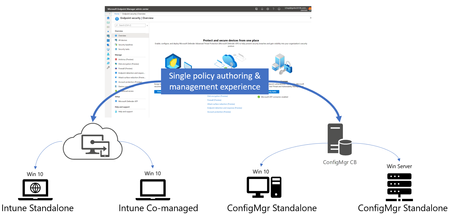
Microsoft is excited to announce another step in the deep integration between Microsoft Endpoint Manager and Microsoft Defender ATP. Microsoft Defender ATP onboarding capabilities are now available in the Endpoint Manager console for deployment to Configuration Manager standalone clients.9.5KViews0likes0Comments