detection
22 TopicsProtect your organizations against QR code phishing with Defender for Office 365
QR code phishing campaigns have most recently become the fastest growing type of email-based attack. These types of attacks are growing and embed QR code images linked to malicious content directly into the email body, to evade detection. They often entice unwitting users with seemingly genuine prompts, like a password reset or a two-factor authentication request. Microsoft Defender for Office 365 is continuously adapting as threat actors evolve their methodologies. In this blog post we’ll share more details on how we’re helping defenders address this threat and keeping end-users safe.
Build custom email security reports and dashboards with workbooks in Microsoft Sentinel
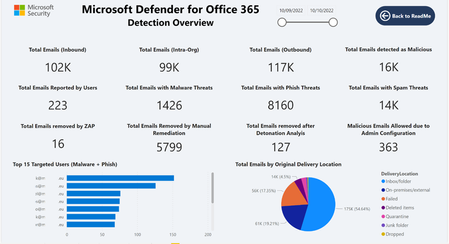
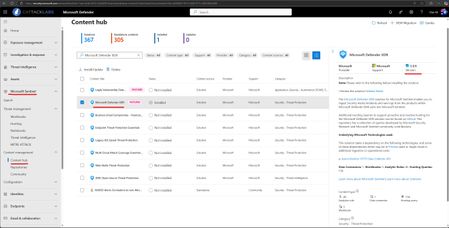
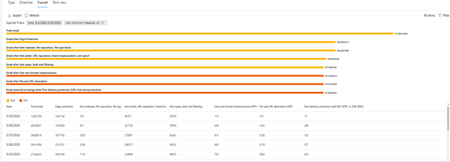
Security teams in both small and large organizations track key metrics to make critical security decisions and identify meaningful trends in their organizations. Defender for Office 365 has rich, built-in reporting capabilities that provide insights into your security posture to support these needs. However, sometimes security teams require custom reporting solutions to create dedicated views, combine multiple data sources, and get additional insights to meet their needs. We previously shared an example of how you can leverage Power BI and the Microsoft Defender XDR Advanced Hunting APIs to build a custom dashboard and shared a template that you can customize and extend. In this blog, we will showcase how you can use workbooks in Microsoft Sentinel to build a custom dashboard for Defender for Office 365. We will also share an example workbook that is now available and can be customized based on your organization’s needs. Why use workbooks in Microsoft Sentinel? There are many potential benefits to using workbooks if you already use Microsoft Sentinel and already stream the hunting data tables for Defender for Office 365: You can choose to store data for a longer period of time via configuring longer retention for tables you use for your workbooks. For example you can store Defender for Office 365 EmailEvents table data for 1 year and build visuals over longer period of time. You can customize your visuals easily based on your organization’s needs. You can configure auto-refresh for the workbook to keep the data shown up to date. You can access ready to use workbook templates and customize them if it's needed. Getting started After you connect your data sources to Microsoft Sentinel, you can visualize and monitor the data using workbooks in Microsoft Sentinel. Ensure that Microsoft Defender XDR is installed in your Microsoft Sentinel instance, so you can use Defender for Office 365 data with a few simple steps. Detection and other Defender for Office 365 insights are already available as raw data in the Microsoft Defender XDR advanced hunting tables: EmailEvents - contains information about all emails EmailAttachmentInfo - contains information about attachments in emails EmailUrlInfo - contains information about URLs in emails EmailPostDeliveryEvents – contains information about Zero-hour auto purge (ZAP) or Manual remediation events UrlClickEvents - contains information about Safe Links clicks from email messages, Microsoft Teams, and Office 365 apps in supported desktop, mobile, and web apps. CloudAppEvents – CloudAppEvents can be used to visualize user reported Phish emails and Admin submissions with Defender for Office 365. The Microsoft Defender XDR solution in Microsoft Sentinel provides a connector to stream the above data continuously into Microsoft Sentinel. Microsoft Sentinel then allows you to create custom workbooks across your data or use existing workbook templates available with packaged solutions or as standalone content from the content hub. How to access the workbook template We are excited to share a new workbook template for Defender for Office 365 detection and data visualization, which is available in the Microsoft Sentinel Content hub. The workbook is part of the Microsoft Defender XDR solution. If you are already using our solution, this update is now available for you. If you are installing the Microsoft Defender XDR solution for the first time, this workbook will be available automatically after installation. After the Microsoft Defender XDR solution is installed (or updated to the latest available version), simply navigate to the Workbooks area in Microsoft Sentinel and on the Templates tab select Microsoft Defender for Office 365 Detection and Insights. Using the “View Template” action loads the workbook. What insights are available in the template? The template has the following sections with each section deep diving into various areas of email security, providing details and insights to security team members: Detection overview Email - Malware Detections Email - Phish Detections Email - Spam Detections Email - Business Compromise Detections (BEC) Email - Sender Authentication based Detections URL Detections and Clicks Email - Top Users/Senders Email - Detection Overrides False Negative/Positive Submissions File - Malware Detections (SharePoint, Teams and OneDrive) Post Delivery Detections and Admin Actions Email - Malware Detections Email - Business Compromise Detections (BEC) Email - Sender Authentication based Detections URL Detections and Clicks False Negative/Positive Submissions File - Malware Detections (SharePoint, Teams and OneDrive) Post Delivery Detections and Admin Actions Can I customize the workbook? Yes, absolutely. Based on the email attributes in the Advanced Hunting schema, you can define more functions and visuals as needed. For example, you can use the DetectionMethods field to analyse detections caught by capabilities like Spoof detections, Safe Attachment, and detection for emails containing URLs extracted from QR codes. You can also bring other data sources into Microsoft Sentinel as tables and use them when creating visuals in the workbook. This sample workbook is a powerful showcase for how you can use the Defender for Office 365 raw detection data to visualize email security detection insights directly in Microsoft Sentinel. It enables organizations to easily create customized dashboards that can help them analyse, track their threat landscape, and respond quickly—based on unique requirements. Do you have questions or feedback about Microsoft Defender for Office 365? Engage with the community and Microsoft experts in the Defender for Office 365 forum. More information Integrate Microsoft Defender XDR with Microsoft Sentinel. Learn more about Microsoft Sentinel workbooks. Microsoft Defender for Office 365 Detection Details Report – Updated Power BI template for Microsoft Sentinel and Log Analytics Learn more about Microsoft Defender XDR.Declutter and Defend: Reducing promotional mail noise with Microsoft Defender
Enterprise inboxes are overwhelmed with graymail — legitimate, bulk email like newsletters, vendor promotions, and product updates that isn't malicious but buries the messages that matter. When high volumes of these mails land in the inbox, it crowds out priority communications and can dull security vigilance. Employees conditioned to ignore repetitive emails may miss signs of a real threat. It also creates recurring work for admins and security teams who must continuously tune filters, manage exception requests, and chase noise from user reports for email that isn’t malicious. Because graymail passes every spam filter check, traditional defenses don't separate it — leaving this signal-to-noise gap unaddressed. Today we’re excited to announce that Microsoft Defender now includes built-in graymail filtering. It is delivered natively through a new Promotions experience in Outlook that automatically classifies and separates bulk email, so it no longer competes with business-critical communication in the inbox. Now in Public Preview, this capability learns from how users interact with graymail to become more accurate over time. Coupled with the existing Bulk Senders Insight report, Defender brings data-driven bulk classification and control into the security workflows you already use. What Is Graymail? Graymail is legitimate bulk email that isn't malicious—product newsletters, event announcements, marketing promotions, and software update notifications from reputable, authenticated senders. It is distinct from spam and from phishing - graymail comes from real organizations with proper authentication and traditional spam filters aren't designed to handle it. Graymail handling in Microsoft Defender Microsoft Defender's approach is built on three principles: classify intelligently, deliver natively, and learn continuously. Promotions Folder — Intelligent Inbox Organization A dedicated Promotions folder, natively provisioned in Outlook, now keeps legitimate bulk mail out of the primary inbox. Promotional content is separated from priority emails without being sent to Junk, which means users can still access and browse newsletters and updates at their own pace. The folder appears at the top level of the mailbox for easy discovery and is visible across all Outlook experiences. Non-spam bulk mail below the organization's configured Bulk Complaint Level threshold is automatically routed to the Promotions folder. Messages from senders the user has explicitly allowed continue to land in the Inbox. Messages identified as spam continue to go to Junk. To enable the Promotions folder administrators need to enable the "Bulk Moves Enabled" setting in their anti-spam policy. The Promotions folder is then created for all users and used for routing only when this setting is ON. Existing mail flow is unaffected. Promotional mail tagging and Mailbox Rule Support Messages classified as graymail will automatically be labeled with a "Promotions" system tag in Outlook. The tag provides instant visual context without requiring users to open each message and is visible in Outlook on the Web and the native Outlook desktop apps for Windows and Mac. During Public Preview, the tagging component is opt-in, requiring administrators to enable it by configuring an Exchange Transport Rule. Once generally available, it will be enabled by default. Because this classification is integrated at the client level, the Promotions tag can also be used as a condition in Outlook mailbox rules. This enables custom routing logic for advanced scenarios like moving all promotions-tagged messages from a specific sender to a custom folder, flagging certain promotional emails for follow-up, or auto-forwarding or deleting promotions that meet specific criteria. This transforms the Promotions classification from a one-way filter into a flexible building block for personal and organizational workflows—particularly valuable for power users and teams with compliance or archival requirements. Adaptive Learning Microsoft Defender's graymail filtering gets smarter with every interaction. The system learns directly from how users handle their mail. When a user moves a message out of the Promotions folder and back to the Inbox, future emails from that sender will no longer be placed in the Promotions folder. When a user moves a message from the Inbox into the Promotions folder, future emails from that sender will be routed to the Promotions folder automatically. This creates a personalized, self-improving experience that becomes more accurate over time - no manual rule configuration required, no safe-sender lists to maintain, and no filtering rules for IT teams to manage on behalf of individual employees. Built into existing Security Workflows Administrators also gain visibility through the Bulk Senders Insight report, which provides data-driven guidance on what your organization actually receives and can help tune your bulk mail filtering. Graymail has long been the unsolved middle ground of email security—too legitimate to block, too noisy to ignore. Microsoft Defender now handles it where it should be handled: inside the platform, inside the mailbox, and inside the security workflows your organization already relies on. No new portals, no new vendors, no compromise between security and user experience. Get Started Configure promotions tagging and the promotions folder today - Bulk email detection documentation on Microsoft Learn. Monitor the experience using the Bulk Senders Insight report.