cost management
74 Topics
Now Available: Management Group–Scoped Savings Plan and Reservation Recommendations in Azure
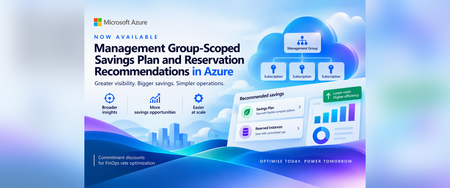
Smarter commitments, at the scope that matters We're excited to announce that both savings plan and reservation (including P3) recommendations are now available at the management group scope in the Azure Portal and via REST API. With management group–scoped recommendations, you can now evaluate and act on both your savings plan and reservation opportunities across an entire organizational hierarchy in a single, unified view. If you manage cost and commitments across a multi-subscription estate, this is another way to maximize both your savings plan and reservation commitment coverage with confidence. The value proposition Management groups are how enterprises organize subscriptions to reflect their real business structure — by department, environment, geography, or line of business. Bringing savings plan and reservation recommendations to this scope delivers three key benefits: Aggregated purchasing power. Recommendations account for the combined, steady-state usage and spend across the subscriptions under a management group. For both reservations and savings plans, this surfaces commitment levels that better reflect true aggregate consumption. Governance-aligned decisions. FinOps teams and central IT can generate and review both savings plan and reservation recommendations at the exact organizational boundary where budget and commitment decisions are actually made — no more reconciling dozens of separate subscription-level recommendations. Reduced analysis overhead. A single API call or portal view returns recommendations for an entire management group, with configurable term and look-back period. Less manual aggregation, faster time to a confident purchase decision. How it works The recommendation engine analyzes your historical usage over your selected look-back window, models the optimal commitment, and projects the expected savings versus pay-as-you-go pricing — now with the management group as a first-class scope for both savings plans and reservations. In the Azure Portal: Navigate to the Savings plans or Reservations purchasing experience, then select a management group scope to view aggregated recommendations. Via the REST API: For savings plans, call the Savings Plan Recommendations endpoint with a management group scope. For reservations — including P3 — call the Reservation Recommendations endpoint with a management group scope. Get started today Explore the Benefit Recommendations and Reservation Recommendations API references to start integrating management group recommendations into your FinOps tooling today.555Views0likes2Comments
You Get One Exchange Left: Rethinking Azure Commitments Before February 2027
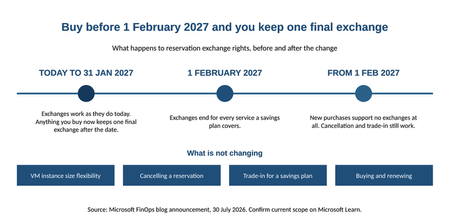
Azure gives you two main ways to pay less by committing up front. A reservation gets you the deepest discount, but you are locking in a specific SKU in a specific region. A savings plan gives up some of that discount in exchange for freedom: you are only committing to spend a certain amount per hour on compute and database services, and it does not care which region you spend it in. Until now, a reservation could move with you. If your infrastructure or database environment changed, or a workload had to move to a new region, you exchanged the reservation for one that matched where things had landed. That flexibility is why teams could commit early and adjust as the environment evolved. That flexibility is changing. From February 1, 2027, you can no longer exchange a reservation for any service that a savings plan covers. Neither product is changing. What is changing is how much room you have to adjust a commitment after your environment shifts, which means the order you make these decisions in matters a lot more than it used to. What's changing Here is what is affected as of the announcement. Compute: Azure Virtual Machines (including swapping between non-premium and premium storage), Azure Dedicated Host, and Azure App Service. Databases: Azure Database for PostgreSQL, Azure Database for MySQL, Azure DocumentDB, Azure Cosmos DB, Azure SQL Database, and Azure SQL Managed Instance. That list will grow. As savings plans start covering more services, reservations for those services automatically fall under the same rule. Products that are being retired are excluded, and so are clouds where savings plans are not offered. Two details really matter. If you own a reservation for one of these services and you bought it before February 1, 2027, you get one final exchange after that date. Just one. Buy on or after that date and you get none. Full details, including the FAQ, are in the official announcement: "Reservation exchanges for Azure services covered by savings plans end starting Feb. 1, 2027". What's staying exactly the same This is worth spelling out, because it is easy to read more into the announcement than is actually there. All of this still works. VM instance size flexibility is untouched. Cancelling a reservation is untouched. Trading a reservation in for a savings plan is still there. Buying and renewing reservations is still available, and still the right call for steady workloads. Reservations are not going anywhere. The only thing changing is your ability to swap one for another when your environment moves underneath it. The part most teams get backwards You cannot think clearly about timing without this, and it is the thing people most often have wrong: reservations and savings plans are not a choice between two options. You can use both. They stack, and they apply in a set order every hour. Reservations go first, on anything they match. The savings plan picks up what is left, up to your hourly commitment. Whatever is still uncovered bills at pay-as-you-go, using your negotiated rate. Here is one hour, made concrete. Say you have reservations covering $10 an hour of matching VMs, plus a savings plan committed at $5 an hour. In an hour where you use $18 of eligible compute, $10 gets reservation pricing, $5 gets savings plan pricing, and the last $3 bills pay-as-you-go. The savings plan did not fight the reservation for that spend. It caught the overflow. Two things people assume that are not true. The terms do not have to match: a three-year reservation and a one-year savings plan work fine side by side. And you do not tag or assign anything. Once you buy a savings plan, it looks across whatever scope you bought it at and applies itself wherever it finds a fit. That flexibility is the whole point. A savings plan ties you to an hourly amount, not to a SKU or a region. A reservation ties you to both. Before February 2027 that difference was mostly about how big a discount you got. After, it also decides how easily your commitment can follow the environment as it changes. Three rules for buying from here on Lean on savings plans while things are still moving Before you commit to anything, ask what is going to change in the next ninety days. If a team is midway through centralizing their networking and is about to delete every per-subscription VPN gateway, any recommendation you generate this week will be wrong next month. Azure Advisor rescans every day and rewrites its recommendations as your environment shifts. If a workload is mid-migration, mid-consolidation, or mid-anything, a savings plan gets you a similar discount without locking you in. Move it to a reservation once it is genuinely settled. A domain controller running around the clock in one region is the textbook reservation. Something still being actively built is not. Start short, and know why that matters now Three years gets you the best rate. Starting with one year and extending as you get more confident was always the sensible approach. Now it carries more weight, because a reservation can no longer be exchanged when your environment moves. If one stops matching, your options are to cancel it under the existing policy, or trade it in for a savings plan. That is the whole list. Buy at the business-unit level, not the tenant level Buy everything centrally and you take away each team's ability to pick what suits their own workloads. Then, when a team wants more coverage than the central purchase gives them, they go and buy their own at subscription level, and now you are paying for the same thing twice. Buying per business unit also makes chargeback far easier, because the discount ends up sitting where the spending happens. Clean up before you commit There is a step that comes before all of this, and it is not new advice. Azure Advisor already flags unattached disks, idle virtual network gateways, and VMs that should be resized or switched off. If you have not done that sweep, "Identify your savings potential in Azure" walks through the tools properly. What is new is what happens if you skip it. Leftover and idle resources do not just eat into your savings. They inflate the number you size your commitment against. Commit against a messy environment and you have just locked in one to three years of spend on resources that should not be running. Up to now, an exchange gave you a way to adjust that later. Cleaning up used to be good housekeeping. Once you cannot exchange out of a reservation, it is genuinely about limiting risk. The same goes for the workloads you are keeping. Switch off VMs outside business hours before you buy a reservation, not after. Reservations only pay off on workloads that run constantly, and once you have bought one you owe the money whether the VM is running or deallocated. Scaling up and never scaling back down is the same problem wearing a different hat. How to check it actually worked Your reservation and savings plan discounts show up on the invoice under amortized cost. Three columns tell the story. Pay-as-you-go price is the list price. Unit price is your negotiated discount, before reservations are applied. Effective price is what you genuinely paid once reservations and savings plans were counted. There is no neat query for this. You read it off the invoice. It is the clunkiest part of the whole process and it is the first thing your finance partner will ask about, so get it into your reporting now rather than during your first chargeback cycle. What to do in the next ninety days List every active reservation you hold for an affected service. Work out which ones no longer match the workload. Those are your candidates for that one remaining exchange. Decide deliberately where that one exchange does the most good. Clean up orphaned disks, idle gateways, over-replicated storage, and scale-ups nobody scaled back down. Re-baseline your commitment sizing against the tidied-up environment. Buy at business-unit level, leaning toward savings plans anywhere the workload is still changing. The takeaway Reservations and savings plans both still work, and both still save you real money. What changes on February 1, 2027 is that a reservation can no longer be exchanged when your environment moves, so the decision has to be right at the point you make it rather than adjusted afterwards. That puts the weight on sequence: clean up first, size the commitment against what is actually running, use savings plans while a workload is still settling, and move to a reservation once it has stopped moving. The deadline is not something to panic about. It is a good excuse to finally do the bit most cost programs skip.777Views0likes0Comments
Announcing savings plan for databases: flexible savings for modern, evolving workloads
As organizations modernize their data platforms, database environments are constantly changing. Teams migrate between services, scale across regions, and evolve architectures to support new applications and AI driven workloads. But optimizing costs in these environments can be challenging, especially when savings options require locking into specific services, regions, or configurations. To help with these challenges, we’re introducing savings plan for databases, a new way to save on eligible database services while maintaining the flexibility needed to modernize and grow your business. Savings plan for databases helps IT, engineering, and FinOps teams reduce database costs with a simple, spend based commitment—without slowing down architectural change. New: Choose a 3-year term for longer-term planning Savings plan for databases now gives you more choice in how you plan for your database investments, with 1-year and 3-year commitment options. Both terms provide the same discounted pricing, so the choice is less about finding a different discount and more about selecting the commitment period that best aligns with your business plans, workload lifecycle, and cloud strategy. The 3-year option can be a strong fit for organizations with longer-term database migration, modernization, or optimization initiatives. It provides a longer planning horizon for organizations that want predictable savings aligned to a multi-year database roadmap, while reducing the need to make a new commitment decision each year. If your database needs are changing more quickly or you prefer to reassess your commitments annually, the 1-year option may be a better fit. Choose the commitment term that matches your planning horizon: 1 year: Greater flexibility to reassess your database strategy and commitments annually. 3 years: Greater continuity for longer-term database strategies, migration and modernization programs, and multi-year planning. Whichever term you choose, savings plan for databases continues to give you the flexibility to save as your eligible database usage evolves. What is savings plan for databases? Savings plan for databases is a spend based pricing model that enables customers to save on eligible database services by committing to a fixed hourly spend for one year. In return, customers receive lower prices—up to 35% compared to pay-as-you go pricing on select services*. Instead of committing to a specific database service, region, or configuration, customers commit to an hourly dollar amount (for example, $5 per hour). The plan automatically applies savings to eligible database usage each hour, prioritizing the usage that delivers the greatest savings first—across services and regions—until the hourly commitment is met. Any usage beyond the commitment continues at pay-as-you go rates, ensuring flexibility as needs change. Pricing is for illustrative purposes only. Benefits designed for modern database workloads Flexibility as environments evolve Savings plan for databases is designed for change. Savings continue to apply as workloads modernize or move across regions—without requiring customers to repurchase or reconfigure commitments. This makes it well suited for dynamic environments where architectures are expected to evolve over time. Automatic cost optimization With a single hourly commitment, customers unlock discounted prices on eligible database usage. Savings are applied automatically each hour, ensuring customers get the most value from their commitment without manual management or constant tuning. Predictable budgeting and forecasting A fixed hourly spend replaces variable pay-as-you-go costs with a predictable commitment, making it easier for FinOps and IT finance teams to forecast spend, plan budgets, and manage cloud investments with confidence. What services that are covered with the savings plan for databases: Savings plan for databases pricing How to purchase a savings plan for databases Getting started is simple: Review personalized recommendations in the Azure portal based on recent database usage. Choose an hourly commitment and scope it into a subscription, resource group, management group, or entire account. Select a payment option—pay monthly or upfront at no additional cost—and optionally enable auto‑renewal. Once purchased, savings are applied automatically to eligible database usage every hour. Learn more here on how to purchase a savings plans here. Example: saving while modernizing Consider a team running a global application that uses Azure SQL Database and Azure Database for PostgreSQL today, with plans to expand into additional regions over the next year. Instead of purchasing individual reservations tied to specific services or regions, the team purchases a 1‑year savings plan for databases with a $5/hour commitment. As usage shifts across database services and regions, Azure automatically applies discounted prices to eligible usage up to the hourly commitment. The team continues modernizing without disruption—while benefiting from predictable savings. Summary Savings plan for databases provides a new way to optimize database costs —without locking into fixed architectures. With hourly commitments, automatic optimization, and predictable costs, it’s designed to support modernization today and continued growth tomorrow. Get started You can begin saving today: View your recommendation in Azure Advisor Purchase a plan in Azure portal Visit the Savings plan homepage Review the Microsoft Documentation Watch demo videos at the Azure Essentials Show *Customers may see savings estimated to be between 0% and 35%. The 35% savings estimate is based on one Azure SQL Database serverless running for 12 months at a pay-as-you-go rate vs. a reduced rate for a 1-year savings plan. Based on Azure pricing as of March 2026. Prices are subject to change. Actual savings may vary based on location, database service, and/or usage. ** Note that savings plan for databases will also be consumed by SQL Server on Azure Virtual Machines and SQL Server enabled by Azure Arc hourly license at the normal pay-go price.9.5KViews2likes0CommentsCost increases when selecting Amortised cost in cost analysis
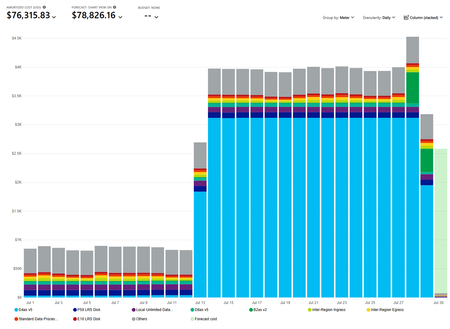
Hi, this seems like a bug. When i select Amortized cost in Cost analysis, our monthly cost jumps from $25,664.54 to $76,315.83. The resource that causes the jump is a Reservation for a D4asv5 virtual machine. It jumps to $3,120.09 per day. Can someone please try it their side.Solved340Views0likes4CommentsReservation exchanges for Azure services covered by savings plans end starting Feb. 1, 2027
Starting February 1, 2027, Azure reservation exchanges will no longer be available for services covered by savings plans. This change aligns reservation exchange policy with the flexibility already offered by savings plans, and it gives you a clear, predictable framework for choosing the right commitment-based discount for each workload. This post walks through what's changing, who's affected, what stays the same, and the actions you can take today to plan ahead. What's changing If a service supports Azure savings plans, the corresponding reservation for that service will no longer support exchanges as of February 1, 2027. This change excludes products or services that are deprecated and approaching end of life, as well as cloud environments that don't currently support savings plans. The policy is forward-looking, as savings plan coverage expands, reservations for those services will follow the same policy and will not support exchanges. Affected services At the time of this announcement, the change applies to reservations for the following services: Compute services Azure Virtual Machines — including exchanges between non-premium and premium storage Azure Dedicated Host Azure App Service Database services Azure Database for PostgreSQL Azure Database for MySQL Azure DocumentDB Azure Cosmos DB Azure SQL Database Azure SQL Managed Instance Important details to plan around One final exchange. Each active reservation for an impacted service, purchased before February 1, 2027, will retain the right to one final exchange after that date. Plan how and when you want to use it. New purchases. Reservations for impacted services purchased on or after February 1, 2027, will not support exchanges. Expanding scope. As savings plan eligibility grows, additional services will automatically fall under this policy. What's not changing Reservations remain the right choice for predictable, stable workloads, and you can continue to purchase them. Specifically: Instance size flexibility for virtual machines is not impacted by this change. The reservation cancellation policy is not impacted by this change. Recommended action If you need flexibility across services and regions, consider evaluating savings plans as a discount option for dynamic and evolving workloads. Savings plans can help provide cost savings on consistent spend across compute and database services, regardless of region. You can also trade in your existing reservations for a savings plan. Alternatively, reservations remain the appropriate option for predictable, stable workloads, and you can continue to purchase them. To compare your options, see decide between a savings plan and a reservation. Frequently Asked Questions What is changing? Starting February 1, 2027, Azure reservation exchanges will no longer be available for services covered by Azure savings plans. Reservations for these services will continue to be available for purchase and renewal. Which services are affected? At the time of this announcement, the policy applies to reservations for: Compute services Azure Virtual Machines (including exchanges between non-premium and premium storage) Azure Dedicated Host Azure App Service Database services Azure Database for PostgreSQL Azure Database for MySQL Azure DocumentDB Azure Cosmos DB Azure SQL Database Azure SQL Managed Instance As Azure savings plan coverage expands, additional savings plan-eligible services may become subject to this policy. Does this apply to all Azure cloud environments? No. This change applies only to cloud environments where Azure savings plans are available. Can I still exchange reservations before February 1, 2027? Yes. Reservation exchanges will continue to be available under the current policy until February 1, 2027. Does this affect reservations I already own? Active reservations for impacted services purchased before February 1, 2027, will retain the right to one final exchange after that date. What happens after I use my final exchange? Once the final exchange is used, the resulting reservation cannot be exchanged again. Can I still purchase or renew reservations? Yes. Reservations remain available and continue to be a valuable option for stable, predictable workloads. Is Azure retiring reservations? No. Reservations remain an important commitment-based discount offering. This change affects exchangeability only. What is not changing? The following capabilities remain available: VM instance size flexibility Reservation cancellations under existing policies Reservation-to-savings-plan trade-in Reservation purchases and renewals When should I choose a savings plan instead of a reservation? Review our guidance on how to decide between a savings plan and a reservation. What should I do before February 1, 2027? Review your reservation portfolio, evaluate future flexibility needs, consider Azure savings plans where appropriate, and plan how you want to use the one final exchange available to eligible active reservations. Where can I learn more? For more information, see: Changes to the Azure reservation exchange policy Exchanges and refunds for Azure reservations Trade in reservations for a savings plan Azure savings plans Decide between a savings plan and a reservation. Policy details are subject to change and may vary based on service eligibility and contractual terms.3.8KViews0likes0CommentsCap it with GitHub, make it count with Azure: governing GitHub Copilot spend
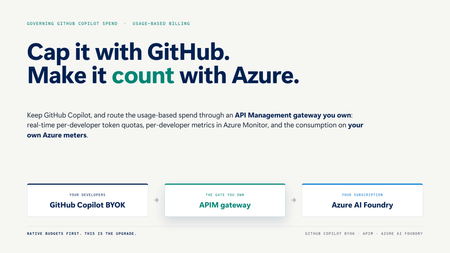
GitHub Copilot is now usage-based. Here is a working, one-command pattern to govern the spend: route Copilot BYOK through an Azure API Management gateway in front of Azure AI Foundry for real-time per-developer token quotas, per-developer metrics, and consumption on your own Azure meters.1.7KViews3likes3CommentsRight‑sizing Azure Savings Plans, one hour at a time
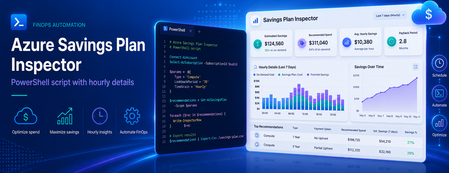
Most of us have, at some point, sized a commitment the same way we order food for a team offsite: estimate, round up, and hope nobody complains. It works for pizza. It is a less robust strategy for a three‑year Savings Plan. Azure Cost Management already produces commitment recommendations for you, and they are a great starting point. But the headline dollar figure on the portal hides the most useful signal a FinOps team can get its hands on: the hourly Pay‑As‑You‑Go (PAYG) usage that the recommendation engine actually looked at. Once you have that signal in a spreadsheet, "right‑sized" stops being a vibe and starts being a number you can defend in a steering meeting. This post walks through how to pull that data out of the Cost Management REST API, and shares a small companion PowerShell script that does the heavy lifting and produces analyst‑friendly CSV and Markdown outputs. Why a single recommended number isn't enough A Savings Plan recommendation is, at its core, an optimisation against a distribution of hourly compute spend over a lookback window. The portal typically surfaces the single commitment level that maximises savings under a "reasonable utilisation" assumption. That's a sensible default, but it answers only one question. The questions FinOps practitioners also want to answer include: What does my PAYG demand actually look like hour‑by‑hour? Smooth and predictable, or spiky and seasonal? How does coverage and savings change if I commit a bit less, or a bit more? Will the recommended commitment leave me with wastage on weekends or overnight? Can I correlate the hourly profile with maintenance windows, batch jobs, or business hours? You cannot answer those questions with a single dollar figure. You can answer all of them with the hourly series and the alternative commitment levels — and the API exposes both. What the Benefit Recommendations API gives you The endpoint is the Benefit Recommendations - List operation (api-version=2025-03-01). Pointed at any of the supported scopes — Billing Account (EA), Billing Profile (MCA), Subscription, or Resource Group — it returns one or more recommendations for the chosen lookBackPeriod (Last7Days, Last30Days, Last60Days) and term (P1Y, P3Y). The two $expand options are where the magic lives: $expand=properties/allRecommendationDetails returns an array of alternative commitment levels (AllSavingsBenefitDetails). Each entry includes commitmentAmount, coveragePercentage, benefitCost, overageCost, savingsAmount, savingsPercentage, wastageCost, and averageUtilizationPercentage. $expand=properties/usage returns the hourly PAYG charge series (usage.charges) that the engine used. Combined with properties.firstConsumptionDate and properties.lastConsumptionDate, you get a complete time‑aligned view of demand. Both expansions are cheap and worth requesting every time. They turn a single recommendation into a small, complete data product. Meet the script: Export-BenefitRecommendations.ps1 To make this useful in five minutes rather than an afternoon, there is a PowerShell script on GitHub that wraps the API call and produces ready‑to‑use artifacts. It is interactive, so there is nothing to memorise: === Azure Benefit Recommendations Export === Select billing scope kind: * [1] Billing Account (EA) [2] Billing Profile (MCA) [3] Subscription [4] Resource Group Enter choice 1-4 (default 1): 1 Billing Account ID: <your-EA-billing-account-id> Select lookback period: [1] Last7Days * [2] Last30Days [3] Last60Days Enter choice 1-3 (default 2): 3 Select term: * [1] P1Y [2] P3Y Enter choice 1-2 (default 1): 2 ... Retrieved 1 recommendation(s). It authenticates via the Az.Accounts module, always requests both $expand options, follows nextLink pagination, verifies API access up front (translating 401/403/404 into actionable hints), and writes four files using a predictable name pattern: yyyy-MM-dd-<scope>-<lookback>-<term>-AllRecommendationDetails.csv — one row per commitment alternative, ready for pivot tables. yyyy-MM-dd-<scope>-<lookback>-<term>-TopRecommendation.md — a Markdown brief on the top recommendation, including the recommended commitment row and the full alternatives table. yyyy-MM-dd-<scope>-<lookback>-<term>-HourlyUsage.csv — hour‑by‑hour PAYG usage for the top recommendation, aligned to the API's actual data window (no padding, no trailing blanks). yyyy-MM-dd-<scope>-<lookback>-<term>-Raw.json — optional full response dump, for archival or downstream tooling. The naming convention is intentional: paste a folder of these into Power BI and the dates, scopes, and terms are already in the filename. A worked example Here is a real shape from a sample Last60Days / P3Y export against an EA billing account. The AllRecommendationDetails CSV gives us four commitment alternatives: averageUtilizationPercentage,coveragePercentage,commitmentAmount,overageCost,benefitCost,savingsAmount,savingsPercentage,totalCost,wastageCost 100.000,28.868,4.124,30914.280,5889.072,6656.889,15.317,36803.352,0.000 100.000,39.168,5.848,26437.791,8350.944,8671.506,19.953,34788.735,0.000 9.984,97.883,16.359,919.948,23360.652,19179.641,44.131,24280.600,3.767 98.684,98.900,16.806,477.956,23998.968,18983.317,43.680,24476.924,315.907 Read those rows like an interactive lever: Commit $4.124/hr → 28.9% coverage, 15.3% savings, zero wastage. Safe, but most of your spend is still PAYG. Commit $5.848/hr → 39.2% coverage, 19.9% savings. Still safe, still conservative. Commit $16.359/hr → 97.9% coverage, 44.1% savings, ~$3.77 of wastage. This is the sweet spot the engine flags as recommended. Commit $16.806/hr → 98.9% coverage, 43.7% savings, but wastage jumps to $315.9 over the window. You bought more coverage and the engine charged you for it. The hourly CSV is what makes the recommendation defensible. It contains 1,428 rows — one per hour from 2026-04-11T00:00 through 2026-06-09T11:00 (the API's reported data range, not "now minus 60 days"): DateTime,HourlyPayGoUsage 2026-04-11T00:00,29.5350191832771 2026-04-11T01:00,29.566694701744 ... 2026-06-09T11:00,32.7312920192344 Drop that into Excel or Power BI, lay a horizontal line at the recommended commitmentAmount ($16.359/hr), and you immediately see how often demand sits above the line (covered by PAYG overage) versus below it (where the commitment is technically idle but, given the savings rate, still net‑positive). You can also slice by hour‑of‑day to spot weekend troughs or batch‑job spikes that change how you interpret "average utilisation." Try it yourself The script and full documentation live at github.com/DirkBrinkmann/azure-savingsplan-insights. Quickstart: git clone https://github.com/DirkBrinkmann/azure-savingsplan-insights.git cd azure-savingsplan-insights Install-Module Az.Accounts -Scope CurrentUser # if you don't already have it #Connect to Azure Connect-AzAccount #Run the script .\Export-BenefitRecommendations.ps1 You will need read permission on the scope you target — Cost Management Reader on a subscription, or Billing Reader at the billing account / billing profile level, is enough. Give it a spin against your own scope and tell us how it goes. The repo at github.com/DirkBrinkmann/azure-savingsplan-insights has Issues and Discussions enabled — bug reports, edge cases ("my response shape looks different"), feature ideas, and "I plotted this in Power BI and learned X" stories are all welcome. The script will only get better with real‑world data behind it, and yours is the kind we want to hear about. Closing nudge In FinOps terms, this is squarely an Inform phase activity: turning a black‑box recommendation into a transparent dataset your team can challenge, chart, and align on. The API has had this data all along; the script just makes it boring to extract — which is exactly what you want a FinOps tool to be. Pull a Last60Days / P3Y export for your top‑spending scope, plot the hourly line, and decide your next Savings Plan with a number you can point to. Your future self (and your finance partner) will thank you.1.3KViews2likes2CommentsIntroducing GitHub Pre-Purchase Plans: A Simpler Way to Plan Your GitHub Spend
As AI-powered development scales, more of what organizations pay for on GitHub is shifting from fixed per-seat pricing to usage-based billing. GitHub Copilot, Actions, Codespaces, AI Credits: spend now reflects what teams actually build, and that can vary month to month. For most engineering and finance leaders, that raises a familiar question: how do you set a confident annual budget when consumption is variable? How do you capture the savings that come with committing upfront? That is what GitHub Pre-Purchase Plans are for. Commit to an amount upfront, use it across eligible GitHub services over a 12-month term, and receive built-in savings based on the size of the commitment. Variable usage becomes a plan. Builders keep building, and finance teams get a number they can count on. Microsoft is introducing two GitHub Pre-Purchase Plans (P3) for commercial customers, both available through Azure Reservations: How the plans work The model is the same for both plans: Commit upfront. Choose a pre-purchase tier that fits your expected GitHub usage. Receive built-in savings. Larger commitments unlock higher discount tiers, up to 15%. Draw down as you go. Eligible usage consumes from the prepaid balance over the 12-month term. Replenish or shift to pay-as-you-go. If usage exceeds the prepaid amount, purchase another plan or continue with pay-as-you-go billing where available. Commit units are available for the plan term and do not carry over after the term ends. Why choose a Pre-Purchase Plan? Pre-Purchase Plans are not replacing how you buy GitHub today. They provide another option for customers who have a reasonable view of expected usage and want to plan ahead. The value is straightforward: Simpler purchasing with one prepaid commitment instead of managing multiple separate charges across GitHub services. Built-in savings compared with pay-as-you-go pricing. The more you commit, the greater the discount. Alignment with Azure billing. GitHub usage is billed through the Azure subscription linked to your GitHub organization, so Pre-Purchase Plans fit into the same planning motions you already use for Azure commitments. Pricing*: Both plans use the same published tier structure: *Pricing as of June 2026 and is subject to change. Customers should review the latest documentation before purchasing. **Example if GitHub Enterprise generates a retail cost of $100, then 100 GitHub Commit Units (GCUs) are consumed Two examples Planning across the GitHub platform Suppose an organization expects about $500,000 in eligible GitHub usage over the next year across GitHub Copilot, GitHub Enterprise, GitHub Advanced Security, Actions, and GitHub AI Credits. With the GitHub Pre-Purchase Plan, the organization chooses the 500,000 commit unit tier, pays $425,000 upfront, and applies that commitment across eligible services over the 12-month term. That gives the team one platform-wide commitment with 15% built-in savings. Planning for AI credit consumption Another organization's biggest source of variability is GitHub AI Credits as Copilot and agentic development expand. Instead of using a broader platform commitment, that team chooses the GitHub AI Credits Pre-Purchase Plan so AI Credit usage draws down from a dedicated prepaid balance. This is a better fit when the main goal is to plan specifically around AI credit consumption. How Pre-Purchase Plans relate to Microsoft Agent Pre-Purchase Plan If you are also evaluating the Microsoft Agent Pre-Purchase Plan, here is the distinction: that plan is broader than GitHub and covers eligible usage across Microsoft Foundry, Copilot Studio, Fabric, and GitHub. Choose a GitHub Pre-Purchase Plan when GitHub is the platform you are planning around. Choose Microsoft Agent Pre-Purchase Plan when the goal is agent development spanning the wider Microsoft platform Getting started Both plans are available through Azure Reservations today. Sign in to the Azure portal Go to Reservations Select Add Choose GitHub Pre-Purchase Plan or GitHub AI Credits Pre-Purchase Plan. Select your subscription and scope. Choose your tier and complete payment For detailed purchasing steps, scope guidance, prerequisites, and examples, see the Microsoft Learn documentation: Watch how to bill their GitHub consumption (GitHub Copilot, Codespaces, Actions, etc.) through their Azure subscription GitHub Pre-Purchase Plan - Microsoft Cost Management | Microsoft Learn GitHub AI Credits Pre-Purchase Plan - Microsoft Cost Management | Microsoft Learn3.2KViews0likes0Comments
How to control your Azure costs with Governance and Azure Policy
Azure resources can be configured in many ways, including ways which affect their performance, security, reliability, available features and ultimately cost. The challenge is, all these resources and configurations are completely available to us by default. As long as someone has permission, they can create any resource and configuration they like. This implicit “anything goes” gives our technical teams the freedom to decide what’s best. Like a kid in a toy shop, they will naturally favour the biggest, fastest and coolest toys. The immediate risk of course, is building beyond business requirements. Too much SKU, too much resilience, too much performance and too high cost. Left unchecked, and we risk increasingly challenging and long-term issues: Over-delivering will quickly become the norm. Excessive resources configurations will become the habitual default in all environments. Teams will become mis-aligned from wider business requirements. Teams will become used to working in a frictionless environment, and challenge any restrictions. FinOps teams will be stuck in endless cost optimisation work. You may already be feeling the pain. Trapped in a cycle of repetitive, reactive cost optimisation work, seeing the same repeat offenders and looking for a way out. To break (or prevent) the cycle, a new approach is needed. We must switch priorities from detection and removal, to prevention and control. We must keep waste out. We must avoid over-provisioning. We can achieve this with governance. What is governance Governance is a collection of rules, processes and tools that control how an organization consumes IT resources. It ensures our teams deploy resources that align to certain business goals, like security, cost, resource management and compliance. Governance rules are like rules for a boardgame. They define how the game should be played, no matter who is playing the game. This is important. It aligns everyone to our organization's rules regardless of role, position, seniority and authority. It helps ensures people play by the rules rather than their rules. Try playing Monopoly with no rules. What’s going to happen? I will pass go, and I will collect 200 dollars. For Microsoft Azure, and the cloud in general, governance is centered around controlling how resources can and cannot be configured. Storage Accounts should be configured like this. Virtual Machines must be configured like that. Disks can’t be configured with this. It's as much about keeping wrong configurations out, as the right configurations in. When we enforce configurations that meet our goals and restrict those that don’t, we drastically increase our chance of success. Why governance matters for FinOps Almost all over-provisioning and waste can be traced back to how a resource is configured. From SKU, to size, redundancy and additional features, if it’s not needed it’s being wasted. That’s all over-provisioning and waste is; Resources, properties and values that we don’t need. Too much SKU, like Premium Disks Standard HDD/SSD. Too much redundancy, like Storage Accounts with GRS when LRS is fine. Too many features, like App Gateways with WAF but it’s disabled. Have a think for a moment. What over-provisioning have you seen in the past? Was it one or two resource properties causing the problems? Whatever you’ve seen, with governance we can stop it happening again. When we control how resources get configured, we can control over-provisioning and waste, too. We can determine configurations we don’t need through our optimization efforts, and then create rules that define the configurations we do need: “We don’t need Premium SSD disks.” becomes “Disks must be Standard HDD/SSD.” “We don’t need Storage Accounts with GRS.” becomes “Storage Accounts must use LRS.” “We don’t need WAF enabled Application Gateways” becomes “Application Gateways should be Standard SKUs” These rules effectively remove the option to build beyond requirements. They will help teams avoid building too much/too big, stay within their means, hold them a bit more accountable and protect us from future overspend. Detection becomes Prevention. Removal becomes Control. Over time, we will: Help our teams deliver just enough. Raise and improve awareness of over-configurations and waste. Help keep waste out once it’s found. Reduce the chances over-provisioning in future. Steadily reduce the need for ongoing Cost Optimisation efforts. Free up time for other FinOps stuff. This is why governance is a natural evolution from cost optimization, and why it’s critical for FinOps teams who want to be more proactive and spend less time cleaning up after tech teams. How can we natively govern Microsoft Azure? In Microsoft Azure, we can use the native governance service Azure Policy to help control our environments. We can embed our governance rules into Azure itself and have Azure Policy do the heavy lifting of checking, reporting and enforcing. Azure Policy has many useful features: Supports over 74000 resource properties, including all that generate costs. Can audit resources, deny deployments and even auto-resolve resources as they come into Azure. Provides easy reporting of compliance issues, saving time on manual checks. Checks every deployment from every source. From Portal to Terraform, it’s got you covered. Supports different scopes from Resource Groups to Management Groups, allowing policies to be used at any scale. Supports parameters, making policies re-usable and quick to modify when responding to change in requirements. Exemptions can be used on resources we want to ignore for now. Supports different enforcement modes, for safe rollout of new policies. It comes at no additional cost. Free! These features make Azure Policy an extremely flexible and powerful tool that can help control resources, properties and values at any scale. We can: Create Policies for almost any cost-impacting value. SKUs, Redundancy Tiers, Instance Sizes, you name it… Use different effects based on how ‘strict’ the rule should be. For example, we can use Deny (resource creation) for resource missing “Must have” attributes, and Audit to check if resources are still compliant with “Should have” attributes. Use a combination of effects, enforcement modes and exemptions to control the rollout of new policies. Reuse the Policies on multiple environments (like development versus production), with different values and effects depending on the environment's needs. Quickly change the values when needed. When requirements change, the parameters can be modified with little effort. How to avoid unwanted Friction A common concern with governance is that it will create friction, interrupt work and slow teams down. This is a valid concern, and Azure Policy’s features allow for a controlled and safe rollout. With a good plan there is no need to worry. Consider the following: Start with Audit-Only policies and non-production environments. Start with simpler resources and regular/top offenders. Test policies in sandboxes before using them in live environments. Use the ‘Do not Enforce’ mode when first assigning Deny policies. This treats them as Audit-only, allowing review before being enforced. Always parameterize Effects and Values, for quick modification when needed. Use exemptions when there are sensitive resources that are best to ignore for now. Work with your teams and agree to a fair and balanced approach. Governance is for everyone and should include everyone where possible. The biggest challenge of all may be breaking habits formed over years of freedom in the Cloud. It’s natural to resist change, especially when it takes away our freedom. Remember, it’s friction where it’s needed, Interuption where it’s needed, slow down where it’s needed. They key to getting teams onboard is delivering the right message. Why are we doing this? How will they benefit? How does it help them? How could they be impacted if you do nothing? This needs to be more than “To meet our FinOps goals”. That’s your goal, not theirs. They won’t care. Try something like: We keep seeing over-utilization and waste and are spending an additional ‘X amount’ of time and money trying to remove it. This is now impacting our ability invest properly into our IT teams, affecting other departments and impacting our overall growth. If we can get over-spend reduced and under control, we can re-invest where you need it; tooling, people, training and anything else that makes your lives better. We want to implement governance rules and policies that will prevent issues reoccurring. With your insights and support we can achieve this faster, avoid unwanted impact, and can re-invest back into our IT teams once done. Sound good to you?! This is far more compelling and gives them reason to get onboard and help out. How to start your FinOps governance journey Making the jump from workload optimization into governance might initially sound challenging, but it’s actually pretty straightforward. Consider the typical workload optimization cycle: Discover potential misconfiguration, optimization and waste cleanup opportunities. Compare to actual business requirements. Optimize workload to meet those business requirements. A governance practice extends this to the following: Identify potential misconfigurations, optimization and waste cleanup opportunities. Compare to actual business requirements. Optimize workload to meet those business requirements. Create an Azure Policy based on how the resource should have originally been configured, and how it should remain in future. Thats it, one extra step. Most of the hard work has already happened in steps 1-3, in the workload optimization we’ve already been doing. Step 4 simply turns the optimization into rule that says “This resource must be like this from now on”, preventing it happening again. Let's do it again with a real resource, an Azure Disk: Identify Premium SSD Disks in non-production environment. Compare to business requirements, which confirms Standard HDD is fine. Change Disk SKU from Premium to Standard HDD. Create Azure Policy that only allows Disks with Standard HDD in the environment and denies other SKUs. Done. No more Premium SSDs in this environment again. Prevention and Control. The real work lies in being able to understand and identify how resources become over-provisioned and wasteful. Until then we will struggle to optimize, let alone govern. The Wasteful Eight There's so many resources and properties available. Understanding all the ways they can create waste can be challenging. Fortunately, we can group resource properties into eight main categories, which make our efforts a bit easier. Lets look at the Wasteful Eight: Category Examples Over-provisioned SKUs - Disks with Premium SSD instead of Standard HDD/SSD. - App Service Plans with Premium SKU, instead of Standard. - Azure Bastion with Premium SKU, instead of Developer. Too much redundancy - Storage Accounts configured with GRS, when LRS is fine. - Recovery Services Vaults with GRS, when LRS is fine. - SQL Databases with Zone Redundancy enabled. Too large / too many instances. - Azure VMs with too many CPUs. - SQL Databases with too many vCores/DTUs. - Disks which are over 1024GB. Supports auto-scaling/serverless, but aren’t using it. - Application Gateway doesn’t have auto-scaling enabled. - App Service Plans without Auto-Scaling. - SQL Databases using fixed provisioning, instead of Serverless or Elastic Pools Too many backups. - Backups that are too frequent. - Backups with too long retention periods. - Non-prod backups with similar retentions as Prod. Too much logging. - Logging enabled in non-prod. - Log retentions too long. - Logging to Log Analytics instead of Storage Accounts. - Log Analytics not using cheaper table plans. Extra features that are disabled, or not being used. - Application Gateway with WAF SKU, but the WAF is disabled. - Azure Firewall with Premium SKU, but IDPS is disabled. - Storage Accounts with SFTP enabled but not used. Orphaned/Unused. - Unattached Disks - Empty App Service Plans - Unattached NAT Gateways Remember, it's only wasteful if you don't have a business need for it, like too much redundancy in a non-production/development environment. In a production environment, you're likely to need premium disks or SKUs, GRS, and longer logging and backup retention periods. Governance is about reducing spend where you don't need it, and frees up money to spend where you do need it, for better redundancy, faster response times etc. All resources will fall somewhere in the above categories. A single resource can be found in most of them. For example, an Application Gateway can: Have an over-provisioned/unused SKU (WAF vs Standard). Have auto-scaling disabled. Have too many instances. Have excessive logging enabled. Have the WAF SKU, but the WAF is for some reason disabled. Be orphaned, by having no backend VMs. Breaking down any resource like this will uncover most of its cost-impacting properties and give us a good idea of what to focus on. A few outliers are inevitable, but the vast majority will be covered. Let's explore the Application Gateway examples further, the reasons why each item is wasteful and the subsequent Policies we might consider in a non-production environment. I’ve also included some links to respective Azure Policy definitions available in GitHub (test before use!). Discovery Reason Governance Rule/Policy Allowed Values and effects if applicable Application Gateway has WAF SKU but doesn’t need it. We use another firewall product. Allowed Application Gateway SKUs Standard Deny Application Gateway isn’t configured with Auto-Scaling, creating inefficient use of instances. Auto-Scaling improves efficiency by scaling up and down as demand changes. Manual scaling is inefficient. Application Gateway should be configured with Auto-Scaling. Deny Application Gateway min/max instance counts are higher than needed. Setting Min/Max instance thresholds avoids them being too high. Particularly the min count, which might not need more than 1 instance. Allowed App Gateway Min/Max instance counts Min Count: 1 Max Count: 2 Deny Non-Prod Application Gateways have logging enabled, when it’s not needed. We don't have usage that needs to be logged in non-production environments. Non-Prod Application Gateways should avoid logging Deny Application Gateway has WAF but it’s disabled. A disabled WAF is doing nothing yet still paid for. Either use it, or change the Tier to Standard to reduce costs. Application Gateway WAF is disabled. Audit Application Gateway has no Backend Pool resources. Indicates an orphaned/unused App Gateway. It should be removed. Application Gateway has empty Backend Pool and appears Orphaned Audit Now this might seem a bit over the top. Do we really to be controlling our App Gateway min/max scaling counts? It depends. If you have a genuine problem with too many instances then yes, you probably should. The point is, you can if you need to. This simply demonstrates how powerful governance and Azure Policy can be at controlling how resources are used. A more likely starting point will be things like SKUs, Sizes, Redundancy Tiers and Logging. These are the high risk, high impact areas you’ve probably seen before and want to avoid again. Once you exhaust those it's time to jump into Cost Management and explore your most expensive resources and services. Explore the Billing Meters to see how each resources costs are broken down. This is where your money is going and where your governance rules will have the biggest impact. Where to find Azure Policies If you want to use Azure policy you're going to need some Policy Definitions. A Definition is your governance rule defined in Azure. It tells Azure what configurations you do and don't want, and how to deal with problems. It's recommended that you start with some of the in-built policies first, before creating your own. These are provided by Microsoft, available inside Azure Policy to be applied, and are maintained by Microsoft. Fortunately, there are plenty of policies to choose from: built-in, community provided, Azure Landing Zone related and a few of my own: Azure Built-in Policy Repo: https://github.com/Azure/azure-policy Azure Community Policy Repo: https://github.com/Azure/Community-Policy Azure Landing Zones Policies: https://github.com/Azure/Enterprise-Scale/blob/main/docs/wiki/ALZ-Policies.md My stuff: https://github.com/aluckwell/Azure-Cost-Governance Making the search even easier is the AzAdvertizer. This handy tool brings thousands of policies into a single location, with easy search and filter functionality to help find useful ones. It even includes 'Deploy to Azure' links for quick deployment. AzAdvertizer: https://www.azadvertizer.net/azpolicyadvertizer_all.html Of the thousands of policies in AzAdvertizer, the list below is a great starting point for FinOps. These are all built-in, ready to go and will help you get familiar with how Azure Policy works: Policy Name Use Case Link Not Allowed Resource Types Block the creation of resources you don't need. Helps control when resource types can/can't be used. https://www.azadvertizer.net/azpolicyadvertizer/6c112d4e-5bc7-47ae-a041-ea2d9dccd749.html Allowed virtual machine size SKUs Allow the use of specific VM SKUs and Sizes and block SKUs that are too big or not fit for our use-case. https://www.azadvertizer.net/azpolicyadvertizer/cccc23c7-8427-4f53-ad12-b6a63eb452b3.html Allowed App Services Plan SKUs Allow the use of specific App Service Plan SKUs. Block SKUs that are too big or not fit for our use-case. https://www.azadvertizer.net/azpolicyadvertizer/27e36ba1-7f72-4a8e-b981-ef06d5c78c1a.html [Preview]: Do not allow creation of Recovery Services vaults of chosen storage redundancy. Avoid Recovery Services Vaults with too much redundancy. If you don't need GRS, block it. https://www.azadvertizer.net/azpolicyadvertizer/8f09fda1-91a2-4e14-96a2-67c6281158f7.html Storage accounts should be limited by allowed SKUs Avoid too much redundancy and performance when it's not needed. https://www.azadvertizer.net/azpolicyadvertizer/7433c107-6db4-4ad1-b57a-a76dce0154a1.html Configure Azure Defender for Servers to be disabled for resources (resource level) with the selected tag Disable Defender for Servers on Virtual Machines if they don't need it. Help control the rollout of Defender for Servers, avoiding machines that don't need it. https://www.azadvertizer.net/azpolicyadvertizer/080fedce-9d4a-4d07-abf0-9f036afbc9c8.html Unused App Service plans driving cost should be avoided Highlight when App Service Plans are 'Orphaned'. Either put them to use or get them deleted ASAP. https://www.azadvertizer.net/azpolicyadvertizer/Audit-ServerFarms-UnusedResourcesCostOptimization.html New policies are always being added, and existing policies improved (see the Versioning). Check back occasionally for changes and new additions that might be useful. When you get the itch to create your own, I'd suggest watching the following videos to understand the nuts and bolts of Azure Policy, and then onto Microsoft Learn for further reading. https://www.youtube.com/watch?v=4wGns611G4w https://www.youtube.com/watch?v=fhIn_kHz4hk https://learn.microsoft.com/azure/governance/policy/overview Good luck!3.8KViews1like2CommentsUnderstanding the Total Cost of Ownership
Whether you're just beginning your journey in Azure or are already managing workloads in the cloud, it's essential to ground your strategy in proven guidance. The Microsoft Cloud Adoption Framework for Azure offers a comprehensive set of best practices, documentation, and tools to help you align your cloud adoption efforts with business goals. One of the foundational steps in this journey is understanding the financial implications of cloud migration. When evaluating the migration of workloads to Azure, calculating the Total Cost of Ownership (TCO) is a crucial step. TCO is a comprehensive metric that includes all cost components over the life of the resource. A well-constructed TCO analysis can provide valuable insights that aid in decision-making and drive financial efficiencies. By understanding the comprehensive costs associated with moving to Azure, you can make informed choices that align with your business goals and budget. Here is a breakdown of the main elements that you need to build your own TCO: 1. Current infrastructure configuration: Servers: details about your existing servers, including the number of servers, their specifications (CPU, memory, storage), and operating systems. Databases: information about your current databases, such as the type, size, and any associated licensing costs. Storage: type and amount of storage you are currently using, including any redundancy or backup solutions. Network Traffic: Account for outbound network traffic and any associated costs. 2. Azure Environment Configuration: Virtual Machines (VMs): appropriate Azure VMs that match your current server specifications. This has to be based on CPU, memory, storage, and region. Storage Options: type of storage (e.g., Standard HDD, Premium SSD), access tiers, and redundancy options that align with your needs. Networking: networking components, including virtual networks, load balancers, and bandwidth requirements. 3. Operational Costs: Power and Cooling: Estimate the costs associated with power and cooling for your on-premises infrastructure. IT Labor: Include the costs of IT labor required to manage and maintain your current infrastructure. Software Licensing: Account for any software licensing costs that will be incurred in both the current and Azure environments. Once you have more clarity of these inputs you can complement your analysis with other tools depending on your needs. The Azure Pricing Calculator is well suited to providing granular cost estimation for different Azure services and products. However, if the intent is to estimate cost and savings during migrations, Azure Migrate business case feature should be the preferred approach as it will allow the user to perform detailed financial analysis (TCO/ROI) for the best path forward and assess readiness to move workloads to Azure with confidence. Understand your Azure costs The Azure pricing calculator is a free cost management tool that allows users to understand and estimate costs of Azure Services and products. It serves as the only unauthenticated experience that allows you to configure and budget the expected cost of deploying solutions in Azure The Azure pricing calculator is key for properly adopting Azure. Whether you are in a discovery phase and trying to figure out what to use, what offers to apply or in a post purchase phase where you are trying to optimize your environment and see your negotiated prices, the azure pricing calculator fulfills both new users and existing customers' needs. The Azure pricing calculator allows organizations to plan and forecast cloud expenses, evaluate different configurations and pricing models, and make informed decisions about service selection and deployment options. Decide, plan, and execute your migration to Azure Azure Migrateis Microsoft’s free platform for migrating to and modernizing in Azure. It provides capabilities for discovery, business case (TCO/ROI), assessments, planning and migration in a workload agnostic manner. Customers must have an Azure account and create a migration project within the Azure portal to get started. Azure Migrate supports various migration scenarios, including for VMware and Hyper-V virtual machines (VM), physical servers, databases, and web apps. The service offers accurate appliance based and manual discovery options, to cater to customer needs. The Azure Migrate process consists of three main phases: Decide, Plan, and Execute. In the Decide phase, organizations discover their IT estate through several supported methods and can get a dependency map for their applications to help collocate all resources belonging to an application. Using the data discovered, one can also estimate costs and savings through the business case (TCO/ROI) feature. In the Plan phase, customers can assess for readiness to migrate, get right-sized recommendations for targets in Azure and tools to use for their migration strategy (IaaS/PaaS). Users can also create a migration plan consisting of iterative “waves” where each wave has all dependent workloads for applications to be moved during a maintenance window. Finally, the Execute phase focuses on the actual migration of workloads to a test environment in Azure in a phased manner to ensure a non-disruptive and efficient transition to Azure. A crucial step in the Azure Migrate process is building a business case prior to the move, which helps organizations understand the value Azure can bring to their business. The business case capability highlights the total cost of ownership (TCO) with discounts and compares cost and savings between on-premises and Azure including end-of-support (EOS) Windows OS and SQL versions. It provides year-on-year cash flow analysis with resource utilization insights and identifies quick wins for migration and modernization with an emphasis on long-term cost savings by transitioning from a capital expenditure model to an operating expenditure model, paying only for what is used. Understanding the Total Cost of Ownership (TCO) is essential for making informed decisions when migrating workloads to Azure. By thoroughly evaluating all cost components, including infrastructure, operational, facilities, licensing and migration costs, organizations can optimize their cloud strategy and achieve financial efficiencies. Utilize tools like the Azure Pricing Calculator and Azure Migrate to gain comprehensive insights and ensure a smooth transition to the cloud.70KViews0likes5Comments