copilot in excel
187 TopicsHow to Create Your Own Copilot Skills in Excel and Work Smarter
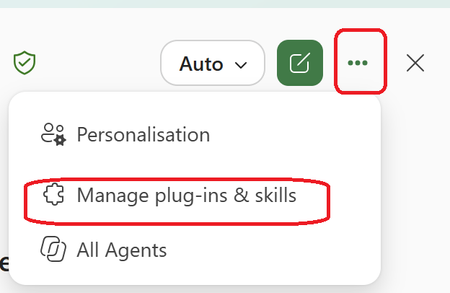
Many Excel users know how to work with formulas, pivot tables, and dashboards, but far fewer know that they can create Copilot Skills that help automate repetitive tasks and standardize business processes. Benefits of Copilot Skills in Excel ✅Save time on repetitive analysis ✅Standardize calculations and reporting ✅Reduce manual errors ✅Make advanced Excel capabilities accessible to everyone ✅Improve productivity across teams 💡 Best Use Cases ✅Sales performance analysis ✅Financial reporting ✅Data cleansing and transformation ✅Forecasting and trend analysis ✅Creating recurring management reports The real power comes from turning your organization's knowledge and best practices into reusable skills that anyone can use directly from Excel. 🎥 I recently created a video showing how to create and use Copilot Skills in Excel, with practical examples and step-by-step guidance. 👉 Watch the video and let me know what Excel task you would automate first! https://www.youtube.com/watch?v=uPfMQjlNhXY How do we create the skill? Within the Copilot Chat in Excel Go choose the 3 Dots Then Choose Manage Plugins & and Skills Choose the Custom Skills Here you will see the location that you can upload your skill that are stored in your OneDrive (Click on the Hyperlink "Skill OneDrive Folder") In my case this is the location in My OneDrive Now you need to Create a Folder with the name of the Skill and the Skill.MD file that includes the Name and description and instruction It will look like this A good approach is to use Copilot Chat to generate the entire skill package, including the required folder name and structure. Once Uploaded to OneDrive , Refresh the Custom skill Screen and you will see it and use it #Microsoft365 #Copilot #Excel #MicrosoftCopilot #Productivity #DataAnalysis #AI #ExcelTips #M36540Views0likes0Comments
Copilot in Excel
a { text-decoration: none; color: #464feb; } tr th, tr td { border: 1px solid #e6e6e6; } tr th { background-color: #f5f5f5; } Hi everyone, I’m starting to explore Copilot in Excel. I’m an Excel enthusiast, so I’m already quite comfortable with the application. I was wondering which Copilot features you find really useful, particularly those that save time or help solve problems. Do you also think Copilot can help beginners use Excel more easily and effectively? Thank you for sharing your thoughts and experience!99Views1like2Comments
Fix all annoying Copilot bugs
I’m experiencing an issue with Microsoft Edge on Android. Starting today (September 22, 2026), whenever I try to visit copilot.microsoft.com, Edge automatically redirects me to the Google Play Store to install the Copilot app. I prefer using Copilot in the browser and do not want to install the app. And even when i try to install the copilot app it does not let me do anything and thinks I need a license or subscription to access it like copilot is litterly supposed to be free and also even when i try to get rid of the app redirection it for some dumb reason it redirects me to from copilot.microsoft.com to copilot.com and they put in restrictions like after a lot of chats you must wait for a specific time period and a couple months ago you guys removed the ability to use copilot without registration like come on that is so dumb I want Microsoft Copilot to be fixed revert how copilot was before how is this consumer friendly113Views0likes1Comment
What's the simplest way to make a genuinely random name selection system using Microsoft tools?
For example, suppose I have a list of participants in Excel and want to randomly select one winner without manually choosing from the list. Would you use RAND/RANDBETWEEN in Excel, Power Automate, or another Microsoft 365 approach? I'm also interested in preventing the same person from being selected twice when several winners are needed. I'd appreciate an approach that's easy for someone without much Excel or Power Automate experience to understand.227Views0likes5Comments
Access to Office App Context and Setting CEA as Default in Microsoft 365 Copilot
Hello everyone, I’m exploring Custom Engine Agents (CEA) in Microsoft 365 Copilot and have two questions regarding their integration with Microsoft 365 applications. Can a Custom Engine Agent access the current Office application context? When a CEA is added to Microsoft 365 Copilot, is there a supported way for the CEA to access the content of the Microsoft 365 application where Copilot is currently being used? For example: Word: Can the CEA read and/or modify the document currently open in Word? Outlook: Can the CEA access the current email/thread and perform write operations such as drafting or modifying content? PowerPoint: Can the CEA access and modify the presentation currently open? Other Microsoft 365 applications: Are similar capabilities available in other applications where Microsoft 365 Copilot is supported? Essentially, I’m trying to understand whether a Custom Engine Agent can leverage the same application context and read/write capabilities that the native Microsoft 365 Copilot has within these applications. If this is supported, what APIs, SDKs, or integration patterns should be used? Can a Custom Engine Agent be configured as the default mode? Is there a supported way to: Disable or bypass the default Microsoft 365 Copilot experience/mode, and Configure a Custom Engine Agent as the default agent/mode that users interact with when they open Copilot? For example, if an organization has a custom agent that should handle the majority of Copilot interactions, can that agent be configured as the default instead of the standard Microsoft 365 Copilot? I’d appreciate any clarification on the current capabilities, limitations, and recommended architecture for these scenarios. Thanks71Views0likes0CommentsAccess to Office App Context and Setting CEA as Default in Microsoft 365 Copilot
<p>Hello everyone,</p> <p> I’m exploring <strong>Custom Engine Agents (CEA) in Microsoft 365 Copilot</strong> and have two questions regarding their integration with Microsoft 365 applications. </p> <p><strong>1. Can a Custom Engine Agent access the current Office application context?</strong></p> <p> When a CEA is added to Microsoft 365 Copilot, is there a supported way for the CEA to access the content of the Office application where Copilot is currently being used? </p> <p>For example:</p> <ul> <li><strong>Word:</strong> Can the CEA read and/or modify the document currently open in Word?</li> <li><strong>Outlook:</strong> Can the CEA access the current email/thread and perform write operations such as drafting or modifying content?</li> <li><strong>PowerPoint:</strong> Can the CEA access and modify the presentation currently open?</li> <li>Similarly, can it access the context of other Microsoft 365 applications where Copilot is available?</li> </ul> <p> Essentially, I’m trying to understand whether a <strong>Custom Engine Agent can leverage the same application context and read/write capabilities that the native Microsoft 365 Copilot has within these applications</strong>. </p> <p> If this is supported, what APIs, SDKs, or integration patterns should be used? </p> <p><strong>2. Can a Custom Engine Agent be configured as the default mode?</strong></p> <p> Is there a supported way to: </p> <ul> <li>Disable or bypass the default Microsoft 365 Copilot experience/mode, and</li> <li>Configure a <strong>Custom Engine Agent as the default agent/mode</strong> that users interact with when they open Copilot?</li> </ul> <p> For example, if an organization has a custom agent that should handle the majority of Copilot interactions, can that agent be configured as the default instead of the standard Microsoft 365 Copilot? </p> <p> I’d appreciate any clarification on the current capabilities, limitations, or recommended architecture for these scenarios. If there is any official documentation covering these capabilities, please share it as well. </p> <p>Thanks!</p>67Views0likes0CommentsAccess to Office App Context and Setting CEA as Default in Microsoft 365 Copilot
Hello everyone, I’m exploring **Custom Engine Agents (CEA) in Microsoft 365 Copilot** and have two questions regarding their integration with Microsoft 365 applications. ### 1. Can a Custom Engine Agent access the current Office application context? When a CEA is added to Microsoft 365 Copilot, is there a supported way for the CEA to access the content of the Office 365 application where Copilot is currently being used? For example: - **Word:** Can the CEA read and/or modify the document currently open in Word? - **Outlook:** Can the CEA access the current email/thread and perform write operations such as drafting or modifying content? - **PowerPoint:** Can the CEA access and modify the presentation currently open? - Similarly, other Microsoft 365 applications where Copilot is available. Essentially, I’m trying to understand whether a **Custom Engine Agent can leverage the same application context and read/write capabilities that the native Microsoft 365 Copilot has within these applications**. If this is supported, what APIs, SDKs, or integration patterns should be used? ### 2. Can a Custom Engine Agent be configured as the default mode? Is there a supported way to: - Disable or bypass the default Microsoft 365 Copilot experience/mode, and - Configure a **Custom Engine Agent as the default agent/mode** that users interact with when they open Copilot? For example, if an organization has a custom agent that should handle the majority of Copilot interactions, can that agent be configured as the default instead of the standard Microsoft 365 Copilot? I’d appreciate any clarification on the current capabilities, limitations, or recommended architecture for these scenarios. Thanks63Views0likes0Comments
Is it really impossible to break workbook protection?
Hi, I process personal data and need strict protection (GDPR). My raw data from a survey is copied to several worksheets in a workbook and the processed anonymous data (dashboards) is in other worksheets in the same workbook. Before sending the whole workbook with the visible dashboards to my customers I delete some of the raw data worksheets and hide others. After that I protect the structure of the workbook with a code. Now only the worksheets with the dashboards are visible. Will it at all be possible for my customers to break the protection and get access to the sensitive raw personal data or am I completely safe? Thanks in advance to your reply! Best regards PerSolved6.6KViews16likes28Comments