copilot in excel
115 Topics
Allow removal of "Copilot Suggestions" from right-click menu
I have been using Excel for decades and CONSTANTLY use the right-click menu for quick access to basic functions (e.g., "Insert"). Ever since "Copilot Suggestions" was added to the drop-down list, it always throws me off due to its placement. I have Microsoft 365 on Windows 11 Pro. I have searched for ways to remove this from appearing there and the result said "go to File > Options > Copilot and uncheck the 'Enable Copilot' box". However, when I attempt to do that, there is NO "Copilot" option available! PLEASE allow removal of "Copilot Suggestions" from the right-click menu OR at least the option to move it to the bottom (so it isn't in the way of things used ALL the time). I realize that Copilot is a great resource for many users, but I am confident in my Excel skills and in my ability to research/learn new skills the "old school" way, so I have little use for this feature now and would prefer to hide it.7.3KViews28likes16Comments
Is it really impossible to break workbook protection?
Hi, I process personal data and need strict protection (GDPR). My raw data from a survey is copied to several worksheets in a workbook and the processed anonymous data (dashboards) is in other worksheets in the same workbook. Before sending the whole workbook with the visible dashboards to my customers I delete some of the raw data worksheets and hide others. After that I protect the structure of the workbook with a code. Now only the worksheets with the dashboards are visible. Will it at all be possible for my customers to break the protection and get access to the sensitive raw personal data or am I completely safe? Thanks in advance to your reply! Best regards PerSolved6.5KViews16likes28Comments
Adding email addresses using Copilot in Excel
Greetings, this is the second in a series of posts that provides examples of what is possible with Copilot in Excel. Today I will continue with the list of employees from yesterday. I would like to add an email address column to this table. For this company, Wing Tip Toys (fictitious), Email addresses have a period between the first and last name and the domain is Wingtiptoys.com. To accomplish this, I'll start by clicking on the copilot button on the right side of the Home tab, showing the copilot pane and type the prompt: Add an email column where email is in the form Firstname.lastname@wingtiptoys.com Copilot in Excel looks at the content in the table and then suggests inserting a column that adds a calculated column with a formula that concatenates everything together. , here's 1 formula column to review and insert in Column G: Email Generates a professional email address for each individual by combining their first and last names in lowercase, separated by a period, and appending "@wingtiptoys.com". =LOWER([@[First name]]&"."&[@[Last name]]&"@wingtiptoys.com") Hovering the mouse cursor over the "Insert columns" button in the copilot pane shows a preview of what inserting the new column formulas will look like. From the preview, it looks like it is doing what I wanted. Clicking on the Insert Columns button will accept the proposed change, inserting a new calculated column formula that concatenates the first and last names with a period in between and appends the company domain at the end, giving me the result I was looking for! Over the coming weeks I will be sharing more examples of what you can do with Copilot in Excel. Thanks for reading, Microsoft Excel Team *Disclaimer: If you try these types of prompts and they do not work as expected, it is most likely due to our gradual feature rollout process. Please try again in a few weeks.2KViews2likes0CommentsUsing Copilot in Excel to split columns
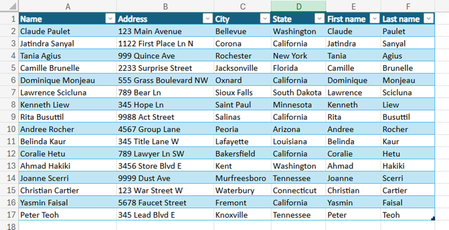
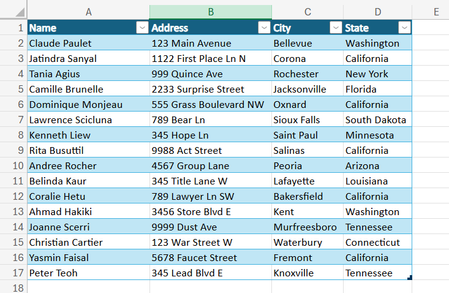
Hi Everyone, this is the first in a series of posts to show you some of the things that are possible to do with your workbooks using Copilot. Today I will start with this list of employees: I would like to have the names in this list separated into 2 columns for the first and last names. To accomplish this, I'll start by clicking on the copilot button on the right side of the Home tab, showing the copilot pane and type the prompt: Split the name column into first and last name Copilot in Excel looks at the content in the list and then suggests inserting 2 new calculated column formulas to split the first and last names from the Name column. formula columns to review and insert in Columns E and F: 1. First name Extracts the first name of each individual by splitting the full name at the space and selecting the first part. =INDEX(TEXTSPLIT([@Name]," ",,TRUE),1,1) Show explanation 2. Last name Extracts the last name of each individual by splitting their full name and selecting the last part. =INDEX(CHOOSECOLS(TEXTSPLIT([@Name]," ",,TRUE),-1),1,1) Hovering the mouse cursor over the "Insert columns" button in the copilot pane shows a preview of what inserting the new column formulas will look like. From the preview, it looks like it is doing what I wanted. Clicking on the Insert Columns button will accept the proposed change, inserting 2 new columns with calculated column formulas that split out the first and last names, giving me the result I was looking for! Over the coming weeks I will be sharing more examples of what you can do with Copilot in Excel. Thanks for reading, Microsoft Excel Team *Disclaimer: If you try these types of prompts and they do not work as expected, it is most likely due to our gradual feature rollout process. Please try again in a few weeks.3.8KViews2likes2Comments
Sorting data on multiple sheets
Hi, I'm using Excel to track data from my team for analysis. I have 5 sheets in my workbook one for each week and a monthly overview. each week totals all data and totals are added to overview using SUM function, however when i sort a column, let's say i sort column a (Name) A-Z, all the data for each person on the monthly report changes. the same happens on the weekly sheets if i change the order of a column everything get mixed up so that each persons stats change. is there a way to stop this from happening? I want to be able to arrange it so that all the data in a row stays the same on each sheet154Views1like2Comments
Chat with Copilot popup on every Excel launch
An ad for Copilot shows up every single time I open Excel. Clicking Not Now closes it, only for it to reopen again when I open Excel later. Is there any way to disable this or remember my selection each time? It is frustrating to have to deal with it all day long. I do not have a Copilot tab in File > Options. Optional connected experiences is already disabled. Microsoft® Excel® for Microsoft 365 MSO (Version 2511 Build 16.0.19426.20218) 64-bit Windows 11 Pro 25H2759Views1like2Comments
People data lookups
Hi, I have created an MS Form where anyone can nominate their peers for recognition - we have 20k employees. I've added a field in the form for a unique employee number for the nominator to include. So they would submit the nominee's: emp number, full name, role, area of the business. The output comes to me in excel and I need to update a list of 00's of employees, where they work, their contact details, line manager detail etc. The challenge is this: whilst I can do all the look-ups to the external data to provide this, the output of the form could have numerous errors. First of all, a missing emp number or incorrect emp no. Second of all, incorrect name spelling, or shortened names, or duplicate names, or too many spaces etc. Then there's incorrect role or missing role, and finally the same for area of the business. Using either multiple IFs or look-ups or Power Query, what's the best solution to pull through the correct emp number (from my external data), when those first four fields could be all wrong, partly wrong, missing or all correct, and what about dealing with duplicate names? I can concatenate if the four fields are correct, but this isn't reliable. Is there a fuzzy match that takes the best guess at the four fields completed - leaving me to just check a handful of #N/As? I have Copilot and licence too. Thanks!223Views1like3CommentsAgent Mode continuously loading
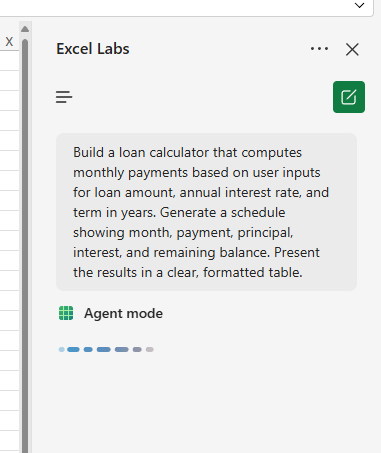
Hi all, I installed Excel Labs today and have tried to use https://www.microsoft.com/en-us/microsoft-365/blog/2025/09/29/vibe-working-introducing-agent-mode-and-office-agent-in-microsoft-365-copilot/ for Excel in the web. However, no matter which prompt I use, it just loads continuously, even when left for hours. Has anyone got this working? Or know how to resolve this? I appreciate it's a Preview feature, so happy to wait if it's a temporary glitch, but thought it'd be worth checking.381Views1like7Comments