containers
427 Topics
Profile Bloat in Azure VM and VMware VDI: A Policy-Driven Strategy for Reducing Storage Growth
OneDrive profile bloat is one of those issues that often starts as a minor desktop optimization discussion, but quickly becomes a storage, performance, and governance problem at enterprise scale. In Azure Virtual Machines and VMware VDI environments, when OneDrive is tied to the user profile, the sync cache, local file state, and stale content can accumulate over time and create unnecessary growth in profile containers, VHD/VHDX files, and backup overhead. The result is higher infrastructure cost, slower login and logoff times, and inconsistent user experience across pooled or multi-session desktops. This is not a problem that should be solved by disabling OneDrive. In most enterprise scenarios, OneDrive remains a critical collaboration workload, but it must be managed as a controlled service rather than a user-local convenience. The most effective strategy is to install OneDrive at the machine level, enforce policy by user class and device context, and use Files On-Demand and cloud content dehydration to minimize local persistence. This approach preserves user productivity while reducing the operational impact on virtualized desktop infrastructure. A policy-driven design is particularly important in multi-user environments where not all workloads should be treated the same. Developer desktops, standard business users, and restricted or consultant user groups have different productivity needs and different data-risk profiles. For example: General business users may benefit from a balanced policy with Files On-Demand enabled and moderate dehydration thresholds. Developer or QA environments may require more local flexibility while still controlling profile growth. Restricted or external-user populations should have strong sync boundaries, personal account restrictions, and minimal local persistence. To support this model, organizations should align their deployment around a few core principles: install OneDrive at the machine level in the standard image or build pipeline use group policy and loopback processing to apply user-specific policy based on OU or security group enable Files On-Demand by default configure Storage Sense and cloud content dehydration based on workload profile restrict personal Microsoft account sync in higher-risk scenarios use FSLogix compaction and profile optimization as secondary controls, not as the primary solution This model is especially relevant for organizations running Azure Virtual Desktop, Azure VM-based workloads, VMware Horizon, and other multi-user Windows desktop environments. The benefits are practical and measurable: lower local storage consumption, reduced VHD/VHDX growth, improved desktop performance, lower backup cost, and stronger governance over enterprise data movement. As IT and endpoint engineering teams continue modernizing virtual desktop environments, I would encourage us to think of OneDrive not as a user-profile feature, but as an enterprise-managed workload with policy boundaries. When implemented properly, this gives us the best balance between productivity, storage efficiency, and security. I’d be very interested in hearing how others are handling this in their environments: Are you deploying OneDrive at the machine level? Are you enforcing Files On-Demand by default? How are you segmenting policy by user class or device type? Have you measured the impact on VHD/VHDX growth or profile size after enforcement? Source document: https://github.com/RodrigoACriscuolo/criscra/blob/main/Home.Profile-Bloat44Views0likes0Comments
How Microsoft Intune team upgraded a .NET service with GitHub Copilot modernization
Microsoft's Customer Zero blog series gives an insider view of how Microsoft builds and operates Microsoft using our trusted, enterprise-grade platform. Learn best practices from our engineering teams through real-world lessons, architectural patterns, and operational strategies for building, operating, and scaling AI-powered systems across the organization. A hosting platform transition gave our team an opportunity to modernize a Microsoft Intune enrollment service to .NET 8. I used GitHub Copilot modernization to assist with that work while retaining responsibility for design decisions and validation. Using GitHub Copilot modernization, I saved more than four weeks on the first library alone. The more durable outcome was the working method built around the agent: three working files that I kept alongside the code and owned myself, rather than leaving that state to the model, that let a months-long migration be paused, corrected and resumed without re-deriving the analysis every time. What follows is how that worked in practice, including where the agent stopped helping. The Challenge: retiring a hosting platform without carrying the framework forward My team owns a Platform as-a Service (PaaS) service that supports devices enrolling into Intune at the start of their enrollment journey. Microsoft Intune is a cloud-based endpoint management service that secures and manages an organization's devices and apps. It lets a company’s IT team manage and secure employees’ laptops, phones, tablets, apps, and company data from one central service. It supports Android, iOS/iPadOS, Linux, macOS, tvOS, visionOS, and Windows devices. This Service was running on .NET Framework 4.7.2, hosted on a non-AKS hosting platform. I moved it to Azure Kubernetes Service (AKS) hosting environment which is what started the work. The modernization combined two related but distinct changes: moving the workload to AKS and modernizing the application code to .NET. 8. The heaviest part was dependency mapping. A key part of the migration was mapping dependencies across shared libraries, namespaces, and APIs, including Intune owned and even team-owned libraries, some of which also needed modern .NET-compatible packages. The service had a substantial codebase with dependencies across multiple libraries, namespaces, and APIs. Some APIs were unchanged, some were renamed, and some had no direct replacement and required a design decision. These APIs were most often from internal Intune libraries. Without reusable mappings, those questions recur across projects and files. To maintain continuity across the migration as this was a long-term project, I kept an explicit record of decisions, completed work, and the next steps. The service spans several libraries and multiple endpoints that support about 20 plus different enrollment flows across Windows, Linux, Android, iOS, and macOS platforms. A single pull request covering the full migration was not possible, so I divided the work into increments small enough to review, test, and merge, or to isolate by enrollment flow, with a way to stop one day and pick up the next without paying the analysis cost twice. The Solution: a modernization agent with engineer-owned working content I started the side-by-side .NET framework service to .NET 8 service migration by hand, then brought in GitHub Copilot. In my early tests, I needed .NET migration-specific domain context beyond what I had established in my copilot session. The limitation was missing domain context, not an inability to generate code, and that is the gap a purpose-built tool closes. GitHub Copilot modernization is an agent built on GitHub Copilot, with Microsoft's language teams supplying domain knowledge. For .NET, its recommendations draw on current assembly and NuGet package analysis rather than relying only on patterns learned during model training. GitHub Copilot modernization is now available in Visual Studio, Visual Studio Code, GitHub Copilot CLI, GitHub Copilot app, and GitHub.com. When I did this migration, it was available only in Visual Studio and Visual Studio Code. For this migration, I chose GitHub Copilot modernization in Visual Studio through GitHub Copilot Chat in agent mode. I tested the modernization agent against work it could already check, running it over the same project and classes that I had migrated by hand and comparing the two. They were very close. That comparison, rather than anything in the tool's description, is what established enough confidence to point it at code nobody had migrated or analyzed manually yet. Once I started using the modernization agent, I realized that it was able to map .NET specific and global libraries as well as the API calls efficiently. The agent analyzed well but did not reliably retain migration state across sessions. Returning to the work could trigger a new assessment that overwrote prior artifacts. To avoid this, the more transferable part of my approach was the working context I built around the agent: a migration plan (migrationplan.md), a progress record (progress.md), and context notes. The agent generated a migrationPlan.md and progress.md at my request; I added the context from my notes from my previous sessions and manual migration and kept all three current in my local repository. The context preserved mappings I had already established by hand, so the agent could reuse settled decisions instead of researching them again. I kept them in my local repository rather than checking them in. The migrationplan.md broke the work into phases and day-sized tasks, and the progress.md file was updated after each increment. The next session could resume the recorded task instead of reassessing the codebase. When a migration increment surfaced a build issue, fixing it meant a side conversation, and the thread of the main work got lost in it. To avoid this, I started recording each failure under that day's task: what failed, what was tried, and what was ruled out. That gave the investigation somewhere to live without overwriting the main work. The current agents experience records task failures in progress-details.md. The Migrationplan.md is an editable markdown file, not opaque internal state, and I edited it when needed. Where a generated step was wrong for the service, or I wanted smaller increments of work per pull request, or to migrate a scenario before another, or to focus on one API path per pull request, or even to change the ordering, I updated the file with the correct information and the agent picked up the revision and carried on rather than reverting to its own plan. That made the editable plan especially useful when the migration approach changed. Plan granularity is also how I controlled pull request size. I used the plan to constrain each increment: for example, three model files and a view file, or one small end-to-end enrollment flow at a time, or one controller at a time, or sometimes not even a whole controller, just one API path, I made this judgement depending on the complexity of the scenario I wanted to migrate. Small increments stayed reviewable, and a broken build left a smaller surface to investigate. Supplying the build error and asking the agent to re-examine that increment produced a focused follow-up change. I began using the .NET modernize agent with an internal library, that supports Windows client calls made over Simple Object Access Protocol (SOAP). Before discovering the tool, I had already side-by-side migrated the .NET framework version of that library into another .NET8 successor library and had updated portions of the service’s windows enrollment flow. I used the mapping I had made between framework and .NET 8 libraries and APIs during this migration as a context for the tool, allowing each migration pass to reuse and add to the mappings established in previous one. The tool’s recommendations closely aligned with my manual migration approach on redo of the first library, which built my confidence in its output. I then used it for my next two internal library migrations, and the remaining Apple and Android enrollment flows in the service. The Impact: what the approach saved, and what it did not The internal library that handles Windows enrollment calls was estimated and took roughly six weeks of work but the tool completed it in one and a half weeks, a 75% schedule reduction, and on the second internal library dependency, also estimated at six weeks, I saved time again. I was able to reapply those savings to the remaining enrollment flows as I continued the service migration. The saving came from work that did not have to happen twice. Mappings settled in one phase were reused in the next rather than rediscovered. Project file conversion and NuGet package resolution, which is mechanical but voluminous, moved to the agent. What stayed with me was review, integration, the decisions, and the containerization and move to AKS itself. Without the agent, I would have needed to prioritize the migration more exclusively, which would have cut into the other project work I was delivering at the same time. Where the agent stopped helping In my experience, public libraries and Microsoft-wide libraries mapped well. Intune-internal libraries did not. In a subsequent internal prototype, I tested the agent on another service with different migration dependencies. For Intune-internal libraries, it could not identify which modern NuGet package or API replaced each dependency because those mappings were not available in its context. It still removed some of the mechanical work, but the mappings themselves stayed manual. During the prototype, I also built skills that work as a wrapper for the modernization agent that provides this internal migration context. I checked those skills into our internal repository so other Microsoft Intune engineering teams can use them internally through a plugin. What another team should take from this Validate it against work already done by hand to gain confidence. Running the agent over classes you have already migrated manually and comparing the output is cheap, and it gives you evidence for deciding whether to use the agent on code it has not yet migrated. Own the plan, not just the prompt. The agent writes its own plan and progress files to the repository. Read them and correct them, and it will follow your edits. For what it can't know, such as internal library mappings or your team's coding conventions, add a custom skill to the repository, and the agent will follow that too. Control pull request size through the plan rather than after the fact. Break pull requests into small increments. Scoping an increment to one controller, one API path, or a small end-to-end scenario keeps the change reviewable and testable, with a clear boundary for investigating migration issues. Reuse dependency mapping instead of rediscovering them. A large part of time savings come from carrying mappings established in previous phases into subsequent ones, even across libraries and services. Mechanical work like project conversion and NuGet package resolution can be handed off to the agent while you retained responsibility for integration, review and design decisions. Looking ahead The application-layer modernization is finished, while parity validation and the AKS traffic rollout continues. The reusable skills are checked into an internal repository and available to Intune engineering teams through an internal plugin, so another library or service can reuse established dependency-mapping work as well as Intune internal guidelines. I also shared the method and its measured time savings through Intune learning sessions, show and tell, Teams posts, and a newsletter. Learn more about GitHub Copilot modernization for .NET at https://dotnet.microsoft.com/platform/modernize and about Microsoft Intune at What is Microsoft Intune? - Microsoft Intune | Microsoft Learn.292Views0likes0CommentsQwen3.8-27B on a Lenovo laptop: run it on RTX Spark, watch it in Azure Monitor
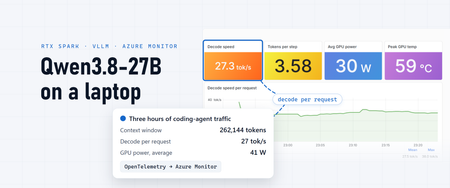
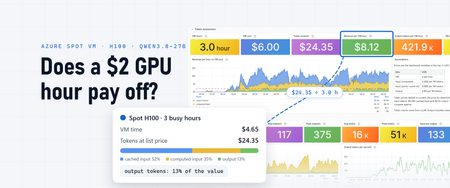
In an earlier post I served Qwen3.8-27B from an H100 in Azure. The same model also runs on a laptop: the Lenovo Yoga 9n 2-in-1 (16", 11) with NVIDIA's RTX Spark N1X and 64 GB of unified memory. On a short code-generation benchmark it decodes 44.7 tokens a second for one request, and it holds the model's full 262,144-token context. Over three hours of an OpenCode agent reviewing two open-source repositories, it decoded replies at a steady 27 tokens a second per request, and the GPU averaged 41 W. A coding agent needs three things from a local model: replies fast enough to wait for, room for the whole conversation, and a machine that runs cool and steady for hours. In my testing, the Yoga 9n delivered all three. This post reviews it for that job, shows what three hours of agent traffic looked like on the dashboard, and walks through the setup: Windows on Arm, Docker, vLLM, a speculative decoder that suits the hardware, and the monitoring that measured it all. Disclosure: I work at Microsoft. Lenovo provided this laptop to Microsoft in July 2026 as a pre-release unit for software testing, and I used it for this post. Retail units may differ slightly. At a glance Verdict: the Yoga 9n 2-in-1 with RTX Spark is a practical machine for running a 27B coding model locally. Its 64 GB of unified memory holds Qwen3.8-27B, a draft model and the full 262,144-token context, and it served three hours of real agent work at a consistent speed and a modest power draw. What I liked: The model, its drafter and the full native context fit in the 64 GB configuration, alongside Windows. 44.7 tokens a second on a short code benchmark and about 27 per request in a long agent session, with a median first token in 2–3 seconds while a conversation stays cached. Sustained performance: 41 W of average GPU power, a 67 °C peak and a graphics clock near 2 GHz for three hours. The GPU's share of the memory is a setting in the NVIDIA app, so you can give a large model room and take it back afterward. The standard stack runs unchanged: Docker Desktop, the official vLLM ARM64 image, LiteLLM and OpenCode. No hourly bill. The H100 VM from the earlier post costs $6.98–$10.12 an hour at the October 2026 pay-as-you-go price, depending on the region. Good to know: It suits one agent session at a time; many parallel subagents wait their turn. Memory is shared with Windows, so give the model room while it runs. The NVFP4 checkpoint is a preview release from Unsloth. Who it's for: developers who want a capable coding model on their own machine, with the model's full context window and no per-hour or per-token bill. The machine Lenovo Yoga 9n 2-in-1 (16", 11), as tested Unit Pre-release, provided by Lenovo to Microsoft in July 2026 for software testing Chip NVIDIA RTX Spark N1X: 20-core Arm CPU, 6,144-core Blackwell GPU Memory 64 GB of LPDDR5X-9400, shared by the CPU and the GPU Software Windows 11 on Arm, Docker Desktop with Windows Subsystem for Linux (WSL) 2, NVIDIA's Windows driver Lenovo sells it configured to order on Lenovo.com, and in the US, Best Buy carries two fixed configurations: the 20-core N1X with 64 GB, as tested, and an 18-core N1X with a 5,120-core GPU and 32 GB (Notebookcheck). For this model, choose the 64 GB configuration; the next section explains why. Why it works for a 27B model Three specs decide whether a laptop can run a model this size for real work, and the Yoga 9n has all three. 64 GB of unified memory. The CPU and GPU share one pool of memory. On this laptop 32,704 MiB of it is set aside for the GPU, which Windows shows as dedicated GPU memory, and Windows keeps 30.8 GiB for itself. The GPU's share holds the model and its draft model (23.35 GiB once loaded) and a KV cache big enough for one full 262,144-token request. Windows backs about 10 GiB more of GPU allocations with system memory, which it shows as shared GPU memory. A 32 GB laptop has half as much memory to share between Windows and the GPU, and this model's weights alone are 19.1 GB. That split is a setting, not a fixed spec. In the NVIDIA app, Dedicated GPU Memory (GB) under System > Advanced sets how much of the unified memory the GPU gets, and a new value takes effect after a restart. That's handy for local models: give the GPU a large share while you serve a model this size, and give the memory back to Windows when you don't. I ran everything here with 32 GB for the GPU. Memory bandwidth. To generate a token, the GPU reads every weight of the model. LPDDR5X-9400 on the 256-bit bus that press reports describe works out to about 300 GB/s on paper; a simple read test inside the model's container measured 229 GB/s. For this model that number sets the speed, as Step 3 shows. 4-bit weights in hardware. Blackwell GPUs compute in NVFP4, a 4-bit floating-point format. The NVFP4 checkpoint reads 19.1 GB of weights per decode step, where the FP8 weights took 31.1 GB (29.0 GiB) on the H100. vLLM runs it with native FP4 kernels ( FlashInferCutlassNvFp4LinearKernel ). The software is ready too. vLLM's official image comes in a Linux ARM64 build with CUDA 13, and it runs unchanged in Docker Desktop's WSL 2 backend. The building blocks are the ones I used on the H100: vLLM behind a LiteLLM gateway, with OpenCode as the agent. How I measured The numbers in this post come from three different workloads, so read each one with its own conditions: Code benchmark Long-prompt benchmark Agent session Task Three code-generation prompts: a thread-safe LRU cache in Python with tests, a token-bucket rate limiter in TypeScript, and Dijkstra's algorithm in Go One question about a prompt cut from the source and docs of my own lab repository OpenCode asked to review every file in microsoft/agent-framework and microsoft/TypeScript Prompt 36–40 tokens 97,880 tokens, with a random first line so none of it came from the prefix cache 19,000 to 115,000 tokens, resent on every turn and mostly cached Reply 512 tokens each, temperature 0, thinking off 384 tokens, temperature 0, thinking off As long as the agent needed, thinking on How it was sent One request at a time, straight to vLLM One request, straight to vLLM Through LiteLLM from a second machine, one request running at a time Result 44.7 tok/s decode, mean of three 44.3 tok/s decode, 1,033 tok/s prefill 27 tok/s decode per request over three hours All three use the same model, drafter and quantization: Unsloth's NVFP4 checkpoint of Qwen3.8-27B, the DFlash 2 drafter quantized to FP8 and proposing seven tokens, an FP8 KV cache, and vLLM 0.31. What you're running and Step 2 give the details. The two benchmarks ran before I raised the context from 196,608 to the full 262,144 tokens; on the final profile the code benchmark measured 44.1 tokens a second. The sample's scripts/Invoke-SpeedBench.ps1 runs both benchmarks. With speculative decoding, decode speed depends on how predictable the text is. Each decode step produced 5.04 tokens on the code benchmark and 3.3 in the agent session, where most of the output was reasoning. A tokens-per-second figure is only comparable with one measured on the same workload and the same speculative-decoding settings. Three hours of real coding work The session in these screenshots is real OpenCode traffic: an agent asked to review every file in two open-source repositories, microsoft/agent-framework and microsoft/TypeScript, run from a second machine on the same network through LiteLLM, from 22:52 to about 01:50 UTC. For the first 32 minutes the agent worked in one conversation that grew from 19,000 to 77,000 tokens. That is the everyday case for a coding agent, and the Yoga 9n was quick and consistent through it: Fast first tokens. The median time to first token was 2.1–3.3 seconds in each ten-minute window, because 92% of the prompt tokens came from the prefix cache. Steady decode. Replies decoded at about 27 tokens a second per request, with 3.6 tokens produced per decode step. Low power. The GPU averaged 30 W and peaked at 59 °C. Agent traffic is harder than benchmark traffic. Over the whole session the model read 85 input tokens for every token it wrote, and 72% of the output tokens the gateway returned were thinking. Each step produced 3.3 tokens on average instead of the 5.04 it reached on the code benchmark in Step 3, because reasoning and prose are harder to guess than code. The first drafted token was accepted 71% of the time, the seventh 13%: Even so, replies averaged 27 tokens a second per request across three hours of agent traffic. Memory held steady The GPU used 30.7 of its 31.9 GiB throughout, and Windows backed another 9.9 GiB of GPU allocations with system memory. Windows kept 3.5 GiB or more available, and with one request at a time the KV cache peaked at 51%. vLLM preempted no requests in three hours. Cool and consistent for three hours Over three hours of continuous agent work, GPU power averaged 41 W and peaked at 74 W. The temperature averaged 55 °C and peaked at 67 °C, and the graphics clock held near 2 GHz from the first hour to the last, with no sign of thermal throttling. That is a modest, stable power draw for sustained inference. The setting that matters most: one request at a time With two requests running at once, each request's decode steps share the GPU with the other request's 8,192-token prefill chunks, and two long conversations push each other's prefixes out of the cache. With one, a reply decodes at full speed and its conversation stays cached. I ran the same OpenCode task with each setting: First 70 minutes Two requests at a time One request at a time Requests completed 74 111 Output tokens 45K 64K Input from the prefix cache 33% 62% Decode per request 9.7 tok/s 29.0 tok/s One request at a time completed 50% more requests and 42% more output in the same time, and per-request decode held between 25 and 38 tokens a second. The agent's subagents don't run in a fixed order, so the two runs reached their busy phases at different moments; take the exact margin as indicative. A synthetic replay agrees on the direction for long conversations: two conversations of 135K and 90K tokens finished 2.8 times sooner with one request at a time. For six short conversations with 200-token replies, two at a time was faster (214 against 297 seconds), so if your agent sends many small requests, measure both. What you're running The rest of this post is the setup, step by step. Qwen3.8-27B is a 27-billion-parameter dense model from Qwen under the Apache 2.0 license. My H100 post describes its architecture. The part that matters most here is its hybrid attention: 48 of its 64 layers keep a fixed-size state instead of a per-token KV cache, which is why a full-length context fits in 12 GiB. Two checkpoints, both pinned to a revision: The model: unsloth/Qwen3.8-27B-NVFP4 at revision 16b6615 , Unsloth's Dynamic V3.0 NVFP4 quantization: 19.1 GB of weights. It's a preview release from Unsloth, not an official Qwen checkpoint, so treat quality and speed results as results for this checkpoint. The draft model: incoai/Qwen3.8-27B-DFlash2 at revision 015e795 , a 1.86B-parameter DFlash 2 drafter that proposes seven tokens per pass. vLLM quantizes it to FP8 when it loads. Step 1: Prepare Windows The stack runs in Docker Desktop with the WSL 2 backend, which runs an ARM64 Linux engine on this laptop. Install NVIDIA's current Windows driver and the NVIDIA app, set Dedicated GPU Memory (GB) to 32 under System > Advanced in the app, and restart. Then install Docker Desktop and cap the WSL virtual machine's memory in %UserProfile%\.wslconfig (the sample's config/wslconfig.example ): [wsl2] memory=12GB swap=8GB [experimental] autoMemoryReclaim=dropCache Run wsl --shutdown after changing it. The cap matters on unified memory. The GPU reservation and the shared GPU memory come out of the same 64 GB as Windows and WSL, so a VM that grows freely competes with the model. With 12 GB for WSL, Windows kept at least 3.5 GiB available through three hours of agent traffic. Two habits help: Stop the model before large downloads or image builds. They need memory of their own; pulling the weights while vLLM was running left Windows short of memory. Let it start in peace. Free memory dips to about 1 GiB for a moment while vLLM captures CUDA graphs at startup, and then recovers. Step 2: Serve the model with vLLM The model image ( images/vllm/Dockerfile ) builds on vllm/vllm-openai:v0.31.0 and downloads both checkpoints into the image at pinned revisions, so the stack starts offline. The sample's compose.yaml runs vLLM and the LiteLLM gateway: docker compose build docker compose up -d This is the serve command: vllm serve /models/Qwen3.8-27B-NVFP4 \ --served-model-name qwen3.8-27b \ --quantization compressed-tensors \ --trust-remote-code \ --max-model-len 262144 \ --kv-cache-memory-bytes 12616466432 \ --gpu-memory-utilization 0.05 \ --kv-cache-dtype fp8 \ --block-size 64 \ --max-num-seqs 1 \ --max-num-batched-tokens 8192 \ --enable-prefix-caching \ --speculative-config '{"method":"dflash","model":"/models/Qwen3.8-27B-DFlash2","num_speculative_tokens":7,"quantization":"fp8"}' \ --limit-mm-per-prompt '{"image":{"count":4,"width":1024,"height":1024},"video":0}' \ --mm-processor-cache-gb 0.25 \ --reasoning-parser qwen3 \ --enable-auto-tool-choice --tool-call-parser qwen3_coder Flag Why --quantization compressed-tensors The NVFP4 checkpoint's format. --max-model-len 262144 The model's native context window. --kv-cache-memory-bytes 12616466432 An 11.75-GiB cache: 740 blocks, 263,927 tokens, one full-length request. On unified memory an explicit size is more predictable than a share of "GPU memory". --gpu-memory-utilization 0.05 With an explicit cache size, vLLM uses this value for its startup memory check, not to size the cache. A low value keeps that check below the Windows GPU reservation. --kv-cache-dtype fp8 Half the bytes per cached token. --block-size 64 Needed for DFlash 2. Without it, vLLM pads the drafter's 64-token pages to the model's 1,648-token hybrid page, and a 196,608-token request needed 13.5 GiB of cache instead of 9.2. --max-num-seqs 1 One request at a time; others wait in the queue. This let the coding agent complete 50% more requests in the same time, as measured above. --max-num-batched-tokens 8192 The prefill chunk per step. --enable-prefix-caching Reuses the cached prefix of a conversation, so each agent turn computes only what's new. --speculative-config DFlash 2 drafts seven tokens in one pass. "quantization":"fp8" saved 1.73 GiB of memory and decoded slightly faster than BF16. --limit-mm-per-prompt , --mm-processor-cache-gb 0.25 Up to four images per prompt, with a small image-processing cache instead of the 4-GiB default, which vLLM keeps in two processes. --reasoning-parser , --tool-call-parser Thinking returned separately from the answer, and OpenAI-style tool calls. When it's ready, the startup log reports 263,927 tokens of KV cache, 1.01 full-length requests. Step 3: Make decode fast On this laptop, decode speed is a question of bytes. Each decode step reads the model's weights once, and speculative decoding lets one step produce several tokens: a small draft model guesses ahead, and the big model checks all the guesses in the same pass. So: tokens per second ≈ effective bandwidth ÷ bytes read per step × tokens accepted per step I calibrated the effective bandwidth on the first setup I ran: 203 GB/s, 89% of the measured 229. With that, the formula predicted the DFlash 2 result within 3% before I measured it. The measurements are the two single-request benchmarks from How I measured, not agent traffic: On vLLM 0.31 MTP, 3 draft tokens DFlash 2, 7 draft tokens, FP8 drafter Bytes read per step 25.5 GB: the model, plus the MTP head and output layer three times ~22.3 GB: the model, the drafter and the output layer once each Tokens per step, code benchmark 3.30 5.04 Predicted 26.3 tok/s 45.9 tok/s Measured, code benchmark 28.4 tok/s 44.7 tok/s Measured, 98K-token prompt benchmark 29.4 tok/s 44.3 tok/s The model's built-in multi-token prediction (MTP) head reads the output layer once per draft token. DFlash 2 drafts its seven-token block in one pass, so each step reads fewer bytes and accepts more tokens. From the MTP setup I started with (26.4 tokens a second on vLLM 0.24) to DFlash 2 on vLLM 0.31, the code benchmark got 69% faster; the vLLM upgrade alone was worth about 8%. Prefill, reading a new prompt, ran at 1,000–1,400 tokens a second on the 34K- and 98K-token benchmark prompts and slowed to 645 on a brand-new 240,000-token prompt, which took about six minutes to its first token. A follow-up turn that reused that prompt started in 4.9 seconds. Coding agents resend the conversation with every turn, so in practice the prefix cache does most of that work. Step 4: Connect a coding agent LiteLLM serves the model under a stable alias, local-llm , on port 4000, so clients don't change when the model does. This is the provider block for OpenCode, an open-source coding agent, from the sample's config/opencode.json ; use 127.0.0.1 on the laptop itself, or its LAN address from another machine: { "$schema": "https://opencode.ai/config.json", "model": "litellm-local/local-llm", "small_model": "litellm-local/local-llm", "provider": { "litellm-local": { "npm": "@ai-sdk/openai-compatible", "name": "Local LiteLLM (Qwen3.8-27B)", "options": { "baseURL": "http://127.0.0.1:4000/v1", "apiKey": "none", "timeout": false }, "models": { "local-llm": { "name": "Qwen3.8-27B (local)", "reasoning": true, "tool_call": true, "limit": { "context": 262144, "output": 16384 }, "modalities": { "input": ["text", "image"], "output": ["text"] } } } } } } The context limit tells OpenCode when to compact the conversation, and the 16K output cap covered every reply in the three-hour session with room to spare: the largest used 7,300 tokens. LiteLLM binds to localhost by default and has no authentication of its own, so if you open it to your network ( LITELLM_HOST_BIND in the sample's .env ), restrict the port to a trusted subnet in Windows Firewall. Before handing it real work, I checked it. A smoke test returned an exact answer, read an image and made a required tool call through LiteLLM; the sample's scripts/Test-LocalLlm.ps1 runs those three checks through the gateway. My local evaluation suites passed 15 of 16 basic cases, 4 of 5 large-context cases and 5 of 5 complex-reasoning cases, the same cases as the MTP setup on the same vLLM version. A needle placed at the very start of a 239,685-token prompt came back correct. Step 5: Watch it A server has memory of its own and a GPU with memory of its own. On this laptop one 64 GB pool feeds Windows, WSL, the GPU's share and the shared GPU memory Windows adds on top, so the signals that matter cross the line between the model and the operating system. The monitoring follows the earlier posts, adapted to Windows on Arm, and the sample has every piece of it. What runs where Windows on Arm nvidia-smi -> Export-NvidiaGpuMetrics.ps1, every 5 s -> textfile -> windows_exporter :9182 Docker Desktop (WSL 2) vLLM /metrics LiteLLM /metrics/ and spans OpenTelemetry Collector (linux/arm64): scrapes all three every 10 s, receives the spans | OTLP, Microsoft Entra ID v Application Insights with OTLP support metrics -> Azure Monitor workspace -> Azure Managed Grafana dashboard, Prometheus alert rules traces -> Application Insights vLLM reports tokens, the prefix cache, the queue, KV cache usage and speculative decoding, down to how often each draft position is accepted. LiteLLM reports what the gateway answered, and the sample's callback logs one line per request with its tokens, time to first token and status. When requests go missing, that is the count to compare with vLLM's. It also sends a span for every model call over OTLP. windows_exporter reports the memory Windows has available and the GPU's dedicated and shared memory, as Windows sees them. GPU power, temperature and clocks come from nvidia-smi . DCGM, which the H100 posts used, isn't available on Windows, so a small PowerShell script, run as a scheduled task, polls nvidia-smi and writes Prometheus text that windows_exporter's textfile collector serves. On RTX Spark, nvidia-smi also lists the NPU, with a temperature of its own; the script keeps only the GPU, so max() over these series means the GPU. Send it to Azure Monitor The sample uses the same collector as the H100 posts: the OpenTelemetry Collector, contrib distribution, as a linux/arm64 container next to the model. It scrapes the three Prometheus endpoints, receives LiteLLM's spans, labels everything with the laptop's name, and keeps only the Windows series the dashboard and alerts use, since Azure Monitor bills per sample ingested. Then it sends both signals over OTLP to an Application Insights resource with OTLP support: metrics land in its Azure Monitor workspace as Azure Monitor managed service for Prometheus data, and traces in Application Insights. Without a managed identity on the laptop, the collector signs in as a Microsoft Entra ID application, which needs the Monitoring Metrics Publisher role on the data collection rule that Application Insights creates. The part that talks to Azure Monitor, abridged from the sample's observability/otelcol/config.yaml : extensions: azure_auth: service_principal: tenant_id: ${env:AZURE_TENANT_ID} client_id: ${env:AZURE_CLIENT_ID} client_secret: ${env:AZURE_CLIENT_SECRET} scopes: [https://monitor.azure.com/.default] processors: resource: attributes: - {key: microsoft.applicationId, value: "${env:AZMON_APPLICATION_ID}", action: upsert} exporters: otlp_http/azuremonitor: traces_endpoint: ${env:AZMON_TRACES_ENDPOINT} metrics_endpoint: ${env:AZMON_METRICS_ENDPOINT} auth: authenticator: azure_auth Ingest OTLP data into Azure Monitor with the OpenTelemetry Collector walks through creating the resource, and my H100 post covers the details that tripped me up there. Two matter here. OTLP histograms arrive as native histograms, with no _sum or _count series, so a query reads histogram_sum(...) where remote-written data would use _sum . And each model call's span carries its token counts and time to first token; with message capture off it carries no prompts or responses, but it does carry the tool definitions the agent declares, so decide whether that's acceptable in your Application Insights resource. The dashboard I built the dashboard in these screenshots for this post through the Azure Managed Grafana MCP server: I described the panels and an agent created them with amgmcp_dashboard_update . The sample has it as JSON to import into any Azure Managed Grafana instance that reads your workspace, with its queries written for OTLP's native histograms. On a laptop, a few questions matter more than on a server: Question PromQL Is the GPU spilling into system memory? max(windows_gpu_adapter_memory_shared_bytes{phys="0"}) Is Windows running short? min(windows_memory_available_bytes) How fast does a reply decode? histogram_sum(sum(increase(vllm:request_generation_tokens[10m]))) / histogram_sum(sum(increase(vllm:request_decode_time_seconds[10m]))) How many tokens does each step produce? 1 + sum(rate(vllm:spec_decode_num_accepted_tokens_total[5m])) / sum(rate(vllm:spec_decode_num_drafts_total[5m])) Is the drafter's first guess landing? sum(increase(vllm:spec_decode_num_accepted_tokens_per_pos_total{position="0"}[1h])) / sum(increase(vllm:spec_decode_num_drafts_total[1h])) Are requests queuing? max(vllm:num_requests_waiting) How much power, how hot? max(nvidia_gpu_power_draw_watts) , max(nvidia_gpu_temperature_celsius) The decode-speed query divides the generated tokens of finished requests by their decode time. Both come from vLLM's per-request histograms, so the result doesn't depend on histogram buckets or on how many tokens each speculative step produced. Read the memory panels together. GPU memory in use against the GPU's share says whether the model and its cache fit the reservation, shared GPU memory says how much Windows backs with system memory, and the memory Windows has available says what's left for everything else. Any one of them alone can look fine while the pool runs out. The same MCP server can answer questions about the data, too: amgmcp_prometheus_query runs PromQL against the workspace, so an agent can tell you when requests started waiting during a session and how much memory Windows had at that moment. My H100 post covers what else it can do. Alerts A long agent run is a job you walk away from, and Azure Monitor evaluates Prometheus alert rules against the workspace whether or not you're looking at the dashboard. The sample's local-llm-alerts.bicep deploys four as a rule group: Alert Fires when Why Windows memory low Windows has had under 2 GiB available for 5 minutes Windows, WSL, the GPU's share and shared GPU memory draw on one pool. Slow first token The mean time to first token over 10 minutes passes 2 minutes The agent dropped requests that waited about five minutes, and neither server logged an error. Preemptions vLLM preempted a request in the last 10 minutes The KV cache ran out of room, and the work will be recomputed. Stale GPU metrics The GPU metrics haven't updated for 5 minutes The collector stopped, and windows_exporter keeps serving its last file. Each rule groups by the laptop's name, so one rule group covers every laptop that writes to the workspace, and a laptop that's asleep raises nothing. Getting the most out of it Keep subagent fan-out modest. The Yoga 9n is at its best with one conversation at a time. When the agent started 12 to 18 subagents at once, the request on the GPU kept decoding at 22–29 tokens a second, but the others waited their turn, and the mean time to a first token grew to about five minutes. In OpenCode, the task permission controls subagents. Deny it, or ask for fewer parallel subagents, for work you run locally, and keep wide fan-out for a data-center GPU. Watch for long waits. The client dropped requests that had waited about five minutes, and neither server recorded an error: vLLM counted no aborts, and its access log showed 200 , which a streaming response sends before its first token. Compare the requests arriving at vLLM with the requests the gateway answers; a gap is your sign. I haven't confirmed which layer sets the limit. LiteLLM's timeouts were an hour, and the OpenCode provider block above turns its own timeout off, which points to the client's HTTP stack giving up while it waits for response headers: LiteLLM appears to send them only with the first token. Leave Windows some memory. Keep a few GiB free for Windows while the model runs, and stop it before large downloads or builds. Mind the thinking. Nearly three-quarters of the output was reasoning. For routine edits, a lower reasoning_effort in the client can save more time than tuning the server. Laptop or H100? They're built for different jobs, and the laptop is well matched to its own. The H100 in the earlier post served many sessions at once and peaked at about 1,550 output tokens a second across 32 requests. The Yoga 9n serves one developer's coding session at about 27 tokens a second per request in real agent work, and 44.7 on short code generation, with the model's full context, on the machine that developer already carries, and with no hourly bill. The model runs locally, so requests are served on the laptop instead of by a model provider. The two setups differ in checkpoint, draft method and vLLM version as well as hardware, so read this as two working configurations, not a like-for-like benchmark: Lenovo Yoga 9n 2-in-1 Azure H100 NVL VM Running cost The laptop's own power $6.98–$10.12 an hour pay-as-you-go: about $5,100 a month or more if it stays on Where requests are served On the laptop In an Azure region Memory for the model 32 GB GPU share of 64 GB unified memory 94 GB of HBM Checkpoint Unsloth NVFP4 preview Qwen FP8 Speculative decoding DFlash 2, 7 draft tokens MTP, 3 draft tokens vLLM 0.31 (official ARM64 image) 0.24 (NVIDIA NGC 26.07) KV cache 263,927 tokens: one full-length request 1.45M tokens One short request, thinking off 44.7 tok/s on the code benchmark About 166 tok/s in the smoke test Best for One developer's interactive coding sessions A team, wide subagent fan-out, throughput The running cost is the October 2026 pay-as-you-go Linux price of Standard_NC40ads_H100_v5 , which depends on the region. The earlier post ran it as a Spot VM for about $2 an hour, but Azure can evict Spot capacity with 30 seconds' notice. Rules of thumb Buy for memory. 64 GB of unified memory and its bandwidth are what make a 27B model practical. The CPU and GPU core counts matter less for this job. Count bytes per step. Decode speed is roughly bandwidth divided by the bytes each step reads, times the tokens it accepts. A drafter that reads less and accepts more, like DFlash 2 in FP8, was the biggest lever I measured. Run one request at a time for one agent. It keeps decode fast and the conversation cached. Watch shared GPU memory and the memory Windows has available next to the KV cache. On unified memory, they're the same pool. The bottom line The Lenovo Yoga 9n 2-in-1 with RTX Spark makes a local 27B coding model practical. Its 64 GB of fast unified memory is the reason: Qwen3.8-27B, a draft model and the full 262,144-token context fit on the laptop, short code generation decodes at 44.7 tokens a second, and a real agent code review held at about 27 tokens a second per request for three hours at an average of 41 W of GPU power. For a developer who wants a capable coding model on their own machine, it's an easy configuration to recommend. Choose the 64 GB model, run one agent session at a time, and in my testing it made a dependable everyday coding machine. Try it Sample code: wuyi-labs/2610-rtx-qwen-38-27b, with the Compose files, the model image, the LiteLLM configuration, the OpenCode provider block, the OpenTelemetry Collector and windows_exporter configuration, the GPU metrics script, the dashboard, the alert rules, the smoke test and the speed benchmark. Agent load: agent-bench drives read-only OpenCode reviews of microsoft/agent-framework and microsoft/TypeScript through your gateway, and reports the load and how much review work the agents finished. The machine: Lenovo's product page for the Yoga 9n 2-in-1 (16", 11), where you can configure one to order, and Best Buy's listing for the 64 GB configuration. The model: Qwen3.8-27B, Unsloth's NVFP4 checkpoint and the DFlash 2 drafter. The earlier posts: Qwen3.8-27B on a $2 H100 Azure Spot VM: does it pay off? for the server setup and its monitoring, and Qwen3.8-Flash-Next on two H100s in an Azure Spot VM for KV cache sizing under agent load. Monitoring: Ingest OTLP data into Azure Monitor with the OpenTelemetry Collector, Azure Monitor managed service for Prometheus and the Azure Managed Grafana MCP server. The agent: OpenCode and its permissions.322Views1like0CommentsMaking Azure Container Registry Activity Visible at Scale
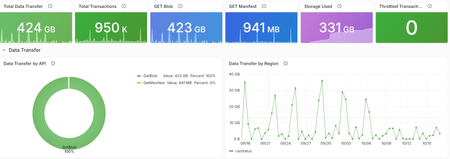
Learn More Use Grafana dashboards in Azure Container Registry Monitor Azure Container Registry Azure Container Registry (ACR) now publishes two new metrics: Transactions and Data Transfer. For the first time, you can see which operations your registry serves, which region serves them, and how much data (egress) they move, for each registry and each of its geo-replicas. ACR often serves as a shared distribution point for containerized workloads. Build systems push container images and other artifacts, Kubernetes clusters pull images during deployments, and security and lifecycle tools scan artifacts throughout the day. As those environments grow, high-level signals such as a total pull count or storage used can tell you that activity changed, but not why. Transactions and Data Transfer fill that gap, so you can explain a traffic spike, catch a failing or throttled pipeline, and see where your data goes. A customer-facing metric is a stream of data points, attributed to one resource, that you can chart, split, and alert on in Azure Monitor. Building these metrics meant producing data points for very high-throughput signals, counting them accurately, attributing each one to the right registry in every region, and not exhausting the metrics system underneath. In this post, we'll cover what these metrics show you, what it took to deliver them at scale, and the sharded design that made it possible. What you couldn't see before Before this work, push and pull counts, alongside storage used, were the only registry traffic metrics we published. They showed that activity happened, but not what kind of operations drove it, whether each operation succeeded, or where it was served. Take a sudden jump in pulls: Before: total pull count is up, with no way to tell which geo-replication drove the traffic. Now: the extra requests are blob downloads in one geo-replication region, many of them Throttled, while Data Transfer from that geo-replication stays flat. Those gaps matter most when traffic changes. An increase may come from a deployment, a retry loop, metadata polling, a regional workload shift, or larger image layers, and each looks different underneath: a surge in manifest and blob reads, repeated errors or throttled responses, a steady stream of tag and listing calls, traffic moving between replicas, or more bytes per pull without more requests. To tell them apart, you need to know which operations are changing, how much artifact data is moving, where requests are being served, and whether the pattern matches the workload you intended to run. Push and pull counts summarize outcomes. Transactions and Data Transfer describe behavior, and describing behavior takes far more data. Why scale is the hard part These signals are high throughput by nature, because every counted request becomes its own data point: a single sampled registry's activity can exceed 100,000 transactions and hundreds of gigabytes of data transferred (egress) in one hour. All of those data points land in internal metrics accounts, and each account has a finite budget for how much data it can take in and process. Our previous emission strategy sent metrics to a single backing account. That worked for the metrics we already had but signals this large would eventually exhaust that account's quota. Scale wasn't an optimization we could add later. It was a prerequisite for launching these metrics at all. Sharding the metrics without splitting the view The answer to the capacity problem is to stop relying on one account. Instead, we shard our metrics across multiple internal metrics accounts. A shard is one slice of a larger system that holds part of the data and has its own capacity. Each shard has its own headroom, which we monitor and manage independently, so no single account caps growth. Geo-replication complicates this. A geo-replicated registry is served from many regions at once, and a single request can pass through more than one component: one answering API calls, another serving blob bytes, another delivering webhooks. However capacity is divided, every data point from every region and every component still has to be attributed to the registry it belongs to. Otherwise, you'd see your registry's activity in pieces and have to stitch it back together yourself. Activity from every geo-replication and component is attributed to its registry and counted once. Each registry's metrics land on one shard, different registries are spread across shards, and you still query one registry in the portal. When you open the Azure portal or query Azure Monitor, you query your registry. You never see or choose where that information is coming from. Counting each request once. Multi-hop requests raise the same question for accuracy. One blob pull can touch more than one component: the registry may answer with a redirect, and a different component serves the bytes. Each step is counted once, by the component that handled it: the redirect appears as its own Redirect transaction, the download as a Success transaction, and the bytes appear once in Data Transfer. Failed requests count as Transactions, so errors stay visible, but not as Data Transfer, because no bytes were delivered. Every emitting component uses the same ApiName and ResponseType vocabulary, and we verify that each counted request produces exactly one data point. Each step is counted once, by the component that handled it, and bytes count only when they're served. The result is one view of each registry, across every region and component, with each step of a request counted exactly once. What customers get Both metrics appear where you already look: Azure portal > your registry > Monitoring > Metrics, and through Azure Monitor for programmatic queries and alerts. Transactions counts registry API operations, with three dimensions: ApiName: the registry operation, such as manifest, tag, and blob operations, referrer and catalog listings, token requests, etc. ResponseType: Success, Redirect, ClientErrorUnauthorized, ClientErrorNotFound, Throttled, etc. Region: the geo-replication of the registry that served the request Data Transfer reports the total outbound data your registry transfers, in bytes, when it serves content such as blob and manifest downloads. You can split it by ApiName and Region. ApiName: the flow that moved the data, such as layer downloads, manifest downloads, image imports, replicating content to your geo-replicas, etc. Region: the geo-replication of the registry that served the request A typical investigation takes a few steps. Open Monitoring > Metrics, choose Transactions, and split by ResponseType to see successes, redirects, throttling, and errors at a glance. Switch the split to Region to see which geo-replication is serving the change. Then select New alert rule from the same chart. For example, filter to Throttled and alert when the total over 5 minutes exceeds a threshold you choose. To understand egress by region, chart Data Transfer over time and split it by Region to see how much data each geo-replication serves and whether that data transfer traffic is growing. Match the view to what you suspect: A deployment or metadata polling: split Transactions by ApiName to see whether blob and manifest reads or tag and listing calls are driving the change. A retry loop: filter ResponseType to Throttled, ClientErrorUnauthorized, or ServerErrorOther. A regional workload shift: split metric by Region. Larger image layers: compare the two metrics. Data Transfer rising while Transactions stays flat points to bigger artifacts, not more requests. Transactions split by ResponseType: successes, redirects, throttling, and errors at a glance. Built for the metrics that come next Transactions and Data Transfer run on the same sharded metrics path, and we built it so future metrics onboard onto that same path instead of competing for one account's capacity. The design scales with customer workloads and with the metrics we add next, without a redesign. Conclusion Transactions and Data Transfer give you a direct view of what your registry is doing: which operations it serves, whether they succeed, where they're served, and how much data moves. Sharding is how we delivered that view at scale without giving up accuracy, and it's the path future metrics will onboard onto. A few lessons generalize beyond metrics: Design for scale before you launch a high-throughput signal, not after. Attribute by resource, not by location. Activity spread across many regions still needs one source of truth per resource. Keep the complexity on the service side. Customers query a registry, not a shard, so how we manage capacity can evolve without changing what you query. Get started with Transactions and Data Transfer in Monitor Azure Container Registry and the supported metrics reference for Azure Container Registry.341Views4likes0CommentsData Transfer and Transactions metrics now generally available for Azure Container Registry
Azure Container Registry now provides two new platform metrics that make it easier to understand outbound data transfer, inspect API traffic, and investigate throttled or failed requests without first opening a support request. We're excited to share the general availability of the Data Transfer and Transactions metrics for Azure Container Registry (ACR). Both metrics are emitted automatically through Azure Monitor and include dimensions that help you move from “something changed” to the operation, response, and region that explain the change. Available to all ACR customers today: The Data Transfer and Transactions metrics are available automatically for every registry, with no additional configuration or cost for the metrics themselves. Deeper visibility into registry activity ACR's existing platform metrics provide useful high-level signals such as total and successful pull and push counts, along with storage usage. However, those aggregate signals don't tell you which API operation changed, which region served the traffic, or whether requests were successful, rejected, or throttled. Answering those questions often required you to configure diagnostic settings, query logs, correlate client-side telemetry, or contact support. The new metrics add built-in dimensions for common operational investigations, so you can identify the traffic pattern first and then decide whether to tune clients, adjust deployment behavior, change capacity, or investigate a failure. Before What the new metrics unlock Aggregate pull and push counts Transaction volume split by registry API operation. HTTP 429 responses visible primarily from client failures Throttled transactions filtered by response type and split by API or region. Limited attribution for outbound transfer Outbound bytes split by operation and serving registry region. Separate log and client-side investigations Built-in metric charts, alerts, and Grafana dashboards without custom instrumentation. This visibility is especially useful for shared registries and geo-replicated environments. If request volume increases, outbound transfer changes, or clients begin receiving HTTP 429 responses, you can investigate the activity directly in Azure Monitor or the integrated Grafana experience. What is new Data Transfer: understand outbound registry traffic The Data Transfer metric measures total outbound data transferred from your registry in bytes. Split the metric by ApiName to distinguish client blob and manifest downloads, geo-replication traffic, and data read when another registry imports content from this registry. Split by Region to see where that transfer originated. Transactions: understand registry API activity The Transactions metric counts registry API operations. Use its dimensions to identify which operations are generating traffic, where requests are served, and whether the response succeeded, redirected, failed, or was throttled. Dimension Available on What it tells you ApiName DataTransfer/Transactions The registry operation represented by the metric. Region DataTransfer/Transactions The region that served the request or from which data was transferred. ResponseType Transactions The request outcome, including success, redirect, authorization failure, not found, throttled, and other client or server errors. For the complete list of API names and response classifications, see the Azure Container Registry monitoring data reference . Questions you can answer Which APIs are busiest? Split Transactions metric by ApiName to compare manifest, layer, metadata, and authentication operations. How is traffic distributed across my registry geo-replications? Split Transactions and DataTransfer metrics by Region to monitor transaction volume and outbound data transfer across the registry's geo-replications. Are my requests being throttled? Filter Transactions by ResponseType = Throttled, then split by ApiName or Region to find the affected traffic. What operations are driving outbound data transfer from my registry? Split DataTransfer by ApiName to compare client downloads, replication, and import-source traffic. You can explore these new insights in two ways. Start with the integrated Grafana dashboard for a curated, customizable view of registry health and activity. For quick questions or focused investigations, use Azure Monitor Metrics to filter and split the underlying metrics by API, region, and response type. Start with the integrated Grafana dashboard Alongside these metrics, we're introducing a new visualization experience for ACR customers: Dashboards with Grafana. The experience is enabled by Azure Managed Grafana and brings a prebuilt, customizable Grafana dashboard into the registry's Azure portal experience. The dashboard provides out-of-the-box panels for key operational insights, including transaction activity and request outcomes by region, outbound data transfer, throttled requests, and storage consumption. To get started, open your registry in the Azure portal and select Monitoring > Dashboards with Grafana. The gallery includes the Azure Container Registry observability dashboard with views for data transfer, transaction trends, throttling, and storage consumption. You don't need to deploy or manage a separate Grafana instance. For teams that already use Grafana, the ACR Observability dashboard is also available in the public Grafana dashboard gallery, where it can be imported and customized for existing monitoring environments. Use the prebuilt dashboard as a starting point, then add panels and customize the views to surface and save the insights most important to your team. You can also use Grafana Explore for ad hoc analysis. The integrated observability dashboard brings key registry metrics together in one view. The dashboard is broken down into sections: Overview, Data Transfer, Transactions, and Storage. Explore the dashboard sections, including Transactions, to view overall request breakdown and audit throttle activity. For dashboard creation, customization, access, and deployment guidance, see Use Grafana dashboards in Azure Container Registry. Run ad hoc metric queries in Azure Monitor For a quick question or focused investigation, open your registry and select Monitoring > Metrics. Select Data Transfer or Transactions, then use filtering and splitting to analyze the relevant API, region, or response dimensions. Investigating throttling? Start with Transactions, filter ResponseType to Throttled, and split by ApiName. After you identify the traffic pattern, review the mitigation guidance in Azure Container Registry SKU features and limits . Use the Transactions dimensions to investigate operation volume, regional traffic, and outcomes. Use Data Transfer dimensions to identify the operations and regions generating outbound transfer. Learn more Monitor Azure Container Registry Azure Container Registry monitoring data reference Use Grafana dashboards in Azure Container Registry Azure Container Registry API request rate limits Engineering deep dives For a closer look behind the scenes, these engineering deep dives explain how our team designed and implemented the capabilities that make these new insights possible. Making ACR Data Transfer Visible: The Storage Activity Platform Behind GetBlob Metrics Making Registry Activity Visible at Scale Start exploring the metrics today Open your registry in the Azure portal and select Monitoring > Dashboards with Grafana to explore transaction trends, outbound data transfer, throttling, and storage in one integrated view. Use the built-in dashboard as a starting point, then add panels and customize the views to surface and save the insights most important to your team. This integrated experience gives registry teams a self-service path from signal to explanation, helping you understand usage patterns and investigate failed or throttled requests before turning to logs or opening a support request.377Views4likes1CommentMaking ACR Data Transfer Visible: The Storage Activity Platform Behind GetBlob Metrics
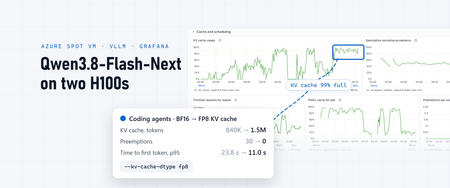
Learn More Use Grafana dashboards in Azure Container Registry - Use Grafana dashboards in Azure Container Registry - Azure Container Registry | Microsoft Learn Monitor Azure Container Registry - Monitor Azure Container Registry - Azure Container Registry | Microsoft Learn Introduction Azure Container Registry (ACR) can now show customers something it never could before: how much data leaves their registry, and which operations caused it. A new customer-facing Data Transfer metric in Azure Monitor breaks egress down by API Name, GetManifest, GetBlob, GeoReplication, and ImportSource so customers can finally attribute and plan for traffic that used to be invisible. The hard part of that metric is GetBlob. Blob and layer downloads, the bulk of pull traffic, are redirected to Azure Storage, so the registry serving path never sees those bytes. Making that redirected egress observable, fresh, and attributable is what required real engineering investment. To close that gap we built a Storage Activity Platform: a reusable, scalable ingestion foundation that turns raw storage activity into fresh, attributable telemetry in minutes instead of days. The Data Transfer metric GetBlob registry path is the first customer-facing capability it unlocks. What Customers Can Now See: The Data Transfer Metric For the first time, ACR exposes a customer-facing Data Transfer metric in Azure Monitor. It measures egress, the bytes actually transferred out of a registry, in bytes, captured per operation. What makes it useful is the ApiName dimension, which attributes every byte to the operation that generated it. The operations visible today include: GetManifest - manifest retrieval. GetBlob - blob and layer downloads (the bulk of pull traffic). GeoReplication - data transferred during geo-replication sync across regions as well as geo-replication initial sync. ImportSource - traffic pulled from a source registry during import. Because egress is split this way, customers can finally answer questions they never could before, for example "How much of my egress is geo-replication sync versus pulls?" The metric is: Dimensioned by Region and ApiName, consistent with the Transaction metric. Inclusive of service-initiated egress such as geo-replication sync, not just customer pulls. Reported on a PT1M time grain, aligned with Azure Storage metrics. Why customers care: Egress can be significant and hard to predict, especially for geo-replicated registries with large initial syncs. Attributing it by operation is the foundation for cost planning, capacity planning, and faster troubleshooting. The Engineering Challenge: GetBlob Is Invisible to the Registry Most of these operations are straightforward to measure: the registry serves them directly, so it can emit the metric as it does the work. GetBlob is the exception, and it is the hard one. When a client pulls an image, the registry does not stream the blob and layer bytes itself. It redirects the client to Azure Storage, which serves the download directly. That redirect is great for performance and scale, but it means the registry never observes the transferred bytes. The single largest component of egress is invisible to the very service that would normally report it. Before: a client pull is redirected from ACR to Azure Storage, so the transferred bytes are invisible to the registry; after: storage activity flows through the Storage Activity Platform into the Data Transfer metric in Azure Monitor That is the observability gap. To turn GetBlob into a customer-facing metric, we needed those redirected bytes to be: Observable - captured from where the transfer actually happens (Azure Storage), not the registry serving path. Fresh - available in minutes, not days, so the metric reflects current behavior. Attributable - tied back to the right registry, region, and operation. None of that existed. Closing this gap is what motivated the Storage Activity Platform built by the Azure Container Registry team. The Freshness Problem Even where storage activity was available, it was too slow to build on. Our previous storage log ingestion pipeline could not keep up. In several regions, telemetry arrived in days rather than minutes. By the time data reached our analytics platform it was frequently no longer actionable, which made troubleshooting harder and, just as importantly, blocked entire classes of customer-facing metrics that simply cannot exist on stale data, GetBlob egress among them. Why customers care: Fresh, trustworthy storage telemetry is the prerequisite for faster troubleshooting, better planning, and every new customer-facing metric that depends on it. Why It Was Hard ACR operates globally at significant scale, serving a large and continuously growing volume of registry traffic. Rebuilding the telemetry ingestion foundation under that load, without affecting the core service, was the central challenge. Finding the real bottleneck. We knew telemetry was slow, but not where the delay came from, log generation, delivery, ingestion, processing, aggregation, or persistence. Without that answer, any fix would be a guess. Sustaining production-scale volume continuously. The platform had to keep up with the highest-volume regions all the time, not just in a benchmark. Producing trustworthy data. For egress to become a customer-facing metric, the underlying data had to be accurate and correctly attributable per operation. The Engineering Story: A Platform, Not a Pipeline Design principles Rather than patching the old pipeline, we rebuilt ingestion around a small set of principles: Decouple ingestion from analytics. Getting storage activity in quickly should not be entangled with how any single downstream scenario consumes it. This separation is what lets new metrics attach later without touching ingestion. Instrument every stage independently. We built visibility into the pipeline itself, measuring latency at each stage separately, so we could locate the real bottleneck instead of guessing. Design for reuse from day one. The target was a scalable ingestion platform, not a bespoke path for one metric. New telemetry should inherit the infrastructure, not rebuild it. Scale and reliability without core-service impact. Ingestion had to sustain production volume continuously and independently of the registry's serving path. Measuring what matters We instrument the platform across a few conceptual signals: The surprise. We expected the consumer to be the scaling challenge. The data showed the opposite: once events are available, the platform processes them almost immediately, even under production load. The overwhelming majority of remaining latency lives upstream, in log delivery, which redirected our optimization focus to where it will actually help. The outcome is telemetry that now arrives in minutes instead of days in many regions, and more durably, a foundation the next capability can build on. High-Level Architecture The platform is one path among several into Azure Monitor. The registry still emits most metrics directly as it serves requests. The storage activity platform runs alongside that direct path, specialized for the redirected-download (GetBlob) egress the registry cannot see for itself. It is an addition to the metric pipeline, not a replacement for it. Why customers care: A reusable ingestion platform means new metrics - starting with the previously-invisible redirected-download egress - can be onboarded faster, with far less engineering overhead, so observability keeps improving over time. The Payoff: GetBlob Data Transfer Is Now Visible The clearest proof that this was a platform investment, not just a latency fix, is what it closed: the GetBlob observability gap. The redirected blob and layer downloads that make up the bulk of egress, and that the registry never sees, are now populated entirely from the storage activity platform and surfaced through the Data Transfer metric in Azure Monitor. For the first time, customers can see that egress, attributed by ApiName. Critically, exposing that redirected-download egress required no new ingestion infrastructure of its own. It attached to the storage activity platform we had already built, which is exactly the point: the platform did the hard part once, and the metric inherited it. The Customer Experience Both the freshness improvement and the new metric surface through tools customers already use, no new workflow to learn. Fresher telemetry flows into the analytics and dashboards teams already rely on, so what they see reflects what is happening now rather than days ago. The Data Transfer metric appears in Azure Monitor alongside existing registry metrics, and can be charted, alerted, and forecast like any other Azure Monitor metric, split by Region and ApiName. Why customers care: Egress attribution leads directly to better cost and capacity planning and faster troubleshooting, and it is only the first of many capabilities the platform can now serve. Engineering Lessons Learned Instrument the pipeline before optimizing it. Measuring each stage independently turned a guessing game into a targeted fix and revealed the bottleneck was not where we assumed. Invest in the platform, not the feature. Building ingestion as a reusable foundation meant the first customer-facing metric attached in a fraction of the time it would have otherwise taken. Outcomes & What's Next What changes for customers is the bottom line: Egress is no longer invisible. Customers can see how much data leaves their registry and attribute it by operation, including the redirected GetBlob downloads that were never observable before. What they see reflects now, not days ago. Telemetry that arrives in minutes instead of days means troubleshooting, cost planning, and capacity planning act on current reality. The platform matters because of what it lets customers observe next. Because new metrics can now be onboarded on top of this foundation, the Data Transfer metric is a beginning, not an endpoint, richer analytics and additional customer-facing metrics follow, each one deepening the visibility customers have into their own registries. Learn More Use Grafana dashboards in Azure Container Registry - Use Grafana dashboards in Azure Container Registry - Azure Container Registry | Microsoft Learn Monitor Azure Container Registry - Monitor Azure Container Registry - Azure Container Registry | Microsoft Learn232Views3likes0CommentsQwen3.8-Flash-Next on two H100s in an Azure Spot VM
With 150,000 tokens of context, one request to Qwen3.8-Flash-Next decoded at about 200 tokens a second, and its first token arrived in under a second, because 95% of the prompt came from the cache. That held while the agents kept up to five requests running at once. At seven, one request in twenty waited 23 seconds or more for its first token. No error explained it; the dashboard did, one panel after another. This post covers how to run the model on two H100 GPUs in one Azure VM and how to observe it: which signals matter for this kind of model, three places where a standard dashboard misreads it, and one serving flag that made a measurable difference. My previous post, Qwen3.8-27B on a $2 H100 Azure Spot VM: does it pay off?, walks through the base setup (the VM, the Compose stack, the LiteLLM gateway and the OpenTelemetry pipeline into Application Insights and Grafana) in more detail; here I focus on what changes for a bigger model. What you're running Qwen3.8-Flash-Next is a mixture-of-experts (MoE) model from Qwen, released in August 2026 under the qwen-community-1.0 license. A few of its properties shape how you serve it: 125B parameters, 6B active per token. Each token passes through a small share of the experts, so decoding reads far less than the full weights. Mostly linear attention. Its 48 layers come in 12 blocks of three Gated DeltaNet layers, which keep a fixed-size state, and one Qwen Sparse Attention layer. Only those 12 sparse-attention layers keep a per-token KV cache. A 51B n-gram embedding table (20 million bigram and trigram entries), which vLLM keeps in host memory on H100 GPUs. A multi-token prediction (MTP) layer for speculative decoding, a 262,144-token context window (extendable to about one million with YaRN), and vision input. Thinking on by default, with a reasoning_effort setting ( xhigh by default, or medium or low ). Qwen's FP8 checkpoint, Qwen/Qwen3.8-Flash-Next-FP8 , is 185.6 GB, too much for one 94 GB H100 even with the n-gram table in host memory. Split across two with tensor parallelism, it fits with room left for the KV cache: Per GPU GiB Weights, n-gram table excluded, split in two 65.6 vLLM's share of the GPU at --gpu-memory-utilization 0.90 ~84 Left for the KV cache, activations and CUDA graphs ~18 Why not 4-bit weights? FP4 weights would save memory, but on an H100 they can be slower. The H100's tensor cores compute in FP8, not FP4, which arrived with Blackwell. NVIDIA publishes an NVFP4 checkpoint of this model, 132.7 GB, quantized for and tested on B200 and B300 GPUs, under the NVIDIA Open Model License in addition to Qwen's. vLLM v0.31.0 still loads it on an H100 by falling back to a Marlin kernel, which keeps the expert weights in 4 bits and unpacks them to BF16 for each matrix multiplication. That saves memory, not compute: the experts then multiply in BF16, whose peak rate on an H100 is half that of FP8. In that checkpoint, only the routed experts are FP4. Attention, the shared experts and the other layers stay in BF16, and the n-gram table and the MTP layer stay in FP8. My estimate from its file sizes: FP8 (this post) NVFP4 on H100 (estimate) Weights on the GPUs, n-gram table excluded 131 GiB ~76 GiB On one H100 Doesn't fit Only just: a few GiB left for the KV cache, about one long agent session KV cache on two H100s 1.5 million tokens, FP8 cache About three times as much Expert matrix math FP8 tensor cores BF16, after unpacking the weights Which way it goes depends on the workload. Decoding mostly reads weights, so smaller weights can keep it fast. Prefill is mostly math, and coding agents send long prompts, so a slower prefill shows up as a longer wait for the first token whenever the cache misses. A cache three times larger would miss less often. I haven't measured this trade; if you try it, the panels later in this post show it, with time to first token and computed prefill set against the prefix-cache hit rate. For one GPU today, see the one-GPU alternative near the end of this post. Step 1: Get a two-GPU Spot VM The size is Standard_NC80adis_H100_v5 : two H100 NVL GPUs with 94 GB each, 80 vCPUs and 640 GiB of memory. On October 12, 2026 it cost $3.22 an hour as an Azure Spot Virtual Machine in UK South, against $17.45 at the pay-as-you-go price: about 80% less, for capacity that Azure can take back with 30 seconds' notice (prices change; check the pricing page). In the two regions I compared, the Spot price was exactly twice the one-GPU size's. Spot draws on your regional low-priority vCPU quota. This size takes 80 vCPUs of it, which in my subscription left no room in the same region for the one-GPU VM from the previous post. Plan for evictions: my two VMs of this size in UK South zone 2 ran 6 h 17 min and 6 h 30 min before Azure reclaimed them. Both kept their disks under the Deallocate eviction policy, so a restart in place reloads the model from disk in a few minutes. The sample's infra/provision-spot-vm.sh creates this size, with the same private network as in the previous post: no public IP, outbound traffic through a NAT gateway, and administration through az vm run-command : LOCATION=southeastasia ZONE=2 infra/provision-spot-vm.sh Step 2: Prepare the host The host bootstrap is the same as for one GPU: the data disk, the NVIDIA datacenter driver (595 branch), Docker and the NVIDIA Container Toolkit, in about four minutes. Then check how the two GPUs are connected, because tensor parallelism exchanges data between them in every layer: $ nvidia-smi topo -m GPU0 GPU1 CPU Affinity NUMA Affinity GPU0 X NV12 0-39 0 GPU1 NV12 X 40-79 1 NV12 means an NVLink bridge with 12 links. nvidia-smi nvlink --status lists 18 links per GPU, 12 active at 26.6 GB/s each and 6 inactive. Remember those six; they come back in the monitoring section. Step 3: Serve it with vLLM NVIDIA's NGC vLLM container that served the 27B predates this model, so the stack uses vLLM's own vllm/vllm-openai:v0.31.0 image, which knows the architecture and its MTP layer. The flags follow vLLM's recipe for this model, adjusted for two GPUs: vllm serve /models/Qwen3.8-Flash-Next-FP8 \ --served-model-name qwen3.8-flash-next-vllm \ --tensor-parallel-size 2 \ --max-model-len 262144 \ --gpu-memory-utilization 0.90 \ --max-num-seqs 32 \ --max-num-batched-tokens 16384 \ --enable-prefix-caching \ --kv-cache-dtype fp8 \ --attention-config.indexer_kv_dtype fp8 \ --moe-backend triton \ --no-enable-flashinfer-autotune \ --spec-method mtp --spec-tokens 3 \ --reasoning-parser qwen3 \ --enable-auto-tool-choice --tool-call-parser qwen3_coder Flag Why --tensor-parallel-size 2 Splits every layer across the two GPUs. --gpu-memory-utilization 0.90 Under load each GPU reached 92 of 96 GB at this setting, so I left it there. --kv-cache-dtype fp8 , --attention-config.indexer_kv_dtype fp8 Stores the KV cache, and the sparse-attention indexer's, in FP8. The recipe's H100 command leaves these out; its H200 command, also a Hopper GPU, includes them. Why I added them is the subject of One flag, measured, below. --moe-backend triton , --no-enable-flashinfer-autotune The recipe's MoE kernels for Hopper GPUs. --spec-method mtp --spec-tokens 3 Speculative decoding with the model's MTP layer. --reasoning-parser qwen3 , --tool-call-parser qwen3_coder Thinking returned separately from the answer, and OpenAI-style tool calls. Two container settings matter as well. vLLM pins each GPU's share of the n-gram table in host memory, so the container needs ulimits: memlock: -1 , and the two tensor-parallel workers communicate through shared memory, so it needs ipc: host . On a new VM, the download takes about 20 minutes and loading about 4 more. The startup log then tells you the two numbers that decide everything later: Model loading took 65.58 GiB memory GPU KV cache size: 1,506,691 tokens, Maximum concurrency for 262,144 tokens per request: 5.75x Step 4: Check it The smoke test from the previous post (an exact answer, a required tool call and a decode-speed run) passes, and one request generates 260 tokens a second with thinking off, against 166 for the 27B on one GPU. A 45-case basic evaluation (math and logic with and without thinking, knowledge, instruction following, generated code run against tests, tool calls, and needle retrieval at 30K and 120K tokens) scores 44 of 45, the same as the 27B. An agentic coding evaluation on 10 short Terminal-Bench 2.0 tasks solved 8. Step 5: Observe it The telemetry pipeline is the one from the previous post: an OpenTelemetry Collector on the VM scrapes vLLM, LiteLLM and NVIDIA's DCGM exporter, reads host and container statistics, receives LiteLLM's spans and tails the container logs, and sends all of it to Application Insights, which stores the metrics in an Azure Monitor workspace as Prometheus data. Grafana reads both. Two things changed for this model. One dashboard for several models The collector stamps every metric, span and log record with an upstream_model label naming the model the VM serves. A model variable at the top of the dashboard filters every panel by it and lets you pick one model, several or all. With more than one, each graph draws a line per model, so the 27B and Flash-Next appear side by side. Two details made it work. The Azure Monitor workspace's label-values API requires exactly one metric name, so the variable's query is label_values(vllm:num_requests_running, upstream_model) . And the VM's cost is now computed from the GPUs reporting in each minute times a price per GPU-hour, so a one-GPU and a two-GPU model are both costed correctly from one price. Three numbers the dashboard got wrong at first Per-request speed. The usual formula, 1 / histogram_quantile(0.5, ...inter_token_latency_seconds...) , read a constant 57 tokens a second on this model while requests were really getting 150 to 260. Two things go wrong at once. With speculative decoding, vLLM records one inter-token interval per decode step, and each step produced about 2.4 tokens. And 99.7% of the steps landed in the histogram's 10–25 ms bucket, so the median is that bucket's midpoint, 17.5 ms, whatever the real speed. I used the same formula in the previous post's table; this one holds up better: (sum(rate(vllm:generation_tokens_total[5m])) > 0) / clamp_min(sum(avg_over_time(vllm:num_requests_running[5m])), 1) That's output tokens per second divided by the requests running. The clamp_min matters because the collector samples the running-request gauge every 15 seconds and misses short requests that start and end between samples. Without it, a minute of short requests read up to 668 tokens a second. GPU health. DCGM's health check reported Fail on a healthy VM. Its NVLink watch reports the six inactive links on each GPU as down ( dcgm_fr_nvlink_down ), while the bridge's 12 links are up. The dashboard's health tile now leaves that one error code out, which leaves the Warn that power throttling raises under normal load. Histogram means. OTLP histograms arrive in the Azure Monitor workspace as native histograms. histogram_quantile works on them, but histogram_sum , histogram_count and histogram_avg returned 0 or NaN for these metrics, so averages come from counter rates, as above, rather than from the histograms. The panels that matter for this model Question PromQL Are requests waiting, and for what? sum by (reason) (vllm:num_requests_waiting_by_reason) : capacity means the KV cache is full Is the KV cache holding the sessions? max(vllm:kv_cache_usage_perc) , and the prefix-cache hit rate sum(rate(vllm:prefix_cache_hits_total[5m])) / sum(rate(vllm:prefix_cache_queries_total[5m])) Is the GPU recomputing prompts? sum(rate(vllm:prompt_tokens_by_source_total{source="local_compute"}[5m])) against {source="local_cache_hit"} , and sum(increase(vllm:num_preemptions_total[5m])) How far does speculative decoding get? sum by (position) (rate(vllm:spec_decode_num_accepted_tokens_per_pos_total[5m])) / scalar(sum(rate(vllm:spec_decode_num_drafts_total[5m]))) What crosses the PCIe bus? sum(dcgm_fi_prof_pcie_rx_bytes) , host to GPU in bytes per second The spans complete the picture. Each LiteLLM call carries its input and output tokens, time to first token, duration and finish reason, so decode speed per call is output tokens / (duration - time to first token) , and you can group calls by prompt size. The spans also record each tool the client declares, which tells different agents apart without capturing a single prompt. Load it with coding agents A benchmark sends synthetic prompts at a fixed rate. Agents don't: their prompts grow with every turn, most of each prompt is the previous turn's, and between turns they run tools while the model waits. To see the model under that shape of load, I ran opencode, an open-source coding agent, as a load generator: one instance per local repository, each asked to review every file. Agents that can edit files and run commands shouldn't be pointed at a dozen repositories for a load test, so every instance ran with an inline configuration that limits it to read-only tools. Passed in OPENCODE_CONFIG_CONTENT , it overrides the global and project opencode config files; only managed settings rank higher. The sample's load-test/review-readonly.json is a copy of the one I ran that also defines the gateway as an OpenAI-compatible provider and keeps agents away from .env files: { "provider": { "litellm": { "npm": "@ai-sdk/openai-compatible", "name": "LiteLLM gateway", "options": { "baseURL": "{env:LOCAL_LLM_URL}/v1" }, "models": { "local-llm": { "name": "local-llm", "limit": { "context": 245760, "output": 16384 } } } } }, "model": "litellm/local-llm", "small_model": "litellm/local-llm", "permission": { "read": { "*": "allow", "*.env": "deny", "*.env.*": "deny", "*.env.example": "allow" }, "glob": "allow", "grep": "allow", "list": "allow", "todowrite": "allow", "edit": "deny", "bash": "deny", "webfetch": "deny", "websearch": "deny", "external_directory": "deny", "question": "deny", "task": "deny", "doom_loop": "deny" }, "mcp": { "playwright": { "enabled": false } }, "lsp": false, "formatter": false, "snapshot": false, "autoupdate": false, "share": "disabled" } List your own MCP servers under mcp the same way. To run one agent by hand: export LOCAL_LLM_URL=https://<your-domain>.ngrok-free.dev export OPENCODE_CONFIG_CONTENT="$(cat load-test/review-readonly.json)" cd ~/src/some-repo && opencode run --pure -m litellm/local-llm "Review every file in this repository." The sample's load-test/launch.sh starts one per folder you list, a few seconds apart, and stops launching when the workstation runs low on memory. Check it in a scratch folder first: ask an agent to create a file and run a command. In my test the agent wasn't offered those tools, and the folder stayed unchanged. Three settings in it matter beyond safety. The context limit tells opencode when to compact the conversation; without it, sessions grew until the gateway rejected them as too long. Denying task stops an agent from starting sub-agents, so each instance is one session; with sub-agents allowed, 29 instances had 69 requests in flight. And each instance took 0.7–0.9 GB of memory on my workstation, so the workstation, not the GPU, capped the first run at 46 agents. What the telemetry showed Decode speed barely depends on context length From the spans, here is the median decode speed of calls with at least 300 output tokens, by prompt size, next to the 27B's from the previous post's busy window: Prompt size Flash-Next, 1–2 requests at once Flash-Next, 3–5 at once 27B, about 3 at once Under 50K tokens 197–221 201 60–78 50–100K 192 183 63 150–200K 217 200 54 Over 200K 195 166 51 The 27B slowed by about a fifth as its prompts grew; Flash-Next held its speed. The architecture explains it: 36 of its 48 layers keep a fixed-size state, and the other 12 use sparse attention, so the work per token grows little with the context. The n-gram table shows up on the PCIe bus With the model decoding, DCGM reported 4.6–8.6 GB/s flowing from host to GPU over PCIe, rising and falling with the output rate and dropping to almost nothing when idle. On the 27B, which keeps everything in GPU memory, the same counter read 0.03 GB/s. The n-gram table is the part of this model that lives in host memory, so it's the likely source. That's at most an eighth of what the GPUs' PCIe 5.0 x16 links carry, so it isn't a bottleneck at this load, but it's worth a panel if you run more requests at once. Sessions, not requests, fill the KV cache Agentic traffic is mostly reused prompt. For hours, 88–95% of input tokens came from the prefix cache, and time to first token stayed under a second at 100,000 tokens and more. vLLM keeps each session's prompt in the cache between turns, so the next turn only processes what's new. That works only while every active session's prompt fits, including the sessions that are between turns, running tools. With the KV cache in BF16, the cache held 840,277 tokens. Here is what happened when the agents went from five requests running at once to seven, with prompts of about 110,000 tokens at the median and up to 230,000: 15 minutes to (UTC) Requests running, peak KV cache, peak Prefix-cache hits Input recomputed Preemptions Time to first token, p50 / p95 04:15 5 72% 91% 2.1M tokens 0 0.7 s / 2.7 s 04:30 7 97% 45% 9.0M tokens 4 1.4 s / 25.5 s 04:45 7 98% 50% 6.8M tokens 2 3.9 s / 23.2 s 05:00 7 99% 74% 5.2M tokens 24 0.6 s / 14.5 s At no point did vLLM run more than seven requests, against a limit of 32. The limit that mattered was memory: the sessions evicted each other's cached prompts, and each turn recomputed 100,000 tokens or more. The waiting-requests metric says so directly: up to four requests at a time waited, all with the reason label capacity . One flag, measured The KV cache in FP8 takes half the memory per token. With --kv-cache-dtype fp8 and --attention-config.indexer_kv_dtype fp8 , the cache grew from 840,277 to 1,506,691 tokens in the same memory, and from 3.2 to 5.75 full-length contexts. The weights don't change, and neither did the checks: 260 tokens a second for one request and 44 of 45 on the evaluation, including both long-context retrievals. Then I repeated the load on a fresh VM with eight of the read-only review agents described above, one session each. Their prompts grew to a median of 122,000 tokens and up to 235,000, a little larger than in the BF16 window. Measured the same way for both windows: BF16 cache, 04:15–05:00 FP8 cache, 07:23–07:38 Requests running, average / peak 3.3 / 7 6.4 / 8 Prompt size, p50 / max 112K / 229K 122K / 235K KV cache, peak 99% 88% Prefix-cache hits 58% 74% Preemptions 30 0 Time to first token, p50 / p95 / max 0.9 s / 23.8 s / 42.2 s 1.1 s / 11.0 s / 20.7 s Output tokens per second, all requests 219 415 Twice as many requests ran at once, the cache never filled, nothing was preempted, and the slowest first tokens arrived in half the time. The hit rate didn't climb back to 90%: review agents read new files on every turn, and no cache can serve tokens it hasn't seen. The two windows come from different agents, so take the comparison as indicative rather than exact; the cache panels tell the same story. Past the cache More agents don't help once the cache is full. With 46 agents on the FP8 cache, 21 requests ran and 24 waited for capacity, the cache stayed 97% full, and the prefix-cache hit rate fell to 0%. The GPUs spent their time on about 12,000 tokens a second of recomputed prompts against 400–450 of output, and the median time to first token passed 30 seconds. Stopping the agents didn't free the server right away either. Their disconnects didn't make it through the gateways to vLLM, which worked through the 35 requests the agents had left queued, a few minutes of work for nobody, before the next test could start. Rules of thumb Size by sessions, not requests. The number of agent sessions that stay cached is roughly the KV cache size divided by a typical session's context: about 1.5 million / 100,000–150,000, so 10 to 15 here. The startup log gives you the first number, and the spans give you the second. Watch why requests wait. vllm:num_requests_waiting_by_reason{reason="capacity"} rising means memory, which --max-num-seqs won't fix. Read prefix-cache hits and recomputed input together. A falling hit rate with rising computed input is the cache thrashing, and time to first token follows within minutes. Mind the thinking. 87–94% of output tokens were reasoning. For routine tool calls, a lower reasoning_effort is the client-side lever. The one-GPU alternative If one H100 is all you have, Strata, an open-source engine built for this model on consumer GPUs, runs Unsloth's ~4-bit GGUF on a single H100 NVL with every expert in GPU memory: 151 tokens a second for one request, 44 of 45 on the same evaluation and 9 of 10 agentic tasks. Concurrency is where it differs from vLLM: in version 0.1.42, four batch slots added only about 20% (177 tokens a second in total), and under the evaluation's mixed concurrent load they started failing requests, so I ran it one request at a time. Check newer releases if you need concurrency. Try it Sample code: wuyi-labs/2610-h100-qwen-38-flash-next, with provisioning, the vLLM Compose stack, the dashboard and the read-only opencode load test. The model: Qwen3.8-Flash-Next on Hugging Face and vLLM's recipe for it. The base setup: Qwen3.8-27B on a $2 H100 Azure Spot VM: does it pay off?, and Ingest OTLP data into Azure Monitor with the OpenTelemetry Collector. KV cache quantization: Quantized KV cache in vLLM. Load generation: opencode and its permissions. Spot: Azure Spot Virtual Machines and Linux VM pricing.466Views1like1CommentQwen3.8-27B on a $2 H100 Azure Spot VM: does it pay off?
For three hours on the morning of October 9, a single H100 in Azure served 1,434 requests to Qwen3.8-27B: 168.7 million input tokens in, 1.27 million output tokens out. At a public list price for this model that day ($0.425 per million input tokens, $0.085 per million cached input tokens and $2.55 per million output tokens), those tokens are worth $24.35. The three hours of VM time cost $4.65 at that region's Spot price; the dashboard below counts them at a round $2 an hour. This post is the guide I'd have wanted before I started: how to run Qwen3.8-27B on an Azure GPU VM, how to tune it, and how to monitor it end to end, with metrics, logs and traces, using Application Insights and Grafana. The answer to the title comes at the end. The dashboard that measured it comes from the monitoring setup in the middle. What you're running Qwen3.8-27B is a 27-billion-parameter dense model from Qwen, released under the Apache 2.0 license. A few of its properties shape how you serve it: Hybrid attention. 48 of its 64 layers use Gated DeltaNet linear attention, which keeps a fixed-size state instead of a per-token KV cache. Only the 16 full-attention layers grow with the context, which is why long contexts fit on one GPU. A 262,144-token context window, which Qwen documents how to extend to about one million tokens with YaRN. Thinking on by default, with a per-request switch to turn it off. Multi-token prediction (MTP) layers, which vLLM can use for speculative decoding. Vision: it reads images and video as well as text. The GPU is a Standard_NC40ads_H100_v5 : one H100 NVL with 94 GB of memory and 40 vCPUs. Both official checkpoints fit on it: BF16 ( Qwen/Qwen3.8-27B ) FP8 ( Qwen/Qwen3.8-27B-FP8 ) Download 55.6 GB 30.9 GB Weights in GPU memory 51.9 GiB 29.0 GiB KV cache left over 805K tokens 1.45M tokens One request, 512 tokens, thinking off 124 tok/s 172 tok/s Use FP8. The H100 runs FP8 natively, each decode step reads fewer bytes, and the memory the smaller weights free up nearly doubles the KV cache. The NVFP4 builds you'll see in vLLM's recipes target Blackwell GPUs, since the H100 has no FP4 tensor cores. Step 1: Get a Spot H100 VM Azure Spot Virtual Machines sell spare capacity at a discount, with no SLA, and Azure can evict them with 30 seconds' notice. In October 2026 this size cost $1.55 to $1.84 an hour on Spot in the regions I settled on, which this post rounds to $2 (prices change; check the pricing page). Spot draws on your regional low-priority vCPU quota, 40 vCPUs for this size, not on the H100 family quota, which was zero in my subscription. Pick the region with data rather than habit. The sample's infra/spot-regions.sh lists each region's eviction-rate bucket and Spot price history, and the current placement score per zone; there's more on that in the Spot section below. Then create the VM with infra/provision-spot-vm.sh: LOCATION=southeastasia ZONE=2 IDENTITY_RG=rg-llm-telemetry infra/provision-spot-vm.sh In about five minutes that gives you: a resource group, a VNet and a network security group with only the default rules, which deny inbound traffic from the internet a NAT gateway for outbound traffic: Docker images, Hugging Face downloads and telemetry the VM: Ubuntu 24.04 and no public IP. It uses Trusted Launch with Secure Boot off, because Secure Boot rejects the unsigned NVIDIA kernel modules. It has a 512 GB data disk for weights and images, the Spot Deallocate eviction policy so an eviction keeps the disks, and a managed identity for telemetry With no public IP and no SSH, you administer the VM through az vm run-command , which the sample's scripts/vm-run.sh wraps: scripts/vm-run.sh <script> runs a local script on the VM as root and prints the output. Step 2: Prepare the host scripts/vm-run.sh scripts/bootstrap-host.sh The bootstrap takes about four minutes. It mounts the data disk at /data , installs the NVIDIA datacenter driver (the 595 branch with open kernel modules, which loads without a reboot), installs Docker Engine with its data root on /data , and registers the NVIDIA Container Toolkit with Docker. At the end, nvidia-smi should report one H100 NVL with 95,830 MiB. Step 3: Serve the model with vLLM The stack is a Docker Compose project: a one-shot job that downloads the pinned checkpoint, vLLM, a LiteLLM gateway, and optional overlays for telemetry and a public URL. The sample's scripts/deploy.sh, run with up , copies the folder to the VM through run-command and starts it in the background. On a new VM everything is healthy about 20 minutes later. Most of that is image pulls and the 31 GB download, and later restarts of the model take a few minutes. The model runs in NVIDIA's NGC vLLM container, release 26.07 (vLLM 0.24). One fix was needed there: tool calls failed with HTTP 500 because the bundled xgrammar 0.2.0 lacks a function vLLM's frontend imports, so the sample's image adds xgrammar 0.2.3. The checkpoint is pinned to a revision and downloaded once to the data disk, so restarts don't depend on Hugging Face. This is the serve command: vllm serve /models/Qwen3.8-27B-FP8 \ --served-model-name qwen3.8-27b \ --trust-remote-code \ --max-model-len 262144 \ --gpu-memory-utilization 0.93 \ --max-num-seqs 32 \ --max-num-batched-tokens 16384 \ --kv-cache-dtype fp8 \ --enable-prefix-caching \ --spec-method mtp --spec-tokens 3 \ --reasoning-parser qwen3 \ --enable-auto-tool-choice --tool-call-parser qwen3_coder \ --limit-mm-per-prompt '{"image":{"count":4,"width":1024,"height":1024},"video":0}' Flag Why --max-model-len 262144 The native context window. --gpu-memory-utilization 0.93 Lets vLLM use 93% of the GPU's memory. After the weights, that leaves 1.5 million tokens of KV cache, about 5.7 full-length requests at once. --max-num-seqs 32 Throughput barely grows beyond 32 concurrent requests on this GPU (measured below). --max-num-batched-tokens 16384 The prefill chunk per step. 32K gained nothing and cost 5% of the KV cache. --kv-cache-dtype fp8 Halves the KV cache's memory compared with BF16. --enable-prefix-caching Reuses the KV blocks of a repeated prefix instead of recomputing them. Agentic traffic resends long prefixes, so this matters: 88% of the input tokens in the busy window below came from the cache. --spec-method mtp --spec-tokens 3 Speculative decoding with the model's own MTP layers. vLLM's Qwen3.8 recipe writes the same setting as --speculative-config '{"method":"mtp","num_speculative_tokens":3}' . --reasoning-parser qwen3 Returns the thinking separately from the answer, so clients get a clean reply. --enable-auto-tool-choice --tool-call-parser qwen3_coder OpenAI-style tool calls. --limit-mm-per-prompt Up to four images per prompt, and no video. Step 4: Call it vLLM serves an OpenAI-compatible API, and so does the LiteLLM gateway in front of it, under one stable alias, local-llm , so clients don't change when the model does: curl http://127.0.0.1:4000/v1/chat/completions -H 'Content-Type: application/json' -d '{ "model": "local-llm", "messages": [{"role": "user", "content": "Explain prefix caching in two sentences."}], "temperature": 0.7, "top_p": 0.8, "presence_penalty": 1.5, "chat_template_kwargs": {"enable_thinking": false} }' Thinking is on unless a request turns it off with chat_template_kwargs . Qwen's model card recommends temperature 1.0, top_p 0.95 and top_k 20 with thinking on, and temperature 0.7, top_p 0.8, top_k 20 and presence_penalty 1.5 with it off. Tool calls work as they do with OpenAI: send tools , and the parser turns the model's tool-call markup into tool_calls . The sample's smoke test ( scripts/vm-run.sh scripts/smoke-test.sh ) checks an exact answer, a required tool call and the decode speed. On this VM, one request generates about 166 tokens a second with thinking off. The VM has no public IP, so the gateway is published through an ngrok tunnel with an IP allow-list. The gateway has no authentication of its own, so that allow-list is the only access control on the public URL. That suited my own tests. For anything more, add a LiteLLM key or an authentication policy at the tunnel. Step 5: Tune it Two settings were worth measuring. How many tokens to draft. Speculative decoding drafts tokens with the MTP layers and verifies them in one pass. On natural-language prompts with 512-token replies: Draft tokens 1 2 3 4 One request (tok/s) 105 131 151 146 32 requests (tok/s) 1,497 1,546 1,548 1,342 Three came out on top at both ends. vLLM warns that drafting more than one token reuses the same MTP layer and can lower acceptance, so watch the acceptance rate on the dashboard rather than trusting the setting. How many requests at once. On synthetic 2,000-token prompts, output grows to 32 concurrent requests and then flattens: 150 tokens a second at 1, 821 at 16, 1,187 at 32 and 1,212 at 48, while each stream slows from 150 to 25 tokens a second. On natural text, where more drafts are accepted, 32 requests reach about 1,550 output tokens a second. That's the measured ceiling: 5.6 million output tokens an hour, worth $14.23 an hour at $2.55 per million. Step 6: Monitor it: metrics, logs and traces A self-hosted model has no provider status page. When it's slow, you need to know whether the cause is the queue, the cache, the GPU or the client, and when it's idle, you're still paying for it. Azure Monitor ingests OpenTelemetry natively (generally available since June 2026), so one Application Insights resource can receive all three signals. Create the destination Create an Application Insights resource with OTLP support set to On. That provisions a Log Analytics workspace for logs and traces, an Azure Monitor workspace that stores metrics as Prometheus data, and the data collection endpoint and rule that route OTLP into them. Ingest OTLP data into Azure Monitor with the OpenTelemetry Collector walks through it. On the resource's Overview page, copy the OTLP connection info: the endpoint URLs for traces, logs and metrics, and the data collection rule ID. Give the VM's managed identity the Monitoring Metrics Publisher role on that data collection rule. The collector signs in with Microsoft Entra ID, so you don't have to store a key on the VM. The sample's infra/telemetry-identities.sh creates one identity per region you run in and assigns the role. Point a collector at it One OpenTelemetry Collector (the contrib distribution) runs next to the model and gathers everything: Metrics: it scrapes vLLM's and LiteLLM's Prometheus endpoints and NVIDIA's DCGM exporter for the GPU, and reads host and container statistics. Traces: LiteLLM sends its spans to the collector over OTLP. Each model call is a span with the token counts, time to first token and finish reason as gen_ai.* attributes. Logs: it tails every container's log, plus the host's syslog, where GPU Xid errors and out-of-memory kills appear. The part that talks to Azure Monitor is short (abridged from the sample's observability/otelcol/config.yaml, collector 0.161): extensions: azure_auth: managed_identity: client_id: ${env:TELEMETRY_UAMI_CLIENT_ID} scopes: [https://monitor.azure.com/.default] processors: resource: attributes: - {key: microsoft.applicationId, value: "${env:AZMON_APPLICATION_ID}", action: upsert} exporters: otlp_http/azuremonitor: traces_endpoint: ${env:AZMON_TRACES_ENDPOINT} logs_endpoint: ${env:AZMON_LOGS_ENDPOINT} metrics_endpoint: ${env:AZMON_METRICS_ENDPOINT} auth: authenticator: azure_auth Here's where each signal lands and how you query it: Signal Sources Stored in Query with Metrics vLLM, LiteLLM, GPU (DCGM), host, containers Azure Monitor workspace PromQL Traces LiteLLM request and model-call spans Application Insights (Log Analytics) KQL, or the Application Insights transaction view Logs every container, host syslog Application Insights (Log Analytics) KQL Four things that tripped me up Set microsoft.applicationId on everything you send. The data collection rule that Application Insights creates routes data on that resource attribute, which is why the processor above sets it on every resource. Metrics keep only a few resource attributes. The metrics rule keeps service.* , host.name and cloud.region , and drops the rest, so per-container series merged into one until a transform processor copied the container name onto each data point. The sample does the same for an upstream_model label, so a second model on the same VM shows up as its own series. In logs, fields you want to filter on also belong on the record, not the resource. OTLP histograms arrive as native histograms. histogram_quantile takes the bare metric name, with no _bucket suffix and no le label, and OpenTelemetry-native names keep their dots, so you write {__name__="system.cpu.utilization"} . Check what your spans carry. LiteLLM records the useful parts of each call (token counts, time to first token, finish reason) without prompts or responses when message capture is off. It still records every tool definition the client declares, though. Decide whether that's acceptable in your Application Insights resource, and choose the fields carefully before you share a dashboard. Build the dashboard in Grafana In Azure Managed Grafana, connect the Azure Monitor workspace as a Prometheus data source for the metrics (Connect Grafana to Azure Monitor managed service for Prometheus), and use the built-in Azure Monitor data source for KQL over the logs and traces. If you'd rather not run a Grafana instance, Azure Monitor dashboards with Grafana work in the Azure portal. You don't have to build the dashboard yourself. The one in these screenshots is in the sample repository as h100-llm.json. To use it: In Grafana, go to Dashboards > New > Import and upload the file. When it asks, enter your Application Insights resource ID. At the top of the dashboard, pick your Azure Monitor workspace's Prometheus data source and your Azure Monitor data source. It has ten rows: overview, token economics, throughput, the gateway, traffic and latency, cache and scheduling, the GPU, host and containers, the telemetry pipeline itself, and traces and logs. These are the questions I look at first: Question PromQL How long until the first token? histogram_quantile(0.95, sum(rate(vllm:time_to_first_token_seconds[5m]))) How fast does one request generate? 1 / histogram_quantile(0.5, sum(rate(vllm:inter_token_latency_seconds[5m]))) Is the KV cache full? max(vllm:kv_cache_usage_perc) : near 1, vLLM starts preempting requests Are requests queuing? sum(vllm:num_requests_waiting) next to sum(vllm:num_requests_running) Is prefix caching working? sum(rate(vllm:prefix_cache_hits_total[5m])) / sum(rate(vllm:prefix_cache_queries_total[5m])) Is speculative decoding paying off? sum(rate(vllm:spec_decode_num_accepted_tokens_total[5m])) / sum(rate(vllm:spec_decode_num_draft_tokens_total[5m])) Is the GPU doing work? max(dcgm_fi_prof_sm_active) Metrics tell you that something is slow. Traces and logs tell you which request and why. The dashboard's last row has both. LLM calls lists one row per model call from the LiteLLM spans, with its time to first token, input tokens, finish reason and trace ID. Model server log shows vLLM's own log lines: the engine stats it prints every ten seconds (throughput, running and waiting requests, KV cache usage, prefix cache hit rate) and any warning. There's one more step I haven't taken yet: vLLM can export its own spans over OTLP with --otlp-traces-endpoint , and NVIDIA's container already includes the OpenTelemetry SDK. Pointed at the same collector, that would add vLLM's own timing for each request, such as time in the queue, next to the gateway's spans. Change the dashboard and ask the data with an agent You don't have to edit dashboard JSON or write every query by hand. Azure Managed Grafana instances in the Azure public cloud include a remote MCP server at https://<grafana-endpoint>/api/azure-mcp (Configure an Azure Managed Grafana Remote MCP server). Connect an MCP client to it, and an AI agent can work with this dashboard and the telemetry behind it. GitHub Copilot in Visual Studio Code signs in with Microsoft Entra ID; Claude Code and other clients can use a Grafana service account token. Author and change dashboards. amgmcp_dashboard_inspect reads a dashboard's panels, variables and queries, and amgmcp_dashboard_update creates a dashboard or patches one panel, query or title at a time. A request such as "add a panel for preemptions per minute next to KV cache usage" becomes a targeted patch instead of a JSON edit. Query the telemetry. amgmcp_prometheus_query runs PromQL against the Azure Monitor workspace, amgmcp_query_resource_log runs KQL against Application Insights, and amgmcp_query_application_insights_trace fetches a trace. Questions like "which requests waited longest for their first token this morning?" or "how many output tokens did the model generate per VM hour this week?" come back with numbers from the same data the dashboard shows. The agent acts with the Grafana permissions of the identity it signs in with, so give that identity the role the job needs: Grafana Viewer to ask questions, Grafana Editor to change dashboards. My previous post, Dashboards are for AI agents too, not just humans, shows the other half: how an agent uses a dashboard's queries and descriptions as context. What the dashboard showed The traffic in these screenshots is a real agentic workload: long-running sessions that call tools and send the whole conversation back with each request. In the busy window it looked nothing like the benchmark: Prompts were long. The median request carried about 120,000 input tokens, and the 95th percentile 186,000. Most of it was cached. 88% of input tokens were prefix-cache hits. Output was small. There were 133 input tokens for every output token, and 62% of the output tokens were reasoning. Concurrency was low. At most 10 requests ran at once, with room for 32. Output averaged 117 tokens a second, under 8% of the 1,550 ceiling, yet the GPU was busy 77% of the time. The work went into prefill (19.9 million computed input tokens in three hours) and into attention over contexts of 100,000 tokens and more. A single request saw about 34 tokens a second at the median, not 166. Long contexts also fill the KV cache with only a few requests. Around 08:00 the cache reached 88.6%, and at the same moment the 95th-percentile time to first token jumped to 2.6 minutes: new requests were waiting for memory, not compute. The traces show it request by request, with 200,000-token prompts waiting 40 seconds or more for their first token. About 60 of the window's 64 failed requests were prompts that had outgrown the 262K-token context window, which is where the dashboard's 4.47% error rate comes from. Measure the shape of your own traffic, not the shape of a benchmark. For this workload the numbers that matter are prefill throughput, the cache hit rate and how many long contexts fit in memory at once. Spot, honestly Here is what one VM met in its first week: # Region (eviction-rate bucket) Ran before eviction 1 West US 3 (5–10%) about a minute, just after a restart 2 West US 3 (5–10%) 2 h 01 min 3 West US 3 (5–10%) 2 h 16 min 4 UK South (0–5%) 2 h 36 min 5 UK South (0–5%) 5 h 34 min 6 North Europe (0–5%) 8 h 28 min 7 UAE North (0–5%) 2 h 58 min Seven evictions in about 40 hours of running, and five attempts to create or restart a VM in UK South that failed for lack of capacity. An eviction deallocates the VM with the model still on its disk, so a restart in place brings the stack back in a few minutes once capacity returns. I pick regions with two public data sources, which infra/spot-regions.sh combines: The SpotResources table in Azure Resource Graph has the eviction-rate bucket and recent Spot price history for each size and region. Spot Placement Score rates how likely a Spot request is to succeed right now, per zone, and shows zones where the size is restricted for your subscription. It needs the Compute Recommendations Role. region eviction usd/h since min-max northeurope 0-5 1.55 2026-02 1.55-1.55 uksouth 0-5 1.61 2026-09 1.61-2.06 southeastasia 0-5 1.68 2026-09 1.68-2.28 ... Region Zone Score QuotaAvailable southeastasia 1 Low True southeastasia 2 Low True southeastasia 3 RestrictedSkuNotAvailable True My rule is the lowest eviction bucket, then the lower price, then a zone that isn't restricted. For this size the placement score was Low in almost every unrestricted zone I checked, all week. Low isn't a refusal, though: VMs scored Low in West US 3, North Europe, UAE North and Southeast Asia all allocated on the first try. Two things I got wrong at first: The eviction rate is per hour. Microsoft Learn describes the eviction rate in the portal as the chance of being evicted within the next hour, based on recent history. At 5% an hour, an eight-hour run has roughly a one-in-three chance of being evicted. Read 0–5% as "plan for evictions", not "evictions are rare". Changing zones didn't change much. The first five evictions were all in zone 1, so I moved to other zones. North Europe zone 3 and UAE North zone 2 were evicted too. Spot fits workloads that can wait for a restart. For steady serving, request quota for regular capacity and drop the Spot flags: the same scripts work, at the regular price. Does it pay off? The token economics row at the top of this post turns the dashboard into a running answer. VM hours are the minutes in which the collector could scrape vLLM, so stopped or evicted time doesn't count. The prices are dashboard variables: the VM's hourly price and the per-million prices for input, cached input and output, defaulting to the list prices above. Every stat is an instant query, so after an eviction it reads "Off" instead of holding its last value. Over the busiest three hours it reads $8.12 of tokens per VM hour, about four times the VM's price. Over the first week it's a different story: Busiest 3 hours (Oct 9, 05:35–08:35 UTC) First week (Oct 3–10) Hours the model server was up 3.0 37.9 Requests 1,434 5,469 Input tokens (share served from the prefix cache) 168.7M (88%) 564.2M (88%) Output tokens 1.27M 6.11M Worth at the list price $24.35 $85.94 Per hour the model server was up $8.12 $2.27 The VMs actually ran about 46 hours that week, counting setup, model loading, benchmarks and the first runs before the telemetry existed. At each region's Spot price that was about $98 of compute, plus a little for disks and the NAT gateway, against $86 of tokens. The first nine and a half hours ran in West US 3 at $3.95 an hour, before I started choosing regions with the data above; the rest averaged $1.67 an hour. Look at where the value comes from, too. In the busy window, cached input brought in 52% of it ($12.65), computed input 35% ($8.48) and output only 13% ($3.23). Benchmarks measure output tokens per second, but for this workload output was less than a fifth of the value. So the answer to the title is: it pays off when it's busy. At $8.12 of tokens per busy hour against about $2 of VM, the H100 needs to be busy roughly a quarter of the time to break even, and it can't earn while it's evicted, loading or idle. Self-hosting on an H100 Spot VM makes sense when: traffic is steady and its prompts share long prefixes, which is where prefix caching makes input cheap to serve you want control over the exact checkpoint, the serving flags and where requests go the workload tolerates an occasional restart, or you pay for regular capacity It makes less sense for bursty traffic that leaves the GPU idle most of the day, or for anything that needs an SLA on a Spot VM. Try it Sample code: wuyi-labs/2610-h100-qwen-38-27b has everything in this post: provisioning, the host bootstrap, the Compose stack, the collector configuration, the smoke test and benchmarks, and spot-regions.sh. The dashboard: h100-llm.json, ready to import into Azure Managed Grafana. The sample's README has the import steps. The model: Qwen3.8-27B on Hugging Face and vLLM's Qwen3.8-27B recipe. Monitoring: Ingest OTLP data into Azure Monitor with the OpenTelemetry Collector, Connect Grafana to Azure Monitor managed service for Prometheus, and, for AI coding agents rather than the model behind them, Monitor AI coding agents with Grafana. Agents: the Azure Managed Grafana MCP server, to change dashboards and query telemetry from an AI agent. Spot: Azure Spot Virtual Machines, Linux VM pricing and Spot Placement Score. Then keep it busy.520Views1like0CommentsRun an Ollaya decision model on Azure Container Apps
Many AI calls are not really conversations. A support message needs an intent. A workflow needs a route. A policy check needs a yes or no. An agent needs to select its next action from a known list. These are bounded decisions, but they are often sent to a general-purpose LLM. The LLM reads the request, generates an answer token by token, and then the application validates and parses the response. That is useful when the task needs reasoning or language generation. It is more machinery than necessary when the only valid answer is one of 60 labels. On September 15, 2026, TypeSafe released Jev, its first public System One Model, in early access. Jev has helped bring attention to models built specifically for decisions: structured state goes in, and typed choices with probabilities come out. Ollaya approaches the same problem from a self-hosted direction. It is a model runtime that can serve open decision models, including the winnow:e4b model used here. Jev and Ollaya are not connected products. Jev is a hosted model from TypeSafe; Ollaya provides a way to run decision models in infrastructure you control. They are related by the kind of work they target. What decision models are good at A decision model scores predefined options rather than generating open-ended text: Decision model Traditional LLM Selects from allowed choices Generates text Returns a probability for each decision Usually returns one generated answer Has a bounded, typed output Needs schema constraints and validation Supports confidence thresholds Often needs a separate confidence strategy Fits classification, routing, scoring, policy, and prioritization Fits generation, summarization, coding, and open-ended reasoning That narrower interface creates several practical benefits: Predictable outputs: the application receives an allowed value rather than text that must be repaired or parsed. Lower decision latency: there is no autoregressive output sequence to generate. Token savings: a decision can be returned without generating output tokens. Useful uncertainty: calibrated probabilities let the application act, reject, or escalate. Smaller infrastructure: a specialized model can fit on hardware that would be modest for a general LLM. Decision models are not replacements for every LLM call. They make sense when the possible outcomes are known before the request arrives. An LLM remains the better tool when the output itself is language, code, or open-ended reasoning. Why Azure Container Apps serverless GPU Azure Container Apps serverless GPUs make self-hosted inference feel much closer to consuming a managed API. You bring the container and model; Azure manages the underlying GPU infrastructure. The Consumption GPU profile provides: NVIDIA T4 or A100 GPUs without managing GPU nodes or a Kubernetes cluster. Automatic scaling with the option to scale to zero. Per-second GPU billing while replicas are running. Container Apps networking, identity, ingress, logging, and revision management. A private inference path where the model and request data stay inside your Azure environment. That last point matters for data-sensitive decisions. In the Ollaya-only configuration, text is sent to an internal Ollaya endpoint rather than an external model API. The model, API, persistent cache, and operational controls remain in the application's Azure environment. Serverless does not remove the need to think about cold starts. A model still needs to be loaded into VRAM. For low or sporadic traffic, scaling to zero can avoid idle GPU cost. For latency-sensitive traffic, a warm minimum replica avoids making a user wait for the model to load. Azure Files can retain the model layers across revisions so a new deployment does not download the full model again. The T4 is also an important part of this experiment. It is not the largest GPU available, but the goal is not to run the largest model. The goal is to match the hardware to a model designed for the task. A focused decision model on a T4 can compete with a hosted API when the workload is a bounded classification rather than text generation. The experiment I deployed winnow:e4b through Ollaya on an Azure Container Apps Consumption-GPU-NC8as-T4 workload profile. An authenticated API exposed the classifier while Ollaya remained on internal-only ingress. A second path sent the same requests to GPT-5.4 Nano through Azure OpenAI using managed identity. The evaluation used the complete 2,974-record test partition from Amazon MASSIVE 1.1. It contains 18 scenarios and 60 intents. Both providers received the same records, labels, and descriptions. The benchmark measured latency at concurrency 1 and throughput at concurrency 8. Providers and modes ran sequentially so one measurement did not load the service used by another. This was not a direct benchmark of Jev; it tested the same decision-model pattern with an open model that could run inside the Azure environment. What the results showed The benchmark ran on September 30, 2026. Provider Successful Intent accuracy Macro-F1 p50 p95 Winnow on T4 2,974 / 2,974 75.59% 76.40% 946 ms 960 ms GPT-5.4 Nano 2,974 / 2,974 79.12% 78.07% 1,369 ms 2,489 ms Nano led intent accuracy by 3.53 percentage points. Winnow was 30.9% faster at p50 and 61.4% faster at p95. This is the useful T4 result: a smaller GPU running the right specialized model matched and beat the hosted endpoint on response latency, though not on accuracy. At concurrency 8, Nano delivered 1.367 requests per second compared with Winnow's 1.120. Nano also had 25 requests fail after eight retries because the deployment exceeded its token-rate limit. Winnow completed all 2,974 requests, but its single loaded runner serialized work and increased queue time. The token comparison shows what the decision-only path removes: Provider, both benchmark passes Input tokens Cached input tokens Output tokens Winnow on T4 9,252,872 0 0 GPT-5.4 Nano 8,501,200 7,564,800 122,759 Winnow returned every decision without generating output tokens. Nano generated 122,759 output tokens across the latency and throughput passes. The rows do not represent equivalent billing models: Winnow consumes self-hosted GPU time, while Nano is metered by hosted token usage. The comparison isolates the generated tokens that a bounded decision did not need. Winnow also returned calibrated probabilities. At a 0.90 threshold, it accepted 53.73% of the records and was correct on 94.43% of those accepted decisions. An application could handle that high-confidence group locally and send only the uncertain remainder to an LLM or human reviewer. In brief A decision model is useful when software needs a bounded answer rather than generated language. In this experiment, Winnow on a serverless T4 traded some accuracy for lower latency, zero generated output tokens, private inference, and an explicit confidence signal. The practical design is often a combination: use the decision model for fast, high-confidence choices and reserve LLM calls for uncertain or open-ended work. Try it with the template The Azure Developer CLI template packages the Container Apps environment, T4 workload profile, authenticated API, internal Ollaya service, persistent model cache, GPU readiness checks, and benchmark. It supports two deployment modes: Mode What it deploys ollaya-only Private Winnow inference on a serverless T4 plus the authenticated API full The Ollaya deployment, GPT-5.4 Nano, and the comparison benchmark Read the deployment guide Inspect every benchmark prediction and retry Review the shared MASSIVE taxonomy810Views0likes0Comments