azure
172 TopicsMicrosoft Agent 365 and Azure API Management integration for MCP governance
As agents gain access to enterprise tools, organizations need consistent ways to govern what those agents can access and enforce those decisions at runtime Today, we're announcing a new integration between Microsoft Agent 365 and Azure API Management now in public preview. The integration connects centralized governance in Agent 365 with runtime enforcement for MCP servers and tools through Azure API Management for V2 and AI Gateway tiers. With this integration, AI administrators can discover and govern gateway managed MCP servers and tools from Agent 365 and application platform teams use Azure API Management, to enforce those access decisions at runtime. Microsoft Defender and Microsoft Purview add additional layers of protection by evaluating tool requests and results for threats and sensitive information risks. Centralized governance, enforced at the gateway Agent 365 and Azure API Management play complementary roles. Agent 365 defines governance intent, maintains inventory, and manages access decisions. Azure API Management enforces those decisions inline for traffic to MCP servers and tools. Together, they connect the enterprise governance experience with the infrastructure platform teams already use to manage access to business systems. Administrators can make supported access decisions from Agent 365, while enforcement happens at the gateway in the customer's Azure environment. For agents already using a configured gateway endpoint, that connection remains in place. Customers can extend governance to their existing gateway-managed tools without rearchitecting those agents or moving tools out of their Azure subscriptions. Discover tools and control what agents can do The integration brings together four key capabilities: Discover existing gateways and MCP servers. After a one-time tenant-level consent, Agent 365 discovers supported Azure API Management resources and the MCP servers they expose, removing manual registration. Maintain a centralized inventory. Administrators can find gateway-managed MCP servers in Agent 365 and inspect available metadata, bringing these assets into a shared governance experience. Control access at the right level. Block or unblock an entire MCP server. With the Azure API Management AI Gateway tier (preview) they can apply more granular controls by blocking individual tools without disabling the server. Use runtime signals for oversight. Tool activity observability on AI Gateway tier supports monitoring, auditing, and incident investigation, connecting access decisions with what happens at runtime. Add protection before tools run and before results return Controlling which tools agents can access is one part of the governance model. Organizations also need protection for information flowing through those tools . The Agent 365 tool threat protection policy (supported in the AI Gateway tier) uses Microsoft Defender and Microsoft Purview capabilities to evaluate tool requests and results for risks such as malicious content, prompt injection, and exposure of sensitive information. Platform teams can configure evaluation before tool invocation, after invocation, or at both stages. With blocking configured, pre-invocation evaluation can prevent a disallowed call from executing. Post-invocation evaluation can withhold unsafe results before they reach the agent. Build on open standards and existing investments This integration connects centralized governance with enforcement where agents access tools, while building on the infrastructure organizations already operate. MCP provides a common interface for tool access. Azure API Management provides the gateway boundary for applying policy, security, and observability. Agent 365 brings those gateway-managed assets into a centralized governance experience, with Microsoft security capabilities adding protection along the tool-call path. The goal is not to make every agent use the same runtime. It is to help organizations apply governance to tools reached through supported gateway endpoints, bringing AI administrators, platform teams, and security teams closer together, while preserving the existing architecture. Get started API Management v2 tiers support centralized MCP inventory and server-level blocking and unblocking through Agent 365.The AI Gateway tier adds more granular capabilities including individual-tool blocking, tool activity observability, and tool threat protection . Start with the Agent 365 integration guide, explore tool threat protection with Defender and Purview, and configure your gateway in the AI Gateway portal.1.5KViews0likes4Comments
Migrate Data Ingestion from Data Collector to Log Ingestion - Part 2
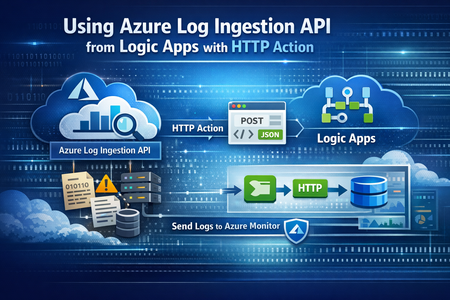
In Part1, we discussed how to use HTTP action to migrate from the deprecated Data Collector API to Log Ingestion API. However, since the deprecated Data Collector API was allowing message payload up to 30MB, some migration scenarios encountered issues; since the new Log Ingestion API has only 1MB payload limit. This applies to both HTTP action, and the preview (Log Ingestion connector) Azure Monitor service limits - Azure Monitor | Microsoft Learn When sending payload larger than 1MB, the HTTP action would fail with the error: In order to overcome this, we can chunk the array payload, before calling the Ingestion API. We need to chunk the array payload, so each produced chunk is around 800KB To do this, you can divide the size of your full payload, by the number of records it has, and this would give an average record size. Then divide 800,000 bytes with the average record size, and this will give you the chunk size. For example, if your payload size is 1,200,259 bytes, and the number of records is 2500, then the average record size is: 1,200,259 / 2,500 =~ 480 bytes To find the chunk size, we divide 800,000 bytes by 480 bytes 800,000 / 480 =~ 1666 records. So if we send around 1600 records, this should be less than 1MB. To chunk your array payload, we can use the chunk expression inside a compose action. You can use the expression below for chunking inside the compose action: After the compose action, add for-each action, and use the output of the compose action as an input: Inside the for-each, use the normal HTTP to send the logs, and in the body, choose the for-each current item265Views1like0CommentsAI Gateway tier of Azure API Management — August 2026 updates
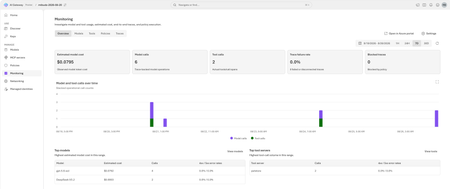
The August 2026 update for the AI Gateway tier (preview) of Azure API Management introduces new capabilities for observing AI workloads and governing model spend. Release highlights Richer OpenTelemetry observability: AI Gateway can now emit logs, distributed traces, token metrics, and estimated cost metrics through the OpenTelemetry Protocol. The built-in monitoring experience helps teams investigate model and MCP tool activity, policy execution, latency, errors, token consumption, and individual traces. Model cost monitoring and budget enforcement: Teams can review estimated model spend by API key and model, then use cost limit policies to set calendar-based budgets and block requests when configured limits are reached. The release also streamlines Microsoft Foundry model imports, refines provider onboarding, improves portal reliability and error guidance, expands Anthropic Messages compatibility, and adds an in-product What's new experience. For configuration guidance, important upgrade information, and the complete list of changes, read the full August 2026 release notes in the AI Gateway portal. Try the latest capabilities in the AI Gateway portal.902Views0likes0Comments
Introducing APIOps CLI
APIOps CLI helps teams extract, version, review, preview, and publish Azure API Management configuration through source-controlled DevOps workflows. Today, we're excited to announce APIOps CLI, a new command-line experience designed to help organizations manage Azure API Management (APIM) using modern configuration-as-code and GitOps practices. As APIs become increasingly central to digital transformation, organizations need a reliable way to manage API definitions, policies, products, diagnostics, and gateway configuration across multiple environments. APIOps CLI provides a streamlined, developer-friendly approach to extract, version, review, and publish API Management configuration through familiar DevOps workflows. Why APIOps CLI? Traditional API management processes often rely on manual configuration changes, environment-specific customizations, and limited visibility into what changed and why. As API estates grow, these approaches become difficult to scale, audit, and govern. APIOps CLI addresses these challenges by enabling teams to manage API Management configuration as source-controlled artifacts. Every change can be reviewed through pull requests, tracked through Git history, and promoted consistently across development, test, and production environments. The result is improved governance, greater reliability, better collaboration between API developers and platform operators, and a simpler path toward enterprise-scale API operations. What APIOps CLI Enables APIOps CLI provides capabilities that help organizations adopt a true APIOps model: Extract API Management configuration into local artifact files Store and version configuration in Git repositories Review changes through standard pull request workflows Publish approved artifacts back into API Management environments Promote configuration consistently across environments Scaffold GitHub Actions and Azure DevOps pipelines Support automated CI/CD deployment patterns Enable auditable, repeatable API configuration management By treating API Management configuration as code, organizations gain the same operational excellence practices that software development teams have relied on for years. A Modern GitOps Workflow for APIs The APIOps CLI workflow follows a simple yet powerful pattern: Extract configuration from an existing API Management instance. Store the generated artifacts in source control. Review and approve changes through pull requests. Run automated validation and deployment pipelines. Publish approved configuration back to target API Management environments. This approach creates a clear separation between authoring, review, approval, and deployment while maintaining a complete audit trail of API platform changes. For organizations already practicing GitOps, APIOps CLI integrates naturally into existing development workflows and governance processes. Built for Real-World Enterprise Scenarios APIOps CLI is designed to support customers operating at enterprise scale. Common use cases include: Migrating away from manual API Management administration Standardizing deployments across multiple environments Establishing controlled promotion paths from development to production Implementing governance and compliance requirements Supporting platform engineering and API platform teams Managing large inventories of APIs, products, policies, and configurations Enabling self-service API development with centralized governance Whether you're operating a single API Management instance or managing a large multi-team API platform, APIOps CLI provides a foundation for consistent and repeatable operations. Integrated with Your Existing Toolchain APIOps CLI works alongside the tools teams already use: GitHub Azure DevOps Azure Pipelines GitHub Actions Azure CLI Existing Git repositories and branching strategies The tool can generate CI/CD scaffolding to accelerate adoption, helping teams move from manual operations to automated deployments with less effort. Open Source and Community Driven APIOps CLI is available as an open-source project under the Azure GitHub organization. The repository includes source code, architecture guidance, command documentation, CI/CD examples, walkthroughs, troubleshooting guidance, and reference material. By making the project open and community-driven, we are enabling customers, partners, and contributors to participate directly in the evolution of Azure API Management DevOps practices. Getting Started Getting started is straightforward: Install the APIOps CLI package. Authenticate with Azure. Extract an existing API Management instance into local artifacts. Commit those artifacts to a Git repository. Review and approve changes through pull requests. Publish approved changes back to Azure API Management. We recommend beginning with a non-production environment to establish your workflow, validate governance processes, and familiarize teams with the configuration-as-code model. Looking Ahead APIs have become a strategic asset for every organization. As API estates continue to expand, successful teams will increasingly adopt automation, governance, and GitOps practices to maintain speed without sacrificing control. APIOps CLI is an important step in that journey. It provides a modern foundation for managing Azure API Management configurations with the same rigor, automation, and reliability that organizations expect from modern software delivery practices. We invite you to explore APIOps CLI, try it in your environment, share feedback, and join us in shaping the future of API operations on Azure. Resources APIOps CLI GitHub repository: https://github.com/Azure/apiops-cli/tree/main Microsoft Learn: Manage API Management configuration with APIOps CLIBuild governed asynchronous APIs with Azure API Management and Azure Service Bus
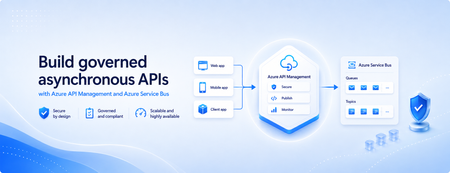
Many applications use Azure Service Bus to decouple services, handle traffic spikes, and process workloads asynchronously. However, securely exposing messaging capabilities to applications, partners, and internal teams can require custom middleware or messaging-specific client implementations. Today, we’re announcing the general availability of native Azure Service Bus integration in Azure API Management. With the send-service-bus-message policy, developers can publish messages directly from an Azure API Management gateway to an Azure Service Bus queue or topic. This provides a secure and governed HTTP interface for Service Bus workloads—without requiring teams to build and operate a separate adapter service. Connect APIs directly to Azure Service Bus Azure API Management can act as the governed entry point for applications that submit work to Azure Service Bus. A client sends a standard HTTP request to API Management. The gateway can authenticate and authorize the caller, validate or transform the request, and apply policies such as rate limits and quotas before publishing the message to a Service Bus queue or topic. Once the message is accepted, API Management can immediately respond to the caller while downstream services process the message asynchronously. Alternatively, message publication can be added to an existing API flow while the request continues to its primary backend. This integration brings together API governance in Azure API Management and reliable asynchronous messaging in Azure Service Bus—without adding another intermediary service. Greater control over Service Bus messages As part of general availability, we’re introducing additional controls for building production messaging workflows. 1. Control how messages are processed Developers can configure the following Service Bus message properties directly in the policy: Message IDs to correlate messages and support duplicate-detection or idempotent processing patterns. Session IDs to group related messages for ordered or stateful processing. Time-to-live to prevent messages from being processed after they are no longer relevant. These values can be generated dynamically using API Management policy expressions, allowing them to reflect request IDs, customer identifiers, transactions, or other application context. 2. Capture the send result The response-variable-name attribute captures information about the Service Bus send operation in an API Management context variable. Subsequent policies can use the result to add correlation information to an API response, emit telemetry, record an operational event, or apply conditional logic when a message cannot be sent. 3. Choose how failures affect the API Different messaging scenarios require different failure behavior. When publishing the message is the primary purpose of an API, a send failure can stop policy execution and invoke the API Management error-handling path. When publishing is secondary—such as sending an audit event or initiating optional downstream processing—the ignore-error option can allow the primary API request to continue. Information about the send operation remains available through the response variable for logging or subsequent policy logic. 4. Secure access with managed identity API Management authenticates to Azure Service Bus using a Microsoft Entra managed identity. Customers can use the system-assigned identity of the API Management service or specify a user-assigned managed identity. The selected identity is granted the Azure Service Bus Data Sender role for the appropriate namespace, queue, or topic. This removes the need to store Service Bus connection strings or shared access keys in API policies and makes it easier to apply least-privilege access using Azure role-based access control. Send a message with an API Management policy The following example sends the incoming request body to an orders queue. It assigns a message ID and expiration time, captures the result of the send operation, and treats successful publication as a required part of the API request. <send-service-bus-message queue-name="orders" namespace="contoso-messaging.servicebus.windows.net" message-id="@(context.RequestId.ToString())" time-to-live="00:10:00" response-variable-name="serviceBusResult" ignore-error="false"> <payload> @(context.Request.Body.As<string>(preserveContent: true)) </payload> </send-service-bus-message> A session ID can also be added when related messages need to be grouped for ordered or stateful processing. For a fully asynchronous API, the policy can be followed by return-response so that API Management acknowledges the request immediately after sending the message. For an existing API, the request can continue to its configured backend after the message is published. Common integration scenarios Create asynchronous APIs: Accept an order, document, or processing request through an HTTP API, publish it to a queue, and return immediately while downstream services complete the work. Govern partner integrations: Provide partners with a managed API contract instead of exposing the underlying Service Bus namespace. API Management can authenticate callers, validate requests, and apply quotas before publishing messages. Publish business events: Publish events to a Service Bus topic so multiple subscriptions and downstream services can process them independently. Handle bursts of incoming traffic: Use Service Bus to buffer messages when incoming API traffic temporarily exceeds the rate at which downstream services can process requests. Add events to existing API operations: Publish audit, notification, analytics, or workflow events while allowing the primary API request to continue to its configured backend. Preserve workflow affinity: Use Service Bus sessions to group related messages for ordered or stateful processing based on a customer, transaction, order, or workflow identifier. Get started To send messages from Azure API Management to Azure Service Bus: Create or select an Azure Service Bus queue or topic. Enable a system-assigned or user-assigned managed identity on the API Management service. Assign the identity the Azure Service Bus Data Sender role. Add the send-service-bus-message policy to an API operation. Configure the message payload, processing properties, output variable, and failure behavior. With native Azure Service Bus integration, Azure API Management provides a secure and governed way to connect HTTP APIs with asynchronous messaging workloads—without requiring additional middleware. Learn more Send Service Bus message policy reference Send messages to Azure Service Bus from Azure API Management Azure API Management June 2026 release notes Azure Service Bus documentation945Views0likes0CommentsZonal redundancy in API management Standard v2
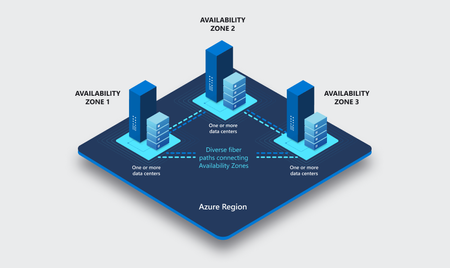
APIs are the backbone of modern applications, powering everything from mobile experiences and microservices to AI-driven applications and business-critical integrations. As customers continue to modernize their platforms on Azure, they increasingly expect their API infrastructure to remain available even in the face of datacenter-level disruptions. With zone redundancy in Standard v2, Azure API Management now enables customers to increase resilience against Availability Zone failures while continuing to benefit from the simplicity, performance, and cost efficiency of the v2 platform. Why Zone Redundancy Matters Azure Availability Zones are physically separate locations within an Azure region, each with independent power, cooling, and networking infrastructure. By distributing API Management resources across multiple zones, organizations can reduce the impact of a single datacenter failure and improve service continuity for their APIs. Until now, customers who required built-in zone-level resiliency often needed to evaluate higher-end deployment options. With this enhancement, Standard v2 customers can now deploy API gateways across Availability Zones and benefit from improved reliability while maintaining the streamlined operational model of the v2 platform. What’s New Zone Redundancy for Standard v2 extends the platform's resiliency by distributing service capacity across multiple Availability Zones within a supported Azure region. Key benefits include: Higher Availability: API traffic continues to flow even if a single Availability Zone experiences an outage. Built-in Resiliency: Redundancy is provided at the platform layer, reducing the need for customers to design and manage complex intra-region failover solutions. Production-Ready Reliability: Customers can confidently run critical API workloads on Standard v2 with stronger availability guarantees. Operational Simplicity: The service automatically manages capacity distribution, health monitoring, and recovery behavior across zones. Cost-Effective Resilience: Customers gain zone-level protection without requiring an enterprise-tier deployment model. Built on the Modern v2 Platform The v2 platform was designed from the ground up to provide a faster, more reliable, and more scalable API Management experience. Standard v2 already delivers capabilities such as rapid deployment, simplified networking, workspace support, and flexible scaling. Zone Redundancy further strengthens the platform by expanding its reliability story for production workloads. This announcement builds on our broader investment in making Azure API Management more accessible to a wider range of organizations, from digital-native startups to large enterprises modernizing their application estates. Ideal Scenarios Zone Redundancy in Standard v2 is particularly valuable for customers who: Run business-critical APIs that must remain available during datacenter incidents. Consolidate multiple application workloads behind a single API gateway. Expose APIs consumed by mobile, partner, and customer-facing applications. Support AI applications and agent-based architectures that depend on highly available API endpoints. For organizations adopting modern cloud and AI native architectures, this capability helps ensure that API infrastructure remains aligned with broader application resiliency strategies. A Foundation for Reliable AI and API Platforms As AI-powered applications continue to proliferate, APIs increasingly become the critical connection layer between models, agents, business systems, and data platforms. Downtime at the API layer can have a direct impact on application availability, customer experience, and business operations. By bringing zone redundancy to Standard v2, we are making it easier for organizations to build highly resilient API platforms that can serve as the foundation for next-generation AI and digital transformation initiatives. Getting Started Zone Redundancy for Standard v2 can be enabled in supported Azure regions, allowing customers to deploy API Management with built-in protection against Availability Zone failures. We recommend reviewing your application's overall resiliency architecture, including backend redundancy, traffic management, and disaster recovery requirements, to maximize the benefits of zone-resilient API infrastructure. Enable Zone Redundancy in the Azure Portal Getting started with Zone Redundancy in Azure API Management Standard v2 is straightforward and can be configured during service creation. Create a New Standard v2 Instance with Zone Redundancy Sign in to the Azure portal. Select Create a Resource and search for Azure API Management. Choose Standard v2 as the service tier. Select a region that supports Availability Zones. In the Availability Zones section, enable Zone Redundancy. Review and create the service. After deployment, Azure API Management automatically distributes service capacity across multiple Availability Zones within the selected region, helping maintain API availability during a zone-level outage. Looking Ahead This release represents another step in our ongoing investment in the Azure API Management v2 platform. We remain committed to delivering the reliability, scalability, security, and developer experiences that organizations expect from a modern API management service. We are excited to see what our customers build with a more resilient Standard v2 platform and look forward to your feedback as you continue modernizing and scaling your API ecosystems on Azure. Learn more by visiting the Azure API Management documentation and exploring the latest reliability guidance for API Management deployments.Power Azure SRE Agent with the tools it needs
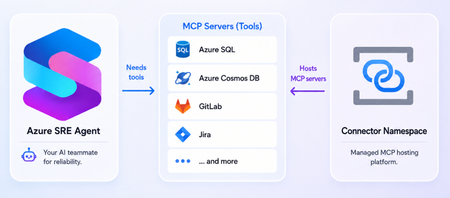
What is the Azure SRE Agent Azure SRE Agent is an AI-powered service designed to reduce operational toil. Teams can use it to: Investigate incidents and identify probable causes. Automate health checks, compliance reviews, and other scheduled work. Answer questions such as “What changed before this service became degraded?” Propose remediations while allowing teams to require human approval. An effective investigation rarely depends on one source of information. An alert might originate in Azure Monitor, while deployment history lives in source control, telemetry stored in another observability platform, and incident records in a service-management tool. Without access to those systems, you must retrieve and transfer the information manually, adding context switching and slowing diagnosis. MCP servers can give SRE Agent tools to query telemetry, inspect deployments, retrieve database records, look up incidents, etc. SRE Agent provides native connection for some servers such as GitHub, Datadog, New Relic, and Splunk. Connector Namespace makes it easier to host additional remote MCP servers you want the agent to use. Removing remote MCP server hosting burden Connecting SRE Agent to an existing remote endpoint is straightforward. Hosting that endpoint yourself is not. You must deploy the server, provide secure HTTPS infrastructure, configure authentication, manage downstream credentials, scale the runtime, monitor its health, recover failed instances, and maintain it over time. These responsibilities are necessary, but the value is in the server’s tools not in operating another service. Azure Connector Namespace is a fully managed service for hosting connectors and MCP servers. You select the server you need and let the namespace handles the operational and maintenance tasks. The offering is currently in preview. See documentation for supported regions and other preview considerations. You’ll find a wide variety of servers in the Connector Namespace’s catalog. Some examples of useful servers for the SRE agent include: Database servers such as Azure SQL and Azure Cosmos DB Source control and CI/CD servers like GitLab Incident management servers like Jira and PagerDuty A note on what's currently in development: We're building “bring-your-own” server support, allowing you to supply your own server image while the namespace handles hosting and operations. Please keep an eye out for the blog post about this! Deploy server and connect it to SRE Agent The following example deploys the SQL MCP server in Connector Namespace and connects it to Azure SRE Agent. 1. Server deployment Prerequisite: Install the Azure Developer CLI (azd). Clone the sql-server-samples repo: git clone https://github.com/microsoft/sql-server-samples.git Navigate to the azure-sql-mcp sample cd sql-server-samples/samples/applications/azure-sql-mcp From the azure-sql-mcp folder, run the following to log into your Azure subscription and then deploy the server and related resources: azd auth login azd up The last command will prompt for the following before deployment: Prompt Suggested value Explanation Enter a unique environment name mcp-dev This name added as prefix to Azure resources created Select an Azure Subscription Pick your subscription Resources will deploy under this subscription Enter value for connectorNamespaceIdentityType UserAssigned User assigned identity is recommended as it’s not tied to resource lifecycle Enter value for deployerLoginName Enter your Azure subscription login email To give your identity access to the MCP server Enter value for the location Pick a supported region Supported regions: West Central US, Central US, East Asia, North Europe Once deployment finishes, copy the MCP endpoint for use later. It looks similar to: https://<app-name>.<region>.logic.azure.com/api/connectorGateways/123abc456defg7890/mcpServerConfigs/sql-mcp/mcp (Optional) Test deployed server in Visual Studio Code GitHub Copilot: Open command palette > search MCP: Add server > pick HTTP > enter MCP endpoint and server name > pick Local Workspace. Inside .vscode/mcp.json, click Start above server name, then allow authentication with Microsoft in the popup and log into Azure subscription account. 2. Configure MCP connector in SRE Agent Connector Namespace does not create the connection in SRE Agent. Add the server endpoint through SRE Agent’s existing MCP connection experience. Open the Azure SRE Agent portal On the left menu, go to Builder > Connectors, and select + Add connector Under Choose a connector, select the MCP tab, choose MCP server, and select Next Configure the connector: Field Value Name A descriptive name for the server Connection type Streamable-HTTP URI The hosted server endpoint from Connector Namespace Authentication method Managed identity (Selecting managed identity automatically creates an identity for the connector.) Azure AD token scope https://apihub.azure.com/.default Select Next. Before testing the connection, grant the managed identity access to the MCP server. 3. Authorize the managed identity Open the Azure portal, search for the managed identity by name. In the identity’s Overview page, click JSON View (top right) and copy the tenantId and principalId. The principal ID is also called the object ID. Open Connector Namespace portal and search for the deployed namespace. Inside the namespace, navigate to the MCP Connectors tab on the left, then select the SQL MCP server. Inside the MCP server, click Access Policies, then select Add Access Policy. Enter the tenant ID and principal ID, then select Create. 4. Test and finish the connection Return to Azure SRE Agent portal and select Test connection. After the test succeeds, select the server tools the agent should use. Select Add connector. Establishing the connection can take a minute. Select Refresh at the top of the connectors page until its status changes to Connected. The agent can now use the selected server tools in chat threads. The azd deployment from previous created and seeded a SQL database with sample blog post data, so you can ask something like: What are the top blog posts? For more details, see MCP connectors and tools in Azure SRE Agent. Focus on the server, not its infrastructure MCP servers can give Azure SRE Agent access to the additional systems it needs to investigate incidents and perform operational work effectively. However, operating every remote server yourself introduces infrastructure, security, and maintenance responsibilities that distract from that goal. Connector Namespace removes much of that friction. Your primary question becomes “Which MCP server do I want to host?” rather than “How will I deploy, secure, scale, monitor, and maintain it?” Once deployed, the hosted endpoint can be added to Azure SRE Agent through its existing MCP connection experience. That gives teams a straightforward path to extending the agent with more operational tools, without turning MCP server hosting into another platform they must build and run. Try Connector Namespace with Azure SRE Agent and share your feedback! Resources Azure SRE Agent Overview Set up an MCP connector in Azure SRE Agent Connector Namespace Overview Hosted MCP servers in Connector Namespace713Views0likes0CommentsIntroducing dependency telemetry in Application Insights for Azure API Management policies
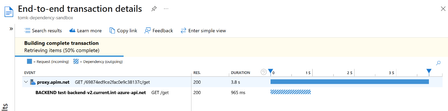
Running A(P)I platforms at-scale is not a walk in the park – As traffic flows through the system, it needs handle the load and provide insights on where the inefficiencies are. Finding the needle in a haystack Azure API Management provides a broad set of observability capabilities across its managed and self-hosted gateway offerings, although availability varies by gateway type: Azure Application Insights integration leveraging requests, traces from policies, custom metrics from policies & dependency tracking to integrate with your apps APM Request tracing with API Inspector Built-in analytics for (business) reporting (docs) Azure Monitor logs & metrics for our managed gateway or OpenTelemetry metrics for our self-hosted gateway Logging to Azure Event Hubs in your desired format through policies These capabilities are valuable, but the teams operating API platforms do not always define the APIs or author their policies. As a result, operators may lack visibility into the downstream work performed during each request: A single inbound request does not always map to a single backend request; policies can cause it to fan out into multiple downstream calls. Rate limiting happens, so calls downstream can retry and infuse latency All of these can infuse latency to the end-to-end experience for their customers and can only be diagnosed with detailed insights – They are looking for the needle in a haystack. In recent months, support cases have shown that customers can struggle to identify the source of latency when relying on Application Insights telemetry alone. Here are some examples showing high incoming latency but it’s difficult to understand the cause. Example #1: Example #2: Example #3: Introducing external dependency calls in Application Insights for policies We want to empower our customers by shifting our internal insights left to help customers be more efficient/self-diagnose API platforms at scale. I’m excited to share the first release of external dependency telemetry in Application Insights for Azure API Management policies. It covers the following policies: authentication-managed-identity authentication-token azure-openai-semantic-cache-lookup cosmosdb-request-handler forward-request get-authorization-context http-data-source invoke-dapr-binding llm-content-safety llm-semantic-cache-lookup send-request send-one-way-request send-service-bus-message sql-data-source validate-jwt This telemetry helps customers see where request time is spent and can reduce the need to open a support ticket. The examples below show how it explains the scenarios introduced earlier: Example #1 was retrying calls to the backend with a wait in between: Example #2 performed JWT validation, which required retrieving OpenID Connect metadata. It then made an initial slow backend call before the backend call visible to the customer. Example #3 combined three downstream operations in one request: validating a JWT, sending a message to Azure Service Bus, and then forwarding the request to the backend. What’s next? Improving your application landscape telemetry in Application Insights is just the beginning! We’re continuing to expand the diagnostic information available to customers in two areas: Enhance Azure Monitor diagnostic logs with additional per-request details and outbound dependency information. Add dependency telemetry for more policies and scenarios. Together, these improvements will give platform builders deeper insight into their A(P)I platforms and make that information easier to integrate with existing monitoring solutions. We’re excited to deliver this richer Application Insights telemetry, get started by reading our Azure Application Insights integration guidance. Let us know in the comments how you use it and which scenarios you would like us to cover next. Thanks for reading, TomAI Gateway tier of API Management now in public preview
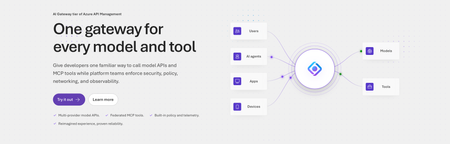
Today, we are introducing the AI Gateway tier of Azure API Management, now in public preview. It gives platform teams a purpose-built experience built specifically for AI workloads - publishing and governing models and MCP servers. Controls are configured through policy cards rather than XML and expressions, and the portal experience and control plane are structured around models, MCP servers, and tools rather than APIs. (For brevity, we refer to the AI Gateway tier as AI Gateway throughout the rest of this article.) AI Gateway is built on Azure API Management, bringing proven operational capabilities to AI workloads. The resource runs in your subscription, uses your Entra tenant, and sends telemetry to destinations you control. The operating model will be familiar to existing API Management customers, but the interface is built around AI workloads. The AI Gateway tier is intended for teams that want this focused experience; other API Management tiers remain the right choice when organizations also need general-purpose API management or capabilities not included in the AI Gateway experience. A practical model for platform teams The AI Gateway gives platform teams a shared place to manage models, MCP servers, policies, and observability destinations, with access controlled through Azure RBAC. For example, a central platform group can connect a set of approved models and tools and publish them for application teams. The application teams can test those assets in the test console and build against them without routing every change through the central group. The platform group still owns the shared guardrails and can see how the assets are being used. After an asset is published, developers can create a named runtime key and begin calling the gateway immediately. Bring the models and tools you already use Most organizations don't standardize on a single model provider. Different models are selected based on quality, latency, cost, geography, or specialized capabilities. The preview supports models from Microsoft Foundry including OpenAI, Anthropic, Mistral, and other Foundry hosted models, as well as models hosted in AWS Bedrock, Google Vertex AI, OpenAI, and Anthropic. A guided wizard simplifies importing models from Microsoft Foundry. Other providers can be added by configuring a connection, with backend authentication configured as part of that connection. All published models are available under the same stable endpoint. Applications continue to use supported API formats such as OpenAI Chat Completions and Responses or Anthropic Messages directly or via SDKs. The AI Gateway extends governance beyond models to the MCP servers and tools agents use to interact with enterprise systems. You can expose an existing MCP server over SSE or Streamable HTTP, turn all or selected operations from a REST API into an MCP server by uploading its OpenAPI specification, or use more than 1,400 connector-backed tools from the Power Platform and Logic Apps library. You can also federate multiple MCP servers behind a single server, so an agent connects once and sees the tools across those servers. Backend authentication supports an API key, OAuth client credentials, managed identity, or mTLS. Governance that's built in Organizations need consistent governance across models and MCP servers without requiring every application team to implement those capabilities independently. The AI Gateway portal presents governance policies through an intuitive card-based experience rather than requiring policy XML. The same policies are expressed as JSON properties, making them easy to manage as infrastructure as code and to audit and enforce across a fleet with Azure Policy. In the public preview, those cards cover request and token rate limits, token quotas, Azure AI Content Safety, and fallback to a secondary model. Policies are applied per asset, making it clear which controls protect each model or MCP server. OpenTelemetry-based token metrics The AI Gateway emits token-usage metrics through OpenTelemetry, with attributes following GenAI and cloud semantic conventions. Metrics can be sent to Application Insights, Datadog, Splunk, Grafana Cloud, or another OTLP endpoint. The portal provides a monitoring view over Application Insights data. Better together: Microsoft Foundry and AI Gateway With AI Gateway, teams can extend the same governance controls, for example token rate limits and quotas, across models hosted in Microsoft Foundry and models hosted elsewhere. Foundry and non-Foundry models are published through gateway-managed endpoints, giving applications and agents a consistent way to access governed models regardless of where they are hosted. Foundry-hosted agents can consume curated sets of tools from Foundry toolboxes, with access to the underlying MCP servers and APIs governed through AI Gateway. Together, Microsoft Foundry and AI Gateway cover the enterprise application lifecycle: Foundry for building and running AI applications, and AI Gateway for publishing, governing, and observing models, tools, and MCP servers across your AI estate. The new AI Gateway tier will soon be available through the gateway experience in Microsoft Foundry portal. We are working toward a seamless, integrated AI Gateway experience within Foundry portal and will share more about that work separately. Available today in public preview The AI Gateway tier is available today at no cost in public preview in East US 2 and Sweden Central. Pricing will be shared separately. To provision a resource, add a model or MCP server, and make a first call click this to go to the AI Gateway tier portal and try it. If you prefer to start from code, use a sample to deploy all the required resources for a Foundry-hosted agent configured to access its model and tools through AI Gateway. We look forward to your feedback as we continue to rapidly evolve AI Gateway.8.8KViews5likes10CommentsProductize, observe, version, and automate MCP servers in Azure API Management
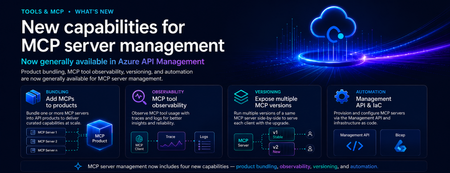
Introduction As organizations move from AI-assisted applications to agentic workflows, MCP servers are becoming a critical integration layer between agents, tools, APIs, data sources, and enterprise systems. Azure API Management already helps teams bring MCP servers under enterprise governance. But as MCP adoption scales, platform teams need more than basic exposure. They need a way to package MCP servers for the right consumers, understand tool usage in detail, manage changes safely, and automate configuration across environments. These are familiar API management challenges — and the same patterns that organizations already use for APIs can now be applied more deeply to MCP servers. We are excited to announce new generally available capabilities for MCP server management in Azure API Management: Add MCP servers to products to package and govern MCP capabilities for specific consumers MCP tool observability to trace tool usage, logs, errors, and payload context MCP server versioning to run multiple versions side by side and manage change safely Management API and Bicep support to automate MCP server configuration as part of CI/CD workflows Together, these capabilities extend MCP server management in Azure API Management and help make MCP servers first-class managed resources — productized, observable, versionable, and automatable. Why MCP server management matters MCP gives agents a standard way to connect with tools and external capabilities. That standardization is powerful, but it also introduces a new operational surface for enterprises. Without a management layer, teams can quickly run into questions such as: Which MCP servers are approved for use? Who can access each server? How do we expose MCP servers to different developer or agent audiences? How do we monitor tool calls, latency, errors, and cost? How do we run preview and production versions side by side? How do we automate MCP server configuration across environments? These are not just developer experience questions. They are enterprise governance questions. With Azure API Management, MCP servers can now be managed using the same core patterns organizations already use for APIs: products, subscriptions, policies, observability, versioning, and automation. What’s new 1. Add MCP servers to products Azure API Management products are a proven way to package APIs for consumption. With this release, you can now add one or more MCP servers to APIM products as well. This makes it easier to expose MCP capabilities to specific consumers, teams, applications, or agent experiences using familiar product-based governance. For example, a platform team can create a product for internal agents that includes approved MCP servers such as: Customer profile lookup Order status retrieval Knowledge base search Ticket creation Workflow automation tools By adding MCP servers to products, teams can use familiar controls such as subscriptions, quotas, approval workflows, and access management to govern how MCP capabilities are consumed. Why it matters: MCP servers are no longer isolated endpoints. They can be bundled, governed, and delivered as secure, consumable products. 2. MCP tool observability As agents use MCP servers to discover and invoke tools, teams need more than basic traffic visibility. They need end-to-end trace context for each agent-to-tool interaction. With MCP observability in Azure API Management, teams can inspect key MCP-specific details, including: Operation context: whether the request was a tools/list or tools/call operation Session context: the MCP session ID through gen_ai.conversation.id Client context: MCP client name and version Protocol context: MCP protocol name and version Server context: MCP server name and version Access context: authentication type and API type Tool context: tool name and tool type for tool invocation traces Error context: error type and error message when a call fails Payload context: tool invocation arguments and results when payload logging is enabled This is especially important for agentic workflows, where a single user request may trigger multiple tool calls across different systems. With APIM, MCP traffic can be traced, inspected, and monitored using the same operational practices teams already use across their API estate. Why it matters: MCP servers are not just accessible through APIM — they are observable. Platform teams can trace tool calls, inspect errors, and understand MCP usage with the same operational discipline they expect from managed APIs. 3. Expose multiple MCP versions Enterprise teams need safe ways to evolve MCP servers over time. With MCP server versioning in Azure API Management, you can expose multiple versions of the same MCP server side by side. This allows teams to run a stable GA version while introducing a preview or next version for early adopters. For example: v1 can serve the majority of production traffic. v2 can be exposed to a subset of consumers for testing. Teams can monitor adoption, errors, latency, and behavior. Once the new version is validated, v2 can be promoted with confidence. This pattern is especially useful when MCP tools evolve, schemas change, new capabilities are added, or teams want to validate agent behavior before rolling changes out broadly. Why it matters: MCP servers can now follow a safer lifecycle model: preview, validate, route, promote, and retire. 4. Management API and Infrastructure as Code MCP server management also needs to work at enterprise scale. With Management API and Infrastructure as Code support, teams can provision and configure MCP servers programmatically through Azure API Management APIs and automation pipelines. This allows platform teams to define MCP server resources as part of repeatable deployment workflows using tools such as Bicep, Terraform, ARM, REST APIs, and CI/CD pipelines. Teams can automate configuration for: MCP server endpoints Runtime and transport settings Authentication configuration Metadata and ownership Versioning Product association Policies Environment promotion This is critical for organizations that need consistent MCP governance across development, test, staging, and production environments. Why it matters: MCP server management can now be automated, reviewed, deployed, and governed like the rest of your API platform. How these capabilities work together Individually, each capability solves an important operational need. Together, they create a complete management model for MCP servers in Azure API Management. A platform team can: Register or expose MCP servers through Azure API Management. Package them into products for specific consumers. Apply access controls, subscriptions, quotas, and policies. Observe tool-level usage, latency, errors, traces, and cost. Run multiple versions side by side. Promote changes safely. Automate deployment through APIs and Infrastructure as Code. This brings the full API management playbook to MCP. Instead of treating MCP servers as unmanaged agent extensions, organizations can operate them as governed enterprise resources. Example scenario Imagine a company building internal copilots for customer support, sales, and operations. Each copilot needs access to different tools: Customer lookup Order history Case management Knowledge search Refund workflows Escalation workflows With MCP and Azure API Management, the platform team can expose these capabilities as MCP servers and organize them into products. The customer support copilot can subscribe to the support product. The sales copilot can subscribe to the sales product. Early adopters can be routed to a preview version of a tool. Operations teams can monitor usage, errors, latency, traces, and cost. Platform teams can automate the entire setup across environments. The result is a more governed and scalable way to bring MCP-based tools into enterprise agent workflows. Getting started To get started with MCP server management in Azure API Management: Create or identify an MCP server you want to expose through Azure API Management. Add the MCP server as a managed resource in APIM. Add the MCP server to an APIM product. Configure access, subscriptions, quotas, and approval workflows. Enable observability to monitor tool-level usage and traces. Use versioning to manage preview and production versions. Use the Management API or Infrastructure as Code to automate configuration. Conclusion MCP is quickly becoming an important standard for connecting agents to tools and enterprise capabilities. But for MCP to succeed in production, organizations need more than connectivity. They need governance, lifecycle management, observability, and automation. With these new MCP server management capabilities in Azure API Management, platform teams can manage MCP servers using the same trusted patterns they already use for APIs. MCP servers are now first-class APIM resources — productized, observable, versionable, and automatable. We are excited to see how customers use these capabilities to build the next generation of governed, enterprise-ready agentic applications.