azure
74 TopicsScaling Write Throughput in Azure Database for MySQL Using Application-Level Sharding
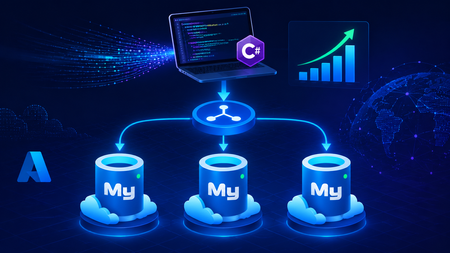
This blog post walks through scaling write throughput in Azure Database for MySQL using application level sharding. It starts with the why behind sharding and then builds a complete C# implementation that spreads writes across three Azure Database for MySQL Flexible Servers. Why Shard in the First Place? This post focuses specifically on scaling write throughput. A well-tuned single primary node can take you remarkably far, and techniques such as indexing strategies, write batching, redo log optimization, and vertical compute scaling each deliver real, lasting value. For many workloads, these optimizations are all you will ever need. That said, as write volume continues to grow, a single primary eventually approaches its practical capacity, and at that point the most durable way to keep scaling is to distribute the write workload across multiple primary instances. This architecture is what we call sharding. When you reach this inflection point, there are two primary patterns for managing multiple write nodes: Proxy or Middleware Layer Sharding: A sharding aware proxy sits between the application and a pool of Azure Database for MySQL instances, routing queries based on a shard key. While this abstracts the underlying topology from the application layer, it introduces an additional, complex component to operate, secure, scale, and patch. Application Layer Sharding: The application itself resolves the destination shard key and determines which of the N Azure Database for MySQL instances should receive a write before ever opening a database connection. Each backend target remains a completely standard, independent Azure Database for MySQL instance. This post explores the second approach. The core appeal of application layer sharding is architectural simplicity: it introduces zero infrastructure overhead and eliminates an extra network hop. Every shard behaves exactly like a standalone instance, meaning your existing backup, restore, monitoring pipelines, and the Azure portal function seamlessly without modification. The explicit tradeoff is that you forgo cross shard joins and distributed transactions in exchange for absolute predictability and control over data access patterns. The Plan We will build a small order management service that distributes its data across three Azure Database for MySQL instances that already exist. The application, written in C# on .NET 8, owns the partitioning logic. The premise: the three servers are already provisioned, the firewalls are configured, the network paths are established, and each server has its own administrative credentials. We are not provisioning infrastructure in this post. we are writing the application code that consumes it. mysql-shard-0.mysql.database.azure.com user: shard0_admin pwd: <secret-0> mysql-shard-1.mysql.database.azure.com user: shard1_admin pwd: <secret-1> mysql-shard-2.mysql.database.azure.com user: shard2_admin pwd: <secret-2> Each server hosts an identical appdb database with the same schema: CREATE TABLE users ( user_id BIGINT NOT NULL PRIMARY KEY, email VARCHAR(255) NOT NULL, created_at DATETIME NOT NULL DEFAULT CURRENT_TIMESTAMP, UNIQUE KEY uq_email (email) ); CREATE TABLE orders ( order_id BIGINT NOT NULL PRIMARY KEY, user_id BIGINT NOT NULL, amount_cents INT NOT NULL, created_at DATETIME NOT NULL DEFAULT CURRENT_TIMESTAMP, KEY ix_user (user_id) ); Two design decisions in this schema warrant explanation: No AUTO_INCREMENT for user_id or order_id. Two shards would otherwise generate the same value 42 independently. Instead, we assign identifiers in the application, using a scheme such as Snowflake, ULID, or UUIDv7. orders carries user_id, and we route by it. This is the single most important rule of sharding: choose a shard key that keeps related data colocated, so that the common queries remain on a single shard. A note on UNIQUE KEY uq_email. A unique index enforces uniqueness only within a single physical shard. Because we route by user_id, two users with different IDs and the same email may land on different shards, and both inserts will succeed. If you require globally unique emails, two options exist: (a) maintain a separate email → user_id lookup table on a single "directory" server and write to it first within an idempotent flow, or (b) shard the users table by a hash of email instead. We retain user_id routing throughout this post because it is the correct choice for orders, and we treat per shard email uniqueness as a best effort guard rather than a hard global invariant. How the Partitioning Works The naive approach to sharding is shard = hash(key) % N. This works until you need to add a fourth server, at which point roughly 75% of your data must move. In any system of meaningful size, that is prohibitively expensive. The established solution is virtual buckets. You hash the key into a large, fixed bucket space (here, 1024), then map buckets to physical shards. When you add capacity, you relocate only buckets; you never rehash the entire dataset. In production, the bucket_to_shard_map typically resides in a system such as Azure App Configuration or etcd, so that you can rebalance without redeploying. For this post, we keep it as an in-memory array seeded at startup, which is straightforward to replace later. The Project ShardingDemo/ ├── ShardingDemo.csproj ├── appsettings.json ├── Models.cs ├── ShardRouter.cs ├── UserRepository.cs └── Program.cs ShardingDemo.csproj <Project Sdk="Microsoft.NET.Sdk"> <PropertyGroup> <OutputType>Exe</OutputType> <TargetFramework>net8.0</TargetFramework> <Nullable>enable</Nullable> <ImplicitUsings>enable</ImplicitUsings> </PropertyGroup> <ItemGroup> <PackageReference Include="MySqlConnector" Version="2.6.0" /> <PackageReference Include="Microsoft.Extensions.Hosting" Version="8.0.0" /> <PackageReference Include="Microsoft.Extensions.Configuration.Binder" Version="8.0.0" /> </ItemGroup> <ItemGroup> <Content Include="appsettings.json" CopyToOutputDirectory="PreserveNewest" /> </ItemGroup> </Project> appsettings.json Shards is an ordered list, and a shard's position in the array is its logical ID. { "Shards": [ { "Host": "mysql-shard-0.mysql.database.azure.com", "Database": "appdb", "User": "shard0_admin", "Password": "REPLACE_ME_0" }, { "Host": "mysql-shard-1.mysql.database.azure.com", "Database": "appdb", "User": "shard1_admin", "Password": "REPLACE_ME_1" }, { "Host": "mysql-shard-2.mysql.database.azure.com", "Database": "appdb", "User": "shard2_admin", "Password": "REPLACE_ME_2" } ] } Models.cs namespace ShardingDemo; public sealed record User(long UserId, string Email, DateTime CreatedAt); public sealed record Order(long OrderId, long UserId, int AmountCents, DateTime CreatedAt); public sealed class ShardConfig { public required string Host { get; init; } public required string Database { get; init; } public required string User { get; init; } public required string Password { get; init; } } ShardRouter.cs using System.Security.Cryptography; using System.Text; using MySqlConnector; namespace ShardingDemo; public sealed class Shard : IAsyncDisposable { public int Id { get; } public MySqlDataSource DataSource { get; } public Shard(int id, ShardConfig cfg) { Id = id; var csb = new MySqlConnectionStringBuilder { Server = cfg.Host, Port = 3306, Database = cfg.Database, UserID = cfg.User, Password = cfg.Password, SslMode = MySqlSslMode.Required, Pooling = true, MinimumPoolSize = 2, MaximumPoolSize = 100, ConnectionTimeout = 10, DefaultCommandTimeout = 30, }; DataSource = new MySqlDataSourceBuilder(csb.ConnectionString).Build(); } public ValueTask DisposeAsync() => DataSource.DisposeAsync(); } public sealed class ShardRouter : IAsyncDisposable { private const int VirtualBuckets = 1024; private readonly IReadOnlyList<Shard> _shards; private readonly int[] _bucketToShardId; public ShardRouter(IEnumerable<ShardConfig> configs) { _shards = configs.Select((c, i) => new Shard(i, c)).ToList(); // Even distribution. Replace with a map loaded from your control plane for live rebalancing. _bucketToShardId = new int[VirtualBuckets]; for (int i = 0; i < VirtualBuckets; i++) _bucketToShardId[i] = i % _shards.Count; } public IReadOnlyList<Shard> AllShards => _shards; private static int BucketFor(long shardKey) { byte[] hash = MD5.HashData(Encoding.ASCII.GetBytes(shardKey.ToString())); // Use the first byte pair as an unsigned value, then map it into the bucket space. int value = (hash[0] << 8) | hash[1]; return value % VirtualBuckets; } public Shard ShardForKey(long shardKey) { int bucket = BucketFor(shardKey); return _shards[_bucketToShardId[bucket]]; } public async ValueTask DisposeAsync() { foreach (var s in _shards) await s.DisposeAsync(); } } UserRepository.cs Observe that every per user method calls ShardForKey(userId), even when inserting an order. This is the colocation rule at work. An order and its owning user always reside on the same shard, so queries for a single user only ever reach one shard. Only the cross-shard aggregate (TotalRevenueCentsAsync) must fan out. using MySqlConnector; namespace ShardingDemo; public sealed class UserRepository { private readonly ShardRouter _router; public UserRepository(ShardRouter router) { _router = router; } public async Task CreateUserAsync(long userId, string email, CancellationToken ct = default) { var shard = _router.ShardForKey(userId); await using var conn = await shard.DataSource.OpenConnectionAsync(ct); await using var cmd = conn.CreateCommand(); cmd.CommandText = "INSERT INTO users (user_id, email) VALUES (@id, Email)"; cmd.Parameters.AddWithValue("@id", userId); cmd.Parameters.AddWithValue("@email", email); await cmd.ExecuteNonQueryAsync(ct); } public async Task<User?> GetUserAsync(long userId, CancellationToken ct = default) { var shard = _router.ShardForKey(userId); await using var conn = await shard.DataSource.OpenConnectionAsync(ct); await using var cmd = conn.CreateCommand(); cmd.CommandText = "SELECT user_id, email, created_at FROM users WHERE user_id = ID"; cmd.Parameters.AddWithValue("@id", userId); await using var reader = await cmd.ExecuteReaderAsync(ct); if (!await reader.ReadAsync(ct)) return null; return new User(reader.GetInt64(0), reader.GetString(1), reader.GetDateTime(2)); } public async Task AddOrderAsync(long orderId, long userId, int amountCents, CancellationToken ct = default) { // Routed by user_id, so orders colocate with their owning user. var shard = _router.ShardForKey(userId); await using var conn = await shard.DataSource.OpenConnectionAsync(ct); await using var cmd = conn.CreateCommand(); cmd.CommandText = """ INSERT INTO orders (order_id, user_id, amount_cents) VALUES (@oid, @uid, amt) """; cmd.Parameters.AddWithValue("@oid", orderId); cmd.Parameters.AddWithValue("@uid", userId); cmd.Parameters.AddWithValue("@amt", amountCents); await cmd.ExecuteNonQueryAsync(ct); } public async Task<IReadOnlyList<Order>> GetOrdersForUserAsync(long userId, CancellationToken ct = default) { var shard = _router.ShardForKey(userId); await using var conn = await shard.DataSource.OpenConnectionAsync(ct); await using var cmd = conn.CreateCommand(); cmd.CommandText = """ SELECT order_id, user_id, amount_cents, created_at FROM orders WHERE user_id = @uid """; cmd.Parameters.AddWithValue("@uid", userId); var list = new List<Order>(); await using var reader = await cmd.ExecuteReaderAsync(ct); while (await reader.ReadAsync(ct)) { list.Add(new Order( reader.GetInt64(0), reader.GetInt64(1), reader.GetInt32(2), reader.GetDateTime(3))); } return list; } /// <summary>Cross shard fanout.</summary> public async Task<long> TotalRevenueCentsAsync(CancellationToken ct = default) { var tasks = _router.AllShards.Select(async shard => { await using var conn = await shard.DataSource.OpenConnectionAsync(ct); await using var cmd = conn.CreateCommand(); cmd.CommandText = "SELECT COALESCE(SUM(amount_cents), 0) FROM orders"; var result = await cmd.ExecuteScalarAsync(ct); return Convert.ToInt64(result); }); var perShard = await Task.WhenAll(tasks); return perShard.Sum(); } } Program.cs using Microsoft.Extensions.Configuration; using Microsoft.Extensions.DependencyInjection; using Microsoft.Extensions.Hosting; using ShardingDemo; var builder = Host.CreateApplicationBuilder(args); // Bind Shards:[] from appsettings.json (override with user-secrets / env vars / Key Vault) var shardConfigs = builder.Configuration .GetSection("Shards") .Get<List<ShardConfig>>() ?? throw new InvalidOperationException("No 'Shards' section configured."); if (shardConfigs.Count == 0) throw new InvalidOperationException("At least one shard must be configured."); builder.Services.AddSingleton(_ => new ShardRouter(shardConfigs)); builder.Services.AddSingleton<UserRepository>(); using var host = builder.Build(); var repo = host.Services.GetRequiredService<UserRepository>(); var router = host.Services.GetRequiredService<ShardRouter>(); (long Id, string Email)[] users = { (1001, "ada@example.com"), (2002, "linus@example.com"), (3003, "grace@example.com"), (4004, "alan@example.com"), }; foreach (var (id, email) in users) { await repo.CreateUserAsync(id, email); Console.WriteLine($"user {id} -> shard {router.ShardForKey(id).Id}"); } await repo.AddOrderAsync(orderId: 9001, userId: 1001, amountCents: 4999); await repo.AddOrderAsync(orderId: 9002, userId: 1001, amountCents: 1299); await repo.AddOrderAsync(orderId: 9003, userId: 2002, amountCents: 8800); Console.WriteLine($"\nAda: {await repo.GetUserAsync(1001)}"); Console.WriteLine($"Ada's orders: {(await repo.GetOrdersForUserAsync(1001)).Count}"); Console.WriteLine($"\nTotal revenue across 3 shards: " + $"${await repo.TotalRevenueCentsAsync() / 100m:F2}"); await router.DisposeAsync(); Tracing One Request End to End Consider GetOrdersForUserAsync(1001): ShardForKey(1001) → MD5("1001") → first two bytes as a number → % 1024 → a bucket in the range 0..1023. bucket % 3 → a physical shard → for example mysql-shard-2.mysql.database.azure.com. The MySqlDataSource provides a pooled, TLS encrypted connection authenticated as shard2_admin. The query runs against shard 2's local ix_user index, with no fan out and at single server speed. Every call with userId = 1001, whether GetUser, AddOrder, or GetOrdersForUser, lands on the same shard. That is why orders JOIN users ON orders.user_id = users.user_id WHERE user_id = 1001 executes within a single shard, with no cross-shard traffic. Conclusion The essential point is this. Once a single primary can no longer absorb your write load, sharding becomes a durable answer, and implementing it at the application layer keeps every part of the system explicit and comprehensible. When write volume or dataset size outgrows a single primary, application layer sharding provides several benefits. N independent Azure Database for MySQL instances, each absorbing 1/N of the write traffic. Queries by user that remain on a single shard and behave like an ordinary, modestly sized database. A bucket map approach that allows you to add a fourth, fifth, or Nth shard later by relocating slices of data rather than rehashing the entire dataset. A failure of one shard that affects 1/N of your users rather than all of them. These benefits come at a genuine cost. You must generate identifiers in the application, global uniqueness requires a secondary lookup table, and aggregate queries fan out across shards. A cross shard write, one that must atomically update data on two different shards, can no longer rely on a single database transaction. Instead it needs an orchestrated sequence of local transactions, where each step carries a compensating action that undoes its effect if a later step fails. None of these are insurmountable. They are simply responsibilities you now assume. Sharding is a deliberate step to take only once a single primary has genuinely exhausted its write headroom. When you reach that point, the implementation in this post is a representative blueprint. Stay Connected We welcome your feedback and invite you to share your experiences or suggestions at AskAzureDBforMySQL@service.microsoft.com Thank you for choosing Azure Database for MySQL!247Views2likes0CommentsFebruary 2026 Recap: Azure Database for MySQL
We're excited to share a summary of the Azure Database for MySQL updates from the last couple of months. Extended Support Timeline Update Based on customer feedback requesting additional time to complete major version upgrades, we have extended the grace period before extended support billing begins for Azure Database for MySQL: MySQL 5.7: Extended support billing start date moved from April 1, 2026 to August 1, 2026. MySQL 8.0: Extended support billing start date moved from June 1, 2026 to January 1, 2027. This update provides customers additional time to plan, validate, and complete upgrades while maintaining service continuity and security. We continue to recommend upgrading to a supported MySQL version as early as possible to avoid extended support charges and benefit from the latest improvements. Learn more about performing a major version upgrade in Azure Database for MySQL. When upgrading using a read replica, you can optionally use the Rename Server feature to promote the replica and avoid application connection‑string updates after the upgrade completes. Please note that the Rename Server feature is currently in Private Preview. Private Preview - Fabric Mirroring for Azure Database for MySQL This capability enables real‑time replication of MySQL data into Microsoft Fabric with a zero‑ETL experience, allowing data to land directly in OneLake in analytics‑ready formats. Customers can seamlessly analyse mirrored data using Microsoft Fabric experiences, while isolating analytical workloads from their operational MySQL databases. Stay Connected We welcome your feedback and invite you to share your experiences or suggestions at AskAzureDBforMySQL@service.microsoft.com Stay up to date by visiting What's new in Azure Database for MySQL, and follow us on YouTube | LinkedIn | X for ongoing updates. Thank you for choosing Azure Database for MySQL!548Views0likes0Comments
Best practices for safely performing schema changes in Azure Database for MySQL
Azure Database for MySQL - Flexible Server is built on the open-source MySQL database engine, and the service supports MySQL 8.0 and newer versions. This means that users can take advantage of the flexibility and advanced capabilities of MySQL’s latest features while benefitting from a fully managed database service. While newer versions and features can provide a lot of value, the recent issues identified with MySQL versions 8.0+ makes it important to be aware of potential risks that can occur during certain operations, particularly if you are making online schema changes. Issues with data loss and duplicate keys with Online DDL Online Data Definition Language (DDL) operations are a powerful feature in MySQL, enabling schema changes like ALTER TABLE or OPTIMIZE TABLE with minimal impact on table availability. These operations are designed to reduce downtime by allowing concurrent reads and writes during schema modifications, making them an essential tool for managing active databases efficiently. However, a recent post on the Percona blog, Who Ate My MySQL Table Rows? highlights critical risks associated with MySQL 8.0.x versions after 8.0.27 and all versions beyond 8.4.y. Specifically, the open-source INPLACE algorithm, commonly used for online schema changes, can lead to data loss and duplicate key errors under certain conditions. These issues arise from constraints in the INPLACE algorithm, particularly during ALTER TABLE and OPTIMIZE TABLE operations, exposing vulnerabilities that compromise data integrity and system reliability. These risks are called out in the following bug reports: Bug #115511: Data loss during online ALTER operations with concurrent DML Bug #115608: Duplicate key errors caused by online ALTER operations Documented issues related to the INPLACE algorithm (used for online DDL) can cause: Data Loss: Rows may be accidentally deleted or become inaccessible. Duplicate Keys: Indexes can end up with duplicate entries, leading to data consistency issues and potential replication errors. Problems arise when INPLACE operations, such as ALTER TABLE or OPTIMIZE TABLE, run concurrently with: DML operations (INSERT, UPDATE, DELETE): Modifications to table data during the rebuild. A purge activity: Background cleanup operations for old row versions in InnoDB. These scenarios can lead to anomalies resulting from race conditions and incomplete synchronization between concurrent activities. Impact on Azure Database for MySQL - Flexible Server Customers For Azure Database for MySQL Flexible Server customers using MySQL 8.0+ and all versions after 8.4.y, this issue is particularly critical as it affects: Data Integrity: During schema changes such as ALTER TABLE or OPTIMIZE TABLE run using the INPLACE algorithm, data rows may be lost or duplicated if these operations run concurrently with a DML activity (e.g., INSERT, UPDATE, or DELETE) or background purge tasks. This can compromise the accuracy and reliability of the database, potentially leading to incorrect query results or the loss of critical business data. Replication Instability: Duplicate keys or missing rows can interrupt replication processes, which rely on a consistent data stream across the primary and replica servers. These issues can arise when there are concurrent insertions into the table during schema changes, leading to data inconsistencies between the primary and replicas. Such inconsistencies may result in replication lag, errors, or even a complete breakdown of high-availability setups, requiring manual intervention to restore synchronization. Operational Downtime: Resolving these issues often involves manually syncing data or restoring backups. These recovery efforts can be time-consuming and disruptive, leading to extended downtime for applications and potential business impact. Recommendations for safe schema changes on Azure Database for MySQL flexible servers To minimize the risks of data loss and duplicate keys while making schema changes, follow these best practices: Set old_alter_table=ON to Default to COPY Algorithm Enable the server parameter old_alter_table system variable so that ALTER TABLE operations without a specified ALGORITHM default to using the COPY algorithm instead of INPLACE. This reduces the risk for users who do not explicitly specify the ALGORITHM in their commands. Learn more on how configure server parameters in Azure Database for MySQL. Avoid using ALGORITHM=INPLACE Do not explicitly use ALGORITHM=INPLACE for ALTER TABLE commands, as it increases the risk of data loss or duplicate keys. Back up your data before schema changes Always perform a full on-demand backup of your server before executing schema changes. This precaution ensures data recoverability in case of unexpected issues. Learn more on how to take full on-demand backups for your server. Avoid Concurrent DML during schema changes Schedule schema changes like ALTER TABLE and OPTIMIZE TABLE during application maintenance windows when no concurrent writes activities occur. This minimizes race conditions and synchronization conflicts. Use External Tools for Safer Online Schema Changes Consider using external tools like pt-online-schema-change to modify table definitions without blocking concurrent changes. These tools enable you to make schema changes with minimal impact on availability and performance. Learn more about pt-online-schema-change. Disclaimer: The pt-online-schema-change tool is not managed or supported by Microsoft; use it at your discretion. Mitigation plans To address these risks, we’re actively working to integrate the necessary fixes to ensure a more robust and reliable experience for our customers. New Servers Fully Secured by End of February 2025 All new Azure Database for MySQL Flexible Server instances created after 1 st March 2025, will include the latest fixes, ensuring that schema changes are safeguarded against data loss and duplicate key risks. Rollout for Existing Servers For existing servers, we will roll out patches during upcoming maintenance windows by end of Q1 of Calendar Year 2025 We recommend monitoring your Azure portal for scheduled maintenance windows and Release notes for announcements about critical updates and patches. Priority updates available upon request If you require an urgent update outside of the scheduled maintenance windows, you can contact Azure Support. Provide the necessary server details and an appropriate maintenance window, and our team will work with you to prioritize the patching process. Note that priority patching will be available by February 2025. We recommend monitoring Release notes for announcements about critical updates and patches. Conclusion Safely managing schema changes on MySQL servers requires understanding the risks associated with online DDL operations, such as potential data loss and duplicate keys. To help safeguard data integrity and maintain server stability, implement best practices, for example enabling the COPY algorithm, using offline operations if feasible, or scheduling changes during low activity periods. Fixes are expected by the end of February 2025, and new Azure Database for MySQL flexible servers will be fully protected against these bugs. We will apply updates to existing servers during maintenance windows in Q1 2025. Following the recommendations above will help ensure that you can confidently make schema changes while preserving the reliability and performance of your server.1.3KViews0likes6CommentsBuilding a Restaurant Management System with Azure Database for MySQL
In this hands-on tutorial, we'll build a Restaurant Management System using Azure Database for MySQL. This project is perfect for beginners looking to understand cloud databases while creating something practical.1.6KViews5likes5CommentsTutorial: Building AI Agents That Talk to Your Azure Database for MySQL
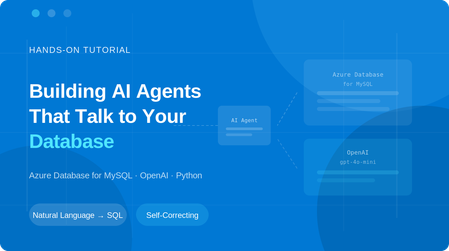
What if you could ask your database a question in plain English and get the answer instantly, without writing a single line of SQL? In this tutorial, you'll build a Python-based AI agent that connects to Azure Database for MySQL server and uses OpenAI's function calling to translate natural language questions into SQL queries, execute them, and return human-readable answers. The agent can explore your schema, answer business questions, and even self-correct when it writes invalid SQL. What you'll build: An Azure Database for MySQL server with sample data A Python AI agent with three tools: list_tables, describe_table, and run_sql_query In the context of AI agents, tools are functions the agent can call to interact with external systems like querying a database, fetching a file, or calling an API. Here, our agent has three tools that let it explore and query your MySQL database. An interactive chat interface where you ask questions and the agent auto-generates and runs SQL Prerequisites Before you begin, make sure you have: An Azure account — Sign up for free (includes 12 months of free MySQL hosting) An OpenAI API key — Get one here (you'll need a few dollars of credit) Python 3.10+ — Download here (check "Add to PATH" during install) A code editor — VS Code recommended Optional: You can download the complete project from this GitHub repository, or follow the step‑by‑step instructions below to build it from scratch. Step 1 — Create the Azure Database for MySQL server Go to the Azure Portal Search for "Azure Database for MySQL server" and click + Create Configure the following settings: Setting Value Resource group rg-mysql-ai-agent (create new) Server name mysql-ai-agent (or any unique name) Region Your nearest region MySQL version 8.4 Workload type Dev/Test (Burstable B1ms — free for 12 months) Admin username mysqladmin Password A strong password — save it! 4. ✅ Check "Add firewall rule for current IP address" ⚠️ Important: If you skip the firewall settings, you won't be able to connect from Cloud Shell or your local machine. 5. Click Review + create → Create and wait 3–5 minutes Once deployment finishes, navigate to your server and note the hostname from the Connection details: mysql-ai-agent.mysql.database.azure.com Step 2 — Load Sample Data Open Azure Cloud Shell by clicking the >_ icon in the portal's top toolbar. Select Bash if prompted. Connect to your MySQL server. You can copy the exact connection command from the "Connect from browser or locally" section on your server's overview page in the Azure portal: mysql -h mysql-ai-agent.mysql.database.azure.com -u mysqladmin -p Enter your password when prompted (the cursor won't move — just type and press Enter). Now paste the following SQL to create a sample sales database: CREATE DATABASE demo_sales; USE demo_sales; CREATE TABLE customers ( id INT AUTO_INCREMENT PRIMARY KEY, name VARCHAR(100), email VARCHAR(100), city VARCHAR(50), signup_date DATE ); CREATE TABLE orders ( id INT AUTO_INCREMENT PRIMARY KEY, customer_id INT, product VARCHAR(100), amount DECIMAL(10,2), order_date DATE, FOREIGN KEY (customer_id) REFERENCES customers(id) ); INSERT INTO customers (name, email, city, signup_date) VALUES ('Sara Ahmed', 'sara@example.com', 'Cairo', '2024-06-15'), ('John Smith', 'john@example.com', 'London', '2024-08-22'), ('Priya Patel', 'priya@example.com', 'Mumbai', '2025-01-10'); INSERT INTO orders (customer_id, product, amount, order_date) VALUES (1, 'Azure Certification Voucher', 150.00, '2025-03-01'), (2, 'MySQL Workbench Pro License', 99.00, '2025-03-10'), (1, 'Power BI Dashboard Template', 45.00, '2025-04-05'), (3, 'Data Analysis Course', 200.00, '2025-05-20'); Verify the data: SELECT * FROM customers; SELECT * FROM orders; Type exit to leave MySQL. Step 3 — Set Up the Python Project Open a terminal on your local machine and create the project: mkdir mysql-ai-agent cd mysql-ai-agent python -m venv venv Activate the virtual environment: Windows (PowerShell): venv\Scripts\Activate.ps1 macOS/Linux: source venv/bin/activate Install the required packages: pip install openai mysql-connector-python python-dotenv Step 4 — Configure Environment Variables Create a file named .env in your project folder: OPENAI_API_KEY=sk-proj-xxxxxxxxxxxxxxxxxxxxxxxx MYSQL_HOST=mysql-ai-agent.mysql.database.azure.com MYSQL_USER=mysqladmin MYSQL_PASSWORD=YourPasswordHere MYSQL_DATABASE=demo_sales 🔒 Security: Never commit this file to Git. Add .env to your .gitignore Step 5 — Build the Agent Open VS Code, create a new file called mysql_agent.py in your mysql-ai-agent folder, and paste the following code. Let's walk through each section. 5.1 — Imports and Database Connection import os import json import mysql.connector from openai import OpenAI from dotenv import load_dotenv load_dotenv() def get_db_connection(): return mysql.connector.connect( host=os.getenv("MYSQL_HOST"), user=os.getenv("MYSQL_USER"), password=os.getenv("MYSQL_PASSWORD"), database=os.getenv("MYSQL_DATABASE"), ssl_disabled=False ) This loads your secrets from .env and creates a reusable MySQL connection function with SSL encryption. 5.2 — Define the Three Tools These are the functions the AI agent can call: def list_tables(): conn = get_db_connection() cursor = conn.cursor() cursor.execute("SHOW TABLES") tables = [row[0] for row in cursor.fetchall()] cursor.close() conn.close() return json.dumps({"tables": tables}) def describe_table(table_name): conn = get_db_connection() cursor = conn.cursor() cursor.execute(f"DESCRIBE `{table_name}`") columns = [] for row in cursor.fetchall(): columns.append({ "field": row[0], "type": row[1], "null": row[2], "key": row[3] }) cursor.close() conn.close() return json.dumps({"table": table_name, "columns": columns}) def run_sql_query(query): if not query.strip().upper().startswith("SELECT"): return json.dumps({"error": "Only SELECT queries are allowed."}) conn = get_db_connection() cursor = conn.cursor() try: cursor.execute(query) columns = [desc[0] for desc in cursor.description] rows = cursor.fetchall() results = [] for row in rows: results.append(dict(zip(columns, row))) return json.dumps({"columns": columns, "rows": results}, default=str) except mysql.connector.Error as e: return json.dumps({"error": str(e)}) finally: cursor.close() conn.close() A few things to note: run_sql_query only allows SELECT statements — this is a safety guardrail that prevents the AI from modifying data The try/except block is critical — if the AI generates invalid SQL (e.g., a bad GROUP BY), the error message is returned to OpenAI, and the model automatically corrects its query and retries. Without this, the script would crash. 5.3 — Register Tools with OpenAI This tells OpenAI what tools the agent has access to: tools = [ { "type": "function", "function": { "name": "list_tables", "description": "List all tables in the connected MySQL database.", "parameters": {"type": "object", "properties": {}, "required": []} } }, { "type": "function", "function": { "name": "describe_table", "description": "Get the schema (columns and types) of a specific table.", "parameters": { "type": "object", "properties": { "table_name": {"type": "string", "description": "Name of the table to describe"} }, "required": ["table_name"] } } }, { "type": "function", "function": { "name": "run_sql_query", "description": "Execute a read-only SQL SELECT query and return results.", "parameters": { "type": "object", "properties": { "query": {"type": "string", "description": "The SQL SELECT query to execute"} }, "required": ["query"] } } } ] def call_tool(name, args): if name == "list_tables": return list_tables() elif name == "describe_table": return describe_table(args["table_name"]) elif name == "run_sql_query": return run_sql_query(args["query"]) else: return json.dumps({"error": f"Unknown tool: {name}"}) 5.4 — The Agent Loop This is the core logic. It sends the user's message to OpenAI, processes any tool calls, and loops until the model produces a final text response: def chat(user_message, conversation_history): client = OpenAI() conversation_history.append({"role": "user", "content": user_message}) print(f"\n{'='*60}") print(f"🧑 You: {user_message}") print(f"{'='*60}") while True: response = client.chat.completions.create( model="gpt-4o-mini", messages=conversation_history, tools=tools, tool_choice="auto" ) assistant_message = response.choices[0].message if assistant_message.tool_calls: conversation_history.append(assistant_message) for tool_call in assistant_message.tool_calls: fn_name = tool_call.function.name fn_args = json.loads(tool_call.function.arguments) print(f" 🔧 Calling tool: {fn_name}({json.dumps(fn_args)})") result = call_tool(fn_name, fn_args) print(f" ✅ Tool returned: {result[:200]}...") conversation_history.append({ "role": "tool", "tool_call_id": tool_call.id, "content": result }) else: final_answer = assistant_message.content conversation_history.append({"role": "assistant", "content": final_answer}) print(f"\n🤖 Agent:\n{final_answer}") return conversation_history The while True loop is what makes self-correction possible. When a tool returns an error, the model sees it in the conversation and generates a corrected tool call in the next iteration. 5.5 — Main Entry Point if __name__ == "__main__": print("\n" + "=" * 60) print(" 🤖 MySQL AI Agent") print(" Powered by OpenAI + Azure Database for MySQL") print(" Type 'quit' to exit") print("=" * 60) system_message = { "role": "system", "content": ( "You are a helpful data analyst agent connected to an Azure Database for MySQL. " "You have 3 tools: list_tables, describe_table, and run_sql_query. " "ALWAYS start by listing tables and describing their schema before writing queries. " "Only generate SELECT statements. Never write INSERT, UPDATE, DELETE, or DROP. " "Present query results in clean, readable tables. " "If the user asks a question, figure out the right SQL to answer it." ) } conversation_history = [system_message] while True: user_input = input("\n🧑 You: ").strip() if user_input.lower() in ("quit", "exit", "q"): print("\n👋 Goodbye!") break if not user_input: continue conversation_history = chat(user_input, conversation_history) Your final project folder should look like this: Step 6 — Run and Test the Agent python mysql_agent.py Test: Prompt: Which product generated the most revenue and who bought it? How Self-Correction Works One of the most powerful aspects of this agent is its ability to recover from SQL errors automatically. Azure Database for MySQL has sql_mode=only_full_group_by enabled by default, which rejects queries where non-aggregated columns aren't in the GROUP BY clause. When the AI generates an invalid query, here's what happens: The run_sql_query function catches the MySQL error It returns the error message as the tool result OpenAI sees the error in the conversation context The model generates a corrected query automatically The agent retries — and succeeds Without the try/except error handling, the entire script would crash. This is a key design pattern for production AI agents. Security Best Practices When building AI agents that interact with databases, security is critical: Read-only enforcement — The run_sql_query function rejects anything that isn't a SELECT statement SSL encryption — All connections use ssl_disabled=False, ensuring data in transit is encrypted Environment variables — Credentials are stored in .env, never hardcoded Principle of least privilege — For production, create a dedicated MySQL user with SELECT-only permissions: CREATE USER 'ai_agent'@'%' IDENTIFIED BY 'AgentPass123!'; GRANT SELECT ON demo_sales.* TO 'ai_agent'@'%'; FLUSH PRIVILEGES; Network isolation — For production workloads, consider using Azure Private Link instead of public access. Conclusion In this tutorial, you built a Python AI agent that connects to Azure Database for MySQL and answers natural language questions by auto-generating SQL - complete with self-correction and security guardrails. Clone the GitHub repo, spin up your own server, and start experimenting! If you'd like to connect to Azure Database for MySQL using the Model Context Protocol (MCP), see Unlocking AI-Driven Data Access: Azure Database for MySQL Support via the Azure MCP Server. If you have any feedback or questions about the information provided above, please leave a comment below. Thank you!636Views0likes0CommentsAnnouncing Fabric Mirroring integration for Azure Database for MySQL - Public Preview at FabCon 2026
At FabCon 2026, we’re excited to announce the Public Preview of Microsoft Fabric Mirroring integration for Azure Database for MySQL. This integration makes it easier than ever to analyze MySQL operational data using Fabric’s unified analytics platform, without building or maintaining ETL pipelines. This milestone brings near real-time data replication from Azure Database for MySQL into Microsoft Fabric OneLake, unlocking powerful analytics, reporting, and AI scenarios while keeping transactional workloads isolated and performant. Why Fabric integration for Azure Database for MySQL? MySQL is widely used to power business‑critical applications, but operational databases aren’t optimized for analytics. Traditionally, teams rely on complex ETL pipelines, custom connectors, or batch exports — adding cost, latency, and operational overhead. With Fabric integration, Azure Database for MySQL now connects directly to Microsoft Fabric, enabling: Zero‑ETL analytics on MySQL operational data Near real-time synchronization into OneLake Analytics‑ready open formats for BI, data engineering, and AI A unified experience across Power BI, Lakehouse, Warehousing, and notebooks All without impacting your production workloads. What’s new in the Public Preview? The Public Preview introduces a first‑class integration between Azure Database for MySQL and Microsoft Fabric, designed for simplicity and scale. It introduces a solid set of core operational and enterprise‑readiness capabilities, enabling end-users to confidently get started and scale their analytics scenarios. Core replication operations Start, monitor, and stop replication directly from the integrated experience Support for both initial data load and continuous change data capture (CDC) to keep data in sync with minimal latency. Network and security Firewall and gateway support, enabling replication from secured MySQL environments. Support for Azure Database for MySQL servers configured with customer‑managed keys (BYOK), aligning with enterprise security and compliance requirements. Broader data coverage and troubleshooting Ability to mirror tables containing previously unsupported data types, expanding schema compatibility and reducing onboarding friction. Support for up to 1,000 tables per server, enabling larger and more complex databases to participate in Fabric analytics. Basic error messaging and visibility to help identify replication issues and monitor progress during setup and ongoing operations. What scenarios does it unlock? With Fabric integration in place, you can now analyze data in Azure Database for MySQL without impacting production, combine it with other data in Fabric for richer reporting, and use Fabric’s built‑in analytics and AI tools to get insights faster. Learn more about exploring replicated data in Fabric in Explore data in your mirrored database using Microsoft Fabric. How does it work (high level)? Fabric integration for Azure Database for MySQL follows a simple but powerful pattern: Enable and Configure - Enable replication in the Azure portal, then use the Fabric portal to provide connection details and select MySQL tables to mirror. Initial snapshot - Fabric takes a bulk snapshot of the selected tables, converts the data to Parquet, and writes it to a Fabric landing zone. Continuous change capture - Ongoing inserts, updates, and deletes are captured from MySQL binlogs and continuously written as incremental Parquet files. Analytics‑ready in Fabric - The Fabric Replicator processes snapshot and change files and applies them to Delta tables in OneLake, keeping data in sync and ready for analytics. This design ensures low overhead on the source, while providing fresh data for analytics and AI workloads. Below is a more detailed workflow illustrating how this works: Getting started with the Public Preview To try Fabric integration for Azure Database for MySQL during Public Preview, you’ll need: An Azure Database for MySQL instance An active Microsoft Fabric capacity (trial or paid) Access to a Fabric workspace Once enabled, you can select the MySQL databases and tables you want to replicate and begin analyzing data in Fabric. For step-by-step tutorial, please refer to - https://learn.microsoft.com/azure/mysql/integration/fabric-mirroring-mysql The demo video below showcases how the mirroring integration works and walks through the end-to-end experience of mirroring MySQL data into Microsoft Fabric. Stay Connected We’re thrilled to share this milestone at FabCon 2026 and can’t wait to see how you use Fabric integration for Azure Database for MySQL to simplify analytics and unlock new insights. We welcome your feedback and invite you to share your experiences or suggestions at AskAzureDBforMySQL@service.microsoft.com Try the Public Preview, share your feedback, and help shape what’s next. Thank you for choosing Azure Database for MySQL!
Guide to Upgrade Azure Database for MySQL from 8.0 to 8.4
A practical, end‑to‑end guide for safely upgrading Azure Database for MySQL to 8.4 LTS, covering prerequisites, breaking changes, upgrade paths, downtime considerations, and rollback strategies based on real‑world experience.4KViews2likes0CommentsNew series of monthly Live Webinars on Azure Database for MySQL!
Today we are announcing a new series of monthly Live Webinars about Azure Database for MySQL! These sessions will showcase newly released features and capabilities, technical deep-dives, and demos. The product group will also be addressing your questions about the service in real-time!4.6KViews2likes0Comments
Microsoft Azure innovation powers leading price-performance for MySQL database in the cloud
As part of our commitment to ensuring that Microsoft Azure is the best place to run MySQL workloads, Microsoft is excited to announce that Azure Database for MySQL - Flexible Server just achieved a new, faster performance benchmark.7.4KViews5likes0CommentsDeploying Moodle on Azure – things you should know
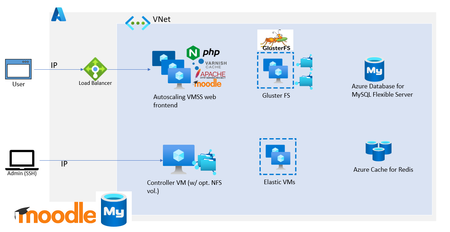
Moodle is one of the most popular open-source learning management platform empowering educators and researchers across the world to disseminate their work efficiently. It is also one of the most mature and robust OSS applications that the community has developed and improvised over the years. We have seen customers from small, medium, and large enterprises to schools, public sector, and government organizations deploying Moodle in Azure. In this blog post, I’ll share some best practices and tips for deploying Moodle on Azure based on our experiences working with several of our customers.70KViews14likes25Comments