azure
101 TopicsGet-AzAccessToken "Method not found: Void..."
When running the script below, I get the following error: Get-AzAccessToken : Method not found: 'Void Azure.Identity.BrokeredAuthentication.SharedTokenCacheCredentialBrokerOptio ns..ctor(Azure.Identity.TokenCachePersistenceOptions)'. Import-Module Microsoft.Graph.Authentication Import-Module Az.Accounts function Connect-MgGraphViaCred { [CmdletBinding()] param ( [Parameter(Mandatory = $true)] [System.Management.Automation.PSCredential] $credential, [string] $tenant = "customersbank.com" ) # connect to Azure using credentials $param = @{ Credential = $credential Force = $true } if ($tenant) { $param.tenant = $tenant } Connect-AzAccount # retrieve token for MSGraph $token = (Get-AzAccessToken -ResourceTypeName MSGraph -ErrorAction Stop).token # convert token string to securestring if new version of Connect-MgGraph is used if ((Get-Help Connect-MgGraph -Parameter accesstoken).type.name -eq "securestring") { $token = ConvertTo-SecureString $token -AsPlainText -Force } # use token for connecting to Microsoft Graph $null = Connect-MgGraph -AccessToken $token -ErrorAction Stop } $User = "##username##" $PWord = ConvertTo-SecureString -String "##password##" -AsPlainText -Force $Credential = New-Object -TypeName System.Management.Automation.PSCredential -ArgumentList $User, $PWord Connect-MgGraphViaCred -credential $Credential I am running the script inside a Power Automate Desktop flow. When I run it on my Win10 machine, it runs fine, but it needs to run on a Windows Server 2019 OS, which is where it fails. I am assuming that it has something to do with the version of the Connect-AZAccount or Get-AZAccessToken commands. P.A.D. only supports PowerShell 5, so I am forced to use that version. The server's version of PowerShell is slightly older but, from what I understand, the only way to update it is via Windows Update and that says there are no new updates. Is it possible that this just won't run on Windows Server? Major Minor Build Revision ----- ----- ----- -------- 5 1 19041 3031 - Win 10 Laptop 5 1 17763 4720 - Server 2019 Module Name Win10 Version Server 2019 Version Az 9.7.1 10.2.0 Az.Accounts 2.12.2 2.12.5Solved14KViews2likes10CommentsVideo: Mastering Azure using Cloud Shell, PowerShell and Bash!
I recorded my presentation and made it available for everyone. The presentation is a live demo and summary of my blog post “Mastering Azure with Cloud Shell“, which gives you an overview about the Cloud Shell and some of the advanced stuff you can do. In the session you learn: Overview about Cloud Shell Azure PowerShell and Bash experience Persistent Storage using Azure Files Azure Drive Third party tools Editors Visual Studio Code integration Using Git as Source Control Remote manage Azure virtual machines Integration of Cloud Shell in Microsoft Docs, Microsoft Learn and more Cloud Shell in the Azure Mobile App and more. I hope you enjoy watching it and let me know what you think in the comments. 1.2KViews1like0Comments
Stop hardcoding secrets! Now what?!
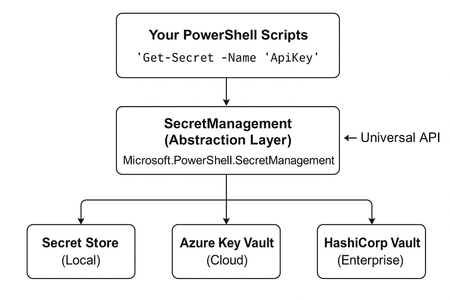
Yeah, we all know this right “STOP DOING THIS”, “STOP DOING THAT!” Yeah… that’s nice, but now what?! When you are already in the PowerShell field for some time and have created some scripts you might have been running into this topic; ‘How to deal with secrets’. There are of course solutions like KeyVault, SecureString and secret providers with API’s which help you to store the secrets you have in a secure environment. Things like this might look familiar; $password = "P@ssw0rd123!" $apiKey = "sk-1234567890abcdef" $connectionString = "Server=myserver;Database=mydb;User=admin;Password=SuperSecret123;" But what if I told you there’s a better way? A way that’s: Secure by default Cross-platform (Windows, Linux, macOS) Works with multiple backends (local, Azure Key Vault, HashiCorp Vault) Standardized across your entire team Built right into PowerShell 7+ (with some extra module support) That way forward is called ‘PowerShell SecretManagement”! What is SecretManagement? Think of PowerShell SecretManagement as the universal remote control for your secrets. With this remote control you can handle credentials for different systems while you just get one unified interface. It doesn’t matter if that secret is stored: In your local machine In an Azure KeyVault In HashiCorp Vault In KeePass, LastPass etc. The mindset remains the same ‘One remote control, to control them all’. The architecture behind it looks a bit like below; Explaination: SecretManagement “The interface where you code against” SecretStore “The default storage where your secrets live” Getting Started Let’s get started! Start PowerShell 7+ and run the code below Install-Module Microsoft.PowerShell.SecretManagement -Repository PSGallery -Force Install-Module Microsoft.PowerShell.SecretStore -Repository PSGallery -Force Now we have the required modules installed form the PowerShell Gallery it’s time to create our first vault. Register-SecretVault -name "LocalTestVault" It will ask you for the module. Enter the name “Microsoft.PowerShell.SecretStore”. (If you want you can also specify this value directly in the CMDLet by specifying the -ModuleName parameter. You should end up with something like below: First secrets Now we have the vault set-up it’s time to add some content to it. Follow the steps below to create the first secret in the vault Run the command below to create the first secret Set-Secret -Name "TestSecret" -Secret "SuperDuperSecureSecretString" If you haven’t specified the password it will now ask for one! You should end up with something like below; Cool right? On my personal blog I have the full post where I also show how to change, delete, and store complex objects. You can find it here: https://bartpasmans.tech/powershell-stop-hardcoding-secrets-now-what/ Happy scripting!205Views1like0CommentsHowTo: Get IP addresses assigned to Azure network interface resources.
Hi folks, This is a quick script to retrieve IP addresses assigned to Azure guest network interfaces. The two key benefits this has over the portal is: Interfaces with custom DNS settings are flagged (since ideally, DNS setting should be coming down from the vNet); Network interfaces no longer bound to a guest can be easily retrieved across all locations and resource groups (where via the portal you can only check one resource group at a time.) You will need the "Az.Network" module to run this script, and you should have already run Connect-AzAccount prior to calling it (since it's not a great idea to rely on implicit loading.) It's basic but you should be able to extend this to suit your needs. Note: If you choose to filter using the optional parameters, you may scope out public IP addresses since the parameters are passed to Get-AzPublicIpAddress and Get-AzNetworkInterface alike. You can change this behaviour yourself if you like, but I'd normally expect related resources to be co-located which is why it's written this way. Get-AzNetworkInterfaceAddresses.ps1 [cmdletbinding(DefaultParameterSetName="_default")] Param( [parameter(ParameterSetName="_default")][string] $Name = $null, [parameter(ParameterSetName="_default")][string] $ResourceGroupName = $null, [parameter(ParameterSetName="_default")][string] $VirtualMachineScaleSetName = $null, [parameter(ParameterSetName="_default")][string] $VirtualMachineIndex = $null, [parameter(ParameterSetName="_byResourceId")][string] $ResourceId = $null, [parameter()][string] $Location = $null ) #region Arguments for splatting. $ArgumentsForInterface = [hashtable]::new(); $ArgumentsForPublicIPs = [hashtable]::new(); if (-not [string]::IsNullOrWhiteSpace($Name)) { $ArgumentsForInterface.Add("Name", $Name); $ArgumentsForPublicIPs.Add("NetworkInterfaceName", $Name); } if (-not [string]::IsNullOrWhiteSpace($ResourceGroupName)) { $ArgumentsForInterface.Add("ResourceGroupName", $ResourceGroupName); $ArgumentsForPublicIPs.Add("ResourceGroupName", $ResourceGroupName); } if (-not [string]::IsNullOrWhiteSpace($VirtualMachineScaleSetName)) { $ArgumentsForInterface.Add("VirtualMachineScaleSetName", $VirtualMachineScaleSetName); $ArgumentsForPublicIPs.Add("VirtualMachineScaleSetName", $VirtualMachineScaleSetName); } if (-not [string]::IsNullOrWhiteSpace($VirtualMachineIndex)) { $ArgumentsForInterface.Add("VirtualMachineIndex", $VirtualMachineIndex); $ArgumentsForPublicIPs.Add("VirtualMachineIndex", $VirtualMachineIndex); } if (-not [string]::IsNullOrWhiteSpace($ResourceId)) { $ArgumentsForInterface.Add("ResourceId", $ResourceId); $ArgumentsForPublicIPs.Add("ResourceId", $ResourceId); } #endregion #region Build public IP list. # Fetch all the public IP addresses. This may scale poorly for very large organisations but will save on expensive round trips for anyone not in that category. # We're using a strongly-typed [System.Collections.Generic.Dictionary] - in line with best practice, since we'll be creating the hash. See https://docs.microsoft.com/en-us/dotnet/standard/collections/selecting-a-collection-class. $PublicIPs = [System.Collections.Generic.Dictionary[[int], [PSCustomObject]]]::new(); try { Get-AzPublicIpAddress @ArgumentsForPublicIPs | Where-Object { [string]::IsNullOrWhiteSpace($Location) -or ($Location.Equals($_.Location, [System.StringComparison]::OrdinalIgnoreCase)) } | ForEach-Object { if (-not $PublicIPs.ContainsKey($_.Id.GetHashCode())) { $null = $PublicIPs.Add( $_.Id.GetHashCode(), [PSCustomObject] @{ objectId = $_.ResourceGuid; name = $_.Name; location = $_.Location; group = $_.ResourceGroupName; status = $_.ProvisioningState; type = "public"; family = $_.PublicIpAddressVersion; allocation = $_.PublicIpAllocationMethod; address = $_.IpAddress; customDns = $_.DnsSettings -and $_.DnsSettings.DnsServers -and ($_.DnsSettings.DnsServers.Count -gt 0); id = $_.Id; } ); } } } catch { throw; } #endregion Get-AzNetworkInterface @ArgumentsForInterface | Where-Object { [string]::IsNullOrWhiteSpace($Location) -or ($Location.Equals($_.Location, [System.StringComparison]::OrdinalIgnoreCase)) } | ForEach-Object { $Interface = $_; $Machine = $null; if ($Interface.VirtualMachine -and ($Sections = $Interface.VirtualMachine.Id.Split("/")).Length -gt 5) { $Machine = $Sections[-1]; } #region Process the IpConfigurations list. foreach ($Entry in $Interface.IpConfigurations) { # Start with the common guest attributes. $Hash = @{ objectId = $Interface.ResourceGuid; name = $Interface.Name; location = $Interface.Location; group = $Interface.ResourceGroupName; machine = $Machine; id = $Interface.Id; }; # Add any private address information and output that as an individual object. if ($Entry.PrivateIpAddress) { $Hash["status"] = $Entry.ProvisioningState; $Hash["type"] = "private"; $Hash["family"] = $Entry.PrivateIpAddressVersion; $Hash["allocation"] = $Entry.PrivateIpAllocationMethod; $Hash["address"] = $Entry.PrivateIpAddress; $Hash["customDns"] = $Interface.DnsSettings -and $Interface.DnsSettings.DnsServers -and ($Interface.DnsSettings.DnsServers.Count -gt 0); [PSCustomObject] $Hash | Select-Object -Property objectId, name, location, group, machine, status, type, family, allocation, address, customDns, id; } # Now do the same for public address information and output that as individual objects. if ($Entry.PublicIpAddress) { $PublicIP = [PSCustomObject]::new(); foreach ($PublicIpEntry in $Entry.PublicIpAddress) { if ($PublicIPs.TryGetValue($PublicIpEntry.Id.GetHashCode(), [ref] $PublicIP)) { $Hash["status"] = $PublicIP.status; $Hash["type"] = $PublicIP.type; $Hash["family"] = $PublicIP.family; $Hash["allocation"] = $PublicIP.allocation; $Hash["address"] = $PublicIP.address; $Hash["customDns"] = $PublicIP.customDns; [PSCustomObject] $Hash | Select-Object -Property objectId, name, location, group, machine, status, type, family, allocation, address, customDns, id; } } } } #endregion } Cheers, Lain1.8KViews1like0Comments
I could'nt create a new user in Azure with powershell
Hello everybody, I hope anybody can help. I wanna creat a new user in my Azure with powershell. The command should be # Kennwort erstellen $PasswordProfile = New-Object -TypeName 'Microsoft.Open.AzureAD.Model.PasswordProfile' $PasswordProfile.Password = 'SECRET-PASSWORD' # Benutzer erstellen New-AzureADUser -DisplayName "100010-Vorname-Nachname" -PasswordProfile "$PasswordProfile" ` -UserPrincipalName "email address removed for privacy reasons" -AccountEnabled True` -MailNickName "100010-vorname-nachname" -CompanyName "Firma XY" -Department "Abteilung XY"` -JobTitle "Position XY" -UsageLocation DE but I get an error like this New-AzureADUser : Der Parameter "PasswordProfile" kann nicht gebunden werden. Der Wert "class PasswordProfile { Password: SECRET-PASSWORD ForceChangePasswordNextLogin: EnforceChangePasswordPolicy: } " vom Typ "System.String" kann nicht in den Typ "Microsoft.Open.AzureAD.Model.PasswordProfile" konvertiert werden. In C:\Scripte\CreateAzureADUser.ps1:18 Zeichen:73 + ... yName "100010-Vorname-Nachname" -PasswordProfile "$PasswordProfile" ` + ~~~~~~~~~~~~~~~~~~ + CategoryInfo : InvalidArgument: (:) [New-AzureADUser], ParameterBindingException + FullyQualifiedErrorId : CannotConvertArgumentNoMessage,Microsoft.Open.AzureAD16.PowerShell.NewUser $PasswordProfile.Password = 'SECRET-PASSWORD' $PasswordProfile.Password = "SECRET-PASSWORD" I've tried it myself with "" or without and it didn't work either. Where is the mistake? Can andybody help? best regards MarioSolved3.1KViews1like5CommentsExtracting Virtual Machine Information in Azure.
I just want to shared my modified code in azure vm information extraction. Data will be the list of VMName, IPAddress, ResourceGroup, VmSize & Tag. # User Authentication $ua = Get-StoredCredential -Target AzureAccount $credential = New-Object -TypeName "System.Management.Automation.PSCredential" -ArgumentList $ua.UserName,$ua.Password # Login to your Azure Account Connect-AzAccount -Tenant '<Tenant ID>' -Credential $credential # Get All Virtual Machines & VMSize $resultVMs = Get-AzVM | Where-Object { $_.Name -and $_.ResourceGroupName -and $_.HardwareProfile.VmSize } ` | Select-Object -Property @{n="Resource"; e={ $_.ResourceGroupName }}, @{n="VMName"; e={ $_.Name }}, @{n="VmSize"; e={ $_.HardwareProfile.VmSize }} ` # Get All Virtual Machines & WorkNo Tag $resultTags = Get-AzResource -ResourceType "Microsoft.Compute/virtualMachines" ` | Where-Object { $_.Name -and $_.ResourceGroupName -and $_.Tags.WorkNo } ` | Select-Object -Property @{n="Resource"; e={ $_.ResourceGroupName }}, @{n="VMName"; e={ $_.Name }}, @{n="Tags"; e={ $_.Tags.WorkNo }} ` # Get All Virtual Machines & Ip Address $resultIPAdds = Get-AzNetworkInterface | Where-Object { $_.ResourceGroupName -and $_.VirtualMachine -and $_.IPConfigurations -and $_.IPConfigurations.PrivateIPAddress } ` | Select-Object -Property @{n="Resource"; e={ $_.ResourceGroupName }}, @{n="VMName"; e={ $_.VirtualMachine.Id.Split("/")[-1] }}, @{n="PrivateIPAddress"; e= { $_.IpConfigurations.PrivateIPAddress }} ` # Create Report Array $report = @() # Loop All VM's foreach($resultVM in $resultVMs){ # Creating Report Header $reportdetails = "" | Select VMName, IPAddress, ResourceGroup, VmSize, Tag # Save the VM Name $reportdetails.VMName = $resultVM.VMName # Save the Resource Group Name $reportdetails.ResourceGroup = $resultVM.Resource # Save the VmSize $reportdetails.VmSize = $resultVM.VmSize # Save the IP Address $temp = @(($resultIPAdds | Where-Object { $_."VMName" -match $resultVM.VMName }).PrivateIPAddress) $reportdetails.IPAddress = $temp[0] # Save the Tag $temp = @(($resultTags | Where-Object { $_."VMName" -match $resultVM.VMName }).Tags) $reportdetails.Tag = $temp[0] # Save Report $report+=$reportdetails } # Generate Report $report | Export-Excel ".\Desktop\VMList_ $(get-date -f yyyy.MM.dd.HH.mm.ss).xlsx" Write-Host "Finished..." Hope it can help others too. 😁😁😁.4KViews1like4CommentsPowerShell Script to disjoin on-prem AD and join AAD
I'm in the process of planning an on-prem AD to AAD change for ~148 users. I'd like to not have to run around and manually disjoin and rejoin devices. Does anyone know of a PowerShell script that would help automate this?Solved13KViews1like4CommentsChanges coming to PowerShell (preview) in Azure Cloud Shell
Azure Cloud Shell provides browser-based authenticated shell access to Azure from virtually anywhere. Cloud Shell gives the users a rich environment with common tools that is updated and maintained by Microsoft. Currently, Azure Cloud Shell provides two environments that can be launched from Azure Portal, dedicated URL, Azure documentation, Visual Studio Code via the Azure Account extension, and Azure App: Bash in Cloud Shell that runs Bash shell on Ubuntu Linux, which was made generally available in November 2017 PowerShell in Cloud Shell that runs Windows PowerShell 5.1 on Windows Server Core and has been in preview since September 2017 In this post, we are listing the key upcoming changes to the PowerShell experience in Azure Cloud Shell. Read about it in the Azure blog.1.6KViews1like0Comments
Failed downloading Az and other modules for powershell
Hello, I am attempting to install the Az module for powershell. I haven't had issues in the past but now I get errors when trying to do so and I have tried many ways to do this. It seems like an issue on the powershellgallery site but I am not 100% sure. Here's my situation On the machine as an administrator Running powershell.exe as an adminsitrator Attempting this on a client server and a local server (where I previously was able to do this) so does NOT appear to be proxy, firewall or security related in any way I click yes to run from untrusted repository (always have, never been an issue) I receive the follow error: WARNING: Source Location 'https://www.powershellgallery.com/api/v2/package/Az.Accounts/1.7.4' is not valid. PackageManagement\Install-Package : Package 'Az.Accounts' failed to download. At C:\Program Files\WindowsPowershell\Modules\PowerShellGet\1.0.0.1\PSModule.psm1:1772 char:21 + ... $null = PackageManagement\Install-Package @PSBoundParameters + ~~~~~~~~~~~~~~~~~~~~~~~~~~~~~~~~~~~~~~~~~~ + CategoryInfo : ResourceUnavailable: (C:\Users\{username}....Accounts.nupkg:String) [Install-Package], Exception + FullyQualifiedErrorId : PackageFailedInstallOrDownload,Microsoft.Powershell.PackageManagement.Cmdlets.InstallPackage I have attempted many of the switches -Force -AllowClobber etc ... attempted to install by downloading locally but not sure I am doing that right as it doesn't seem to work with the instructions I have found around the web. This started sometime last week, perhaps Thursday. I'm at a loss, been trying this for way too long. Any insight? Thanks ahead of time! SSolved65KViews1like14Comments