azure
102 Topics
Secure Medallion Architecture Pattern on Azure Databricks (Part I)
This article presents a security-first pattern for Azure Databricks: a Medallion Architecture where Bronze, Silver and Gold each run as their Lakeflow Job and cluster, orchestrated by a parent job. Run-as identities are Microsoft Entra service principals; storage access is governed via Unity Catalog External Locations backed by the Access Connector’s managed identity. Least-privilege is enforced with cluster policies and UC grants. Prefer managed tables to unlock Predictive Optimisation, Automatic liquid clustering and Automatic statistics. Secrets live in Azure Key Vault and are read at runtime. Monitor reliability and cost with system tables and Jobs UI. Part II covers more low-level concepts and CI/CD.2.4KViews13likes0CommentsApproaches to Integrating Azure Databricks with Microsoft Fabric: The Better Together Story!
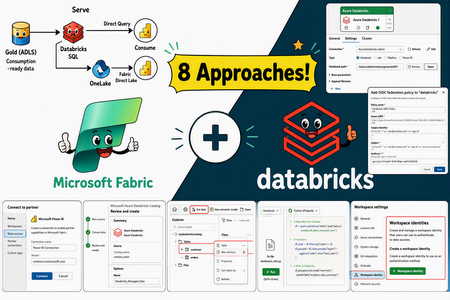
Azure Databricks and Microsoft Fabric can be combined to create a unified and scalable analytics ecosystem. This document outlines eight distinct integration approaches, each accompanied by step-by-step implementation guidance and key design considerations. These methods are not prescriptive—your cloud architecture team can choose the integration strategy that best aligns with your organization’s governance model, workload requirements and platform preferences. Whether you prioritize centralized orchestration, direct data access, or seamless reporting, the flexibility of these options allows you to tailor the solution to your specific needs.7.3KViews9likes1CommentAzure Databricks Cost and Workload Assessment: a Local Web UI
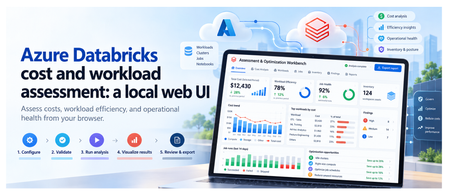
Introduction To review an Azure Databricks environment, you need to know what it costs, how its compute is used, and which jobs need attention. That information is spread across Azure billing and Databricks. The Assessment & Optimization Workbench is a local web application that brings these details together. Select your workspaces and dates, check access, and run an assessment. You can then explore the results in your browser and download a report to discuss with your team. The walkthrough below shows each step. 1. What you can assess The assessment covers costs, workload behavior, and selected configuration checks: Area What you can inspect Cost Actual and Amortized costs, top drivers, attribution gaps, and commitment scenarios with eligible hourly inputs. Efficiency CPU/memory samples, idle observations, sizing candidates, query duration, and queueing. Job health Failures, retries, failure notifications, and network observations. Inventory and posture Workspace assets, IP access list settings, and Unity Catalog metastore assignment. Evidence Collection coverage, snapshots, raw-data imports, and offline re-analysis. Handoff Prioritized findings, optional review decisions, formatted reports, and Excel exports. If some data could not be collected, the UI shows what is missing. Recommendations are suggestions for you to review and test; the assessment does not apply them automatically. Actual savings must be measured after you make the recommended changes. 2. The five-step workflow The UI guides you from choosing what to assess to downloading a report. First, select your workspaces and check access. Then start the assessment, explore the results, and export what you need. The walkthrough below shows each step. Configure → Validate → Run analysis → Visualize results → Review & export Configure This Configure step defines what the assessment will cover: which workspaces to review, the date range, and the data to collect. These choices prepare the assessment; they do not start collection. The GIF shows the scope selection, warehouse choices, and date settings before moving to validation. Select the scope: choose the subscriptions, resource groups, and Databricks workspaces to include. Set the dates and cost basis: choose the period to assess. ActualCost shows charges as recorded; AmortizedCost spreads eligible commitment costs over time. Choose the collection profile: use Standard for core assessment data, Extended to include workspace asset metadata, or Custom to select optional data and analysis modules. Select SQL Warehouses: choose a warehouse for each workspace that needs system-table queries. Selection does not start compute. Queries can incur charges, so warehouse use requires approval in Validate. Next: Select Validate configuration. Validate Validation checks your setup and access to the selected Azure and Databricks data. It helps you identify missing permissions or approvals before starting the assessment. Select Run validation, approving warehouse auto-start if required. The UI shows which checks are running, which have passed, and what needs attention. The GIF shows an approval issue being resolved, followed by the access checks. Fix any blockers that prevent the assessment from running, and read warnings about data that may be limited or unavailable. If permissions are missing, the permission panel provides commands for an authorized administrator to run. Validation itself does not grant access. Next: Once validation allows you to proceed, select Continue to run below the permission panel. You will review the setup and start the assessment separately. Run analysis This step collects data from your selected Azure and Databricks workspaces, analyzes it, and creates the assessment report. You can follow the progress and see which sources returned data. Review the selected workspaces and date range, then select Start read-only assessment. The screen shows: Progress: the current stage, from initial checks and collection through analysis and report generation, plus elapsed time. Collection sources: cards grouped into Azure data and Databricks workspaces. Each card shows its status and the number of items collected, such as cost records, inventory, or billing data. Console: detailed messages to help explain delays or collection problems. When the run finishes, green means collection and analysis succeeded, not that every workload is healthy. Red means the run failed or some data needs attention. A skipped source was not collected, often because an optional check was not selected. The report and collected data are saved locally, including any reported gaps. Next: Select Visualize results to explore the saved assessment. Visualize results This step turns the collected data into charts, tables, and findings you can explore. Start with the overall cost and collection summary, then look at individual workspaces, compute resources, and jobs to understand what needs attention. You are viewing saved results, so switching tabs does not collect data again. The GIF follows the results from cost and workload details through findings, data quality, and a proposed roadmap. The tabs are grouped into Overview, Technical, and Decisions. Overview: understand the cost Executive summary: see total cost, spending mapped to workspaces, optimization candidates, and collection status. Check whether the detailed costs match the billing total and how much supporting data is available. Cost analysis: use Cost evidence to compare Actual and Amortized trends. Break down spending by Service, Meter category, SKU, Resource group, Workspace, or Owner tag, then inspect the largest cost drivers and unmapped spend. Commitment opportunities lets you enter a proposed number of committed nodes and calculate a scenario when the required hourly usage and pricing data is available. It does not purchase a commitment. Technical: inspect resources and workloads Compute and SQL has five views: Inventory: cluster and warehouse settings, including node types, worker counts, Photon, and automatic shutdown, plus job run and failure summaries. Utilization: CPU, memory, idle observations, and sample counts. Select a resource and a driver or worker instance to view its CPU and memory chart. Sizing: current node and worker configuration, with candidates to benchmark before resizing. Job health: runs, failures, notification settings, tasks, and retry policies. Network: data sent and received by nodes, plus CPU-wait measurements. These are traffic observations, not billed network charges. Queries: switch between Individual queries, Warehouse summaries, and User summaries. Review durations, queue times, and failures; search and sort to find queries that need investigation. Posture: inspect IP access list settings and Unity Catalog metastore assignment. Each check shows its observed value and outcome; this is not a full security audit. Assets: browse collected repositories, notebook metadata, MLflow experiments, serving endpoints, SQL alerts, Genie spaces, and Unity Catalog volumes. These appear only when the relevant optional data was collected. Decisions: check findings and plan the next steps Findings: browse recommendations by category, status, and confidence. Select a row to read what was observed, the recommended next step, supporting records, and any limitations. Evidence quality: see coverage by workspace, missing data, failed or skipped sources, and records excluded from scope. Open Inspect effective rules / create another analysis to review or change analysis settings, then Create child analysis to rerun them on saved data without changing the original snapshot. Roadmap: review proposed work across Days 0-30, 31-60, and 61-90, including owners and dependencies. The measurement plan explains the baseline for checking savings after a change; the roadmap is not an approved implementation schedule. Use Filters to narrow findings by subscription, resource group, workspace, workload, category, confidence, or status. Scope selections also apply to supported technical tables, which have their own search, sorting, and paging controls. Select a resource name to inspect its saved details. If data is unavailable, check Evidence quality before drawing a conclusion. A missing measurement does not mean that a resource was unused. Next: Select Review & export to read the report or download the results. Review & export This final step lets you read the assessment report and download files to discuss with your team. You can also record decisions on individual findings. Review is optional, so you do not need to approve every finding before exporting. The GIF shows a finding being reviewed, the formatted report and supporting files being opened, and an Excel workbook being generated and downloaded. Read the report: select Preview report to move directly to the formatted report in your browser. Use its contents links to jump to sections, and open supporting evidence links to inspect the saved files. Download the report: select Download report to save the original Markdown version. Downloading a file completes this workflow step, but does not approve findings or apply changes. Record a decision: expand Record a decision, choose a finding and decision, then enter the reviewer and an optional note. Select Save review decisions to retain the changes. A decision other than pending requires a reviewer. Inspect supporting files: use Run artifacts to preview supported files or download individual outputs. Reports appear as formatted pages; CSV and JSON previews show the file contents as text. Create an Excel workbook: choose the modules under Excel workbook, then select Generate workbook artifact and download the generated file. It includes summary, rules, quality, findings, saved review decisions, and the selected module sheets. It covers the full saved assessment, not just the rows currently filtered in the UI. Save or discard pending review edits before generating a workbook. Exports include saved decisions only. Check the files before sharing them because supporting evidence can contain sensitive environment details. Optional dashboard publication is a separate cloud action for publishing coverage counts, not the full assessment. It requires a destination workspace and warehouse, a preview of the publication plan, and explicit approval of the write and possible warehouse charges. 3. Reopen saved assessments A snapshot is a locally saved assessment, including the selected scope, collected data, findings, reports, and review decisions. It lets you return to earlier results, continue a review, or download files later without querying Azure or Databricks again. Reopen an assessment: choose a run from Saved snapshots. Entries show the run date, customer, status, and run ID, with the newest first. You can then explore its results or continue in Review & export. Try different analysis settings: open Evidence quality, expand Inspect effective rules / create another analysis, adjust the settings, and select Create child analysis. This creates a separate assessment using the same saved data. The original remains unchanged, and the new findings need their own review. Remove old assessments: use Manage snapshots to delete individual snapshots or clear the saved history. Deletion requires confirmation and permanently removes the selected runs, including their evidence, reports, and review decisions. Back up important runs first. Snapshots show what was collected at the time, not the current environment. To get newer data or collect a missing source, start a new assessment. 4. Architecture and collection flow The workbench runs on your machine, with a browser interface connected to a local Python server at http://127.0.0.1:8765. Azure and Databricks supply the data; collection scripts, analysis, and saved results stay local. No Azure-hosted application is needed. The diagram follows an assessment through seven stages: Configure: the React and TypeScript browser UI captures your selected workspaces, dates, and collection options. Coordinate: the Python API receives requests from the browser, launches assessment processes, and tracks progress. Check access: validation checks the selected scope, permissions, and required approvals. These checks use live access, but full collection starts only when you select Start read-only assessment. Collect: PowerShell scripts read Azure resource inventory and billing data, plus Databricks APIs and system tables. Requests to these external sources use HTTPS. Save evidence: each run stores the returned data, configuration, source outcomes, and logs in a local folder. Analyze: Python combines the saved data, checks costs against billing totals, identifies data gaps, and applies rules to produce findings and reports. Review and export: the API returns saved results to the browser, where you explore findings, record decisions, and download reports or data files. Keep in mind: the assessment does not apply recommendations. SQL Warehouse queries can incur charges, and exported files should be checked for sensitive details before sharing. 5. Get started Try it Prerequisites: PowerShell 7+, Python 3, Node.js 22.12+/npm for the build, and Azure CLI signed in. Collection needs Azure Reader/Cost Management Reader and the required Databricks source access. From the repository root: Set-Location .\ui npm ci npm run build Set-Location .. .\ui\Start-AssessmentUi.ps1 Open http://127.0.0.1:8765 and keep the launcher running. If already built, only the final command is needed. Learn more User guide Required permissions Test record and limitations Contribute Report issues in the repository with reproduction steps and redacted source statuses. Never include credentials or raw customer evidence. Publishing check: redact environment identifiers in GIFs and upload media when posting outside the repository. Displayed timings and amounts are not benchmarks or savings claims.439Views5likes3CommentsAzure Databricks & Fabric Disaster Recovery: The Better Together Story
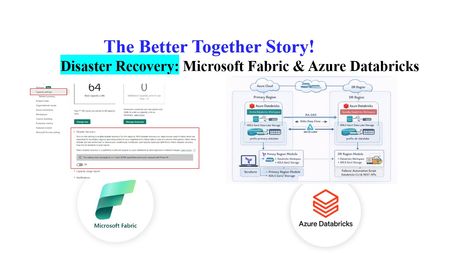
Author's: Amudha Palani amudhapalani, Oscar Alvarado oscaralvarado, Eric Kwashie ekwashie, Peter Lo PeterLo and Rafia Aqil Rafia_Aqil Disaster recovery (DR) is a critical component of any cloud-native data analytics platform, ensuring business continuity even during rare regional outages caused by natural disasters, infrastructure failures, or other disruptions. Identify Business Critical Workloads Before designing any disaster recovery strategy, organizations must first identify which workloads are truly business‑critical and require regional redundancy. Not all Databricks or Fabric processes need full DR protection; instead, customers should evaluate the operational impact of downtime, data freshness requirements, regulatory obligations, SLAs, and dependencies across upstream and downstream systems. By classifying workloads into tiers and aligning DR investments accordingly, customers ensure they protect what matters most without over‑engineering the platform. Azure Databricks Azure Databricks requires a customer‑driven approach to disaster recovery, where organizations are responsible for replicating workspaces, data, infrastructure components, and security configurations across regions. Full System Failover (Active-Passive) Strategy A comprehensive approach that replicates all dependent services to the secondary region. Implementation requirements include: Infrastructure Components: Replicate Azure services (ADLS, Key Vault, SQL databases) using Terraform Deploy network infrastructure (subnets) in the secondary region Establish data synchronization mechanisms Data Replication Strategy: Use Deep Clone for Delta tables rather than geo-redundant storage Implement periodic synchronization jobs using Delta's incremental replication Measure data transfer results using time travel syntax Workspace Asset Synchronization: Co-deploy cluster configurations, notebooks, jobs, and permissions using CI/CD Utilize Terraform and SCIM for identity and access management Keep job concurrencies at zero in the secondary region to prevent execution Fully Redundant (Active-Active) Strategy The most sophisticated approach where all transactions are processed in multiple regions simultaneously. While providing maximum resilience, this strategy: Requires complex data synchronization between regions Incurs highest operational costs due to duplicate processing Typically needed only for mission-critical workloads with zero-tolerance for downtime Can be implemented as partial active-active, processing most workload in primary with subset in secondary Enabling Disaster Recovery Create a secondary workspace in a paired region. Use CI/CD to keep Workspace Assets Synchronized continuously. Requirement Approach Tools Cluster Configurations Co-deploy to both regions as code Terraform Code (Notebooks, Libraries, SQL) Co-deploy with CI/CD pipelines Git, Azure DevOps, GitHub Actions Jobs Co-deploy with CI/CD, set concurrency to zero in secondary Databricks Asset Bundles, Terraform Permissions (Users, Groups, ACLs) Use IdP/SCIM and infrastructure as code Terraform, SCIM Secrets Co-deploy using secret management Terraform, Azure Key Vault Table Metadata Co-deploy with CI/CD workflows Git, Terraform Cloud Services (ADLS, Network) Co-deploy infrastructure Terraform Update your orchestrator (ADF, Fabric pipelines, etc.) to include a simple region toggle to reroute job execution. Replicate all dependent services (Key Vault, Storage accounts, SQL DB). Implement Delta “Deep Clone” synchronization jobs to keep datasets continuously aligned between regions. Introduce an application‑level “Sync Tool” that redirects: data ingestion compute execution Enable parallel processing in both regions for selected or all workloads. Use bi‑directional synchronization for Delta data to maintain consistency across regions. For performance and cost control, run most workloads in primary and only subset workloads in secondary to keep it warm. Implement Three-Pillar DR Design Primary Workspace: Your production Databricks environment running normal operations Secondary Workspace: A standby Databricks workspace in a different(paired) Azure region that remains ready to take over if the primary fails. This architecture ensures business continuity while optimizing costs by keeping the secondary workspace dormant until needed. The DR solution is built on three fundamental pillars that work together to provide comprehensive protection: 1. Infrastructure Provisioning (Terraform) The infrastructure layer creates and manages all Azure resources required for disaster recovery using Infrastructure as Code (Terraform). What It Creates: Secondary Resource Group: A dedicated resource group in your paired DR region (e.g., if primary is in East US, secondary might be in West US 2) Secondary Databricks Workspace: A standby Databricks workspace with the same SKU as your primary, ready to receive failover traffic DR Storage Account: An ADLS Gen2 storage account that serves as the backup destination for your critical data Monitoring Infrastructure: Azure Monitor Log Analytics workspace and alert action groups to track DR health Protection Locks: Management locks to prevent accidental deletion of critical DR resources Key Design Principle: The Terraform configuration references your existing primary workspace without modifying it. It only creates new resources in the secondary region, ensuring your production environment remains untouched during setup. 2. Data Synchronization (Delta Notebooks) The data synchronization layer ensures your critical data is continuously backed up to the secondary region. How It Works: The solution uses a Databricks notebook that runs in your primary workspace on a scheduled basis. This notebook: Connects to Backup Storage: Uses Unity Catalog with Azure Managed Identity for secure, credential-free authentication to the secondary storage account Identifies Critical Tables: Reads from a configuration list you define (sales data, customer data, inventory, financial transactions, etc.) Performs Deep Clone: Uses Delta Lake's native CLONE functionality to create exact copies of your tables in the backup storage Tracks Sync Status: Logs each synchronization operation, tracks row counts, and reports on data freshness Authentication Flow: The synchronization process leverages Unity Catalog's managed identity capabilities: An existing Access Connector for Unity Catalog is granted "Storage Blob Data Contributor" permissions on the backup storage. Storage credentials are created in Databricks that reference this Access Connector. The notebook uses these credentials transparently—no storage keys or secrets are required. What Gets Synced: You define which tables are critical to your business operations. The notebook creates backup copies including: Full table data and schema Table partitioning structure Delta transaction logs for point-in-time recovery 3. Failover Automation (Python Scripts) The failover automation layer orchestrates the switch from primary to secondary workspace when disaster strikes. Microsoft Fabric Microsoft Fabric provides built‑in disaster recovery capabilities designed to keep analytics and Power BI experiences available during regional outages. Fabric simplifies continuity for reporting workloads, while still requiring customer planning for deeper data and workload replication. Power BI Business Continuity Power BI, now integrated into Fabric, provides automatic disaster recovery as a default offering: No opt-in required: DR capabilities are automatically included. Azure storage geo-redundant replication: Ensures backup instances exist in other regions. Read-only access during disasters: Semantic models, reports, and dashboards remain accessible. Always supported: BCDR for Power BI remains active regardless of OneLake DR setting. Microsoft Fabric Fabric's cross-region DR uses a shared responsibility model between Microsoft and customers: Microsoft's Responsibilities: Ensure baseline infrastructure and platform services availability Maintain Azure regional pairings for geo-redundancy. Provide DR capabilities for Power BI as default. Customer Responsibilities: Enable disaster recovery settings for capacities Set up secondary capacity and workspaces in paired regions Replicate data and configurations Enabling Disaster Recovery Organizations can enable BCDR through the Admin portal under Capacity settings: Navigate to Admin portal → Capacity settings Select the appropriate Fabric Capacity Access Disaster Recovery configuration Enable the disaster recovery toggle Critical Timing Considerations: 30-day minimum activation period: Once enabled, the setting remains active for at least 30 days and cannot be reverted. 72-hour activation window: Initial enablement can take up to 72 hours to become fully effective. Azure Databricks & Microsoft Fabric DR Considerations Building a resilient analytics platform requires understanding how disaster recovery responsibilities differ between Azure Databricks and Microsoft Fabric. While both platforms operate within Azure’s regional architecture, their DR models, failover behaviors, and customer responsibilities are fundamentally different. Recovery Procedures Procedure Databricks Fabric Failover Stop workloads, update routing, resume in secondary region. Microsoft initiates failover; customers restore services in DR capacity. Restore to Primary Stop secondary workloads, replicate data/code back, test, resume production. Recreate workspaces and items in new capacity; restore Lakehouse and Warehouse data. Asset Syncing Use CI/CD and Terraform to sync clusters, jobs, notebooks, permissions. Use Git integration and pipelines to sync notebooks and pipelines; manually restore Lakehouses. Business Considerations Consideration Databricks Fabric Control Customers manage DR strategy, failover timing, and asset replication. Microsoft manages failover; customers restore services post-failover. Regional Dependencies Must ensure secondary region has sufficient capacity and services. DR only available in Azure regions with Fabric support and paired regions. Power BI Continuity Not applicable. Power BI offers built-in BCDR with read-only access to semantic models and reports. Activation Timeline Immediate upon configuration. DR setting takes up to 72 hours to activate; 30-day wait before changes allowed.1.5KViews5likes0CommentsTableau to Power BI Migration: Semantic Layer-First Approach for Cloud Architects
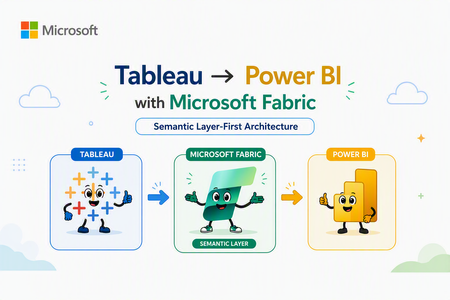
Author's: Mahjabin Ahmed, Yassine El Ouardi, Lavanya Sreedhar LavanyaSreedhar, Peter Lo PeterLo, Aryan Anmol aryananmol, Shreya Harvu shreyaharvu and Rafia Aqil Rafia_Aqil In this guide, we provide practical guidance for migrating from Tableau to Power BI, with a focus on technical best practices and architecture. Unifying business intelligence on the Microsoft Fabric platform, enterprises gain closer integration with Microsoft 365 (Teams, Copilot, Excel). For cloud solution architects and BI developers, a successful migration is not just about rebuilding dashboards in a new tool. It requires thoughtful architectural planning and a shift to a more model-centric approach to BI. Why Semantic Layer-First Architecture Matters The Traditional Migration Challenge Most Tableau to Power BI migrations follow a dashboard-centric approach: teams attempt to replicate existing Tableau workbooks, calculated fields, and LOD (Level of Detail) expressions directly into Power BI reports. While this may seem efficient initially, it creates significant downstream challenges: Duplicated logic: Each report embeds its own calculations and business rules, leading to conflicting KPIs across the organization Maintenance overhead: Changes to business logic require updating dozens or hundreds of individual reports Governance gaps: Without centralized definitions, semantic drift occurs—different teams calculate "Revenue" or "Active Customer" differently Scalability issues: As data volumes grow, report-level transformations become performance bottlenecks The Semantic Layer-First Alternative Microsoft's recommended approach centers on semantic models (formerly called datasets)—centralized, governed data models that separate business logic from visualization. In this architecture: The payoff is substantial: when data evolves or business rules change, you update the semantic model once, and all dependent reports automatically reflect the changes—no manual redesign required. Understanding Migration Complexity: Simple to Very Complex Dashboards Not all Tableau dashboards are created equal. The migration strategy should align with dashboard complexity, and the semantic layer approach becomes increasingly valuable as complexity grows. Follow a Step-by-Step Migration Strategy Migrating from Tableau to Power BI is not a one-click effort – it requires a mix of automated and manual refactoring, plus a sound change management plan. Below are key strategies and best practices for a successful migration: Audit your Tableau estate: Start by taking inventory of all existing Tableau workbooks, data sources, and dashboards. Determine what needs to be migrated (focus on high-value, widely used reports first) and identify any redundant or obsolete content that can be retired rather than converted. Conduct a proof-of-concept (PoC): Before migrating everything, pick a representative complex dashboard (or a subset of your data) and perform a pilot migration. This will help you validate that Power BI can connect to your data (e.g. setting up the Power BI gateways for on-premises sources), test performance (Import vs DirectQuery modes), and experiment with replicating key visuals or calculations. Use the PoC to uncover any surprises early – for example, test that any Level of Detail expressions or table calculations in Tableau can be re-created in DAX. The lessons learned here should inform your overall project plan. Use a phased migration approach: Plan to run Tableau and Power BI in parallel for some period, rather than switching everything at once. Migrate in waves – for example, by business unit or subject area – and incorporate user feedback as you go. This phased approach reduces risk and allows your team to improve the process with each iteration. It also gives end users time to adjust gradually. Migrate high-impact dashboards first: Prioritize the migration of key reports and dashboards that are critical to the business or have the most usage. Delivering these early wins will not only surface any technical challenges to solve but will also help demonstrate the value of Power BI’s capabilities to stakeholders. Early success builds buy-in and momentum for the rest of the migration. Reimagine (don’t just replicate) the experience: It’s rarely possible – or desirable – to exactly re-create every Tableau visualization pixel-for-pixel in Power BI. Embrace the opportunity to focus on business questions and improve user experience with Power BI’s features. For example, rather than replicating a complex Tableau workaround, you might implement a cleaner solution in Power BI using native features (like bookmarks, drilldowns, or simpler navigation between pages). Engage business users and subject matter experts during this redesign to ensure the new reports meet their needs. Enable dataset reusability: One major benefit of the Power BI approach is the ability to create shared datasets and dataflows. As you migrate, look for opportunities to create central semantic models (datasets) that can serve multiple reports. For instance, if several Tableau workbooks are all using similar data about sales, you can create one central Sales dataset in Power BI. Report creators across the organization can then build different Power BI reports on that single dataset without duplicating data or logic. This reduces maintenance and promotes a “build once, reuse often” strategy. Provide training and support: Expect a learning curve for teams moving to Power BI – especially those who are very fluent in Tableau. Plan for user upskilling and training programs. Establish a support community or office hours where new users can ask questions and get help. If possible, identify Power BI champions or recruit a Power BI Center of Excellence (COE) team who can guide others. During the transition, ensure there are subject matter experts (SMEs) available to address questions and validate that the new reports are correct. Manage change and expectations: It’s important to communicate why the organization is moving to Power BI (e.g. benefits like deeper integration, lower TCO, better governance) to get buy-in from end users. Some users may be resistant to change, especially if they’ve invested a lot of time in mastering Tableau. Prepare to handle varying responses – emphasize the personal benefits (like improved performance, new capabilities, or career growth with popular skills) to encourage adoption. Also, involve influential business users early and gather their feedback, so they feel ownership in the new solution. Establish governance from Day 1: Don’t wait until after migration to think about governance. Use this chance to set up Power BI governance aligned to best practices. Decide on important aspects such as workspace naming conventions, who can create or publish content, how you’ll monitor usage and costs, and how to manage data access and security (for example, designing a strategy for RLS/OLS/CLS, and deciding when to use per-user datasets vs. organizational semantic models). Good governance will ensure your shiny new Power BI environment doesn’t sprawl into chaos over time. Allow time for adjustment and iteration: Finally, be patient and iterative. Depending on the scale of your organization and the number of Tableau assets, a full migration can take months or even a year or more. Plan realistic transition periods where both systems might coexist. Continuously refine your approach with each wave of migration. Power BI’s frequent update cadence (monthly releases) means new features may emerge even during your project – stay updated, as new capabilities could simplify your migration (for example, the introduction of field parameters or Copilot might let you modernize certain Tableau features more easily). Reimagine (don’t just replicate) the experience (Step 5): Phase 1: Assessment and Planning 1. Audit Your Tableau Estate Inventory all workbooks, data sources, and calculated fields Identify high-traffic dashboards (prioritize for early migration) Categorize by complexity (Simple/Medium/Complex/Very Complex) 2. Design Your Semantic Architecture Map Tableau data sources to Power BI data sources (DirectQuery, Import, or Direct Lake) Plan star schema for fact/dimension tables Identify shared calculations that should live in semantic models vs. report-specific logic 3. Choose Storage Modes Source Type Recommended Mode Rationale Databricks Delta Lake Direct Lake Real-time analytics, no refresh lag Azure SQL Database DirectQuery or Import Based on data volume and refresh SLAs On-Premises SQL Server Import (via Gateway) Network latency considerations Excel/CSV files Import Small reference data Phase 2: Build the Semantic Layer 1. Create Star Schema Data Models Tableau often relies on flat, denormalized datasets. Power BI performs best with star schemas: Fact tables: Transactional data (sales, orders, events) with foreign keys to dimensions Dimension tables: Descriptive attributes (customers, products, dates) with primary keys Relationships: One-to-many from dimension to fact, leveraging bidirectional filtering sparingly 2. Migrate Calculations to DAX Measures Convert Tableau calculated fields to DAX measures in the semantic model: --Example of DAX: -- Define as measure: Total Revenue = SUMX( 'Sales', 'Sales'[Quantity] * 'Sales'[Unit Price] ) 2.1 Use Copilot to Accelerate DAX Development Leverage Copilot in Power BI Desktop to generate and validate DAX: Describe the calculation in natural language Copilot suggests DAX syntax Review, test, and refine 2.2 Document your Semantic Model Invest in creating an AI-ready foundation for your semantic model. AI systems need to understand unique business contexts in order to prioritize correct information to provide consistent and reliable responses to your end users. Name Tables and Columns Clearly: Avoid ambiguity in your semantic model. Use human-readable, business-friendly names. Avoid abbreviations, acronyms, or technical terms. This improves Copilot’s ability to interpret user intent. Create Meaningful Measures: Define reusable DAX measures for key business metrics (e.g., Revenue, Profit Margin). AI features rely on these to generate insights and summaries. Document Semantic Model objects: Add descriptions and synonyms to your Tables, Columns and measures. This enhances natural language querying and improves Copilot’s contextual understanding. Build an AI Data Schema: prepare your semantic model for AI by utilizing tooling features such as Prep data for AI. Phase 3: Understanding Migration Complexity: Simple to Very Complex Dashboards Not all Tableau dashboards are created equal. The migration strategy should align with dashboard complexity, and the semantic layer approach becomes increasingly valuable as complexity grows. 1. Dashboard Conversion Best Practices Think in "pages" not "sheets": Power BI reports combine multiple visuals per page; group related visuals logically Use slicers for interactivity: Replace Tableau filters with Power BI slicers and filter pane Leverage bookmarks for navigation: Create dynamic report experiences with show/hide containers Simple Complexity Level Category Tableau Feature Power BI Equivalent Microsoft Fabric Enhancements Best Practice Notes Data Model Single custom SQL Power Query for data shaping and ETL. OneLake Shortcuts for unified data access. Use star schema for optimized performance; push logic into the semantic layer rather than visuals. Calculations Basic IF/ELSE, SUM Data Analysis Expressions (DAX) for measures and calculated columns. Copilot for Power BI to assist with DAX creation. Fabric IQ for natural language queries. Centralize calculations in semantic models for consistency and governance. Medium Complexity Level Category Tableau Feature Power BI Equivalent Fabric Enhancements Best Practice Notes Data Model Multiple custom SQL (up to 3) Connect live to databases (Azure Databricks): DirectQuery in Power BI Connect with cloud data sources: Power BI data sources OneLake Shortcuts for unified access without databricks compute cost. Semantic Models can combine multiple sources. Optimize with star schema; Prefer OneLake Shortcuts for performance; avoid heavy transformations in visuals. Calculations Nested IFs, CASE Data Analysis Expressions (DAX) for measures and calculated columns. Copilot for Power BI to assist with DAX creation. Fabric Data Agent for conversational BI. Fabric IQ for natural language queries: Fabric IQ Centralize logic in semantic models; use Copilot for automation and validation; keep calculations reusable. Reporting Tooltip format in Bar and Map visuals Select All/Clear option for Single Select dropdown Standard tooltips offer help tooltips, text, and background formatting. Dynamic tooltip will be able to create the Tooltip page and reuse it in multiple visuals The customization is so much better than the OOB tooltips Create report tooltip pages in Power BI - Power BI | Microsoft Learn Use Clear All Slicers Button. Disable Single Select, Add Clear All Slicers button, Customize the Button and Use the Button Complex Complexity Level Category Tableau Feature Power BI Equivalent Fabric Enhancements Best Practice Notes Data Model Multiple sources Create relationship using more than one column Composite Models in Power BI (DirectQuery + Import) for combining multiple sources, also connect to various cloud services. Dataflows for pre-processing. Power BI allows a relationship between 2 tables based on only one active column. OneLake Shortcuts for unified access without Azure Databricks compute cost; Microsoft Fabric Dataflows Gen2 offers multiple ways to ingest, transform, and load data efficiently. Consolidate sources into semantic models; use Direct Lake for performance; Plan and design data model to comply with star schema supported by Power BI Relationship DAX USERELATIONSHIP DAX for activating relationships in Power BI for a specific calculation Calculations LOD, window functions Data Analysis Expressions (DAX) for measures and calculated columns. Copilot to assist with complex DAX. Fabric IQ Ontology for semantic alignment. Change how visuals interact in a Power BI report. Centralize calculations in semantic layer; use variables in DAX for readability and performance. Fabric Data Agent for a conversational BI. Very Complex Complexity Level Category Tableau Feature Power BI Equivalent Fabric Enhancements Best Practice Notes Data Model Multi-source, Excel, SQL Composite Models in Power BI (DirectQuery + Import) for combining multiple sources, also connect to various cloud services. Dataflows for pre-processing. OneLake Shortcuts for unified access; Connector overview build-in support. Mirroring for real-time sync. Combine multiple sources into well-structured semantic models for consistency and optimized performance. Calculations Predictive logic Data Analysis Expressions (DAX) for measures and calculated columns. Fabric AutoML, ML models, AI Insights, Python/R, Notebook‑based ML (Spark/Scikit‑Learn), Fabric AI Functions, Fabric IQ Ontology Fabric Data Agent for a conversational BI. Centralize logic in semantic models; leverage Copilot for automation and parameter-driven workflows. Prepare for Copilot. 2. Tableau Feature Equivalents Tableau Feature Power BI Equivalent Microsoft Learn Link Calculated Fields DAX Measures DAX Documentation Parameters Field Parameters / Bookmarks Use report readers to change visuals Actions Drillthrough / Bookmarks Drillthrough Tableau Prep Power Query / Dataflows Differences between Dataflow Gen1 and Dataflow Gen2 Tableau Server Power BI Service What is Power BI? Overview of Components and Benefits Phase 4: Governance and Deployment Workspace Planning (Dev / Test / Prod Separation) A proper workspace strategy is essential for governed deployments in Fabric and Power BI. Fabric supports separate Development, Test, and Production stages using Deployment Pipelines, enabling controlled promotions of semantic models, reports, dataflows, notebooks, lakehouses, and other items. You can assign each workspace to a pipeline stage (Dev → Test → Prod) to ensure safe lifecycle management. Sensitivity Labeling (Microsoft Purview Information Protection) Sensitivity labels allow governed classification and protection of data across Fabric items. Sensitivity labels can be applied directly to Fabric items (semantic models, reports, dataflows, etc.) through the item's header flyout or the item settings. Labels from Microsoft Purview Information Protection enforce data access rules and help organizations meet compliance requirements. Endorsement & Certification (Promoted, Certified, Master Data) Endorsement improves discoverability and trust in shared organizational content. Promoted: Item creators mark content as recommended for broader use. Certified: Administrators or authorized reviewers validate content meets organizational quality standards. Master Data: Indicates authoritative single‑source‑of‑truth items such as semantic models or lakehouses. All Fabric items except dashboards can be promoted or certified; data‑containing items can be designated as Master Data. Monitoring & Capacity Planning Determine the appropriate size for fabric capacity when migrating from Tableau to PowerBI. The Fabric SKU Estimator can generate a SKU recommendation (estimate) for your capacity requirements. Ensuring performance and cost efficiency requires ongoing monitoring of your Fabric capacity. Microsoft recommends evaluating workloads using Fabric Capacity Metrics and planning SKU sizes based on real usage. Fabric uses bursting and smoothing to handle spikes while enforcing capacity limits. Monitoring helps identify high compute usage, background refreshes, and interactive workloads to optimize performance. Fabric Data Source Connections (OneLake+ Manage Connections) Microsoft Fabric is designed as an end‑to‑end analytics platform that integrates data from many different source systems into a unified environment powered by OneLake, Data Factory, Real‑Time Analytics, Dataflows , Lakehouses, Warehouses, and Mirrored Databases. The Strategic Advantage: Semantic Layer + Fabric IQ The semantic layer-first approach sets the foundation for the next evolution in enterprise analytics. Fabric IQ (announced at Ignite 2025) is Microsoft's semantic intelligence platform that auto-elevates semantic models into ontologies—structured knowledge graphs that power AI agents, Copilot experiences, and cross-domain data reasoning. What this means for your migration: Semantic models you build today become the foundation for AI-driven analytics tomorrow Data Agents can reason across multiple semantic models, answering questions that span domains Business users transition from "report consumers" to "data explorers" via natural language interfaces Conclusion: Build for the Future, Not Just for Today Migrating from Tableau to Power BI is more than a technology swap—it's an opportunity to re-architect your analytics strategy for the cloud-native, AI-powered era. The semantic layer-first approach requires upfront investment in data modeling, DAX expertise, and Fabric platform adoption. But the payoff is transformative: Consistency: Single source of truth for all business metrics Scalability: Semantic models that serve hundreds of reports and thousands of users Agility: Changes to business logic propagate instantly across the enterprise Future-readiness: Foundation for Fabric IQ, Data Agents, and AI-driven insights Start your migration with the end in mind: not just convert dashboards, but a modern, governed, AI-ready analytics platform that scales with your business. Addressing Key Migration Concerns (1) Why a semantic‑layered model approach is better than recreating Tableau dashboards A semantic‑layered modeling approach is the optimal strategy for migration and is significantly more effective than attempting to recreate Tableau dashboards exactly as they exist. By contrast, Power BI and Fabric encourage a semantic model–first architecture, where all business rules, relationships, calculations, and transformations are centralized in a governed model that serves many dashboards. The approach not only provides consistency and reuse across the enterprise but also ensures that report authors build on a single certified version of the truth. (2) How semantic-layered model approach reduces the constant redesign caused by changing data needs. A semantic‑layered modeling approach directly addresses concern about constant changes and frequent redesigns of dashboards when data evolves. With a semantic layer, changes are absorbed in the model layer—so the logic is updated once and flows automatically into all dependent reports. Combined with Fabric features like OneLake shortcuts, Direct Lake mode, and centralized governance, the semantic layer drastically reduces breakage, minimizes rework, and ensures scalability as data continues to grow and shift. Additional Resources Direct Lake in Microsoft Fabric Create Fabric Data Agents OneLake Shortcuts Write DAX queries with Copilot - DAX Prepare Your Data for AI - Power BI | Microsoft Learn5.1KViews4likes3CommentsGuide for Architecting Azure-Databricks: Design to Deployment
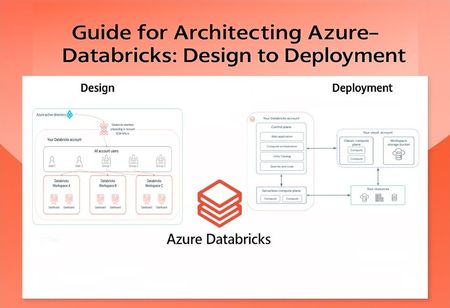
Author's: Chris Walk cwalk, Dan Johnson danjohn1234, Eduardo dos Santos eduardomdossantos, Aladdin Alchalabi AladdinAlchalabi, Ted Kim tekim, Eric Kwashie ekwashie, Chris Haynes Chris_Haynes, Tayo Akigbogun takigbogun and Rafia Aqil Rafia_Aqil Peer Reviewed: Mohamed Sharaf mohamedsharaf Note: We are currently updating this article to add: Serverless Workspace option. Also, while Terraform is the recommended method for production deployments due to its automation and repeatability, for simplicity in this article we will demonstrate deployment through the Azure portal. Introduction Video to Databricks: what is databricks | introduction - databricks for dummies DESIGN: Architecting a Secure Azure Databricks Environment Step 1: Plan Workspace, Subscription Organization, Analytics Architecture and Compute Planning your Azure Databricks environment can follow various arrangements depending on your organization’s structure, governance model, and workload requirements. The following guidance outlines key considerations to help you design a well-architected foundation. 1.1 Align Workspaces with Business Units A recommended best practice is to align each Azure Databricks workspace with a specific business unit. This approach—often referred to as the “Business Unit Subscription” design pattern—offers several operational and governance advantages. Streamlined Access Control: Each unit manages its own workspace, simplifying permissions and reducing cross-team access risks. For example, Sales can securely access only their data and notebooks. Cost Transparency: Mapping workspaces to business units enables accurate cost attribution and supports internal chargeback models. Each workspace can be tagged to a cost center for visibility and accountability. Even within the same workspace, costs can be controlled using system tables that provide detailed usage metrics and resource consumption insights. Challenges to keep-in-mind: While per-BU workspaces have high impact, be mindful of workspace sprawl. If every small team spins up its own workspace, you might end up with dozens or hundreds of workspaces, which introduces management overhead. Databricks recommends a reasonable upper limit (on Azure, roughly 20–50 workspaces per account/subscription) because managing “collaboration, access, and security across hundreds of workspaces can become extremely difficult, even with good automation” [1]. Each workspace will need governance (user provisioning, monitoring, compliance checks), so there is a balance to strike. 1.2 Workspace Alignment and Shared Metastore Strategy As you align workspaces with business units, it's essential to understand how Unity Catalog and the metastore fit into your architecture. Unity Catalog is Databricks’ unified governance layer that centralizes access control, auditing, and data lineage across workspaces. Each Unity Catalog is backed by a metastore, which acts as the central metadata repository for tables, views, volumes, and other data assets. In Azure Databricks, you can have one metastore per region, and all workspaces within that region share it. This enables consistent governance and simplifies data sharing across teams. If your organization spans multiple regions, you’ll need to plan for cross-region sharing, which Unity Catalog supports through Delta Sharing. By aligning workspaces with business units and connecting them to a shared metastore, you ensure that governance policies are enforced uniformly, while still allowing each team to manage its own data assets securely and independently. 1.3 Distribute Workspaces Across Subscriptions When scaling Azure Databricks, consider not just the number of workspaces, but also how to distribute them across Azure subscriptions. Using multiple Azure subscriptions can serve both organizational needs and technical requirements: Environment Segmentation (Dev/Test/Prod): A common pattern is to put production workspaces in a separate Azure subscription from development or test workspaces. This provides an extra layer of isolation. Microsoft highly recommends separating workspaces into prod and dev, in separate subscriptions. This way, you can apply stricter Azure policies or network rules to the prod subscription and keep the dev subscription a bit more open for experimentation without risking prod resources. Honor Azure Resource Limits: Azure subscriptions come with certain capacity limits and Azure Databricks workspaces have their own limits (since it’s a multi-tenant PaaS). If you put all workspaces in one subscription, or all teams in one workspace, you might hit those limits. Most enterprises naturally end up with multiple subscriptions as they grow – planning this early avoids later migration headaches. If you currently have everything in one subscription, evaluate usage and consider splitting off heavy workloads or prod workloads into a new one to adhere to best practices. 1.4 Consider Completing Azure Landing Zone Assessment When evaluating and planning your next deployment, it’s essential to ensure that your current landing zone aligns with Microsoft best practices. This helps establish a robust Databricks architecture and minimizes the risk of avoidable issues. Additionally, customers who are early in their cloud journey can benefit from Cloud Assessments—such as an Azure Landing Zone Review and a review of the “Prepare for Cloud Adoption” documentation—to build a strong foundation. 1.5 Planning Your Azure Databricks Workspace Architecture Your workspace architecture should reflect the operational model of your organization and support the workloads you intend to run, from exploratory notebooks to production-grade ETL pipelines. To support your planning, Microsoft provides several reference architectures that illustrate well-architected patterns for Databricks deployments. These solution ideas can serve as starting points for designing maintainable environments: Simplified Architecture: Modern Data Platform Architecture, ETL-Intensive Workload Reference Architecture: Building ETL Intensive Architecture, End-to-End Analytics Architecture: Create a Modern Analytics Architecture. 1.6 Planning for that “Right” Compute Choosing the right compute setup in Azure Databricks is crucial for optimizing performance and controlling costs, as billing is based on Databricks Units (DBUs) using a per-second pricing model. Classic Compute: You can fine-tune your own compute by enabling auto-termination and autoscaling, using Photon acceleration, leveraging spot instances, selecting the right VM type and node count for your workload, and choosing SSDs for performance or HDDs for archival storage. Preferred by mature internal teams and developers who need advanced control over clusters—such as custom VM selection, tuning, and specialized configurations. Serverless Compute: Alternatively, managed services can simplify operations with built-in optimizations. Removes infrastructure management and offers instant scaling without cluster warm-up, making it ideal for agility and simplicity. Step 2: Plan the “Right” CIDR Range (Classic Compute) Note: You can skip this step if you plan to use serverless compute for all your resources, as CIDR range planning is not required in serverless deployments. When planning CIDR ranges for your Azure Databricks workspace, it's important to ensure your virtual network has enough IP address capacity to support cluster scaling. Why this matters: If you choose a small VNet address space and your analytics workloads grow, you might hit a ceiling where you simply cannot launch more clusters or scale-out because there are no free IPs in the subnet. The subnet sizes—and by extension, the VNet CIDR—determine how many nodes you can. Databricks recommends using a CIDR block between /16 and /24 for the VNet, and up to /26 for the two required subnets: the container subnet and the host subnet. Here’s a reference Microsoft provides. If your current workspace’s VNet lacks sufficient IP space for active cluster nodes, you can request a CIDR range update through your Azure Databricks account team as noted in the Microsoft documentation. 2.1 Considerations for CIDR Range Workload Type & Concurrency: Consider what kinds of workloads will run (ETL Pipelines, Machine Learning Notebooks, BI Dashboards, etc.) and how many jobs or clusters may need to run in parallel. High concurrency (e.g. multiple ETL jobs or many interactive clusters) means more nodes running at the same time, requiring a larger pool of IP addresses. Data Volume (Historical vs. Incremental): Are you doing a one-time historical data load or only processing new incremental data? A large backfill of terabytes of data may require spinning up a very large cluster (hundreds of nodes) to process in a reasonable time. Ongoing smaller loads might get by with fewer nodes. Estimate how much data needs processing. Transformation Complexity: The complexity of data transformations or machine learning workloads matters. Heavy transformations (joins, aggregations on big data) or complex model training can benefit more workers. If your use cases include these, you may need larger clusters (more nodes) to meet performance SLAs, which in turn demands more IP addresses available in the subnet. Data Sources and Integration: Consider how your Databricks environment will connect to data. If you have multiple data sources or sinks (e.g. ingest from many event hubs, databases, or IoT streams), you might design multiple dedicated clusters or workflows, potentially all active at once. Also, if using separate job clusters per job (Databricks Jobs), multiple clusters might launch concurrently. All these scenarios increase concurrent node count. 2.2 Configuring a Dedicated Network (VNet) per Workspace with Egress Control By default, Azure Databricks deploys its classic compute resources into a Microsoft-managed virtual network (VNet) within your Azure subscription. While this simplifies setup, it limits control over network configuration. For enhanced security and flexibility, it's recommended to use VNet Injection, which allows you to deploy the compute plane into your own customer-managed VNet. This approach enables secure integration with other Azure services using service endpoints or private endpoints, supports user-defined routes for accessing on-premises data sources, allows traffic inspection via network virtual appliances or firewalls, and provides the ability to configure custom DNS and enforce egress restrictions through network security group (NSG) rules. Within this VNet (which must reside in the same region and subscription as the Azure Databricks workspace), two subnets are required for Azure Databricks: a container subnet (referred to as private subnet) and a host subnet (referred to as public subnet). To implement front-end Private Link, back-end Private Link, or both, your workspace VNet needs a third subnet that will contain the private endpoint (PrivateLink subnet). It is recommended to also deploy an Azure Firewall for egress control. Step 3: Plan Network Architecture for Securing Azure-Databricks 3.1 Secure Cluster Connectivity Secure Cluster Connectivity, also known as No Public IP (NPIP), is a foundational security feature for Azure Databricks deployments. When enabled, it ensures that compute resources within the customer-managed virtual network (VNet) do not have public IP addresses, and no inbound ports are exposed. Instead, each cluster initiates a secure outbound connection to the Databricks control plane using port 443 (HTTPS), through a dedicated relay. This tunnel is used exclusively for administrative tasks, separate from the web application and REST API traffic, significantly reducing the attack surface. For the most secure deployment, Microsoft and Databricks strongly recommend enabling Secure Cluster Connectivity, especially in environments with strict compliance or regulatory requirements. When Secure Cluster Connectivity is enabled, both workspace subnets become private, as cluster nodes don’t have public IP addresses. 3.2 Egress with VNet Injection (NVA) For Databricks traffic, you’ll need to assign a UDR to the Databricks-managed VNet with a next hop type of Network Virtual Appliance (NVA)—this could be an Azure Firewall, NAT Gateway, or another routing device. For control plane traffic, Databricks recommends using Azure service tags, which are logical groupings of IP addresses for Azure services and should be routed with the next hop type of internet. This is important because Azure IP ranges can change frequently as new resources are provisioned, and manually maintaining IP lists is not practical. Using service tags ensures that your routing rules automatically stay up to date. 3.3 Front-End Connectivity with Azure Private Link (Standard Deployment) To further enhance security, Azure Databricks supports Private Link for front-end connections. In a standard deployment, Private Link enables users to access the Databricks web application, REST API, and JDBC/ODBC endpoints over a private VNet interface, bypassing the public internet. For organizations with no public internet access from user networks, a browser authentication private endpoint is required. This endpoint supports SSO login callbacks from Microsoft Entra ID and is shared across all workspaces in a region using the same private DNS zone. It is typically hosted in a transit VNet that bridges on-premises networks and Azure. Note: There are two deployment types: standard and simplified. To compare these deployment types, see Choose standard or simplified deployment. 3.4 Serverless Compute Networking Azure Databricks offers serverless compute options that simplify infrastructure management and accelerate workload execution. These resources run in a Databricks-managed serverless compute plane, isolated from the public internet and connected to the control plane via the Microsoft backbone network. To secure outbound traffic from serverless workloads, administrators can configure Serverless Egress Control using network policies that restrict connections by location, FQDN, or Azure resource type. Additionally, Network Connectivity Configurations (NCCs) allow centralized management of private endpoints and firewall rules. NCCs can be attached to multiple workspaces and are essential for enabling secure access to Azure services like Data Lake Storage from serverless SQL warehouses. DEPLOYMENT: Step-to-Step Implementation using Azure Portal Step 1: Create an Azure Resource Group For each new workspace, create a dedicated Resource Group (to contain the Databricks workspace resource and associated resources). Ensure that all resources are deployed in the same Region and Resource Group (i.e. workspace, subnets...) to optimize data movement performance and enhance security. Step 2: Deploy Workspace Specific Virtual Network (VNET) From your Resource Group, create a Virtual Network. Under the Security section, enable Azure Firewall. Deploying an Azure Firewall is recommended for egress control, ensuring that outbound traffic from your Databricks environment is securely managed. Define address spaces for your Virtual Network (Review Step 2 from Design). As documented, you could create a VNet with these values: IP range: First remove the default IP range, and then add IP range 10.28.0.0/23. Create subnet public-subnet with range 10.28.0.0/25. Create subnet private-subnet with range 10.28.0.128/25. Create subnet private-link with range 10.28.1.0/27. Please note: your IP values can be different depending on your IPAM and available scopes. Review + Create your Virtual Network. Step 3: Deploy Azure-Databricks Workspace: Now that networking is in place, create the Databricks workspace. Below are detailed steps your organization should review while creating workspace creation: In Azure Portal, search for Azure Databricks and click Create. Choose the Subscription, RG, Region, select Premium, enter in “Managed Resource Group name” and click Next. Managed Resource Group- will be created after your Databrick workspace is deployed and contains infrastructure resources for the workspace i.e. VNets, DBFS. Required: Enable “Secure Cluster Connectivity” (No Public IP for clusters), to ensure that Databricks clusters are deployed without public IP addresses (Review Section 3.1). Required: Enable the option to deploy into your Virtual Network (VNet Injection), also known as “Bring Your Own VNet” (Review Section 3.2). Select the Virtual Network created in Step 2. Enter Private, Public Subnet Names. Enable or Disable “Deploying Nat Gateway”, according to your workspace requirement. Disable “Allow Public Network Access”. Select “No Azure Databricks Rules” for Required NSG Rules. Select “Click on add to create a private endpoint”, this will open a panel for private endpoint setup. Click “Add” to enter your Private Link details created in Step 2. Also, ensure that Private DNS zone integration is set to “Yes” and that a new Private DNS Zone is created, indicated by (New)privatelink.azuredatabricks.net. Unless an existing DNS zone for this purpose already exists. (Optional) Under Encryption Tab, Enable Infrastructure Encryption, if you have requirement for FIPS 140-2. It comes at a cost, it takes time to encrypt and decrypt. By default your data is already encrypted. If you have a standard regulatory requirement (ex. HIPAA). (Optional) Compliance security profile- for HIPAA. (Optional) Automatic cluster updates, First Sunday of every Month. Review + Create the workspace and wait for it to deploy. Step 4: Create a private endpoint to support SSO for web browser access: Note: This step is required when front-end Private Link is enabled, and client networks cannot access the public internet. After creating your Azure Databricks workspace, if you try to launch it without the proper Private Link configuration, you will see an error like the image below: This happens because the workspace is configured to block public network access, and the necessary Private Endpoints (including the browser_authentication endpoint for SSO) are not yet in place. Create Web-Auth Workspace Note: Deploy a “dummy”: WEB_AUTH_DO_NOT_DELETE_<region> workspace in the same region as your production workspace. Purpose: Host the browser_authentication private endpoint (one required per region). Lock the workspace (Delete lock) to prevent accidental removal. Follow step 2 to create Virtual Network (Vnet) Follow step 3 and create a VNet injected “dummy” workspace. Create Browser Authentication Private Endpoint In Azure Portal, Databricks workspace (dummy), Networking, Private endpoint connections, + Private endpoint. Resource step: Target sub-resource: browser_authentication Virtual Network step: VNet: Transit/Hub VNet (central network for Private Link) Subnet: Private Endpoint subnet in that VNet (not Databricks host subnets) DNS step: Integrate with Private DNS zone: Yes Zone: privatelink.azuredatabricks.net Ensure DNS zone is linked to the Transit VNet After creation: A-records for *.pl-auth.azuredatabricks.net are auto-created in the DNS zone. Workspace Connectivity Testing If you have VPN or ExpressRoute, Bastion is not required. However, for the purposes of this article we will be testing our workpace connectivity through Bastion. If you don’t have private connectivity and need to test from inside the VNet, Azure Bastion is a convenient option. Step 5: Create Storage Account From your Resource Group, click Create and select Storage account. On the configuration page: Select Preferred Storage type as: Azure Blob Storage or Azure Data Lake Storage Gen 2. Choose Performance and Redundancy options based on your business requirements. Click Next to proceed. Under the Advanced tab: Enable Hierarchical namespace under Data Lake Storage Gen2. This is critical for: Directory and file-level operations, Access Control Lists (ACLs). Under the Networking tab: Set Public Network Access to Disabled. Complete the creation process and then create container(s) inside the storage account. Step 6: Create Private Endpoints for Workspace Storage Account Pre-requisite: You need to create two private endpoints from the VNet used for VNet injection to your workspace storage account for the following Target sub-resources: dfs and blob. Navigate to your Storage Account. Go to Networking, Private Endpoints tab and click on to + Create Private Endpoint. In the Create Private Endpoint wizard: Resource tab: Select your Storage Account. Set Target sub-resource to dfs for the first endpoint. Virtual Network tab: Choose the VNet you used for VNet injection. Select the appropriate subnet. Complete the creation process. The private endpoint will be auto approved and visible under Private Endpoints. Repeat the process for the second private endpoint: This time set Target sub-resource to blob. Step 7: Link Storage and Databricks Workspace: Create Access Connector In your Resource Group, create an Access Connector for Azure Databricks. No additional configuration is required during creation. Assign Role to Access Connector Navigate to your Storage Account, Access Control (IAM), Add role assignment. Select: Role: Storage Blob Data Contributor Assign access to: Managed Identity Under Members: Click Select members. Find and select your newly created Access Connector for Azure Databricks. Save the role assignment. Copy Resource ID Go to the Access Connector Overview page. Copy the Resource ID for later use in Databricks configuration. Step 8: Link Storage and Databricks Workspace: Navigate to Unity Catalog In your Databricks Workspace, go to Unity Catalog, External Data and select “Create external Location” button. Configure External Location Select ADLS as the storage type. Enter the ADLS storage URL in the following format: abfss://<container_name>@<storage_account_name>.dfs.core.windows.net/ Update these two parameters: <container_name> and <storage_name> Provide Access Connector Select “Create new storage credential” from Storage credential field. Paste the Resource ID of the Access Connector for Azure Databricks (from Step 10) into the Access Connector ID field. Validate Connection Click Submit. You should see a “Successful” message confirming the connection. Click submit and you should receive a “Successful” message, indicating your connection has succeeded. You can now create Catalogs and link your secure storage. Step 9: Configuring Serverless Compute Networking: If your organization plans to use Serverless SQL Warehouses or Serverless Jobs Compute, you must configure Serverless Networking. Add Network Connectivity Configuration (NCC) Go to the Databricks Account Console: https://accounts.azuredatabricks.net/ Navigate to Cloud resources, click Add Network Connectivity Configuration. Fill in the required fields and create a new NCC. Associate NCC with Workspace In the Account Console, go to Workspaces. Select your workspace, click Update Workspace. From the Network Connectivity Configuration dropdown, select the NCC you just created. Add Private Endpoint Rule In Cloud resources, select your NCC, select Private Endpoint Rules and click Add Private Endpoint Rule. Provide: Resource ID: Enter your Storage Account Resource ID. Note: this can be found from your storage account, click on “JSON View” top right. Azure Subresource type: dfs & blob. Approve Pending Connection Go to your Storage Account, Networking, Private Endpoints. You will see a Pending connection from Databricks. Approve the connection and you will see the Connection status in your Account Console as ESTABLISHED. Step 10: Test Your Workspace: Launch a small test cluster and verify the following: It can start (which means it can talk to the control plane). It can read/write from the storage, following the following code to confirm read/write to storage: Set Spark properties to configure Azure credentials to access Azure storage. Check Private DNS Record has been created. (Optional) If on-prem data is needed: try connecting to an on-prem database (using the ExpressRoute path): Connect your Azure Databricks workspace to your on-premises network - Azure Databricks | Microsoft Learn. Step 11: Account Console, Planning Workspace Access Controls and Getting Started: Once your Azure Databricks workspace is deployed, it's essential to configure access controls and begin onboarding users with the right permissions. From your account console: https://accounts.azuredatabricks.net/, you can centrally manage your environment: add users and groups, enable preview features, and view or configure all your workspaces. Azure Databricks supports fine-grained access management through Unity Catalog, cluster policies, and workspace-level roles. Start by defining who needs access to what—whether it's notebooks, tables, jobs, or clusters—and apply least-privilege principles to minimize risk. DBFS Limitation: DBFS is automatically created upon Databricks Workspace creation. DBFS can be found in your Managed Resource Group. Databricks cannot secure DBFS (see reference image below). If there is a business need to avoid DBFS then you can disable DBFS access following instructions here: Disable access to DBFS root and mounts in your existing Azure Databricks workspace. Use Unity Catalog to manage data access across catalogs, schemas, and tables, and consider implementing cluster policies to standardize compute configurations across teams. To help your teams get started, Microsoft provides a range of tutorials and best practice guides: Best practice articles - Azure Databricks | Microsoft Learn. Step 12: Planning Data Migration: As you prepare to move data into your Azure Databricks environment, it's important to assess your migration strategy early. This includes identifying source systems, estimating data volumes, and determining the appropriate ingestion methods—whether batch, streaming, or hybrid. For organizations with complex migration needs or legacy systems, Microsoft offers specialized support through its internal Azure Cloud Accelerated Factory program. Reach out to your Microsoft account team to explore nomination for Azure Cloud Accelerated Factory, which provides hands-on guidance, tooling, and best practices to accelerate and streamline your data migration journey. Summary Regular maintenance and governance are as important as the initial design. Continuously review the environment and update configurations as needed to address evolving requirements and threats. For example, tag all resources (workspaces, VNets, clusters, etc.) with clear identifiers (workspace name, environment, department) to track costs and ownership effectively. Additionally, enforce least privilege across the platform: ensure that only necessary users are given admin privileges, and use cluster-level access control to restrict who can create or start clusters. By following the above steps, an organization will have an Azure Databricks architecture that is securely isolated, well-governed, and scalable. References: [1] 5 Best Practices for Databricks Workspaces AzureDatabricksBestPractices/toc.md at master · Azure ... - GitHub Deploy a workspace using the Azure Portal Additional Links: Quick Introduction to Databricks: what is databricks | introduction - databricks for dummies Connect Purview with Azure Databricks: Integrating Microsoft Purview with Azure Databricks Secure Databricks Delta Share between Workspaces: Secure Databricks Delta Share for Serverless Compute Azure-Databricks Cost Optimization Guide: Databricks Cost Optimization: A Practical Guide Integrate Azure Databricks with Microsoft Fabric: Integrating Azure Databricks with Microsoft Fabric Databricks Solution Accelerators for Data & AI Azure updates Appendix 3.5 Understanding Data Transfer (Express Route vs. Public Internet) For data transfers, your organization must decide to use ExpressRoute or Internet Egress. There are several considerations that can help you determine your choice: 3.5.1. Connectivity Model • ExpressRoute: Provides a private, dedicated connection between your on-premises infrastructure and Microsoft Azure. It bypasses the public internet entirely and connects through a network service provider. • Internet Egress: Refers to outbound data traffic from Azure to the public internet. This is the default path for most Azure services unless configured otherwise. 3.6 Planning for User-Defined Routes (UDRs) When working with Databricks deployments—especially in VNet-injected workspaces—setting up User Defined Routes (UDRs) is a smart move. It’s a best practice that helps manage and secure network traffic more effectively. By using UDRs, teams can steer traffic between Databricks components and external services in a controlled way, which not only boosts security but also supports compliance efforts. 3.6.1 UDRs and Hub and Spoke Topology If your Databricks workspace is deployed into your own virtual network (VNet), you’ll need to configure standard user-defined routes (UDRs) to manage traffic flow. In a typical hub-and-spoke architecture, UDRs are used to route all traffic from the spoke VNets to the hub VNet. 3.6.2 Hub and Spoke with VWANHUB If your Databricks workspace is deployed into your own virtual network (VNet) and is peered to a Virtual WAN (VWAN) hub as the primary connectivity hub into Azure, a user-defined route (UDR) is not required—provided that a private traffic routing policy or internet traffic routing policy is configured in the VWAN hub. 3.6.3 Use of NVAs and Service Tags For Databricks traffic, you’ll need to assign a UDR to the Databricks-managed VNet with a next hop type of Network Virtual Appliance (NVA)—this could be an Azure Firewall, NAT Gateway, or another routing device. For control plane traffic, Databricks recommends using Azure service tags, which are logical groupings of IP addresses for Azure services and should be routed with the next hop type of internet. This is important because Azure IP ranges can change frequently as new resources are provisioned, and manually maintaining IP lists is not practical. Using service tags ensures that your routing rules automatically stay up to date. 3.6.4 Default Outbound Access Retirement (Non-Serverless Compute) Microsoft is retiring default outbound internet access for new deployments starting September 30,2025. Going forward, outbound connectivity will require an explicit configuration using an NVA, NAT Gateway, Load Balancer, or Public IP address. Also, note that using a Public IP Address in the deployment is discouraged for Security purposes, and it is recommended to deploy the workspace in a ‘Secure Cluster Connectivity ration.” Configure connectivity will require an explicit configuration using an NVA, NAT Gateway, Load Balancer, or Public IP address. Also, note that using a Public IP Address in the deployment is discouraged for Security purposes, and it is recommended to deploy the workspace in a ‘Secure Cluster Connectivity ration.”4.3KViews4likes0CommentsTransforming Text to Video: Harnessing the Power of Azure Open AI and Cognitive Services with Python
Introduction In today's digital age, video content has become a powerful medium for communication and storytelling. Whether it's for marketing, education, or entertainment purposes, videos could captivate and engage audiences in ways that traditional text-based content often cannot. However, creating compelling videos from scratch can be a time-consuming and resource-intensive process. Fortunately, with the advancements in artificial intelligence and the availability of cloud-based services like Azure Open AI and Cognitive Services, it is now possible to automate and streamline the process of converting text into videos. These cutting-edge technologies provide developers and content creators with powerful tools and APIs that leverage natural language processing and computer vision to transform plain text into visually appealing and professional-looking videos. This document serves as a comprehensive guide and a starting point for developers who are eager to explore the exciting realm of Azure Open AI and Cognitive Services for text-to-video conversion. While this guide presents a basic implementation, its purpose is to inspire and motivate developers to delve deeper into the possibilities offered by these powerful technologies. Whether you are a developer looking to integrate text-to-video functionality into your applications or a content creator seeking to automate the video production process, this guide will provide you with the insights and resources you need to get started. So let's dive in and discover the exciting world of text-to-video conversion using Azure Open AI and Cognitive Services! Prerequisite The next part of the sections will show the Architecture and the implementation through python coding. If you are new to these technologies, don’t worry please go through this prerequisite links to get started: Azure Open AI : Get started with Azure OpenAI Service - Training | Microsoft Learn Azure Cognitive Services: Key Phrase Extraction : What is key phrase extraction in Azure Cognitive Service for Language? - Azure Cognitive Services | Microsoft Learn Speech To Text: Speech to text overview - Speech service - Azure Cognitive Services | Microsoft Learn Python coding : You will find multiple courses from internet, you can refer Learn Python - Free Interactive Python Tutorial Architecture Figure 1: Architecture The following architecture outlines a generic flow for converting text content into video files: The steps are explained below : Initially, an application (implemented in Python, but applicable to any programming language) accepts textual content as input from the user. The application utilizes the Azure Open AI Python SDK to invoke the summarization functionality, which generates a summarized text. This summarization is stored in memory for further use. The summarized content serves as input for the Azure Cognitive Services, specifically for generating key phrases and an audio file. The key phrases are extracted and stored in the application's memory for later use. Simultaneously, the audio file is stored and persisted on the compute server. Alternatively, it can be stored in any preferred persistent storage solution. The key phrases are then used as input for the Azure Open AI API, generating meaningful DALL·E prompts. These DALL·E prompts are stored in memory for subsequent utilization. The DALL·E prompts serve as input for another Azure Open AI API call, generating images that will be used in the final video. The generated images are stored on the compute server or any chosen persistent storage medium. To create the final video, a custom Python application is employed. This application combines the previously generated audio and images, resulting in the creation of the video file. The final video is initially stored on the compute server but can be subsequently pushed to any desired storage layer for further consumption. By following this process, textual content can be effectively transformed into a video file, providing enhanced accessibility and visual representation of the original information. Text Summarization through Azure Open AI The code provided is an example of text summarization using OpenAI's GPT-3.5 language model. Here's a breakdown of the code: Importing necessary libraries and setting up OpenAI API: import os import openai openai.api_type = "azure" openai.api_base = "https://<Your_Resource_Name>.openai.azure.com/" openai.api_version = "2022-12-01" openai.api_key = "<Your API Key>" This section imports the required libraries and sets up the OpenAI API credentials. You would need to replace <Your_Resource_Name> with your actual resource name and <Your API Key> with your OpenAI API key. Setting the number of sentences for the summary: num_of_sentences = 5 This line defines the number of sentences that the summary should consist of. You can change this value according to your requirements. Obtaining user input: content = input("Please enter the content: ") This line prompts the user to enter the content they want to summarize and stores it in the content variable. Creating the prompt for summarization: prompt = 'Provide a summary of the text below that captures its main idea in '+ str(num_of_sentences) +'sentences. \n' + content This line constructs the prompt by combining the predefined sentence with the user's input content. Generating the summary using OpenAI's Completion API: response_summ = openai.Completion.create( engine="text-davinci", prompt=prompt, temperature=0.3, max_tokens=250, top_p=1, frequency_penalty=0, presence_penalty=0, best_of=1, stop=None) This code sends a request to the OpenAI API for generating the summary. It uses the openai.Completion.create() method with the following parameters: -> engine: Specifies the language model to use. Here, it uses the "text-davinci" model, which is a powerful and versatile model. -> prompt: The prompt for the model to generate a summary based on. -> temperature: Controls the randomness of the generated output. Lower values (e.g., 0.3) make the output more focused and deterministic. -> max_tokens: Specifies the maximum number of tokens the response can have. Tokens are chunks of text, and this value limits the length of the generated summary. -> top_p: Controls the diversity of the output. A higher value (e.g., 1) allows more diverse responses by considering a larger set of possibilities. -> frequency_penalty and presence_penalty: These parameters control the preference of the model for repeating or including certain phrases. Here, they are set to 0, indicating no preference. -> best_of: Specifies the number of independent tries the model will make and return the best result. -> stop: Specifies a string or list of strings at which to stop the generated summary. Printing the generated summary: print(response_summ.choices[0].text) This line prints the generated summary by accessing the text property of the first choice in the response. The summary will be displayed in the console. Key Phrase Extraction using Azure Cognitive Service The code provided demonstrates key phrase extraction using Microsoft Azure's Text Analytics service. Here's an explanation of the code: Setting up the required credentials and endpoint: key = "<Your_cognitive_service_key>" endpoint = "https://<Your_cognitive_service>.cognitiveservices.azure.com/" These lines define the cognitive service key and endpoint for the Text Analytics service. You need to replace <Your_cognitive_service_key> with your actual cognitive service key and <Your_cognitive_service> with the name of your cognitive service. Importing necessary libraries: from azure.ai.textanalytics import TextAnalyticsClient from azure.core.credentials import AzureKeyCredential These lines import the required libraries from the Azure SDK. Authenticating the client: def authenticate_client(): ta_credential = AzureKeyCredential(key) text_analytics_client = TextAnalyticsClient( endpoint=endpoint, credential=ta_credential) return text_analytics_client client = authenticate_client() This code defines the authenticate_client() function that creates an instance of the TextAnalyticsClient using the provided key and endpoint. The client variable stores the authenticated client. Defining the key phrase extraction example: def key_phrase_extraction_example(client): try: phrase_list, phrases = [], '' documents = [response_summ.choices[0].text] response_kp = client.extract_key_phrases(documents = documents)[0] if not response_kp.is_error: print("\tKey Phrases:") for phrase in response_kp.key_phrases: print("\t\t", phrase) phrase_list.append(phrase) phrases = phrases +"\n"+ phrase else: print(response_kp.id, response_kp.error) except Exception as err: print("Encountered exception. {}".format(err)) return phrase_list, phrases This code defines the key_phrase_extraction_example() function that takes the authenticated client as input. It performs key phrase extraction on a given document (in this case, response_summ.choices[0].text) using the client.extract_key_phrases() method. The extracted phrases are stored in the phrase_list and phrases variables. If there is an error, it is printed. Executing the key phrase extraction example: phrase_list, phrases = key_phrase_extraction_example(client) This line calls the key_phrase_extraction_example() function with the authenticated client as an argument. The extracted key phrases are stored in the phrase_list and phrases variables, which can be used for further processing or display. Overall, the code sets up the Azure Text Analytics client, authenticates it, and demonstrates key phrase extraction on a given text using the client. Create Dall-e prompts for image generation using Azure Open AI The code provided focuses on generating images based on the extracted phrases. Here's an explanation of the code: Creating a prompt for image generation: prompt = ''' Provide an image idea for each phrases: ''' + phrases This line creates a prompt by concatenating the phrase list obtained from the key phrase extraction with a predefined text. The prompt serves as input for the image generation model. Generating image ideas using OpenAI's text completion API: response_phrase = openai.Completion.create( engine="text-davinci", prompt=prompt, temperature=0.3, max_tokens=3000, top_p=1, frequency_penalty=0, presence_penalty=0, best_of=1, stop=None) This code uses OpenAI's text completion API to generate image ideas based on the provided prompt. The generated ideas are stored in response_phrase.choices[0].text. Extracting image phrases from the generated response: image_phrases = response_phrase.choices[0].text.split("\n")[1:] This code splits the generated response by newlines and stores the resulting lines (image phrases) in the image_phrases variable. Processing image phrases: im_ph = [] for image_phrase in image_phrases: #print(image_phrase) if(len(image_phrase) > 0): im_ph.append(image_phrase.split(":")[1]) This code processes each image phrase by splitting it based on the colon (":") character and appending the second part to the im_ph list. This step is done to extract the actual image idea from each phrase. Setting up the necessary variables: import requests import time import os api_base = 'https://<Your_Resource_Name>.openai.azure.com/' api_key = "<Your_API_KEY>" api_version = '2022-08-03-preview' url = "{}dalle/text-to-image?api-version={}".format(api_base, api_version) headers= { "api-key": api_key, "Content-Type": "application/json" } These lines define the API base URL, API key, API version, and the endpoint URL for the DALL-E model's text-to-image generation. Generating images using DALL-E: images = [] for phrase in im_ph: body = { "caption": phrase , "resolution": "1024x1024" } submission = requests.post(url, headers=headers, json=body) print(submission) operation_location = submission.headers['Operation-Location'] retry_after = submission.headers['Retry-after'] status = "" #while (status != "Succeeded"): time.sleep(int(retry_after)) response = requests.get(operation_location, headers=headers) status = response.json()['status'] print(status) if status == "Succeeded": image_url = response.json()['result']['contentUrl'] images.append(image_url) This code performs the image generation using the DALL-E model. It sends a POST request to the DALL-E text-to-image endpoint with each image phrase as the caption and the desired resolution. The API response contains the location of the operation and the estimated time to wait. The code then waits for the specified duration and retrieves the response using a GET request. If the status of the operation is "Succeeded," the generated image URL is extracted and added to the images list. Downloading the generated images: import urllib.request counter = 0 image_list = [] for url in images: counter += 1 filename = "file" + str(counter) + ".jpg" urllib.request.urlretrieve(url, filename) image_list.append(filename) print ("Downloading done.....") This code downloads the generated images by iterating over the list of image URLs. Each image is downloaded using urllib.request.urlretrieve and saved with a unique filename. The filenames are stored in the image_list list. It seems that this code integrates the DALL-E model with the provided phrases to generate corresponding images. Create Audio File using Azure Speech Service The code provided demonstrates how to create audio files for the text summarization output using the Azure Cognitive Services Speech SDK. Here's an explanation of the code: Import the package import azure.cognitiveservices.speech as speechsdk To use the Azure Cognitive Services Speech SDK, you need to import the speechsdk module from the azure.cognitiveservices.speech package. Setting up the necessary variables: speech_key, service_region = "<Your speech key>", "<location>" These variables represent your Azure Cognitive Services Speech API key and the region where your service is hosted. Creating the SpeechConfig object: speech_config = speechsdk.SpeechConfig(subscription=speech_key, region=service_region) The speech_config object is created using the Speech API key and service region. It provides the necessary configuration for the speech synthesizer. Defining the text_to_speech function: def text_to_speech(text, filename): audio_config = speechsdk.AudioConfig(filename=filename) speech_synthesizer = speechsdk.SpeechSynthesizer(speech_config=speech_config, audio_config=audio_config) result = speech_synthesizer.speak_text_async(text).get() if result.reason == speechsdk.ResultReason.SynthesizingAudioCompleted: print(f"Audio saved to {filename}") else: print(f"Error: {result.error_details}") This function takes the text and filename as input. It creates an audio_config object with the specified filename to store the synthesized audio. Then, a speech_synthesizer object is created using the provided speech configuration and audio configuration. The speak_text_async method is called to synthesize the input text into audio. The result is then checked, and if the audio synthesis is completed successfully, it prints a success message along with the filename. Otherwise, it prints an error message with the details of the error. Generating audio for the text summarization output: text = response_summ.choices[0].text filename = "audio.mp4" text_to_speech(text, filename) This code retrieves the text from the response_summ object, which contains the summarized text. It then specifies the filename for the audio file. The text_to_speech function is called with the text and filename to generate the audio file. In summary, this code uses the Azure Cognitive Services Speech SDK to convert the summarized text into audio by utilizing the speech synthesis capabilities provided by the Azure Speech service. Stich the Audio File and the images to create the video. The code provided is for creating a video by combining a sequence of images with an audio file. Here's a breakdown of the code: #Stich the audio files and the images together from moviepy.editor import * print("Creating the video.....") def create_video(images, audio, output): clips = [ImageClip(m).resize(height=1024).set_duration(2) for m in images] concat_clip = concatenate_videoclips(clips, method="compose") audio_clip = AudioFileClip(audio) final_clip = concat_clip.set_audio(audio_clip) final_clip.write_videofile(output, fps=24) images = image_list audio = filename output = "video.mp4" create_video(images, audio, output) print("Video created.....") The from moviepy.editor import * statement imports the necessary functions and classes from the MoviePy library, which is used for video editing and manipulation. The create_video function is defined to generate the final video. It takes three parameters: images, audio, and output. Inside the create_video function, a list comprehension is used to create a sequence of video clips (clips) from the provided images list. Each image is converted to a video clip using ImageClip(m), where m is the path to the image file. The resize function is used to set the height of each clip to 1024 pixels, and set_duration sets the duration of each clip to 2 seconds. The concatenate_videoclips function is used to concatenate the video clips in clips into a single clip (concat_clip). The method="compose" argument specifies that the clips should be composited together. The AudioFileClip class is used to load the audio file (audio) and create an audio clip (audio_clip). The audio clip is then set to the concatenated video clip using set_audio, creating the final clip (final_clip). The write_videofile function is called on final_clip to save the video to the specified output file (output). The fps=24 argument sets the frame rate of the video to 24 frames per second. The images, audio, and output variables are assigned with the appropriate values (image_list, filename, and "video.mp4", respectively). The create_video function is called with the provided arguments to generate the video. Finally, a message is printed indicating that the video creation process is complete. Note: This code assumes that you have the MoviePy library installed. If not, you can install it using pip install moviepy. Conclusion In conclusion, the code provided offers a good starting point for a text summarization and multimedia generation solution. It combines various technologies and APIs to perform text summarization, key phrase extraction, image generation, audio synthesis, and video creation. The text summarization process involves inputting a text content and using OpenAI's language model to generate a summary capturing the main idea. The summary is then used for key phrase extraction using Azure Cognitive Services. These key phrases serve as prompts for generating image ideas using OpenAI's image generation capabilities. Once the image phrases are obtained, they are used to request images from the DALL-E model. The images are downloaded and stored locally for further use. Additionally, the key phrases are converted into audio using Azure Cognitive Services' Text-to-Speech functionality, and the audio file is saved. Finally, the images and audio are stitched together using the MoviePy library to create a video. The images are resized, and a composited video clip is generated by concatenating the image clips. The audio file is added to the video clip, resulting in the final video. It's important to note that this solution is not perfect and may require further customization and fine-tuning based on specific requirements. Additionally, it relies on external services and APIs, which may have limitations or dependencies. However, it provides a solid foundation for implementing a text summarization and multimedia generation pipeline. By leveraging the power of natural language processing, image generation, audio synthesis, and video editing, this solution demonstrates the potential to automate the creation of engaging multimedia content from text. Further enhancements and integrations can be explored to improve the accuracy and quality of the generated summaries, images, audio, and videos.28KViews4likes7CommentsAzure Stream Analytics releases slew of improvements at Ignite 2022: Output to Delta Lake and more!
Today we are excited to announce numerous new capabilities that unlock new stream processing patterns that work with your modern lakehouses. We are announcing native support of Delta Lake output, no code editor GA, improved development & troubleshooting experience and much more!7.3KViews4likes1Comment