azure vm
26 TopicsPower Up Your Open WebUI with Azure AI Speech: Quick STT & TTS Integration
Introduction Ever found yourself wishing your web interface could really talk and listen back to you? With a few clicks (and a bit of code), you can turn your plain Open WebUI into a full-on voice assistant. In this post, you’ll see how to spin up an Azure Speech resource, hook it into your frontend, and watch as user speech transforms into text and your app’s responses leap off the screen in a human-like voice. By the end of this guide, you’ll have a voice-enabled web UI that actually converses with users, opening the door to hands-free controls, better accessibility, and a genuinely richer user experience. Ready to make your web app speak? Let’s dive in. Why Azure AI Speech? We use Azure AI Speech service in Open Web UI to enable voice interactions directly within web applications. This allows users to: Speak commands or input instead of typing, making the interface more accessible and user-friendly. Hear responses or information read aloud, which improves usability for people with visual impairments or those who prefer audio. Provide a more natural and hands-free experience especially on devices like smartphones or tablets. In short, integrating Azure AI Speech service into Open Web UI helps make web apps smarter, more interactive, and easier to use by adding speech recognition and voice output features. If you haven’t hosted Open WebUI already, follow my other step-by-step guide to host Ollama WebUI on Azure. Proceed to the next step if you have Open WebUI deployed already. Learn More about OpenWeb UI here. Deploy Azure AI Speech service in Azure. Navigate to the Azure Portal and search for Azure AI Speech on the Azure portal search bar. Create a new Speech Service by filling up the fields in the resource creation page. Click on “Create” to finalize the setup. After the resource has been deployed, click on “View resource” button and you should be redirected to the Azure AI Speech service page. The page should display the API Keys and Endpoints for Azure AI Speech services, which you can use in Open Web UI. Settings things up in Open Web UI Speech to Text settings (STT) Head to the Open Web UI Admin page > Settings > Audio. Paste the API Key obtained from the Azure AI Speech service page into the API key field below. Unless you use different Azure Region, or want to change the default configurations for the STT settings, leave all settings to blank. Text to Speech settings (TTS) Now, let's proceed with configuring the TTS Settings on OpenWeb UI by toggling the TTS Engine to Azure AI Speech option. Again, paste the API Key obtained from Azure AI Speech service page and leave all settings to blank. You can change the TTS Voice from the dropdown selection in the TTS settings as depicted in the image below: Click Save to reflect the change. Expected Result Now, let’s test if everything works well. Open a new chat / temporary chat on Open Web UI and click on the Call / Record button. The STT Engine (Azure AI Speech) should identify your voice and provide a response based on the voice input. To test the TTS feature, click on the Read Aloud (Speaker Icon) under any response from Open Web UI. The TTS Engine should reflect Azure AI Speech service! Conclusion And that’s a wrap! You’ve just given your Open WebUI the gift of capturing user speech, turning it into text, and then talking right back with Azure’s neural voices. Along the way you saw how easy it is to spin up a Speech resource in the Azure portal, wire up real-time transcription in the browser, and pipe responses through the TTS engine. From here, it’s all about experimentation. Try swapping in different neural voices or dialing in new languages. Tweak how you start and stop listening, play with silence detection, or add custom pronunciation tweaks for those tricky product names. Before you know it, your interface will feel less like a web page and more like a conversation partner.2.8KViews3likes2CommentsIntegrating Microsoft Foundry with OpenClaw: Step by Step Model Configuration
Step 1: Deploying Models on Microsoft Foundry Let us kick things off in the Azure portal. To get our OpenClaw agent thinking like a genius, we need to deploy our models in Microsoft Foundry. For this guide, we are going to focus on deploying gpt-5.2-codex on Microsoft Foundry with OpenClaw. Navigate to your AI Hub, head over to the model catalog, choose the model you wish to use with OpenClaw and hit deploy. Once your deployment is successful, head to the endpoints section. Important: Grab your Endpoint URL and your API Keys right now and save them in a secure note. We will need these exact values to connect OpenClaw in a few minutes. Step 2: Installing and Initializing OpenClaw Next up, we need to get OpenClaw running on your machine. Open up your terminal and run the official installation script: curl -fsSL https://openclaw.ai/install.sh | bash The wizard will walk you through a few prompts. Here is exactly how to answer them to link up with our Azure setup: First Page (Model Selection): Choose "Skip for now". Second Page (Provider): Select azure-openai-responses. Model Selection: Select gpt-5.2-codex , For now only the models listed (hosted on Microsoft Foundry) in the picture below are available to be used with OpenClaw. Follow the rest of the standard prompts to finish the initial setup. Step 3: Editing the OpenClaw Configuration File Now for the fun part. We need to manually configure OpenClaw to talk to Microsoft Foundry. Open your configuration file located at ~/.openclaw/openclaw.json in your favorite text editor. Replace the contents of the models and agents sections with the following code block: { "models": { "providers": { "azure-openai-responses": { "baseUrl": "https://<YOUR_RESOURCE_NAME>.openai.azure.com/openai/v1", "apiKey": "<YOUR_AZURE_OPENAI_API_KEY>", "api": "openai-responses", "authHeader": false, "headers": { "api-key": "<YOUR_AZURE_OPENAI_API_KEY>" }, "models": [ { "id": "gpt-5.2-codex", "name": "GPT-5.2-Codex (Azure)", "reasoning": true, "input": ["text", "image"], "cost": { "input": 0, "output": 0, "cacheRead": 0, "cacheWrite": 0 }, "contextWindow": 400000, "maxTokens": 16384, "compat": { "supportsStore": false } }, { "id": "gpt-5.2", "name": "GPT-5.2 (Azure)", "reasoning": false, "input": ["text", "image"], "cost": { "input": 0, "output": 0, "cacheRead": 0, "cacheWrite": 0 }, "contextWindow": 272000, "maxTokens": 16384, "compat": { "supportsStore": false } } ] } } }, "agents": { "defaults": { "model": { "primary": "azure-openai-responses/gpt-5.2-codex" }, "models": { "azure-openai-responses/gpt-5.2-codex": {} }, "workspace": "/home/<USERNAME>/.openclaw/workspace", "compaction": { "mode": "safeguard" }, "maxConcurrent": 4, "subagents": { "maxConcurrent": 8 } } } } You will notice a few placeholders in that JSON. Here is exactly what you need to swap out: Placeholder Variable What It Is Where to Find It <YOUR_RESOURCE_NAME> The unique name of your Azure OpenAI resource. Found in your Azure Portal under the Azure OpenAI resource overview. <YOUR_AZURE_OPENAI_API_KEY> The secret key required to authenticate your requests. Found in Microsoft Foundry under your project endpoints or Azure Portal keys section. <USERNAME> Your local computer's user profile name. Open your terminal and type whoami to find this. Step 4: Restart the Gateway After saving the configuration file, you must restart the OpenClaw gateway for the new Foundry settings to take effect. Run this simple command: openclaw gateway restart Configuration Notes & Deep Dive If you are curious about why we configured the JSON that way, here is a quick breakdown of the technical details. Authentication Differences Azure OpenAI uses the api-key HTTP header for authentication. This is entirely different from the standard OpenAI Authorization: Bearer header. Our configuration file addresses this in two ways: Setting "authHeader": false completely disables the default Bearer header. Adding "headers": { "api-key": "<key>" } forces OpenClaw to send the API key via Azure's native header format. Important Note: Your API key must appear in both the apiKey field AND the headers.api-key field within the JSON for this to work correctly. The Base URL Azure OpenAI's v1-compatible endpoint follows this specific format: https://<your_resource_name>.openai.azure.com/openai/v1 The beautiful thing about this v1 endpoint is that it is largely compatible with the standard OpenAI API and does not require you to manually pass an api-version query parameter. Model Compatibility Settings "compat": { "supportsStore": false } disables the store parameter since Azure OpenAI does not currently support it. "reasoning": true enables the thinking mode for GPT-5.2-Codex. This supports low, medium, high, and xhigh levels. "reasoning": false is set for GPT-5.2 because it is a standard, non-reasoning model. Model Specifications & Cost Tracking If you want OpenClaw to accurately track your token usage costs, you can update the cost fields from 0 to the current Azure pricing. Here are the specs and costs for the models we just deployed: Model Specifications Model Context Window Max Output Tokens Image Input Reasoning gpt-5.2-codex 400,000 tokens 16,384 tokens Yes Yes gpt-5.2 272,000 tokens 16,384 tokens Yes No Current Cost (Adjust in JSON) Model Input (per 1M tokens) Output (per 1M tokens) Cached Input (per 1M tokens) gpt-5.2-codex $1.75 $14.00 $0.175 gpt-5.2 $2.00 $8.00 $0.50 Conclusion: And there you have it! You have successfully bridged the gap between the enterprise-grade infrastructure of Microsoft Foundry and the local autonomy of OpenClaw. By following these steps, you are not just running a chatbot; you are running a sophisticated agent capable of reasoning, coding, and executing tasks with the full power of GPT-5.2-codex behind it. The combination of Azure's reliability and OpenClaw's flexibility opens up a world of possibilities. Whether you are building an automated devops assistant, a research agent, or just exploring the bleeding edge of AI, you now have a robust foundation to build upon. Now it is time to let your agent loose on some real tasks. Go forth, experiment with different system prompts, and see what you can build. If you run into any interesting edge cases or come up with a unique configuration, let me know in the comments below. Happy coding!12KViews2likes2CommentsHow to Set Up Claude Code with Microsoft Foundry Models on macOS
Introduction Building with AI isn't just about picking a smart model. It is about where that model lives. I chose to route my Claude Code setup through Microsoft Foundry because I needed more than just a raw API. I wanted the reliability, compliance, and structured management that comes with Microsoft's ecosystem. When you are moving from a prototype to something real, having that level of infrastructure backing your calls makes a significant difference. The challenge is that Foundry is designed for enterprise cloud environments, while my daily development work happens locally on a MacBook. Getting the two to communicate seamlessly involved navigating a maze of shell configurations and environment variables that weren't immediately obvious. I wrote this guide to document the exact steps for bridging that gap. Here is how you can set up Claude Code to run locally on macOS while leveraging the stability of models deployed on Microsoft Foundry. Requirements Before we open the terminal, let's make sure you have the necessary accounts and environments ready. Since we are bridging a local CLI with an enterprise cloud setup, having these credentials handy now will save you time later. Azure Subscription with Microsoft Foundry Setup - This is the most critical piece. You need an active Azure subscription where the Microsoft Foundry environment is initialized. Ensure that you have deployed the Claude model you intend to use and that the deployment status is active. You will need the specific endpoint URL and the associated API keys from this deployment to configure the connection. An Anthropic User Account - Even though the compute is happening on Azure, the interface requires an Anthropic account. You will need this to authenticate your session and manage your user profile settings within the Claude Code ecosystem. Claude Code Client on macOS - We will be running the commands locally, so you need the Claude Code CLI installed on your MacBook. Step 1: Install Claude Code on macOS The recommended installation method is via Homebrew or Curl, which sets it up for terminal access ("OS level"). Option A: Homebrew (Recommended) brew install --cask claude-code Option B: Curl curl -fsSL https://claude.ai/install.sh | bash Verify Installation: Run claude --version. Step 2: Set Up Microsoft Foundry to deploy Claude model Navigate to your Microsoft Foundry portal, and find the Claude model catalog, and deploy the selected Claude model. [Microsoft Foundry > My Assets > Models + endpoints > + Deploy Model > Deploy Base model > Search for "Claude"] In your Model Deployment dashboard, go to the deployed Claude Models and get the "Endpoints and keys". Store it somewhere safe, because we will need them to configure Claude Code later on. Configure Environment Variables in MacOS terminal: Now we need to tell your local Claude Code client to route requests through Microsoft Foundry instead of the default Anthropic endpoints. This is handled by setting specific environment variables that act as a bridge between your local machine and your Azure resources. You could run these commands manually every time you open a terminal, but it is much more efficient to save them permanently in your shell profile. For most modern macOS users, this file is .zshrc. Open your terminal and add the following lines to your profile, making sure to replace the placeholder text with your actual Azure credentials: export CLAUDE_CODE_USE_FOUNDRY=1 export ANTHROPIC_FOUNDRY_API_KEY="your-azure-api-key" export ANTHROPIC_FOUNDRY_RESOURCE="your-resource-name" # Specify the deployment name for Opus export CLAUDE_CODE_MODEL="your-opus-deployment-name" Once you have added these variables, you need to reload your shell configuration for the changes to take effect. Run the source command below to update your current session, and then verify the setup by launching Claude: source ~/.zshrc claude If everything is configured correctly, the Claude CLI will initialize using your Microsoft Foundry deployment as the backend. Once you execute the claude command, the CLI will prompt you to choose an authentication method. Select Option 2 (Antrophic Console account) to proceed. This action triggers your default web browser and redirects you to the Claude Console. Simply sign in using your standard Anthropic account credentials. After you have successfully signed in, you will be presented with a permissions screen. Click the Authorize button to link your web session back to your local terminal. Return to your terminal window, and you should see a notification confirming that the login process is complete. Press Enter to finalize the setup. You are now fully connected. You can start using Claude Code locally, powered entirely by the model deployment running in your Microsoft Foundry environment. Conclusion Setting up this environment might seem like a heavy lift just to run a CLI tool, but the payoff is significant. You now have a workflow that combines the immediate feedback of local development with the security and infrastructure benefits of Microsoft Foundry. One of the most practical upgrades is the removal of standard usage caps. You are no longer limited to the 5-hour API call limits, which gives you the freedom to iterate, test, and debug for as long as your project requires without hitting a wall. By bridging your local macOS terminal to Azure, you are no longer just hitting an API endpoint. You are leveraging a managed, compliance-ready environment that scales with your needs. The best part is that now the configuration is locked in, you don't need to think about the plumbing again. You can focus entirely on coding, knowing that the reliability of an enterprise platform is running quietly in the background supporting every command.1.5KViews1like0CommentsBuilding with Azure OpenAI Sora: A Complete Guide to AI Video Generation
In this comprehensive guide, we'll explore how to integrate both Sora 1 and Sora 2 models from Azure OpenAI Service into a production web application. We'll cover API integration, request body parameters, cost analysis, limitations, and the key differences between using Azure AI Foundry endpoints versus OpenAI's native API. Table of Contents Introduction to Sora Models Azure AI Foundry vs. OpenAI API Structure API Integration: Request Body Parameters Video Generation Modes Cost Analysis per Generation Technical Limitations & Constraints Resolution & Duration Support Implementation Best Practices Introduction to Sora Models Sora is OpenAI's groundbreaking text-to-video model that generates realistic videos from natural language descriptions. Azure AI Foundry provides access to two versions: Sora 1: The original model focused primarily on text-to-video generation with extensive resolution options (480p to 1080p) and flexible duration (1-20 seconds) Sora 2: The enhanced version with native audio generation, multiple generation modes (text-to-video, image-to-video, video-to-video remix), but more constrained resolution options (720p only in public preview) Azure AI Foundry vs. OpenAI API Structure Key Architectural Differences Sora 1 uses Azure's traditional deployment-based API structure: Endpoint Pattern: https://{resource-name}.openai.azure.com/openai/deployments/{deployment-name}/... Parameters: Uses Azure-specific naming like n_seconds, n_variants, separate width/height fields Job Management: Uses /jobs/{id} for status polling Content Download: Uses /video/generations/{generation_id}/content/video Sora 2 adapts OpenAI's v1 API format while still being hosted on Azure: Endpoint Pattern: https://{resource-name}.openai.azure.com/openai/deployments/{deployment-name}/videos Parameters: Uses OpenAI-style naming like seconds (string), size (combined dimension string like "1280x720") Job Management: Uses /videos/{video_id} for status polling Content Download: Uses /videos/{video_id}/content Why This Matters? This architectural difference requires conditional request formatting in your code: const isSora2 = deployment.toLowerCase().includes('sora-2'); if (isSora2) { requestBody = { model: deployment, prompt, size: `${width}x${height}`, // Combined format seconds: duration.toString(), // String type }; } else { requestBody = { model: deployment, prompt, height, // Separate dimensions width, n_seconds: duration.toString(), // Azure naming n_variants: variants, }; } API Integration: Request Body Parameters Sora 1 API Parameters Standard Text-to-Video Request: { "model": "sora-1", "prompt": "Wide shot of a child flying a red kite in a grassy park, golden hour sunlight, camera slowly pans upward.", "height": "720", "width": "1280", "n_seconds": "12", "n_variants": "2" } Parameter Details: model (String, Required): Your Azure deployment name prompt (String, Required): Natural language description of the video (max 32000 chars) height (String, Required): Video height in pixels width (String, Required): Video width in pixels n_seconds (String, Required): Duration (1-20 seconds) n_variants (String, Optional): Number of variations to generate (1-4, constrained by resolution) Sora 2 API Parameters Text-to-Video Request: { "model": "sora-2", "prompt": "A serene mountain landscape with cascading waterfalls, cinematic drone shot", "size": "1280x720", "seconds": "12" } Image-to-Video Request (uses FormData): const formData = new FormData(); formData.append('model', 'sora-2'); formData.append('prompt', 'Animate this image with gentle wind movement'); formData.append('size', '1280x720'); formData.append('seconds', '8'); formData.append('input_reference', imageFile); // JPEG/PNG/WebP Video-to-Video Remix Request: Endpoint: POST .../videos/{video_id}/remix Body: Only { "prompt": "your new description" } The original video's structure, motion, and framing are reused while applying the new prompt Parameter Details: model (String, Optional): Your deployment name prompt (String, Required): Video description size (String, Optional): Either "720x1280" or "1280x720" (defaults to "720x1280") seconds (String, Optional): "4", "8", or "12" (defaults to "4") input_reference (File, Optional): Reference image for image-to-video mode remix_video_id (String, URL parameter): ID of video to remix Video Generation Modes 1. Text-to-Video (Both Models) The foundational mode where you provide a text prompt describing the desired video. Implementation: const response = await fetch(endpoint, { method: 'POST', headers: { 'Content-Type': 'application/json', 'api-key': apiKey, }, body: JSON.stringify({ model: deployment, prompt: "A train journey through mountains with dramatic lighting", size: "1280x720", seconds: "12", }), }); Best Practices: Include shot type (wide, close-up, aerial) Describe subject, action, and environment Specify lighting conditions (golden hour, dramatic, soft) Add camera movement if desired (pans, tilts, tracking shots) 2. Image-to-Video (Sora 2 Only) Generate a video anchored to or starting from a reference image. Key Requirements: Supported formats: JPEG, PNG, WebP Image dimensions must exactly match the selected video resolution Our implementation automatically resizes uploaded images to match Implementation Detail: // Resize image to match video dimensions const targetWidth = parseInt(width); const targetHeight = parseInt(height); const resizedImage = await resizeImage(inputReference, targetWidth, targetHeight); // Send as multipart/form-data formData.append('input_reference', resizedImage); 3. Video-to-Video Remix (Sora 2 Only) Create variations of existing videos while preserving their structure and motion. Use Cases: Change weather conditions in the same scene Modify time of day while keeping camera movement Swap subjects while maintaining composition Adjust artistic style or color grading Endpoint Structure: POST {base_url}/videos/{original_video_id}/remix?api-version=2024-08-01-preview Implementation: let requestEndpoint = endpoint; if (isSora2 && remixVideoId) { const [baseUrl, queryParams] = endpoint.split('?'); const root = baseUrl.replace(/\/videos$/, ''); requestEndpoint = `${root}/videos/${remixVideoId}/remix${queryParams ? '?' + queryParams : ''}`; } Cost Analysis per Generation Sora 1 Pricing Model Base Rate: ~$0.05 per second per variant at 720p Resolution Scaling: Cost scales linearly with pixel count Formula: const basePrice = 0.05; const basePixels = 1280 * 720; // Reference resolution const currentPixels = width * height; const resolutionMultiplier = currentPixels / basePixels; const totalCost = basePrice * duration * variants * resolutionMultiplier; Examples: 720p (1280×720), 12 seconds, 1 variant: $0.60 1080p (1920×1080), 12 seconds, 1 variant: $1.35 720p, 12 seconds, 2 variants: $1.20 Sora 2 Pricing Model Flat Rate: $0.10 per second per variant (no resolution scaling in public preview) Formula: const totalCost = 0.10 * duration * variants; Examples: 720p (1280×720), 4 seconds: $0.40 720p (1280×720), 12 seconds: $1.20 720p (720×1280), 8 seconds: $0.80 Note: Since Sora 2 currently only supports 720p in public preview, resolution doesn't affect cost, only duration matters. Cost Comparison Scenario Sora 1 (720p) Sora 2 (720p) Winner 4s video $0.20 $0.40 Sora 1 12s video $0.60 $1.20 Sora 1 12s + audio N/A (no audio) $1.20 Sora 2 (unique) Image-to-video N/A $0.40-$1.20 Sora 2 (unique) Recommendation: Use Sora 1 for cost-effective silent videos at various resolutions. Use Sora 2 when you need audio, image/video inputs, or remix capabilities. Technical Limitations & Constraints Sora 1 Limitations Resolution Options: 9 supported resolutions from 480×480 to 1920×1080 Includes square, portrait, and landscape formats Full list: 480×480, 480×854, 854×480, 720×720, 720×1280, 1280×720, 1080×1080, 1080×1920, 1920×1080 Duration: Flexible: 1 to 20 seconds Any integer value within range Variants: Depends on resolution: 1080p: Variants disabled (n_variants must be 1) 720p: Max 2 variants Other resolutions: Max 4 variants Concurrent Jobs: Maximum 2 jobs running simultaneously Job Expiration: Videos expire 24 hours after generation Audio: No audio generation (silent videos only) Sora 2 Limitations Resolution Options (Public Preview): Only 2 options: 720×1280 (portrait) or 1280×720 (landscape) No square formats No 1080p support in current preview Duration: Fixed options only: 4, 8, or 12 seconds No custom durations Defaults to 4 seconds if not specified Variants: Not prominently supported in current API documentation Focus is on single high-quality generations with audio Concurrent Jobs: Maximum 2 jobs (same as Sora 1) Job Expiration: 24 hours (same as Sora 1) Audio: Native audio generation included (dialogue, sound effects, ambience) Shared Constraints Concurrent Processing: Both models enforce a limit of 2 concurrent video jobs per Azure resource. You must wait for one job to complete before starting a third. Job Lifecycle: queued → preprocessing → processing/running → completed Download Window: Videos are available for 24 hours after completion. After expiration, you must regenerate the video. Generation Time: Typical: 1-5 minutes depending on resolution, duration, and API load Can occasionally take longer during high demand Resolution & Duration Support Matrix Sora 1 Support Matrix Resolution Aspect Ratio Max Variants Duration Range Use Case 480×480 Square 4 1-20s Social thumbnails 480×854 Portrait 4 1-20s Mobile stories 854×480 Landscape 4 1-20s Quick previews 720×720 Square 4 1-20s Instagram posts 720×1280 Portrait 2 1-20s TikTok/Reels 1280×720 Landscape 2 1-20s YouTube shorts 1080×1080 Square 1 1-20s Premium social 1080×1920 Portrait 1 1-20s Premium vertical 1920×1080 Landscape 1 1-20s Full HD content Sora 2 Support Matrix Resolution Aspect Ratio Duration Options Audio Generation Modes 720×1280 Portrait 4s, 8s, 12s ✅ Yes Text, Image, Video Remix 1280×720 Landscape 4s, 8s, 12s ✅ Yes Text, Image, Video Remix Note: Sora 2's limited resolution options in public preview are expected to expand in future releases. Implementation Best Practices 1. Job Status Polling Strategy Implement adaptive backoff to avoid overwhelming the API: const maxAttempts = 180; // 15 minutes max let attempts = 0; const baseDelayMs = 3000; // Start with 3 seconds while (attempts < maxAttempts) { const response = await fetch(statusUrl, { headers: { 'api-key': apiKey }, }); if (response.status === 404) { // Job not ready yet, wait longer const delayMs = Math.min(15000, baseDelayMs + attempts * 1000); await new Promise(r => setTimeout(r, delayMs)); attempts++; continue; } const job = await response.json(); // Check completion (different status values for Sora 1 vs 2) const isCompleted = isSora2 ? job.status === 'completed' : job.status === 'succeeded'; if (isCompleted) break; // Adaptive backoff const delayMs = Math.min(15000, baseDelayMs + attempts * 1000); await new Promise(r => setTimeout(r, delayMs)); attempts++; } 2. Handling Different Response Structures Sora 1 Video Download: const generations = Array.isArray(job.generations) ? job.generations : []; const genId = generations[0]?.id; const videoUrl = `${root}/${genId}/content/video`; Sora 2 Video Download: const videoUrl = `${root}/videos/${jobId}/content`; 3. Error Handling try { const response = await fetch(endpoint, fetchOptions); if (!response.ok) { const error = await response.text(); throw new Error(`Video generation failed: ${error}`); } // ... handle successful response } catch (error) { console.error('[VideoGen] Error:', error); // Implement retry logic or user notification } 4. Image Preprocessing for Image-to-Video Always resize images to match the target video resolution: async function resizeImage(file: File, targetWidth: number, targetHeight: number): Promise<File> { return new Promise((resolve, reject) => { const img = new Image(); const canvas = document.createElement('canvas'); const ctx = canvas.getContext('2d'); img.onload = () => { canvas.width = targetWidth; canvas.height = targetHeight; ctx.drawImage(img, 0, 0, targetWidth, targetHeight); canvas.toBlob((blob) => { if (blob) { const resizedFile = new File([blob], file.name, { type: file.type }); resolve(resizedFile); } else { reject(new Error('Failed to create resized image blob')); } }, file.type); }; img.onerror = () => reject(new Error('Failed to load image')); img.src = URL.createObjectURL(file); }); } 5. Cost Tracking Implement cost estimation before generation and tracking after: // Pre-generation estimate const estimatedCost = calculateCost(width, height, duration, variants, soraVersion); // Save generation record await saveGenerationRecord({ prompt, soraModel: soraVersion, duration: parseInt(duration), resolution: `${width}x${height}`, variants: parseInt(variants), generationMode: mode, estimatedCost, status: 'queued', jobId: job.id, }); // Update after completion await updateGenerationStatus(jobId, 'completed', { videoId: finalVideoId }); 6. Progressive User Feedback Provide detailed status updates during the generation process: const statusMessages: Record<string, string> = { 'preprocessing': 'Preprocessing your request...', 'running': 'Generating video...', 'processing': 'Processing video...', 'queued': 'Job queued...', 'in_progress': 'Generating video...', }; onProgress?.(statusMessages[job.status] || `Status: ${job.status}`); Conclusion Building with Azure OpenAI's Sora models requires understanding the nuanced differences between Sora 1 and Sora 2, both in API structure and capabilities. Key takeaways: Choose the right model: Sora 1 for resolution flexibility and cost-effectiveness; Sora 2 for audio, image inputs, and remix capabilities Handle API differences: Implement conditional logic for parameter formatting and status polling based on model version Respect limitations: Plan around concurrent job limits, resolution constraints, and 24-hour expiration windows Optimize costs: Calculate estimates upfront and track actual usage for better budget management Provide great UX: Implement adaptive polling, progressive status updates, and clear error messages The future of AI video generation is exciting, and Azure AI Foundry provides production-ready access to these powerful models. As Sora 2 matures and limitations are lifted (especially resolution options), we'll see even more creative applications emerge. Resources: Azure AI Foundry Sora Documentation OpenAI Sora API Reference Azure OpenAI Service Pricing This blog post is based on real-world implementation experience building LemonGrab, my AI video generation platform that integrates both Sora 1 and Sora 2 through Azure AI Foundry. The code examples are extracted from production usage.1.4KViews0likes0CommentsGeneral Availability of Online Migration to Azure Database for PostgreSQL Flexible server
Online migration minimizes downtime by keeping your source database operational during the migration process, with continuous data synchronization until cut over. How can I use Online migration? The Online migration is available in the Azure portal on the Migration setup screen, in the “Migration mode” drop down selection box, once you initiate a migration from the Flexible server page. Figure 1: Screenshot from the Azure Portal from the Migration setup page. Here you can select the “Online” migration mode to migrate from any of the listed PostgreSQL sources to Azure Database for PostgreSQL- Flexible server It can also be used from the Azure CLI by specifying the 'migration-mode' parameter as 'Online'. How does Online migration work? In an online database migration to Azure Database for PostgreSQL – Flexible Server, your application that is connecting to your Postgres source is not stopped while your database(s) are copied to Flexible Server target. Instead, the initial copy of the database(s) is followed by replication to keep the Postgres Flexible Server in sync with the Postgres source. A cutover is performed when the Azure Database for PostgreSQL - Flexible Server is in complete sync with the Postgres source, resulting in minimal downtime. Figure 2: Cutover in Online migration: Screenshot from the Migration status screen, where you can execute the cutover and complete the migration. The latency here is zero indicating that target Postgres Flex server is in sync with the source Postgres instance. In the ‘OnlineMigrationDemo’ above, the Latency is 0 which indicates that the Azure Database for PostgreSQL - Flexible Server is in sync with the source Postgres instance. Similarly, Online migration can be executed using the Command Line Interface (CLI) as well. Figure 3: Online migration through CLI: Screenshot when you execute ‘show’ to get the Migration status displays latency for the individual Databases In the ‘OnlineMigrationDemo’ above, the Latency is 0 for the ‘customer-info’ Database being migrated which indicates that the target is in sync with the source. Whether you execute the migration from the Portal or the CLI, once the latency parameter decreases to 0 or close to 0, you can go ahead and execute the cutover to complete the migration. Before you execute the cutover, it is essential that you: Stop all writes at the source Postgres instance Validate the data that has been migrated to the target Flexible server Copy any custom server parameters and connection security details from the source to the target server Once you execute the cutover, the migration shows successful completion. At the point, ensure that you make changes to your application to point all connection strings to the Flexible server. What are the differences between Offline and Online migration? The following table gives an overview of Offline and Online modes of migration. Comparison of Migration modes Online Offline Ideal for small Databases ✓ Simple to execute, with no manual intervention for cutover ✓ Migrate without logical replication restrictions ✓ Ideal for Production databases ✓ Minimal downtime to Application & better user experience ✓ Depending on the nature of your workload, you can choose either Offline or Online migration. Get started with Online migration If you’re looking to migrate to Flexible Server from any of the listed PostgreSQL sources, you’ll find the Migration service overview quite useful. If you only have a small downtime window in particular and you want to minimize the downtime of moving your production workloads from any compatible PostgreSQL source to Flexible Server, then Online migration could be a good fit for your situation. Where to find more info about Online migration for Azure Database for PostgreSQL – Flexible Server? Overview: How to migrate from your PostgreSQL source to Flexible server Tutorials: How to migrate Online from your Azure VM/On-premise instance to Flexible server How to migrate Online from your Amazon RDS instance to Flexible server How to migrate Online from your Amazon Aurora instance to Flexible server How to migrate Online from your Google Cloud SQL for PostgreSQL instance to Flexible server We’re always eager to hear from you, so please reach out to us at migrationpm@service.microsoft.com.527Views3likes0Comments
Inquiry Regarding Existing Microsoft Applications for End-to-End Operational Management
I would like to inquire whether Microsoft offers any pre-built, production-ready applications—preferably within the Dynamics 365 ecosystem—that are currently in use by customers and proven to be stable, which support the following functionalities: Work Order Management Operational Management Production Planning and Control Resource Management Asset Management Quality Management Inventory Management Barcode Scanning for real-time job tracking (start/finish) Profitability and Financial Reporting Hours Variation Analysis( Planned Vs Actual) Cost Variation Analysis( Planned Vs Actual) We are seeking a solution that integrates these capabilities into a unified platform, ideally with real-time data capture and reporting features. If such a solution exists, we would appreciate details regarding its availability, deployment options, licensing, and customer success stories. Looking forward to your guidanceDeploy Open Web UI on Azure VM via Docker: A Step-by-Step Guide with Custom Domain Setup.
Introductions Open Web UI (often referred to as "Ollama Web UI" in the context of LLM frameworks like Ollama) is an open-source, self-hostable interface designed to simplify interactions with large language models (LLMs) such as GPT-4, Llama 3, Mistral, and others. It provides a user-friendly, browser-based environment for deploying, managing, and experimenting with AI models, making advanced language model capabilities accessible to developers, researchers, and enthusiasts without requiring deep technical expertise. This article will delve into the step-by-step configurations on hosting OpenWeb UI on Azure. Requirements: Azure Portal Account - For students you can claim $USD100 Azure Cloud credits from this URL. Azure Virtual Machine - with a Linux of any distributions installed. Domain Name and Domain Host Caddy Open WebUI Image Step One: Deploy a Linux – Ubuntu VM from Azure Portal Search and Click on “Virtual Machine” on the Azure portal search bar and create a new VM by clicking on the “+ Create” button > “Azure Virtual Machine”. Fill out the form and select any Linux Distribution image – In this demo, we will deploy Open WebUI on Ubuntu Pro 24.04. Click “Review + Create” > “Create” to create the Virtual Machine. Tips: If you plan to locally download and host open source AI models via Open on your VM, you could save time by increasing the size of the OS disk / attach a large disk to the VM. You may also need a higher performance VM specification since large resources are needed to run the Large Language Model (LLM) locally. Once the VM has been successfully created, click on the “Go to resource” button. You will be redirected to the VM’s overview page. Jot down the public IP Address and access the VM using the ssh credentials you have setup just now. Step Two: Deploy the Open WebUI on the VM via Docker Once you are logged into the VM via SSH, run the Docker Command below: docker run -d --name open-webui --network=host --add-host=host.docker.internal:host-gateway -e PORT=8080 -v open-webui:/app/backend/data --restart always ghcr.io/open-webui/open-webui:dev This Docker command will download the Open WebUI Image into the VM and will listen for Open Web UI traffic on port 8080. Wait for a few minutes and the Web UI should be up and running. If you had setup an inbound Network Security Group on Azure to allow port 8080 on your VM from the public Internet, you can access them by typing into the browser: [PUBLIC_IP_ADDRESS]:8080 Step Three: Setup custom domain using Caddy Now, we can setup a reverse proxy to map a custom domain to [PUBLIC_IP_ADDRESS]:8080 using Caddy. The reason why Caddy is useful here is because they provide automated HTTPS solutions – you don’t have to worry about expiring SSL certificate anymore, and it’s free! You must download all Caddy’s dependencies and set up the requirements to install it using this command: sudo apt install -y debian-keyring debian-archive-keyring apt-transport-https curl -1sLf 'https://dl.cloudsmith.io/public/caddy/stable/gpg.key' | sudo gpg --dearmor -o /usr/share/keyrings/caddy-stable-archive-keyring.gpg curl -1sLf 'https://dl.cloudsmith.io/public/caddy/stable/debian.deb.txt' | sudo tee /etc/apt/sources.list.d/caddy-stable.list sudo apt update && sudo apt install caddy Once Caddy is installed, edit Caddy’s configuration file at: /etc/caddy/Caddyfile , delete everything else in the file and add the following lines: yourdomainname.com { reverse_proxy localhost:8080 } Restart Caddy using this command: sudo systemctl restart caddy Next, create an A record on your DNS Host and point them to the public IP of the server. Step Four: Update the Network Security Group (NSG) To allow public access into the VM via HTTPS, you need to ensure the NSG/Firewall of the VM allow for port 80 and 443. Let’s add these rules into Azure by heading to the VM resources page you created for Open WebUI. Under the “Networking” Section > “Network Settings” > “+ Create port rule” > “Inbound port rule” On the “Destination port ranges” field, type in 443 and Click “Add”. Repeat these steps with port 80. Additionally, to enhance security, you should avoid external users from directly interacting with Open Web UI’s port - port 8080. You should add an inbound deny rule to that port. With that, you should be able to access the Open Web UI from the domain name you setup earlier. Conclusion And just like that, you’ve turned a blank Azure VM into a sleek, secure home for your Open Web UI, no magic required! By combining Docker’s simplicity with Caddy’s “set it and forget it” HTTPS magic, you’ve not only made your app accessible via a custom domain but also locked down security by closing off risky ports and keeping traffic encrypted. Azure’s cloud muscle handles the heavy lifting, while you get to enjoy the perks of a pro setup without the headache. If you are interested in using AI models deployed on Azure AI Foundry on OpenWeb UI via API, kindly read my other article: Step-by-step: Integrate Ollama Web UI to use Azure Open AI API with LiteLLM Proxy5.1KViews2likes1CommentConfigure Embedding Models on Azure AI Foundry with Open Web UI
Introduction Let’s take a closer look at an exciting development in the AI space. Embedding models are the key to transforming complex data into usable insights, driving innovations like smarter chatbots and tailored recommendations. With Azure AI Foundry, Microsoft’s powerful platform, you’ve got the tools to build and scale these models effortlessly. Add in Open Web UI, a intuitive interface for engaging with AI systems, and you’ve got a winning combo that’s hard to beat. In this article, we’ll explore how embedding models on Azure AI Foundry, paired with Open Web UI, are paving the way for accessible and impactful AI solutions for developers and businesses. Let’s dive in! To proceed with configuring the embedding model from Azure AI Foundry on Open Web UI, please firstly configure the requirements below. Requirements: Setup Azure AI Foundry Hub/Projects Deploy Open Web UI – refer to my previous article on how you can deploy Open Web UI on Azure VM. Optional: Deploy LiteLLM with Azure AI Foundry models to work on Open Web UI - refer to my previous article on how you can do this as well. Deploying Embedding Models on Azure AI Foundry Navigate to the Azure AI Foundry site and deploy an embedding model from the “Model + Endpoint” section. For the purpose of this demonstration, we will deploy the “text-embedding-3-large” model by OpenAI. You should be receiving a URL endpoint and API Key to the embedding model deployed just now. Take note of that credential because we will be using it in Open Web UI. Configuring the embedding models on Open Web UI Now head to the Open Web UI Admin Setting Page > Documents and Select Azure Open AI as the Embedding Model Engine. Copy and Paste the Base URL, API Key, the Embedding Model deployed on Azure AI Foundry and the API version (not the model version) into the fields below: Click “Save” to reflect the changes. Expected Output Now let us look into the scenario for when the embedding model configured on Open Web UI and when it is not. Without Embedding Models configured. With Azure Open AI Embedding models configured. Conclusion And there you have it! Embedding models on Azure AI Foundry, combined with the seamless interaction offered by Open Web UI, are truly revolutionizing how we approach AI solutions. This powerful duo not only simplifies the process of building and deploying intelligent systems but also makes cutting-edge technology more accessible to developers and businesses of all sizes. As we move forward, it’s clear that such integrations will continue to drive innovation, breaking down barriers and unlocking new possibilities in the AI landscape. So, whether you’re a seasoned developer or just stepping into this exciting field, now’s the time to explore what Azure AI Foundry and Open Web UI can do for you. Let’s keep pushing the boundaries of what’s possible!2.4KViews0likes0Comments
Creating a Reliable Notification System for Azure Spot VM Evictions (preempt) events
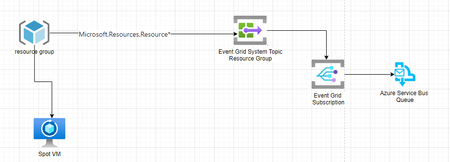
Introduction Azure Spot VMs offer significant cost savings but come with a trade-off: they can be evicted with minimal notice when Azure needs the capacity back or price change. Building a reliable notification system for these evictions is critical for applications that need to respond gracefully to these events. What are Azure Spot VMs? Azure Spot VMs are virtual machines that use spare capacity in Azure data centers, available at significantly discounted prices compared to regular pay-as-you-go VMs. Microsoft offers this unused capacity at discounts of up to 90% off the standard prices, making Spot VMs an extremely cost-effective option for many workloads. However, there's an important caveat: when Azure needs this capacity back for regular pay-as-you-go customers, your Spot VMs can be evicted (reclaimed) with minimal notice - typically just 30 seconds. This eviction mechanism is what allows Microsoft to offer such deep discounts, as we maintain the flexibility to reclaim these resources when needed. https://azure.microsoft.com/en-gb/products/virtual-machines/spot Benefits of Spot VMs Significant cost savings: The most obvious benefit is the substantial discount, which can be up to 90% off standard VM prices. Same VM types and features: Spot VMs provide the same performance, features, and capabilities as regular VMs - the only difference is the eviction possibility. Ideal for interruptible workloads: For workloads that can handle interruptions, such as batch processing jobs, dev/test environments, or stateless applications, Spot VMs offer enormous value. Flexible sizing options: Spot VMs are available in most VM series and regions, giving you access to a wide range of computing options. Scaling opportunities: The cost savings enable you to run larger clusters or more powerful VMs than might be financially feasible with regular VMs. Effective for burst capacity: When you need additional capacity for temporary workloads, Spot VMs can provide it at minimal cost. Great for fault-tolerant applications: Modern cloud-native applications designed with redundancy and resilience can leverage Spot VMs excellently since they're built to handle node failures. Why Not Just Use Azure Resource Events? A common question is: "Why not simply listen for Azure Resource events like ResourceActionSuccess for VM evictions?" While Azure does emit platform events when resources change state through resource group as source for Azure Event Grid topic subscription, there are several critical limitations when relying on these for Spot VM evictions: Timing issues: By the time a ResourceActionSuccess event is generated for a VM eviction, it is possible that the VM is already being evicted. This gives you no time to perform graceful shutdown procedures. Reliability concerns: These events pass through multiple Azure systems before reaching your event handlers, adding potential points of failure and latency. Ambiguous events: Resource action events don't clearly distinguish between a normal VM shutdown and a Spot VM eviction, making it difficult to trigger the right response. For example: I initially attempted to capture Azure Spot VM eviction events by setting up event notifications on an Azure resource group and publishing them to Service Bus. While this configuration successfully captured some Azure Resource events, it ultimately proved unreliable for eviction monitoring. The solution missed several critical eviction events and, more problematically, could not reliably distinguish between intentional VM shutdowns and actual eviction events. This lack of differentiation made automated response handling impossible, as the system couldn't determine whether a VM was being evicted by Azure or simply stopped through normal administrative actions. Azure resource group as an Event Grid source - Azure Event Grid | Microsoft Learn For these reasons, the most reliable approach is to detect eviction events directly from within the VM using the Azure Instance Metadata Service (IMDS) Scheduled Events API, which is specifically designed to provide advance notice of impending VM state changes. This blog post will guide you through implementing a solution that: Detects Spot VM eviction events from within the VM Formats these events properly Sends them to an Azure Event Grid custom topic Sets up proper event handling downstream Understanding Spot VM Eviction Notices Spot VMs receive eviction notifications approximately 30 seconds before being reclaimed. These notifications are delivered through the Azure Instance Metadata Service (IMDS) Scheduled Events API - an endpoint available from within the VM at http://169.254.169.254/metadata/scheduledevents. When a Spot VM is about to be evicted, a "Preempt" event appears in the Scheduled Events data. Your application needs to poll this endpoint regularly to detect these events in time to take action. https://learn.microsoft.com/en-us/azure/virtual-machines/windows/scheduled-events Solution overview Our solution consists of below components: A custom Event Grid topic to receive and distribute the events - optional if you wish to handle on own from VM A monitoring script running inside the Spot VM - actual script to poll events running on VM Logic to format and send events from the VM to Event Grid Event subscribers that take action when evictions occur A) Setting Up the Event Grid Custom Topic First, create an Event Grid custom topic that will serve as the distribution mechanism for your eviction events - this can be optional if you plan to take actions from VM only like gracefully shutting down any existing processes. You can use below documentation to create custom event grid topic: Custom topics in Azure Event Grid - Azure Event Grid | Microsoft Learn B) Creating a Windows-Based Eviction Monitor For Windows Spot VMs, we'll use below PowerShell to poll preempt events & send it to custom event grid. Create a script file named SpotMonitor.ps1: Powershell script : SpotMonitor.ps1 # Configuration variables - replace with your values $EventGridTopicEndpoint = "https://<EG topic name>.westeurope-1.eventgrid.azure.net/api/events" $EventGridKey = "<EG key>" $CheckInterval = 3 # seconds between checks - feel free to modify as per your requirement $LogFile = "C:\Logs\spot-monitor.log" # Create log directory if it doesn't exist if (-not (Test-Path (Split-Path $LogFile))) { New-Item -ItemType Directory -Path (Split-Path $LogFile) -Force } function Write-Log { param ([string]$Message) $timestamp = Get-Date -Format "yyyy-MM-dd HH:mm:ss" "$timestamp - $Message" | Out-File -FilePath $LogFile -Append } Write-Log "Starting Spot VM eviction monitor..." while ($true) { try { # Get the VM's metadata including scheduled events $headers = @{"Metadata" = "true"} $scheduledEvents = Invoke-RestMethod -Uri "http://169.254.169.254/metadata/scheduledevents?api-version=2020-07-01" -Headers $headers # Check if there are any events if ($scheduledEvents.Events -and $scheduledEvents.Events.Count -gt 0) { Write-Log "Found $($scheduledEvents.Events.Count) scheduled events" # Get VM metadata for context $vmName = Invoke-RestMethod -Uri "http://169.254.169.254/metadata/instance/compute/name?api-version=2020-09-01&format=text" -Headers $headers $resourceGroup = Invoke-RestMethod -Uri "http://169.254.169.254/metadata/instance/compute/resourceGroupName?api-version=2020-09-01&format=text" -Headers $headers $subscription = Invoke-RestMethod -Uri "http://169.254.169.254/metadata/instance/compute/subscriptionId?api-version=2020-09-01&format=text" -Headers $headers # Process each event foreach ($event in $scheduledEvents.Events) { if ($event.EventType -eq "Preempt") { Write-Log "ALERT: Spot VM preemption detected!" # Extract event details $eventId = $event.EventId $notBefore = $event.NotBefore Write-Log "VM $vmName will be preempted not before $notBefore" # Create Event Grid event as an array (critical for EventGrid schema) $eventGridEvent = @( @{ subject = "/subscriptions/$subscription/resourceGroups/$resourceGroup/providers/Microsoft.Compute/virtualMachines/$vmName" eventType = "SpotVM.Preemption" eventTime = (Get-Date).ToUniversalTime().ToString("o") id = [Guid]::NewGuid().ToString() data = @{ vmName = $vmName resourceGroup = $resourceGroup subscription = $subscription preemptionTime = $notBefore eventId = $eventId eventType = $event.EventType } dataVersion = "1.0" } ) # Convert to JSON - ensuring it stays as an array $eventGridPayload = ConvertTo-Json -InputObject $eventGridEvent -Depth 10 # Send to Event Grid $eventGridHeaders = @{ "Content-Type" = "application/json" "aeg-sas-key" = $EventGridKey } try { $response = Invoke-RestMethod -Uri $EventGridTopicEndpoint -Method Post -Body $eventGridPayload -Headers $eventGridHeaders Write-Log "Successfully sent event to Event Grid" # Take actions to prepare for shutdown Write-Log "Taking actions to prepare for shutdown..." # Example: Stop services gracefully # Stop-Service -Name "YourServiceName" -Force } catch { Write-Log "Failed to send to Event Grid: $_" } } } } } catch { Write-Log "Error checking for events: $_" } # Wait before checking again Start-Sleep -Seconds $CheckInterval } The script above checks for eviction events every 3 seconds by default. You can adjust this polling frequency by changing the "Check_Interval" variable in the script to better match your specific system requirements and performance considerations. More frequent polling provides faster detection but increases resource usage, while less frequent polling reduces overhead but might slightly delay event detection. B) Running monitor script as a scheduler or service For Windows Spot VMs, we'll use PowerShell to create a monitoring service. Run a script file named SpotMonitor.ps1 created in last step: You can use Windows Task Scheduler to run the script at startup or to run as a service and the logs will looks like this: Logs: 2025-03-19 18:48:27 - Starting Spot VM eviction monitor... 2025-03-19 20:04:33 - Found 1 scheduled events 2025-03-19 20:04:33 - ALERT: Spot VM preemption detected! 2025-03-19 20:04:33 - VM anivmnew will be preempted not before Wed, 19 Mar 2025 20:04:47 GMT 2025-03-19 20:04:33 - Sending payload: [ { "eventTime": "2025-03-19T20:04:33.4655660Z", "data": { "eventId": "DE2EC5FA-AF0A-4D59-85D2-677C66A6BC12", "preemptionTime": "Wed, 19 Mar 2025 20:04:47 GMT", "eventType": "Preempt", "resourceGroup": "RG-TEST", "subscription": "azure-sub-id", "vmName": "anivmnew" }, "id": "5d3e6430-dff5-45da-ae90-992e3e342d37", "subject": "/subscriptions/azure-sub-id/resourceGroups/RG-TEST/providers/Microsoft.Compute/virtualMachines/anivmnew", "eventType": "SpotVM.Preemption", "dataVersion": "1.0" } ] 2025-03-19 20:04:33 - Event Grid response: 2025-03-19 20:04:33 - Taking actions to prepare for shutdown... 2025-03-19 20:04:36 - Found 1 scheduled events 2025-03-19 20:04:36 - ALERT: Spot VM preemption detected! 2025-03-19 20:04:36 - VM anivmnew will be preempted not before Wed, 19 Mar 2025 20:04:47 GMT 2025-03-19 20:04:36 - Sending payload: [ { "eventTime": "2025-03-19T20:04:36.6382480Z", "data": { "eventId": "DE2EC5FA-AF0A-4D59-85D2-677C66A6BC12", "preemptionTime": "Wed, 19 Mar 2025 20:04:47 GMT", "eventType": "Preempt", "resourceGroup": "RG-TEST", "subscription": "azure-sub-id", "vmName": "anivmnew" }, "id": "b6152429-f4cb-43b9-8c53-b6ceb08946e5", "subject": "/subscriptions/azure-sub-id/resourceGroups/RG-TEST/providers/Microsoft.Compute/virtualMachines/anivmnew", "eventType": "SpotVM.Preemption", "dataVersion": "1.0" } ] 2025-03-19 20:04:36 - Event Grid response: 2025-03-19 20:04:36 - Taking actions to prepare for shutdown... 2025-03-19 20:04:39 - Found 1 scheduled events 2025-03-19 20:04:39 - ALERT: Spot VM preemption detected! 2025-03-19 20:04:39 - VM anivmnew will be preempted not before Wed, 19 Mar 2025 20:04:47 GMT 2025-03-19 20:04:39 - Sending payload: [ { "eventTime": "2025-03-19T20:04:39.7567285Z", "data": { "eventId": "DE2EC5FA-AF0A-4D59-85D2-677C66A6BC12", "preemptionTime": "Wed, 19 Mar 2025 20:04:47 GMT", "eventType": "Preempt", "resourceGroup": "RG-TEST", "subscription": "azure-sub-id", "vmName": "anivmnew" }, "id": "e0bde6d0-ae27-4c01-8e69-621e57d70f8d", "subject": "/subscriptions/azure-sub-id/resourceGroups/RG-TEST/providers/Microsoft.Compute/virtualMachines/anivmnew", "eventType": "SpotVM.Preemption", "dataVersion": "1.0" } ] 2025-03-19 20:04:39 - Event Grid response: 2025-03-19 20:04:39 - Taking actions to prepare for shutdown... 2025-03-19 20:04:42 - Found 1 scheduled events 2025-03-19 20:04:42 - ALERT: Spot VM preemption detected! 2025-03-19 20:04:42 - VM anivmnew will be preempted not before Wed, 19 Mar 2025 20:04:47 GMT 2025-03-19 20:04:42 - Sending payload: [ { "eventTime": "2025-03-19T20:04:42.8339675Z", "data": { "eventId": "DE2EC5FA-AF0A-4D59-85D2-677C66A6BC12", "preemptionTime": "Wed, 19 Mar 2025 20:04:47 GMT", "eventType": "Preempt", "resourceGroup": "RG-TEST", "subscription": "azure-sub-id", "vmName": "anivmnew" }, "id": "ab7a3b84-bcd8-4651-829e-c57043c54b92", "subject": "/subscriptions/azure-sub-id/resourceGroups/RG-TEST/providers/Microsoft.Compute/virtualMachines/anivmnew", "eventType": "SpotVM.Preemption", "dataVersion": "1.0" } ] 2025-03-19 20:04:42 - Event Grid response: 2025-03-19 20:04:42 - Taking actions to prepare for shutdown... 2025-03-19 20:04:45 - Found 1 scheduled events 2025-03-19 20:04:45 - ALERT: Spot VM preemption detected! 2025-03-19 20:04:45 - VM anivmnew will be preempted not before Wed, 19 Mar 2025 20:04:47 GMT 2025-03-19 20:04:45 - Sending payload: [ { "eventTime": "2025-03-19T20:04:45.9317109Z", "data": { "eventId": "DE2EC5FA-AF0A-4D59-85D2-677C66A6BC12", "preemptionTime": "Wed, 19 Mar 2025 20:04:47 GMT", "eventType": "Preempt", "resourceGroup": "RG-TEST", "subscription": "azure-sub-id", "vmName": "anivmnew" }, "id": "eacfae6b-4ea5-426d-8bc2-659320a7baf0", "subject": "/subscriptions/azure-sub-id/resourceGroups/RG-TEST/providers/Microsoft.Compute/virtualMachines/anivmnew", "eventType": "SpotVM.Preemption", "dataVersion": "1.0" } ] 2025-03-19 20:04:45 - Event Grid response: 2025-03-19 20:04:45 - Taking actions to prepare for shutdown... 2025-03-19 20:04:48 - Found 1 scheduled events 2025-03-19 20:04:49 - ALERT: Spot VM preemption detected! 2025-03-19 20:04:49 - VM anivmnew will be preempted not before Wed, 19 Mar 2025 20:04:47 GMT 2025-03-19 20:04:49 - Sending payload: [ { "eventTime": "2025-03-19T20:04:49.0666732Z", "data": { "eventId": "DE2EC5FA-AF0A-4D59-85D2-677C66A6BC12", "preemptionTime": "Wed, 19 Mar 2025 20:04:47 GMT", "eventType": "Preempt", "resourceGroup": "RG-TEST", "subscription": "azure-sub-id", "vmName": "anivmnew" }, "id": "b2142ee8-9ecf-441d-846e-c8ed663a949e", "subject": "/subscriptions/azure-sub-id/resourceGroups/RG-TEST/providers/Microsoft.Compute/virtualMachines/anivmnew", "eventType": "SpotVM.Preemption", "dataVersion": "1.0" } ] 2025-03-19 20:04:49 - Event Grid response: 2025-03-19 20:04:49 - Taking actions to prepare for shutdown... 2025-03-19 20:04:52 - Found 1 scheduled events 2025-03-19 20:04:52 - ALERT: Spot VM preemption detected! 2025-03-19 20:04:52 - VM anivmnew will be preempted not before Wed, 19 Mar 2025 20:04:47 GMT 2025-03-19 20:04:52 - Sending payload: [ { "eventTime": "2025-03-19T20:04:52.1310990Z", "data": { "eventId": "DE2EC5FA-AF0A-4D59-85D2-677C66A6BC12", "preemptionTime": "Wed, 19 Mar 2025 20:04:47 GMT", "eventType": "Preempt", "resourceGroup": "RG-TEST", "subscription": "azure-sub-id", "vmName": "anivmnew" }, "id": "d9eba318-9773-4e73-a694-dd1c1bf89c10", "subject": "/subscriptions/azure-sub-id/resourceGroups/RG-TEST/providers/Microsoft.Compute/virtualMachines/anivmnew", "eventType": "SpotVM.Preemption", "dataVersion": "1.0" } ] 2025-03-19 20:04:52 - Event Grid response: 2025-03-19 20:04:52 - Taking actions to prepare for shutdown... 2025-03-19 20:04:55 - Found 1 scheduled events 2025-03-19 20:04:55 - ALERT: Spot VM preemption detected! 2025-03-19 20:04:55 - VM anivmnew will be preempted not before Wed, 19 Mar 2025 20:04:47 GMT 2025-03-19 20:04:55 - Sending payload: [ { "eventTime": "2025-03-19T20:04:55.2171546Z", "data": { "eventId": "DE2EC5FA-AF0A-4D59-85D2-677C66A6BC12", "preemptionTime": "Wed, 19 Mar 2025 20:04:47 GMT", "eventType": "Preempt", "resourceGroup": "RG-TEST", "subscription": "azure-sub-id", "vmName": "anivmnew" }, "id": "c358c433-50f5-496d-8823-c2ffddd03390", "subject": "/subscriptions/azure-sub-id/resourceGroups/RG-TEST/providers/Microsoft.Compute/virtualMachines/anivmnew", "eventType": "SpotVM.Preemption", "dataVersion": "1.0" } ] 2025-03-19 20:04:55 - Event Grid response: 2025-03-19 20:04:55 - Taking actions to prepare for shutdown... 2025-03-19 20:04:58 - Found 1 scheduled events 2025-03-19 20:04:58 - ALERT: Spot VM preemption detected! 2025-03-19 20:04:58 - VM anivmnew will be preempted not before Wed, 19 Mar 2025 20:04:47 GMT 2025-03-19 20:04:58 - Sending payload: [ { "eventTime": "2025-03-19T20:04:58.3040422Z", "data": { "eventId": "DE2EC5FA-AF0A-4D59-85D2-677C66A6BC12", "preemptionTime": "Wed, 19 Mar 2025 20:04:47 GMT", "eventType": "Preempt", "resourceGroup": "RG-TEST", "subscription": "azure-sub-id", "vmName": "anivmnew" }, "id": "3eacba95-e05f-41dc-b9e7-1593fe2a71e2", "subject": "/subscriptions/azure-sub-id/resourceGroups/RG-TEST/providers/Microsoft.Compute/virtualMachines/anivmnew", "eventType": "SpotVM.Preemption", "dataVersion": "1.0" } ] 2025-03-19 20:04:58 - Event Grid response: 2025-03-19 20:04:58 - Taking actions to prepare for shutdown... 2025-03-19 20:05:01 - Found 1 scheduled events 2025-03-19 20:05:01 - ALERT: Spot VM preemption detected! 2025-03-19 20:05:01 - VM anivmnew will be preempted not before 2025-03-19 20:05:01 - Sending payload: [ { "eventTime": "2025-03-19T20:05:01.3842973Z", "data": { "eventId": "DE2EC5FA-AF0A-4D59-85D2-677C66A6BC12", "preemptionTime": "", "eventType": "Preempt", "resourceGroup": "RG-TEST", "subscription": "azure-sub-id", "vmName": "anivmnew" }, "id": "85c058fc-4f2e-49ec-a027-6fcca60f7935", "subject": "/subscriptions/azure-sub-id/resourceGroups/RG-TEST/providers/Microsoft.Compute/virtualMachines/anivmnew", "eventType": "SpotVM.Preemption", "dataVersion": "1.0" } ] 2025-03-19 20:05:01 - Event Grid response: 2025-03-19 20:05:01 - Taking actions to prepare for shutdown... C) Configuring event subscribers Now that your Spot VMs are sending eviction events to Event Grid, set up subscribers to take action when these events occur. For example sending event to service bus queue: Conclusion By implementing this solution, you've created a reliable way to detect and respond to Spot VM evictions. This approach gives your applications precious time to react to evictions, significantly improving reliability while still benefiting from the cost savings of Spot VMs. While Azure does provide resource-level events through system topics, they simply don't provide the reliability, timing, and clarity needed for mission-critical workloads running on Spot VMs. The combination of the Azure Instance Metadata Service Scheduled Events API and custom Event Grid topics creates a powerful pattern for building resilient, event-driven architectures. This approach ensures you're getting the most accurate and timely notifications possible, giving your applications the best chance to gracefully handle Spot VM evictions while enjoying the substantial cost benefits that Spot VMs offer. Disclaimer The sample scripts provided in this article are provided AS IS without warranty of any kind. The author is not responsible for any issues, damages, or problems that may arise from using these scripts. Users should thoroughly test any implementation in their environment before deploying to production. Azure services and APIs may change over time, which could affect the functionality of the provided scripts. Always refer to the latest Azure documentation for the most up-to-date information. Thanks for reading this blog! I hope you've found this approach to handling Spot VM evictions helpful1.5KViews2likes0Comments