azure virtual desktop
68 TopicsMicrosoft Technical Takeoff: Windows + Intune
Welcome to the third installment of the Microsoft Technical Takeoff for Windows and Microsoft Intune! This free, virtual skilling event offers prescriptive, technical deep dives and panel-based discussions to help you feel prepared and confident in deploying and managing devices, apps, and experiences from client to cloud! Experts from the Windows, Windows 365, Intune, Azure Virtual Desktop, and security teams answer your questions live during the sessions and throughout the week. This event is all about getting you the information and skills you need to be successful! Monday, March 3, 2025 - now on demand! Let's talk Windows and Intune: 2025 edition Enhance and supercharge IT management with Copilot in Intune The hottest way to update Windows 11 and Windows Server 2025 The path ahead: The roadmap for Windows in the cloud Achieving update harmony through unified update management Intune 'fast lane' - Let's talk about all things latency Untangling this thing called AI in a Windows ecosystem Understanding security and management on Windows 365 Link Unlocking productivity on the frontline with Windows 365 From admin to standard user with Endpoint Privilege Management Tuesday, March 4, 2025 - now on demand! Managing macOS updates in Intune Windows Autopatch: Your playbook for advanced update management Unified security: Intune + Microsoft Defender for Endpoint AMA: Microsoft Application Management for Windows Effective prompt engineering for IT pros Utilize, configure, and manage Cloud PKI like a pro Skill up! Cloud PC management and reporting Get to know Windows security and resiliency in the cloud Windows 11 kiosks: Cloud management for the win Wednesday, March 5, 2025 - now on demand! Enabling accessible Windows 11 experiences: an IT pro's guide Never trust, always verify: Tips for Zero Trust with Intune Data protection with hardware-based security and Windows 11 Best practices for Windows Autopilot and device preparation Intune data platform and Advanced Analytics Enhancing resiliency with Windows 365 How to protect your administrator users on the device Delivering like-local Windows experiences from the cloud Deploying Microsoft Connected Cache for Enterprise at scale Secure corporate data and privacy with Win32 app isolation Thursday, March 6, 2025 - now on demand! Azure Virtual Desktop app management Azure Virtual Desktop hostpool management at scale Device management for the frontline: Intune to the rescue The latest and greatest in the world of Windows LAPS AMA: Cloud native with Microsoft Intune Secure helpdesk support using Intune Remote Help Enterprise Application Management with Microsoft Graph Windows cloud migration and deployment best practices Windows 10 EOS: Myths, misconceptions, and FAQs The full agenda Here is a day-by-day look at the 2025 session grid, which was available for download.88KViews26likes48CommentsMicrosoft Technical Takeoff 2026: Windows + Intune
Deep dives. AMAs. Windows, Intune, Windows 365, and Azure Virtual Desktop. Tune in for virtual technical skilling that takes you deep inside the latest features, capabilities, and scenarios for commercial organizations and the IT professionals that support them. Microsoft Technical Takeoff 2026 for Windows + Intune is a great opportunity to skill up and learn from engineering and product teams behind the features. Day 1 - now on demand! Let's talk Windows and Intune: 2026 edition The latest in Windows 11 security Uplevel business continuity with Windows 365 Reserve Hotpatch updates demystified: answers to real-world questions Zero Trust in action: securing endpoints with Intune AMA: Windows Autopilot The AI‑powered admin: emerging trends in endpoint management Eliminating NTLM in Windows One platform, many industries: smart Android management with Intune Resiliency with Windows 365 and Azure Virtual Desktop Day 2 - now on demand! The latest in security for Windows 365 and Azure Virtual Desktop Secure Boot certificate updates explained Feedback wanted: App management in the enterprise Ready day one: how to get Windows users up and running fast Making the most of your Intune data Windows 365 reporting and monitoring updates Least privilege on Windows with Endpoint Privilege Management Windows 365 Frontline expands with Cloud Apps and more From panic to productive: point-in-time restore in Windows The Intune playbook for iOS management at scale Day 3 - now on demand! Why smarter Windows management starts with Intune Reporting at scale with Windows Autopatch update readiness User experience updates: Windows 365 Boot and more AI roundup: Intune agents for outcome-oriented innovation AMA: Getting the most from Security Copilot in Intune Manage Apple devices at scale: Intune security best practices Click less, manage more: simplify app deployment with Intune App Control for Business: same roots, new playbook Intune timing demystified: what really happens behind the scenes Migrating from VDI to Windows 365 Day 4 - now on demand! AMA: The latest in Windows hardware security Zero Trust DNS: Securing Windows one connection at a time AMA: Secure and manage AI and agentic capabilities in Windows Deploy and manage Windows 365 with Microsoft Intune Unpacking Endpoint Management: Live from Tech Takeoff 2026 Azure Virtual Desktop for hybrid environments Protect users, stop attacks: Passkeys on Windows AMA: AI and agentic features for Windows 365 Transitioning to post-quantum cryptography Resilience for the modern era: Windows quick machine recovery Please share your thoughts so we can keep bringing you these types of events!57KViews12likes27CommentsAzure Virtual Desktop (AVD) | Scaling plans and Autoscaling
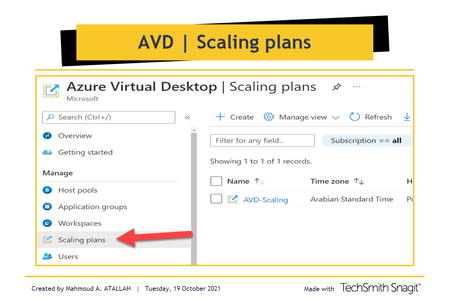
Just notice that I have a new tab under my AVD Portal for Scaling Plan. Before I just explore it, I checked Microsoft DOCs to understand the new feature and see how I can enable it, but I didn't find any relevant info even when I google it I end up with the same result... did I stop here.. Absolutely not, created a temp host pool and followed the wizard to enable and configure the new feature and here is my test result AVD Scaling plans Autoscaling is a demanded feature and has been waiting for so long, we used to automatically scale host sessions using PowerShell scripts and Azure Automation, but it was long and complicated procedures involving a lot of components, Now with AVD Scaling plans you can define ramp-up hours, peak hours, ramp-down hours, and off-peak hours for weekdays and specify autoscaling triggers. but you can only add one schedule per day and a Scaling plan must include an associated schedule for at least one day of the week. Requirements Create a Custom RBAC role Assign the custom role to Windows Virtual Desktop App Create a Custom RBAC role Open a subscription or resource group Click on Access control (IAM) Click on Add Custom role Click on JSON Tab Click on Edit Tab Past the following JSON template { "properties": { "roleName": "Autoscale", "description": "Friendly description.", "assignableScopes": [ "/subscriptions/<SubscriptionID>" ], "permissions": [ { "actions": [ "Microsoft.Insights/eventtypes/values/read", "Microsoft.Compute/virtualMachines/deallocate/action", "Microsoft.Compute/virtualMachines/restart/action", "Microsoft.Compute/virtualMachines/powerOff/action", "Microsoft.Compute/virtualMachines/start/action", "Microsoft.Compute/virtualMachines/read", "Microsoft.DesktopVirtualization/hostpools/read", "Microsoft.DesktopVirtualization/hostpools/write", "Microsoft.DesktopVirtualization/hostpools/sessionhosts/read", "Microsoft.DesktopVirtualization/hostpools/sessionhosts/write", "Microsoft.DesktopVirtualization/hostpools/sessionhosts/usersessions/delete", "Microsoft.DesktopVirtualization/hostpools/sessionhosts/usersessions/read", "Microsoft.DesktopVirtualization/hostpools/sessionhosts/usersessions/sendMessage/action", "Microsoft.DesktopVirtualization/hostpools/sessionhosts/usersessions/read" ], "notActions": [], "dataActions": [], "notDataActions": [] } ] } } Change <SubscriptionID> with your SubscriptionID Save the template Click Review + Create. Last, Click Create. Assign the custom role to Windows Virtual Desktop App: Open a subscription or resource group Click on Access control (IAM) Select Add role assignments. Select the role you just created (AutoScale) Next, Click on Select members In the search bar, enter and select Windows Virtual Desktop, as shown in the following screenshot. Last, Click Review + Assign. Create a scaling plan As usual, we have to select Subscription, Resource Group, Name, and Location for the new resource. Time Zone is important as the whole Autoscaling activity will be triggered and executed to Start/Stop host sessions based on the time zone you select here. Next, you have to add a new Schedule and specify the Repeats on Start time: you have to Enter a start time for the scaling plan, the specified time will be also the end time for off-peak hours. Load-balancing algorithm: as you are going to use Autoscaling so the Depth-first load balancing option would be more relevant to your needs as its distributing the new user sessions to the available session host with the highest number of connections but has not reached its maximum session limit threshold which leads to minimizing the number of powered host sessions. Minimum percentage of session hosts: Specify the minimum percentage of session hosts to start for ramp-up and peak hours, the percentage is based on the total number of session hosts in your host pool, so if the host pool includes 10 VMs and the percentage is 20% as in the above image, autoscale will ensure a minimum of 2 session host is available to take user connections. Capacity threshold (%): This percentage evaluates whether to turn on/off VMs during the ramp-up and peak hours. So if your total host pool capacity is 100 sessions, and you specify a 60% Capacity threshold, once you exceed it, then autoscale will turn on additional session hosts. As you can see the below step is almost the same as the previous one, so just to clarify the difference: Peak hours and Ramp-up: Usually, every application has its own peak hours where concurrent users tend to increase slowly before the start of peak time. same for AVD users start getting in slowing to the host sessions and at a specific time most of the users will start hitting the services (this is the peak hour) Start time: Enter a start time for the scaling plan to reduce the number of virtual machines prior to the off-peak or non-business hours. This is also the end time for peak hours. Load-balancing algorithm: as you are going to use Autoscaling so the Depth-first load balancing option would be more relevant to your needs as its distributing the new user sessions to the available session host with the highest number of connections but has not reached its maximum session limit threshold which leads to minimizing the number of powered host sessions. Minimum percentage of session hosts: Specify the minimum percentage of session hosts to start for ramp-down and off-peak hours, the percentage is based on the total number of session hosts in your host pool, so if the host pool includes 10 VMs and the percentage is 10% as in the below image, autoscale will ensure a minimum of 1 session host is available to take user connections. Capacity threshold (%): This percentage evaluates whether to turn on/off VMs during the ramp-down and off-peak hours. So if your total host pool capacity is 100 sessions, and you specify a 90% Capacity threshold, once you exceed it, then autoscale will turn on additional session hosts. Delay time before logging out users and shutting down VMs (min): This option will set the session host VMs to drain mode, notify any currently signed-in users to save their work, and wait the configured amount of time before forcing the users to log off. Once all user sessions on the session host VM have been logged off, Autoscale will shut down the VM. Notification message: As shown in the above image you can set your message to be pushed for your end-users to log off. Start time (24-hour system): This is the start time for off-peak or non-business hours. This is also the end time for ramp-down. Then Create.. In the next step, we have to assign the host pool that we will apply this schedule on, scaling plan can be assigned to any number of host pools. Review and Create.. --- Testing And Validation After a few minutes of creating the scaling plan.. Jump to the running AVD virtual machine and check the activity log, you should get an activity stating that the VM was started and this event initiated by WindowsVirtal Desktop App.Solved55KViews3likes56Comments
Azure Virtual Desktop deployment error: resource write operation failed to complete successfully
I have tried to deploy Azure Virtual Desktop several times and it has failed every time, with the same error message: "write operation failed to complete successfully, because it reached terminal provisioning state 'Failed'." Details: "The resource write operation failed to complete successfully, because it reached terminal provisioning state 'Failed'. (Code: ResourceDeploymentFailure, Target: /subscriptions/b38d7f27-415a-4877-a594-ff5e4877c8d3/resourceGroups/AVD-Resource-Group-Prefix-deployment/providers/Microsoft.Resources/deployments/easy-button-inputvalidation-job-linked-template)" I've tried using my work/Microsoft 365 Account, and using two different personal accounts, I thought the issue could be billing related, but even when there is $200 in available credit in a new/trial account, it still happens. I've seen suggested elsewhere that this may be due to Azure Policy restrictions, but there are none, at least no non-default policies, and if the default policies restrict creation of Azure Virtual Desktop environments, that should be changed, and at minimum, users/admins should be informed if that is what is preventing them from being deployed, and be given the option to change them. The bottom line is that this is absurd that Azure Virtual Desktop fails by default for multiple accounts, and it needs to be fixed, even if my personal deployment issue can be resolved by jumping through hoops. Please, let me know what hoops I need to jump through to get this to work for now.23KViews1like6Comments
How to calculate concurrent users count in Azure Virtual Desktop
Hi, We are using AVD and used Log Analytics to monitor the sessions host and complete AVD environment. Recently we had a requirement to see the Concurrent users count for the respective workspace. I don't see such option available out of the box, Can you guys help me how to get the same. Thank you in Advance!12KViews0likes2CommentsAzure Virtual Desktop Consent Page for new web client
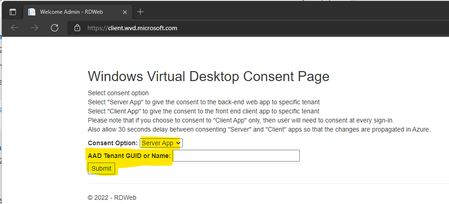
I think there is a concern with the new Web Client URLs. I thought to discuss this point here to give more clarity. Update: The new web client URL works fine with all the browsers and gives the same experience as the previous web client URLs. I can't reproduce the below explained different experiences anymore. I think the issue was already there in the first screenshot below. It seems I used the wrong URL or it got redirected to the wrong web client URL. It seems there is consent required for new client URLs only if you access them from the Microsoft Edge browser where you logged in to your personal profile. This is also applicable to all the other browsers if your work account doesn't appropriate license. I have tested with Firefox and other browsers and the new web client URL just works just fine if the user account is assigned with the correct licenses and of course, the user is already logged with the current AVD web client URLs. The following was the previous experience with web client URL when I tried to log in from Microsoft Edge Personal profile login and for the work profiles where you don't have the appropriate license to access AVD. The change in the end-user experience with the new URL is going to create some confusion within the AVD community. Overall consent message is going to create a lot of confusion for the end-users and IT admins because this was not the experience previously used AVD web client URLs. If you don't have appropriate permissions on Azure AD, then this is going to create some delays in the transition process to new AVD URLs. ===== Select consent option Select "Server App" to give the consent to the back-end web app to a specific tenant Select "Client App" to give the consent to the front end client app to a specific tenant Please note that if you choose to consent to "Client App" only, then the user will need to consent at every sign-in. Also, allow 30 seconds delay between consenting "Server" and "Client" apps so that the changes are propagated in Azure. Consent Option: AAD Tenant GUID or Name: There are some specific Windows Keyboard shortcuts for Virtual Desktops. The keyboard shortcuts for virtual desktops (AVD) are a bit different from the normal keyboard shortcuts. You can use either SCCM (latest 2203) or Intune to manage AVD VMs (including multi-session). I would prefer the modern management with Intune and if your physical devices are Azure AD joined then AVD VMs should also be Azure AD Joined instead of Hybrid Azure AD. Managing AVDs with SCCM is useful if you already have an SCCM infra in place and you know how to read SCCM Logs 🙂 You can move AVDs slowly into Co-Management or Cloud Attach in a phased approach later.11KViews1like0Comments