azure storage
125 TopicsTroubleshooting Azure Storage Deletion: Immutability, WORM, and Version Retention
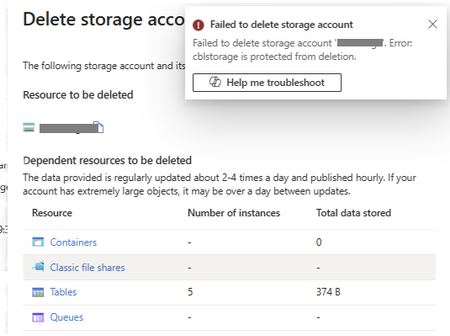
One of the most common questions Azure Storage administrators ask after enabling immutable storage is: "Why can't I delete my storage account anymore?" Azure Immutable Storage is designed to provide WORM (Write Once, Read Many) protection, ensuring that data cannot be modified or deleted during a defined retention period. This capability is essential for compliance, regulatory, legal, and audit requirements, but it can be surprising when administrators later attempt to remove storage resources and discover that Azure refuses to delete them. In some environments, immutable storage policies may not have been configured directly by Azure Storage administrators. Backup or data protection solutions can automatically enable and manage retention settings, and storage administrators may not always have visibility into these externally managed policies. This article explains: Why storage accounts become undeletable Why containers sometimes appear empty but still cannot be deleted The difference between Unlocked and Locked policies How ImmutableStorageWithVersioning changes deletion behavior What happens when version retention is reduced to one day A practical step-by-step process to remove protected resources Understanding Azure Storage Immutability Azure Blob Storage supports immutability through two primary mechanisms: Time-Based Retention Policies A retention policy protects data for a fixed number of days. During this period: read are allowed, deletes are blocked and overwrites are blocked. Examples: 7 days,30 days,180 days,7 years Legal Holds Legal holds have no expiration date. The data remains protected until the hold is manually removed. Organizations commonly use legal holds when: litigation is in progress, regulatory investigations are occurring and data preservation is legally required Where Can Immutability Be Applied? Azure supports immutability at two different scopes. Scope Description Container-level Policy protects all blobs within the container Version-level Individual blob versions receive protection Version-level protection requires: Blob Versioning enabled and ImmutableStorageWithVersioning enabled Important: A storage account containing immutable data may itself become protected from deletion. What Happens When You Try to Delete Resources? Immutability blocks deletion at multiple layers. Think of it as a dependency chain: Storage Account └─ Container └─ Blob └─ Blob Version Azure will not allow deletion of a parent resource while protected child resources still exist. Scenario 1: Deleting the Storage Account You attempt to delete the storage account. Azure returns: Failed to delete storage account 'accountname'. Error: 'accountname' is protected from deletion. This occurs when at least one container still contains: a locked immutability policy, a legal hold or Immutable blob versions Before the account can be deleted: every user container must be removed, every blob must be removed, every blob version must be removed and every snapshot must be removed What About System Containers? System containers do not block deletion.These are managed automatically by Azure. The containers that matter are user-created containers. Examples: $logs, $blobchangefeed and $web Scenario 2: Deleting a Container You select Delete Container and Azure returns: The storage account container is protected from deletion due to ImmutableStorageWithVersioning. Even when, the container appears empty and the latest blobs have been deleted. Deletion may still fail. Why? Previous blob versions still exist. This is one of the most common causes of confusion. The Azure Portal normally displays: Only Show Active Blobs As a result, previous versions remain hidden. The container looks empty, but Azure still sees historical versions, snapshots and soft-deleted objects Although the container may appear empty at first glance, it is not actually empty. When "Show active and Deleted blobs" is enabled, the container displays all blobs that are currently in either the active or deleted state. Therefore, deletion remains blocked. Deleting containers with immutability (WORM) policies Container deletion may fail if an Immutable blob storage policy is applied at the container or version level. These policies keep blobs in a non-modifiable, delete-protected state (WORM) for the duration of the defined retention interval. The behavior depends on the policy State: Unlocked: the policy can still be edited or removed. You must delete the immutability policy reference from the container before deleting it. Once removed, the container and its blobs can be deleted normally. Locked: the policy cannot be deleted or shortened. You must wait until the retention interval expires for all affected blobs. Until that time elapses, the blobs, the container, and the storage account cannot be deleted. Scenario 3: Deleting Individual Blobs The retention policy prevents deletion of the blob regardless of whether the Delete option appears available in the user interface. Any delete request is rejected by the Storage service until the retention period expires. This indicates that an active retention policy is protecting the blob. Until retention expires: Delete, overwrite and modification are blocked. Unlocked Policies Think of this state as a testing phase. Protection is active, but administrators retain management flexibility. You can, Increase or decrease the retention period, or delete the policy. Once the policy is removed, the data becomes deletable. This allows organizations to validate configurations before committing to compliance requirements. Locked Policies A locked policy represents a compliance commitment. After locking: the policy cannot be deleted, retention cannot be reduced or extended. Most importantly: No user, administrator, or Microsoft Support engineer can bypass or remove a locked retention policy before expiration. i.e If retention is configured for 180 days, deletion becomes possible only after those 180 days have passed. The Hidden Detail: ImmutableStorageWithVersioning A common misunderstanding is believing that removing an unlocked retention policy completely disables immutability. It does not. Once ImmutableStorageWithVersioning is enabled: The feature itself cannot be disabled. Even if every unlocked policy is deleted, Azure still requires all versions to be removed before containers and storage accounts can be deleted. Why Version Retention Matters Blob versioning introduces another important behavior. When you modify version retention and reduce it to a lower value, for example: Once the version retention period is reduced (for example, from 180 days to 1 day), Azure automatically updates or creates the corresponding Lifecycle Management rule responsible for cleaning up old blob versions. At this stage, administrators can manually delete any remaining base blobs, snapshots, or versions that are already eligible for deletion. For versions that still exist and exceed the newly configured retention threshold: No additional manual action is required, the Lifecycle Management rule will automatically identify them as eligible for deletion and all versions older than the configured retention period are processed during subsequent Lifecycle Management executions. Example, If version retention is changed from 180 days to 1 day: Versions created more than 1 day ago immediately become eligible for cleanup, the Lifecycle Management engine evaluates those versions during its next execution cycle and once the versions are removed, container deletion can proceed provided no other immutable objects remain. Important Consideration Lifecycle Management is an asynchronous service. Therefore, after reducing retention: The configuration change is applied immediately, older versions become eligible for deletion immediately and actual version removal may take 24-48 hours or longer, depending on the Lifecycle Management execution schedule. For this reason, it is normal to see containers remain undeletable for a period of time after retention settings are modified. Administrators should allow sufficient time for Lifecycle Management to complete cleanup of all versions that exceed the configured retention threshold before attempting to delete the container or storage account. Azure lifecycle rule created automatically after changing the versioning retention. Many administrators are unaware that this happens behind the scenes. Code View for automatic rule created The purpose is simple: Remove older blob versions once they exceed the configured age. Reducing the retention period does not instantly delete existing versions. Instead, it makes existing versions eligible for deletion by Lifecycle Management, which removes them asynchronously during future processing cycles. Common Misconception Many customers assume: "Only versions created after I changed the setting will be deleted." This is incorrect. Azure evaluates every version independently using its creation timestamp. If a version is already older than one day when the rule runs: It becomes eligible for deletion. There is no grandfathering mechanism. Another Important Detail: Deletion Is Not Immediate Lifecycle Management follows an asynchronous process. Typical behavior: Action Expected Time New rule created Immediate Rule evaluated Within 24–48 hours Version cleanup begins During next lifecycle execution Because of this delay, containers may remain undeletable for some time even after retention settings are updated. Recommended Cleanup Process When attempting to remove immutable storage resources: Step 1 — Inventory all protection mechanisms: Account-level immutability, Container-level policies, Blob-level policies, Legal holds. Step 2 — Determine policy state: Locked or Unlocked Step 3 — Remove unlocked policies. Step 4 — Clear legal holds. Step 5 — Review versioning and soft delete settings. Step 6 — Remove all blobs, snapshots, and versions. Step 7 — Allow Lifecycle Management to remove old versions. Step 8 — Delete containers. Step 9 — Delete the storage account. Important Note: The deletion order is always blobs → container → storage account. A parent resource cannot be removed while protected children remain, so if any blob is still under a Locked policy (or an active legal hold), the entire process is blocked until retention expires or the hold is cleared. Key Takeaways ✅ Immutable storage protects data against deletion and modification. ✅ Locked policies cannot be bypassed, shortened, or removed. ✅ Legal holds must be manually cleared. ✅ Containers that appear empty may still contain hidden versions. ✅ ImmutableStorageWithVersioning cannot be turned off once enabled. ✅ Blob version retention automatically creates a Lifecycle Management rule. ✅ Storage account deletion requires every protected object underneath it to be removed first. References https://learn.microsoft.com/azure/storage/blobs/immutable-storage-overview https://learn.microsoft.com/azure/storage/blobs/immutable-policy-configure-container-scope https://learn.microsoft.com/azure/storage/blobs/immutable-policy-configure-version-scope https://learn.microsoft.com/azure/storage/blobs/data-protection-overview https://learn.microsoft.com/azure/storage/blobs/lifecycle-management-overview373Views4likes1CommentAzure Retirement Livestream - Please register! Session 2 - Tracking ID: XTKT-BW8
Join our upcoming live webcast for a transparent discussion about this upcoming Azure retirement — led by our engineering teams. General Purpose v1 (GPv1) Storage Accounts Tracking ID: XTKT-BW8 | Retirement Date: 13 October 2026 Same content presented in both sessions — pick the one that works best for your timezone! What to expect 📚 Understand What will happen, the timelines for the change, and how you can manage it 💬 Ask Live Q&A with our engineering experts throughout the session 🛠 Learn How to manage the change smoothly Choose your session Same content presented at both times — pick the one that works best for your timezone: Session 1 14:30 UTC Thursday, 25 June 2026 Register now → Session 2 04:30 UTC Friday, 26 June 2026 Register now → 8:30 AM US Pacific (PDT) 11:30 AM US Eastern (EDT) 4:30 PM London (BST) 12:30 AM +1 Beijing (CST) 3:30 AM +1 Sydney (AEDT) 5:30 AM +1 Auckland (NZDT) 8:30 PM -1 US Pacific (PDT) 11:30 PM US Eastern (EDT) 4:30 AM London (BST) 12:30 PM Beijing (CST) 3:30 PM Sydney (AEDT) 5:30 PM Auckland (NZDT) Our engineering leaders George Trossell Senior Product Manager Azure Networking LinkedIn ↗ ⚠️ Prepare before the livestream Read the Post Incident Review (PIR) ahead of time so you can ask any follow up questions during the live Q&A Helpful resources 🔔 Azure Service Health Alerts Get alerts for relevant incidents by setting up notifications via email, SMS, or webhook 🎥 Past Retrospective Recordings Watch recordings of previous retrospective livestreams 📄 Azure Post Incident Reviews Learn more about PIRs and the retrospective program129Views0likes0CommentsAzure Retirement Livestream - Please register! Session 1- Tracking ID: XTKT-BW8
Join our upcoming live webcast for a transparent discussion about this upcoming Azure retirement — led by our engineering teams. General Purpose v1 (GPv1) Storage Accounts Tracking ID: XTKT-BW8 | Retirement Date: 13 October 2026 Same content presented in both sessions — pick the one that works best for your timezone! What to expect 📚 Understand What will happen, the timelines for the change, and how you can manage it 💬 Ask Live Q&A with our engineering experts throughout the session 🛠 Learn How to manage the change smoothly Choose your session Same content presented at both times — pick the one that works best for your timezone: Session 1 14:30 UTC Thursday, 25 June 2026 Register now → Session 2 04:30 UTC Friday, 26 June 2026 Register now → 8:30 AM US Pacific (PDT) 11:30 AM US Eastern (EDT) 4:30 PM London (BST) 12:30 AM +1 Beijing (CST) 3:30 AM +1 Sydney (AEDT) 5:30 AM +1 Auckland (NZDT) 8:30 PM -1 US Pacific (PDT) 11:30 PM US Eastern (EDT) 4:30 AM London (BST) 12:30 PM Beijing (CST) 3:30 PM Sydney (AEDT) 5:30 PM Auckland (NZDT) Our engineering leaders George Trossell Senior Product Manager Azure Networking LinkedIn ↗ ⚠️ Prepare before the livestream Read the Post Incident Review (PIR) ahead of time so you can ask any follow up questions during the live Q&A Helpful resources 🔔 Azure Service Health Alerts Get alerts for relevant incidents by setting up notifications via email, SMS, or webhook 🎥 Past Retrospective Recordings Watch recordings of previous retrospective livestreams 📄 Azure Post Incident Reviews Learn more about PIRs and the retrospective program333Views0likes0Comments
Set Up Endpoint DLP Evidence Collection on your Azure Blob Storage
Endpoint Data Loss Prevention (Endpoint DLP) is part of the Microsoft Purview Data Loss Prevention (DLP) suite of features you can use to discover and protect sensitive items across Microsoft 365 services. Microsoft Endpoint DLP allows you to detect and protect sensitive content across onboarded Windows 10, Windows 11 and macOS devices. Learn more about all of Microsoft's DLP offerings. Before you start setting up the storage, you should review Get started with collecting files that match data loss prevention policies from devices | Microsoft Learn to understand the licensing, permissions, device onboarding and your requirements. Prerequisites Before you begin, ensure the following prerequisites are met: You have an active Azure subscription. You have the necessary permissions to create and configure resources in Azure. You have setup endpoint Data Loss Prevention policy on your devices Configure the Azure Blob Storage You can follow these steps to create an Azure Blob Storage using the Azure portal. For other methods refer to Create a storage account - Azure Storage | Microsoft Learn Sign in to the Azure Storage Accounts with your account credentials. Click on + Create On the Basics tab, provide the essential information for your storage account. After you complete the Basics tab, you can choose to further customize your new storage account, or you accept the default options and proceed. Learn more about azure storage account properties Once you have provided all the information click on the Networking tab. In network access, select Enable public access from all networks while creating the storage account. Click on Review + create to validate the settings. Once the validation passes, click on Create to create the storage Wait for deployment of the resource to be completed and then click on Go to resource. Once the newly created Blob Storage is opened, on the left panel click on Data Storage -> Containers Click on + Containers. Provide the name and other details and then click on Create Once your container is successfully created, click on it. Assign relevant permissions to the Azure Blob Storage Once the container is created, using Microsoft Entra authorization, you must configure two sets of permissions (role groups) on it: One for the administrators and investigators so they can view and manage evidence One for users who need to upload items to Azure from their devices Best practice is to enforce least privilege for all users, regardless of role. By enforcing least privilege, you ensure that user permissions are limited to only those permissions necessary for their role. We will use portal to create these custom roles. Learn more about custom roles in Azure RBAC Open the container and in the left panel click on Access Control (IAM) Click on the Roles tab. It will open a list of all available roles. Open context menu of Owner role using ellipsis button (…) and click on Clone. Now you can create a custom role. Click on Start from scratch. We have to create two new custom roles. Based on the role you are creating enter basic details like name and description and then click on JSON tab. JSON tab gives you the details of the custom role including the permissions added to that role. For owner role JSON looks like this: Now edit these permissions and replace them with permissions required based on the role: Investigator Role: Copy the permissions available at Permissions on Azure blob for administrators and investigators and paste it in the JSON section. User Role: Copy the permissions available at Permissions on Azure blob for usersand paste it in the JSON section. Once you have created these two new roles, we will assign these roles to relevant users. Click on Role Assignments tab, then on Add + and on Add role assignment. Search for the role and click on it. Then click on Members tab Click on + Select Members. Add the users or user groups you want to add for that role and click on Select Investigator role – Assign this role to users who are administrators and investigators so they can view and manage evidence User role – Assign this role to users who will be under the scope of the DLP policy and from whose devices items will be uploaded to the storage Once you have added the users click on Review+Assign to save the changes. Now we can add this storage to DLP policy. For more information on configuring the Azure Blob Storage access, refer to these articles: How to authorize access to blob data in the Azure portal Assign share-level permissions. Configure storage in your DLP policy Once you have configured the required permissions on the Azure Blob Storage, we will add the storage to DLP endpoint settings. Learn more about configuring DLP policy Open the storage you want to use. In left panel click on Data Storage -> Containers. Then select the container you want to add to DLP settings. Click on the Context Menu (… button) and then Container Properties. Copy the URL Open the Data Loss Prevention Settings. Click on Endpoint Settings and then on Setup evidence collection for file activities on devices. Select Customer Managed Storage option and then click on Add Storage Give the storage name and copy the container URL we copied. Then click on Save. Storage will be added to the list. Storage will be added to the list for use in the policy configuration. You can add up to 10 URLs Now open the DLP endpoint policy configuration for which you want to collect the evidence. Configure your policy using these settings: Make sure that Devices is selected in the location. In Incident reports, toggle Send an alert to admins when a rule match occurs to On. In Incident reports, select Collect original file as evidence for all selected file activities on Endpoint. Select the storage account you want to collect the evidence in for that rule using the dropdown menu. The dropdown menu shows the list of storages configured in the endpoint DLP settings. Select the activities for which you want to copy matched items to Azure storage Save the changes Please reach out to the support team if you face any issues. We hope this guide is helpful and we look forward to your feedback. Thank you, Microsoft Purview Data Loss Prevention Team4.9KViews6likes2CommentsHow to get blob Total Blob Count and Total Capacity with Blob Inventory
Approach This article presents how to take advantage of the Blob Inventory service to get the total blob count and the total capacity per storage account, per container or per directory. I will present the steps to create the blob inventory rule and how to get the needed information without having to process the blob inventory rule results just by using the prefix match field. Additional support documentation it is presented at the end of the article. Introduction to the Blob Inventory Service Azure Storage blob inventory provides a list of the containers, blobs, blob versions, and snapshots in your storage account, along with their associated properties. It generates an output report in either comma-separated values (csv) or Apache Parquet format on a daily or weekly basis. You can use the report to audit retention, legal hold or encryption status of your storage account contents, or you can use it to understand the total data size, age, tier distribution, or other attributes of your data. Please find here our documentation about the blob inventory service. On this article, I will focus on using this service to get the blob count and the capacity. Steps to enable inventory report Please see below how to define a blob inventory rule to get the intended information, using the Azure Portal: Sign in to the Azure portal to get started. Locate your storage account and display the account overview. Under Data management, select Blob inventory. Select Add your first inventory rule, if you do not have any rule defined, or select Add a rule, in case that you already have at least one rule defined. Add a new inventory rule by filling in the following fields: Rule name: The name of your blob inventory rule. Container: Container to store the result of the blob inventory rule execution. Object type to inventory: Select blob Blob types: Blob Storage: Select all (Block blobs, Page blobs, Append blobs). Data Lake Storage: Select all (Block blobs, Append blobs). Subtypes: Blob Storage: Select all (Include blob versions, Include snapshots, Include deleted blobs). Data Lake Storage: Select all (Include snapshots, Include deleted blobs). Blob inventory fields: Please find here all custom schema fields supported for blob inventory. In this scenario, we need to select at least the following fields: Blob Storage: Name, Creation-Time, ETag, Content-Length, Snapshot, VersionId, IsCurrentVersion, Deleted, RemainingRetentionDays. Data Lake Storage: Name, Creation-Time, ETag, Content-Length, Snapshot, DeletionId, Deleted, DeletedTime, RemainingRetentionDays. Inventory frequency: A blob inventory run is automatically scheduled every day when daily is chosen. Selecting weekly schedule will only trigger the inventory run on Sundays. A daily execution will return results faster. Export format: The export format. Could be a csv file or a parquet file. Prefix match: Filter blobs by name or first letters. To find items in a specific container, enter the name of the container followed by a forward slash, then the blob name or first letters. For example, to show all blobs starting with “a”, type: “myContainer/a”. Here is the place to add the path where to start collecting the blob information. The step 5.9 presented above (the prefix match field) it is the main point of this article. Considering that we have a Storage Account with a container named work, and a directory named items, inside the container named work. Please see below how to configure the prefix match field to get the needed result: Leave it empty to get the information at the storage account level. Add the container name in the prefix match field to get the information at the container level. Put prefix match = work/ Add the directory path in the prefix match field to get the information at the directory level. Put prefix match = work/items/ The blob inventory execution will generate a file named <ruleName>-manifest.json, please see more information about this file in the support documentation section. This file captures the rule definition provided by the user and the path to the inventory for that rule, and the information that we want without having to process the blob inventory rule files. { "destinationContainer" : "inventory-destination-container", "endpoint" : "https://testaccount.blob.core.windows.net", "files" : [ { "blob" : "2021/05/26/13-25-36/Rule_1/Rule_1.csv", "size" : 12710092 } ], "inventoryCompletionTime" : "2021-05-26T13:35:56Z", "inventoryStartTime" : "2021-05-26T13:25:36Z", "ruleDefinition" : { "filters" : { "blobTypes" : [ "blockBlob" ], "includeBlobVersions" : false, "includeSnapshots" : false, "prefixMatch" : [ "penner-test-container-100003" ] }, "format" : "csv", "objectType" : "blob", "schedule" : "daily", "schemaFields" : [ "Name", "Creation-Time", "BlobType", "Content-Length", "LastAccessTime", "Last-Modified", "Metadata", "AccessTier" ] }, "ruleName" : "Rule_1", "status" : "Succeeded", "summary" : { "objectCount" : 110000, "totalObjectSize" : 23789775 }, "version" : "1.0" } The objectCount value is the total blob count, and the totalObjectSize is the total capacity in bytes. Special notes: A rule needs to be defined for each path (container or directory) to get the total blob count and the total capacity. The blob inventory rule generates a CSV or Apache Parquet formatted file(s). These files should be deleted if the blob inventory rule is only to get the information presented on this article. Support Documentation Topic Some highlights Enable Azure Storage blob inventory reports The steps to enable inventory report. Inventory run If you configure a rule to run daily, then it will be scheduled to run every day. If you configure a rule to run weekly, then it will be scheduled to run each week on Sunday UTC time. The time taken to generate an inventory report depends on various factors and the maximum amount of time that an inventory run can complete before it fails is six days. Inventory output Each inventory rule generates a set of files in the specified inventory destination container for that rule. The inventory output is generated under the following path: https://<accountName>.blob.core.windows.net/<inventory-destination-container>/YYYY/MM/DD/HH-MM-SS/<ruleName where: accountName is your Azure Blob Storage account name. inventory-destination-container is the destination container you specified in the inventory rule. YYYY/MM/DD/HH-MM-SS is the time when the inventory began to run. ruleName is the inventory rule name. Inventory files Each inventory run for a rule generates the following files: Inventory file: An inventory run for a rule generates a CSV or Apache Parquet formatted file. Each such file contains matched objects and their metadata. Checksum file: A checksum file contains the MD5 checksum of the contents of manifest.json file. The name of the checksum file is <ruleName>-manifest.checksum. Generation of the checksum file marks the completion of an inventory rule run Manifest file: A manifest.json file contains the details of the inventory file(s) generated for that rule. The name of the file is <ruleName>-manifest.json. This file also captures the rule definition provided by the user and the path to the inventory for that rule. Pricing and billing Pricing for inventory is based on the number of blobs and containers that are scanned during the billing period. Known Issues and Limitations This section describes limitations and known issues of the Azure Storage blob inventory feature. Disclaimer These steps are provided for the purpose of illustration only. These steps and any related information are provided "as is" without warranty of any kind, either expressed or implied, including but not limited to the implied warranties of merchantability and/or fitness for a particular purpose. We grant You a nonexclusive, royalty-free right to use and modify the Steps and to reproduce and distribute the steps, provided that. You agree: to not use Our name, logo, or trademarks to market Your software product in which the steps are embedded; to include a valid copyright notice on Your software product in which the steps are embedded; and to indemnify, hold harmless, and defend Us and Our suppliers from and against any claims or lawsuits, including attorneys’ fees, that arise or result from the use or distribution of steps.605Views2likes1CommentRemove Unnecessary Azure Storage Account Dependencies in VM Diagnostics
This post explains how to reduce unnecessary Azure Storage Account dependencies—and associated SAS token usage—by simplifying VM diagnostics configurations: specifically, by removing the retiring legacy IaaS Diagnostics extension and migrating VM boot diagnostics from customer-managed Storage Accounts to Microsoft‑managed storage. Using Azure Resource Graph to identify affected virtual machines at scale, the article shows that both changes can be implemented without VM reboots or guest OS impact, reduce storage sprawl and operational overhead, and help organizations stay ahead of platform deprecations, with automation options available to standardize these improvements across environments.
SSMS 21/22 Error Upload BACPAC file to Azure Storage
Hello All In my SSMS 20, I can use "Export Data-tier Application" to export an BACPAC file of Azure SQL database and upload to Azure storage in the same machine, the SSMS 21 gives error message when doing the same export, it created the BACPAC files but failed on the last step, "Uploading BACPAC file to Microsoft Azure Storage", The error message is "Could not load file or assembly 'System.IO.Hashing, Version=6.0.0.0, Culture=neutral, PublicKeyToken=cc7b13ffcd2ddd51' or one of its dependencies. The system cannot find the file specified. (Azure.Storage.Blobs)" I tried the fresh installation of SSMS 21 in a brand-new machine (Windows 11), same issue, Can anyone advice? Thanks732Views0likes5Comments- 8.4KViews0likes2Comments
[Design Pattern] Handling race conditions and state in serverless data pipelines
Hello community, I recently faced a tricky data engineering challenge involving a lot of Parquet files (about 2 million records) that needed to be ingested, transformed, and split into different entities. The hard part wasn't the volume, but the logic. We needed to generate globally unique, sequential IDs for specific columns while keeping the execution time under two hours. We were restricted to using only Azure Functions, ADF, and Storage. This created a conflict: we needed parallel processing to meet the time limit, but parallel processing usually breaks sequential ID generation due to race conditions on the counters. I documented the three architecture patterns we tested to solve this: Sequential processing with ADF (Safe, but failed the 2-hour time limit). 2. Parallel processing with external locking/e-tags on Table Storage (Too complex and we still hit issues with inserts). 3. A "Fan-Out/Fan-In" pattern using Azure Durable Functions and Durable Entities. We ended up going with Durable Entities. Since they act as stateful actors, they allowed us to handle the ID counter state sequentially in memory while the heavy lifting (transformation) ran in parallel. It solved the race condition issue without killing performance. I wrote a detailed breakdown of the logic and trade-offs here if anyone is interested in the implementation details: https://medium.com/@yahiachames/data-ingestion-pipeline-a-data-engineers-dilemma-and-azure-solutions-7c4b36f11351 I am curious if others have used Durable Entities for this kind of ETL work, or if you usually rely on an external database sequence to handle ID generation in serverless setups? Thanks, Chameseddine480Views0likes1Comment
Azure SQL Database : Can I use same primary key column and foreign key column for multiple tables?
CREATE TABLE Table1( PRIMARY KEY (Table1ID), Column2 int ); CREATE TABLE Table2( PRIMARY KEY (Table1ID), Column2 int, FOREIGN KEY (Table1ID) REFERENCES Table1(Table1ID) ); CREATE TABLE Table3( PRIMARY KEY (Table1ID), Column2 int, FOREIGN KEY (Table1ID) REFERENCES Table1(Table1ID) );460Views0likes1Comment