azure sql managed instance
345 TopicsManaged Instance link with failover groups (limited preview)
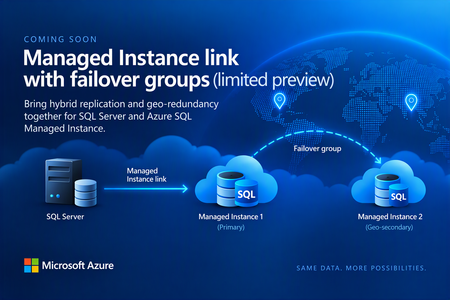
Before we kick off the preview, we’d like to hear from customers interested in trying it. The new capability will let you replicate data from SQL Server to a managed instance that’s part of a failover group, combining hybrid replication with geo-redundancy in Azure. The preview isn’t starting just yet. We expect to begin onboarding customers in the coming weeks, and capacity will be very limited. If this is something you’d like to try, let us know by filling out the sign-up form. Register your interest in the upcoming limited preview: https://aka.ms/milink-fog-signup What are the Managed Instance link and failover groups? The Managed Instance link enables near real-time data replication between SQL Server and Azure SQL Managed Instance. Built on distributed availability groups, it replicates user databases in near real time from SQL Server 2016 and later hosted anywhere to Azure SQL Managed Instance, or from Azure SQL Managed Instance to SQL Server 2022 or later. Customers use the Managed Instance link for: Offloading read-only workloads to Azure, or from Azure back to on-premises. Online migration from on-premises to Azure, or from Azure back to on-premises, with minimal downtime. Bidirectional disaster recovery between SQL Server and Azure. Failover groups, also known as geo-replication, manage the replication and failover of user databases from one managed instance to another managed instance in a different Azure region. They provide read-write and read-only listener endpoints that remain unchanged after a geo-failover, so applications don’t need connection-string changes. The geo-secondary can also take on read-only workloads. Until now, you couldn’t combine the two scenarios. Establishing a two-hop replication path from SQL Server to Managed Instance 1 and then to Managed Instance 2 presents a technical challenge and isn’t supported today. As a result, you’ve had to choose between using the MI link with a single managed instance or using failover groups without the MI link. The capability we’re getting ready to preview removes that trade-off. SQL Server replicates to MI-1 through the Managed Instance link, while the failover group keeps MI-2 in sync in a second Azure region, as shown in the figure below. Figure 1: SQL Server replicating to a primary managed instance through the Managed Instance link, with the failover group geo-replicating to a secondary managed instance in another region. Replication in both directions In this configuration, the link works bidirectionally. You can replicate from SQL Server to Azure and back from Azure to SQL Server. In practice, that means you can fail over to Azure and, when you’re ready, fail back to SQL Server. Version requirements follow the existing MI link documentation. Two-way replication and failback require SQL Server 2022 or SQL Server 2025, with the managed instance on the matching SQL Server 2022 or SQL Server 2025 update policy. SQL Server 2016 through 2019 support only one-way replication to Azure. What this unlocks Hybrid disaster recovery with regional resilience in Azure: Keep SQL Server as your primary, protected by Managed Instance in one Azure region and a geo-secondary Managed Instance in another Azure region. Migration to Azure with minimal downtime: Land directly in a geo-redundant configuration without having to re-seed or re-architect after cutover. Reverse migration: Move from a geo-redundant Azure configuration back to on-premises SQL Server. Read scale-out: Offload read-only workloads to a geo-redundant Azure SQL Managed Instance configuration. Reverse data replication: Replicate data from a geo-redundant Managed Instance configuration back to on-premises SQL Server. Who should apply and how the limited preview works If you run SQL Server workloads that could benefit from both hybrid replication and geo redundancy on Azure SQL Managed Instance, we’d love to hear from you. A few things to know The limited preview hasn’t started yet. Right now, we’re collecting interest from customers who would like to participate. We expect onboarding to begin in the coming weeks. Capacity will be limited, and the product team will contact selected participants directly. The preview isn’t intended for production workloads unless agreed with the product team. We’ll be looking for feedback from participating customers to help us shape the capability as it evolves. Interested? Let us know If combining the Managed Instance link with failover groups could simplify your hybrid, disaster recovery, or migration architecture, register your interest today. We’re looking forward to hearing about your scenarios and working with some of you as we get the preview underway. Register your interest in the upcoming limited preview: https://aka.ms/milink-fog-signup Learn more • Overview of the Managed Instance link • Overview of Failover groups for Azure SQL Managed Instance159Views2likes0Comments
Make Estate yours: Focus on the databases and issues you own in Database Hub
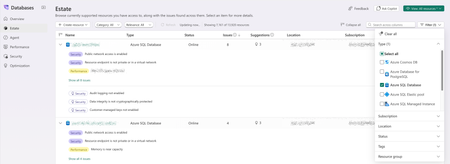
Database Hub in Microsoft Fabric is now in public preview. Estate experience brings every supported database you can access into one inventory, with the issues and suggestions found across them. In a large organization, that can mean thousands of resources. But most people own only part of the estate: a set of production databases, a few subscriptions, one resource group. This post shows how to shape Estate around your part, save it as a custom view, and use it to triage and bring in help. The examples use Azure SQL Database; the same steps work for PostgreSQL and Azure Cosmos DB. Which resources are mine? While in Estate view select Filter to narrow the list by Type, Subscription, Location, Status, Tags, or Resource group. The grid and the resource count update as you select values; Filter (1) shows how many dimensions are active, and Clear all resets them. Looking for one resource? Search across columns matches names, locations, subscriptions, and more. Which issues should I focus on? Each row shows its Issues and Suggestions counts and opens expanded, so findings are readable at a glance: issues with a filled Security or Performance tag, suggestions marked with a lightbulb. Open Category and select Security, Performance, Optimization, or a combination. Use Relevance to keep only resources with Issues or Suggestions. The grid is sorted by issue count, so the resources that need the most attention come first. How do I get back here tomorrow? Once Estate shows what you want, save it. An asterisk after the view name (View: All resources *) means your filters have unsaved changes. Select View > Save. Choose Save as new custom view and give it a name that describes the scope, such as sqlDB-sec-perf-issues. Select Apply. The view now appears under Custom views in the View menu. It saves filters, not results, so you always see the current state of those resources. What's wrong, and what should I do about it? Select an issue to open its detail page. Here, the top database reports Public network access is enabled. The Summary explains why it matters: public reachability increases exposure to credential attacks, scanning, and firewall mistakes. The Recommended action gives the fix and its precondition: Disable public network access after confirming that all clients can connect through approved private connectivity. Resolve in Azure portal opens the resource. Database Hub doesn't change the resource for you; you make the change in the tool that owns it, under your existing permissions. Back returns you to Estate with your view intact. Who can help me fix it? That precondition is often the hard part: confirming every client can connect privately may take your networking or application team. Bring them into the same view. Select View > Share, then Copy link. The link carries your current filters, so a colleague starts from the same scope. Each person still sees only the resources they already have access to; sharing never grants access. Need the list for a change ticket? Select Export view (as .csv). CSV files don't carry sensitivity labels, so handle the file according to your organization's data policies. What needs attention in my part of the estate? Your view isn't limited to Estate. Open Overview, select the same view from the View menu, and every card and chart rescopes to it: the Estate issues summary, the Security, Performance, and Optimization cards with their top issues, and the performance trends. Overview now summarizes your backlog instead of the whole estate. Views are managed in Estate; Manage views (Estate) takes you there. o the resources you own. More in Estate Look up a resource without leaving the list Select a resource name to open its details next to the list: subscription, resource group, and logical server (each linking to the Azure portal), status, location, pricing tier, max storage, and tags. Connection strings for ADO.NET, JDBC, ODBC, PHP, and Go use Microsoft Entra authentication, and Open in Azure portal, Open in VS Code, and Open in SSMS are at the top. The … menu on each row adds quick actions Copy connection string, Open in editor, Enable performance monitoring, Create monitor from template and Set alert from template. Create a database where you work Create resource starts a new database from Estate, grouped by engine: SQL database in Fabric, Azure SQL Database, SQL Server instance, Azure Database for PostgreSQL, and Azure Cosmos DB for NoSQL. Get started Open Estate, filter to the resources you own, focus on the categories you triage, and save the result as a view. Then select it on Overview and start with what needs attention. Database Hub is in public preview; capabilities vary by service and preview configuration. See the Database Hub documentation for supported services and setup, and use Feedback in Database Hub to tell us what you'd like next.111Views0likes0CommentsDatabase Hub in Fabric: Now in Public Preview -Turn Database Signals into Guided Action
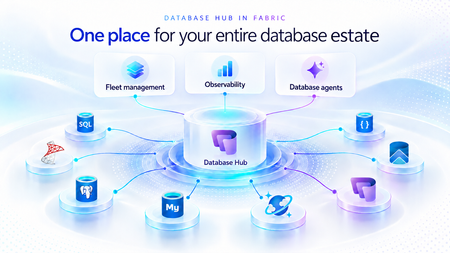
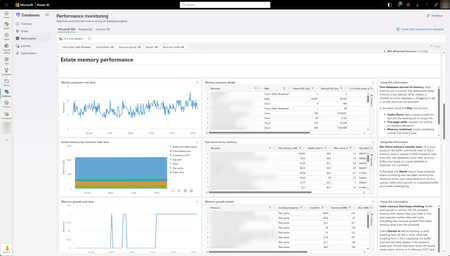
As applications grow, so does the database estate behind them. What starts with a handful of databases can become hundreds or thousands of resources spread across services, subscriptions, and environments. For the teams responsible for keeping them healthy, the challenge is no longer just collecting signals. It is knowing what needs attention, why it matters, and what to do next. Now in public preview, Database Hub in Microsoft Fabric brings inventory, health, performance, security, and optimization insights into one connected experience. It helps administrators and developers see the bigger picture, identify affected resources, and move from estate-wide visibility to focused investigation, without losing the context that brought them there. The preview brings together supported resources across Azure SQL Database, SQL Server enabled by Azure Arc, Azure Database for PostgreSQL, Azure Cosmos DB, and SQL database in Fabric. Available capabilities and signals vary by service and preview configuration. Database Hub Overview brings together estate-wide findings and cross-engine performance trends to help you prioritize what needs attention. Start with what needs your attention When you manage a large database estate, another dashboard is only useful if it helps you decide where to spend your time. The Overview page provides that starting point, bringing together findings across security, performance, and optimization. It distinguishes Issues, which require timely attention, from Suggestions, which highlight opportunities to improve your estate over time. You might begin with a security configuration that needs review or a performance signal that warrants investigation. Selecting a finding opens Estate with the relevant filters already applied, so you can see the affected resources rather than search for them again. The result is a more direct path from “something needs attention” to “these are the resources I should investigate.” Overview highlights issues across Security, Performance, and Optimization, with affected-resource counts and direct links to investigate further. Bring your estate into one view, and make it relevant to you The Estate experience brings supported resources into a unified inventory, scoped to your existing permissions. Search and filters help you narrow that inventory to the service, subscription, or resource group you manage. This is especially useful when your responsibilities span database engines. You can begin with a broader view, then focus on Azure SQL databases, Arc-enabled SQL Server resources, or Azure Database for PostgreSQL flexible servers without rebuilding the resource list in separate portals. Each resource brings its associated Issues and Suggestions into context. Open a finding to review the affected resource, supporting information, and recommended next step. The inventory also respects the resource model of each service. For example, the PostgreSQL view represents flexible server instances, rather than every database hosted within them. A unified view does not mean moving your databases. Your Azure resources remain in their existing subscriptions, and on-premises SQL Server instances remain on-premises, connected through Azure Arc. Database Hub brings operational context together; it does not require relocating or mirroring your application data into Fabric. Estate brings resource inventory, Issues, and Suggestions into one view, with quick actions to continue investigation in the Azure portal, VS Code, or SSMS. Understand security posture and performance in context Database Hub helps you identify configurations worth reviewing and resources that need a closer look. For security, supported signals can include Microsoft Entra authentication, customer-managed keys, and auditing coverage, depending on the database service. These findings provide a starting point for investigation, not a blanket judgment that every flagged resource is insecure or noncompliant. For example, a suggestion to review customer-managed keys should be evaluated against your organization’s requirements. A resource using service-managed keys is still encrypted at rest. For performance, built-in dashboards bring supported utilization and activity signals into view, including CPU, memory, storage, I/O, and connections. Review trends across your estate, then narrow the scope and time range to investigate individual resources. Metric availability varies by engine and monitoring configuration; missing data should not be interpreted as good health. For supported SQL monitoring scenarios, you can also create a custom monitoring dashboard from a template and tailor its charts and layout to the resources your team follows regularly. Together, these experiences help answer two practical questions: Where is pressure building, and where is there an opportunity to improve? Performance summaries highlight recent capacity signals and trends across Microsoft SQL, PostgreSQL, and Cosmos DB. The Security dashboard summarizes Microsoft Entra authentication, audit logging, and customer-managed key coverage, helping you identify configurations that warrant review across your estate. The Performance monitoring dashboard combines memory-pressure trends, resource-level details, and interpretation guidance to help focus your investigation. Move from a finding to an informed next step Estate-wide visibility is the beginning of an investigation, not a replacement for database expertise. When a finding needs deeper analysis, Database Hub helps you review the evidence and continue in the appropriate native experience, such as the Azure portal or SQL Server Management Studio (SSMS). Engine-specific diagnostics and configuration changes remain in the tools designed for that work. Consider a performance issue that occurred before an administrator could inspect it. In supported agent-assisted scenarios, captured incident evidence can help establish what happened, when it happened, and which queries or sessions were involved. That context gives the administrator a more informed starting point for investigation. The operator remains in control: review the evidence, evaluate the recommendation, and apply authorized changes through the appropriate service tools. The preview investigation workflow does not automatically remediate issues, and existing permissions and approval requirements continue to apply. Bring database expertise into agent-assisted workflows We are also making database operational intelligence available through agent skills: reusable capabilities that agents can call to support observability, monitoring, diagnostics, optimization, and other database operations. Database Hub provides estate context; skills provide a way to bring database expertise into an agent-assisted investigation. This creates a foundation for helping teams move from identifying an affected resource to understanding its signals and evaluating the next step. We’re building toward making this expertise available in the AI companions and development tools teams already use, with recommendations grounded in evidence, the specific database, and your organization’s operational controls. If we take a step back, our broader vision brings together a free, extensible Database Hub experience, agentic observability, and OneLake integration, all within Microsoft Fabric. It’s a foundation for connecting database operations with analytics and AI and helping teams turn signals into informed action. Get started with Database Hub Start with the Database Hub documentation to review preview availability, supported services, and setup requirements. Ask your Fabric administrator to enable the preview where required, confirm that you have the appropriate resource permissions, and complete any service-specific monitoring prerequisites. Then open Microsoft Fabric, select Databases in the left navigation, and begin with Overview. Choose a finding, explore the affected resources in Estate, and follow the evidence into your next investigation. For more details on supported services and getting set up, the Database Hub documentation is also available on Microsoft Learn. Learn more What is Database Hub in Fabric? Enable performance monitoring for Microsoft SQL Performance Monitoring for Azure SQL in Database Hub886Views5likes1CommentMI link support for multiple databases in an Always On availability group for SQL Server (Preview)
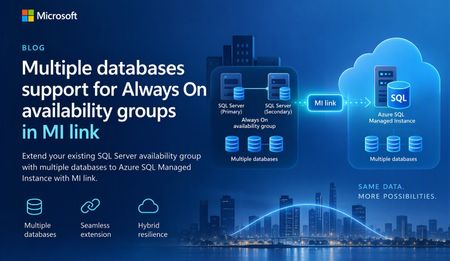
A simpler way to extend availability groups to Azure We are pleased to announce the preview of multi-database mode for Managed Instance link. The new mode lets you replicate multiple databases from an existing Always On availability group through a single link between SQL Server and Azure SQL Managed Instance. Managed Instance link uses distributed availability group technology to provide near-real-time replication between SQL Server and Azure SQL Managed Instance. It supports hybrid architectures, online migration, disaster recovery, and read-only workload offload. The link can be configured and managed through SQL Server Management Studio (SSMS), PowerShell, Azure CLI, and Azure APIs. Previously, each link supported one database. Customers with multi-database availability groups therefore had to split databases into separate availability groups and create a link for each database. Multi-database mode removes that limitation for supported SQL Server versions and editions, while the existing single-database mode remains available for earlier versions and other supported configurations. What you can do with multi-database link mode Migrate multiple databases to Azure SQL Managed Instance with minimal cutover downtime. Offload read-only workloads, including reporting and analytics, to the secondary replica. Use Azure SQL Managed Instance as a disaster recovery target for supported SQL Server versions. Start replication in either direction when the SQL Server version and Azure SQL Managed Instance update policy support that direction. Reverse primary and secondary roles through a planned failover. Build hybrid and multicloud topologies that place database groups where they are most useful. Preview requirements Requirement Details SQL Server SQL Server 2022 with CU27 and later or SQL Server 2025 with CU9 and later. Edition Enterprise or Developer edition. Standard edition is not supported for multi-database mode because Basic availability groups support only a single database. Azure SQL Managed Instance Use a compatible managed instance update policy , either SQL Server 2025, or Always-up-to-date. Note: Managed Instances with SQL Server 2022 update policy are not supported at this time. You can still use SQL Server 2022 to replicate your availability group to a Managed Instance with the SQL Server 2025 or Always-up-to-date update policy, but you will not be able to fail back to SQL Server 2022. We expect support for Managed Instances using the SQL Server 2022 update policy to become available in the coming weeks. This blog post will be updated when support becomes available. SSMS SSMS 22.10.2 or later for the multi-database link capability. Automation Az module 16.3.0 or later and Az.Sql 7.1.0 or later, or the corresponding Azure APIs. One link for an existing multi-database availability group If you already use an Always On availability group, multi-database link mode lets you extend the complete database group to Azure SQL Managed Instance without creating a separate availability group for every database. All databases in the link move together as one managed group. Databases on the primary are read-write, while their copies on the secondary are read-only. Use of your existing Always On AG listener endpoint is supported with multi-database mode MI link, allowing the link to remain operational after a local AG failover. Image 1: A multi-database Always On availability group replicated to Azure SQL Managed Instance through one Managed Instance link. The diagram illustrates the availability group relationship rather than a specific Azure SQL Managed Instance service-tier replica count. Managed Instance link is supported across all Azure SQL Managed Instance service tiers. Run multiple links in different directions A single SQL Server instance can participate in multiple links. Each link can carry a different availability group, and supported links can replicate in different directions at the same time. In the following example, AG1 (containing DB1, DB2, and DB3) replicates from SQL Server to Azure SQL Managed Instance through MI link 1. AG2 (containing DB4, DB5, and DB6) replicates from Azure SQL Managed Instance to SQL Server through MI link 2. Both links can operate at the same time between the two instances. Image 2: Two multi-database availability groups using separate links with opposite replication directions. Important: Database names must be unique in this configuration. A database cannot be renamed on the secondary while it is participating in replication to resolve a naming conflict. Replicate one availability group to multiple managed instances Multi-database mode also supports fan-out topologies. You can replicate multiple availability groups to one managed instance, or replicate the same availability group to different managed instances. For example, separate links can target managed instances in different Azure regions. Image 3: One multi-database availability group replicated through separate links to two Azure SQL managed instances. Get started To evaluate multi-database mode during preview: Confirm that the SQL Server version, edition, servicing level, and Azure SQL Managed Instance update policy meet the preview requirements. Upgrade to SSMS 22.10.2 or later, or use a supported automation interface. Enable multi-database mode before creating a multi-database link. Create the link from the existing Always On availability group and validate synchronization for every database. Review the Azure documentation for multi-database Managed Instance link configuration, limitations, monitoring, failover, and cleanup guidance. Share your feedback We would love to hear about your experience with multi-database mode. Please share questions, feedback, and feature suggestions through the Managed Instance link feedback form.424Views0likes0Comments
Public Preview: Performance monitoring for Azure SQL in Database Hub
We're excited to announce the public preview of performance monitoring for Azure SQL in Database Hub in Fabric. Performance monitoring brings the health and performance of your SQL estate into Database Hub. You see every supported database in one place and quickly spot the ones that need attention. It works across: Azure SQL Database Azure SQL Managed Instance (coming soon) SQL Server on Azure Virtual Machines SQL Server enabled by Azure Arc Microsoft collects performance-related telemetry, runs the pipeline, and stores the data for you. There's nothing you need to deploy and nothing to operate. Turn it on, and your SQL resources show up on the Performance page in Database Hub, which is free. This post is a deep dive on the performance part of Database Hub. For the full tour, including the Overview, Estate, and Security pages, read Database Hub in Fabric: Now in Public Preview. Get started in three steps Open Database Hub in Fabric. During the preview, a Fabric administrator needs to turn on the Database Hub tenant setting. See the prerequisites. Turn on performance monitoring for your SQL resources. See Enable performance monitoring for Microsoft SQL. Go to the Performance page to see which databases need your attention. See your entire database estate in Database Hub Performance monitoring powers the Performance page in Database Hub. Database Hub is built for when you need to look across all your databases, not just one at a time. It brings your database estate across Azure, on-premises, and other clouds into one place, including: Azure SQL and SQL Server enabled by Azure Arc Azure Database for PostgreSQL Azure Cosmos DB The Performance page comes with prebuilt dashboards, so you can see performance at a glance without building anything yourself. The dashboards are designed to quickly answer two questions: Are my databases healthy? Which ones need my attention? From there, you can drill into resource usage, waits, and session activity to understand what's driving a change in performance. With Database Hub, you can: Get estate-wide visibility into health and performance across database types Investigate the root cause of performance issues across many databases Use AI-assisted analysis to find and explain issues faster To learn more, see What is Database Hub in Fabric? Why we built this Monitoring SQL performance at scale often meant building and running your own monitoring stack. Before you could effectively answer, "Which of my databases need attention right now?" you typically had to: Deploy and configure a collection resource, such as a watcher or an agent Build a telemetry pipeline to move the data Provision a data store, and then pay for it, secure it, and keep it running Build dashboards on top of all of it Repeat for every new server, database, or region That's a lot of work before you see your first chart. And every step is another thing that can break, drift, or quietly stop collecting data. Customers are also turning to AI to make sense of their database estate. They want an AI agent that can spot a performance problem, explain what's causing it, and recommend a fix. But an AI agent is only as good as the data it can reach. It operates best with one consistent source of performance data across every database, not a patchwork of tools and data stores. We heard this feedback loud and clear from customers. You told us you love having at-scale dashboards and ownership of your performance data. You also told us that setting up a telemetry stack was time-consuming, scale limits got in the way, and running the data store added operational burden and cost overhead. One customer put it simply: they wanted to spend less time managing their telemetry infrastructure and more time managing and improving their databases. Performance monitoring keeps the parts you valued and removes the infrastructure you had to manage. That's why it feeds Database Hub directly. You get one place to see your whole estate, and your AI agents get one consistent source of performance data. No infrastructure to manage (or pay for) With performance monitoring, there's no monitoring infrastructure for you to deploy, size, or run. It's all managed by Microsoft, with no scale limits on how many targets you can monitor. Telemetry is collected close to the database engine and sent to a Microsoft-managed telemetry pipeline and data store. Access to that data is governed by Azure role-based access control (RBAC), so people only see telemetry for the resources they already have access to. Consistent telemetry across your SQL estate Performance monitoring collects the same core set of performance data across every supported SQL deployment, whether it runs in Azure, on-premises, or in another cloud. That means one mental model and one set of dashboards in Database Hub, instead of a different tool for every flavor of SQL. The preview collects performance-related telemetry, including: CPU and memory utilization Wait statistics Active sessions Storage I/O and database storage utilization Performance counters Client connections Database properties Availability group, replica, and database replica health Go beyond Database Hub with KQL Database Hub covers the most common performance questions. When you need a view that Database Hub doesn't show, you can query the same telemetry directly with Kusto Query Language (KQL). The telemetry is available through a Microsoft-managed, RBAC-governed endpoint, so you don't need to create or pay for your own Azure Data Explorer cluster. Use it to: Build your own Real-Time Dashboards and reports Connect tools you already use, such as Grafana or Power BI Give an AI agent access to investigate performance across your estate To get started, see Query performance monitoring telemetry. It includes the schema, connection steps, and ready-to-run starter queries. Turn on performance monitoring How you turn on performance monitoring depends on the resource type. For all of the steps in one place, see Enable performance monitoring for Microsoft SQL. Resource type How monitoring is enabled in preview Step-by-step guidance Azure SQL Database Add an extended property to each database you want to monitor. You can also select Enable Performance Monitoring in Database Hub. Azure SQL Database Azure SQL Managed Instance (coming soon) Coming soon Coming soon SQL Server on Azure VMs Turn on a feature flag in the SQL IaaS Agent extension. SQL Server on Azure VMs SQL Server enabled by Azure Arc On by default once the server is connected to Azure Arc. SQL Server enabled by Azure Arc To view performance monitoring data, you need: The Reader role, or a role with higher privileges, on each subscription that contains the resources you want to view. The Microsoft.AzureArcData resource provider registered on each subscription. For steps, see Register the Azure resource provider. Availability Performance monitoring is available in public preview in select Azure regions. For the current list of supported regions, see Regional availability and data handling. Learn more Database Hub in Fabric: Now in Public Preview What is Database Hub in Fabric? Enable performance monitoring for Microsoft SQL Query performance monitoring telemetry Supplemental Terms of Use for Microsoft Azure Previews2.3KViews3likes5CommentsMore performance and flexibility for Azure SQL Managed Instance Business Critical
Higher transaction log throughput and flexible memory address two different resource dimensions, but they follow the same principle: giving customers more control over the resources they need for their workloads.707Views1like0CommentsIntroducing Simplified Regional Limits for Azure SQL Managed Instance
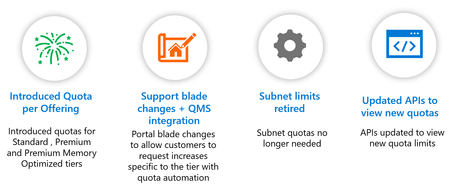
We are pleased to announce improvements to regional subscription limits for Azure SQL Managed Instance. These changes simplify subnet management and provide more granular control over vCore capacity across hardware generations. What’s changing? Two changes are now generally available: Regional subnet limits are removed Azure SQL Managed Instance no longer applies service-specific regional subnet limits. Instead, deployments are governed by the applicable Azure Resource Manager virtual networking limits. This simplifies resource planning and removes the need to monitor or request increases for Azure SQL Managed Instance regional subnet limits. Regional vCore limits are now hardware-generation specific Regional vCore limits are now managed separately for each supported hardware generation: • Standard Series • Premium Series • Premium Series Memory Optimized Previously, a single regional vCore limit applied across hardware generations. With hardware-generation-specific limits, customers can request additional capacity only for the hardware generation required by their workloads. For example, if you need additional Premium Series capacity in a region, you can request an increase for Premium Series without changing the limits for Standard Series or Premium Series Memory Optimized. Check vCore quota limit and usage with PowerShell Use the Subscription Usages - Get REST API to retrieve the current vCore quota limit and consumption for Azure SQL Managed Instance in a subscription and region. Query each hardware generation separately by specifying its usage name: Hardware generation Usage name Standard-series (Gen5) SubscriptionSQLManagedInstanceStandardSeriesVCoreQuota Premium-series SubscriptionSQLManagedInstancePremiumSeriesVCoreQuota Memory optimized premium-series SubscriptionSQLManagedInstancePremiumSeriesMemoryOptimizedVCoreQuota Run the following script in a PowerShell session with the Az module installed, or in Azure Cloud Shell using PowerShell. Your account needs permission to read subscription usage, such as the Reader role assigned at subscription scope. Replace <subscription-id> with your subscription ID, set $location to the Azure region name (for example, eastus), and set $usageName to one of the values in the table. If you're already signed in through Cloud Shell, omit Connect-AzAccount. $subscriptionId = "<subscription-id>" $location = "eastus" $usageName = "SubscriptionSQLManagedInstanceStandardSeriesVCoreQuota" Connect-AzAccount -ErrorAction Stop | Out-Null Set-AzContext -SubscriptionId $subscriptionId -ErrorAction Stop | Out-Null $path = "/subscriptions/$subscriptionId/providers/Microsoft.Sql/locations/$location/usages/${usageName}?api-version=2025-01-01" $response = Invoke-AzRestMethod -Method GET -Path $path -ErrorAction Stop if ($response.StatusCode -ne 200) { throw "Unable to retrieve quota usage. HTTP $($response.StatusCode): $($response.Content)" } $response.Content | ConvertFrom-Json -ErrorAction Stop | ConvertTo-Json -Depth 10 Example output (excerpt; values are illustrative): { "name": "SubscriptionSQLManagedInstanceStandardSeriesVCoreQuota", "properties": { "currentValue": 80, "limit": 320, "unit": "SubscriptionSQLManagedInstanceStandardSeriesVCoreQuota" } } In this example, `properties.currentValue` is the current quota consumption: 80 vCore units. `properties.limit` is the current quota limit: 320 vCore units. The remaining quota is `limit - currentValue`, or 240 vCore units, for standard-series hardware in the specified subscription and region. The previously used VCoreQuota usage name, which represented a single regional quota shared across all hardware generations, is being deprecated in favor of hardware-generation-specific quotas. Use the usage names listed in the table above to retrieve the quota limit and consumption for each hardware generation. What does this mean for existing customers? Existing regional vCore limits will be automatically converted to hardware-generation-specific limits. No customer action is required. Your new limits can be viewed and managed through the Azure portal. If the default limit for a hardware generation is insufficient for a planned deployment, you can request an increase for that specific hardware generation. New hardware generation specific vCore limits apply to both single-zone and multi-zone (Zone Redundant) Managed Instance deployments. Benefits These improvements provide: • Simpler quota management through the removal of service-specific regional subnet limits. • Better granularity with separate vCore limits for each hardware generation. • Greater flexibility to request capacity only where it is needed. • A seamless transition with automatic conversion of existing limits. To learn more about Azure SQL Managed Instance resource limits and how to request an increase, see Request quota increases for Azure SQL Database and SQL Managed Instance. We hope these changes make planning and scaling your Azure SQL Managed Instance deployments simpler and more flexible.581Views1like0CommentsPublic Preview: Zone-Redundant Next-Gen General Purpose for Azure SQL Managed Instance
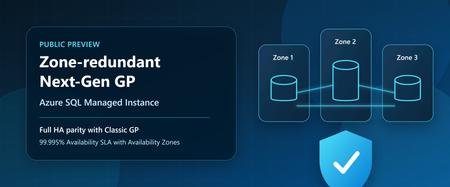
Customers no longer need to choose between the latest General Purpose architecture and zone-level resiliency. With the public preview of zone redundancy for Next-Generation General Purpose Azure SQL Managed Instance, organizations can now take advantage of all the benefits of Next-Generation General Purpose while meeting strict high availability and compliance requirements through Availability Zone protection. When Next-Generation General Purpose became generally available, it introduced a modernized General Purpose architecture delivering improved performance, greater scalability, enhanced flexibility, and better price-performance for Azure SQL Managed Instance workloads. Since then, customers have increasingly adopted the architecture to modernize SQL workloads, consolidate databases, and optimize total cost of ownership. Today, we're extending those benefits to customers who require zone-level resiliency. With zone redundancy now available in public preview, customers can realize all the advantages of Next-Generation General Purpose while meeting the same zone-level availability requirements previously available only with Classic General Purpose. This milestone brings full high-availability parity between Classic General Purpose and Next-Generation General Purpose, removing one of the last major reasons for customers to remain on the previous architecture. Closing the last major gap Zone redundancy has consistently been one of the most requested capabilities for Next-Generation General Purpose. Since its introduction, Next-Generation General Purpose has provided substantial improvements in scalability and flexibility, including support for up to 128 vCores, up to 32 TB of storage, up to 500 databases per instance, configurable IOPS, and flexible memory sizing. Customers can optimize resources for their workload requirements while continuing to benefit from the simplicity and compatibility of Azure SQL Managed Instance. With today's announcement, these capabilities can now be combined with zone-level resiliency, enabling customers to deploy highly available business-critical workloads on the latest General Purpose architecture without compromise. In addition, the flexible memory option for zone-redundant Next-Generation General Purpose instances is also available in public preview, providing even greater flexibility to balance performance requirements and infrastructure costs. Built-in high availability, now with Zone-level protection Azure SQL Managed Instance has always been designed for high availability. Next-Generation General Purpose delivers built-in high availability through its distributed architecture, leveraging Service Fabric together with fault domains and update domains to minimize the impact of hardware failures, software updates, and planned maintenance events. This architecture enables applications to remain available even during infrastructure events and maintenance operations. As a result, single-zone deployments provide a 99.99% availability SLA. For organizations with more demanding availability requirements, zone redundancy distributes service components across multiple Availability Zones within a region. This provides protection against zone-level failures and increases the availability SLA to 99.995%. While many workloads are well served by single-zone deployments, organizations in regulated industries and mission-critical environments often require zone-redundant architectures as part of compliance, operational resilience, or business continuity requirements. With today's preview, these customers can now adopt Next-Generation General Purpose without sacrificing those requirements. Regional availability Zone redundancy for Next-Generation General Purpose is available in public preview in all regions where the underlying ESAN infrastructure supports zone-redundant deployments. For the latest list of supported regions, check out the documentation page containing the regions where Elastic SAN is currently available and the supported redundancy options. Regions that do not yet support ESAN-based zone redundancy are not included in the preview at this time. Additional regions will become available as platform support expands. Upgrading existing deployments Whether you are already running Next-Generation General Purpose or remain on Classic General Purpose, adopting zone-redundant Next-Generation General Purpose is designed to be straightforward and transparent. Enable zone redundancy on existing Next-gen General Purpose instances Customers already running Next-Generation General Purpose can enable zone redundancy directly on existing instances and immediately benefit from enhanced resiliency and a higher availability SLA. Move from classic General Purpose zone-redundant to Next-generation General Purpose zone-redundant Customers currently running Classic General Purpose with zone redundancy can migrate to Next-Generation General Purpose while preserving zone-level resiliency and gaining access to the latest platform architecture, resource flexibility, and scalability improvements. This provides a natural modernization path for existing deployments and allows customers to standardize on the future architecture of the General Purpose tier. Online operation with a short failover Enabling zone redundancy or migrating between architectures is performed as an online management operation. During most of the operation, Azure SQL Managed Instance provisions and synchronizes the new infrastructure while the existing deployment continues serving application traffic. Near the end of the operation, a brief failover occurs as client connections are switched from the existing infrastructure to the newly provisioned environment. For more information about management operations, expected behavior, and application connectivity considerations, see management operations overview article. Protecting workloads beyond a single region For customers running in regions where zone redundancy is not currently available, or for customers seeking protection from broader regional outages, Failover Groups remain the recommended solution. Failover Groups enable disaster recovery across Azure regions by maintaining a secondary managed instance and providing automatic or manual failover capabilities when needed. This approach helps organizations meet business continuity objectives even when Availability Zone protection is unavailable or when protection from regional outages is required. Optimize disaster recovery costs with License Free failover rights Customers implementing disaster recovery through Failover Groups can further optimize costs through Azure SQL License Free failover rights. When the secondary managed instance is maintained exclusively for standby disaster recovery purposes and is not used for read-only workloads, SQL Server licensing costs do not apply to the secondary environment. Customers pay only for the compute resources required to maintain disaster recovery readiness, helping reduce overall total cost of ownership. Planning costs The Azure SQL Managed Instance pricing page and Azure Pricing Calculator have been updated to include the latest zone-redundant Next-Generation General Purpose offerings. These tools can help customers evaluate deployment options, compare availability architectures, and estimate costs associated with zone redundancy and disaster recovery configurations. Get started Zone redundancy for Next-Generation General Purpose marks the completion of an important milestone in the evolution of Azure SQL Managed Instance. Customers can now combine the performance, scalability, flexibility, and operational advantages of Next-Generation General Purpose with zone-level resiliency and a 99.995% availability SLA. Whether deploying new workloads, enabling zone redundancy on existing Next-Generation General Purpose instances, or modernizing Classic General Purpose deployments, organizations now have a clear path to adopting the latest General Purpose architecture without compromise. Learn more What is Azure SQL Managed Instance Availability through local and zone redundancy - Azure SQL Managed Instance Flexible memory - Azure SQL Managed Instance Next-gen General Purpose – official documentation Try Azure SQL Managed Instance for free Accelerate SQL Server Migration to Azure with Azure Arc Analyzing the Economic Benefits of Microsoft Azure SQL Managed Instance How 3 customers are driving change with migration to Azure SQL794Views1like0CommentsHostNameInCertificate changes in Azure SQL Managed Instance affecting client connectivity
Azure SQL Managed Instance is changing how TLS certificates are stored and handled in managed instances. One of those certificates was specifically tailored to support migration scenarios where SQL clients retain the server name, while updating its record in DNS so that it resolves to the managed instance instead. This was supported with an instance certificate that we are now replacing in favor of a more complete solution. When does this change take effect? New managed instances already contain certificates with a reduced list of SANs. Existing managed instances will have their certificates revoked and replaced with reduced certificates during the first week of August 2026. Am I affected? Your SQL clients and applications might be unable to connect if all of the below is true: The client is connecting over the VNet-local endpoint, and The client attempts to establish a Redirect connection, and Client settings contain the HostNameInCertificate connection parameter. The exact error message depends on your application, client, and driver. For example: The target principal name is incorrect. The certificate chain was issued by an authority that is not trusted. The certificate's CN name does not match the passed value. The remote certificate is invalid according to the validation procedure. Failed to validate the server name in a certificate hostname verification failed certificate verify failed: Hostname mismatch My clients are affected. What should I do? If your clients are affected, find an appropriate solution in the table below. If the client is... Solution Connecting to the managed instance's VNet-local endpoint with Redirect using the instance's original VNet-local domain name Remove HostNameInCertificate from client's connection string; or Deploy a private endpoint and ensure your client is connecting to it. Connecting to the managed instance’s VNet-local endpoint with Redirect using a different domain name (for example, via DNS CNAME) Set the instance’s connection type to Proxy; or Deploy a private endpoint and ensure your client is connecting to it. Connecting via private endpoint No action is needed. Connecting via public endpoint No action is needed. Connecting with Proxy connection type No action is needed. What else should I know? Microsoft recommends you adhere to the security best practices for data in flight: Only allow network access to known networks and hosts; see Connecting to a managed instance. Authorize using safe credentials, ideally by using Microsoft Entra where possible. Always use TLS encryption (Encrypt=Strict or Encrypt=Mandatory). Monitor suspicious network activity throughout your network topology. Follow the principle of least privilege. Ensure that your SQL clients and applications have a network path to fetch the latest CRL and/or connect to OCSP for certificate validation.579Views0likes0CommentsAnnouncing Automatic Backup Immutability for Azure SQL Database and Azure SQL Managed Instance
Built-in protection for your most recent backups - enabled automatically Today, we're excited to announce General Availability of automatic backup immutability up to the most recent 7 days of point-in-time restore (PITR) backups in Azure SQL Database and Azure SQL Managed Instance, at no additional cost. With this release, up to most recent 7 days of backups are automatically protected with immutability by default, regardless of your configured PITR retention period. No configuration changes, policy creation, or administrative action are required. This enhancement provides an additional layer of protection for one of your most critical recovery assets - your backups. Why backup immutability matters Cyberattacks continue to evolve, with ransomware increasingly targeting not only production data, but also backup systems. Attackers understand that if backups can be deleted, modified, or corrupted, recovery becomes significantly more difficult and costly. Traditional backup strategies focus on creating recoverable copies of data. Modern cyber-resilience strategies go further by ensuring those backups themselves cannot be altered or removed during a protected period. Immutable backups help ensure that recovery points remain available when you need them most - even in the face of malicious actions, accidental deletion, or compromised administrative credentials. What is changing? Starting with this release: Up to the most recent 7 days of Azure SQL Database and Azure SQL Managed Instance PITR backups are automatically protected by immutability Protection is enabled by default for all databases, with no additional cost No configuration or onboarding is required Protection applies regardless of the database's configured PITR retention setting Because this capability is built directly into the Azure SQL backup service, customers automatically benefit from stronger protection without changing existing backup, restore, or operational workflows. Designed for modern cyber resilience Organizations across industries increasingly require stronger safeguards around backup data as part of broader cyber-resilience programs. Automatic backup immutability helps customers: Improve protection against ransomware attacks Reduce the risk of accidental backup deletion Strengthen recovery readiness Increase confidence that recent recovery points remain available during an incident Simplify adoption of immutable backup practices without additional deployment effort This capability is particularly valuable because the backups most often used during recovery operations are typically the most recent ones. Supporting compliance and governance requirements Many industries must maintain records in a protected, tamper-resistant manner to satisfy regulatory and governance requirements. Azure Storage immutable storage capabilities have been validated for compliance scenarios involving requirements such as: SEC Rule 17a-4(f) CFTC Rule 1.31(d) FINRA record-retention requirements These regulations commonly require records to be retained in a nonerasable, non-rewritable format for a defined period of time. Azure immutable storage uses a Write Once, Read Many (WORM) model that helps organizations meet these requirements. Azure SQL database backups leverage this WORM capability from Azure storage to achieve immutability for the backups. While compliance requirements vary by organization and jurisdiction, automatic backup immutability provides an additional foundational control that can support broader security, governance, and resilience objectives. No additional complexity One of our goals with this release is to deliver stronger security without increasing operational burden. You don't need to: Create immutability policies Configure storage accounts Manage retention locks Extract data The protection is integrated directly into the Azure SQL managed backup service and works automatically for all Azure SQL Database and Azure SQL Managed Instance databases. Pricing and Availability Automatic backup immutability up to the most recent 7 days of point-in-time restore (PITR) backups is available for all Azure SQL Database and Azure SQL Managed Instance databases. There is no additional cost to use this capability. The protection is built into the Azure SQL managed backup service and is automatically applied to the most recent 7 days of backups. No configuration, policy management, or separate licensing is required. By enabling immutable protection by default and at no additional charge, Azure SQL helps customers strengthen their cyber-resilience posture, improve protection against ransomware and accidental deletion, and gain the benefits of immutable backups without added operational complexity. Building on Azure SQL's data protection foundation Automatic backup immutability is the latest enhancement in Azure SQL's ongoing investment in data protection, security, and business continuity. By combining automated backups, point-in-time restore capabilities, geo-redundant backup options, soft delete protection for your Azure SQL logical server and now automatic backup immutability for recent backups, Azure SQL continues to help organizations strengthen their resilience against both operational accidents and modern cyber threats. This is just the beginning. Azure SQL hyperscale backup immutability and a host of other additional capabilities are coming soon. FAQs Q: What is changing? A: Microsoft Azure SQL will start protecting the short-term retention backups for all Azure SQL DB and Azure SQL managed instance databases with immutability to protect against ransomware attacks. Q: Are all my backups protected? A: In this release, up to most recent 7 days of short-term retention backups are immutable, regardless of the configured retention period. For example, if the configured retention period is 7 or less, then all the backups are immutable. If the configured retention period is 35 days, then the most recent 7 days of backups are immutable. Q: Is there any additional cost for this feature? A: No. Immutability for the backups is being provided as a security feature natively. Q: When will this be available? A: The code to enable immutable policy is already in progress in all Azure regions worldwide. In the next few weeks all backups will be on immutable storage. Q: Do I need to do anything to enable/configure immutability? A: No. There is no action needed on your end. The backups will automatically be immutable once the enablement is complete. Q: How can I verify if my backups are immutable? A: In a future release, immutability status will be exposed as a database property. Q: How can I get immutability for my backups beyond 7 days? A: In this release backups up to most recent 7 days are immutable. Immutability for additional retention period will be added in a future release. Limitations Immutability for Azure SQL hyperscale is not included in this release but will be available soon. Learn more To learn more about immutable storage concepts and WORM (Write Once, Read Many) protection in Azure, see: https://learn.microsoft.com/azure/storage/blobs/immutable-storage-overview We are excited to bring this protection to every Azure SQL Database and Azure SQL Managed Instance customer automatically, helping you improve backup security and recovery readiness with no additional effort. Documentation updates More details at https://aka.ms/auto-immutability Looking ahead We are just getting started on this journey of ransomware protection. Additional flexibility and configuration options coming in future releases.1.5KViews3likes2Comments