azure sql database
170 TopicsLessons Learned #551: Azure SQL Connection Timeouts: Three Things to Check
An application starts reporting intermittent timeouts when connecting to Azure SQL Database. Some requests succeed, others fail, and a test from a developer’s laptop works perfectly. The database appears online, no recent deployment seems related, and the natural reaction is to ask: Is Azure SQL unavailable? Is the firewall blocking the connection? Should we increase the connection timeout? Should we change the driver or scale the database? Those are reasonable questions, but they may lead the investigation in the wrong direction. The most important lesson is simple: A timeout tells us how long the application waited. It does not tell us what the application was waiting for. Not every “SQL timeout” happens inside Azure SQL From the application’s point of view, opening a database connection may involve several operations: Resolving the server name. Reaching the SQL endpoint. Obtaining a Microsoft Entra access token. Waiting for an available pooled connection. Completing the SQL login. Executing the first command. When all these operations are reported through the same application method or log entry, it can look as though Azure SQL took thirty seconds to accept the connection. In reality, only part of that time may have been spent connecting to the database. In one anonymized support scenario, the application experienced problems mainly on its first connection. Network tests were successful and no corresponding SQL connection failure was identified. The investigation eventually showed that access-token acquisition was consuming a significant part of the available time. Increasing the SQL timeout or changing the firewall would not have addressed the real delay. Check 1: Capture the complete error and the exact time A screenshot containing only “Connection Timeout Expired” is rarely enough. Capture: The complete exception and inner exception. The operation being performed. The driver and version. The authentication method. The exact timestamp in UTC. Whether the issue affects every connection or only some of them. The wording around the timeout matters. For example, a timeout while obtaining a connection from the pool points toward the application’s pooling and concurrency behavior. A pre-login or TLS error belongs to a different investigation. A command timeout after the connection was established is usually a query-performance problem rather than a connection problem. Check 2: Measure the application timeline The application should record important operations separately. A simple timeline can completely change the investigation: 10:14:20.100 Token acquisition started 10:14:28.400 Token acquired 10:14:28.405 SQL connection started 10:14:29.050 SQL connection established The complete operation took almost nine seconds, but Azure SQL connection establishment took less than one second. Useful measurements include: Token-acquisition duration. Time waiting for a pooled connection. SQL connection-open duration. SQL command duration. Number of retry attempts. Applications using Microsoft Entra authentication must obtain an access token before authenticating to Azure SQL. Measuring that operation separately helps distinguish an identity delay from a database connectivity problem. This is particularly useful when the issue appears: On the first connection after startup. After a token expires. Only with Managed Identity or Workload Identity. Intermittently, while SQL authentication connections remain unaffected. Check 3: Test from the application environment A successful connection from a laptop does not validate the path used by an application running in: Azure App Service. Azure Functions. Azure Kubernetes Service. A virtual machine. An on-premises application server. A container or integration runtime. The laptop and the application may use different DNS servers, routes, firewalls, proxies and identities. Connectivity and DNS tests should therefore be performed from the environment that is actually failing. This becomes especially important when Private Endpoint is used. The application should continue connecting with: <server>.database.windows.net It should not use the Private Endpoint IP address or the privatelink.database.windows.net hostname directly. Direct login attempts using the private IP or the private-link FQDN fail; the normal logical-server FQDN must remain in the connection string. From the affected environment, confirm that: The expected DNS server answers the request. The server FQDN resolves to the expected private IP. The Private Endpoint connection is approved. The Private DNS zone is linked correctly. The resolved address is reachable through the intended route. A test from an unrelated machine is still useful for comparison, but it does not prove that the application path is healthy. Observed symptom Likely investigation area Timeout while obtaining a connection from the pool Application connection pooling Server name cannot be resolved DNS TCP connection to the endpoint cannot be established Network path, firewall or routing Error during the pre-login handshake TLS, driver, network interruption or pre-login processing Authentication or access-token error Microsoft Entra authentication, identity or token acquisition Timeout during the post-login phase Login completion, session initialization or server-side processing Execution or command timeout after connecting Query execution and database performance Avoid changing several things at once During a production incident, it is tempting to: Increase the timeout. Add firewall rules. Change the connection policy. Upgrade the driver. Restart the application. Clear connection pools. Applying several changes together makes it difficult to determine which one helped, and some may only hide the symptom. A better approach is to define one hypothesis: We believe DNS in the application environment is resolving the public endpoint instead of the Private Endpoint. Then define: The evidence supporting the hypothesis. One controlled change. The expected result. How the result will be measured. How the change will be reverted. Azure SQL supports Proxy and Redirect connection policies, which determine how traffic flows after reaching the Azure SQL gateway. The policy is configured for the logical server, so it should be verified before making firewall assumptions or changes. What should we collect before opening a support request? A small but precise evidence package can avoid several rounds of questions: Complete error and inner exception. Exact UTC timestamps. Application platform and location. Public or Private Endpoint. Server FQDN used by the application. Driver and version. Authentication method. Token, pool, connection and command durations. DNS result from the affected environment. Whether the issue is constant, intermittent or limited to the first connection. Recent application, network, identity or configuration changes.171Views0likes0CommentsUnderstanding Azure SQL Long-Term Retention Immutability Configuration with Terraform and AzAPI
Executive Summary Organizations using Azure SQL Database Long-Term Retention (LTR) backup policies may encounter failures when attempting to disable backup immutability while also specifying an immutability mode in the same request. In the investigated scenario, the customer observed that the operation succeeded when performed through ARM templates but failed when executed through Terraform using AzAPI-based resources. The investigation determined that the Azure SQL resource provider enforces validation rules that prevent TimeBasedImmutabilityMode from being specified when TimeBasedImmutability is set to Disabled. The issue was not caused by the Azure SQL service itself, but rather by how configuration values were being submitted through Terraform and AzAPI resource updates. The recommended mitigation is to ensure that immutability mode is omitted or explicitly set to null when disabling time-based immutability. This allows the request to comply with the resource provider's validation requirements. Introduction Azure SQL Database supports immutable Long-Term Retention (LTR) backups to help organizations meet compliance, governance, and data protection requirements. These policies allow administrators to control whether retained backups can be modified or deleted. During an investigation involving Terraform and AzAPI deployments, a customer reported inconsistent behavior when attempting to disable backup immutability. While equivalent ARM template operations completed successfully, Terraform-based deployments generated validation errors. This article explains the observed behavior, the investigation findings, the confirmed root cause, and the recommended mitigation. Issue Description Reported Symptoms The customer reported the following behavior: Enabling and managing Long-Term Retention backup immutability worked successfully. Configurations involving immutability mode settings could be applied successfully under certain conditions. Attempts to disable immutability through Terraform resulted in failures. Similar operations appeared to succeed when performed using ARM templates. Technical Environment The discussion confirmed the following components: Azure SQL Database Long-Term Retention (LTR) backup policies Backup immutability configuration Terraform deployments AzAPI resources and AzAPI resource updates ARM template deployments Azure SQL Resource Provider validation logic Expected Behavior When administrators disable backup immutability, the configuration update should be accepted and the policy should transition to a disabled state. Actual Behavior Requests submitted through Terraform/AzAPI included both: TimeBasedImmutability = Disabled TimeBasedImmutabilityMode = Unlocked The Azure SQL resource provider rejected this configuration, returning an error indicating that an immutability policy mode cannot be specified when backup immutability is not enabled. Investigation and Troubleshooting 1. Initial Customer Question The customer sought clarification on whether enabling, disabling, locking, and unlocking backup immutability should all be possible through AzAPI resources and whether a product issue existed. 2. Review of Azure SQL Resource Provider Behavior The support team reviewed requests submitted to the Azure SQL resource provider and compared successful and unsuccessful operations. The investigation focused on configuration differences between ARM template deployments and Terraform-driven updates. Confirmed Finding When ARM templates disabled immutability, the request contained: TimeBasedImmutability = Disabled and did not include an immutability mode parameter. Confirmed Finding When Terraform attempted to disable immutability, the request included both: TimeBasedImmutability = Disabled TimeBasedImmutabilityMode = Unlocked This resulted in a validation failure from the Azure SQL resource provider. 3. Validation of Error Behavior The team verified that the error was generated by the Azure SQL resource provider and was reproducible outside Terraform, including equivalent testing through ARM deployments when the conflicting parameter combination was supplied. Confirmed Error The resource provider returned an error equivalent to: Cannot set immutability policy mode when backup immutability is not enabled. 4. Assessment of Terraform and AzAPI Behavior The investigation identified an important behavioral difference. Terraform itself did not yet expose dedicated Time-Based Immutability parameters in its SQL modules. As a result, the customer was using AzAPI resources to perform direct REST-based operations. The team discovered that: azapi_resource behaved as expected. azapi_resource_update could retrieve and reuse an existing property value when no value was explicitly provided. This behavior caused the immutability mode value to persist unexpectedly during updates. 5. Reproduction and Verification The engineering discussion included review and validation of the reported behavior. Testing confirmed that requests containing immutability mode while immutability was disabled were expected to fail due to platform validation. Root Cause Confirmed Root Cause The failure occurred because the update request attempted to disable backup immutability while simultaneously providing a value for TimeBasedImmutabilityMode. Azure SQL validation rules require immutability mode to be associated only with an enabled immutability configuration. When immutability is disabled, an immutability mode must not be supplied. An additional contributing factor was the behavior of azapi_resource_update, which could retain a previously configured immutability mode value when no new value was explicitly provided. Consequently, requests unintentionally included an immutability mode even though the intent was to disable immutability entirely. The available evidence supports this conclusion through: Comparison of successful ARM template requests and failing Terraform requests. Reproduction of the same validation behavior by the Azure SQL resource provider. Validation of the AzAPI update behavior involving retained values. Mitigation and Resolution Recommended Mitigation When disabling backup immutability: Set TimeBasedImmutability to Disabled. Do not provide TimeBasedImmutabilityMode. Terraform/AzAPI Workaround The investigation determined that explicitly setting: TimeBasedImmutabilityMode = null prevents the previous value from being reused and allows the request to be processed correctly. Configuration Matrix Discussed The support team identified the following expected behavior: Operation Immutability Mode Requirement Locking backups Mode should be set to Locked Unlocking while remaining enabled Mode may be supplied and is recommended for clarity Disabling immutability Mode should not be supplied This guidance was explicitly discussed during the investigation. Validation After applying the mitigation: The disable operation should complete without the immutability mode conflict. Requests should no longer trigger the Azure SQL validation error related to immutability mode usage. Recommendations and Best Practices Recommendations Supported by the Investigation Ensure that immutability mode is not included when disabling backup immutability. Review Terraform templates for dynamically generated properties that may continue to emit previously populated values. When using AzAPI update resources, explicitly manage nullable properties where supported to avoid unintended value persistence. Important Considerations Behavior may vary depending on: Azure SQL API version Terraform provider version AzAPI provider implementation details Existing Long-Term Retention backup state Whether previously locked backups exist Always validate deployment behavior in a non-production environment before applying configuration changes broadly. Conclusion This investigation demonstrated that the inability to disable Azure SQL Long-Term Retention backup immutability was not caused by a platform defect in Azure SQL. Instead, the failure occurred because requests attempted to specify an immutability mode while immutability itself was being disabled. The issue was further influenced by AzAPI update behavior that could preserve previously configured values unless explicitly cleared. Setting the immutability mode to null, or removing it entirely when disabling immutability, resolved the problem. The key technical takeaway is that TimeBasedImmutabilityMode and TimeBasedImmutability must be configured consistently with Azure SQL resource provider validation rules, particularly during infrastructure-as-code deployments. Public Documentation Azure SQL Database Long-Term Retention documentation Azure SQL Backup Immutability documentation ARM/Bicep resource documentation for backup Long-Term Retention policies Terraform provider documentation for Azure SQL Database183Views0likes0CommentsLessons Learned #549: Reproduce, Challenge, and Validate – Testing Technical Assumptions
During an Azure SQL investigation, the available evidence may point to a technically reasonable explanation. For example: A network change may appear to explain a connectivity issue. High CPU may appear to explain a performance degradation. A query plan change may appear to explain a longer execution time. A failover may appear to explain why the behavior disappeared. These explanations may be correct. However, before considering them confirmed, I normally try to reproduce the behavior and validate the conditions under which it occurs. A reasonable explanation is still a hypothesis until the available evidence supports it consistently. Reproduce the Smallest Useful Scenario A reproduction does not always need to recreate the complete production environment. In many cases, a smaller test provides a clearer result. For a connectivity issue, the test may require only: one client; one database endpoint; the same authentication method; the relevant network path; a clearly identified timestamp. For a performance issue, it may require: one representative query; the same parameters; the relevant database configuration; a controlled execution period. The objective is to isolate the behavior being investigated while reducing unnecessary variables. The smaller the scenario, the easier it normally becomes to understand why the result changes. Define the Expected Result Before running a test, I try to define what result I expect. For example: Hypothesis: The connection behavior depends on a specific network path. Expected Result: The behavior should occur when the connection uses that path and should not occur when an alternative path is used. Result That Would Challenge the Hypothesis: The same behavior occurs independently of the network path. The same approach can be used for performance investigations. Hypothesis: The query slowdown is caused by Data IO saturation. Expected Result: Query duration should increase when Data IO reaches its service-level limit. Result That Would Challenge the Hypothesis: The same slowdown occurs while Data IO remains low. Defining the expected result before the test helps avoid interpreting every outcome as confirmation of the initial explanation. Change One Variable at a Time When several conditions are changed simultaneously, it may be difficult to determine which one affected the result. For example, suppose a performance test includes: a larger service objective; updated statistics; a new index; lower concurrency. If performance improves, the result is positive, but it may not clearly identify which change produced the improvement. A more useful approach is to test each relevant change separately. Test Change Test 1 Original configuration Test 2 Updated statistics only Test 3 New index only Test 4 Higher service objective only This does not mean that every investigation requires an extensive test matrix. The objective is simply to avoid changing several important variables at the same time when we need to understand which one explains the behavior. Compare Where the Behavior Occurs and Where It Does Not Understanding where a behavior does not occur can be as useful as reproducing where it does. For example: Does the connection fail from one application server but succeed from another? Does the query perform normally with different parameters? Does the issue occur only through one network path? Does the previous execution plan perform better? Does the behavior disappear when concurrency is reduced? These comparisons help define the boundaries of the problem. They may not immediately identify the complete root cause, but they help determine which conditions are relevant and which ones are less likely to explain the result. Challenge the Explanation Once a test appears to support a hypothesis, I normally try to challenge it. For example, if performance improves after scaling the database, it may be tempting to conclude that CPU was insufficient. However, scaling may also provide: more memory; higher Data IO capacity; greater transaction-log throughput; additional workers; different resource limits. The improvement is important evidence, but additional information may still be required to identify which resource was actually limiting the workload. Similarly, if a failover restores normal performance, it may also have: disconnected blocking sessions; refreshed application connections; caused query recompilation; reset a temporary condition. The action that restores normal operation may not, by itself, fully explain the original cause. Document the Result and Its Limitations Not every test produces a definitive answer. A useful conclusion should describe: which conditions were tested; what result was expected; what result was observed; whether the result was repeatable; which differences from the original scenario remained; what the evidence did and did not allow us to confirm. For example: The behavior was reproduced only when the connection used the affected network path. The same authentication method and database endpoint worked successfully through an alternative path. Based on these tests, the network path was confirmed as a relevant condition. The available evidence did not identify the specific network component responsible for the behavior. This conclusion is useful because it clearly separates what was validated from what remains unknown. Conclusion Reproduction is one of the most valuable troubleshooting tools available to an engineer. However, its purpose is not simply to make an error occur again. A useful reproduction should help us understand: which conditions are required; which conditions are not relevant; what result supports the hypothesis; what result challenges it; how consistently the behavior can be observed. The most effective tests are often simple: reproduce the smallest useful scenario; define the expected result; change one variable at a time; compare affected and unaffected conditions; document the limitations. Reproduction does not only confirm that a behavior exists. It helps define the conditions under which the technical conclusion can be trusted.106Views0likes0CommentsLesson Learned #548: From Symptoms to Evidence – How I Approach an Azure SQL Investigation
After working on many Azure SQL support cases, I have learned that the initial service request details are essential, although they may not always provide sufficient information to understand the complete technical situation. When a service request is initially created, the available information may be limited to a brief description such as: The database is running slowly. CPU utilization is high. Connections are failing. The issue started after a deployment. Performance improved after a failover. The workload became slower after a service-tier migration. These details provide an important starting point for the investigation. However, the initial description may not yet include all the relevant timestamps, metrics, logs, configuration details, or historical context required for a complete technical assessment. This is completely understandable. At the time the service request is created, the immediate priority is normally to describe the observed behavior and its impact. Additional technical context can then be collected progressively during the investigation. For that reason, I normally use the initial service request details to understand the reported symptom and determine which additional information may be required. The first objective is to clarify the observed behavior, define the affected scope, and identify the evidence that may help us evaluate the different possible explanations. In this article, I would like to share the approach I normally follow when moving from an initial service request description to an evidence-based technical conclusion. Clarifying the Observed Behavior The first thing I normally try to understand is the exact impact. For example: Was the application completely unavailable, or was it slower than usual? Did the behavior affect all users or only a specific group? Did it affect all queries or only one process? Was the issue continuous or intermittent? Did it affect one database, several databases, or the complete logical server? Did the problem occur only from a particular network location? Did existing connections continue working while new connections failed? These questions may appear simple, but the answers can significantly change the direction of the investigation. For example, the initial service request details may indicate: Connections to Azure SQL Database are failing. After reviewing the scenario, we may find that: other applications can connect successfully; only one application instance is affected; existing connections continue working; only new connections are failing; the issue occurs from one specific network path. With this additional information, the situation may no longer appear to be a general Azure SQL connectivity issue. The investigation may instead need to focus on areas such as: application connection pooling; authentication; DNS resolution; token renewal; network routing; firewall rules; a specific application instance; client-side resource pressure. Similarly, a service request may indicate that the database is slow. Before looking for the cause, I normally try to understand what “slow” means in that specific situation. For example: Are all queries slower? Is only one stored procedure affected? Has execution time increased from seconds to minutes? Is the delay occurring while opening the connection? Is the delay occurring while executing the command? Is the application waiting on Azure SQL Database or on another dependency? Before reviewing metrics, logs, or execution plans, it is important to convert the initial description into a precise and measurable technical symptom. Distinguishing Observations from Possible Explanations One of the most useful habits I have developed is to separate what has been observed from what still needs to be validated. Consider the following statement: The application became slow when database CPU reached 95%. From this description, we may have two observations: the application experienced a slowdown; database CPU reached 95%. However, the relationship between those two observations still needs to be validated. High CPU may have caused the slowdown, but it could also be part of a larger chain of events. For example, CPU utilization may have increased because: the application started sending more requests; blocking caused requests to accumulate; a query execution plan changed; application retries generated additional workload; a scheduled process started running; concurrency increased; a query began processing more data; data distribution changed; statistics changed; a maintenance task started. In other words, high CPU may be the cause of the performance issue, but it may also be the result of another condition. I have seen similar situations after failovers, application restarts, and scaling operations. For example, the available details may indicate: Performance returned to normal after a failover. The failover is an important part of the investigation, but it may not, by itself, fully explain the original cause. A failover may also: disconnect blocking sessions; cause queries to compile again; refresh application connections; reset a temporary condition; clear some cached state; coincide with a reduction in workload. For this reason, I normally try to distinguish between: what was initially reported; what has been confirmed by telemetry; what is currently considered a possible explanation; what has already been validated. This distinction helps prevent an early assumption from becoming the final conclusion before sufficient evidence is available. Building a Timeline When timestamps and historical information are available, I normally try to build a timeline. A timeline is often one of the most useful parts of an investigation because several events may initially appear related until they are placed in the correct order. Consider the following example: Time Event 10:00 UTC Application deployment completed 10:05 UTC Active sessions started increasing 10:10 UTC Query duration increased 10:12 UTC Data IO reached 100% 10:15 UTC CPU reached 95% 10:20 UTC Application timeouts were reported 10:30 UTC Application service was restarted 10:35 UTC Session count returned to normal If the initial service request description mentions only the CPU peak and the application timeouts, CPU may appear to be the most likely starting point. However, the timeline shows that the number of active sessions and Data IO utilization increased before CPU reached 95%. This does not immediately confirm the root cause, but it changes the questions that should be asked. For example: Why did the number of sessions increase? Did requests start taking longer because of IO pressure? Did application retries contribute to the workload increase? Was the CPU peak the initial cause, or was it a consequence of the accumulating workload? Did the application deployment change request volume or execution patterns? Depending on the situation, the timeline may include information from: Azure Monitor metrics; Query Store; application logs; deployment history; audit events; scaling operations; failovers; configuration changes; maintenance processes; network changes. The objective is not to collect every piece of information available. The objective is to identify the sequence of events that may explain what happened before, during, and after the reported incident. Using Each Data Source for the Right Question Another lesson I have learned is that no single source of telemetry normally explains the complete situation. Different data sources answer different questions. Azure Monitor Azure Monitor can help identify whether the database reached limits related to: CPU; Data IO; log write; sessions; workers; storage; connection failures; deadlocks. These metrics are very useful for identifying when resource pressure occurred. However, a database-level metric may not directly identify the query, application, or operation responsible for that resource usage. Query Store Query Store may help identify: changes in query duration; increased CPU consumption; changes in execution count; increased logical reads; execution-plan changes; query regressions. It can be especially useful when a database-level metric needs to be correlated with specific query activity. Dynamic Management Views Dynamic Management Views may provide information about: active requests; waits; blocking; sessions; open transactions; memory grants; current resource consumption. This information is especially valuable while the issue is occurring. However, some of the data may no longer be available after the event has ended. Application Logs Application logs may help identify: connection timeouts; command duration; retry behavior; connection-pool exhaustion; authentication errors; dependency failures; changes in request volume. These logs often provide context that may not be visible from the database side. Deployment and Configuration History Deployment and configuration history may help explain why the behavior began at a particular time. This may include: application releases; schema changes; index operations; compatibility-level changes; connection-string updates; service-tier changes; network changes; security configuration changes. The important point is to choose the evidence according to the question being investigated. For example, if I am investigating whether a workload is limited by Data IO rather than CPU, reviewing only CPU percentage may not provide sufficient information. I would also want to understand: when Data IO reached its limit; whether query duration increased during the same period; which queries generated the highest number of reads; whether the workload started reading more data; whether the same degradation occurred when Data IO remained below its limit; whether additional IO capacity changed the result. The investigation becomes more effective when every piece of telemetry is connected to a specific technical question. Collecting more data does not automatically produce a better conclusion. Keeping More Than One Possible Explanation Open It is easy to identify one technically reasonable explanation and begin searching only for evidence that supports it. I normally try to avoid doing this, especially during the first stages of the investigation. For example, imagine that a database is migrated from a DTU-based service tier to a vCore-based service tier and the workload subsequently performs more slowly. One possible explanation is that the new environment does not provide sufficient CPU. However, other possibilities may include: lower Data IO capacity; lower transaction-log throughput; different memory availability; an execution-plan change; statistics changes; a compatibility-level difference; increased concurrency; a change in request volume; a change in data size or distribution; an application change unrelated to the migration. Each possible explanation requires different evidence. If CPU remains moderate while Data IO repeatedly reaches its limit, increasing the number of vCores without reviewing the storage characteristics may not address the main constraint. If Query Store shows a plan regression immediately after the migration, the selected service tier may not be the primary cause. If execution count doubled after an application deployment, the database may simply be processing more work than before. Keeping several possible explanations open does not make the investigation less decisive. It reduces the risk of reaching a conclusion before the relevant evidence has been reviewed. Defining What Would Challenge the Hypothesis One of the most useful questions I ask during troubleshooting is: What result would demonstrate that my current hypothesis may not be correct? Suppose the current hypothesis is: The performance degradation is caused by Data IO saturation. Evidence supporting this hypothesis may include: Data IO reaches 100% during the affected periods; query duration increases at the same time; the affected queries perform a high number of physical reads; CPU remains below its limit; performance improves when the workload runs with additional IO capacity. However, I should also look for results that may challenge the hypothesis. For example: Does the same slowdown occur while Data IO remains low? Are there periods with high Data IO but normal application performance? Are queries with very few reads also affected? Does additional IO capacity consistently improve the workload? Does changing another variable produce a larger improvement? Does the issue occur in an environment where the same IO pressure is not present? If an investigation only searches for supporting evidence, almost any initial theory may appear correct. Actively looking for evidence that challenges the current explanation makes the final conclusion stronger and more reliable. Conclusion After working on many support investigations, one of the most important lessons I have learned is that the initial service request details and the final technical conclusion naturally serve different purposes. The initial description provides the first available information about the observed behavior and its impact. At that stage, some of the relevant logs, metrics, timestamps, configuration details, or historical context may not yet be available. A reliable investigation begins with the initial service request details and develops progressively as additional evidence and technical context become available.124Views0likes0CommentsSQL Data Sync Retirement: Migration Insights and Modern Alternatives
What started as a routine customer discussion quickly evolved into a strategic modernization conversation. A service that had quietly synchronized business-critical data for years was approaching retirement, prompting an important question: What should organizations do next? Every service retirement is an opportunity to reassess architecture, reduce technical debt, and build for the future. When a Retirement Notification Becomes a Business Conversation Recently, while working with a customer, we reviewed their Azure SQL Database architecture and discovered a critical dependency on SQL Data Sync For years, the service had reliably synchronized data across multiple databases, enabling applications, reporting workloads, and distributed business processes. Like many organizations, the customer viewed Data Sync as infrastructure that simply worked in the background. However, the discussion took a different turn when we reviewed Microsoft's retirement announcement: Azure SQL Data Sync will be retired on September 30, 2027. What initially appeared to be a migration challenge quickly became an opportunity to modernize the customer's data movement architecture and align with Microsoft's future investments in data integration, analytics, and cloud-native services. Understanding SQL Data Sync Azure SQL Data Sync was designed to synchronize selected data between Azure SQL Databases and, in some cases, between Azure and on-premises databases. Organizations have commonly used Data Sync for: Hybrid data synchronization Distributed application architectures Globally distributed applications Bi-directional data synchronization While the service has served customers well, organizations should begin evaluating alternative solutions now to ensure sufficient planning, testing, and adoption time before retirement. Because both databases were already in Azure, the discussion quickly moved toward identifying strategic alternatives. Customer's Setup This particular customer had a simple, familiar layout: one Azure SQL Database feeding another, both fully in Azure, connected by SQL Data Sync. No on-premises leg, no complicated topology — just two cloud databases that needed to stay aligned. Their requirements were equally straightforward, and honestly, the kind every team asks for: Reliable, dependable synchronization Low operational overhead — nobody wanted a new system to babysit Something with a real future, not another service on a retirement countdown Room to scale as data volumes grow An Azure-native fit, not a bolt-on third-party tool Because both databases already lived in Azure, the conversation moved quickly toward the platform's own native tooling — starting with the option that ended up being the strongest fit. Option 1: Azure Data Factory (Recommended Strategy) For customers running Azure SQL Database to Azure SQL Database synchronization, Azure Data Factory (ADF) emerged as the strongest strategic recommendation. Why ADF? Azure Data Factory provides: Fully managed Azure-native data movement Enterprise-grade monitoring Flexible orchestration Scalability from development through production environments Long-term Microsoft investment and support The migration pattern we typically recommend looks like: Phase1 :Initial Full Load Before anything can stay in sync, both sides need to start from the same place. Phase 1 is a one-time bulk copy: Azure Data Factory reads everything from the source database and writes it into the target, establishing a clean baseline. Phase2 :Incremental Synchronization Once both databases match, you don't need to keep copying everything — just what's changed. This is where Change Tracking (CT) or Change Data Capture (CDC) comes in: SQL Server-native features that flag which rows were inserted, updated, or deleted since the last run. ADF's incremental pipeline reads only those deltas and applies them downstream, on whatever schedule the business needs — minutes, hours, or daily. Phase 3: Scheduling and Monitoring Once both phases are live, ADF takes over the operational side: scheduling pipeline runs, monitoring their health, retrying failures automatically, and alerting your team when something needs attention. That's a level of visibility SQL Data Sync's built-in sync groups never really offered ADF handles: Scheduling Pipeline execution Monitoring Retry mechanisms Alerting This model often delivers greater visibility and operational control than traditional SQL Data Sync implementations. When You Don't Need Synchronization — You Need a Copy Partway through the engagement, one question reframed the whole discussion: do we actually need two-way synchronization, or do we just need a readable copy of the database somewhere else? That distinction matters more than it sounds, and it points to three other options worth knowing. Option 1: Active Geo-Replication If the goal is disaster recovery, serving read traffic closer to users, or keeping the business running through a regional outage, Active Geo-Replication is usually a better fit than rebuilding sync logic from scratch. It gives you a continuously updated, readable secondary — not a bi-directional sync target. Best fit Disaster recovery scenarios Read-intensive applications Global user distribution Secondary readable databases Less ideal for Complex data transformations Bi-directional updates Option 2: Database Copies and Read Replicas Some organizations do not require continuous synchronization at all. In those cases: Read Replicas Database Copy Good Use Cases Reporting databases Analytics environments Refreshable staging systems Read-only workloads This approach significantly reduces architectural complexity while still meeting many business requirements. Option 3: Microsoft Fabric Mirrored Databases As Microsoft Fabric adoption grows, another interesting alternative is Fabric Mirrored Databases. This option is particularly attractive for organizations already investing in: Microsoft Fabric OneLake Real-time analytics AI and data platform modernization Benefits include: Near real-time data availability Simplified analytics architecture Integration with Fabric workloads Reduced data silos For customers modernizing both operational and analytical platforms, this can be an excellent opportunity to rethink data architecture beyond simple synchronization. Option 4: Azure Functions for Event-Driven Synchronization Not every customer requires a large orchestration platform. For lightweight or application-specific synchronization logic, Azure Functions may offer a more agile approach. Example Use Cases Event-driven updates Custom business rules Microservices architectures Low-volume synchronization requirements The tradeoff is that customers assume additional development and operational responsibilities Lessons Learned from the Customer Engagement This engagement reinforced several important lessons: Don't Wait Until 2027 Although retirement is over a year away, large organizations often require significant planning, testing, governance approvals, and deployment cycles. Starting early reduces risk. There Is No Universal Replacement The right solution depends on: Latency requirements Read versus write workloads Synchronization direction Operational complexity DR requirements Budget limitation Different use cases require different migration paths. 3. Migration Is an Opportunity Rather than simply replacing SQL Data Sync, organizations should evaluate: Data architecture modernization Observability improvements Operational simplification Fabric adoption opportunities Long-term cloud strategy Final Recommendations For most customers currently using Azure SQL Database → Azure SQL Database synchronization: Requirement Recommended Solution Ongoing synchronization Azure Data Factory + CDC/Change Tracking Read-only replica Active Geo-Replication Simple duplication Database Copy or Read Replica Analytics modernization Fabric Mirrored Databases Event-driven custom logic Azure Functions In my customer's use case, Azure Data Factory with incremental changes (CDC) emerged as the preferred strategic path because it was Azure-native, scalable, supported long-term, and aligned with Microsoft's future direction for data movement and integration. Closing Thoughts Technology retirements often create urgency, but they also create opportunity. retirement of SQL Data Sync is not merely a migration project. It is an opportunity to reassess data movement architecture, improve resiliency, reduce technical debt, and embrace modern Azure-native services. If your organization is currently using SQL Data Sync, now is the right time to inventory your sync groups, identify dependencies, and begin evaluating alternative architectures before September 30, 2027. References SQL Data Sync Retirement Migration Guide What is SQL Data Sync for Azure SQL Database? SQL Data Sync retirement: Migrate to alternative solutions388Views1like0CommentsLessons Learned #545:Understanding client_ip = 0.0.0.0 in Azure SQL Auditing
During my analysis, I reproduced the same behavior in a test environment using a client connection to Azure SQL Database through a Microsoft.Sql Virtual Network Service Endpoint . After enabling Azure SQL Auditing and reviewing the original Azure SQL Database Audit file (.xel), the connection was also recorded with client_ip = 0.0.0.0. This confirms that 0.0.0.0 can represent a valid client connection using a Service Endpoint and should not automatically be interpreted as internal Azure platform. When the original client IP is not exposed, one of the best ways to identify the originating application is to configure a meaningful Application Name property in the SQL connection string:Application Name=Customer-Production; Therefore, when reviewing Azure SQL audit records with client_ip = 0.0.0.0, check the original .xel audit file and use the application_name, host_name, authenticated principal, database name, and timestamp to correlate the activity with the correct application.Lessons Learned #544: How to Detect INT Identity Exhaustion Before Inserts Fail.
Recently, I worked on a support case involving an Azure SQL Database table where the customer had reached the maximum value supported by the INT data type. The table used an INT IDENTITY(1,1) column as its primary key. Over time, the generated identity value approached the maximum value supported by INT. Once the available range was exhausted, the application was no longer able to insert new rows. At that point, the column needed to be changed from INT to BIGINT. However, performing this type of migration on a very large table can be a complex and time-consuming operation. The situation is that an INT column uses 4 bytes and supports values from: -2,147,483,648 to: 2,147,483,647. To prevent similar problems in the future, I suggested using the following query to review the current status of all INT IDENTITY columns in the database. The query uses the sys.identity_columns catalog view: SELECT s.name AS SchemaName, t.name AS TableName, c.name AS ColumnName, CONVERT(bigint, c.last_value) AS CurrentIdentityValue, CONVERT(bigint, 2147483647) AS MaximumIntValue, CONVERT(bigint, 2147483647) - ISNULL(CONVERT(bigint, c.last_value), 0) AS RemainingValues, CAST( ISNULL(CONVERT(decimal(20,2), c.last_value), 0) / 2147483647 * 100 AS decimal(6,2) ) AS PercentUsed FROM sys.identity_columns AS c INNER JOIN sys.tables AS t ON c.object_id = t.object_id INNER JOIN sys.schemas AS s ON t.schema_id = s.schema_id WHERE TYPE_NAME(c.system_type_id) = 'int' ORDER BY PercentUsed DESC; I prefer using this query instead of relying on: SELECT COUNT(*) FROM dbo.TableName. The number of rows in a table does not necessarily match the current identity value. Rows might have been deleted, transactions might have been rolled back, and identity values might contain gaps. For this reason, the current identity value is a better indicator of the remaining capacity. Adding this query as a regular preventive check can help identify identity columns that are approaching their limits before they cause application failures. I would like to share with you an example creates a table with an identity seed close to the maximum value supported by INT: DROP TABLE IF EXISTS dbo.IdentityCapacityDemo2; CREATE TABLE dbo.IdentityCapacityDemo2 ( Id INT IDENTITY(2147483600,1) NOT NULL, CreatedDate datetime2(0) NOT NULL CONSTRAINT DF_IdentityCapacityDemo2_CreatedDate DEFAULT SYSUTCDATETIME(), CONSTRAINT PK_IdentityCapacityDemo2 PRIMARY KEY CLUSTERED (Id) ) Insert 20 rows using this command: insert into IdentityCapacityDemo2(CreatedDate) values(SYSUTCDATETIME()) Example of returns: I think runnning this preventive check can help detect identity exhaustion before it affects the application.Lessons Learned #543: Evaluating MultiSubnetFailover with Azure SQL Database
Last week, I worked on a support case in which the use of the MultiSubnetFailover connection-string feature was being considered for an application connecting to Azure SQL Database. The expectation was that enabling the following option could improve connection recovery during a database failover changing MultiSubnetFailover to True. This option is commonly associated with SQL Server high availability, and Azure SQL Database is also designed to remain available by moving databases between replicas when required. However, after reviewing the Azure SQL Database connectivity architecture and comparing the behavior with the property enabled and disabled, I did not observe a clear improvement. The property could be added to the connection string without generating an error, and the application was able to connect successfully with both configurations. What MultiSubnetFailover is designed for MultiSubnetFailover was introduced primarily for SQL Server high-availability configurations such as: Always On Availability Group listeners. SQL Server Failover Cluster Instance virtual network names. In a multi-subnet Availability Group, a listener name may resolve to multiple IP addresses located in different network subnets. Without MultiSubnetFailover=True, the application may try those addresses sequentially. If the first address is not currently active, the connection can be delayed while the attempt waits for a timeout. When the option is enabled, supported SQL client drivers can attempt connections to the listener addresses in parallel and use the first address that responds successfully. This can reduce connection time after an Availability Group failover because the SQL client is directly involved in selecting the reachable listener address. Why Azure SQL Database is different Azure SQL Database uses a different connectivity architecture. The application connects to a logical server endpoint: <server-name>.database.windows.net. The Azure SQL connectivity layer receives the connection and routes it to the infrastructure currently hosting the database. Depending on the configured connection policy, the Azure SQL gateway either proxies the connection or redirects the application to the appropriate database node. The important difference is that the SQL client does not receive a list containing the IP addresses of the Azure SQL Database primary and secondary replicas. The decision and the associated routing are managed by the Azure SQL Database platform. Although Azure SQL Database internally uses multiple replicas for high availability, this is not the same connectivity model as a SQL Server Availability Group listener that publishes multiple addresses through DNS. What about Failover Groups? Azure SQL Database Failover Groups provide a stable listener endpoint such as: <failover-group-name>.database.windows.net. Following a regional failover, the listener is updated so that it points to the logical server hosting the new primary databases. This process depends partly on DNS. The listener name remains the same, but its DNS target changes after the failover. This is still different from a SQL Server multi-subnet Availability Group listener. The Failover Group listener does not expose the addresses of the Azure SQL Database replicas to the SQL client. Therefore, MultiSubnetFailover=True cannot directly select the new primary replica. In this scenario, application recovery continues to depend on the service transition, DNS resolution, and retry behavior. The importance of retry logic One of the main lessons from this case was that retry logic is more relevant to Azure SQL Database resiliency than enabling MultiSubnetFailover. An application connecting to Azure SQL Database must expect occasional transient connectivity errors. These can occur during maintenance, scaling, failover, network interruptions, or temporary service conditions. An appropriate retry strategy should normally include: A limited number of retry attempts. A short delay before the first retry. Increasing delays between subsequent attempts. A maximum retry interval. Creation of a fresh SQL connection. For transactions, retry logic requires additional care. The application must determine whether the transaction was committed, rolled back, or left in an unknown state before repeating the complete operation.Azure SQL DB Fabric Mirroring with Private Endpoint
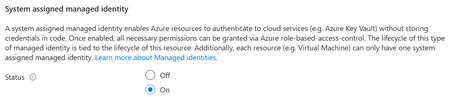
Introduction Overview steps for configuration of Mirroring between Azure SQL Database to Fabric Mirrored Database over Private Endpoint and Public Connectivity Disabled on source. Prerequisites #1 - The minimum requirement for the source Azure SQL Database tier is - it is Standard Tier with DTUs equal or greater than 100. Free, Basic Tier, or <100 DTUs are NOT supported. All vCore model tiers supported. #2 - System Assigned Managed Identity (SAMI) must be enabled on the Azure SQL logical server. #3 - Microsoft.PowerPlatform should be registered as a source provider at the subscription level. If this step is not completed, you'll face error in the next steps, while creating the 'Virtual Network Data Gateway', example below. #4 - The Virtual Network Subnet of the configured Private Endpoint should have the following selected. Select Microsoft.PowerPlatform/netaccesslinks for the Subnet Delegation tab. This is a required step, otherwise the subnet is grayed out to select while configuration of the Virtual Network Data Gateway at Fabric level. High Level Configuration Steps #1 - Go to Fabric Portal > Settings Click on Settings button on top right > Click on Manage Connections and Gateways Go to 'Virtual Network Data Gateway' tab > Click New In the new page, Select your Capacity, Subscription, Resource Group, VNET and Subnet of the source Azure SQL DB and create it. #2 - Go back to your workspace, and click new item > Search 'Mirrored Azure SQL Database' #3 - Here, in Data Gateway section, chose your new created gateway which we created in previous step, and fill the required source Azure SQL Database details and click connect. #4 - Select the tables to be mirrored in the next steps and you will be able to successfully mirror from Azure SQL Database to Mirrored Azure SQL Database without Public Connectivity and using Private Endpoint.278Views1like0CommentsConnect to Azure SQL Database using a custom domain name with Microsoft Entra ID authentication
Many of us might prefer to connect to Azure SQL Server using a custom domain name (like devsqlserver.mycompany.com) rather than the default fully qualified domain name (devsqlserver.database.windows.net), often because of application-specific or compliance reasons. This article details how you can accomplish this when logging in with Microsoft Entra ID (for example, user@mycompany.com) in Azure SQL Database specific environment. Frequently, users encounter errors similar to the one described below during this process. Before you start: If you use SQL authentication (SQL username/password), the steps are different. Refer the following article for that scenario: How to use different domain name to connect to Azure SQL DB Server | Microsoft Community Hub With SQL authentication, you can include the server name in the login (for example, username@servername). With Microsoft Entra ID authentication, you don’t do that—so your custom DNS name must follow one important rule. Key requirement for Microsoft Entra ID authentication In an Azure SQL Database (PaaS) environment, the platform relies on the server name portion of the Fully Qualified Domain Name (FQDN) to correctly route incoming connection requests to the appropriate logical server. When you use a custom DNS name, it is important that the name starts with the exact Azure SQL server name (the part before .database.windows.net). Why this is required: Azure SQL Database is a multi-tenant PaaS service, where multiple logical servers are hosted behind shared infrastructure. During the connection process (especially with Microsoft Entra ID authentication), Azure SQL uses the server name extracted from the FQDN to: Identify the correct logical server Route the connection internally within the platform Validate the authentication context This behavior aligns with how Azure SQL endpoints are designed and resolved within Microsoft’s managed infrastructure. If your custom DNS name doesn’t start with the Azure SQL server name, Azure can’t route the connection to the correct server. Sign-in may fail and you might see error 40532 (as shown above). To fix this, change the custom DNS name so it starts with your Azure SQL server name. Example: if your server is devsqlserver.database.windows.net, your custom name must start with 'devsqlserver' devsqlserver.mycompany.com devsqlserver.contoso.com devsqlserver.mydomain.com Step-by-step: set up and connect Pick the custom name. It must start with your server name. Example: use devsqlserver.mycompany.com (not othername.mycompany.com). Create DNS records for the custom name. Create a CNAME or DNS alias to point the custom name to your Azure SQL server endpoint (public) or to the private endpoint IP (private) as per the blog mentioned above. Check DNS from your computer. Make sure devsqlserver.mycompany.com resolves to the right address before you try to connect. Connect with Microsoft Entra ID. In SSMS/Azure Data Studio, set Server to your custom server name and select a Microsoft Entra ID authentication option (for example, Universal with MFA). Sign in and connect. Use your Entra ID (for example, user@mycompany.com). Example: Also, when you connect to Azure SQL Database using a custom domain name, you might see the following error: “The target principal name is incorrect” Example: This happens because Azure SQL’s SSL/TLS certificate is issued for the default server name (for example, servername.database.windows.net), not for your custom DNS name. During the secure connection process, the client validates that the server name you are connecting to matches the name in the certificate. Since the custom domain does not match the certificate, this validation fails, resulting in the error. This is expected behavior and is part of standard security checks to prevent connecting to an untrusted or impersonated server. To proceed with the connection, you can configure the client to trust the server certificate by: Setting Trust Server Certificate = True in the client settings, or Adding TrustServerCertificate=True in the connection string This bypasses the strict name validation and allows the connection to succeed. Note: Please use the latest client drivers (ODBC/JDBC/.NET, etc.). In some old driver versions, the 'TrustServerCertificate' setting may not work properly, and you may still face connection issues with the same 'target principal name is incorrect' error. So, it is always better to keep drivers updated for smooth connectivity with Azure SQL. Applies to both public and private endpoints: This naming requirement and approach work whether you connect over the public endpoint or through a private endpoint for Azure SQL Database scenario, as long as DNS resolution for the custom name is set up correctly for your network.584Views4likes1Comment