azure openai services
20 TopicsIntegrating Microsoft Foundry with OpenClaw: Step by Step Model Configuration
Step 1: Deploying Models on Microsoft Foundry Let us kick things off in the Azure portal. To get our OpenClaw agent thinking like a genius, we need to deploy our models in Microsoft Foundry. For this guide, we are going to focus on deploying gpt-5.2-codex on Microsoft Foundry with OpenClaw. Navigate to your AI Hub, head over to the model catalog, choose the model you wish to use with OpenClaw and hit deploy. Once your deployment is successful, head to the endpoints section. Important: Grab your Endpoint URL and your API Keys right now and save them in a secure note. We will need these exact values to connect OpenClaw in a few minutes. Step 2: Installing and Initializing OpenClaw Next up, we need to get OpenClaw running on your machine. Open up your terminal and run the official installation script: curl -fsSL https://openclaw.ai/install.sh | bash The wizard will walk you through a few prompts. Here is exactly how to answer them to link up with our Azure setup: First Page (Model Selection): Choose "Skip for now". Second Page (Provider): Select azure-openai-responses. Model Selection: Select gpt-5.2-codex , For now only the models listed (hosted on Microsoft Foundry) in the picture below are available to be used with OpenClaw. Follow the rest of the standard prompts to finish the initial setup. Step 3: Editing the OpenClaw Configuration File Now for the fun part. We need to manually configure OpenClaw to talk to Microsoft Foundry. Open your configuration file located at ~/.openclaw/openclaw.json in your favorite text editor. Replace the contents of the models and agents sections with the following code block: { "models": { "providers": { "azure-openai-responses": { "baseUrl": "https://<YOUR_RESOURCE_NAME>.openai.azure.com/openai/v1", "apiKey": "<YOUR_AZURE_OPENAI_API_KEY>", "api": "openai-responses", "authHeader": false, "headers": { "api-key": "<YOUR_AZURE_OPENAI_API_KEY>" }, "models": [ { "id": "gpt-5.2-codex", "name": "GPT-5.2-Codex (Azure)", "reasoning": true, "input": ["text", "image"], "cost": { "input": 0, "output": 0, "cacheRead": 0, "cacheWrite": 0 }, "contextWindow": 400000, "maxTokens": 16384, "compat": { "supportsStore": false } }, { "id": "gpt-5.2", "name": "GPT-5.2 (Azure)", "reasoning": false, "input": ["text", "image"], "cost": { "input": 0, "output": 0, "cacheRead": 0, "cacheWrite": 0 }, "contextWindow": 272000, "maxTokens": 16384, "compat": { "supportsStore": false } } ] } } }, "agents": { "defaults": { "model": { "primary": "azure-openai-responses/gpt-5.2-codex" }, "models": { "azure-openai-responses/gpt-5.2-codex": {} }, "workspace": "/home/<USERNAME>/.openclaw/workspace", "compaction": { "mode": "safeguard" }, "maxConcurrent": 4, "subagents": { "maxConcurrent": 8 } } } } You will notice a few placeholders in that JSON. Here is exactly what you need to swap out: Placeholder Variable What It Is Where to Find It <YOUR_RESOURCE_NAME> The unique name of your Azure OpenAI resource. Found in your Azure Portal under the Azure OpenAI resource overview. <YOUR_AZURE_OPENAI_API_KEY> The secret key required to authenticate your requests. Found in Microsoft Foundry under your project endpoints or Azure Portal keys section. <USERNAME> Your local computer's user profile name. Open your terminal and type whoami to find this. Step 4: Restart the Gateway After saving the configuration file, you must restart the OpenClaw gateway for the new Foundry settings to take effect. Run this simple command: openclaw gateway restart Configuration Notes & Deep Dive If you are curious about why we configured the JSON that way, here is a quick breakdown of the technical details. Authentication Differences Azure OpenAI uses the api-key HTTP header for authentication. This is entirely different from the standard OpenAI Authorization: Bearer header. Our configuration file addresses this in two ways: Setting "authHeader": false completely disables the default Bearer header. Adding "headers": { "api-key": "<key>" } forces OpenClaw to send the API key via Azure's native header format. Important Note: Your API key must appear in both the apiKey field AND the headers.api-key field within the JSON for this to work correctly. The Base URL Azure OpenAI's v1-compatible endpoint follows this specific format: https://<your_resource_name>.openai.azure.com/openai/v1 The beautiful thing about this v1 endpoint is that it is largely compatible with the standard OpenAI API and does not require you to manually pass an api-version query parameter. Model Compatibility Settings "compat": { "supportsStore": false } disables the store parameter since Azure OpenAI does not currently support it. "reasoning": true enables the thinking mode for GPT-5.2-Codex. This supports low, medium, high, and xhigh levels. "reasoning": false is set for GPT-5.2 because it is a standard, non-reasoning model. Model Specifications & Cost Tracking If you want OpenClaw to accurately track your token usage costs, you can update the cost fields from 0 to the current Azure pricing. Here are the specs and costs for the models we just deployed: Model Specifications Model Context Window Max Output Tokens Image Input Reasoning gpt-5.2-codex 400,000 tokens 16,384 tokens Yes Yes gpt-5.2 272,000 tokens 16,384 tokens Yes No Current Cost (Adjust in JSON) Model Input (per 1M tokens) Output (per 1M tokens) Cached Input (per 1M tokens) gpt-5.2-codex $1.75 $14.00 $0.175 gpt-5.2 $2.00 $8.00 $0.50 Conclusion: And there you have it! You have successfully bridged the gap between the enterprise-grade infrastructure of Microsoft Foundry and the local autonomy of OpenClaw. By following these steps, you are not just running a chatbot; you are running a sophisticated agent capable of reasoning, coding, and executing tasks with the full power of GPT-5.2-codex behind it. The combination of Azure's reliability and OpenClaw's flexibility opens up a world of possibilities. Whether you are building an automated devops assistant, a research agent, or just exploring the bleeding edge of AI, you now have a robust foundation to build upon. Now it is time to let your agent loose on some real tasks. Go forth, experiment with different system prompts, and see what you can build. If you run into any interesting edge cases or come up with a unique configuration, let me know in the comments below. Happy coding!12KViews2likes2CommentsDeploying GPT-4o AI Chat app on Azure via Azure AI Services – a step-by-step guide
Are you ready to revolutionize your business with cutting-edge AI technology? Dive into our comprehensive step-by-step guide on deploying a GPT-4o AI Chat app using Azure AI Services. Discover how to harness the power of advanced natural language processing to create interactive, human-like chat experiences. From setting up your Azure account to deploying your AI model and customizing your chat app, this guide covers it all. Unleash the potential of AI in your business and stay ahead of the curve with the latest advancements from Microsoft Azure. Don’t miss out on this opportunity to transform your workflows and elevate customer interactions to new heights!7KViews2likes0CommentsHow to use Azure Open AI to Enhance Your Data Analysis in Power BI
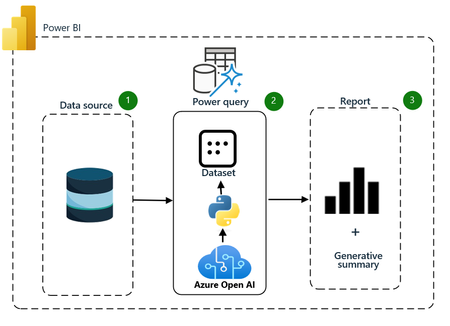
Learn how to take your data analysis to the next level with Azure Open AI. This article provides step-by-step guidance on how to integrate Open AI with Power BI and Azure Machine Learning. Enhance your data insights and make better-informed decisions. Read now to take advantage of the latest innovations in data analysis.28KViews0likes4CommentsMaster Azure OpenAI Services with Azure for student: A Comprehensive Guide for Students
Dive into the world of OpenAI with our comprehensive guide. Learn how to leverage the power of Azure to develop and deploy your AI models. Perfect for computer science students and tech enthusiasts7KViews2likes2CommentsIntroduction to Monitoring Azure OpenAI Service
Monitoring data Azure OpenAI collects monitoring data as: Activity log Alerts Metrics Diagnostic settings Insights Collection and routing Platform metrics and the Activity log are collected automatically Can be routed to other locations by using a diagnostic setting Configure diagnostic settings in the Azure portal Implement logging and monitoring for Azure OpenAI models - Architecture Diagram that shows an architecture that provides monitoring and logging for Azure OpenAI. Client applications access Azure OpenAI endpoints to perform text generation (completions) and model training (fine-tuning). Azure Application Gateway provides a single point of entry to Azure OpenAI models and provides load balancing for APIs. Azure API Management enables security controls and auditing and monitoring of the Azure OpenAI models. a. In API Management, enhanced-security access is granted via Azure Active Directory (Azure AD) groups with subscription-based access permissions. b. Auditing is enabled for all interactions with the models via Azure Monitor request logging. c. Monitoring provides detailed Azure OpenAI model usage KPIs and metrics, including prompt information and token statistics for usage traceability. API Management connects to all Azure resources via Azure Private Link. This configuration provides enhanced security for all traffic via private endpoints and contains traffic in the private network. Multiple Azure OpenAI instances enable scale-out of API usage to ensure high availability and disaster recovery for the service. More details : https://learn.microsoft.com/en-us/azure/ai-services/openai/how-to/monitoring#monitoring-data1.3KViews0likes0CommentsIntroduction to Planning and Managing Costs of Azure OpenAI
& Manage Costs of Azure OpenAI Service Planning to manage costs for Azure OpenAI Service Estimate costs Understand the full billing model Other costs that might accrue with Azure OpenAI Service Using Azure Prepayment with Azure OpenAI Service Monitor costs Monitor costs from Cost analysis under Resource Management. To view Azure OpenAI costs in cost analysis: Sign in to the Azure portal. Select one of your Azure OpenAI resources. Under Resource Management select Cost analysis By default cost analysis is scoped to the individual Azure OpenAI resource. Screenshot of cost analysis dashboard scoped to an Azure OpenAI resource. Creating budgets Create alerts that notifies of overspending risks. Budgets can be created with filters for specific resources or services in Azure if you want more granularity present in your monitoring. Filters help ensure that you don't accidentally create new resources that cost you additional money. For more information about the filter options available when you create a budget, see Group and filter options.1.5KViews0likes0CommentsMaster Generative AI with Azure OpenAI Service: A Comprehensive Guide for Students
Dive into the cutting-edge technology of Generative AI with our detailed guide. From understanding the role of large language models to building powerful applications with Azure OpenAI Service, this guide has everything you need. Plus, participate in our Azure OpenAI Cloud Skills Challenge and compete with peers globally while enhancing your technical skills. Start your journey with Generative AI today!8.6KViews1like0CommentsRevolutionize Education with Azure OpenAI: PolyGlot-Edu Generator
Explore the groundbreaking PolyGlot-Edu Generator, developed by Antonio Bucchiarone in collaboration with Microsoft Azure's OpenAI services. This cutting-edge tool empowers educators worldwide with AI-driven exercises, allowing customization of exercises, integration of materials, and precise evaluation using Semantic Kernel and Large Language Model. Join us in refining this innovative tool by trying the demo and sharing your feedback through our survey for continuous improvements2.7KViews0likes0Comments