azure migrate
6 Topics
Simplify On-prem File share Migration to Azure: Discover & assess suitability using Azure Migrate
UPDATE as of 20th May 2026: We are happy to announce that this capability is now GA worldwide. Migrating on‑premises file servers to the cloud is a complex infrastructure transformation—not just a data move. Many organizations lack the visibility needed to decide whether to rehost or modernize file shares spread across Windows and Linux servers. Azure Migrate now extends its discovery and assessment capabilities to SMB and NFS file shares, enabling a data‑driven approach to modernizing on‑premises file workloads with Azure Files, or alternatively rehosting to deployment within an Azure VM. We are pleased to introduce the public preview of Azure Migrate’s new comprehensive discovery and assessment of on-premises SMB and NFS file shares for migration to Azure Files. This enhancement simplifies the migration process by integrating discovery and evaluation tools for SMB and NFS shares across both Windows and Linux platforms. Users can efficiently identify file shares, analyze their compatibility, and compare cost benefits for transitioning to Azure Files, all within an intuitive and streamlined interface. Why does this matter File shares remain a foundational service for most workloads - supporting applications, analytics, user home directories, and shared content. Planning such a vast amount of data for migration can be slow, manual, and fragmented. This new Azure Migrate capability is designed to help with: Reduce migration planning from months to weeks through automated discovery and assessment of SMB and NFS file shares. Perform holistic migration planning of your data and storage alongside servers, applications and data bases from within Azure Migrate experience. Modernize confidently to Azure Files with tailored SKU recommendations, readiness assessments, and comprehensive cost insights, enabling you to build a clear business case by comparing ongoing on-premises and Azure Files costs. What’s available in public preview Discover and view details of all on-premises SMB, NFS shares hosted on Windows and Linux servers Group, tag, filter shares by Production, non-production, project, business group for better planning. Create and review assessment for each share, its target Azure Files SKU based on region, redundancy, pricing options and media type. Generate a business case for selected group of shares running on Azure Files against on-premises cost. How do you get this feature? Install the latest Azure Migrate appliance, or enable the auto update feature for the appliance will receive this new capability. All existing SMB, NFS file shares will be reported in the Azure Migrate portal along with their Windows and Linux hosts. You do not need to perform any additional steps to discover the shares. End-to-end experience The experience is fully integrated into Azure Migrate and follows a familiar, guided workflow as below. 1. Discover on‑premises file servers and file shares You can start by creating an Azure Migrate project in the Azure portal and enabling discovery using the Azure Migrate appliance. The appliance can be deployed in connected or disconnected mode and runs on VMware, Hyper‑V, or physical servers. Once deployed, the appliance automatically discovers file servers and the file shares they host, including: Operating system (Windows or Linux) File share protocol (SMB or NFS) Associated volumes Estimated capacity Basic performance metrics such as IOPS and throughput (when performance collection is enabled) Discovered file shares appear directly in Azure Migrate inventory views, where they are surfaced as inventory items under respective Windows or Linux systems. This makes it easy to filter, tag, and review all shares at scale. 2. Build a business case The next step is to create a business case. This offers a clear comparison of on-premises costs versus Azure, highlights long-term savings and operational benefits, and justifies modernizing to Azure Files rather than rehosting file servers on virtual machines. This allows IT leaders to make data-driven decisions confidently. 3. Create and review an Azure Files assessment Once you have finalised your business case and decided to move to Azure Files, you can initiate an Azure Files assessment right from the Azure Migrate platform. The assessments are adaptable, allowing you to focus solely on file shares, include their parent servers, or even expand to scenarios that cover VMs, databases, and file shares—reflecting real-world planning needs. Each assessment reviews readiness and provides recommendations based on inventory and performance metrics gathered. Furthermore, you can tailor assessment settings, including selecting a target Azure region, pricing and savings preferences, media type, redundancy options, and choosing either performance-based or as-is sizing. The assessment offers a detailed overview of migration readiness and economic factors, supporting well-informed decisions for subsequent actions. Key insights include: Readiness states for each file share (Ready, Ready with conditions, or Not ready) Recommended Azure Files SKU based on performance and suitability. For example, Azure Files provisioned v2 premium SSD for a NFS 4.1 share as target. Monthly cost estimates for the recommended SKU. On‑premises vs Azure TCO comparison, helping customers understand long‑term cost implications Azure Migrate also identifies potential warnings and provides necessary remediation guidance. For example, when a redundancy type is not available in an Azure region, it is flagged as ready with conditions and recommend choosing an alternative redundancy type and fallback to next available option. Prepare for migration with appropriate tools Once you are ready to migrate, Azure Migrate also highlights recommended migration tools as part of the assessment. Azure Storage Mover is the default recommended path for file share migrations—providing a first party, managed service to move data efficiently to Azure Files. To learn more about Microsoft’s recommendations to unstructured data migration using other tools, please visit: https://aka.ms/migratemydata. Learn more about creation of assessment and review assessment to get started with understanding your on-premises file shares estate today. Write to us at migratemydata@microsoft.com for any questions or feedback - we look forward to hearing from you!700Views1like0Comments
Transforming Data migration using Azure Copilot
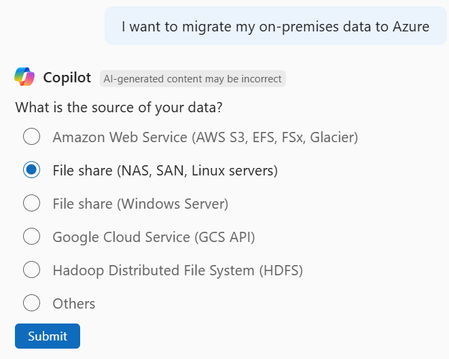
Introduction Data migration is critical, yet it is one of the most complex tasks in any cloud adoption journey. Whether you’re moving workloads from on-premises environments, consolidating hybrid deployments, or transitioning from other cloud providers, the migration process involves multiple tools, intricate planning, and risk management. What’s New in Azure Copilot With the new “Storage Migration Solutions Advisor” capability in Azure Copilot, Microsoft is transforming this experience into a conversational, AI-driven workflow that accelerates decision-making and reduces operational friction. Why This Matters Traditionally, customers faced challenges such as: Weeks of advisory time spent choosing the right migration tool amongst the many (Azure Storage Mover, AzCopy, Data Box, File Sync etc., and various Partner solutions). High support overhead due to missteps during migration if a sub-optimal tool or service is used. The Storage Migration Solutions Advisor feature introduces: Conversational Guidance: Share your migration needs with Copilot, like talking with an Azure advisor. Scenario-Based Recommendations: Tailored suggestions based on transfer data size, protocol, and bandwidth. Expanded Coverage: Supports on-premises to Azure, cloud-to-cloud (AWS/GCP to Azure), and hybrid scenarios. Native and Partner solutions: Copilot can recommend Microsoft-native (1P) solutions and third-party (3P) tools for specialized scenarios —ensuring flexibility for enterprise needs. User Workflow: Step-by-Step Initiate Migration: Start with a prompt like “How can I migrate my data into Azure?” or “What’s the best tool for moving 1 PB from AWS S3 to Azure Blob?” Provide Details: Copilot will guide you by asking for details about your requirement, such as source type (e.g., NAS, SAN, AWS S3, GCS), protocol (e.g., NFS, SMB, S3 API), target (e.g., Azure Blob, Files, Elastic SAN), data size, and bandwidth. Azure and Partner Solutions: Based on your requirements, Copilot recommends the best-fit Azure solution. If a partner solution is better suited to your requirement, Copilot will also select and recommend the appropriate solution with links to its documentation and/or its Azure marketplace page. Examples Copilot generates recommendations for migrating an on-premises file share to Azure Files. Figure 1 Prompt from user invokes Copilot Migration recommendation workflow Figure 2 Copilot understanding protocols that customer environment has access to Figure 3 Copilot asking user's target Storage type Figure 4 Copilot gathering inputs on data size, network bandwidth availability and transfer direction Figure 5 Copilot recommendation for user scenario Copilot recommends Partner solutions for specialized migration scenarios Figure 1 Prompt from user invokes Copilot Migration recommendation workflow Figure 2 Copilot understanding protocols that customer environment has access to Figure 3 Copilot asking user's target Storage type Figure 4 Copilot gathering inputs on data size, network bandwidth availability and transfer direction Figure 5 Copilot recommendation for user scenario Pro Tips Run a small proof-of-concept migration to estimate throughput and timing, especially for large datasets or small file sizes. Combine Copilot’s recommendations with Azure Storage Discovery for visibility into your storage estate after migration. Getting Started Navigate to Azure Portal → Copilot. Try prompts like: o “Help me migrate an NFS share to Azure Files.” o “What’s the best tool for moving 1 PB from AWS S3 to Azure Blob?” Explore Manage and migrate storage accounts using Azure Copilot | Microsoft Learn for detailed guidance. Ready to simplify your migration journey? Start using Azure Copilot’s Storage Migration Solutions Advisor today and experience AI-driven efficiency for your cloud transformation.608Views1like0CommentsFile share migrations simplified with Azure Copilot Migration Agent
Building on our earlier announcement of discovery and assessment support for SMB and NFS file shares in Azure Migrate, we are extending the experience to support end-to-end file share migrations within the same workflow. With Azure Copilot Migration Agent, customers can move from discovery and assessment to migration through a single guided experience in Azure Migrate. By bringing planning and execution together, the agent helps organizations streamline migration activity, reduce handoffs, and maintain continuity across stages. Overview Since the release of file share discovery and assessment in Azure Migrate earlier this year, customers have indicated that while visibility into their file share estate improved, the transition to execution remained fragmented. In many cases, teams still had to work across separate workflows for inventory, readiness planning, and migration, increasing operational friction and the risk of losing context between stages. Azure Copilot Migration Agent helps address this gap by bringing discovery, assessment, planning, and execution into a single guided journey. Azure Migrate provides visibility and recommendations, while Azure Storage Mover supports execution in a connected, agentic experience. The result is a more consistent migration path that reduces complexity, preserves context, and helps teams move file shares to Azure with greater operational confidence. Customer Value This update streamlines the migration journey by connecting each stage of the process and reducing operational overhead. Natural language guidance helps teams start and manage migration activities much faster, often in hours or days instead of weeks. The experience supports the following scenarios: End-to-end discovery, assessment, and migration for on-premises Windows and Linux file shares (SMB) to Azure Files. Discovery and assessment for on-premises Windows and Linux file shares (NFS). Data transfers from one Azure Blob container to another container. Design principles The experience preserves continuity across inventory, readiness insights, and execution planning, enables direct movement of validated shares when heavyweight orchestration is unnecessary, maintains approval and sequencing controls, and supports the file and object movement patterns commonly required in production environments. Getting Started with Storage Migration in Azure Copilot Migration Agent (ACMA) Launch Azure Migrate: Sign-in to the Azure portal, open Azure Migrate. From the Getting Started page, open Azure Copilot Migration Agent, then select or create an Azure Migrate project. Describe the migration in natural language. The agent detects storage migration intent and assists with storage migration planning and routes execution requests seamlessly. Examples scenarios and prompts Migration of on-premises Windows Server data over SMB to Azure Files 2. Prompt: Help me transfer data from one Azure blob container to another blob container Call to action Storage integrated capability is launching in Limited Preview at Microsoft Build. Sign up for the Preview here. For questions, contact storagemigrationcopilotagent@microsoft.com. Learn More File share discovery and assessment in Azure Migrate Azure Copilot Migration Agent Azure Storage Mover600Views2likes0CommentsAHEAD helps us launch the Strategic Azure Storage Services Partner Program
AHEAD becomes the first Azure Storage Strategic Channel Partner by demonstrating their expertise in helping customers select the ideal Azure Storage, or Azure Storage ISV, Service to offer the ideal price / performance solution for their application and helping customers to migrate to Azure quickly and safely.599Views0likes0CommentsUnlocking AI-Ready Unstructured Data at Scale with Komprise and Azure
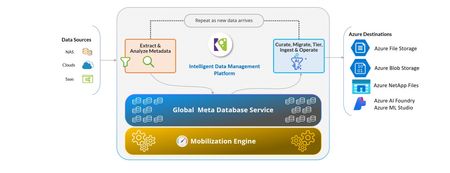
Why Move Unstructured Data to Azure On-premises storage environments are often over-provisioned to accommodate future growth, driving costs and operational complexity. Azure’s cloud-based storage platform enables organizations to right-size their environments through elastic scaling and Microsoft’s global economies of scale. This flexibility is especially critical for regulated industries managing sensitive data at massive scale. Azure also delivers enterprise-grade security capabilities, including immutability and object locking, which protect data against ransomware and malicious deletion. By moving unstructured data to Azure, organizations gain not only cost efficiency, but also a more resilient and secure data foundation. A strong example of this approach is the Florida Department of Environmental Protection. With support from Komprise and funding through Microsoft’s Azure Migrate program, the department successfully migrated large volumes of data to Azure, enabling the phase-out of on-premises data centers while maintaining access to data for analysis across regions. This demonstrates how organizations can modernize data infrastructure without disrupting business operations. Hybrid Cloud and Intelligent Tiering Most enterprises operate in hybrid environments, balancing on-premises systems with cloud storage. Komprise and Microsoft address this reality by enabling intelligent tiering of unstructured data across environments. Using Azure Blob Storage, organizations can transparently move cold and infrequently accessed data to lower-cost cloud tiers while keeping frequently accessed data close to applications and users. This approach reduces pressure on expensive on-premises storage infrastructure without sacrificing accessibility. For example, a major healthcare organization achieved approximately $2.5 million in storage cost savings by tiering cold data to Azure while maintaining seamless access for clinicians and applications. AI Depends on Data Curation AI's efficacy is reliant on data quality. The need for high-quality and curated data cannot be enough emphasized so AI can generate meaningful and accurate results. In partnership with Komprise, organizations can efficiently cleanse and enhance their data by identifying and eliminating redundancies. By curating data before AI processes, organizations have achieved impressive accuracy improvements—as demonstrated by a financial services firm that increased their AI output accuracy by 135%. Making Data AI-Ready on Azure Azure provides a powerful execution platform for AI and Komprise enhances this by bringing structure to unstructured data through its data classification, metadata extraction capabilities and with search, curation and intelligent ingestion via its data workflow and governance capabilities. These ensure only high-quality, relevant and compliant data feeds AI workflows. This approach enables smoother integration with AI services and applications such as Microsoft Foundry and Copilot, while preserving flexibility. By treating data readiness as a foundational step, organizations can accelerate time to value from AI while reducing risk. Security, Governance, and Responsible AI As cyber threats and regulatory requirements continue to intensify, security and governance are no longer optional. Organizations must manage data flows carefully, maintain auditability, and protect sensitive information—especially when using data for AI. Azure’s built-in security capabilities, including immutability, versioning, and backup, provide a strong foundation for protecting unstructured data. Komprise complements these capabilities by automating data governance policies, enforcing compliance, and helping organizations maintain visibility and control across hybrid environments. Together, they enable organizations to use data safely and responsibly, supporting both regulatory compliance and responsible AI practices. Conclusion As AI adoption accelerates, success increasingly depends on data readiness rather than algorithms alone. Clean, well-governed, and properly placed data is the foundation for meaningful AI outcomes. By combining Azure’s scalable and secure cloud platform with Komprise’s intelligent data management, organizations can reduce costs, strengthen security, and unlock real value from unstructured data at scale. To learn more, watch the Microsoft–Komprise fireside chat, where we discuss customer examples, architectural best practices, and proven approaches for managing unstructured data across hybrid environments. We also invite you to explore our joint Azure and Komprise solutions to see how you can move from data sprawl to AI value while maintaining control, security, and flexibility. In a recent fireside chat now available on YouTube, Azure Storage VP Aung Oo joined Komprise COO Krishna Subramanian to explore how Azure and Komprise are empowering customers to mobilize, curate, and optimize unstructured data to make it AI-ready. To leverage the Storage Migration Program with Komprise to migrate your data to Azure find more information at Microsoft Marketplace. To take advantage of the full Komprise suite including automated tiering and smart workflows – additional details are available here.507Views1like0Comments
Azure Migrate: Now Supporting Premium SSD V2, Ultra and ZRS Disks as Targets
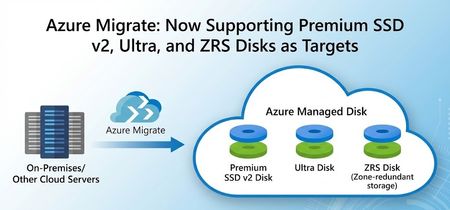
We are excited to announce that we have added assessment and migration support for Premium SSD v2,Ultra Disk and ZRS Disks as storage options in Azure Migrate, with Premium SSD v2 and ZRS Disks now Generally Available and Ultra Disk in Public Preview. This further enhances the assessment and migration experience Azure Migrate offers and allows you to bring your mission critical workloads to these key Azure Storage offerings seamlessly. What’s New Additional Assessment targets: Premium SSD v2 and Ultra Disks As part of the migration journey to the cloud, Azure Migrate makes recommendations on what cloud resources to move your workloads to. Post successful discovery of on-prem workloads, Azure Migrate utilizes multiple parameters like size, IOPS, and throughput to make target recommendations in Azure. Instead of just static sizing, assessments can map actual performance demand to Azure VM and disk SKUs, optimizing performance, resiliency, and total cost of ownership to give you a tailored recommendation that fits your cloud migration journey. With today’s announcement, we are adding more supported disks to Azure Migrate, providing you with improved guidance to ensure that you land on the resources in Azure that align with your goals. If you are looking to migrate your demanding on-premises applications and workloads to Azure, you will benefit from these advanced disk options, which come with greater flexibility and enhanced performance. For example, Premium SSD v2 disks decouple capacity from performance, allowing you to dial IOPS and throughput precisely to your workload’s needs. For high-end scenarios, Ultra Disks offer the highest performance among Azure managed disks, while ZRS disks provide zonally redundant storage to further protect your data. With these included in Azure Migrate’s assessment engine, you end up with a right‑sized, data‑driven target configuration that aligns Azure storage choices with how workloads actually run. Below is a snippet of how the assessment recommendations appear in Azure Migrate for Premium V2 SSD disks. Customers can get details on the disk type, provisioned IOPS, throughput, cost, and seamlessly migrate using the assessment to the recommended target. Migrating to Premium SSD v2 and Ultra Disks in Azure Migrate When Premium SSD v2 or Ultra disks are identified as the optimal targets based on workload characteristics during the assessment phase, they can be auto-populated seamlessly into the migration process. This workflow accelerates the lift-and-shift of on-prem disks to Azure’s high performance managed disks. Below is a snippet from the replication step during migration: Assessing and Migrating to ZRS Disks in Azure Migrate Azure Migrate also has enhanced resiliency by supporting migration to ZRS Disks during Migration. Zone-Redundant Storage (ZRS) for Azure Disks synchronously replicates data across three physically separate availability zones within a region - each with independent power, cooling, and networking - enhancing Disk availability and resiliency. While creating Assessments in Azure Migrate, you can configure a range of target preferences, including the newly introduced option to enable zone-redundant storage (ZRS). You can opt-in to enable ZRS Disk recommendations by editing the Server (Machine) default settings in the Advanced settings blade. Since the preview announcement for these capabilities, recommendations for Ultra, Premium v2 and ZRS Disks have led to petabytes of data being successfully migrated into Azure. Below is a quote from our Premium v2 (Pv2) customer that was provided during the preview: "Through this preview, we have Pv2 disks recommendations in place of Pv1, which is beneficial for our estate during migration in terms of both cost and performance. We are now awaiting General Availability " – Yogesh Patil, Cloud Enterprise Architect, Tata Consultancy Services (TCS) With these added capabilities, Azure Migrate and Azure disk storage are more ready than ever for migrating your most demanding and mission-critical workloads. Learn more about Azure Migrate and for expert migration help, please try Azure Accelerate. You can also contact your preferred partner or Microsoft field for next steps. Get started in Azure today!499Views1like1Comment