azure linux
55 TopicsAnnouncing the Open-Source Release of ML Video Codec (MLVC)
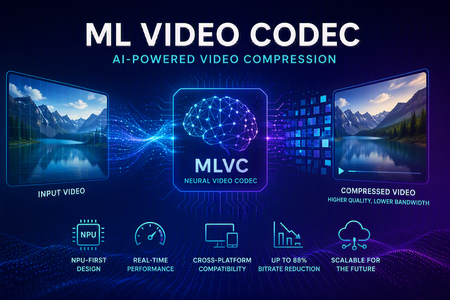
Video codecs compress video for transmission or storage, reducing bandwidth and storage requirements. MLVC is a modern machine-learning-based codec that uses substantially less bandwidth than conventional codecs, improving streaming and video-call quality—especially on constrained or unreliable networks—while lowering delivery and storage costs. MLVC is the product iteration of DCVC (Deep Contextual Video Compression) family of NVC (Neural Video Codec), open sourced by Microsoft Research since 2021, with improved compression efficiency, real-time performance on commodity Neural Processing Units (NPUs), and cross-platform support. We recently published this work in the paper MLVC: Multi-platform Learned Video Codec for Real-World Deployment. We are releasing the source code because we believe the next generation of video coding will be built openly, and we want the broader community — researchers, video codec engineers, platform vendors, product teams, as well as general developer community — to build it with us. Why MLVC Traditional video codecs (e.g., H.264/AVC, H.265/HEVC) have served the industry for a long time, but each generation requires enormous engineering effort for incremental gains and needs dedicated hardware which takes years to become commonly available. MLVC replaces conventional primitives — motion estimation, transforms, entropy modeling — with end-to-end learned neural compression, trained directly against rate-distortion objectives, and run on general-purpose NPU devices. The table below compares MLVC to popular video codecs, showing its lower bitrate and resulting savings in bandwidth and storage. Resolution vs H.264 vs H.265 360p 87.8% 75.5% 540p 82.7% 65.4% For example, for 360p video at 30 fps, where H.264 requires 1 Mbps, MLVC requires roughly 122 kbps for equivalent quality — about one-eight the bitrate under real-time conditions. The inference compute was kept approximately equal for the 360p and 540p resolutions. These results are based on a P.910 subjective test and are based on the Video Conferencing Dataset (VCD) dataset that we developed and also recently released as an open-source project. The following video demo illustrates the extent of quality enhancement achieved by MLVC relative to H.265/HEVC at the same bitrate of 200kbps (please watch by opening in a new window for better demonstration) \ Beyond video compression efficiency, MLVC also offers: NPU-first design. MLVC is built to run almost entirely on the AI accelerators already shipping in modern devices — Apple Neural Engine, Qualcomm and Intel NPUs — at no more than 50% NPU utilization, leaving NPU headroom for the rest of the system. Real-time execution at the targeted operating points. Demonstrated 540p at 30 fps on Apple, Intel, and Qualcomm hardware. A scaling-law trajectory. Empirically, MLVC's coding efficiency improves with increased model capacity and additional training compute. Content-adaptive behavior out of the box, without hand-tuned Rate Distortion Optimization heuristics. Already running in Microsoft Teams MLVC is more than just a research concept for Microsoft. We are currently rolling it out in Microsoft Teams, where it is being validated on real peer-to-peer video calls with active telemetry and A/B testing. The integration runs alongside fallback to conventional video codecs for hardware or reliability constraints — the kind of mixed-environment deployment that real products need. The scaling and reliability insights from this rollout are shaping the codec and its roadmap. We welcome your contributions We can not cover every use case, every device class, or every content domain by ourselves. That is why we are open sourcing MLVC. If you work on: Streaming, Video On Demand (VOD), or live broadcast Real-time communication and conferencing Cloud gaming or remote rendering Surveillance, drones, or robotics Mobile capture, Augmented Reality (AR) / Virtual Reality (VR), or volumetric video Codec hardware, NPUs, or inference runtimes We would love your help. Contributions of all kinds are welcome, including model improvements, training recipes, new platform ports and conversion targets, runtime backends, domain-specific fine-tunes, evaluation tooling, bug reports, and feedback on what is missing for your scenario. We particularly welcome platform ports that expand NPU coverage and efficiency improvements that push the rate-distortion frontier. What's in the release The MLVC repository is available at https://github.com/microsoft/mlvc and shared under the MIT License. It includes: MLVC model source code of the full network architecture. Trained model weights ready to run. Training scripts used to produce shipping models. Training data collection documentation to help reproduce and improve MLVC. Platform conversion scripts to target different NPUs and runtimes. Issues and pull requests will be open from day one. A follow-up release will add a C++ codec library, simplifying integration into real-world applications. Where we're heading Our long-term goal with MLVC is to create an open, learned video codec that meets or exceeds the coding efficiency of the best conventional codecs across the full range of video content, runs efficiently on the AI hardware already shipping in client and cloud devices, scales with compute the way modern ML systems do, and evolves in the open at the pace of the ML community rather than the pace of standardization cycles. In the near term that means stabilizing 540p real-time performance, expanding hardware coverage, and improving loss resilience. In the medium term: higher resolution, e.g., 1080p, and broader streaming scenarios. In the long term: an open video codec ecosystem that meaningfully replaces legacy stacks where it makes sense to. We can't create the future of MLVC alone. We're glad you're here, and we are looking forward to building the next-generation video codec with you. Who are we MLVC is brought to you by the following awesome folks working on the project at Microsoft: Ross Cutler, Ando Saabas, Tanel Pärnamaa, Ardi Loot, Haiyan Xie, Lauri Ehrenpreis, Andrei Znobishchev, Martin Lumiste, Evgenii Indenbom, Yan Lu, Bin Li, Jiahao Li, Naba Kumar, Babak Naderi, Juhee Cho, Badal Yadav, Jinxin Zhou, Tianyu Ding, Patrick Gregory. — The MLVC Team, Microsoft16KViews0likes5Comments
Announcing Azure Linux 4.0: Purpose-Built for Azure, Now in Public Preview
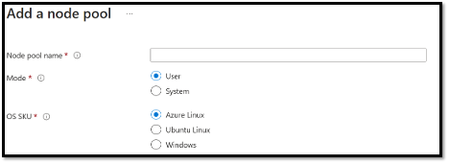
Today at Microsoft Build, we're announcing the public preview of Azure Linux 4.0 - Microsoft's first party Linux distribution, purpose-built for Azure. Azure Linux 4.0 is available now for Azure Virtual Machines, VM Scale Sets, and container images – with Azure Kubernetes Service (AKS) support and Windows Subsystem for Linux (WSL) coming soon after. Why Azure Linux Running Linux on Azure often involves a mix of distributions - one for VMs, another for Kubernetes nodes, a third for container base images, and sometimes something different on developer machines. That flexibility is powerful, but it can also introduce operational overhead: multiple patch schedules to coordinate, multiple security baselines to validate, and more moving parts for SRE and security teams to stay ahead of. A more consistent baseline - especially one with a smaller footprint - can help reduce exposure and simplify day‑to‑day maintenance Azure Linux was built with that principle in mind: a single, Microsoft-supported Linux foundation designed to work across every Azure compute surface. From kernel updates to CVE patches, Azure Linux is built and maintained by Microsoft with a predictable update cadence designed around Azure infrastructure. Azure Linux is included with Azure compute at no additional cost. What Is Azure Linux 4.0 Azure Linux is a Fedora-derived, RPM-based Linux distribution built and maintained by Microsoft. It is open source, free to use, and optimized specifically for Azure. Minimal by choice, secure by default; Azure Linux ships only the packages required for cloud workloads. Azure Linux is built exclusively for cloud and server workloads, it is not intended to support desktop usage or GUI applications. Azure Linux already powers millions of cores across Azure's internal services, including AKS, Azure SQL, Azure Cosmos DB, and many others. With 4.0, we're bringing the same OS - same security posture, same performance tuning, same operational simplicity - to every Azure customer. When Azure Linux 4.0 reaches General Availability, you can expect seamless integration with the Azure services you already rely on, including: Microsoft Defender for Cloud - vulnerability assessment and threat detection Azure Monitor - telemetry, logs, and performance monitoring Azure Migrate - discovery and migration tooling Trusted Launch and Secure Boot - hardware-rooted security Azure Portal, CLI, ARM, Bicep, Terraform, Ansible -deploy and manage with your existing tools What's New in Azure Linux 4.0 Component Version What Changed Kernel 6.18 LTS Azure-tuned with new hardware drivers, improved Hyper-V integration, GPU/AI accelerator support Package Manager dnf5 Complete rewrite from python to reduce dependencies, faster package resolution, lower memory usage glibc 2.42 This includes performance improvements in string ops, memory allocation, thread handling OpenSSL 3.5 This release includes post-quantum cryptography support, improved QUIC support, and other crypto updates. systemd 258 Faster boot sequences, improved service management Python 3.14 JIT compiler, new syntax features RPM 6.0 Modernized database backend, improved signature verification FIPS 140-3 In progress Will be available at GA. Azure Linux on Virtual Machines Deploy Azure Linux 4.0 directly from the Azure Marketplace on any Azure VM or VM Scale Set. Azure Linux images are validated across Azure VM SKUs and tuned for Azure compute, storage, and networking delivering faster VM startup and provisioning with a reduced package footprint. Whether you're running web applications, databases, or GPU-accelerated AI/ML workloads, Azure Linux provides a consistent, secure foundation with no additional OS licensing cost. You pay only for the underlying Azure compute resources. Deploy your first Azure Linux VM in minutes from the Azure Marketplace. Azure Linux on Azure Kubernetes Service Azure Linux has been the container host for AKS since 2023, already powering mission-critical Kubernetes workloads at massive scale. With 4.0, we're also introducing Azure Container Linux (ACL) an immutable, container optimized variant for environments with stricter security and compliance requirements. To learn more about Azure Container Linux, see ACL blogpost. Azure Linux (General purpose) Azure Container Linux (ACL) Update model Package-based (dnf5) Image-based, immutable, auto-updating Customization Full package management Locked-down, minimal surface Best for General AKS workloads Regulated, high-security environments SELinux Supported Enforcing by default Both options share the same kernel, security update cadence, and Azure integration; fully supported by Microsoft, end to end. Azure Linux Container Images Build and run containerized applications on Microsoft-maintained base images from the same Azure Linux supply chain. One Linux experience from VMs to containers with the same security updates, same compliance posture, and same operational model. Image Type Use Case Base Full flexibility - install any packages you need Runtime (Python, Node.js, Java, .NET) [Not available at Preview] Pre-configured for your language stack Distroless Minimal attack surface - no shell, no package manager All images are available on Microsoft Container Registry (MCR) and follow the same monthly security update cadence as Azure Linux VM images. Azure Linux on WSL Familiar Linux, optimized for Azure. Develop locally on the same Linux you run in production. Azure Linux for Windows Subsystem for Linux brings your production OS to your developer workstation, eliminating environment drift and giving your team a consistent dev-to-cloud workflow. Azure Linux for WSL will be available shortly after Build. Secure by Default, Backed by Microsoft Security is not an add-on in Azure Linux; it's foundational. Built with security in mind from day one, Azure Linux applies defense-in-depth from the kernel through to the supply chain. A reduced package footprint means fewer vulnerabilities to manage, and Microsoft's ownership of the full supply chain enables fast-track CVE response. Below is a summary of security capabilities that you should expect to see in Azure Linux at the time of general availability. Capability Details Secure Boot & Trusted Launch Signed shim, GRUB, kernel, and systemd-boot. SELinux Supported on all images. Enforcing by default. FIPS 140-3 Certification in progress. Built-in crypto module support. Kernel hardening ASLR, stack protection, seccomp, systemd service sandboxing. Supply chain security All packages and repos cryptographically signed. SBOMs published. Identity Entra ID SSH support. CVE response Microsoft-owned supply chain enables fast-track Critical/High CVE patches. Lifecycle LTS kernels maintained for lifetime of the distribution. Day-1 Ecosystem Partner Support Azure Linux already has validated support from a broad ecosystem of security, monitoring, networking, and data partners via AKS and VM support: Dynatrace — Application performance monitoring and observability Aquasec – database platform support Qualys — Vulnerability management, compliance scanning, and asset inventory Isovalent — eBPF-powered networking, security, and observability via Cilium Elastic — Log analytics, infrastructure monitoring, and SIEM/XDR Upwind — Runtime cloud security and behavioral threat detection SAP — Enterprise workload certification for S/4HANA and NetWeaver Databricks — Data and AI platform powering lakehouse workloads at scale Arm — Native Arm64 architecture support for cost-efficient cloud compute Proven at Scale Azure Linux isn't new; it has been running production workloads at massive scale across Azure's internal services and early adopters. Azure Linux has been powering production workloads at massive scale since 2022 across AKS, Azure SQL, Azure Cosmos DB, and other core Azure services along with LinkedIn and Databricks. With version 4.0, we're building on that proven foundation with a modernized stack, expanded compute surface support, and a new Fedora-derived base, bringing the same reliability our internal services depend on every Azure customer. Databricks Databricks migrated over 100,000 VMs and more than 1 million CPU cores to Azure Linux with zero customer-facing incidents. The migration eliminated separate hardened images by leveraging Azure Linux's built-in FIPS support and delivered measurable performance gains: 27% faster image pull times and approximately 5% faster query execution across their serverless compute fleet. LinkedIn LinkedIn completed a major stack upgrade, migrating to Azure Linux 3 across their infrastructure. The transition enabled adoption of configuration as code and modern kernel integration, resulting in a more resilient, secure, and future-proof environment. LinkedIn's Grid team reported significant performance improvements following the migration. Predictable Lifecycle and Updates Patch faster. Operate simpler. Azure Linux follows a clear, predictable lifecycle designed for teams running large Azure fleets: LTS kernel - Maintained with monthly CVE backports. HWE kernels - Introduced annually for new hardware platforms, GPU, and AI accelerator enablement. Predictable updates - Packages (language runtimes, tools) are refreshed in predictable windows. Between windows, only critical/high CVE patches are backported. Monthly security updates - Predictable cadence for all supported packages. For full details on the lifecycle model, kernel tracks, and package tiers, see the Azure Linux Release Cadence and Lifecycle documentation. Get Started Azure Linux 4.0 is available now in public preview. Choose the path that fits your workload: Scenario How to Start Azure Virtual Machines Deploy from Azure Marketplace via Portal, CLI, ARM, Bicep, or Terraform Azure Kubernetes Service [Not available at Preview] Set --os-sku to AzureLinux when creating a node pool Container Images Pull from Microsoft Container Registry (MCR) WSL [Not available at Preview] wsl --install -d AzureLinux Learn More //Build Session: Build, deploy, and run Linux workloads on Azure Azure Linux documentation To learn more and get started, visit aka.ms/AzureLinuxProduct Azure Linux on GitHub Release notes Joining the ISV partner program: AzureLinuxPartners@microsoft.com We're excited to put Azure Linux in your hands. Try it today and let us know what you think.14KViews7likes0CommentsRun OpenClaw Agents on Azure Linux VMs (with Secure Defaults)
Many teams want an enterprise-ready personal AI assistant, but they need it on infrastructure they control, with security boundaries they can explain to IT. That is exactly where OpenClaw fits on Azure. OpenClaw is a self-hosted, always-on personal agent runtime you run in your enterprise environment and Azure infrastructure. Instead of relying only on a hosted chat app from a third-party provider, you can deploy, operate, and experiment with an agent on an Azure Linux VM you control — using your existing GitHub Copilot licenses, Azure OpenAI deployments, or API plans from OpenAI, Anthropic Claude, Google Gemini, and other model providers you already subscribe to. Once deployed on Azure, you can interact with an OpenClaw agent through familiar channels like Microsoft Teams, Slack, Telegram, WhatsApp, and many more! For Azure users, this gives you a practical middle ground: modern personal-agent workflows on familiar Azure infrastructure. What is OpenClaw, and how is it different from ChatGPT/Claude/chat apps? OpenClaw is a self-hosted personal agent runtime that can be hosted on Azure compute infrastructure. How it differs: ChatGPT/Claude apps are primarily hosted chat experiences tied to one provider's models OpenClaw is an always-on runtime you operate yourself, backed by your choice of model provider — GitHub Copilot, Azure OpenAI, OpenAI, Anthropic Claude, Google Gemini, and others OpenClaw lets you keep the runtime boundary in your own Azure VM environment within your Azure enterprise subscription In practice, OpenClaw is useful when you want a persistent assistant for operational and workflow tasks, with your own infrastructure as the control point. You bring whatever model provider and API plan you already have — OpenClaw connects to it. Why Azure Linux VMs? Azure Linux VMs are a strong fit because they provide: A suitable host machine for the OpenClaw agent to run on Enterprise-friendly infrastructure and identity workflows Repeatable provisioning via the Azure CLI Network hardening with NSG rules Managed SSH access through Azure Bastion instead of public SSH exposure How to Set Up OpenClaw on an Azure Linux VM This guide sets up an Azure Linux VM, applies NSG (Network Security Group) hardening, configures Azure Bastion for managed SSH access, and installs an always-on OpenClaw agent within the VM that you can interact with through various messaging channels. What you'll do Create Azure networking (VNet, subnets, NSG) and compute resources with the Azure CLI Apply Network Security Group rules so VM SSH is allowed only from Azure Bastion Use Azure Bastion for SSH access (no public IP on the VM) Install OpenClaw on the Azure VM Verify OpenClaw installation and configuration on the VM What you need An Azure subscription with permission to create compute and network resources Azure CLI installed (install steps) An SSH key pair (the guide covers generating one if needed) ~20–30 minutes Configure deployment Step 1: Sign in to Azure CLI az login # Select a suitable Azure subscription during Azure login az extension add -n ssh # SSH extension is required for Azure Bastion SSH The ssh extension is required for Azure Bastion native SSH tunneling. Step 2: Register required resource providers (one-time) Register required Azure Resource Providers (one time registration): az provider register --namespace Microsoft.Compute az provider register --namespace Microsoft.Network Verify registration. Wait until both show Registered. az provider show --namespace Microsoft.Compute --query registrationState -o tsv az provider show --namespace Microsoft.Network --query registrationState -o tsv Step 3: Set deployment variables Set the deployment environment variables that will be needed throughout this guide. RG="rg-openclaw" LOCATION="westus2" VNET_NAME="vnet-openclaw" VNET_PREFIX="10.40.0.0/16" VM_SUBNET_NAME="snet-openclaw-vm" VM_SUBNET_PREFIX="10.40.2.0/24" BASTION_SUBNET_PREFIX="10.40.1.0/26" NSG_NAME="nsg-openclaw-vm" VM_NAME="vm-openclaw" ADMIN_USERNAME="openclaw" BASTION_NAME="bas-openclaw" BASTION_PIP_NAME="pip-openclaw-bastion" Adjust names and CIDR ranges to fit your environment. The Bastion subnet must be at least /26. Step 4: Select SSH key Use your existing public key if you have one: SSH_PUB_KEY="$(cat ~/.ssh/id_ed25519.pub)" If you don't have an SSH key yet, generate one: ssh-keygen -t ed25519 -a 100 -f ~/.ssh/id_ed25519 -C "you@example.com" SSH_PUB_KEY="$(cat ~/.ssh/id_ed25519.pub)" Step 5: Select VM size and OS disk size VM_SIZE="Standard_B2as_v2" OS_DISK_SIZE_GB=64 Choose a VM size and OS disk size available in your subscription and region: Start smaller for light usage and scale up later Use more vCPU/RAM/disk for heavier automation, more channels, or larger model/tool workloads If a VM size is unavailable in your region or subscription quota, pick the closest available SKU List VM sizes available in your target region: az vm list-skus --location "${LOCATION}" --resource-type virtualMachines -o table Check your current vCPU and disk usage/quota: az vm list-usage --location "${LOCATION}" -o table Deploy Azure resources Step 1: Create the resource group The Azure resource group will contain all of the Azure resources that the OpenClaw agent needs. az group create -n "${RG}" -l "${LOCATION}" Step 2: Create the network security group Create the NSG and add rules so only the Bastion subnet can SSH into the VM. az network nsg create \ -g "${RG}" -n "${NSG_NAME}" -l "${LOCATION}" # Allow SSH from the Bastion subnet only az network nsg rule create \ -g "${RG}" --nsg-name "${NSG_NAME}" \ -n AllowSshFromBastionSubnet --priority 100 \ --access Allow --direction Inbound --protocol Tcp \ --source-address-prefixes "${BASTION_SUBNET_PREFIX}" \ --destination-port-ranges 22 # Deny SSH from the public internet az network nsg rule create \ -g "${RG}" --nsg-name "${NSG_NAME}" \ -n DenyInternetSsh --priority 110 \ --access Deny --direction Inbound --protocol Tcp \ --source-address-prefixes Internet \ --destination-port-ranges 22 # Deny SSH from other VNet sources az network nsg rule create \ -g "${RG}" --nsg-name "${NSG_NAME}" \ -n DenyVnetSsh --priority 120 \ --access Deny --direction Inbound --protocol Tcp \ --source-address-prefixes VirtualNetwork \ --destination-port-ranges 22 The rules are evaluated by priority (lowest number first): Bastion traffic is allowed at 100, then all other SSH is blocked at 110 and 120. Step 3: Create the virtual network and subnets Create the VNet with the VM subnet (NSG attached), then add the Bastion subnet. az network vnet create \ -g "${RG}" -n "${VNET_NAME}" -l "${LOCATION}" \ --address-prefixes "${VNET_PREFIX}" \ --subnet-name "${VM_SUBNET_NAME}" \ --subnet-prefixes "${VM_SUBNET_PREFIX}" # Attach the NSG to the VM subnet az network vnet subnet update \ -g "${RG}" --vnet-name "${VNET_NAME}" \ -n "${VM_SUBNET_NAME}" --nsg "${NSG_NAME}" # AzureBastionSubnet — name is required by Azure az network vnet subnet create \ -g "${RG}" --vnet-name "${VNET_NAME}" \ -n AzureBastionSubnet \ --address-prefixes "${BASTION_SUBNET_PREFIX}" Step 4: Create the Virtual Machine Create the VM with no public IP. SSH access for OpenClaw configuration will be exclusively through Azure Bastion. az vm create \ -g "${RG}" -n "${VM_NAME}" -l "${LOCATION}" \ --image "Canonical:ubuntu-24_04-lts:server:latest" \ --size "${VM_SIZE}" \ --os-disk-size-gb "${OS_DISK_SIZE_GB}" \ --storage-sku StandardSSD_LRS \ --admin-username "${ADMIN_USERNAME}" \ --ssh-key-values "${SSH_PUB_KEY}" \ --vnet-name "${VNET_NAME}" \ --subnet "${VM_SUBNET_NAME}" \ --public-ip-address "" \ --nsg "" --public-ip-address "" prevents a public IP from being assigned. --nsg "" skips creating a per-NIC NSG (the subnet-level NSG created earlier handles security). Reproducibility: The command above uses latest for the Ubuntu image. To pin a specific version, list available versions and replace latest: az vm image list \ --publisher Canonical --offer ubuntu-24_04-lts \ --sku server --all -o table Step 5: Create Azure Bastion Azure Bastion provides secure-managed SSH access to the VM without exposing a public IP. Bastion Standard SKU with tunneling is required for CLI-based "az network bastion ssh" command. az network public-ip create \ -g "${RG}" -n "${BASTION_PIP_NAME}" -l "${LOCATION}" \ --sku Standard --allocation-method Static az network bastion create \ -g "${RG}" -n "${BASTION_NAME}" -l "${LOCATION}" \ --vnet-name "${VNET_NAME}" \ --public-ip-address "${BASTION_PIP_NAME}" \ --sku Standard --enable-tunneling true Bastion provisioning typically takes 5–10 minutes but can take up to 15–30 minutes in some regions. Step 6: Verify Deployments After all resources are deployed, your resource group should look like the following: Install OpenClaw Step 1: SSH into the VM through Azure Bastion VM_ID="$(az vm show -g "${RG}" -n "${VM_NAME}" --query id -o tsv)" az network bastion ssh \ --name "${BASTION_NAME}" \ --resource-group "${RG}" \ --target-resource-id "${VM_ID}" \ --auth-type ssh-key \ --username "${ADMIN_USERNAME}" \ --ssh-key ~/.ssh/id_ed25519 Step 2: Install OpenClaw (in the Bastion SSH shell) curl -fsSL https://openclaw.ai/install.sh | bash The installer installs Node LTS and dependencies if not already present, installs OpenClaw, and launches the OpenClaw onboarding wizard. For more information, see the open source OpenClaw install docs. OpenClaw Onboarding: Choosing an AI Model Provider During OpenClaw onboarding, you'll choose the AI model provider for the OpenClaw agent. This can be GitHub Copilot, Azure OpenAI, OpenAI, Anthropic Claude, Google Gemini, or another supported provider. See the open source OpenClaw install docs for details on choosing an AI model provider when going through the onboarding wizard. Most enterprise Azure teams already have GitHub Copilot licenses. If that is your case, we recommend choosing the GitHub Copilot provider in the OpenClaw onboarding wizard. See the open source OpenClaw docs on configuring GitHub Copilot as the AI model provider. OpenClaw Onboarding: Setting up Messaging Channels During OpenClaw onboarding, there will be an optional step where you can set up various messaging channels to interact with your OpenClaw agent. For first time users, we recommend setting up Telegram due to ease of setup. Other messaging channels such as Microsoft Teams, Slack, WhatsApp, and others can also be set up. To configure OpenClaw for messaging through chat channels, see the open source OpenClaw chat channels docs. Step 3: Verify OpenClaw Configuration To validate that everything was set up correctly, run the following commands within the same Bastion SSH session: openclaw status openclaw gateway status If there are any issues reported, you can run the onboarding wizard again with the steps above. Alternatively, you can run the following command: openclaw doctor Message OpenClaw Once you have configured the OpenClaw agent to be reachable via various messaging channels, you can verify that it is responsive by messaging it. Enhancing OpenClaw for Use Cases There you go! You now have a 24/7, always-on personal AI agent, living on its own Azure VM environment. For awesome OpenClaw use cases, check out the awesome-openclaw-usecases repository. To enhance your OpenClaw agent with additional AI skills so that it can autonomously perform multi-step operations on any domain, check out the awesome-openclaw-skills repository. You can also check out ClawHub and ClawSkills, two popular open source skills directories that can enhance your OpenClaw agent. Cleanup To delete all resources created by this guide: az group delete -n "${RG}" --yes --no-wait This removes the resource group and everything inside it (VM, VNet, NSG, Bastion, public IP). This also deletes the OpenClaw agent running within the VM. If you'd like to dive deeper about deploying OpenClaw on Azure, please check out the open source OpenClaw on Azure docs.7.3KViews5likes2Comments
Azure Linux 3.0 now Generally Available with Azure Kubernetes Service v1.32
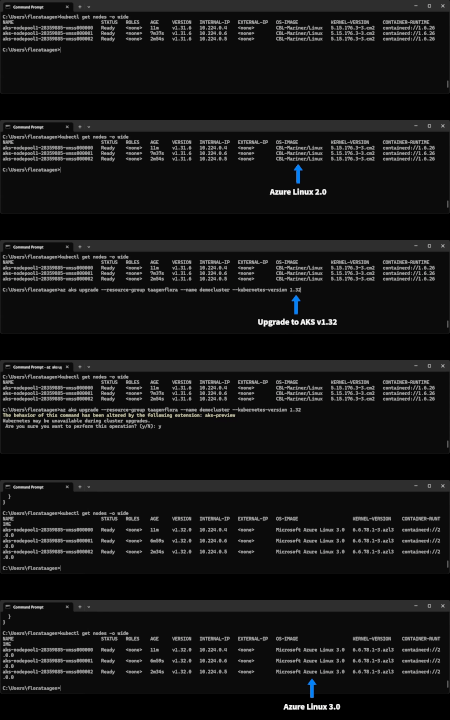
We are excited to announce that Azure Linux 3.0, the next major version release of the Azure Linux container host for Azure Kubernetes Service (AKS), is now Generally Available on AKS version 1.32. After extensive testing and valuable feedback from our early adopters, 3.0 is the highest quality release of Azure Linux for broad Azure usage. Azure Linux 3.0 offers increased package availability and versions, an updated kernel, and improvements to performance, security, and tooling and developer experience. Azure Linux 3.0 supports both x86_64 & ARM64 architectures. With this 3.0 release, we’re committed to supporting new platforms like Azure’s Cobalt architecture for the best performance. Some of the major components upgraded from Azure Linux 2.0 to 3.0 include: Component Azure Linux 3.0 Azure Linux 2.0 Release Notes Linux Kernel v6.6 (Latest LTS) V5.15 (Previous LTS) Linux 6.6 Containerd v2.0 1.6.26 Containerd Releases SystemD v255 V250 Systemd Releases OpenSSL v3.3.0 V1.1.1k OpenSSL 3.3 For more details on the key features and updates in Azure Linux 3.0 see the 3.0 GitHub release notes. New features since Azure Linux 3.0 Preview Azure Linux 3.0 is now defaulting to containerd 2.0. Azure Linux 3.0 nodepools now support Trusted Launch on AKS. Azure Linux 3.0 now supports a FIPS enabled ARM64 image, making it the only distribution on AKS to do so. Using Azure Linux 3.0 Creating New Azure Linux 3.0 Clusters and Nodepools Any new AKS clusters or node pools created using the --os-sku=AzureLinux flag and that run AKS version 1.32 default to Azure Linux 3.0. You can deploy clusters or node pools using the method of your choice to use Azure Linux 3.0 as the node OS: CLI PowerShell Terraform ARM Upgrading Existing Azure Linux 2.0 Clusters and Nodepools to Azure Linux 3.0 To upgrade existing Azure Linux 2.0 clusters and node pools to Azure Linux 3.0, you can upgrade them to AKS version 1.32. For more information about AKS cluster upgrades, see Upgrade an AKS cluster. Considerations Azure Linux 3.0 is not supported on Kubernetes version 1.30 and below. Azure Linux 3.0 Preview is supported on Kubernetes version 1.31. AKS Kubernetes version 1.32 roll out has been delayed and is now expected to reach all regions on or before the end of April. Please use the az-aks-get-versions command to accurately capture if Kubernetes version 1.32 is available in your region. Kubernetes version 1.31 will be the last AKS version to support Azure Linux 2.0. Growing the Partner Ecosystem We want to express our gratitude to all the partners who participated in the Azure Linux 3.0 preview. The following partners have successfully completed their validation of Azure Linux 3.0: You can find the entire list of Azure Linux AKS Container Host partner solutions here. Upcoming Events KubeCon EU: The Azure Linux team will be available at the Microsoft booth at KubeCon EU from April 2-4, ready to chat with customers and address inquiries. The team is looking forward to connecting at KubeCon! LinuxFest Northwest: Another opportunity to connect with the Azure Linux team will be at LinuxFest Northwest, a local Linux conference in Bellingham, WA, taking place from April 24-25. The Azure Linux team will present a session on their learnings and challenges in building a Linux distribution at Microsoft, as well as showcasing features and benefits of Azure Linux. How to Keep in Touch with the Azure Linux Team For updates, feedback, and feature requests related to Azure Linux, there are a few ways to stay connected to the team: Ask questions & submit feedback via Azure Linux GitHub Issues We have a public community call every other month for Azure Linux users to come together to ask questions, share learnings, and get updates. Join the next community call on May 22 nd at 8AM PST: here Partners with support questions can reach out to AzureLinuxISV@microsoft.com6.8KViews0likes0CommentsCanonical Ubuntu 20.04 LTS Reaching End of Standard Support
We’re announcing the upcoming end of standard support for Ubuntu 20.04 LTS (Focal Fossa) on 31 May 2025, as we focus on delivering a more secure and optimized Linux experience. Originally released in April 2020, Ubuntu 20.04 LTS introduced key enhancements like improved UEFI Secure Boot and broader Kernel Livepatch coverage, strengthening security on Azure. You can continue using your existing virtual machines, but after this date, security, features, and maintenance updates will no longer be provided by Canonical, which may impact system security and reliability. Recommended action: It’s important to act before 31 May 2025 to ensure you’re on a supported operating system. Microsoft recommends either migrating to the next Ubuntu LTS release or upgrading to Ubuntu Pro to gain access to expanded security and maintenance from Canonical. Upgrading to Ubuntu 22.04 LTS or Ubuntu 24.04 LTS Transitioning to the latest operating system, such as Ubuntu 24.04 LTS, is important for performance, hardware enablement, new technology benefits, and is recommended for new instances. It may be a complex process for existing deployments and should be properly scoped and tested with your workloads. While there’s no direct upgrade path from Ubuntu 20.04 LTS to Ubuntu 24.04 LTS, you can directly upgrade to Ubuntu 22.04 LTS, and then to Ubuntu 24.04 LTS, or directly install Ubuntu 24.04 LTS. See the Ubuntu Server upgrade guide for more information. Ubuntu Pro – Expanded Security Maintenance to 2030 Ubuntu Pro includes security patching for all Ubuntu packages due to Expanded Security Maintenance (ESM) for Infrastructure and Applications and optional 24/7 phone and ticket support. Ubuntu Pro 20.04 LTS will remain fully supported until May 2030. New virtual machines can be deployed with Ubuntu Pro from the Azure Marketplace. You can also upgrade existing virtual machines to Ubuntu Pro by in-place upgrades via Azure CLI. More Information More information covering Ubuntu 20.04 LTS End of Standard Support can be found here. Refer to the documentation to learn more about handling Ubuntu 20.04 LTS on Azure. You can also check out Canonical’s blog post and watch the webinar here.6.3KViews1like1CommentWhat's new in Azure Linux: Containers, Azure Portal, Security and more
Azure Linux is Microsoft's proven Linux distribution that has been used for years by internal Microsoft services such as Minecraft, Xbox, HDInsight, Defender, Azure Kubernetes Service and Azure Nexus. At Build in May 2023, Microsoft made this distribution available to external customers via a container host on Azure Kubernetes Service (AKS). In the six months since we announced General Availability of Azure Linux as a container host for AKS, we have seen an incredible reception from our customers and partners. The team has been hard at work, in partnership with the AKS team, to bring many updates to our customers. This blog captures the Azure Linux updates the team has been working on, customer and partner testimonials, upcoming roadmap and how to keep in touch with team! Note, for Azure Kubernetes Service updates, please visit the public AKS Roadmap.4.9KViews3likes0Comments