azure linux
54 Topics
Announcing Azure Linux 4.0: Purpose-Built for Azure, Now in Public Preview
Today at Microsoft Build, we're announcing the public preview of Azure Linux 4.0 - Microsoft's first party Linux distribution, purpose-built for Azure. Azure Linux 4.0 is available now for Azure Virtual Machines, VM Scale Sets, and container images – with Azure Kubernetes Service (AKS) support and Windows Subsystem for Linux (WSL) coming soon after. Why Azure Linux Running Linux on Azure often involves a mix of distributions - one for VMs, another for Kubernetes nodes, a third for container base images, and sometimes something different on developer machines. That flexibility is powerful, but it can also introduce operational overhead: multiple patch schedules to coordinate, multiple security baselines to validate, and more moving parts for SRE and security teams to stay ahead of. A more consistent baseline - especially one with a smaller footprint - can help reduce exposure and simplify day‑to‑day maintenance Azure Linux was built with that principle in mind: a single, Microsoft-supported Linux foundation designed to work across every Azure compute surface. From kernel updates to CVE patches, Azure Linux is built and maintained by Microsoft with a predictable update cadence designed around Azure infrastructure. Azure Linux is included with Azure compute at no additional cost. What Is Azure Linux 4.0 Azure Linux is a Fedora-derived, RPM-based Linux distribution built and maintained by Microsoft. It is open source, free to use, and optimized specifically for Azure. Minimal by choice, secure by default; Azure Linux ships only the packages required for cloud workloads. Azure Linux is built exclusively for cloud and server workloads, it is not intended to support desktop usage or GUI applications. Azure Linux already powers millions of cores across Azure's internal services, including AKS, Azure SQL, Azure Cosmos DB, and many others. With 4.0, we're bringing the same OS - same security posture, same performance tuning, same operational simplicity - to every Azure customer. When Azure Linux 4.0 reaches General Availability, you can expect seamless integration with the Azure services you already rely on, including: Microsoft Defender for Cloud - vulnerability assessment and threat detection Azure Monitor - telemetry, logs, and performance monitoring Azure Migrate - discovery and migration tooling Trusted Launch and Secure Boot - hardware-rooted security Azure Portal, CLI, ARM, Bicep, Terraform, Ansible -deploy and manage with your existing tools What's New in Azure Linux 4.0 Component Version What Changed Kernel 6.18 LTS Azure-tuned with new hardware drivers, improved Hyper-V integration, GPU/AI accelerator support Package Manager dnf5 Complete rewrite from python to reduce dependencies, faster package resolution, lower memory usage glibc 2.42 This includes performance improvements in string ops, memory allocation, thread handling OpenSSL 3.5 This release includes post-quantum cryptography support, improved QUIC support, and other crypto updates. systemd 258 Faster boot sequences, improved service management Python 3.14 JIT compiler, new syntax features RPM 6.0 Modernized database backend, improved signature verification FIPS 140-3 In progress Will be available at GA. Azure Linux on Virtual Machines Deploy Azure Linux 4.0 directly from the Azure Marketplace on any Azure VM or VM Scale Set. Azure Linux images are validated across Azure VM SKUs and tuned for Azure compute, storage, and networking delivering faster VM startup and provisioning with a reduced package footprint. Whether you're running web applications, databases, or GPU-accelerated AI/ML workloads, Azure Linux provides a consistent, secure foundation with no additional OS licensing cost. You pay only for the underlying Azure compute resources. Deploy your first Azure Linux VM in minutes from the Azure Marketplace. Azure Linux on Azure Kubernetes Service Azure Linux has been the container host for AKS since 2023, already powering mission-critical Kubernetes workloads at massive scale. With 4.0, we're also introducing Azure Container Linux (ACL) an immutable, container optimized variant for environments with stricter security and compliance requirements. To learn more about Azure Container Linux, see ACL blogpost. Azure Linux (General purpose) Azure Container Linux (ACL) Update model Package-based (dnf5) Image-based, immutable, auto-updating Customization Full package management Locked-down, minimal surface Best for General AKS workloads Regulated, high-security environments SELinux Supported Enforcing by default Both options share the same kernel, security update cadence, and Azure integration; fully supported by Microsoft, end to end. Azure Linux Container Images Build and run containerized applications on Microsoft-maintained base images from the same Azure Linux supply chain. One Linux experience from VMs to containers with the same security updates, same compliance posture, and same operational model. Image Type Use Case Base Full flexibility - install any packages you need Runtime (Python, Node.js, Java, .NET) [Not available at Preview] Pre-configured for your language stack Distroless Minimal attack surface - no shell, no package manager All images are available on Microsoft Container Registry (MCR) and follow the same monthly security update cadence as Azure Linux VM images. Azure Linux on WSL Familiar Linux, optimized for Azure. Develop locally on the same Linux you run in production. Azure Linux for Windows Subsystem for Linux brings your production OS to your developer workstation, eliminating environment drift and giving your team a consistent dev-to-cloud workflow. Azure Linux for WSL will be available shortly after Build. Secure by Default, Backed by Microsoft Security is not an add-on in Azure Linux; it's foundational. Built with security in mind from day one, Azure Linux applies defense-in-depth from the kernel through to the supply chain. A reduced package footprint means fewer vulnerabilities to manage, and Microsoft's ownership of the full supply chain enables fast-track CVE response. Below is a summary of security capabilities that you should expect to see in Azure Linux at the time of general availability. Capability Details Secure Boot & Trusted Launch Signed shim, GRUB, kernel, and systemd-boot. SELinux Supported on all images. Enforcing by default. FIPS 140-3 Certification in progress. Built-in crypto module support. Kernel hardening ASLR, stack protection, seccomp, systemd service sandboxing. Supply chain security All packages and repos cryptographically signed. SBOMs published. Identity Entra ID SSH support. CVE response Microsoft-owned supply chain enables fast-track Critical/High CVE patches. Lifecycle LTS kernels maintained for lifetime of the distribution. Day-1 Ecosystem Partner Support Azure Linux already has validated support from a broad ecosystem of security, monitoring, networking, and data partners via AKS and VM support: Dynatrace — Application performance monitoring and observability Aquasec – database platform support Qualys — Vulnerability management, compliance scanning, and asset inventory Isovalent — eBPF-powered networking, security, and observability via Cilium Elastic — Log analytics, infrastructure monitoring, and SIEM/XDR Upwind — Runtime cloud security and behavioral threat detection SAP — Enterprise workload certification for S/4HANA and NetWeaver Databricks — Data and AI platform powering lakehouse workloads at scale Arm — Native Arm64 architecture support for cost-efficient cloud compute Proven at Scale Azure Linux isn't new; it has been running production workloads at massive scale across Azure's internal services and early adopters. Azure Linux has been powering production workloads at massive scale since 2022 across AKS, Azure SQL, Azure Cosmos DB, and other core Azure services along with LinkedIn and Databricks. With version 4.0, we're building on that proven foundation with a modernized stack, expanded compute surface support, and a new Fedora-derived base, bringing the same reliability our internal services depend on every Azure customer. Databricks Databricks migrated over 100,000 VMs and more than 1 million CPU cores to Azure Linux with zero customer-facing incidents. The migration eliminated separate hardened images by leveraging Azure Linux's built-in FIPS support and delivered measurable performance gains: 27% faster image pull times and approximately 5% faster query execution across their serverless compute fleet. LinkedIn LinkedIn completed a major stack upgrade, migrating to Azure Linux 3 across their infrastructure. The transition enabled adoption of configuration as code and modern kernel integration, resulting in a more resilient, secure, and future-proof environment. LinkedIn's Grid team reported significant performance improvements following the migration. Predictable Lifecycle and Updates Patch faster. Operate simpler. Azure Linux follows a clear, predictable lifecycle designed for teams running large Azure fleets: LTS kernel - Maintained with monthly CVE backports. HWE kernels - Introduced annually for new hardware platforms, GPU, and AI accelerator enablement. Predictable updates - Packages (language runtimes, tools) are refreshed in predictable windows. Between windows, only critical/high CVE patches are backported. Monthly security updates - Predictable cadence for all supported packages. For full details on the lifecycle model, kernel tracks, and package tiers, see the Azure Linux Release Cadence and Lifecycle documentation. Get Started Azure Linux 4.0 is available now in public preview. Choose the path that fits your workload: Scenario How to Start Azure Virtual Machines Deploy from Azure Marketplace via Portal, CLI, ARM, Bicep, or Terraform Azure Kubernetes Service [Not available at Preview] Set --os-sku to AzureLinux when creating a node pool Container Images Pull from Microsoft Container Registry (MCR) WSL [Not available at Preview] wsl --install -d AzureLinux Learn More //Build Session: Build, deploy, and run Linux workloads on Azure Azure Linux documentation To learn more and get started, visit aka.ms/AzureLinuxProduct Azure Linux on GitHub Release notes Joining the ISV partner program: AzureLinuxPartners@microsoft.com We're excited to put Azure Linux in your hands. Try it today and let us know what you think.14KViews7likes0CommentsAnnouncing Azure Linux on WSL - Beta
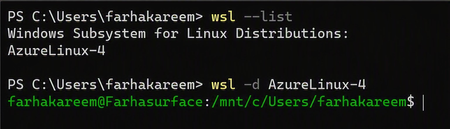
What is Azure Linux? Azure Linux is Microsoft's internal Linux distribution, designed and maintained to support Azure-scale cloud workloads. Today, Azure Linux runs across: Azure infrastructure Azure Kubernetes Service (AKS) Containerized workloads Edge scenarios Azure-hosted services With WSL support, Azure Linux now reaches another important environment: the developer workstation. Why Bring Azure Linux to WSL? A Consistent Path from Development to Production Developers often build in WSL and deploy to Azure. Differences in Linux distributions, packages, dependencies, configurations, and runtime behaviour can create environment drift and late-stage issues. One of the biggest challenges in modern development is environment drift. Teams often: Develop on one Linux distribution Test on another Deploy to something slightly different in production Azure Linux on WSL removes that gap. By bringing Azure Linux directly to the developer machine, teams can: Validate behaviour using production-aligned configurations Reproduce issues more reliably Reduce time spent debugging cross-environment differences The result: a faster, more consistent, and more predictable path from code to cloud. Azure Linux Across the Development Lifecycle Azure Linux already powers millions of cores across Azure. WSL now extends it to the start of the software delivery lifecycle, enabling teams to use one Microsoft-supported Linux foundation across development, testing, and production. Developers can use familiar tools such as VS Code and Git locally, then deploy to Azure targets including virtual machines, AKS, and containers. Not a Desktop OS and That’s Intentional Azure Linux on WSL is not designed to be a desktop Linux experience, and that’s by design. There’s no focus on GUI environments or replacing Windows on the laptop. Instead, Azure Linux remains what it was built for: A server-side operating system Optimised for cloud and container workloads Designed to run reliably at scale in Azure WSL simply makes that environment accessible locally, because today, developer machines increasingly need to mimic production. Getting Started Azure Linux on WSL integrates with standard WSL workflows: Enable WSL on your Windows machine Install Azure Linux by following the steps under the GitHub README documentation. Launch and start building in a production-aligned environment Within minutes, you have a fully functional Azure Linux setup on your local system. Start Building Azure Linux on WSL represents another step in making Azure Linux available wherever developers work. By bringing the same Microsoft-supported Linux distribution from Azure infrastructure to developer workstations, teams can build, test, and deploy using a more consistent foundation throughout the development lifecycle. To learn more about Azure Linux on WSL, see the Overview of Azure Linux on Windows Subsystem for Linux. When you're ready to get hands-on, follow the Azure Linux 4.0 on WSL getting started guide. Try it out and experience a more consistent path from local development to production.2.4KViews6likes3CommentsRun OpenClaw Agents on Azure Linux VMs (with Secure Defaults)
Many teams want an enterprise-ready personal AI assistant, but they need it on infrastructure they control, with security boundaries they can explain to IT. That is exactly where OpenClaw fits on Azure. OpenClaw is a self-hosted, always-on personal agent runtime you run in your enterprise environment and Azure infrastructure. Instead of relying only on a hosted chat app from a third-party provider, you can deploy, operate, and experiment with an agent on an Azure Linux VM you control — using your existing GitHub Copilot licenses, Azure OpenAI deployments, or API plans from OpenAI, Anthropic Claude, Google Gemini, and other model providers you already subscribe to. Once deployed on Azure, you can interact with an OpenClaw agent through familiar channels like Microsoft Teams, Slack, Telegram, WhatsApp, and many more! For Azure users, this gives you a practical middle ground: modern personal-agent workflows on familiar Azure infrastructure. What is OpenClaw, and how is it different from ChatGPT/Claude/chat apps? OpenClaw is a self-hosted personal agent runtime that can be hosted on Azure compute infrastructure. How it differs: ChatGPT/Claude apps are primarily hosted chat experiences tied to one provider's models OpenClaw is an always-on runtime you operate yourself, backed by your choice of model provider — GitHub Copilot, Azure OpenAI, OpenAI, Anthropic Claude, Google Gemini, and others OpenClaw lets you keep the runtime boundary in your own Azure VM environment within your Azure enterprise subscription In practice, OpenClaw is useful when you want a persistent assistant for operational and workflow tasks, with your own infrastructure as the control point. You bring whatever model provider and API plan you already have — OpenClaw connects to it. Why Azure Linux VMs? Azure Linux VMs are a strong fit because they provide: A suitable host machine for the OpenClaw agent to run on Enterprise-friendly infrastructure and identity workflows Repeatable provisioning via the Azure CLI Network hardening with NSG rules Managed SSH access through Azure Bastion instead of public SSH exposure How to Set Up OpenClaw on an Azure Linux VM This guide sets up an Azure Linux VM, applies NSG (Network Security Group) hardening, configures Azure Bastion for managed SSH access, and installs an always-on OpenClaw agent within the VM that you can interact with through various messaging channels. What you'll do Create Azure networking (VNet, subnets, NSG) and compute resources with the Azure CLI Apply Network Security Group rules so VM SSH is allowed only from Azure Bastion Use Azure Bastion for SSH access (no public IP on the VM) Install OpenClaw on the Azure VM Verify OpenClaw installation and configuration on the VM What you need An Azure subscription with permission to create compute and network resources Azure CLI installed (install steps) An SSH key pair (the guide covers generating one if needed) ~20–30 minutes Configure deployment Step 1: Sign in to Azure CLI az login # Select a suitable Azure subscription during Azure login az extension add -n ssh # SSH extension is required for Azure Bastion SSH The ssh extension is required for Azure Bastion native SSH tunneling. Step 2: Register required resource providers (one-time) Register required Azure Resource Providers (one time registration): az provider register --namespace Microsoft.Compute az provider register --namespace Microsoft.Network Verify registration. Wait until both show Registered. az provider show --namespace Microsoft.Compute --query registrationState -o tsv az provider show --namespace Microsoft.Network --query registrationState -o tsv Step 3: Set deployment variables Set the deployment environment variables that will be needed throughout this guide. RG="rg-openclaw" LOCATION="westus2" VNET_NAME="vnet-openclaw" VNET_PREFIX="10.40.0.0/16" VM_SUBNET_NAME="snet-openclaw-vm" VM_SUBNET_PREFIX="10.40.2.0/24" BASTION_SUBNET_PREFIX="10.40.1.0/26" NSG_NAME="nsg-openclaw-vm" VM_NAME="vm-openclaw" ADMIN_USERNAME="openclaw" BASTION_NAME="bas-openclaw" BASTION_PIP_NAME="pip-openclaw-bastion" Adjust names and CIDR ranges to fit your environment. The Bastion subnet must be at least /26. Step 4: Select SSH key Use your existing public key if you have one: SSH_PUB_KEY="$(cat ~/.ssh/id_ed25519.pub)" If you don't have an SSH key yet, generate one: ssh-keygen -t ed25519 -a 100 -f ~/.ssh/id_ed25519 -C "you@example.com" SSH_PUB_KEY="$(cat ~/.ssh/id_ed25519.pub)" Step 5: Select VM size and OS disk size VM_SIZE="Standard_B2as_v2" OS_DISK_SIZE_GB=64 Choose a VM size and OS disk size available in your subscription and region: Start smaller for light usage and scale up later Use more vCPU/RAM/disk for heavier automation, more channels, or larger model/tool workloads If a VM size is unavailable in your region or subscription quota, pick the closest available SKU List VM sizes available in your target region: az vm list-skus --location "${LOCATION}" --resource-type virtualMachines -o table Check your current vCPU and disk usage/quota: az vm list-usage --location "${LOCATION}" -o table Deploy Azure resources Step 1: Create the resource group The Azure resource group will contain all of the Azure resources that the OpenClaw agent needs. az group create -n "${RG}" -l "${LOCATION}" Step 2: Create the network security group Create the NSG and add rules so only the Bastion subnet can SSH into the VM. az network nsg create \ -g "${RG}" -n "${NSG_NAME}" -l "${LOCATION}" # Allow SSH from the Bastion subnet only az network nsg rule create \ -g "${RG}" --nsg-name "${NSG_NAME}" \ -n AllowSshFromBastionSubnet --priority 100 \ --access Allow --direction Inbound --protocol Tcp \ --source-address-prefixes "${BASTION_SUBNET_PREFIX}" \ --destination-port-ranges 22 # Deny SSH from the public internet az network nsg rule create \ -g "${RG}" --nsg-name "${NSG_NAME}" \ -n DenyInternetSsh --priority 110 \ --access Deny --direction Inbound --protocol Tcp \ --source-address-prefixes Internet \ --destination-port-ranges 22 # Deny SSH from other VNet sources az network nsg rule create \ -g "${RG}" --nsg-name "${NSG_NAME}" \ -n DenyVnetSsh --priority 120 \ --access Deny --direction Inbound --protocol Tcp \ --source-address-prefixes VirtualNetwork \ --destination-port-ranges 22 The rules are evaluated by priority (lowest number first): Bastion traffic is allowed at 100, then all other SSH is blocked at 110 and 120. Step 3: Create the virtual network and subnets Create the VNet with the VM subnet (NSG attached), then add the Bastion subnet. az network vnet create \ -g "${RG}" -n "${VNET_NAME}" -l "${LOCATION}" \ --address-prefixes "${VNET_PREFIX}" \ --subnet-name "${VM_SUBNET_NAME}" \ --subnet-prefixes "${VM_SUBNET_PREFIX}" # Attach the NSG to the VM subnet az network vnet subnet update \ -g "${RG}" --vnet-name "${VNET_NAME}" \ -n "${VM_SUBNET_NAME}" --nsg "${NSG_NAME}" # AzureBastionSubnet — name is required by Azure az network vnet subnet create \ -g "${RG}" --vnet-name "${VNET_NAME}" \ -n AzureBastionSubnet \ --address-prefixes "${BASTION_SUBNET_PREFIX}" Step 4: Create the Virtual Machine Create the VM with no public IP. SSH access for OpenClaw configuration will be exclusively through Azure Bastion. az vm create \ -g "${RG}" -n "${VM_NAME}" -l "${LOCATION}" \ --image "Canonical:ubuntu-24_04-lts:server:latest" \ --size "${VM_SIZE}" \ --os-disk-size-gb "${OS_DISK_SIZE_GB}" \ --storage-sku StandardSSD_LRS \ --admin-username "${ADMIN_USERNAME}" \ --ssh-key-values "${SSH_PUB_KEY}" \ --vnet-name "${VNET_NAME}" \ --subnet "${VM_SUBNET_NAME}" \ --public-ip-address "" \ --nsg "" --public-ip-address "" prevents a public IP from being assigned. --nsg "" skips creating a per-NIC NSG (the subnet-level NSG created earlier handles security). Reproducibility: The command above uses latest for the Ubuntu image. To pin a specific version, list available versions and replace latest: az vm image list \ --publisher Canonical --offer ubuntu-24_04-lts \ --sku server --all -o table Step 5: Create Azure Bastion Azure Bastion provides secure-managed SSH access to the VM without exposing a public IP. Bastion Standard SKU with tunneling is required for CLI-based "az network bastion ssh" command. az network public-ip create \ -g "${RG}" -n "${BASTION_PIP_NAME}" -l "${LOCATION}" \ --sku Standard --allocation-method Static az network bastion create \ -g "${RG}" -n "${BASTION_NAME}" -l "${LOCATION}" \ --vnet-name "${VNET_NAME}" \ --public-ip-address "${BASTION_PIP_NAME}" \ --sku Standard --enable-tunneling true Bastion provisioning typically takes 5–10 minutes but can take up to 15–30 minutes in some regions. Step 6: Verify Deployments After all resources are deployed, your resource group should look like the following: Install OpenClaw Step 1: SSH into the VM through Azure Bastion VM_ID="$(az vm show -g "${RG}" -n "${VM_NAME}" --query id -o tsv)" az network bastion ssh \ --name "${BASTION_NAME}" \ --resource-group "${RG}" \ --target-resource-id "${VM_ID}" \ --auth-type ssh-key \ --username "${ADMIN_USERNAME}" \ --ssh-key ~/.ssh/id_ed25519 Step 2: Install OpenClaw (in the Bastion SSH shell) curl -fsSL https://openclaw.ai/install.sh | bash The installer installs Node LTS and dependencies if not already present, installs OpenClaw, and launches the OpenClaw onboarding wizard. For more information, see the open source OpenClaw install docs. OpenClaw Onboarding: Choosing an AI Model Provider During OpenClaw onboarding, you'll choose the AI model provider for the OpenClaw agent. This can be GitHub Copilot, Azure OpenAI, OpenAI, Anthropic Claude, Google Gemini, or another supported provider. See the open source OpenClaw install docs for details on choosing an AI model provider when going through the onboarding wizard. Most enterprise Azure teams already have GitHub Copilot licenses. If that is your case, we recommend choosing the GitHub Copilot provider in the OpenClaw onboarding wizard. See the open source OpenClaw docs on configuring GitHub Copilot as the AI model provider. OpenClaw Onboarding: Setting up Messaging Channels During OpenClaw onboarding, there will be an optional step where you can set up various messaging channels to interact with your OpenClaw agent. For first time users, we recommend setting up Telegram due to ease of setup. Other messaging channels such as Microsoft Teams, Slack, WhatsApp, and others can also be set up. To configure OpenClaw for messaging through chat channels, see the open source OpenClaw chat channels docs. Step 3: Verify OpenClaw Configuration To validate that everything was set up correctly, run the following commands within the same Bastion SSH session: openclaw status openclaw gateway status If there are any issues reported, you can run the onboarding wizard again with the steps above. Alternatively, you can run the following command: openclaw doctor Message OpenClaw Once you have configured the OpenClaw agent to be reachable via various messaging channels, you can verify that it is responsive by messaging it. Enhancing OpenClaw for Use Cases There you go! You now have a 24/7, always-on personal AI agent, living on its own Azure VM environment. For awesome OpenClaw use cases, check out the awesome-openclaw-usecases repository. To enhance your OpenClaw agent with additional AI skills so that it can autonomously perform multi-step operations on any domain, check out the awesome-openclaw-skills repository. You can also check out ClawHub and ClawSkills, two popular open source skills directories that can enhance your OpenClaw agent. Cleanup To delete all resources created by this guide: az group delete -n "${RG}" --yes --no-wait This removes the resource group and everything inside it (VM, VNet, NSG, Bastion, public IP). This also deletes the OpenClaw agent running within the VM. If you'd like to dive deeper about deploying OpenClaw on Azure, please check out the open source OpenClaw on Azure docs.7.3KViews5likes2CommentsAzure Linux: Driving Security in the Era of AI Innovation
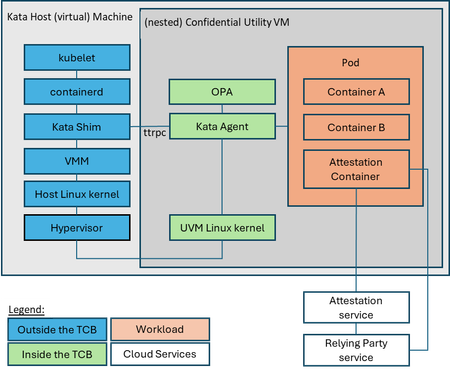
Microsoft is advancing cloud and AI innovation with a clear focus on security, quality, and responsible practices. At Ignite 2025, Azure Linux reflects that commitment. As Microsoft’s ubiquitous Linux OS, it powers critical services and serves as the hub for security innovation. This year’s announcements, Azure Linux with OS Guard public preview and GA of pod sandboxing, reinforce security as one of our core priorities, helping customers build and run workloads with confidence in an increasingly complex threat landscape. Announcing OS Guard Public Preview We’re excited to announce the public preview of Azure Linux with OS Guard at Ignite 2025! OS Guard delivers a hardened, immutable container host built on the FedRAMP-certified Azure Linux base image. It introduces a significantly streamlined footprint with approximately 100 fewer packages than the standard Azure Linux image, reducing the attack surface and improving performance. FIPS mode is enforced by default, ensuring compliance for regulated workloads right out of the box. Additional security features include dm-verity for filesystem immutability, Trusted Launch backed by vTPM-secured keys, and seamless integration with AKS for container workloads. Built with upstream transparency and active Microsoft contributions, OS Guard provides a secure foundation for containerized applications while maintaining operational simplicity. During the preview period, code integrity and mandatory access Control (SELinux) are enabled in audit mode, allowing customers to validate policies and prepare for enforcement without impacting workloads. General Availability: Pod Sandboxing for stronger isolation on AKS We’re also announcing the GA of pod sandboxing on AKS, delivering stronger workload isolation for multi-tenant and regulated environments. Based on the open source Kata project, Pod Sandboxing introduces VM-level isolation for containerized workloads by running each pod inside its own lightweight virtual machine using Kata Containers, providing a stronger security boundary compared to traditional containers. Connect with us at Ignite Meet the Azure Linux team and see these innovations in action: Ignite: Join us at our breakout session (https://ignite.microsoft.com/en-US/sessions/BRK144) and visit the Linux on Azure Booth for live demos and deep dives. Session Type Session Code Session Name Date/Time (PST) Breakout BRK 143 Optimizing performance, deployments, and security for Linux on Azure Thu, Nov 20/ 1:00 PM – 1:45 PM Breakout BRK 144 Build, modernize, and secure AKS workloads with Azure Linux Wed, Nov 19/ 1:30 PM – 2:15 PM Breakout BRK 104 From VMs and containers to AI apps with Azure Red Hat OpenShift Thu, Nov 20/ 8:30 AM – 9:15 AM Theatre TRH 712 Hybrid workload compliance from policy to practice on Azure Tue, Nov 18/ 3:15 PM – 3:45 PM Theatre THR 701 From Container to Node: Building Minimal-CVE Solutions with Azure Linux Wed, Nov 19/ 3:30 PM – 4:00 PM Lab Lab 505 Fast track your Linux and PostgreSQL migration with Azure Migrate Tue, Nov 18/ 4:30 PM – 5:45 PM PST Wed, Nov 19/ 3:45 PM – 5:00 PM PST Thu, Nov 20/ 9:00 AM – 10:15 AM PST Whether you’re migrating workloads, exploring security features, or looking to engage with our engineering team, we’re eager to connect and help you succeed with Azure Linux. Resources to get started Azure Linux OS Guard Overview & QuickStart: https://aka.ms/osguard Pod Sandboxing Overview & QuickStart: https://aka.ms/podsandboxing Azure Linux Documentation: https://learn.microsoft.com/en-us/azure/azure-linux/996Views3likes0Comments
Azure Linux 3.0 now in preview on Azure Kubernetes Service v1.31
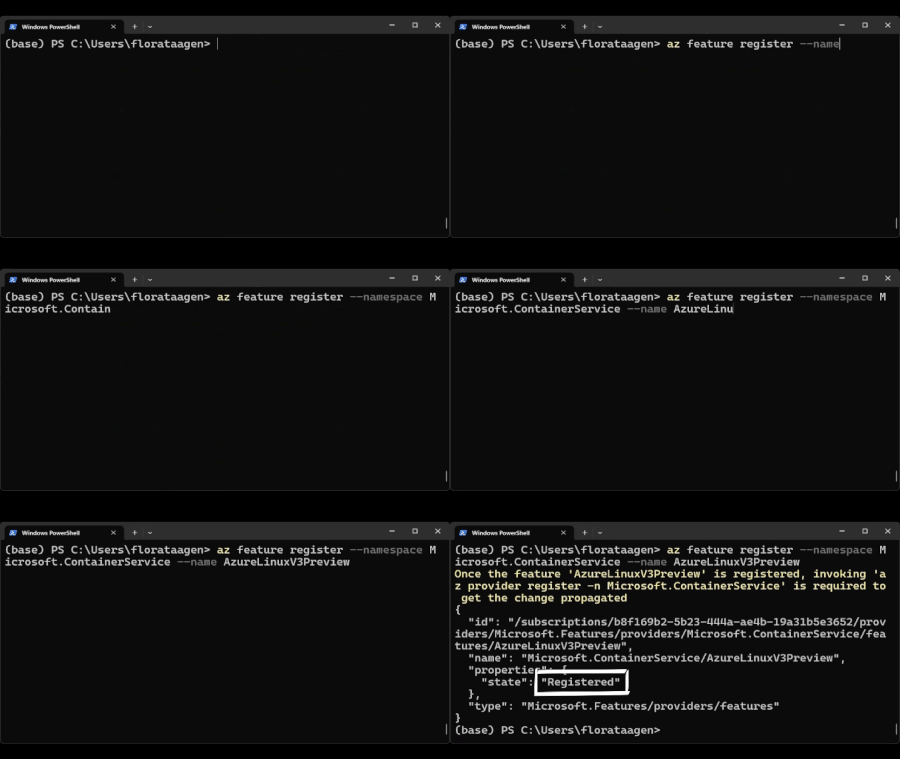
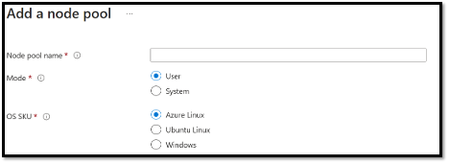
We are excited to announce that Azure Linux 3.0, the next major version release of the Azure Linux container host for Azure Kubernetes Service (AKS), is now available in preview on AKS version 1.31. Approximately every three years Azure Linux releases a new version of its operating system with upgrades to major components. Azure Linux 3.0 offers increased package availability and versions, an updated kernel, and improvements to performance, security, and tooling and developer experience. Some of the major components upgraded from Azure Linux 2.0 to 3.0 include: Component Azure Linux 3.0 Azure Linux 2.0 Release Notes Linux Kernel v6.6 (Latest LTS) V5.15 (Previous LTS) Linux 6.6 Containerd v1.7.13, but will also offer v2.0 once it becomes stable 1.6.26 Containerd Releases SystemD v255 V250 Systemd Releases OpenSSL v3.3.0 V1.1.1k OpenSSL 3.3 For more details on the key features and updates in Azure Linux 3.0 see the 3.0 GitHub release notes. Using Azure Linux 3.0 in Preview: To get started with Azure Linux 3.0 (Preview) in AKS version 1.31 you simply need to register the Azure Linux 3.0 preview feature flag in your Azure subscription. To do so, run the following az cli command: az feature register --namespace Microsoft.ContainerService --name AzureLinuxV3Preview Verify the registration status using the following az cli command (Please note it will take a few minutes for the status to show Registered): az feature show --namespace Microsoft.ContainerService --name AzureLinuxV3Preview Once registered, any new AKS version 1.31 clusters or node pools created with the ‘--os-sku=AzureLinux’ option will default to using Azure Linux 3.0. You can deploy Azure Linux 3.0 clusters or node pools using the method of your choice: CLI PowerShell Terraform ARM Follow this documentation for further instructions on getting started with Azure Linux 3.0 in preview. Considerations: Please note that Azure Linux 3.0 Preview is only supported on AKS version 1.31, and hence not supported on AKS versions 1.30 and below. If you register the Azure Linux 3.0 preview feature flag on AKS versions 1.30 and below new AKS clusters and node pools will default to using Azure Linux 2.0. Further, during preview existing clusters or node pools running Azure Linux 2.0 cannot be upgraded to 3.0. New node pools or clusters need to be created for Azure Linux 3.0 Preview. Finally, Azure Linux 3.0 support is in preview as part of the v20241025 release. Visit the AKS Release Tracker for the latest on which regions are on this release. How to Keep in Touch with the Azure Linux Team: Your insight and feedback during Preview is incredibly valuable for the Azure Linux team and helps shape Azure Linux 3.0 to ensure it’s ready for production workloads. For updates, feedback, and feature requests related to Azure Linux, there are a few ways to stay connected to the team: Ask questions & submit feedback via Azure Linux GitHub Issues We have a public community call every other month for Azure Linux users to come together to ask questions, share learnings, and get updates. Join the next community call on November 21 st at 8AM PST: here Partners with support questions can reach out to AzureLinuxISV@microsoft.com What’s Next: We will incorporate the feedback gathered during the preview period to prepare for the GA of Azure Linux 3.0 on AKS version 1.32.2.6KViews3likes1CommentWhat's new in Azure Linux: Containers, Azure Portal, Security and more
Azure Linux is Microsoft's proven Linux distribution that has been used for years by internal Microsoft services such as Minecraft, Xbox, HDInsight, Defender, Azure Kubernetes Service and Azure Nexus. At Build in May 2023, Microsoft made this distribution available to external customers via a container host on Azure Kubernetes Service (AKS). In the six months since we announced General Availability of Azure Linux as a container host for AKS, we have seen an incredible reception from our customers and partners. The team has been hard at work, in partnership with the AKS team, to bring many updates to our customers. This blog captures the Azure Linux updates the team has been working on, customer and partner testimonials, upcoming roadmap and how to keep in touch with team! Note, for Azure Kubernetes Service updates, please visit the public AKS Roadmap.5KViews3likes0CommentsWhat IT teams need to know about Linux Secure Boot certificates expiring in 2026
If your organization does not use UEFI Secure Boot on Linux systems, this transition does not affect your boot path. You can stop reading now. If you do use Secure Boot, here is what you need to know. The Microsoft Corporation UEFI CA (Certificate Authority) 2011 expires on June 27, 2026 (June 26 local time in some time zones). Expiration alone does not stop anything from booting and does not render a system insecure. Existing 2011-signed shims keep working on systems that still trust the 2011 CA. The real risk is narrower: once an operating system vendor ships a shim signed only by the Microsoft UEFI CA 2023, any system whose firmware does not already trust the 2023 CA will fail to boot. The work for you is to confirm, before that update reaches your systems, that your systems trust the 2023 CA. If you want the history of why a Microsoft certificate sits in the Linux Secure Boot path at all, skip to the end. Terms used in this post You may see three Microsoft Secure Boot certificate authorities discussed in 2026 guidance. This post focuses on the Microsoft UEFI CA 2011, which is the CA used for third-party UEFI boot applications such as the Linux shim. The other expiring Microsoft Secure Boot certificates are the Microsoft Corporation KEK CA 2011, which is used to authorize updates to Secure Boot databases, and the Microsoft Windows Production PCA 2011, which is used for Windows boot components. Windows systems have a separate update path for those certificates; this post covers only the Linux boot chain. The 2023 update also separates two uses that were both covered by the Microsoft UEFI CA 2011. The Microsoft UEFI CA 2023 is for third-party UEFI boot applications, including the Linux shim. The Microsoft Option ROM UEFI CA 2023 is for third-party option ROMs, such as firmware on some add-in cards. This post is about the Linux bootloader path, but physical systems that rely on signed option ROMs may need to check that path too. Microsoft began returning 2023-signed Linux shim binaries to operating system vendors in October 2025, and since then a submitted shim comes back signed by both the 2011 CA and the 2023 CA. Once the 2011 CA expires, Microsoft can only sign with the 2023 CA. In UEFI Secure Boot terminology, db is the allowed signature database, dbx is the forbidden or revoked signature database, and KEK contains keys that can authorize updates to db and dbx . SBAT is a shim ecosystem mechanism for revoking boot components by generation. SBAT is related to Secure Boot revocation, but it is separate from the CA expiration itself. For brevity, the rest of this post uses operating system vendor to include Linux distributions and other vendors that ship and support Linux boot components. Microsoft returns signed shims to that submitting operating system vendor. It does not push shim updates to end users or IT departments. Those reach systems through the normal operating system, package, image, or platform update channels. What is not happening Expiration is not revocation, and it does not cause an immediate boot failure. The 2011 CA expiring does not make existing 2011-signed shims stop booting on June 27, 2026. UEFI Secure Boot validates a signature against the trust database and revocation state, not against the certificate's validity period. The image-validation process in the UEFI specification bases the decision on whether the image's hash or signing certificate is present in the authorized database ( db ) and absent from the forbidden database ( dbx ). It does not check whether the certificate has expired. Firmware bugs are always possible, but expiration by itself should not invalidate an already-signed shim. There is also no current plan to revoke the Microsoft UEFI CA 2011. Expiration means Microsoft can no longer sign new binaries with that certificate. Revocation would mean telling systems not to trust binaries signed with it. Revocation is not the plan. For the same reason, do not remove the 2011 CA from a system's Secure Boot db . Removing it strips that trust path. Removal is not required for this transition, and existing boot components may still depend on the 2011 CA. No operating system vendor has to move to a 2023-signed shim on the expiration date. An operating system vendor may keep shipping a 2011-signed shim (if one is available), ship a 2023-only shim, or ship one carrying both signatures. That decision belongs to the operating system vendor. What can break The failure case is a mismatch between the shim signature and the firmware trust database. The moment to worry about is not the expiration date. It is when a system first receives a 2023-only shim. That leaves a remediation window: the time between the expiration date and the first 2023-only shim reaching a given system. How long it lasts depends on your operating system vendor's packaging decisions, any security fix that forces a new shim release, and how easily you can update firmware or VM Secure Boot state on the affected platforms. The transition comes down to one table: Firmware trust database 2011-only shim 2023-only shim Dual-signed shim 2011 CA only Boots, but depends on continued 2011 trust Does not boot Should boot 2023 CA only Does not boot Boots Should boot Both 2011 and 2023 CAs Boots Boots Boots The table is deliberately simple. Real systems also have dbx revocations, SBAT policy, firmware bugs, operating system vendor packaging choices, and platform-specific update paths. But this is the core compatibility problem. Dual-signed shims help bridge the transition, because the same shim can validate through either CA. However, they are not a guarantee. Some firmware mishandles multiple signatures and evaluates only one of them, revocation and vendor support still apply, and the operating system vendor decides whether to ship and support a dual-signed shim at all. This kind of failure happens early, before the operating system loads. Recovery means restoring a trusted boot path or following your operating system, hardware, or platform vendor's recovery guidance. It is not a package rollback inside a running system. Who should pay closest attention This transition matters most where the operating system, firmware, and update path may not move together. If you run a maintained operating system on maintained hardware or a maintained virtualization platform, the normal vendor update path may handle most of it. Closer attention is worthwhile where that path is missing, delayed, customized, or hard to validate. Older hardware is the first case. Some systems need a firmware update before they can trust the 2023 CA, and support can vary by model even within one hardware vendor's portfolio. Check each model you operate rather than assuming one answer covers the fleet. Long-lived virtual machines are the second. VM firmware is still firmware. A VM's Secure Boot state depends on when it was created, which platform firmware it uses, and which UEFI variables have changed since. Firmware is not just another package update, so a long-lived VM may never have received the relevant firmware or database updates unless the administrator or platform applied them. Your cloud or virtualization provider should be able to say how the 2023 CA is handled for new VMs, existing VMs, and imported or custom images. For Azure Trusted Launch and Confidential VMs specifically, Microsoft has published guidance on identifying and updating affected instances. Older operating system releases need more careful validation. Some lack current Secure Boot tooling, current fwupd daemon behavior, or a supported path for updating UEFI trust databases. A command that works on one release may not be supported on another. Custom fleets are their own category: systems built from custom images, frozen package mirrors, pinned bootloader versions, or local Secure Boot policy changes. The more an environment differs from the vendor's default update path, the more you need to verify the actual firmware trust database and installed shim directly. Smaller operating system vendors and long-tail distributions are worth checking too, especially if they submit shim updates infrequently or have not finished their 2023 signing transition. No single authoritative public list tells you which releases have completed this work. Who is responsible for what There is no single Linux Secure Boot owner who can make every system safe for the transition. The operating system vendor controls which shim and boot components it ships. It also controls whether its update process checks the firmware trust database before installing a 2023-only shim. The Linux community runs a community-driven shim-review process for shim submissions. That process is the primary review gate before an operating system vendor requests a Microsoft signature. It is not a support channel for individual systems or fleets. The hardware vendor, firmware vendor, or virtual machine platform controls which trust anchors are present by default and how firmware updates are delivered. In a physical machine, that may mean a BIOS or firmware update. In a VM, it may mean platform firmware defaults, guest-visible UEFI variables, or a provider-specific remediation process. Microsoft controls the Microsoft UEFI signing service and the Microsoft UEFI CAs. After shim-review approval, Microsoft verifies the submitter's relationship to the operating system vendor, runs some additional checks, signs submitted shims, and returns the signed artifacts to the submitting operating system vendor. Microsoft does not choose when each operating system vendor ships a new shim to its customers. Your organization controls the systems it administers. In practice, that means checking whether Secure Boot is enabled, checking which certificates are trusted, following guidance from the relevant operating system vendor, and following guidance from the hardware vendor or VM provider. This is why the right answer for any specific system depends on its operating system vendor, hardware vendor, and platform. This post explains the model. Only those vendors can tell you what is supported for your systems. What to check The exact commands vary by operating system vendor, package set, and platform. Treat the examples below as illustrations, not guaranteed instructions for every Linux system. IT departments should validate commands against vendor documentation before using them in production automation. At fleet scale, the useful starting point is an inventory rather than a one-time manual check. Useful fields include whether Secure Boot is enabled, which Microsoft UEFI CAs are present in the firmware trust database, which CA signed the installed shim, the operating system release, the hardware model or VM platform, the update channel, and whether the system comes from a custom image or vendor image. Set up representative canary systems before any broad rollout. A canary set should cover the differences that matter in your fleet: hardware model, VM platform, operating system release, image lineage, and update channel. The aim is to avoid discovering a firmware or shim mismatch for the first time during a broad production update, not to build a new certification program. First, check whether Secure Boot is enabled: sudo mokutil --sb-state If Secure Boot is disabled, this certificate transition does not affect that system's current boot path. Next, check which Microsoft UEFI CAs are in the firmware trust database: sudo mokutil --db Look for entries such as: Microsoft Corporation UEFI CA 2011 Microsoft UEFI CA 2023 If both are present, the system is prepared for a future 2023-signed shim. If only the 2011 CA is present, check guidance from the relevant operating system vendor and platform provider before accepting a 2023-only shim update. On physical systems, also check whether the platform relies on signed third-party option ROMs. Those may require the Microsoft Option ROM UEFI CA 2023 in addition to the Microsoft UEFI CA 2023 used for boot applications. This is another reason hardware guidance can vary by model. Administrators can also inspect the signature on the shim currently installed on a system. On Enterprise Linux and related distributions, pesign is often used: sudo dnf install pesign sudo pesign -S -i /boot/efi/EFI/<vendor-or-distribution>/shimx64.efi On Debian, Ubuntu, and related distributions, sbverify from sbsigntools is often used: sudo apt install sbsigntools sudo sbverify --list /boot/efi/EFI/<vendor-or-distribution>/shimx64.efi The path to shim may differ. Some systems use a different EFI path, a different architecture suffix, or a different bootloader arrangement. Vendor documentation is the right source for exact commands. How updates may be delivered Many operating system vendors use the Linux Vendor Firmware Service (LVFS) and fwupd for firmware-related updates, including some UEFI Secure Boot database updates. Not every vendor enables the same tooling, and not every platform supports the same update mechanism. Common examples include: sudo fwupdmgr update sudo fwupdmgr security sudo fwupdmgr get-devices Some systems may require a firmware update from the hardware vendor. Some may support a standalone UEFI database update. Some may not support a safe standalone update at all. Some hardware and firmware vendors block standalone database updates because earlier failures showed that the update could break systems. Updating the Secure Boot allowed signature database ( db ) also depends on authorization from keys in KEK . That is one reason these updates often require cooperation from the firmware, hardware, or VM platform vendor. Administrators should not assume that possession of a certificate file is enough to update a system safely. Do not force a Secure Boot database update just because a command exists. Follow the guidance for the specific hardware, VM platform, or operating system vendor. Forcing an update can force a physical reboot of a machine or destroy the system. After the first inventory pass, keep watching the operating system vendor's security advisories and bootloader package updates. Questions for your vendors The right questions depend on the system, but these are the kinds of answers IT departments should look for from operating system vendors, hardware vendors, and VM providers: Does this operating system release currently ship a 2011-signed, 2023-signed, or dual-signed shim? If the vendor plans to ship a 2023-only shim, will the update process check whether the system trusts the 2023 CA before installing it? How is the Microsoft UEFI CA 2023 delivered for this hardware model, VM platform, or image? Is a standalone Secure Boot database update supported, or must the update arrive through a firmware update? Does support vary by hardware model, firmware version, VM generation, image type, or operating system release? What should administrators monitor for shim, GRUB, SBAT, db , KEK , or dbx updates related to this transition? What is the recommended validation path before broad deployment? What is the supported recovery path if a system receives an incompatible shim or firmware update and fails to boot? What to do now If an IT department administers Linux systems that use Secure Boot, the useful work is straightforward: Use the checks above to inventory Secure Boot state, trusted CAs, and installed shim signatures across representative systems. Identify the parts of the fleet most likely to diverge from default vendor paths, including older hardware, long-lived VMs, older operating system releases, custom images, and pinned bootloader packages. Read operating system, hardware, and VM provider guidance before accepting 2023-only shim updates or applying firmware and Secure Boot database updates. Test representative canary systems before rolling out shim or firmware changes broadly. Monitor operating system vendor advisories for shim and bootloader updates related to the transition. Avoid forcing low-level firmware or UEFI variable updates unless vendor guidance says to do so. How Linux got here UEFI Secure Boot was introduced to let firmware verify boot components before executing them. The firmware contains a trust database. If a bootloader is signed by a trusted certificate and is not blocked by revocation policy, the firmware can execute it. In the PC ecosystem, Microsoft has long operated the signing infrastructure used by Windows and by many third-party UEFI boot components. Linux operating system vendors do not have Microsoft sign the Linux kernel directly. Instead, they use a small first-stage bootloader called shim. The Linux shim is signed by Microsoft so firmware will start it. The shim then validates the next boot component, usually GRUB or another vendor-controlled bootloader, using keys controlled by the operating system vendor, not Microsoft. That structure lets Linux operating system vendors participate in the UEFI Secure Boot ecosystem while keeping control over their own boot chains. The shim code is developed publicly, and shim signing uses the community-run shim-review process before the Microsoft signing step. That split is important. The Linux community reviews shim submissions, and Microsoft operates the signing service that applies a signature firmware will trust. The certificate rotation affects this first handoff. Firmware must trust the CA that signed shim. If a future shim is signed only by the 2023 CA, the firmware needs the 2023 CA in its trust database. A system that keeps booting with a 2011-signed shim is not automatically broken or insecure on the expiration date. A system that moves to a 2023-signed shim needs to trust the 2023 CA; plan for that transition.2.2KViews2likes0Comments