azure linux
55 Topics
Built by experience: The journey to Azure Linux 4.0
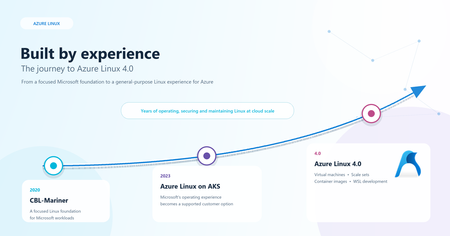
Azure Linux 4.0 builds on years of experience creating, operating, securing, and maintaining a Linux distribution for cloud-scale workloads. That journey began with CBL-Mariner, which emerged publicly in 2020 as Microsoft’s open-source Linux distribution for its cloud infrastructure and edge products and services. The distribution was built around a focused goal: provide a consistent, lightweight Linux foundation for Microsoft workloads. Over time, the scope grew. The project became Azure Linux, and in May 2023 it became generally available to customers as a container host for Azure Kubernetes Service (AKS). That was an important step: technology developed through Microsoft’s own operating experience was now available as a supported option for customers running production Kubernetes workloads. Azure Linux 4.0 is the next step in that evolution. It brings the lessons accumulated across Microsoft and AKS scenarios to a broader audience as a general-purpose server distribution for Azure Virtual Machines and Virtual Machine Scale Sets, as well as a foundation for container images. A distribution is more than a collection of packages Building a distribution involves much more than assembling open-source packages. Every package introduces decisions: which version to carry, how it interacts with the rest of the system, how changes are validated, how security fixes are delivered, and how customers move forward without unnecessary disruption. As a distribution grows, so does the long-term responsibility attached to each of those choices. Earlier Azure Linux releases were designed around focused Microsoft and container-host scenarios. Preparing Azure Linux for a broader range of customer workloads required a larger package ecosystem and a model that could remain sustainable as that ecosystem evolved. Azure Linux 4.0 uses Fedora Linux package sources as its upstream foundation, giving the team a coherent starting point, a mature RPM ecosystem, and an active open-source community. Azure Linux curates that foundation for Azure server and container scenarios rather than simply reproducing Fedora. It builds its own packages and images, integrates with Azure, and maintains its own support and release policies. The result combines a strong and sustainable upstream foundation with deliberate choices for Azure workloads. Stay close to upstream - and make differences clear Every downstream difference carries an ongoing cost. The team must understand, test, maintain, and reconsider it as upstream evolves. Azure Linux 4.0 therefore stays close to Fedora where practical. When an Azure scenario requires a difference, the team documents and intentionally scopes that difference so it remains understandable, reviewable, and maintainable over time. The same principle applies beyond package content. Azure Linux 4.0 increasingly uses familiar tools and practices from the Fedora and RPM ecosystems. This reduces the need for distribution-specific processes and makes the project more approachable to developers who already know that ecosystem. Staying close to upstream also strengthens our relationship with the open-source communities on which Azure Linux depends and helps us contribute broadly useful improvements wherever possible. Balance stability with a modern cloud platform Customers need a stable foundation, but they also need access to current cloud and developer capabilities. Hardware advances, security requirements change, and application runtimes introduce new supported versions. A lifecycle that is too short creates constant migration pressure, while one that is too rigid can leave customers waiting too long for important platform improvements. Our experience operating a distribution has taught us to treat predictability as a product feature. Azure Linux 4.0 is designed around a deliberately balanced support lifecycle: long enough for customers to plan and operate with confidence, while allowing the platform to evolve at a cadence that fits modern cloud workloads. It includes four years of full support, and its maintenance model is intended to keep routine servicing conservative while placing more impactful package changes into planned, clearly communicated refresh windows. Security updates and critical fixes continue throughout the lifecycle, while planned refreshes provide a clear path to newer capabilities and give customers time to prepare, test, and deploy changes. This model creates a dependable base without treating stability and progress as opposing goals. Built for cloud workloads Azure Linux is general purpose, but it is purposefully focused on server and cloud workloads. Customers can use the core image as-is or extend it for their applications, while its focused composition reduces unnecessary software and the security and maintenance surface that comes with it. The same foundation can support multiple Azure deployment models. Customers can use Azure Linux 4.0 on individual virtual machines, scale it through Virtual Machine Scale Sets, or use Microsoft-maintained Azure Linux container images as a starting point for containerized applications. That consistency can simplify how teams approach images, packages, security baselines, and operations across VM and container environments. From Microsoft’s workloads to yours The Azure Linux team did not begin this journey by designing a distribution in the abstract. The distribution evolved through real operating experience across Microsoft’s cloud infrastructure, edge products and services, and AKS. Those experiences shaped the priorities behind Azure Linux 4.0: Keep the base focused and reduce unnecessary components. Treat security servicing as a continuous responsibility. Make changes understandable and intentional. Stay close to upstream to improve long-term maintainability. Provide customers with a predictable lifecycle and refresh model. Design for consistent use across server and container scenarios. Make support part of the product experience rather than an afterthought. Azure Linux 4.0 brings those lessons together for a broader customer audience. It is a Microsoft-built and supported Linux option, optimized for Azure and available at no additional operating-system charge beyond the underlying Azure compute. It also remains one choice within the broad Linux ecosystem on Azure. Microsoft continues to work closely with established Linux distribution partners, and customers should choose the distribution that best fits their workload, ecosystem, and support needs. The next chapter With Azure Linux 4.0, we are bringing years of distribution engineering and operating experience to Azure customers in a new way. What began as a focused Linux foundation for Microsoft workloads expanded to a supported AKS container host and is now becoming a general-purpose option for Azure VMs, scale sets, and container images. We are excited for customers to evaluate Azure Linux 4.0, tell us what works, and help shape what comes next. Azure Linux 4.0 is currently available in public preview for evaluation and testing. Learn about Azure Linux 4.0 Deploy Azure Linux on Azure VMs and Virtual Machine Scale Sets Explore the Azure Linux open-source project47Views0likes0CommentsAnnouncing the Open-Source Release of ML Video Codec (MLVC)
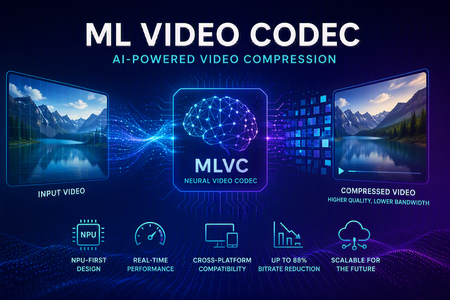
Video codecs compress video for transmission or storage, reducing bandwidth and storage requirements. MLVC is a modern machine-learning-based codec that uses substantially less bandwidth than conventional codecs, improving streaming and video-call quality—especially on constrained or unreliable networks—while lowering delivery and storage costs. MLVC is the product iteration of DCVC (Deep Contextual Video Compression) family of NVC (Neural Video Codec), open sourced by Microsoft Research since 2021, with improved compression efficiency, real-time performance on commodity Neural Processing Units (NPUs), and cross-platform support. We recently published this work in the paper MLVC: Multi-platform Learned Video Codec for Real-World Deployment. We are releasing the source code because we believe the next generation of video coding will be built openly, and we want the broader community — researchers, video codec engineers, platform vendors, product teams, as well as general developer community — to build it with us. Why MLVC Traditional video codecs (e.g., H.264/AVC, H.265/HEVC) have served the industry for a long time, but each generation requires enormous engineering effort for incremental gains and needs dedicated hardware which takes years to become commonly available. MLVC replaces conventional primitives — motion estimation, transforms, entropy modeling — with end-to-end learned neural compression, trained directly against rate-distortion objectives, and run on general-purpose NPU devices. The table below compares MLVC to popular video codecs, showing its lower bitrate and resulting savings in bandwidth and storage. Resolution vs H.264 vs H.265 360p 87.8% 75.5% 540p 82.7% 65.4% For example, for 360p video at 30 fps, where H.264 requires 1 Mbps, MLVC requires roughly 122 kbps for equivalent quality — about one-eight the bitrate under real-time conditions. The inference compute was kept approximately equal for the 360p and 540p resolutions. These results are based on a P.910 subjective test and are based on the Video Conferencing Dataset (VCD) dataset that we developed and also recently released as an open-source project. The following video demo illustrates the extent of quality enhancement achieved by MLVC relative to H.265/HEVC at the same bitrate of 200kbps (please watch by opening in a new window for better demonstration) \ Beyond video compression efficiency, MLVC also offers: NPU-first design. MLVC is built to run almost entirely on the AI accelerators already shipping in modern devices — Apple Neural Engine, Qualcomm and Intel NPUs — at no more than 50% NPU utilization, leaving NPU headroom for the rest of the system. Real-time execution at the targeted operating points. Demonstrated 540p at 30 fps on Apple, Intel, and Qualcomm hardware. A scaling-law trajectory. Empirically, MLVC's coding efficiency improves with increased model capacity and additional training compute. Content-adaptive behavior out of the box, without hand-tuned Rate Distortion Optimization heuristics. Already running in Microsoft Teams MLVC is more than just a research concept for Microsoft. We are currently rolling it out in Microsoft Teams, where it is being validated on real peer-to-peer video calls with active telemetry and A/B testing. The integration runs alongside fallback to conventional video codecs for hardware or reliability constraints — the kind of mixed-environment deployment that real products need. The scaling and reliability insights from this rollout are shaping the codec and its roadmap. We welcome your contributions We can not cover every use case, every device class, or every content domain by ourselves. That is why we are open sourcing MLVC. If you work on: Streaming, Video On Demand (VOD), or live broadcast Real-time communication and conferencing Cloud gaming or remote rendering Surveillance, drones, or robotics Mobile capture, Augmented Reality (AR) / Virtual Reality (VR), or volumetric video Codec hardware, NPUs, or inference runtimes We would love your help. Contributions of all kinds are welcome, including model improvements, training recipes, new platform ports and conversion targets, runtime backends, domain-specific fine-tunes, evaluation tooling, bug reports, and feedback on what is missing for your scenario. We particularly welcome platform ports that expand NPU coverage and efficiency improvements that push the rate-distortion frontier. What's in the release The MLVC repository is available at https://github.com/microsoft/mlvc and shared under the MIT License. It includes: MLVC model source code of the full network architecture. Trained model weights ready to run. Training scripts used to produce shipping models. Training data collection documentation to help reproduce and improve MLVC. Platform conversion scripts to target different NPUs and runtimes. Issues and pull requests will be open from day one. A follow-up release will add a C++ codec library, simplifying integration into real-world applications. Where we're heading Our long-term goal with MLVC is to create an open, learned video codec that meets or exceeds the coding efficiency of the best conventional codecs across the full range of video content, runs efficiently on the AI hardware already shipping in client and cloud devices, scales with compute the way modern ML systems do, and evolves in the open at the pace of the ML community rather than the pace of standardization cycles. In the near term that means stabilizing 540p real-time performance, expanding hardware coverage, and improving loss resilience. In the medium term: higher resolution, e.g., 1080p, and broader streaming scenarios. In the long term: an open video codec ecosystem that meaningfully replaces legacy stacks where it makes sense to. We can't create the future of MLVC alone. We're glad you're here, and we are looking forward to building the next-generation video codec with you. Who are we MLVC is brought to you by the following awesome folks working on the project at Microsoft: Ross Cutler, Ando Saabas, Tanel Pärnamaa, Ardi Loot, Haiyan Xie, Lauri Ehrenpreis, Andrei Znobishchev, Martin Lumiste, Evgenii Indenbom, Yan Lu, Bin Li, Jiahao Li, Naba Kumar, Babak Naderi, Juhee Cho, Badal Yadav, Jinxin Zhou, Tianyu Ding, Patrick Gregory. — The MLVC Team, Microsoft16KViews0likes5CommentsApplying Site Reliability Engineering to Autonomous AI Agents
If you practice SRE, you already have a mental model for running reliable production systems. You define SLOs. You track error budgets. You use circuit breakers to stop cascading failures. You run chaos experiments to find weaknesses before customers do. You treat every operational decision as a tradeoff between reliability and velocity. That mental model transfers directly to AI agents. It just needs four new ideas. In the Agent Governance Toolkit: Architecture Deep Dive, Policy Engines, Trust, and SRE for AI Agents, we covered Agent SRE briefly as one of AGT's nine packages: SLOs, error budgets, circuit breakers, chaos engineering, and progressive delivery, adapted from the patterns your SRE team already applies to microservices. Several teams asked for the full story. This is it. Agent SRE is one of the more novel parts of the toolkit. The policy engine, zero-trust identity, and execution sandboxing have clear analogs in existing security practice. Agent SRE explores newer ground. Established patterns for defining SLOs for AI agent behavior, building chaos experiments for LLM provider failures, or applying error budgets to agent autonomy are still emerging across the industry. We built these capabilities because running agents in production without them is the equivalent of running a fleet of microservices without circuit breakers, health checks, or an on-call runbook. This post is for SRE teams, platform engineers, and anyone responsible for running AI agents in production. You do not need to be an AI specialist. If you know what a burn rate is, you are ready for this. The Problem: Agents Fail in Ways Your Existing SRE Tooling Cannot See When a service fails, your observability stack tells you: latency went up, error rate crossed the SLO threshold, the circuit breaker opened. You page the on-call engineer. They look at traces and find the slow database query. When an AI agent fails, your observability stack is silent. The agent returned HTTP 200. Latency was normal. Error rate was zero. But the agent quietly approved a transaction it was not authorized to approve, hallucinated a database path and wrote to the wrong table, or got stuck in a reasoning loop that consumed $800 of LLM API budget before anyone noticed. These are not infrastructure failures. They are behavioral failures. And they are invisible to monitoring tools built for stateless, deterministic services, because those tools only watch for crashes and timeouts. They do not watch for wrong behavior. This gap is the problem Agent SRE was designed to solve. The solution borrows everything from the SRE playbook and adds one concept that extends it: the Safety SLI. The Safety SLI: A New Reliability Dimension Traditional SLIs measure system behavior from the user's perspective: latency, availability, error rate, throughput. They answer: did the service respond correctly? For AI agents, correctness is not enough. An agent that responds correctly but acts outside its authorized scope has not succeeded. It has failed in a way that none of your existing SLIs can detect. The Safety SLI answers a different question: did the agent act within policy? from agent_sre import SLO, ErrorBudget from agent_sre.slo.indicators import PolicyCompliance # Define a safety SLO: 99% of agent actions must comply with policy safety_slo = SLO( name="safety-compliance", indicators=[ PolicyCompliance( target=0.99, window="7d", ), ], error_budget=ErrorBudget( total=0.01, # 1% budget (1 - 0.99 target) window_seconds=2592000, # 30-day window burn_rate_alert=2.0, # warn at 2x sustainable rate burn_rate_critical=5.0, # page at 5x sustainable rate ), ) When an agent's policy compliance rate drops below 99%, the error budget starts burning. The ErrorBudget tracks consumption automatically and exposes burn rate alerts through its firing_alerts() method. When the budget is exhausted, the configured exhaustion_action determines the system response: from agent_sre.slo.objectives import ExhaustionAction # Configure what happens when error budget is exhausted safety_slo = SLO( name="safety-compliance", indicators=[PolicyCompliance(target=0.99, window="7d")], error_budget=ErrorBudget( total=0.01, window_seconds=2592000, burn_rate_alert=2.0, # fires at 2x sustainable burn rate burn_rate_critical=5.0, # fires at 5x sustainable burn rate exhaustion_action=ExhaustionAction.CIRCUIT_BREAK, # suspend agent when budget is gone ), ) # In your monitoring loop, check for firing alerts alerts = safety_slo.error_budget.firing_alerts() for alert in alerts: print(f"Alert firing: {alert.name} (severity: {alert.severity})") # Check budget status print(f"Budget remaining: {safety_slo.error_budget.remaining_percent:.1f}%") print(f"Current burn rate: {safety_slo.error_budget.burn_rate():.2f}x") print(f"Exhausted: {safety_slo.error_budget.is_exhausted}") This is the governance dial from the other direction. The error budget is not just a metric: it is the mechanism that drives agent autonomy decisions. An agent with a clean 30-day safety record earns autonomy. An agent whose budget is burning at 5x the sustainable rate triggers a critical alert, and when the budget is exhausted, the exhaustion_action fires: ALERT, THROTTLE, FREEZE_DEPLOYMENTS, or CIRCUIT_BREAK. The graduated response mirrors what SRE teams already do with service SLOs, applied to agent behavior. There are multiple SLI dimensions built into Agent SRE. Safety SLIs and Performance SLIs track different aspects of the same agent: SLI Type What It Measures Target Pattern When Budget Burns Safety SLI PolicyCompliance -- fraction of actions within authorized scope >= 99% Restrict capabilities, increase human oversight Performance SLI TaskSuccessRate, ResponseLatency, CostPerTask Configurable per workload Alert, throttle, or circuit-break LLM provider Additional built-in indicators include ToolCallAccuracy, DelegationChainDepth, HallucinationRate, and CalibrationDeltaSLI. Both SLOs feed into the same error budget dashboard. An agent can have excellent performance but a degrading safety record, or perfect safety compliance and terrible cost efficiency. You need both dimensions to understand whether an agent is production-ready. Circuit Breakers: Governing Agent Failure Modes That Don't Exist in Microservices Circuit breakers for services protect against one failure mode: a backend that is slow or unreachable. The pattern is CLOSED -> OPEN -> HALF_OPEN. You know it well. Agent SRE implements the same state machine for failure modes that are specific to autonomous reasoning systems and do not exist in traditional microservice architectures: from agent_sre.cascade.circuit_breaker import CircuitBreakerConfig, CircuitBreaker from agent_sre.chaos.engine import FaultType config = CircuitBreakerConfig( failure_threshold=5, # Open after 5 failures in the window recovery_timeout_seconds=60, # Stay OPEN for 60s before HALF_OPEN half_open_max_calls=3, # Allow 3 probes in HALF_OPEN ) breaker = CircuitBreaker(agent_id="analyst-agent-001", config=config) # Failure modes tracked by the circuit breaker: tracked_faults = [ FaultType.POLICY_BYPASS, # Agent exceeds authorized scope FaultType.ERROR_INJECTION, # Upstream model API fails FaultType.TIMEOUT_INJECTION, # Tool calls exceed time budget FaultType.TRUST_PERTURBATION, # Agent trust score falls below threshold FaultType.DEADLOCK_INJECTION, # Agent stuck in iterative reasoning ] Each failure mode has different circuit-breaking semantics: Failure Mode What Triggers It Circuit-Break Behavior Policy bypass Action denied by policy engine Count toward threshold; log with full context LLM provider error HTTP 5xx from model API Immediately open; route to fallback model if configured Tool timeout Tool call exceeds timeout_ms Count toward threshold; cancel in-flight call Trust score degradation Agent trust score drops below configured floor Open; escalate to Ring 3 (untrusted) until score recovers Reasoning loop / deadlock Token or iteration count exceeds budget Open; trigger human review before resuming The reasoning loop breaker deserves attention. A microservice cannot get stuck reasoning. An AI agent absolutely can, and when it does, the failure is not an error code: it is an agent that keeps calling tools, consuming tokens, and generating audit events indefinitely. The circuit breaker detects this pattern from the iteration count and token budget and terminates the loop: # Reasoning loop detection configuration loop_detection_config = { "max_iterations": 15, # Hard stop after 15 reasoning steps "max_tokens_per_session": 50000, # Hard stop on token consumption "repetition_threshold": 0.85, # Stop if >85% of recent actions repeat prior ones "on_detection": "circuit_break_and_escalate", } The state machine behaves identically to what you know from Hystrix or Resilience4j. What changes is the definition of "failure." CLOSED (serving) | | failure_threshold crossed for any tracked fault v OPEN (rejecting -- agent action denied, fallback or human-in-loop fires) | | recovery_timeout expires v HALF_OPEN (probe -- limited requests allowed through) | |-- success_threshold met --> CLOSED |-- any failure --> OPEN (reset timeout) Chaos Engineering for Agents: Fault Injection for Autonomous Systems The only way to know if your agent system is resilient is to break it intentionally. Traditional chaos engineering targets infrastructure: kill a pod, inject network latency, saturate a disk. Agent chaos engineering targets the failure modes specific to autonomous reasoning systems. Agent SRE ships fault injection templates that cover the failure modes teams consistently underestimate until they hit production: from agent_sre.chaos.engine import ChaosExperiment, Fault, FaultType # Experiment 1: LLM provider degrades -- model returns valid responses but with # increased latency and occasional malformed outputs experiment = ChaosExperiment( name="llm-degradation-resilience", target_agent="analyst-agent-001", description="Test agent behavior under degraded LLM provider", faults=[ Fault.latency_injection(target="llm-provider", delay_ms=8000), Fault.error_injection(target="llm-provider", rate=0.05), ], duration_seconds=300, ) # Experiment 2: Trust score manipulation -- simulates an agent receiving # messages from a peer with a spoofed trust score trust_experiment = ChaosExperiment( name="trust-manipulation-resilience", target_agent="orchestrator-001", faults=[ Fault( fault_type=FaultType.TRUST_PERTURBATION, target="did:mesh:orchestrator-001", params={"spoofed_score": 950}, ), ], duration_seconds=120, ) # Experiment 3: Tool timeout cascade -- multiple tools time out simultaneously, # testing whether the agent abandons gracefully or enters a reasoning loop cascade_experiment = ChaosExperiment( name="tool-timeout-cascade", target_agent="analyst-agent-001", faults=[ Fault.timeout_injection(target="database.read", delay_ms=30000), Fault.timeout_injection(target="api.call", delay_ms=30000), ], duration_seconds=180, ) # Run the experiment experiment.start() # ... inject faults during agent execution ... resilience = experiment.calculate_resilience( baseline_success_rate=0.95, experiment_success_rate=0.87, recovery_time_ms=48000, ) experiment.complete(resilience=resilience) print(f"Resilience score: {resilience.overall}/100 -- {'PASSED' if resilience.passed else 'FAILED'}") Additional fault types built into the chaos engine cover: prompt injection attempts, privilege escalation, data exfiltration attempts, identity spoofing, deadlock injection, and contradictory instruction scenarios. Each maps to a FaultType enum value and can be composed into multi-fault experiments. Important: The chaos engine records that a fault was injected and triggers the governance response pipeline. Actual infrastructure-level fault injection (network partition, process kill) should be implemented using your existing chaos tooling (Chaos Mesh, Gremlin, Azure Chaos Studio, or similar). Agent SRE governs the agent's behavioral response to faults; it does not own infrastructure manipulation. These two layers are designed to compose. Each chaos experiment produces a structured resilience score via calculate_resilience(), which compares baseline and experiment success rates. A score of 90+ with passed=True means the agent maintained at least 90% of its baseline performance under fault conditions. Teams use this to set minimum resilience thresholds for production readiness. Replay Debugging: Reproduce Behavioral Failures Exactly Infrastructure incidents are reproducible because infrastructure is deterministic. AI agent incidents are hard to reproduce because agent behavior depends on model state, context window content, and the sequence of tool call results, none of which are preserved by default after a session ends. Agent SRE's replay engine records every agent session as a replayable artifact: the full trace at each step, every tool call with its inputs and outputs, every policy evaluation with its decision, and every trust score at the time of each inter-agent message. from agent_sre.replay.capture import TraceStore from agent_sre.replay.engine import ReplayEngine, ReplayMode # Traces are captured automatically when SRE tracing is active store = TraceStore( backend="azure_blob", retention_days=30, ) # When an incident occurs, replay the session exactly engine = ReplayEngine(store=store) # Full replay: re-run the session against the same recorded inputs # Uses recorded tool outputs -- no live tool calls -- so replay is deterministic result = await engine.replay( trace_id="trace_2026_05_a7f3b2", mode=ReplayMode.FULL, ) for step in result.steps: print(f"Step {step.index}: {step.action} -> {step.decision}") # Divergence analysis: replay with a policy change applied # Shows exactly which actions would have been blocked under the new policy diff_result = await engine.diff( trace_id="trace_2026_05_a7f3b2", policy_override="policies/stricter-v2.yaml", ) for diff in diff_result.diffs: if diff.description: print(f"Step {diff.span_name}: was {diff.original}, " f"would be {diff.replayed} under new policy") The divergence analysis is the feature teams use most. When a policy change is proposed, you replay recent production traces against the new policy to see how many actions would have been blocked, which sessions would have failed, and what the error budget impact would have been. Policy changes stop being guesswork. Progressive Delivery: Safely Rolling Out New Agent Capabilities When you ship a new service version, you do not send it to all traffic at once. You use canary deployments, feature flags, or traffic splitting. You watch the SLOs. If they degrade, you roll back. Agent SRE brings the same discipline to agent capability rollout. When you expand an agent's authorized scope, giving it write access it did not have, connecting it to a new tool, or raising its trust floor, you do not expand to the full fleet immediately. You expand progressively, with automated SLO gates controlling each stage. from agent_sre.delivery.rollout import ( AnalysisCriterion, CanaryRollout, RollbackCondition, RolloutStep, ) rollout = CanaryRollout( name="database-write-capability", steps=[ RolloutStep( name="canary", weight=0.05, # 5% of agents get the new capability duration_seconds=86400, # 24 hours analysis=[ AnalysisCriterion(metric="safety_sli", threshold=0.995), AnalysisCriterion(metric="performance_sli", threshold=0.90), AnalysisCriterion( metric="error_budget_consumed", threshold=0.10, comparator="lte", # canary can burn at most 10% ), ], ), RolloutStep( name="early-adopters", weight=0.25, # 25% traffic duration_seconds=172800, # 48 hours analysis=[ AnalysisCriterion(metric="safety_sli", threshold=0.990), AnalysisCriterion(metric="performance_sli", threshold=0.88), ], ), RolloutStep( name="general-availability", weight=1.0, # 100% traffic duration_seconds=604800, # 1 week of full observation analysis=[ AnalysisCriterion(metric="safety_sli", threshold=0.990), AnalysisCriterion(metric="performance_sli", threshold=0.85), ], ), ], rollback_conditions=[ RollbackCondition(metric="safety_sli", threshold=0.95, comparator="lte"), ], ) # Start the rollout -- SLO gates evaluate at each step rollout.start() # Advance to next step when analysis criteria pass if rollout.advance(): print(f"Advanced to step: {rollout.current_step.name}") print(f"Progress: {rollout.progress_percent:.0f}%") The SLO gate at each step is the same mechanism as a CI/CD quality gate, but measured on live production behavior rather than test results. An agent capability that degrades the safety SLI during canary does not promote to the next step. If a RollbackCondition fires, the rollout rolls back automatically. This is the mechanism that makes it operationally safe to expand agent autonomy: every expansion is measurable, every measurement gates the next expansion, and rollback is automatic. Health Checks and Backpressure Traditional health checks answer: is the service alive? For agents, alive is not enough. A healthy agent is one that is alive, operating within policy, consuming resources within budget, and maintaining a trust score above the Ring threshold it was assigned. # Agent health check covering multiple dimensions health = await agent_health_check( agent_id="analyst-agent-001", dimensions=[ "liveness", # Is the agent process running? "policy_compliance", # Is safety SLI above threshold? "trust_score", # Is trust score above Ring floor? "resource_budget", # Is token/API spend within limits? "tool_availability", # Are the tools the agent needs reachable? ], ) # health.status: "healthy" | "degraded" | "unhealthy" # health.dimensions: per-dimension pass/fail with values # health.recommended_action: "none" | "restrict" | "suspend" | "terminate" When health checks report degradation, backpressure controls engage before the circuit breaker opens. Backpressure is the earlier, softer response: accept fewer concurrent tasks, reject low-priority work, drain in-flight tasks gracefully before the situation escalates. # Backpressure configuration backpressure_config = { "backpressure_threshold": 0.80, # Engage when resource utilization > 80% "max_concurrent": 5, # Hard cap on simultaneous agent tasks "priority_shedding": True, # Drop low-priority tasks first "drain_timeout_seconds": 30, # Allow in-flight tasks to complete } The ordering matters: backpressure first, then circuit breaker, then suspension. Each stage is recoverable. Each stage preserves more agent state than the next. The SRE principle of graduated response applies to agents exactly as it applies to services. Observability: Governance Metrics Flow Into Your Existing Stack Agent SRE does not ask you to adopt a new observability platform. Governance metrics are exported through the same adapters your infrastructure monitoring already uses, including OpenTelemetry, Prometheus, Datadog, and others. from agent_sre.tracing.exporters import configure_exporters configure_exporters( backends=[ {"type": "prometheus", "endpoint": "http://prometheus:9090"}, {"type": "opentelemetry", "endpoint": "http://otel-collector:4317"}, ], include_metrics=[ "slo.safety_sli", # Per-agent safety compliance rate "slo.error_budget_remaining", # Error budget in percentage "slo.burn_rate", # Current burn rate vs sustainable "circuit_breaker.state", # CLOSED / OPEN / HALF_OPEN "circuit_breaker.failure_count", "trust_score.current", # Agent trust score (0-1000) "trust_score.ring", # Current execution ring "chaos.experiments_run", # Chaos experiment telemetry "health.status", # Aggregate health status "backpressure.load", # Current load vs threshold ], ) Key governance metrics available in your existing dashboards: Metric What It Tells You Alert Condition slo.safety_sli Fraction of agent actions within policy < 0.99 slo.burn_rate Rate at which error budget is consumed > 2.0 (warn), > 5.0 (page) slo.error_budget_remaining Budget left for the SLO window < 20% circuit_breaker.state Current breaker state per agent OPEN or HALF_OPEN trust_score.ring Execution ring (privilege level) Ring 3 (untrusted) health.status Aggregate health across all dimensions degraded or unhealthy If you are already running Grafana dashboards for your services, a governance dashboard for your agent fleet is a new data source and a new set of panels, not a new monitoring stack. The SRE Mental Model for Agents: Four New Concepts Everything in Agent SRE is built on the SRE mental model you already have, extended with four concepts that adapt traditional reliability thinking for autonomous systems: Traditional SRE Agent SRE Equivalent What Changes Latency SLI Safety SLI Correctness of *action*, not speed of *response* Error budget Autonomy budget Burns on policy violations, not just errors Circuit breaker Behavioral circuit breaker Opens on wrong *behavior*, not just failure codes Canary deployment Capability rollout Rolls out *scope*, not just code The governance insight is that error budgets work in both directions for agents. A service's error budget only decreases. An agent's autonomy is also a budget: it grows when the safety SLI is strong and shrinks when it degrades. The error budget mechanism becomes the operational mechanism for expanding and contracting agent autonomy in response to evidence, which is exactly what regulated industries and risk-averse enterprise teams need before they will trust an autonomous agent with consequential actions. Getting Started with Agent SRE pip install agent-sre A minimal Agent SRE integration requires three things: a safety SLO definition, a circuit breaker, and a health check. The progressive delivery and chaos engineering features layer on top when you are ready for them. from agent_sre import SLO, ErrorBudget from agent_sre.slo.indicators import TaskSuccessRate from agent_sre.cascade.circuit_breaker import CircuitBreakerConfig, CircuitBreaker # Step 1: Define your safety SLO slo = SLO( name="production-safety", indicators=[TaskSuccessRate(target=0.99, window="24h")], error_budget=ErrorBudget(total=0.01, burn_rate_alert=2.0, burn_rate_critical=5.0), ) # Step 2: Configure a circuit breaker breaker_config = CircuitBreakerConfig( failure_threshold=5, recovery_timeout_seconds=60, half_open_max_calls=3, ) breaker = CircuitBreaker(agent_id="my-agent", config=breaker_config) # Step 3: Wire into your existing agent loop async def governed_agent_loop(agent, task): # Check health first if not await agent_is_healthy(agent.id): return {"error": "agent suspended", "reason": "health check failed"} # Run within circuit breaker protection async with breaker: result = await agent.run(task) slo.record_event(good=result.policy_compliant) return result The quickstart in the repository walks through a complete setup with safety SLOs, circuit breakers, and a Prometheus dashboard export in under 50 lines. Why This Matters Most AI observability tools today focus on what you might call model quality: hallucination rate, latency, token cost, task completion. These are useful metrics. They are not SRE metrics. They do not answer whether the agent acted within its authorized scope, whether its behavioral error budget is burning at a dangerous rate, or whether it would survive the LLM provider going down. Agent SRE answers those questions using the operational vocabulary that SRE teams already understand: SLOs, error budgets, circuit breakers, chaos experiments, and health checks. The goal is not to replace your observability stack. It is to make agent governance visible inside it. The reliability of an autonomous agent is not a property of the model. It is a property of the governance infrastructure around it. Agent SRE is that infrastructure. Resources GitHub: github.com/microsoft/agent-governance-toolkit Install: pip install agent-sre Tutorials: 40+ tutorials including dedicated Agent SRE walkthroughs for SLO setup, chaos experiments, and progressive delivery Architecture reference: ARCHITECTURE.md OWASP compliance mapping: OWASP-COMPLIANCE.md -- Agent SRE addresses ASI-08 (Cascading Failures) directly through circuit breakers and SLO-based fault detection Part 1 -- Runtime governance: Policy engines, trust, and SRE overview Part 2 -- Shift-left governance: Catching violations before production Part 3 -- Post-hoc accountability: After the agent acts The Agent Governance Toolkit is an open-source project released under the MIT License. All features described in this post are available in the public repository. The `agent-sre` package is currently in public preview; APIs may change before general availability. Questions about Agent SRE in your environment? Open an issue at aka.ms/agent-governance-toolkit or start a discussion in the comments below.1.3KViews1like1CommentAnnouncing Azure Linux on WSL - Beta
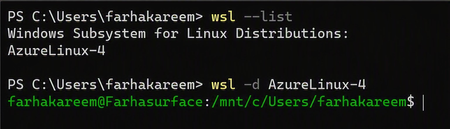
What is Azure Linux? Azure Linux is Microsoft's internal Linux distribution, designed and maintained to support Azure-scale cloud workloads. Today, Azure Linux runs across: Azure infrastructure Azure Kubernetes Service (AKS) Containerized workloads Edge scenarios Azure-hosted services With WSL support, Azure Linux now reaches another important environment: the developer workstation. Why Bring Azure Linux to WSL? A Consistent Path from Development to Production Developers often build in WSL and deploy to Azure. Differences in Linux distributions, packages, dependencies, configurations, and runtime behaviour can create environment drift and late-stage issues. One of the biggest challenges in modern development is environment drift. Teams often: Develop on one Linux distribution Test on another Deploy to something slightly different in production Azure Linux on WSL removes that gap. By bringing Azure Linux directly to the developer machine, teams can: Validate behaviour using production-aligned configurations Reproduce issues more reliably Reduce time spent debugging cross-environment differences The result: a faster, more consistent, and more predictable path from code to cloud. Azure Linux Across the Development Lifecycle Azure Linux already powers millions of cores across Azure. WSL now extends it to the start of the software delivery lifecycle, enabling teams to use one Microsoft-supported Linux foundation across development, testing, and production. Developers can use familiar tools such as VS Code and Git locally, then deploy to Azure targets including virtual machines, AKS, and containers. Not a Desktop OS and That’s Intentional Azure Linux on WSL is not designed to be a desktop Linux experience, and that’s by design. There’s no focus on GUI environments or replacing Windows on the laptop. Instead, Azure Linux remains what it was built for: A server-side operating system Optimised for cloud and container workloads Designed to run reliably at scale in Azure WSL simply makes that environment accessible locally, because today, developer machines increasingly need to mimic production. Getting Started Azure Linux on WSL integrates with standard WSL workflows: Enable WSL on your Windows machine Install Azure Linux by following the steps under the GitHub README documentation. Launch and start building in a production-aligned environment Within minutes, you have a fully functional Azure Linux setup on your local system. Start Building Azure Linux on WSL represents another step in making Azure Linux available wherever developers work. By bringing the same Microsoft-supported Linux distribution from Azure infrastructure to developer workstations, teams can build, test, and deploy using a more consistent foundation throughout the development lifecycle. To learn more about Azure Linux on WSL, see the Overview of Azure Linux on Windows Subsystem for Linux. When you're ready to get hands-on, follow the Azure Linux 4.0 on WSL getting started guide. Try it out and experience a more consistent path from local development to production.2.5KViews6likes3CommentsFrom Policy to Practice: Built-In CIS Benchmarks on Azure - Flexible, Hybrid-Ready
Security is more important than ever. The industry-standard for secure machine configuration is the Center for Internet Security (CIS) Benchmarks. These benchmarks provide consensus-based prescriptive guidance to help organizations harden diverse systems, reduce risk, and streamline compliance with major regulatory frameworks and industry standards like NIST, HIPAA, and PCI DSS. In our previous post, we outlined our plans to improve the Linux server compliance and hardening experience on Azure and shared a vision for integrating CIS Benchmarks. Today, that vision has turned into reality. We're now announcing the next phase of this work: Center for Internet Security (CIS) Benchmarks are now available on Azure for all Azure endorsed distros, at no additional cost to Azure and Azure Arc customers. With today's announcement, you get access to the CIS Benchmarks on Azure with full parity to what’s published by the Center for Internet Security (CIS). You can adjust parameters or define exceptions, tailoring security to your needs and applying consistent controls across cloud, hybrid, and on-premises environments - without having to implement every control manually. Thanks to this flexible architecture, you can truly manage compliance as code. How we achieve parity To ensure accuracy and trust, we rely on and ingest CIS machine-readable Benchmark content (OVAL/XCCDF files) as the source of truth. This guarantees that the controls and rules you apply in Azure match the official CIS specifications, reducing drift and ensuring compliance confidence. What’s new under the hood At the core of this update is kompli - a lightweight, open-source module developed by the Azure Core Linux team. It evaluates Linux systems directly against industry-standard benchmarks like CIS, supporting both audit and, in the future, auto-remediation. This enables accurate, scalable compliance checks across large Linux fleets. Here you can read more about kompli. Dynamic rule evaluation The new compliance engine supports simple fact-checking operations, evaluation of logic operations on them (e.g., anyOf, allOf) and Lua based scripting, which allows to express complex checks required by the CIS Critical Security Controls - all evaluated natively without external scripts. Scalable architecture for large fleets When the assignment is created, the Azure control plane instructs the machine to pull the latest Policy package via the Machine Configuration agent. kompli is integrated as a light-weight library to the package and called by Machine Configuration agent for evaluation – which happens every 15-30minutes. This ensures near real-time compliance state without overwhelming resources and enables consistent evaluation across thousands of VMs and Azure Arc-enabled servers. Future-ready for remediation and enforcement While the Public Preview starts with audit-only mode, the roadmap includes per-rule remediation and enforcement using technologies like eBPF for kernel-level controls. This will allow proactive prevention of configuration drift and runtime hardening at scale. Please reach out if you interested in auto-remediation or enforcement. Extensibility beyond CIS Benchmarks The architecture was designed to support other security and compliance standards as well and isn’t limited to CIS Benchmarks. The compliance engine is modular, and we plan to extend the platform with STIG and other relevant industry benchmarks. This positions Azure as a platform for a place where you can manage your compliance from a single control-plane without duplicating efforts elsewhere. Collaboration with the CIS This milestone reflects a close collaboration between Microsoft and the CIS to bring industry-standard security guidance into Azure as a built-in capability. Our shared goal is to make cloud-native compliance practical and consistent, while giving customers the flexibility to meet their unique requirements. We are committed to continuously supporting new Benchmark releases, expanding coverage with new distributions and easing adoption through built-in workflows, such as moving from your current Benchmark version to a new version while preserving your custom configurations. Certification and trust We can proudly announce that kompli has met all the requirements and is officially certified by the CIS for Benchmark assessment, so you can trust compliance results as authoritative. Minor benchmark updates will be applied automatically, while major version will be released separately. We will include workflows to help migrate customizations seamlessly across versions. Key Highlights Built-in CIS Benchmarks for Azure Endorsed Linux distributions Full parity with official CIS Benchmarks content and certified by the CIS for Benchmark Assessment Flexible configuration: adjust parameters, define exceptions, tune severity Hybrid support: enforce the same baseline across Azure, on-prem, and multi-cloud with Azure Arc Reporting format in CIS tooling style Supported use cases Certified CIS Benchmarks for all Azure Endorsed Distros - Audit only (L1/L2 server profiles) Hybrid / On-premises and other cloud machines with Azure Arc for the supported distros Compliance as Code (example via Github -> Azure OIDC auth and API integration) Compatible with GuestConfig workbook What’s next? Our next mission is to bring the previously announced auto-remediation capability into this experience, expand the distribution coverage and elevate our workflows even further. We’re focused on empowering you to resolve issues while honoring the unique operational complexity of your environments. Stay tuned! Get Started Documentation link for this capability Enable CIS Benchmarks in Machine Configuration and select the “Official Center for Internet Security (CIS) Benchmarks for Linux Workloads” then select the distributions for your assignment, and customize as needed. In case if you want any additional distribution supported or have any feedback for kompli – please open an Azure support case or a Github issue here Relevant Ignite 2025 session: Hybrid workload compliance from policy to practice on Azure Connect with us at Ignite Meet the Linux team and stop by the Linux on Azure booth to see these innovations in action: Session Type Session Code Session Name Date/Time (PST) Theatre THR 712 Hybrid workload compliance from policy to practice on Azure Tue, Nov 18/ 3:15 PM – 3:45 PM Breakout BRK 143 Optimizing performance, deployments, and security for Linux on Azure Thu, Nov 20/ 1:00 PM – 1:45 PM Breakout BRK 144 Build, modernize, and secure AKS workloads with Azure Linux Wed, Nov 19/ 1:30 PM – 2:15 PM Breakout BRK 104 From VMs and containers to AI apps with Azure Red Hat OpenShift Thu, Nov 20/ 8:30 AM – 9:15 AM Theatre THR 701 From Container to Node: Building Minimal-CVE Solutions with Azure Linux Wed, Nov 19/ 3:30 PM – 4:00 PM Lab Lab 505 Fast track your Linux and PostgreSQL migration with Azure Migrate Tue, Nov 18/ 4:30 PM – 5:45 PM PST Wed, Nov 19/ 3:45 PM – 5:00 PM PST Thu, Nov 20/ 9:00 AM – 10:15 AM PST1.7KViews0likes0CommentsNow Generally Available: Built-in CIS Benchmark Auditing for Linux on Azure
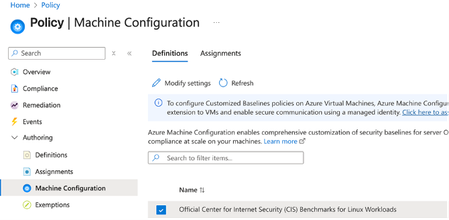
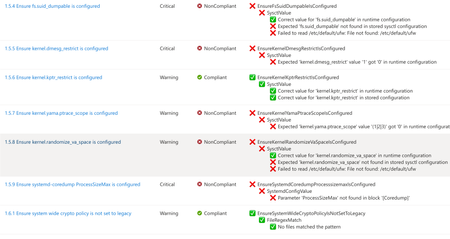
A few months ago, in From Policy to Practice: Built-in CIS Benchmarks on Azure – Flexible, Hybrid-Ready, we introduced a new way to bring Center for Internet Security (CIS) Benchmarks to your Linux estate using Azure Policy with Machine Configuration. It builds on the broader customizable security baseline policies in Machine Configuration capability. Today we're excited to share the next milestone: the audit capability for CIS Benchmarks on Linux is now Generally Available (GA). This release is officially powered by kompli - our native Linux compliance and hardening engine for CIS, STIG, and custom baselines. kompli is the evolution of the engine that drove the preview, now established as the dedicated home for this capability going forward. What "GA" means for you The audit experience is now ready for production use. You can continuously assess your Linux workloads against official, CIS-certified benchmarks - at scale, across Azure and hybrid environments through Azure Arc - and get clear, CIS-style compliance reporting directly in Azure Policy and Azure Resource Graph. If you've read the previous post, the how hasn't changed, so we'll keep this one short: Automated compliance assessment - continuously monitor Linux systems against official CIS benchmarks. Tailored benchmarks - customize evaluations with exceptions and custom parameters, no code changes required. Compliance reporting - detailed, CIS-style reports across your fleet. Hybrid-ready - the same baselines apply to Azure VMs and Arc-enabled servers on-premises or in other clouds. All supported benchmarks are CIS Benchmark Assessment Certified and stay in parity with the content published on the CIS website. Supported distributions and benchmark versions With this release, audit is GA across the following distributions, covering Level 1 + Level 2 Server profiles: Distribution CIS Benchmark Version(s) Profiles Audit Ubuntu 20.04 / 22.04 / 24.04 LTS + Pro v3.0.0 / v2.0.0 + v3.0.0 / v1.0.0 L1 + L2 Server ✓ Red Hat Enterprise Linux 8 / 9 / 10 v3.0.0 + v4.0.0 / v2.0.0 / v1.0.1 L1 + L2 Server ✓ AlmaLinux 8 / 9 v3.0.0 + v4.0.0 / v2.0.0 L1 + L2 Server ✓ Rocky Linux 8 / 9 v2.0.0 + v3.0.0 / v2.0.0 L1 + L2 Server ✓ Oracle Linux 8 / 9 v3.0.0 + v4.0.0 / v2.0.0 L1 + L2 Server ✓ Debian 11 / 12 v2.0.0 / v1.1.0 L1 + L2 Server ✓ SUSE Linux Enterprise 12 / 15 v3.2.1 / v2.0.1 L1 + L2 Server ✓ AKS Optimized Azure Linux 3 v1.0.0 L1 + L2 Server ✓ This GA covers the audit (assessment) capability. Looking ahead, STIG benchmarks are coming next, followed by a granular per-rule auto-remediation capability with dynamic scope assignments. You can run these benchmarks against your own hardened images, against CIS hardened images, and against custom images built on top of vanilla distros — as long as /etc/os-release retains its original content. We're also working with vendors to minimize deviations. Getting started Open Azure Policy in the Azure portal. Under Authoring, select the new Machine Configuration blade. Choose Official Center for Internet Security (CIS) Benchmarks for Linux Workloads, then Modify Settings to pick the distributions you want to assess. Full documentation, including per-distribution rule details, supported parameters, and any known deviations from the official CIS toolset, is available here: Overview: CIS Security Benchmarks for Linux Workloads Per-distribution references: AlmaLinux, Azure Linux, Debian, Oracle Linux, Red Hat Enterprise Linux, Rocky Linux, SUSE Linux Enterprise, and Ubuntu - all linked from the overview page. We're building this with you As part of this GA release, we've also expanded the set of exposed rule parameters compared to the preview - giving you more out-of-the-box customization across rules and distributions. That said, our customer-driven approach still stands: we keep the experience clean by enabling parameters based on real demand, so if there's a rule, benchmark version, or distribution you'd like parameters enabled for - or any feedback on rules, evaluations, or distro coverage - let us know: Open a GitHub issue in the kompli repository Open an Azure support case Try it out, tell us what you think, and help shape what we build next.551Views1like0CommentsIntroducing kars - an Agent Reference Stack for Kubernetes
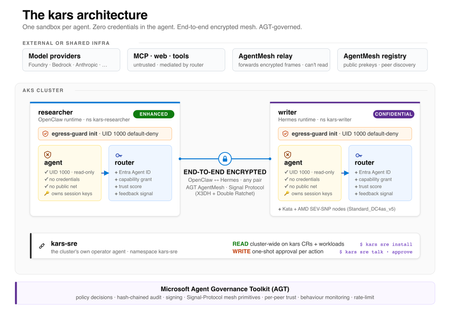
kars is an open-source, Kubernetes-native runtime for AI agents on Azure. It treats every agent as untrusted code - per-pod kernel isolation, zero credentials in the agent process, and an end-to-end encrypted inter-agent mesh - and governs agents on any framework with one set of Kubernetes policies via the Microsoft Agent Governance Toolkit. kars dev runs a governed agent on your laptop in minutes.2.7KViews1like2CommentsWhat IT teams need to know about Linux Secure Boot certificates expiring in 2026
If your organization does not use UEFI Secure Boot on Linux systems, this transition does not affect your boot path. You can stop reading now. If you do use Secure Boot, here is what you need to know. The Microsoft Corporation UEFI CA (Certificate Authority) 2011 expires on June 27, 2026 (June 26 local time in some time zones). Expiration alone does not stop anything from booting and does not render a system insecure. Existing 2011-signed shims keep working on systems that still trust the 2011 CA. The real risk is narrower: once an operating system vendor ships a shim signed only by the Microsoft UEFI CA 2023, any system whose firmware does not already trust the 2023 CA will fail to boot. The work for you is to confirm, before that update reaches your systems, that your systems trust the 2023 CA. If you want the history of why a Microsoft certificate sits in the Linux Secure Boot path at all, skip to the end. Terms used in this post You may see three Microsoft Secure Boot certificate authorities discussed in 2026 guidance. This post focuses on the Microsoft UEFI CA 2011, which is the CA used for third-party UEFI boot applications such as the Linux shim. The other expiring Microsoft Secure Boot certificates are the Microsoft Corporation KEK CA 2011, which is used to authorize updates to Secure Boot databases, and the Microsoft Windows Production PCA 2011, which is used for Windows boot components. Windows systems have a separate update path for those certificates; this post covers only the Linux boot chain. The 2023 update also separates two uses that were both covered by the Microsoft UEFI CA 2011. The Microsoft UEFI CA 2023 is for third-party UEFI boot applications, including the Linux shim. The Microsoft Option ROM UEFI CA 2023 is for third-party option ROMs, such as firmware on some add-in cards. This post is about the Linux bootloader path, but physical systems that rely on signed option ROMs may need to check that path too. Microsoft began returning 2023-signed Linux shim binaries to operating system vendors in October 2025, and since then a submitted shim comes back signed by both the 2011 CA and the 2023 CA. Once the 2011 CA expires, Microsoft can only sign with the 2023 CA. In UEFI Secure Boot terminology, db is the allowed signature database, dbx is the forbidden or revoked signature database, and KEK contains keys that can authorize updates to db and dbx . SBAT is a shim ecosystem mechanism for revoking boot components by generation. SBAT is related to Secure Boot revocation, but it is separate from the CA expiration itself. For brevity, the rest of this post uses operating system vendor to include Linux distributions and other vendors that ship and support Linux boot components. Microsoft returns signed shims to that submitting operating system vendor. It does not push shim updates to end users or IT departments. Those reach systems through the normal operating system, package, image, or platform update channels. What is not happening Expiration is not revocation, and it does not cause an immediate boot failure. The 2011 CA expiring does not make existing 2011-signed shims stop booting on June 27, 2026. UEFI Secure Boot validates a signature against the trust database and revocation state, not against the certificate's validity period. The image-validation process in the UEFI specification bases the decision on whether the image's hash or signing certificate is present in the authorized database ( db ) and absent from the forbidden database ( dbx ). It does not check whether the certificate has expired. Firmware bugs are always possible, but expiration by itself should not invalidate an already-signed shim. There is also no current plan to revoke the Microsoft UEFI CA 2011. Expiration means Microsoft can no longer sign new binaries with that certificate. Revocation would mean telling systems not to trust binaries signed with it. Revocation is not the plan. For the same reason, do not remove the 2011 CA from a system's Secure Boot db . Removing it strips that trust path. Removal is not required for this transition, and existing boot components may still depend on the 2011 CA. No operating system vendor has to move to a 2023-signed shim on the expiration date. An operating system vendor may keep shipping a 2011-signed shim (if one is available), ship a 2023-only shim, or ship one carrying both signatures. That decision belongs to the operating system vendor. What can break The failure case is a mismatch between the shim signature and the firmware trust database. The moment to worry about is not the expiration date. It is when a system first receives a 2023-only shim. That leaves a remediation window: the time between the expiration date and the first 2023-only shim reaching a given system. How long it lasts depends on your operating system vendor's packaging decisions, any security fix that forces a new shim release, and how easily you can update firmware or VM Secure Boot state on the affected platforms. The transition comes down to one table: Firmware trust database 2011-only shim 2023-only shim Dual-signed shim 2011 CA only Boots, but depends on continued 2011 trust Does not boot Should boot 2023 CA only Does not boot Boots Should boot Both 2011 and 2023 CAs Boots Boots Boots The table is deliberately simple. Real systems also have dbx revocations, SBAT policy, firmware bugs, operating system vendor packaging choices, and platform-specific update paths. But this is the core compatibility problem. Dual-signed shims help bridge the transition, because the same shim can validate through either CA. However, they are not a guarantee. Some firmware mishandles multiple signatures and evaluates only one of them, revocation and vendor support still apply, and the operating system vendor decides whether to ship and support a dual-signed shim at all. This kind of failure happens early, before the operating system loads. Recovery means restoring a trusted boot path or following your operating system, hardware, or platform vendor's recovery guidance. It is not a package rollback inside a running system. Who should pay closest attention This transition matters most where the operating system, firmware, and update path may not move together. If you run a maintained operating system on maintained hardware or a maintained virtualization platform, the normal vendor update path may handle most of it. Closer attention is worthwhile where that path is missing, delayed, customized, or hard to validate. Older hardware is the first case. Some systems need a firmware update before they can trust the 2023 CA, and support can vary by model even within one hardware vendor's portfolio. Check each model you operate rather than assuming one answer covers the fleet. Long-lived virtual machines are the second. VM firmware is still firmware. A VM's Secure Boot state depends on when it was created, which platform firmware it uses, and which UEFI variables have changed since. Firmware is not just another package update, so a long-lived VM may never have received the relevant firmware or database updates unless the administrator or platform applied them. Your cloud or virtualization provider should be able to say how the 2023 CA is handled for new VMs, existing VMs, and imported or custom images. For Azure Trusted Launch and Confidential VMs specifically, Microsoft has published guidance on identifying and updating affected instances. Older operating system releases need more careful validation. Some lack current Secure Boot tooling, current fwupd daemon behavior, or a supported path for updating UEFI trust databases. A command that works on one release may not be supported on another. Custom fleets are their own category: systems built from custom images, frozen package mirrors, pinned bootloader versions, or local Secure Boot policy changes. The more an environment differs from the vendor's default update path, the more you need to verify the actual firmware trust database and installed shim directly. Smaller operating system vendors and long-tail distributions are worth checking too, especially if they submit shim updates infrequently or have not finished their 2023 signing transition. No single authoritative public list tells you which releases have completed this work. Who is responsible for what There is no single Linux Secure Boot owner who can make every system safe for the transition. The operating system vendor controls which shim and boot components it ships. It also controls whether its update process checks the firmware trust database before installing a 2023-only shim. The Linux community runs a community-driven shim-review process for shim submissions. That process is the primary review gate before an operating system vendor requests a Microsoft signature. It is not a support channel for individual systems or fleets. The hardware vendor, firmware vendor, or virtual machine platform controls which trust anchors are present by default and how firmware updates are delivered. In a physical machine, that may mean a BIOS or firmware update. In a VM, it may mean platform firmware defaults, guest-visible UEFI variables, or a provider-specific remediation process. Microsoft controls the Microsoft UEFI signing service and the Microsoft UEFI CAs. After shim-review approval, Microsoft verifies the submitter's relationship to the operating system vendor, runs some additional checks, signs submitted shims, and returns the signed artifacts to the submitting operating system vendor. Microsoft does not choose when each operating system vendor ships a new shim to its customers. Your organization controls the systems it administers. In practice, that means checking whether Secure Boot is enabled, checking which certificates are trusted, following guidance from the relevant operating system vendor, and following guidance from the hardware vendor or VM provider. This is why the right answer for any specific system depends on its operating system vendor, hardware vendor, and platform. This post explains the model. Only those vendors can tell you what is supported for your systems. What to check The exact commands vary by operating system vendor, package set, and platform. Treat the examples below as illustrations, not guaranteed instructions for every Linux system. IT departments should validate commands against vendor documentation before using them in production automation. At fleet scale, the useful starting point is an inventory rather than a one-time manual check. Useful fields include whether Secure Boot is enabled, which Microsoft UEFI CAs are present in the firmware trust database, which CA signed the installed shim, the operating system release, the hardware model or VM platform, the update channel, and whether the system comes from a custom image or vendor image. Set up representative canary systems before any broad rollout. A canary set should cover the differences that matter in your fleet: hardware model, VM platform, operating system release, image lineage, and update channel. The aim is to avoid discovering a firmware or shim mismatch for the first time during a broad production update, not to build a new certification program. First, check whether Secure Boot is enabled: sudo mokutil --sb-state If Secure Boot is disabled, this certificate transition does not affect that system's current boot path. Next, check which Microsoft UEFI CAs are in the firmware trust database: sudo mokutil --db Look for entries such as: Microsoft Corporation UEFI CA 2011 Microsoft UEFI CA 2023 If both are present, the system is prepared for a future 2023-signed shim. If only the 2011 CA is present, check guidance from the relevant operating system vendor and platform provider before accepting a 2023-only shim update. On physical systems, also check whether the platform relies on signed third-party option ROMs. Those may require the Microsoft Option ROM UEFI CA 2023 in addition to the Microsoft UEFI CA 2023 used for boot applications. This is another reason hardware guidance can vary by model. Administrators can also inspect the signature on the shim currently installed on a system. On Enterprise Linux and related distributions, pesign is often used: sudo dnf install pesign sudo pesign -S -i /boot/efi/EFI/<vendor-or-distribution>/shimx64.efi On Debian, Ubuntu, and related distributions, sbverify from sbsigntools is often used: sudo apt install sbsigntools sudo sbverify --list /boot/efi/EFI/<vendor-or-distribution>/shimx64.efi The path to shim may differ. Some systems use a different EFI path, a different architecture suffix, or a different bootloader arrangement. Vendor documentation is the right source for exact commands. How updates may be delivered Many operating system vendors use the Linux Vendor Firmware Service (LVFS) and fwupd for firmware-related updates, including some UEFI Secure Boot database updates. Not every vendor enables the same tooling, and not every platform supports the same update mechanism. Common examples include: sudo fwupdmgr update sudo fwupdmgr security sudo fwupdmgr get-devices Some systems may require a firmware update from the hardware vendor. Some may support a standalone UEFI database update. Some may not support a safe standalone update at all. Some hardware and firmware vendors block standalone database updates because earlier failures showed that the update could break systems. Updating the Secure Boot allowed signature database ( db ) also depends on authorization from keys in KEK . That is one reason these updates often require cooperation from the firmware, hardware, or VM platform vendor. Administrators should not assume that possession of a certificate file is enough to update a system safely. Do not force a Secure Boot database update just because a command exists. Follow the guidance for the specific hardware, VM platform, or operating system vendor. Forcing an update can force a physical reboot of a machine or destroy the system. After the first inventory pass, keep watching the operating system vendor's security advisories and bootloader package updates. Questions for your vendors The right questions depend on the system, but these are the kinds of answers IT departments should look for from operating system vendors, hardware vendors, and VM providers: Does this operating system release currently ship a 2011-signed, 2023-signed, or dual-signed shim? If the vendor plans to ship a 2023-only shim, will the update process check whether the system trusts the 2023 CA before installing it? How is the Microsoft UEFI CA 2023 delivered for this hardware model, VM platform, or image? Is a standalone Secure Boot database update supported, or must the update arrive through a firmware update? Does support vary by hardware model, firmware version, VM generation, image type, or operating system release? What should administrators monitor for shim, GRUB, SBAT, db , KEK , or dbx updates related to this transition? What is the recommended validation path before broad deployment? What is the supported recovery path if a system receives an incompatible shim or firmware update and fails to boot? What to do now If an IT department administers Linux systems that use Secure Boot, the useful work is straightforward: Use the checks above to inventory Secure Boot state, trusted CAs, and installed shim signatures across representative systems. Identify the parts of the fleet most likely to diverge from default vendor paths, including older hardware, long-lived VMs, older operating system releases, custom images, and pinned bootloader packages. Read operating system, hardware, and VM provider guidance before accepting 2023-only shim updates or applying firmware and Secure Boot database updates. Test representative canary systems before rolling out shim or firmware changes broadly. Monitor operating system vendor advisories for shim and bootloader updates related to the transition. Avoid forcing low-level firmware or UEFI variable updates unless vendor guidance says to do so. How Linux got here UEFI Secure Boot was introduced to let firmware verify boot components before executing them. The firmware contains a trust database. If a bootloader is signed by a trusted certificate and is not blocked by revocation policy, the firmware can execute it. In the PC ecosystem, Microsoft has long operated the signing infrastructure used by Windows and by many third-party UEFI boot components. Linux operating system vendors do not have Microsoft sign the Linux kernel directly. Instead, they use a small first-stage bootloader called shim. The Linux shim is signed by Microsoft so firmware will start it. The shim then validates the next boot component, usually GRUB or another vendor-controlled bootloader, using keys controlled by the operating system vendor, not Microsoft. That structure lets Linux operating system vendors participate in the UEFI Secure Boot ecosystem while keeping control over their own boot chains. The shim code is developed publicly, and shim signing uses the community-run shim-review process before the Microsoft signing step. That split is important. The Linux community reviews shim submissions, and Microsoft operates the signing service that applies a signature firmware will trust. The certificate rotation affects this first handoff. Firmware must trust the CA that signed shim. If a future shim is signed only by the 2023 CA, the firmware needs the 2023 CA in its trust database. A system that keeps booting with a 2011-signed shim is not automatically broken or insecure on the expiration date. A system that moves to a 2023-signed shim needs to trust the 2023 CA; plan for that transition.2.4KViews2likes0CommentsShift-Left Governance for AI Agents: How the Agent Governance Toolkit Helps You Catch Violations
In part one of this series, we covered AGT’s runtime governance: the policy engine, zero-trust identity, execution sandboxing, and the OWASP Agentic AI risk mapping. That post focused on what happens when an agent acts: policy evaluation at the moment a tool call fires, trust scoring when agents communicate, audit logging when decisions are made. Runtime governance is essential. But it is the last line of defense. After that post went live, a pattern emerged in conversations with teams adopting AGT. The same question kept coming up: runtime checks are useful, but what about everything before production? We realized runtime governance was only half the story. So we went back and built tooling for every stage of your software development lifecycle, from the moment a developer saves a file to the moment an artifact ships to users. Why Runtime Governance Is Not Enough AI agents are a new class of workload. They reason about what to do, select tools, call APIs, read databases, and spawn sub-processes, often in loops that run without direct human oversight. The OWASP Agentic AI Top 10 (published December 2025) identifies risks like excessive agency, insecure tool use, privilege escalation, and supply chain compromise. These risks span the entire lifecycle, not just runtime. Consider a few scenarios that runtime governance alone cannot prevent: A developer commits a policy YAML file with a typo that silently disables all deny rules. The agent runs unprotected until someone notices. A dependency update introduces a package with a known critical CVE. The agent starts using a vulnerable library before any security team reviews it. A contributor adds a raw cryptographic import to an application module, bypassing the security-audited signing library. The code compiles and ships. A GitHub Actions workflow uses an expression injection pattern that allows an attacker to execute arbitrary code in CI. A release ships without a Software Bill of Materials (SBOM), making it impossible to trace which components are affected when the next log4j-style vulnerability drops. Each of these is a governance failure, but none of them happens at runtime. They happen at commit time, at PR review time, at build time, or at release time. A comprehensive governance strategy needs coverage at every stage. Four Stages of Pre-Runtime Governance Governance violations can enter a codebase at four distinct stages of the development lifecycle. Each stage has a different class of risk, and each needs a different kind of check: Stage When It Runs What It Catches AGT Tooling Commit-time Before code leaves the developer machine Malformed policies, schema violations, secrets, stub code, unauthorized crypto Pre-commit hooks, quality gates PR-time When a pull request is opened or updated Vulnerable dependencies, missing attestation, secrets in history, unpinned versions GitHub Actions (attestation, dependency review, secret scanning, supply chain checks) CI/Build-time On every push and pull request to main Compliance violations, binary security issues, dependency confusion, workflow injection Governance Verify action, Security Scan action, CodeQL, BinSkim, policy validation Release-time Before artifacts are published Missing provenance, unsigned artifacts, incomplete SBOMs SBOM generation, Sigstore signing, build attestation, OpenSSF Scorecard Just as with bugs, the earlier you catch a governance violation, the cheaper it is to fix. A malformed policy file caught at commit time costs zero CI minutes. A secret caught in PR review never reaches the default branch. A dependency confusion attack blocked in CI never reaches production. An unsigned artifact blocked at release time never reaches users. Stage 1: Commit-Time Governance with Pre-Commit Hooks The fastest governance feedback loop is local. Within the AGT project, we’ve implemented three pre-commit hooks that run automatically whenever a developer stages files for commit, validating governance artifacts before they ever leave the developer's machine. Built-In Hooks The toolkit's .pre-commit-hooks.yaml defines three hooks that any repository can adopt: Hook ID What It Validates File Pattern validate-policy YAML/JSON policy files against the AGT policy schema, checking for required fields, valid operators, and structural correctness Files matching *polic*.yaml, *polic*.yml, *polic*.json validate-plugin-manifest Plugin manifest files for required fields and schema compliance Files matching plugin.json, plugin.yaml, plugin.yml evaluate-plugin-policy Plugin manifests against a governance policy file, evaluating whether the plugin would be allowed under the organization's rules Files matching plugin.json, plugin.yaml, plugin.yml To adopt these hooks, add AGT as a pre-commit hook source: # .pre-commit-config.yaml repos: - repo: https://github.com/microsoft/agent-governance-toolkit rev: main # pin to a release tag in production hooks: - id: validate-policy - id: validate-plugin-manifest - id: evaluate-plugin-policy args: ['--policy', 'policies/marketplace-policy.yaml'] Then install and run: pip install pre-commit pre-commit install pre-commit run --all-files Extended Quality Gates Beyond schema validation, we built a pre-commit rollout template (see the full example in the repository) with additional governance-specific quality gates designed to help prevent common security anti-patterns from entering the codebase: Policy validation (agt-validate): Runs the full AGT policy CLI in strict mode, catching not just schema errors but semantic issues like conflicting rules. Health check (agt-doctor): Runs on pre-push (before code leaves the machine entirely), performing a broader health check of the governance configuration. Plugin metadata check (agency-json-required): Ensures every plugin directory contains the required agency.json metadata file. Stub detection (no-stubs): Blocks TODO, FIXME, HACK, and raise NotImplementedError markers in staged production code. Test files are excluded. Unauthorized crypto detection (no-custom-crypto): Blocks raw cryptographic imports (hashlib, hmac, crypto.subtle, System.Security.Cryptography, ring, ed25519-dalek) outside designated security modules. This helps ensure all cryptographic operations go through the audited AGT signing libraries. Secret scanning (detect-secrets): Integrates Yelp's detect-secrets for pattern-based secret detection on every commit. Phased Rollout for Teams Adopting pre-commit hooks across a team requires a thoughtful rollout. The AGT documentation includes a phased adoption guide: Week 1: Install hooks in permissive mode. Hooks warn on violations but do not block the commit. This lets developers see what would be caught without disrupting workflow. Week 2: Switch to strict mode for policy validation only. Policy files must pass schema validation to be committed. Week 3: Enable all hooks as blocking. Stubs, unauthorized crypto, and secrets are now blocked at commit time. Week 4: Graduate to full blocking mode and remove the permissive fallback. This approach helps teams build confidence in the governance tooling before it becomes a hard gate. Stage 2: PR-Time Gates Pre-commit hooks catch issues on the developer's machine, but they can be bypassed (force push, direct GitHub edits, hooks not installed). PR-time gates provide the second layer of defense, running in GitHub Actions on every pull request before merge is allowed. Governance Attestation The Governance Attestation action validates that PR authors have completed a structured attestation checklist before their code can merge. The default checklist covers seven sections: Security review Privacy review Legal review Responsible AI review Accessibility review Release Readiness / Safe Deployment Org-specific Launch Gates The action is fully configurable. Organizations can customize the required sections, set a minimum PR body length, and choose their own attestation format. Outputs include the validation status, a list of errors for missing sections, and a JSON mapping of sections to checkbox counts. Here is an example workflow: # .github/workflows/pr-governance.yml name: PR Governance on: pull_request: types: [opened, edited, synchronize] jobs: attestation: runs-on: ubuntu-latest steps: - uses: microsoft/agent-governance-toolkit/action/governance-attestation@main with: required-sections: | 1) Security review 2) Privacy review 3) Responsible AI review Dependency Review The dependency review workflow helps block PRs that introduce dependencies with known CVEs or disallowed licenses. It uses the GitHub dependency-review-action with a curated license allowlist: - uses: actions/dependency-review-action@v4 with: fail-on-severity: moderate comment-summary-in-pr: always allow-licenses: > MIT, Apache-2.0, BSD-2-Clause, BSD-3-Clause, ISC, PSF-2.0, Python-2.0, 0BSD, Unlicense, CC0-1.0, CC-BY-4.0, Zlib, BSL-1.0, MPL-2.0 This runs on every PR that touches dependency manifests (package.json, Cargo.toml, pyproject.toml, requirements.txt). Dependencies with moderate or higher CVEs are flagged, and dependencies with licenses not on the allowlist are blocked. Secret Scanning The secret scanning workflow runs on every PR to the main branch and on a weekly schedule. It combines two complementary approaches: Gitleaks: Pattern-based secret detection across the full git history, catching API keys, tokens, and credentials that may have been committed at any point. High-entropy string scanning: Regex-based detection of common secret patterns including GitHub tokens (ghp_, gho_), AWS access keys (AKIA), Slack tokens (xox), and base64-encoded strings with high entropy. Supply Chain Integrity A dedicated supply chain check workflow triggers when dependency manifest files change. It enforces two rules that help prevent supply chain attacks: Exact version pinning: No ^ or ~ version ranges in package.json files. This prevents unexpected minor/patch version updates that could introduce compromised code. Lockfile presence: Every package directory with dependencies must have a corresponding lockfile (package-lock.json, pnpm-lock.yaml, or yarn.lock). Lockfiles help ensure reproducible builds with verified integrity hashes. Quality Gates The quality gates workflow mirrors the pre-commit hooks at the PR level, providing defense in depth. It runs four checks on every pull request: Gate Purpose No Stubs/TODOs Blocks TODO, FIXME, HACK markers in production code (test files excluded) No Unauthorized Crypto Blocks raw cryptographic imports outside designated security modules Security Audit Required Changes to security-sensitive paths require accompanying audit documentation Dependency Audit Trail Vendored patches must have an audit trail explaining the patch and its provenance These gates catch anything that bypasses pre-commit hooks: force-pushed commits, direct GitHub web edits, commits from contributors who have not installed the hooks. Stage 3: CI/Build-Time Governance Once a PR passes the gate workflows, the main CI pipeline and specialized workflows perform deeper, more computationally intensive analysis. The Governance Verify Action The Governance Verify action is the primary CI-time governance check. It is a GitHub Actions composite action that installs the toolkit and runs the compliance CLI against your repository. It supports four modes: Command What It Does governance-verify Runs the full compliance verification suite, checking governance controls and reporting how many pass marketplace-verify Validates a plugin manifest against marketplace requirements (required fields, signing, metadata) policy-evaluate Evaluates a specific policy file against a JSON context, returning the allow/deny decision with the matched rule all Runs governance-verify, then marketplace-verify and policy-evaluate if the corresponding paths are provided Here is an example: # .github/workflows/governance-ci.yml name: Governance CI on: [push, pull_request] jobs: verify: runs-on: ubuntu-latest steps: - uses: actions/checkout@v4 - uses: microsoft/agent-governance-toolkit/action@main with: command: all policy-path: policies/ manifest-path: plugin.json output-format: json fail-on-warning: 'true' The action outputs structured data including controls-passed, controls-total, violations count, and full command output in JSON format. This makes it straightforward to integrate with dashboards, Slack notifications, or downstream decision logic. The Security Scan Action A separate security scan action scans directories for secrets, CVEs, and dangerous code patterns. Unlike the PR-time secret scanning (which focuses on git history), this action performs deep content analysis of the current codebase: - uses: microsoft/agent-governance-toolkit/action/security-scan@main with: paths: 'plugins/ scripts/' min-severity: high exemptions-file: .security-exemptions.json The action supports configurable severity thresholds (critical, high, medium, low), an exemptions file for acknowledged findings, and structured JSON output with findings-count, blocking-count, and detailed findings. Policy Validation Workflow A dedicated policy validation workflow triggers whenever YAML files or the policy engine source code changes. It performs two jobs in sequence: Validate policies: Discovers all policy files matching the *policy* naming convention, then validates each file using the AGT policy CLI. Test policies: Runs the policy CLI unit tests to verify that policy evaluation behavior is correct after the changes. This ensures that policy file edits do not break the policy engine and that policy semantics are preserved. CodeQL and Static Analysis AGT uses GitHub's CodeQL for semantic static analysis of Python and TypeScript code. The CodeQL workflow runs on pushes and PRs, performing deep dataflow analysis that goes beyond pattern matching. Results are uploaded as SARIF to GitHub's Security tab, providing a centralized view of code quality issues. Dependency Confusion Scanning A dedicated CI job runs a dependency confusion scanner on every build. This is a targeted defense against a specific supply chain attack vector where an attacker registers a public package with the same name as an internal package. The scanner checks that: Internal package names do not collide with public PyPI or npm packages Notebook pip install commands only reference packages that are registered and expected Workflow Security Auditing When GitHub Actions workflow files change, a workflow security job scans for common CI/CD security issues: Expression injection: Detects patterns like ${{ github.event.pull_request.title }} used directly in run: blocks, which can allow arbitrary code execution. Overly permissive permissions: Flags workflows that request more permissions than necessary. Unpinned action references: Detects actions referenced by branch name instead of commit SHA, which is a supply chain risk. .NET Binary Analysis with BinSkim For the .NET SDK (Microsoft.AgentGovernance), the CI pipeline runs Microsoft BinSkim binary security analysis on compiled assemblies. BinSkim checks for security-relevant compiler and linker settings in compiled binaries, such as DEP (Data Execution Prevention), ASLR (Address Space Layout Randomization), and stack protection. Results are uploaded as SARIF to GitHub code scanning alongside the CodeQL results. The ci-complete Gate Pattern With many CI jobs that conditionally run based on path filters, AGT uses a pattern called ci-complete: a single gate job that is configured as the sole required status check in branch protection. This job runs unconditionally (if: always()), depends on all other CI jobs, and checks that none of them failed. Jobs that were skipped (because no relevant files changed) are acceptable. This pattern ensures that branch protection works correctly with conditional CI jobs, preventing the common issue where skipped jobs report as "skipped" and fail required status checks. Language-Specific Compile-Time Enforcement Beyond the language-agnostic CI checks, each AGT SDK uses its language's native compiler and tooling to enforce governance standards at compile time. .NET: The Strictest Compile-Time Checks The .NET SDK (Microsoft.AgentGovernance) enforces compile-time governance through MSBuild properties in Directory.Build.props and Directory.Build.targets, which apply automatically to every project in the SDK: Feature MSBuild Property Effect Nullable reference types <Nullable>enable</Nullable> The compiler warns on every possible null dereference, helping prevent NullReferenceException at compile time Warnings as errors <TreatWarningsAsErrors>true All compiler warnings become build errors for packable projects; no warnings can be shipped to consumers Strong-name signing <SignAssembly>true</SignAssembly> Assemblies are signed with a strong-name key (AgentGovernance.snk), enabling identity verification Deterministic builds <ContinuousIntegrationBuild>true Identical source code produces bit-for-bit identical binaries in CI, enabling build verification SourceLink Microsoft.SourceLink.GitHub package Users can step into AGT source code when debugging, supporting transparency and auditability Symbol packages <IncludeSymbols>true</IncludeSymbols> .snupkg symbol packages are published alongside NuGet packages for debugging support TypeScript: Strict Compilation and Linting The TypeScript SDK (@microsoft/agentmesh-sdk) uses strict compiler settings and ESLint for build-time governance: Strict mode ("strict": true in tsconfig.json) enables all strict type-checking options, including noImplicitAny, strictNullChecks, strictFunctionTypes, and strictBindCallApply. Consistent file naming (forceConsistentCasingInFileNames) prevents cross-platform issues where imports work on case-insensitive file systems (Windows, macOS) but fail on case-sensitive ones (Linux CI). Declaration generation (declaration: true with declarationMap: true) produces .d.ts files for consumers, enabling downstream type checking. ESLint with @typescript-eslint provides static analysis during the build process, catching issues beyond what the TypeScript compiler checks. Python: Type Safety and Fast Linting Python packages in AGT use typed package markers and static analysis tooling configured in pyproject.toml: py.typed marker: Each package includes a py.typed file, signalling to type checkers (mypy, pyright, Pylance) that the package supports type checking. Consumers get type errors if they misuse the AGT API. mypy: Configured as a dev dependency with project-specific settings in pyproject.toml. Provides static type checking that catches type mismatches before runtime. ruff: A fast Python linter written in Rust, configured in pyproject.toml and enforced in CI. Ruff checks for hundreds of code quality rules at build time. Stage 4: Release-Time Gates Before artifacts reach users, the release pipeline adds a final layer of verification. These gates help ensure that what ships is exactly what was built, is signed by the expected publisher, and has a complete inventory of its components. Gate Tool What It Produces SBOM generation Anchore/Syft SPDX and CycloneDX software bills of materials listing every component, dependency, and licence Python signing Sigstore Cryptographic signature using OpenID Connect identity, verifiable without manual key distribution .NET signing RELEASE PIPELINE Microsoft Authenticode and NuGet signing through the release pipeline Build provenance actions/attest-build-provenance SLSA provenance attestation linking the artifact to its source commit and build environment SBOM attestation actions/attest-sbom Binds the SBOM to the specific release artifact, creating a verifiable link between the inventory and the binary Additionally, the OpenSSF Scorecard runs on schedule, providing an automated security posture assessment that covers branch protection, dependency management, CI/CD practices, and more. The score is published to the OpenSSF Scorecard website, giving consumers a transparent view of the project security practices. How It All Fits Together: Defense in Depth This approach follows a defense-in-depth principle: every check exists at multiple layers, so that bypassing one layer does not compromise the whole system. Secret scanning, for example, runs at three levels: detect-secrets at commit time (pre-commit hook), Gitleaks at PR time (secret scanning workflow), and the Security Scan action at CI time (content analysis). A developer who bypasses pre-commit hooks will still be caught by the PR-time gate. A contributor who force-pushes past the PR gate will still be caught by the CI pipeline. Similarly, policy validation runs at commit time (validate-policy hook), at PR time (quality gates), and at CI time (policy validation workflow). Each layer adds depth: the commit-time hook catches schema errors, the CI pipeline catches semantic issues and runs regression tests. The ci-complete gate job ties everything together. By depending on every CI job and serving as the single required status check, it ensures that no code merges to the main branch unless every applicable check has passed. Getting Started You can adopt AGT's shift-left governance incrementally. Here are three starting points, from lowest to highest effort: 1. Add the Governance Verify Action (5 minutes) Add a single GitHub Actions workflow that runs the compliance check on every PR: # .github/workflows/governance.yml name: Governance on: [pull_request] jobs: verify: runs-on: ubuntu-latest steps: - uses: actions/checkout@v4 - uses: microsoft/agent-governance-toolkit/action@main with: command: governance-verify 2. Enable Pre-Commit Hooks (15 minutes) Add a .pre-commit-config.yaml referencing AGT's hooks, install them, and run against all existing files to establish a baseline. Start in permissive mode and graduate to strict over four weeks. 3. Full Pipeline Integration (1-2 hours) Add the complete set of PR-time gates (attestation, dependency review, secret scanning, supply chain checks, quality gates), configure the Security Scan action for your plugin directories, and enable SBOM generation and signing in your release workflow. The AGT repository itself serves as a reference implementation: every workflow described in this post is running in production at aka.ms/agent-governance-toolkit. Important Notes The policy files, workflow configurations, and code samples in this post are illustrative examples. Your organization's governance requirements may differ. Review and customize all configurations before deploying to production. The Agent Governance Toolkit is designed to help organizations implement governance controls for AI agents; it does not guarantee compliance with any specific regulatory framework. Always consult your organization's security and legal teams when defining governance policies. What Comes Next Pre-runtime governance is one piece of the puzzle. Combined with the runtime governance capabilities covered in part one of this series (policy engines, zero-trust identity, execution sandboxing, audit logging), it provides coverage across the full lifecycle. The project continues to grow. Since the initial release, we’ve added a multi-stage policy pipeline (pre_input, pre_tool, post_tool, pre_output stages), approval workflows with human-in-the-loop gates, DLP attribute ratchets for monotonic session state, and OpenTelemetry instrumentation for governance operations. Over 45 step-by-step tutorials are available in the documentation. Everything described in this post is available today in the public GitHub repository. The full source, documentation, tutorials, and examples are at aka.ms/agent-governance-toolkit, open source under the MIT license. We welcome contributions, feedback, and issue reports from the community.1KViews0likes1CommentAnnouncing Azure Linux 4.0: Purpose-Built for Azure, Now in Public Preview
Today at Microsoft Build, we're announcing the public preview of Azure Linux 4.0 - Microsoft's first party Linux distribution, purpose-built for Azure. Azure Linux 4.0 is available now for Azure Virtual Machines, VM Scale Sets, and container images – with Azure Kubernetes Service (AKS) support and Windows Subsystem for Linux (WSL) coming soon after. Why Azure Linux Running Linux on Azure often involves a mix of distributions - one for VMs, another for Kubernetes nodes, a third for container base images, and sometimes something different on developer machines. That flexibility is powerful, but it can also introduce operational overhead: multiple patch schedules to coordinate, multiple security baselines to validate, and more moving parts for SRE and security teams to stay ahead of. A more consistent baseline - especially one with a smaller footprint - can help reduce exposure and simplify day‑to‑day maintenance Azure Linux was built with that principle in mind: a single, Microsoft-supported Linux foundation designed to work across every Azure compute surface. From kernel updates to CVE patches, Azure Linux is built and maintained by Microsoft with a predictable update cadence designed around Azure infrastructure. Azure Linux is included with Azure compute at no additional cost. What Is Azure Linux 4.0 Azure Linux is a Fedora-derived, RPM-based Linux distribution built and maintained by Microsoft. It is open source, free to use, and optimized specifically for Azure. Minimal by choice, secure by default; Azure Linux ships only the packages required for cloud workloads. Azure Linux is built exclusively for cloud and server workloads, it is not intended to support desktop usage or GUI applications. Azure Linux already powers millions of cores across Azure's internal services, including AKS, Azure SQL, Azure Cosmos DB, and many others. With 4.0, we're bringing the same OS - same security posture, same performance tuning, same operational simplicity - to every Azure customer. When Azure Linux 4.0 reaches General Availability, you can expect seamless integration with the Azure services you already rely on, including: Microsoft Defender for Cloud - vulnerability assessment and threat detection Azure Monitor - telemetry, logs, and performance monitoring Azure Migrate - discovery and migration tooling Trusted Launch and Secure Boot - hardware-rooted security Azure Portal, CLI, ARM, Bicep, Terraform, Ansible -deploy and manage with your existing tools What's New in Azure Linux 4.0 Component Version What Changed Kernel 6.18 LTS Azure-tuned with new hardware drivers, improved Hyper-V integration, GPU/AI accelerator support Package Manager dnf5 Complete rewrite from python to reduce dependencies, faster package resolution, lower memory usage glibc 2.42 This includes performance improvements in string ops, memory allocation, thread handling OpenSSL 3.5 This release includes post-quantum cryptography support, improved QUIC support, and other crypto updates. systemd 258 Faster boot sequences, improved service management Python 3.14 JIT compiler, new syntax features RPM 6.0 Modernized database backend, improved signature verification FIPS 140-3 In progress Will be available at GA. Azure Linux on Virtual Machines Deploy Azure Linux 4.0 directly from the Azure Marketplace on any Azure VM or VM Scale Set. Azure Linux images are validated across Azure VM SKUs and tuned for Azure compute, storage, and networking delivering faster VM startup and provisioning with a reduced package footprint. Whether you're running web applications, databases, or GPU-accelerated AI/ML workloads, Azure Linux provides a consistent, secure foundation with no additional OS licensing cost. You pay only for the underlying Azure compute resources. Deploy your first Azure Linux VM in minutes from the Azure Marketplace. Azure Linux on Azure Kubernetes Service Azure Linux has been the container host for AKS since 2023, already powering mission-critical Kubernetes workloads at massive scale. With 4.0, we're also introducing Azure Container Linux (ACL) an immutable, container optimized variant for environments with stricter security and compliance requirements. To learn more about Azure Container Linux, see ACL blogpost. Azure Linux (General purpose) Azure Container Linux (ACL) Update model Package-based (dnf5) Image-based, immutable, auto-updating Customization Full package management Locked-down, minimal surface Best for General AKS workloads Regulated, high-security environments SELinux Supported Enforcing by default Both options share the same kernel, security update cadence, and Azure integration; fully supported by Microsoft, end to end. Azure Linux Container Images Build and run containerized applications on Microsoft-maintained base images from the same Azure Linux supply chain. One Linux experience from VMs to containers with the same security updates, same compliance posture, and same operational model. Image Type Use Case Base Full flexibility - install any packages you need Runtime (Python, Node.js, Java, .NET) [Not available at Preview] Pre-configured for your language stack Distroless Minimal attack surface - no shell, no package manager All images are available on Microsoft Container Registry (MCR) and follow the same monthly security update cadence as Azure Linux VM images. Azure Linux on WSL Familiar Linux, optimized for Azure. Develop locally on the same Linux you run in production. Azure Linux for Windows Subsystem for Linux brings your production OS to your developer workstation, eliminating environment drift and giving your team a consistent dev-to-cloud workflow. Azure Linux for WSL will be available shortly after Build. Secure by Default, Backed by Microsoft Security is not an add-on in Azure Linux; it's foundational. Built with security in mind from day one, Azure Linux applies defense-in-depth from the kernel through to the supply chain. A reduced package footprint means fewer vulnerabilities to manage, and Microsoft's ownership of the full supply chain enables fast-track CVE response. Below is a summary of security capabilities that you should expect to see in Azure Linux at the time of general availability. Capability Details Secure Boot & Trusted Launch Signed shim, GRUB, kernel, and systemd-boot. SELinux Supported on all images. Enforcing by default. FIPS 140-3 Certification in progress. Built-in crypto module support. Kernel hardening ASLR, stack protection, seccomp, systemd service sandboxing. Supply chain security All packages and repos cryptographically signed. SBOMs published. Identity Entra ID SSH support. CVE response Microsoft-owned supply chain enables fast-track Critical/High CVE patches. Lifecycle LTS kernels maintained for lifetime of the distribution. Day-1 Ecosystem Partner Support Azure Linux already has validated support from a broad ecosystem of security, monitoring, networking, and data partners via AKS and VM support: Dynatrace — Application performance monitoring and observability Aquasec – database platform support Qualys — Vulnerability management, compliance scanning, and asset inventory Isovalent — eBPF-powered networking, security, and observability via Cilium Elastic — Log analytics, infrastructure monitoring, and SIEM/XDR Upwind — Runtime cloud security and behavioral threat detection SAP — Enterprise workload certification for S/4HANA and NetWeaver Databricks — Data and AI platform powering lakehouse workloads at scale Arm — Native Arm64 architecture support for cost-efficient cloud compute Proven at Scale Azure Linux isn't new; it has been running production workloads at massive scale across Azure's internal services and early adopters. Azure Linux has been powering production workloads at massive scale since 2022 across AKS, Azure SQL, Azure Cosmos DB, and other core Azure services along with LinkedIn and Databricks. With version 4.0, we're building on that proven foundation with a modernized stack, expanded compute surface support, and a new Fedora-derived base, bringing the same reliability our internal services depend on every Azure customer. Databricks Databricks migrated over 100,000 VMs and more than 1 million CPU cores to Azure Linux with zero customer-facing incidents. The migration eliminated separate hardened images by leveraging Azure Linux's built-in FIPS support and delivered measurable performance gains: 27% faster image pull times and approximately 5% faster query execution across their serverless compute fleet. LinkedIn LinkedIn completed a major stack upgrade, migrating to Azure Linux 3 across their infrastructure. The transition enabled adoption of configuration as code and modern kernel integration, resulting in a more resilient, secure, and future-proof environment. LinkedIn's Grid team reported significant performance improvements following the migration. Predictable Lifecycle and Updates Patch faster. Operate simpler. Azure Linux follows a clear, predictable lifecycle designed for teams running large Azure fleets: LTS kernel - Maintained with monthly CVE backports. HWE kernels - Introduced annually for new hardware platforms, GPU, and AI accelerator enablement. Predictable updates - Packages (language runtimes, tools) are refreshed in predictable windows. Between windows, only critical/high CVE patches are backported. Monthly security updates - Predictable cadence for all supported packages. For full details on the lifecycle model, kernel tracks, and package tiers, see the Azure Linux Release Cadence and Lifecycle documentation. Get Started Azure Linux 4.0 is available now in public preview. Choose the path that fits your workload: Scenario How to Start Azure Virtual Machines Deploy from Azure Marketplace via Portal, CLI, ARM, Bicep, or Terraform Azure Kubernetes Service [Not available at Preview] Set --os-sku to AzureLinux when creating a node pool Container Images Pull from Microsoft Container Registry (MCR) WSL [Not available at Preview] wsl --install -d AzureLinux Learn More //Build Session: Build, deploy, and run Linux workloads on Azure Azure Linux documentation To learn more and get started, visit aka.ms/AzureLinuxProduct Azure Linux on GitHub Release notes Joining the ISV partner program: AzureLinuxPartners@microsoft.com We're excited to put Azure Linux in your hands. Try it today and let us know what you think.14KViews7likes0Comments