azure expressroute
46 TopicsAdvertised gateway prefixes in Azure
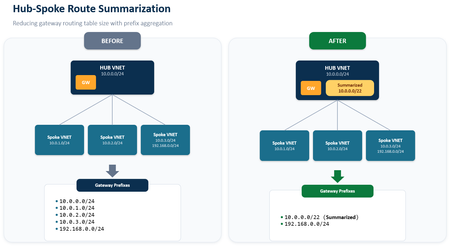
Introduction Large Azure hub-and-spoke environments can advertise a significant number of routes toward on-premises networks. By default, Azure VPN Gateway and ExpressRoute Gateway advertise the address spaces of the hub virtual network and the address spaces of peered spoke virtual networks that use gateway transit. As the number of spokes and address spaces grows, the border gateway protocol (BGP) route table grows as well. Advertised gateway prefixes provide a native way to summarize those Azure-side routes. The feature is configured on the hub virtual network through the summarizedGatewayPrefixes property, which is exposed in the Azure portal as Advertised gateway prefixes. Fewer BGP prefixes Replace many individual networks with one or more aggregated CIDRs. Better scale management Help large hub-and-spoke designs stay within advertised-prefix limits. Cleaner route visibility Make the intended Azure address plan easier to recognize on provider and on-premises route views. In this blog we will demonstrate leveraging Advertised gateway prefixes to summarize many Azure advertised prefixes into one. What are advertised gateway prefixes? Advertised gateway prefixes are summarized CIDR blocks that an Azure hybrid gateway advertises toward on-premises instead of advertising every covered hub and spoke address space individually. The configuration belongs on the gateway virtual network, usually the hub VNet that contains GatewaySubnet and the ExpressRoute or VPN gateway. How the route advertisement changes Default behavior With advertised gateway prefixes Hub: 10.27.0.0/24 Spoke 1: 10.27.1.0/24 Spoke 2: 10.27.2.0/24 Spoke 3: 10.27.3.0/24 Summary: 10.27.0.0/22 Four individual prefixes are advertised. One summary prefix is advertised. A spoke outside the summary is still advertised separately. Example: 172.16.1.0/24 remains visible if it is not covered by 10.27.0.0/22. When should you use it? You use a hub-and-spoke topology with gateway transit and many spoke address spaces. You want to advertise a covering prefix, such as a /16, instead of many smaller prefixes, such as multiple /24 networks. You are approaching ExpressRoute advertised-prefix limits or want to reduce route-table growth before scale becomes a problem. Your Azure address plan is sufficiently structured to create safe, intentional summary ranges. Note: ExpressRoute scale context: Microsoft documentation lists a maximum of 1,000 IPv4 prefixes and 100 IPv6 prefixes advertised from a virtual network to on-premises on a single ExpressRoute connection through private peering. Exceeding the connection prefix limit can cause the connection between the circuit and gateway to disconnect until the prefix count is reduced. Prerequisites A hub virtual network with GatewaySubnet. An ExpressRoute gateway or VPN gateway deployed in the hub virtual network. One or more peered spoke virtual networks if you want to demonstrate route summarization across spokes. A planned IPv4 and, when applicable, IPv6 summary that covers the intended hub and spoke address spaces. Access to the provider or on-premises BGP route view for validation. In this walkthrough, Megaport is used as the external verification point. Configure advertised gateway prefixes in the Azure portal The portal configuration is performed on the hub VNet, not on the ExpressRoute circuit and not on each spoke VNet. In the Azure portal, search for Virtual networks and select the hub VNet that contains GatewaySubnet. Open the hub virtual network Under Settings, select Address space. Open Address space In Advertised gateway prefixes, select + Add prefix. Enter the covering CIDR, such as 10.0.0.0/22 for four contiguous /24 networks. Add the summarized prefix For a dual-stack design, add IPv4 and IPv6 summarized prefixes explicitly. Add additional address families if needed Select Save and confirm the summarized prefixes remain listed in the Advertised gateway prefixes section. Save the configuration Validate the summarized route on routers or provider After Azure applies the change and BGP converges, I’m using ExpressRoute and Megaport here for my example, you can either log in to your router directly or view the incoming BGP routes via your provider’s interface to confirm what routes are being received from Azure. We want to capture a view that displays the BGP prefixes learned from the Azure side. Capture a baseline screenshot before enabling the feature, showing the individual hub and spoke prefixes. After configuration, refresh the route view and locate the new summarized prefix. Confirm that covered hub and spoke prefixes are no longer advertised individually. Confirm that any address space outside the configured summary remains advertised separately. Before: After: In my demo environment I have a hub and 20 spokes all within the 10.27.0.0/16 address prefix. We can see a successful implementation as before enabling the feature, I had a total of 21 prefixes being received at Megaport, after enabling the feature I have 1. Important design considerations Configure the hub, not the spokes: Only the virtual network containing the gateway subnet uses the summarizedGatewayPrefixes property for this behavior. A value placed on a spoke VNet is ignored. Avoid overlap within the prefix list: Do not configure overlapping entries in the advertised gateway prefixes list. Expect uncovered networks to remain visible: If a hub or spoke address space is not covered by a configured summary, the gateway continues to advertise it individually. Plan dual-stack explicitly: IPv4 and IPv6 summaries must be added separately. Removing all entries restores default behavior: When every advertised gateway prefix is removed, Azure returns to advertising hub and peered spoke address spaces individually. Protect the on-premises edge: Use appropriate route policies so only expected prefixes are accepted. Summarization simplifies advertisements, but it does not replace routing governance. Conclusion Advertised gateway prefixes give Azure networking teams a straightforward, native method to control route scale from a gateway-enabled hub VNet. Instead of sending every hub and spoke prefix across ExpressRoute or VPN connections, the gateway can advertise a concise list of summarized prefixes. The result is a smaller and more intentional route advertisement, while uncovered address spaces remain visible for compatibility. References Advertised gateway prefixes in Azure virtual networks Configure advertised gateway prefixes using the Azure portal Azure ExpressRoute FAQ About ExpressRoute virtual network gateways398Views0likes0CommentsSimpler, private connectivity between Azure and AWS with Azure Multicloud Interconnect
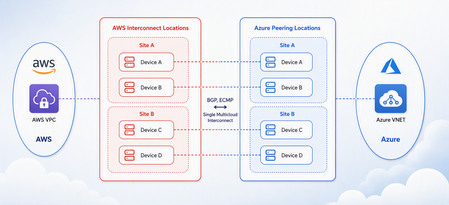
Multicloud is no longer the exception — it is how most enterprises operate. Teams run analytics in one cloud and applications in another, place workloads to meet data-residency requirements, and increasingly move large volumes of data between clouds to train and serve AI models. Yet the network that connects these environments has remained one of the hardest parts of a multicloud strategy to get right. Connecting Azure and AWS privately has traditionally meant stitching together Azure ExpressRoute, AWS Direct Connect, a connectivity provider or colocation footprint, customer-managed routers, BGP sessions, and link-layer encryption — then owning the resiliency design and day-to-day operations across all of it. The result is often slow to deliver, difficult to troubleshoot, and inconsistent in performance. Today, Microsoft and AWS are together introducing Azure Multicloud Interconnect, a jointly engineered, fully managed service that delivers private, high-throughput connectivity between Azure and AWS through a single logical resource. Both clouds coordinate provisioning, resiliency, encryption, and lifecycle operations, so the connection between your environments simply works — end to end. The challenge with connecting clouds today For most organizations, cross-cloud connectivity has been a build-it-yourself exercise. Establishing a private link between Azure and AWS typically requires provisioning an ExpressRoute circuit on one side and a Direct Connect circuit on the other, engaging a connectivity provider or securing space in a colocation facility to bridge them, and then configuring and maintaining the routers, BGP peering, and encryption that tie the two clouds together. Each of those pieces is owned by a different team or vendor, which makes the end-to-end path only as reliable as its least-managed component. When something breaks, isolating the root cause means coordinating across Microsoft, AWS, a network provider, and your own operations team — and mean time to resolution suffers as a result. Capacity planning is equally difficult: bandwidth is often provisioned for peak demand and left underused, while scaling up to meet a new AI or data initiative can take weeks. The outcome is a connectivity layer that is slow to stand up, expensive to operate, and hard to reason about — exactly the opposite of what a multicloud strategy is meant to deliver. Azure Multicloud Interconnect removes that complexity by turning cross-cloud connectivity into a managed service. What is Azure Multicloud Interconnect? Azure Multicloud Interconnect is a provider-managed, private intercloud connectivity service built on the proven foundations of Azure ExpressRoute and AWS Direct Connect. Instead of assembling and operating the underlying components yourself, you establish one interconnect resource and consume a private, dedicated path between your Azure and AWS environments. Under the covers, Microsoft and AWS coordinate the circuits, routing, and encryption on your behalf. You get the outcome you want — a reliable private connection between clouds — without becoming the systems integrator for it. Because the service builds on ExpressRoute and Direct Connect, it fits naturally into the connectivity models, tooling, and operational practices your teams already use in each cloud. One managed resource replaces a stack of circuits, routers, BGP sessions, and encryption you would otherwise build and operate yourself. Figure 1. Azure Multicloud Interconnect provides a single, managed private path between Azure and AWS, built on ExpressRoute and Direct Connect with a quad-redundant, 400G-class design and MACsec encryption. How it works Azure Multicloud Interconnect is engineered for the performance and availability that production and AI-scale workloads demand: A single logical connection. You provision and manage one interconnect resource. There are no customer-owned routers to rack, configure, or patch between the clouds. Quad-redundant, multi-site design. The data path is built across redundant devices and diverse sites — four Azure Microsoft Enterprise Edge (MSEE) routers and four AWS routers — so there is no single point of failure. High bandwidth backbone. A high-capacity LAG-based design provides the headroom needed for large-scale data movement and distributed AI traffic. Elastic bandwidth. Scale capacity up or down as demand changes, rather than provisioning for peak and paying for it year-round. Encryption by default. MACsec link-layer encryption is enabled automatically, so traffic between clouds is protected without extra configuration. Enterprise-ready networking. The service is IPv6-ready, supports APIPA addressing, and targets a 99.99% availability SLA. Routing and provisioning are coordinated by the platform, which removes the most common sources of cross-cloud connectivity errors — mismatched BGP configuration, inconsistent encryption settings, and asymmetric or fragile failover paths. A foundation you can trust Azure Multicloud Interconnect is not a new, unproven path — it extends two connectivity services that enterprises already rely on: Azure ExpressRoute and AWS Direct Connect. Both are private connectivity backbones trusted for mission-critical hybrid and cloud workloads, and the interconnect inherits their carrier-grade capacity, global edge presence, and operational maturity from day one. It also means your teams do not have to learn a separate model. The interconnect appears as a first-class resource governed by the identity, access, and monitoring controls each cloud already provides, and it can be automated with the tooling you use today. Extending trusted services, rather than introducing a parallel one, is what allows Microsoft and AWS to offer intercloud connectivity as a managed experience with confidence. Why this matters for your team Azure Multicloud Interconnect is designed to change the economics and the experience of running across clouds. Taken together, these benefits shift cross-cloud networking from a specialized, high-effort project to a repeatable, on-demand capability. Instead of dedicating senior engineers to build and babysit intercloud links, your team can direct that expertise toward the applications and data platforms that differentiate your business — while trusting that the connective tissue between clouds is reliable, secure, and ready to scale. Faster time to value. Turn up private Azure–AWS connectivity through a guided, managed workflow instead of a multi-week integration project spanning several vendors. Lower operational burden. Microsoft manages the infrastructure, resiliency, and lifecycle, so your networking team is freed from patching routers and diagnosing cross-cloud faults. Predictable, high performance. A dedicated, private path with high capacity that delivers the consistent throughput and low latency that public-internet or VPN paths cannot guarantee. Security you don’t have to assemble. Private connectivity plus default MACsec encryption keeps intercloud traffic off the public internet and protected in transit. A consistent experience in both clouds. Provision, monitor, and manage the interconnect using the native constructs and tooling your teams already rely on in Azure and AWS alike. Built for the way enterprises use multicloud “I've heard a very consistent message across many years of customer engagements - we are multi-cloud enterprise by design. With this announcement we are taking a burden on connecting clouds away from the customers." Igor Sakhnov, CVP Azure Networking Customers have told us where dedicated, managed intercloud connectivity makes the biggest difference. Azure Multicloud Interconnect is designed for scenarios such as: Distributed AI workloads. Move training data and model outputs between clouds at high throughput to feed pipelines wherever the compute lives. Large-scale data movement. Replicate datasets, back up across clouds, and support analytics that span Azure and AWS. Cross-cloud disaster recovery. Use a second cloud as a resilient recovery target over a private, reliable link. Hybrid and best-of-breed architectures. Run each application on the cloud that suits it best while keeping the connection between them private and performant. Regulated and sovereign workloads. Keep intercloud traffic on a private path to help meet data-residency and compliance requirements. Workload migration. Rehost or rebalance workloads between clouds without re-engineering connectivity for each move. Availability and what’s next Azure Multicloud Interconnect is launching first for Azure and AWS connectivity, the pairing customers ask about most often. Microsoft and AWS are starting with a preview so that you can validate the experience against your own architectures, with general availability to follow. This is the beginning of a broader journey. Building on existing multicloud connectivity capabilities, we plan to extend the managed interconnect model to additional clouds — including Google Cloud (coming soon)— so that a consistent, provider-managed experience can span your entire multicloud estate. As always, the roadmap will be guided by customer demand and real-world use. Our shared goal is simple: make the network the easiest part of your multicloud strategy, not the hardest. By delivering intercloud connectivity as a managed service, Microsoft and AWS want every organization — from a team moving its first dataset between clouds to an enterprise operating at AI scale — to connect Azure and AWS privately, securely, and with confidence, and to do it in minutes rather than months. Get started Learn more about Azure Multicloud Interconnect, Azure ExpressRoute, and AWS Direct Connect from Microsoft and AWS documentation, talk with your Microsoft or AWS account team about joining the preview, and tell us which cloud pairings and scenarios matter most for your organization. We are building this with your feedback. Azure Multicloud Interconnect is jointly delivered by Microsoft and AWS, built on Azure ExpressRoute and AWS Direct Connect. Feature availability, performance targets, and timelines may evolve as the service moves from preview to general availability.3.1KViews2likes0Comments
Announcing Public Preview - Azure Private Link over IPv6
1. Overview Private Link over IPv6 (PL IPv6) enables customers to securely access Azure PaaS services over IPv6-based connectivity. This capability is critical for: IPv6 based PE connectivity to PaaS resources Enabling IPv6 in On-prem environments This document is intended to serve as guide to setup and test the On-prem connectivity from IPv6 customer address to Azure PaaS resources over Express Route via Private link. (IPv6 PE connectivity) Note: This feature is currently in public preview and is not recommended for production workloads. 2. Supported Scenarios Scenario A: Native Azure (Azure VM → PaaS via IPv6 Private Endpoint) IPv6 client VM in VNet → IPv6 Private Endpoint → Azure PaaS Scenario B: OnPrem Access via ExpressRoute On-prem IPv6 client → ExpressRoute → VNet Routing Appliance (VNRA) à IPv6 Private Endpoint → PaaS Supported via ER Circuits 3. Prerequisites 3.1 Supported Regions (Preview Scope) Limited preview regions West Central US East Asia UK South US Central North Europe 3.2 Supported Services (Preview) Azure Storage Azure SQL Azure Key Vault Azure Data Explorer 3.3. Subscription registration An Azure account with an active subscription. Create an account for free. Your subscription must be registered for the Private Link over IPv6 preview. Registration is mandatory before you configure any resources. You can self-register the subscription by running the following commands: az feature register --namespace Microsoft.Network --name SupportIPv6PrivateEndpoint --subscription <subscription-id> az provider register --namespace Microsoft.Network 4. Configurations 4.1 Azure VNET level configurations Please note that you will need to create: Dual-stack IPv6-enabled Vnet with a VM that is assigned both IPv4 and IPv6 address. For on-prem connectivity, this is the same Vnet where ER Gateway is created. Refer: Create an Azure virtual machine with a dual-stack network - Azure Virtual Network | Microsoft Learn PL scale enabled on VNET via configuration flags (refer config flags mentioned further in this section and bolded flags in the code snippet) Dual Stack (IPv4+ IPv6) Subnet Private Endpoints with IPv6 Refer these flags for enabling VNET with PL scale: Vnet level : "privateEndpointVNetPolicies": "Basic", Subnet level: “privateEndpointNetworkPolicies": "RouteTableEnabled" Refer Azure documentation for VNET creation: Quickstart: Create an Azure Virtual Network | Microsoft Learn 4.3 Private endpoint configuration: With the Private Link IPv6 support, we have introduced a new parameter in PE creation API/CLI, ‘ip VersionType’. Please ensure that this is set to ‘IPv6’ for enabling PL IPv6 traffic. Refer Azure documentation for PE creation: Quickstart: Create a private endpoint - Azure portal - Azure Private Link | Microsoft Learn Reference CLI: az network private-endpoint create \ --name <private-endpoint-name> \ --resource-group <resource-group-name> \ --vnet-name <vnet-name> \ --subnet <subnet-name> \ --private-connection-resource-id <resource-id-of-target-service> \ --group-id <group-id> \ --connection-name <connection-name> \ --location <region> \ --ip-version-type <Ipv4|Ipv6 > 4.4 DNS Configuration Ensure these points for DNS configurations: Create Private DNS Zone for each Service type Attach the respective DNS zone to the Private Endpoints. Ensure to check that after above steps completed PaaS FQDN resolves to PEIPv6 address. Refer Azure documentation for On-prem access via Private Link: Azure Private Endpoint DNS Integration Scenarios | Microsoft Learn Native Azure Connectivity (Azure VM → PaaS via IPv6) Validation: Ensure the Storage Account FQDN resolves to the IPv6 Private Endpoint address. Access the Storage Account using the standard service FQDN. From the dual-stack VM: nslookup <storageaccount>.blob.core.windows.net Expected Result: <storageaccount>.privatelink.blob.core.windows.net AAAA: <Private Endpoint IPv6 Address> Connectivity validation: curl https://<storageaccount>.blob.core.windows.net Test-NetConnection <storageaccount>.blob.core.windows.net -Port 443 Configurations specific to On-prem connectivity via ER circuit and Virtual Network Routing Appliance On-premises IPv6 clients access IPv6 private endpoints over ExpressRoute through a Virtual Network Routing Appliance (VNRA). ExpressRoute forwards traffic from on-premises IPv6 clients to the VNRA, which then routes the traffic to the target IPv6 private endpoint that's hosted by the Azure PaaS service. This connectivity requires the following components: An ExpressRoute circuit with the appropriate gateway SKU for your connectivity type (FastPath or standard). For more information, see Create and modify an ExpressRoute circuit. 4.5 Virtual Network Routing Appliance (VNRA) configurations To know more about VNRA, refer: Overview of Routing Appliances - Azure Virtual Network | Microsoft Learn We are leveraging VNRA to facilitate PL IPv6 ER traffic forwarding. User would be required to create a VNRA in the VNet. To facilitate the forwarding of PL IPv6 traffic via VNRA, a UDR would be required to be added in the gateway subnet with next hop as VNRA IPv6 address. Below are the guided steps to achieve all of this. Step 1: Create a VNRA in the VNet Create a VNRA in your resource group via Azure Preview portal. Search for Azure Virtual Network routing appliance on the Azure portal search Click on create: In the above creation page, choose your subscription and resource group, enter name, region, capacity (10-200 Gbps) & the VNet. Review and Create the VNRA. Step 2: Create User Defined Route (UDR) to VNRA The UDR will ensure ER PLIPv6 traffic is forwarded to VNRA which will further process & forward the traffic to the IPv6 Private Endpoint. 1.Create a new route table on Azure portal: 2. Choose the subscription, resource group and set ‘Gateway propagation’ as default (true) 3. Add a route in this route table to forward the on-prem PLIPv6 traffic to VNRA (for this please add route as shown in reference below) as per below details: Enter ‘Destination type’ as ‘IP Address’ Enter ‘Destination IP addresses/CIDR Ranges’ as Private Endpoint IPv6 subnet range - This is the subnet on which your Private Endpoint resides to which the traffic would be sent Enter ‘Next hop’ as “Virtual Appliance”, Give the ‘Next hop address’ as the IPv6 address of VNRA 4.Attach this route table to the Gateway subnet This completes the VNRA setup. 5. Validate Connectivity After establishing configuration and deploying your setup, you can run following validations: From OnPrem VM: Perform DNS lookup on PaaS FQDN → confirm IPv6 PE resolution Connect using PaaS FQDN Validation Checks VM → PE connectivity over IPv6 Data plane traffic successful 6. Preview Considerations Limited regional availability (Check preview regions above) Destination PaaS resource must be in the same region as the Private Endppint. Cross region connectivity is not supported in this release. Limited PaaS onboarding (Azure Storage, Azure SQL, Azure Key Vault, Azure Data Explorer) Current on-premises connectivity support is limited to ExpressRoute-based scenarios and does not currently include VPN, Virtual WAN (vWAN), or Network Virtual Appliances (NVAs). In Private Link IPv6 scenarios, the original client IPv6 address is not preserved in downstream service logs. Due to implicit NAT translation, logs will display the VNet-side translated source IP address instead. Link to Azure documentation: Configure Azure Private Link over IPv6 (Preview) - Azure Private Link | Microsoft Learn409Views0likes0Comments
Migrating from MSEE Hairpin Routing to AVNM Mesh for Large-Scale VNet-to-VNet Connectivity
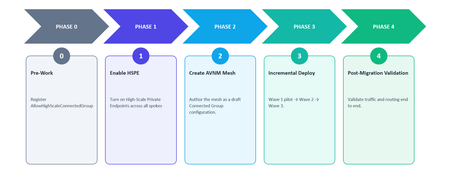
Introduction A common pattern in large Azure deployments is to route VNet-to-VNet traffic through Microsoft Enterprise Edge (MSEE) routers. This happens when spoke VNets in a hub-and-spoke topology communicate with each other by hairpinning through the ExpressRoute circuit: traffic exits the Azure data center, traverses MSEE, and re-enters the data center to reach the destination VNet. This pattern works, but it was not designed as the long-term connectivity model for east-west traffic. With Azure Virtual Network Manager (AVNM) mesh connectivity and recent scale improvements — including high-scale mesh up to 5,000 VNets and High-Scale Private Endpoints (HSPE) up to 20,000 Private Endpoints across connected VNets — enterprises can migrate to a direct, in-datacenter routing model that removes MSEE dependency for VNet-to-VNet traffic. This article explains why the migration is useful, what the new scale limits are, how to enable the required features, and how to execute the migration with minimal disruption. Who This Is For This migration is most relevant if you have 50 or more spoke VNets communicating east-west through ExpressRoute hairpin routing, are approaching VNet peering limits, want to reduce ExpressRoute utilization from internal traffic, or need a simpler centrally managed connectivity model. Even if most east-west flows must continue through a hub firewall for inspection, you can still simplify connectivity management for the flows allowed to go direct. Why MSEE Hairpin Routing for VNet-to-VNet Is Not Recommended When spoke VNets communicate through MSEE, traffic follows a suboptimal path: Spoke A → Hub VNet → ExpressRoute Gateway → MSEE → ExpressRoute Gateway → Hub VNet → Spoke B Single point of failure. MSEE becomes a shared dependency for east-west traffic. An MSEE outage or capacity constraint can affect every VNet pair in the topology. Lower-latency path. Traffic no longer needs to leave the data center and return for spoke-to-spoke communication. Direct mesh keeps east-west traffic on an in-datacenter path, which is generally lower latency than hairpinning through MSEE. Bandwidth constraints. MSEE circuits have finite bandwidth. Routing east-west traffic through them competes with north-south on-premises traffic and can saturate the circuit. Operational risk at scale. Large deployments place significant load on MSEE infrastructure, creating scalability, reliability, and operational concerns for environments with thousands of VNets. Why Manual Peering Was Not a Practical Alternative The obvious alternative — creating direct VNet peerings between every spoke pair — solves the MSEE dependency but introduces its own operational complexity: Combinatorial growth. Connecting N spokes requires N × (N - 1) / 2 peering relationships. For 100 spokes, that is 4,950 peerings. For 1,000 spokes, it is nearly 500,000. Management overhead. Each peering must be individually provisioned, monitored, and maintained. This increases drift, audit, and operational overhead. How AVNM Mesh Solves This AVNM mesh provides group-based connectivity. You define a set of VNets as a network group, apply a mesh connectivity configuration, and AVNM establishes bi-directional connectivity across all members. Traffic between meshed VNets stays within the Azure data center: no MSEE traversal, no hub hop, and no manual peering management. Define once, connect all. A single mesh configuration connects every VNet in the group to every other VNet. Centralized management. Add or remove VNets from the group; AVNM reconciles connectivity automatically. Direct spoke-to-spoke paths. Traffic flows directly between VNets, bypassing both the hub and MSEE. Dynamic membership. Use Azure Policy to auto-enroll new VNets based on tags or resource group conditions. How to Migrate Large Scale Topology High-scale mesh lets user migrate larger topology — up to 5,000 VNets and 20,000 Private Endpoints in a mesh. Scale — Standard Mesh vs. High-Scale Mesh Dimension Standard Mesh High-Scale Mesh VNets per mesh Up to 250 (soft limit, can request increase) Up to 5,000 Private Endpoints per mesh Up to 2,000 Up to 20,000 (with HSPE enabled) Private Endpoints per VNet Up to 1,000 Up to 5,000 (with HSPE enabled) Enabling High-Scale Private Endpoints (HSPE) As a mesh footprint grows, so does the number of Private Endpoints deployed across the connected VNets. The default platform limits — 1,000 Private Endpoints per VNet and 2,000 across connected VNets and mesh — can be reached quickly in large environments. Enabling HSPE raises these limits to 5,000 and 20,000, respectively. For large-scale mesh migrations, enable HSPE proactively if the environment is expected to grow toward standard Private Endpoint limits by following the steps below. Step 1 — Prepare Each VNet Ensure Private Endpoint Network Policies are set to Enabled or RouteTableEnabled on all subnets containing Private Endpoints. This is a prerequisite. Set the VNet-level property PrivateEndpointVNetPolicies to Basic. This activates HSPE on the VNet. Step 2 — Enable HSPE on the Mesh Configuration In the AVNM mesh connectivity configuration, enable the option for high-scale private endpoints. AVNM validates that all VNets in the mesh are HSPE-enabled. If any VNet is missing the configuration, the deployment is blocked with a clear error. Step 3 — Deploy Deploy the connectivity configuration. AVNM applies HSPE across the mesh. Behavior Changes When Enabling HSPE Brief connection reset. Enabling or disabling HSPE triggers a one-time, approximately 1-second connection reset for existing Private Endpoint connections in the VNet. Plan this during a maintenance window. Per-PE Bytes In / Out monitoring is no longer available. HSPE treats each Private Endpoint IP like any other IP in the VNet, which removes per-PE traffic counters. If you depend on per-PE metrics, evaluate alternatives before enabling. On-premises PE traffic billing changes. PE traffic originating from on-premises appears as an aggregate bill on the gateway VNet, not on the individual Private Endpoint resource. The total bill does not change. How to Avoid Downtime Mesh coexists with existing peerings. AVNM does not delete manually created peerings unless explicitly configured to do so. Traffic shifts automatically. Once mesh is deployed, spoke-to-spoke traffic routes directly. The MSEE hairpin path remains available if mesh is removed. No reconfiguration of hub components. Firewalls, gateways, and NVAs in the hub continue to function. North-south on-premises traffic still flows through the hub gateway. Rollback is simple while the legacy path remains. Keep the MSEE hairpin path in place during validation so affected VNets can fall back by removing them from the network group or undeploying the mesh configuration. Security and East-West Traffic Inspection A common concern is whether direct mesh connectivity bypasses hub firewalls or network virtual appliances. The answer depends on how inspection is enforced today. Mesh provides connectivity, not routing policy. If spoke subnets have UDRs that direct traffic through a hub NVA or firewall, those UDRs continue to apply and can keep inspected flows on the firewall path. Security Admin Rules provide centralized segmentation. For flows that do not require firewall inspection, AVNM Security Admin Rules can enforce network-level allow or deny policies across network groups. Use both where appropriate. Mesh can provide direct connectivity for approved flows while Security Admin Rules enforce segmentation boundaries where required. Recommendation: Before migrating, inventory which spoke-to-spoke flows currently traverses the firewall. Decide per flow whether to maintain inspection by keeping UDRs in place or allowing a direct mesh path by removing the UDR for that flow pair. Migration Order and Process The migration from MSEE hairpin routing to AVNM mesh is non-disruptive by design. Mesh connectivity overlays on top of existing peerings and takes routing precedence for east-west traffic. You do not need to tear down the existing hub-and-spoke topology first. Recommended Steps Design the mesh topology. Group VNets by region into mesh groups. If you expect more than 250 VNets per mesh, register the AllowHighScaleConnectedGroup feature in advance. Create a Network Manager and define Network Groups. Ensure that the AVNM scope covers all relevant subscriptions. Use static membership for initial migration or dynamic membership through Azure Policy for ongoing enrollment. Enable HSPE on every VNet in the mesh. Follow the HSPE enablement steps if you need to have more than 2,000 Pes in a mesh. Schedule the change during a maintenance window to account for the brief connection reset. Create the mesh connectivity configuration in AVNM. Select the network groups, enable mesh topology, enable high-scale private endpoints, and enable global mesh if cross-region connectivity is required. Deploy incrementally. Start with a pilot region or non-critical environment. Validate effective routes, spoke-to-spoke connectivity, spoke-to-hub-to-on-premises connectivity, Private Endpoint reachability, and expected VNet flow log patterns before expanding to production regions. Route Behavior During and After Migration During migration, mesh and MSEE can coexist. Mesh-connected VNets receive direct routes for mesh-connected destinations, while existing ExpressRoute gateway routes continue to serve on-premises destinations. UDRs still override system routes, so forced-tunneling and firewall inspection patterns remain in effect when UDRs are present. Mesh destinations. Traffic between mesh-connected VNets goes directly instead of hairpinning through MSEE when no UDR overrides the route. On-premises destinations. ExpressRoute continues to provide north-south connectivity to on-premises networks. Gateway transit. Spokes can continue to reach on-premises through the hub gateway when the design uses gateway transit. Infrastructure-as-Code Considerations If VNet peerings are managed through Terraform, Bicep, or ARM templates, treat AVNM mesh as the new source of truth only after validation. Deploy mesh first. AVNM mesh can coexist with existing peerings, so do not remove peering resources from IaC before validating the mesh path. Validate the traffic path. Use effective routes, Connection Monitor, and flow logs to confirm traffic is using mesh where expected. Guard against drift. Review pipeline state and lifecycle settings before decommissioning old peerings, especially in environments where multiple teams manage network resources. Codify AVNM. Manage the Network Manager, network groups, configuration, and deployment through IaC so mesh becomes the governed connectivity model. DNS Resolution Across Mesh Mesh connectivity does not change DNS resolution behavior by itself. If spoke VNets are already linked to Private DNS Zones hosted or managed through the hub, those links continue to determine name resolution. If spokes use custom DNS servers in the hub, verify that any UDR changes made during migration do not unintentionally alter the DNS traffic path. Migration Example — Two Hub-and-Spoke Topologies into a Single Mesh This example shows how an enterprise can migrate two regional hub-and-spoke environments into one centrally managed AVNM mesh while preserving the existing MSEE path during validation. Current State — Two Hub-and-Spoke Topologies with MSEE Hairpin Contoso Corp operates a large Azure environment in the East US region with two hub-and-spoke topologies: Topology A Topology B Hub VNet Hub-A Hub-B Spoke VNets 500 500 ExpressRoute Gateway ER-GW-A in Hub-A ER-GW-B in Hub-B ExpressRoute Circuit Shared circuit, connected to both gateways Same shared circuit Avg. Private Endpoints per spoke ~8 (4,000 total) ~12 (6,000 total) Total Private Endpoints 10,000 across both topologies How traffic flows today: Spoke-to-spoke within Topology A: Spoke-A-01 → Hub-A → ER-GW-A → MSEE → ER-GW-A → Hub-A → Spoke-A-02 Spoke-to-spoke across topologies: Spoke-A-01 → Hub-A → ER-GW-A → MSEE → ER-GW-B → Hub-B → Spoke-B-01 Every spoke-to-spoke packet — whether within the same topology or across topologies — exits the data center, traverses MSEE, and re-enters. With 1,000 spokes generating east-west traffic, MSEE becomes a shared single point of failure and adds latency to every flow. Target State — A Single AVNM Mesh with 1,000 VNets Contoso's goal is to consolidate all 1,000 spoke VNets into a single AVNM mesh, removing MSEE from the east-west traffic path. Spoke-to-spoke traffic, any pair: Spoke-A-01 → directly→ Spoke-B-01. Traffic stays in the data center and uses the direct mesh path. MSEE role: MSEE carries north-south on-premises traffic. East-west load is removed from the ExpressRoute hairpin path. Migration Execution Phase 0 — Pre-Work Register the feature. Since the mesh contains 1,000 VNets, above the 250 standard limit, Contoso registers the AllowHighScaleConnectedGroup feature flag on the subscription. This enables high-scale mesh support for up to 5,000 VNets. Inventory Private Endpoints. With 10,000 Private Endpoints across 1,000 VNets, Contoso exceeds the standard mesh Private Endpoint limit of 2,000. HSPE must be enabled. Phase 1 — Enable HSPE on All 1,000 Spoke VNets Batch 1: Enable HSPE on all 500 spoke VNets in Topology A during the maintenance window by following the instructions. Batch 2: Apply the same configuration to all 500 spokes in Topology B. Expected impact: Each VNet may experience a brief connection reset for existing Private Endpoint connections when HSPE is enabled. Schedule the change during a maintenance window. Phase 2 — Create the AVNM Mesh Create a Network Manager scoped to the management group containing all 1,000 spoke VNets. Define a single network group called eastus-mesh-all-spokes with dynamic membership using an Azure Policy and the tags. Create a mesh connectivity configuration. Set topology to Mesh, network group to eastus-mesh-all-spokes, high-scale private endpoints to Enabled, and global mesh to Not needed because all VNets are in the same region. Save the configuration as a draft and do not deploy yet. Phase 3 — Incremental Deployment Wave 1 — Pilot: Contoso deploys the mesh configuration to 50 dev/test spokes, either by using a temporary network group or by tagging only those VNets initially. Validation includes effective routes showing ConnectedGroup as the next-hop type for meshed spoke prefixes, spoke-to-spoke connectivity through the direct mesh path, Private Endpoint reachability across meshed spokes, unchanged on-premises connectivity through the hub and MSEE, and VNet flow logs that confirm expected direct spoke-to-spoke flows. Wave 2 — Light production traffic VNets: After a successful pilot, Contoso tags light production traffic VNets. The dynamic network group picks them up automatically. Contoso redeploys the connectivity configuration, runs the same validation checklist, and monitors traffic to confirm that east-west traffic from these VNets is moving away from the ExpressRoute hairpin path. Wave 3 — All remaining production VNets: Contoso tags all remaining spokes and redeploys the configuration. At this point, all 1,000 spokes are in the mesh. No downtime migration: During Waves 2 and 3, existing MSEE hairpin routing remains functional. VNets not yet in the mesh continue to communicate through MSEE. VNets already in the mesh communicate directly through the mesh. This avoids a planned connectivity gap during migration. Phase 4 — Post-Migration Validation After deployment, confirm that mesh is active and traffic is taking the expected path before decommissioning the legacy route. Effective routes. Verify spoke subnets show direct routes to peer VNet prefixes instead of routing through the gateway or MSEE. Connection Monitor. Track representative spoke-to-spoke flows and compare latency and reachability before and after migration. VNet flow logs. Confirm east-west traffic matches the expected mesh path and is not still traversing the ExpressRoute gateway path. Network Watcher topology. Visualize the resulting connectivity model and identify any VNets not enrolled in the target network group. If traffic is still hairpinning after mesh deployment, check for UDRs overriding system routes, spokes missing from the network group, deployment not committed to the target region, or IaC pipelines recreating legacy peerings. Rollback Quick rollback while MSEE remains in place. Remove affected VNets from the network group or undeploy the mesh connectivity configuration. AVNM removes only the connectivity it created, and traffic can fall back to the existing MSEE hairpin path. Rollback after decommissioning legacy paths. If old peerings or route dependencies have already been removed, rollback may require reprovisioning those resources and should be treated as a longer change window. Recommendation. Keep the MSEE hairpin path available for at least two weeks after mesh deployment, monitor traffic patterns, and only then remove the legacy path. Before and After Summary Metric Before (MSEE Hairpin) After (AVNM HSPE Mesh) Spoke-to-spoke latency in the same region Higher due to the MSEE hairpin path Lower-latency direct in-datacenter path; actual latency depends on workload, region, and network conditions Traffic path for east-west Spoke → Hub → MSEE → Hub → Spoke Spoke → Spoke directly through the Mesh MSEE dependency for east-west Yes, shared dependency No MSEE dependency for east-west traffic Manual peerings required 0 when using hairpin routing, but 499,500 if built manually for 1,000 spokes 0 manual spoke-to-spoke peerings; AVNM manages connectivity Private Endpoints supported 2,000 per mesh under standard limits 20,000 per mesh with HSPE Rollback complexity Not applicable to the current hairpin model Remove VNets from the network group or undeploy the connectivity configuration Migration downtime Not applicable Designed for no planned downtime when deployed incrementally and validated carefully Closing Notes Migrating to AVNM mesh does not require tearing down your existing network. The hub gateway, firewalls, and NVAs continue to function as they do today. What changes is that east-west spoke-to-spoke traffic stops leaving the data center unnecessarily. MSEE is not the right tool for the east-west fabric. Removing internal traffic from the ExpressRoute circuit is a reliability and capacity improvement. AVNM mesh replaces combinatorial complexity with group-based intent. The operational model scales with the number of groups, not the number of VNets. High-scale mesh and HSPE remove the ceiling — up to 5,000 VNets and 20,000 Private Endpoints per mesh. The migration is incremental and reversible. Mesh coexists with existing paths, and you can validate wave by wave before decommissioning the legacy route. Start with a pilot mesh in a non-critical environment, validate the traffic shift, and expand from there. Resources Connectivity configurations in Azure Virtual Network Manager Increase Private Endpoint virtual network limits Create a mesh topology with Azure Virtual Network Manager Security admin rules in Azure Virtual Network Manager Create a mesh network topology with Azure Virtual Network Manager using Terraform503Views0likes0CommentsSummarized Gateway Prefixes for Route Advertisement in Azure Virtual Networks
Background Many Azure deployments follow a hub-and-spoke topology: one VNet is designated as the hub and holds the connection to on-premises (via ExpressRoute Gateway, VPN Gateway, or both), and workload VNets — the spokes — peer to the hub to reach on-premises and shared services. This centralizes gateway connectivity so many workloads can share a single ExpressRoute or VPN Gateway. However, in large hub-and-spoke topologies, ExpressRoute and VPN Gateway limits on advertised prefixes (for example, 1,000 IPv4 and 100 IPv6 prefixes) can be reached. Because each spoke adds its own address prefixes to that count, these limits are approached quickly, constraining how far the topology can scale. What's New With Summarized Gateway Prefixes, customers can now advertise a single covering prefix (for example, 10.0.0.0/16) instead of many smaller CIDRs (for example, multiple /24s) – dramatically reducing advertised route count and enabling larger-scale Azure environments. A new property, summarizedGatewayPrefixes, is now available on the Virtual Network resource in public preview. When configured on a hub VNet, it controls what your ExpressRoute Gateway and VPN Gateway advertise to on-premises, replacing the default behavior of advertising all individual hub and spoke VNet CIDRs with a set of aggregated prefixes you define. For example, instead of advertising 10.0.1.0/24, 10.0.2.0/24, 10.0.3.0/24, and so on for each spoke, you can advertise a single 10.0.0.0/16. Key Benefits Fewer advertised routes — Replace hundreds of individual spoke CIDRs with a small set of summarized prefixes. Scales with your topology — Supports deployments with 500+ spokes without requiring address plan redesigns or VNet splits. IPv4 and IPv6 — Summarize both address families. Works with both gateway types — Supported on ExpressRoute Gateway and VPN Gateway. Simple configuration — A single property on the VNet resource. No additional services or dependencies. Backward compatible — If the property is left empty, behavior is unchanged: all hub and peered spoke address spaces are advertised as before. How It Works Default behavior ExpressRoute Gateway and VPN Gateway advertise all address spaces of the hub VNet and all address spaces of peered spoke VNets to on-premises. With summarizedGatewayPrefixes configured The gateways advertise the summarized prefixes instead of the hub VNet's individual address spaces. For each peered spoke, if the spoke's address space falls within a summarized prefix, the spoke's individual CIDRs are suppressed from advertisement. Spoke address spaces not covered by a summarized prefix continue to be advertised individually. Example: Without Summarization With Summarization 10.0.1.0/24, 10.0.2.0/24, 10.0.3.0/24, … 10.0.0.0/16 Hundreds of prefixes One prefix Getting Started Open the hub VNet (the VNet containing your GatewaySubnet) in the Azure portal. Go to Address space → Advertised gateway prefixes. Add one or more IPv4 or IPv6 CIDR prefixes that cover the address spaces you want to summarize. Navigate to your virtual network and verify that the summarized prefixes appear. Things to Know The property is set on the hub VNet (the VNet with the GatewaySubnet). The summarized prefixes list can include prefixes outside the VNet's own address space. Avoid overlap among prefixes within the list, but overlap with peered VNet address spaces is expected in hub-and-spoke designs. For dual-stack (IPv4 + IPv6) VNets, define both IPv4 and IPv6 summarized prefixes explicitly.1.5KViews2likes0Comments
Azure ExpressRoute - Cisco Meraki MX or directly into LAN?
We are in the process of deploying Azure ExpressRoute across multiple sites via a provider Layer 2 VPLS circuit and are evaluating our CPE options. Our provider is delivering a Layer 2 handoff to each site, meaning we are responsible for all Layer 3 BGP configuration on the customer edge. We currently run a full Cisco Meraki environment — Meraki MX appliances as our edge firewalls and Meraki MS switches on the LAN side — and are wondering if anyone has successfully terminated an ExpressRoute BGP session directly on a Meraki MX, or alternatively terminated it directly into the LAN without a dedicated edge router in between. Terminating ExpressRoute BGP directly on a Meraki MX appliance — is this even possible given Meraki's limited BGP support? Connecting the Layer 2 provider handoff (dot1Q or QinQ) directly into a Meraki MS LAN switch and routing from there — has anyone made this work, and what were the caveats? Running a dedicated CPE router in front of the Meraki MX — and if so, how did you handle the integration between the CPE router and the Meraki SD-WAN fabric, particularly around route advertisement and traffic steering? Our provider model uses QinQ VLAN tagging with a provider-assigned S-tag and customer-defined C-tags for private and Microsoft peering. Since the provider is only delivering Layer 2, all BGP session establishment, prefix advertisement, and routing policy must be handled entirely on our CPE. Our understanding is that Meraki MX does not support QinQ subinterfaces or the level of BGP policy control needed for ExpressRoute, but we wanted to see if anyone has found a creative workaround before we commit to dedicated CPE hardware at each site. Device recommendations welcome: If a dedicated CPE router is the only viable path, we'd also love to hear what devices others have used successfully for this use case. Our circuit is 1Gbps, so we need something that can handle that throughput comfortably with BGP active — but we're a mid-size enterprise and are looking for cost-effective options rather than carrier-grade platforms. What has worked well for you without breaking the budget? Any real-world experience, gotchas, or recommended architectures would be greatly appreciated, especially from anyone running a Meraki-only environment who has tackled this!190Views0likes2Comments
Connecting an ExpressRoute circuit to Megaport Virtual Edge
Megaport is an ExpressRoute partner in many locations. The Megaport Cloud Router (MCR) allows ExpressRoute customers to connect leased lines to their on-premise locations, and to connect other Cloud Providers. MCR is easy to set up and operate, it even automatically configures the ExpressRoute Private Peering on both the Megaport and Azure sides, but it does not have a command line interface and does not permit advanced configuration. For advanced scenario's, Megaport Virtual Edge (MVE) provides a platform to run fully configurable Network Virtual Appliances (NVAs) from a variety of vendors. This post describes how to connect ExpressRoute to MVE running a Cisco 8000v NVA. Create the Expressroute Circuit In the Azure portal, create an ExpressRoute circuit with Standard Resiliency in a Peering location where Megaport is available. When the circuit deployment is completed, copy the Service key. Create MVE and ExpressRoute connections Log in to the Megaport management portal, go to Services and click Create MVE. Select Cisco C8000 as the Vendor / Product. On the next screen: Select the Location where the MVE is to be deployed - use the ExpressRoute peering location. Select the MVE size. On the following screen: Select Autonomous under Appliance Mode. Paste a 2048-bit RS SSH public key in the box. Under Virtual Interfaces (vNICs), add vNICs as needed. One ExpressRoute circuit requires 2 vNICs, one for each path. vNIC0 will be used to connect a Megaport Internet VXC for SSH access to the device. On the following screen, give the MVE a name under Finalize Details in the left bar, verify the Summary, and and click Add MVE. Clicking Create Megaport Internet in the pop up that now appears lets you directly to provision an internet VXC: Select the location with the lowest latest latency to the MVE - this will be at the top of the list. On the next screen: Leave the name as proposed or change as needed. Set Rate Limit to 20 Mbps (lowest possible, this is for SSH access only). Leave A-vNIC set to vNIC-0. Leave Preferred A-End VLAN at Untagged. On the next screen verify the configuration and click Add VXC. On the main Services page, the MVE and Internet VXC now show with the note "Order pending". Click +Connection in the MVE box to connect a VXC to the ExpressRoute Circuit. Under Choose Destination Type select Cloud. Then select Microsoft Azure as the Provider. Paste in the circuit's Service Key and select Port for the Primary path. Click Next. On the next screen: Give the connection a name. Leave the Rate Limit as proposed, this is set to the bandwidth of the circuit. At A-end vNIC, select vNIC-1 (do not leave this at vNIC-0!). At Preferred A-End VLAN, turn off Untag and enter a VLAN number. This will be used to set the sub-interface in the MVE configuration later. Scroll down to Azure peering VLAN. Leave Configure Azure Peering VLAN turned on. Enter the same VLAN ID that will be used in the configuration of the Private Peering on the Azure end. Click Next. Verify the configuration summary and click Add VXC. Repeat the process to add the Secondary path, terminating on vNIC-2. Enter a different VLAN ID for Preferred A-End VLAN. Enter the same VLAN ID that will be used in the Private Peering under Azure peering VLAN. When the second ExpressRoute VXC is configured, click Review Order in the right hand bar of the Services screen. When the validation completes, click Order Now. This will provision the MVE and the VXC. It will take a few minutes for all services to come up. In the Azure portal, the Provider Status of the ExpressRoute circuit will change to Provisioned. Configure Private Peering Go back to the ExpressRoute circuit in the Azure portal. The Provider Status will now be Provisioned, and the Private Peering can be enabled. Click on Peerings under Settings and then click Azure private. Enter the Peer ASN and Primary and Secondary subnets. Under VLAN ID enter the same number as configured under Azure Peering VLAN in the Primary and Secondary VXC configurations in the Megaport portal. Configure Cisco IOS Establish an SSH session to the MVE. Use the public ip address from the internet VXC, and the private key that belongs with the public key used when deploying the MVE. ssh -i <private-key-file> mveadmin@<public ip> Configure interfaces: interface GigabitEthernet2 no ip address no shutdown negotiation auto ! interface GigabitEthernet2.100 encapsulation dot1Q 100 ip address 192.168.0.1 255.255.255.252 ! interface GigabitEthernet3 no ip address no shutdown negotiation auto ! interface GigabitEthernet3.101 encapsulation dot1Q 101 ip address 192.168.0.5 255.255.255.252 Use the Preferred A-end VLAN values set in the primary and secondary VXCs to configure the encapsulation on the subinterfaces. Use the lower address of the /30 subnets configured on the Private Peering. The higher IP addresses of the Private Peering should now respond to ping: ping 192.168.0.2 Type escape sequence to abort. Sending 5, 100-byte ICMP Echos to 192.168.0.2, timeout is 2 seconds: !!!!! Success rate is 100 percent (5/5), round-trip min/avg/max = 1/1/1 ms If ping does not work there likely is an ARP resolution issue. Run `show arp` and `debug arp` and check the ARP table of the Private Peering. Configure BGP: router bgp 64000 bgp log-neighbor-changes neighbor 192.168.0.2 remote-as 12076 neighbor 192.168.0.2 soft-reconfiguration inbound neighbor 192.168.0.6 remote-as 12076 neighbor 192.168.0.6 soft-reconfiguration inbound Verify both neighbors show BGP state = Established: sh ip bgp neighbor 192.168.0.2 BGP neighbor is 192.168.0.2, remote AS 12076, external link BGP version 4, remote router ID 192.168.0.2 BGP state = Established, up for 1d21h ... This completes the basic configuration of ExpressRoute to MVE.522Views2likes1CommentExpressRoute Gateway Microsoft initiated migration
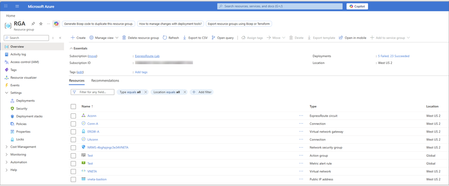
Important: Microsoft initiated Gateway migrations are temporarily paused. You will be notified when migrations resume. Objective The backend migration process is an automated upgrade performed by Microsoft to ensure your ExpressRoute gateways use the Standard IP SKU. This migration enhances gateway reliability and availability while maintaining service continuity. You receive notifications about scheduled maintenance windows and have options to control the migration timeline. For guidance on upgrading Basic SKU public IP addresses for other networking services, see Upgrading Basic to Standard SKU. Important: As of September 30, 2025, Basic SKU public IPs are retired. For more information, see the official announcement. You can initiate the ExpressRoute gateway migration yourself at a time that best suits your business needs, before the Microsoft team performs the migration on your behalf. This gives you control over the migration timing. Please use the ExpressRoute Gateway Migration Tool to migrate your gateway Public IP to Standard SKU. This tool provides a guided workflow in the Azure portal and PowerShell, enabling a smooth migration with minimal service disruption. Backend migration overview The backend migration is scheduled during your preferred maintenance window. During this time, the Microsoft team performs the migration with minimal disruption. You don’t need to take any actions. The process includes the following steps: Deploy new gateway: Azure provisions a second virtual network gateway in the same GatewaySubnet alongside your existing gateway. Microsoft automatically assigns a new Standard SKU public IP address to this gateway. Transfer configuration: The process copies all existing configurations (connections, settings, routes) from the old gateway. Both gateways run in parallel during the transition to minimize downtime. You may experience brief connectivity interruptions may occur. Clean up resources: After migration completes successfully and passes validation, Azure removes the old gateway and its associated connections. The new gateway includes a tag CreatedBy: GatewayMigrationByService to indicate it was created through the automated backend migration Important: To ensure a smooth backend migration, avoid making non-critical changes to your gateway resources or connected circuits during the migration process. If modifications are absolutely required, you can choose (after the Migrate stage complete) to either commit or abort the migration and make your changes. Backend process details This section provides an overview of the Azure portal experience during backend migration for an existing ExpressRoute gateway. It explains what to expect at each stage and what you see in the Azure portal as the migration progresses. To reduce risk and ensure service continuity, the process performs validation checks before and after every phase. The backend migration follows four key stages: Validate: Checks that your gateway and connected resources meet all migration requirements for the Basic to Standard public IP migration. Prepare: Deploys the new gateway with Standard IP SKU alongside your existing gateway. Migrate: Cuts over traffic from the old gateway to the new gateway with a Standard public IP. Commit or abort: Finalizes the public IP SKU migration by removing the old gateway or reverts to the old gateway if needed. These stages mirror the Gateway migration tool process, ensuring consistency across both migration approaches. The Azure resource group RGA serves as a logical container that displays all associated resources as the process updates, creates, or removes them. Before the migration begins, RGA contains the following resources: This image uses an example ExpressRoute gateway named ERGW-A with two connections (Conn-A and LAconn) in the resource group RGA. Portal walkthrough Before the backend migration starts, a banner appears in the Overview blade of the ExpressRoute gateway. It notifies you that the gateway uses the deprecated Basic IP SKU and will undergo backend migration between March 7, 2026, and April 30, 2026: Validate stage Once you start the migration, the banner in your gateway’s Overview page updates to indicate that migration is currently in progress. In this initial stage, all resources are checked to ensure they are in a Passed state. If any prerequisites aren't met, validation fails and the Azure team doesn't proceed with the migration to avoid traffic disruptions. No resources are created or modified in this stage. After the validation phase completes successfully, a notification appears indicating that validation passed and the migration can proceed to the Prepare stage. Prepare stage In this stage, the backend process provisions a new virtual network gateway in the same region and SKU type as the existing gateway. Azure automatically assigns a new public IP address and re-establishes all connections. This preparation step typically takes up to 45 minutes. To indicate that the new gateway is created by migration, the backend mechanism appends _migrate to the original gateway name. During this phase, the existing gateway is locked to prevent configuration changes, but you retain the option to abort the migration, which deletes the newly created gateway and its connections. After the Prepare stage starts, a notification appears showing that new resources are being deployed to the resource group: Deployment status In the resource group RGA, under Settings → Deployments, you can view the status of all newly deployed resources as part of the backend migration process. In the resource group RGA under the Activity Log blade, you can see events related to the Prepare stage. These events are initiated by GatewayRP, which indicates they are part of the backend process: Deployment verification After the Prepare stage completes, you can verify the deployment details in the resource group RGA under Settings > Deployments. This section lists all components created as part of the backend migration workflow. The new gateway ERGW-A_migrate is deployed successfully along with its corresponding connections: Conn-A_migrate and LAconn_migrate. Gateway tag The newly created gateway ERGW-A_migrate includes the tag CreatedBy: GatewayMigrationByService, which indicates it was provisioned by the backend migration process. Migrate stage After the Prepare stage finishes, the backend process starts the Migrate stage. During this stage, the process switches traffic from the existing gateway ERGW-A to the new gateway ERGW-A_migrate. Gateway ERGW-A_migrate: Old gateway (ERGW-A) handles traffic: After the backend team initiates the traffic migration, the process switches traffic from the old gateway to the new gateway. This step can take up to 15 minutes and might cause brief connectivity interruptions. New gateway (ERGW-A_migrate) handles traffic: Commit stage After migration, the Azure team monitors connectivity for 15 days to ensure everything is functioning as expected. The banner automatically updates to indicate completion of migration: During this validation period, you can’t modify resources associated with both the old and new gateways. To resume normal CRUD operations without waiting 15 days, you have two options: Commit: Finalize the migration and unlock resources. Abort: Revert to the old gateway, which deletes the new gateway and its connections. To initiate Commit before the 15-day window ends, type yes and select Commit in the portal. When the commit is initiated from the backend, you will see “Committing migration. The operation may take some time to complete.” The old gateway and its connections are deleted. The event shows as initiated by GatewayRP in the activity logs. After old connections are deleted, the old gateway gets deleted. Finally, the resource group RGA contains only resources only related to the migrated gateway ERGW-A_migrate: The ExpressRoute Gateway migration from Basic to Standard Public IP SKU is now complete. Frequently asked questions How long will Microsoft team wait before committing to the new gateway? The Microsoft team waits around 15 days after migration to allow you time to validate connectivity and ensure all requirements are met. You can commit at any time during this 15-day period. What is the traffic impact during migration? Is there packet loss or routing disruption? Traffic is rerouted seamlessly during migration. Under normal conditions, no packet loss or routing disruption is expected. Brief connectivity interruptions (typically less than 1 minute) might occur during the traffic cutover phase. Can we make any changes to ExpressRoute Gateway deployment during the migration? Avoid making non-critical changes to the deployment (gateway resources, connected circuits, etc.). If modifications are absolutely required, you have the option (after the Migrate stage) to either commit or abort the migration.3KViews0likes2CommentsAzure Networking 2025: Powering cloud innovation and AI at global scale
In 2025, Azure’s networking platform proved itself as the invisible engine driving the cloud’s most transformative innovations. Consider the construction of Microsoft’s new Fairwater AI datacenter in Wisconsin – a 315-acre campus housing hundreds of thousands of GPUs. To operate as one giant AI supercomputer, Fairwater required a single flat, ultra-fast network interconnecting every GPU. Azure’s networking team delivered: the facility’s network fabric links GPUs at 800 Gbps speeds in a non-blocking architecture, enabling 10× the performance of the world’s fastest supercomputer. This feat showcases how fundamental networking is to cloud innovation. Whether it’s uniting massive AI clusters or connecting millions of everyday users, Azure’s globally distributed network is the foundation upon which new breakthroughs are built. In 2025, the surge of AI workloads, data-driven applications, and hybrid cloud adoption put unprecedented demands on this foundation. We responded with bold network investments and innovations. Each new networking feature delivered in 2025, from smarter routing to faster gateways, was not just a technical upgrade but an innovation enabling customers to achieve more. Recapping the year’s major releases across Azure Networking services and key highlights how AI both drive and benefit from these advancements. Unprecedented connectivity for a hybrid and AI era Hybrid connectivity at scale: Azure’s network enhancements in 2025 focused on making global and hybrid connectivity faster, simpler, and ready for the next wave of AI-driven traffic. For enterprises extending on-premises infrastructure to Azure, Azure ExpressRoute private connectivity saw a major leap in capacity: Microsoft announced support for 400 Gbps ExpressRoute Direct ports (available in 2026) to meet the needs of AI supercomputing and massive data volumes. These high-speed ports – which can be aggregated into multi-terabit links – ensure that even the largest enterprises or HPC clusters can transfer data to Azure with dedicated, low-latency links. In parallel, Azure VPN Gateway performance reached new highs, with a generally available upgrade that delivers up to 20 Gbps aggregate throughput per gateway and 5 Gbps per individual tunnel. This is a 3× increase over previous limits, enabling branch offices and remote sites to connect to Azure even more seamlessly without bandwidth bottlenecks. Together, the ExpressRoute and VPN improvements give customers a spectrum of high-performance options for hybrid networking – from offices and datacenters to the cloud – supporting scenarios like large-scale data migrations, resilient multi-site architectures, and hybrid AI processing. Simplified global networking: Azure Virtual WAN (vWAN) continued to mature as the one-stop solution for managing global connectivity. Virtual WAN introduced forced tunneling for Secure Virtual Hubs (now in preview), which allows organizations to route all Internet-bound traffic from branch offices or virtual networks back to a central hub for inspection. This capability simplifies the implementation of a “backhaul to hub” security model – for example, forcing branches to use a central firewall or security appliance – without complex user-defined routing. Empowering multicloud and NVA integration: Azure recognizes that enterprise networks are diverse. Azure Route Server improvements enhanced interoperability with customer equipment and third-party network virtual appliances (NVAs). Notably, Azure Route Server now supports up to 500 virtual network connections (spokes) per route server, a significant scale boost that enables larger hub-and-spoke topologies and simplified Border Gateway Protocol (BGP) route exchange even in very large environments. This helps customers using SD-WAN appliances or custom firewalls in Azure to seamlessly learn routes from hundreds of VNet spokes – maintaining central routing control without manual configuration. Additionally, Azure Route Server introduced a preview of hub routing preference, giving admins the ability to influence BGP route selection (for example, preferring ExpressRoute over a VPN path, or vice versa). This fine-grained control means hybrid networks can be tuned for optimal performance and cost. Resilience and reliability by design Azure’s growth has been underpinned by making the network “resilient by default.” We shipped tools to help validate and improve network resiliency. ExpressRoute Resiliency Insights was released for general availability – delivering an intelligent assessment of an enterprise’s ExpressRoute setup. This feature evaluates how well your ExpressRoute circuits and gateways are architected for high availability (for example, using dual circuits in diverse locations, zone-redundant gateways, etc.) and assigns a resiliency index score as a percentage. It will highlight suboptimal configurations – such as routes advertised on only one circuit, or a gateway that isn’t zone-redundant – and provide recommendations for improvement. Moreover, Resiliency Insights includes a failover simulation tool that can test circuit redundancy by mimicking failures, so you can verify that your connections will survive real-world incidents. By proactively monitoring and testing resilience, Azure is helping customers achieve “always-on” connectivity even in the face of fiber cuts, hardware faults, or other disruptions. Security, governance, and trust in the network As enterprises entrust more core business to Azure, the platform’s networking services advanced on security and governance – helping customers achieve Zero Trust networks and high compliance with minimal complexity. Azure DNS now offers DNS Security Policies with Threat Intelligence feeds (GA). This capability allows organizations to protect their DNS queries from known malicious domains by leveraging continuously updated threat intel. For example, if a known phishing domain or C2 (command-and-control) hostname appears in DNS queries from your environment, Azure DNS can automatically block or redirect those requests. Because DNS is often the first line of detection for malware and phishing activities, this built-in filtering provides a powerful layer of defense that’s fully managed by Azure. It’s essentially a cloud-delivered DNS firewall using Microsoft’s vast threat intelligence – enabling all Azure customers to benefit from enterprise-grade security without deploying additional appliances. Network traffic governance was another focus. The introduction of forced tunneling in Azure Virtual WAN hubs (preview) shared above is a prime example where networking meets security compliance. Optimizing cloud-native and edge networks We previewed DNS intelligent traffic control features – such as filtering DNS queries to prevent data exfiltration and applying flexible recursion policies – which complement the DNS Security offering in safeguarding name resolution. Meanwhile, for load balancing across regions, Azure Traffic Manager’s behind-the-scenes upgrades (as noted earlier) improved reliability, and it’s evolving to integrate with modern container-based apps and edge scenarios. AI-powered networking: Both enabling and enabled by AI We are infusing AI into networking to make management and troubleshooting more intelligent. Networking functionality in Azure Copilot accelerates tasks like never before: it outlines the best practices instantly and troubleshooting that once required combing through docs and logs can be conversational. It effectively democratizes networking expertise, helping even smaller IT teams manage sophisticated networks by leveraging AI recommendations. The future of cloud networking in an AI world As we close out 2025, one message is clear: networking is strategic. The network is no longer a static utility – it is the adaptive circulatory system of the cloud, determining how far and fast customers can go. By delivering higher speeds, greater reliability, tighter security, and easier management, Azure Networking has empowered businesses to connect everything to anything, anywhere – securely and at scale. These advances unlock new scenarios: global supply chains running in real-time over a trusted network, multi-player AR/VR and gaming experiences delivered without lag, and AI models trained across continents. Looking ahead, AI-powered networking will become the norm. The convergence of AI and network tech means we will see more self-optimizing networks that can heal, defend, and tune themselves with minimal human intervention.1.6KViews3likes0Comments
Azure Express Route Peering with on Prem Firewall
Is there any way we can have express route peer BGP directly with on Prem Firewall via /29 subnet The firewall has active / standby and VIP. The express route peering require two /30 . if I have an active standby and VIP on the firewall how is that going to work ?143Views0likes2Comments