azure dns
31 Topics
Azure VM Losing Network Connectivity after Doomain Removal
I currently have Azure VM domain joined servers running Server 2019 Std which are being upgraded via an in-place upgrade to Server 2025 Std. After the upgrade I will be un-joining from the domain and then joining a WORKGROUP to allow Entra ID joining of the servers. I have completed this on a non-critical server but upon removing from the domain the server appears to have lost network connectivity and displays a Computer Icon with a flashing cable, then eventually fails. I noticed the Ethernet displays now “Public” so I changed back to “Private” and removed “Network Level Authentication” from RDP. I also removed the Custom DNS server settings that were on the NIC in Azure Portal and set to “Virtual Network Inherited” to allow Azure DNS. Unfortunately, the same events occur time and time again with no network connectivity. I have reset the NIC and network via Powershell and CMD commands as suggested in most Google searches along with recreating the VM NIC in Azure, but still the same! Does anyone have any idea what could be causing the issue and how to resolve it as someone must have experienced similar in the past when unjoining an Azure VM from a corporate domain? I have been directing all traffic from server via the Azure FW using a Route table with a route directing all traffic via Azure FW and associating the subnets being used: Address Prefix: 0.0.0.0/0 - Next Hop type: Virtual Appliance – Next Hop IP address: <IP of Azure FW Private IP> I assume this would remain the same too? Please any advice or suggestions would be greatly appreciated? Thanks144Views0likes2CommentsHelp! - How is VNet traffic reaching vWAN/on‑prem when the VNet isn’t connected to the vWAN hub
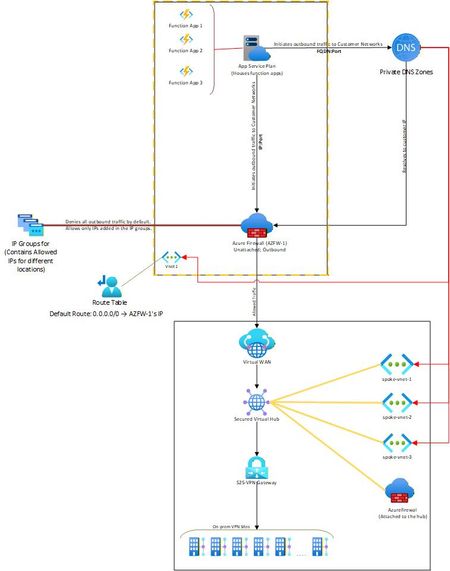
Hello, I needed some clarity on how the following is working: Attached is a network diagram of our current setup. The function apps (in VNet-1) initiate a connection(s) to a specific IP:Port or FQDN:Port in the on-premises network(s). A Private DNS zone ensures that any FQDN is resolved to the correct internal IP address of the on-prem endpoint. In our setup, both the function app and the external firewall reside in the same VNet. This firewall is described as “Unattached” because it is not the built-in firewall of a secured vWAN hub, but rather an independent Azure Firewall deployed in that VNet. The VNet has a user-defined default route (0.0.0.0/0) directing all outbound traffic to the firewall’s IP. The firewall then filters the traffic, allowing only traffic destined to whitelisted on-premises IP: Port or FQDN: Port combinations (using IP Groups), and blocking everything else. The critical question and the part that I am unable to figure out is: Once the firewall permits a packet, how does Azure know to route it to the vWAN hub and on to the site-to-site VPN? Because VNet-1 truly has no connection at all to the vWAN hub (no direct attachment, no peering, no VPN from the NVA). But the traffic is still reaching the on-prem sites. Unable to figure out how this is happening. Am I missing something obvious? Any help on this would be appreciated. Thank you!427Views0likes4Comments
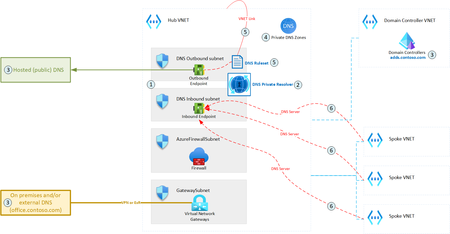
Consistent DNS resolution in a hybrid hub spoke network topology
DNS is one of the most essential networking services, next to IP routing. A modern hybrid cloud network may have various sources of DNS: Azure Private DNS Zones, public DNS, domain controllers, etc. Some organizations may also prefer to route their public Internet DNS queries through a specific DNS provider. Therefore, it is crucial to ensure consistent DNS resolution across the whole (hybrid) network. This article describes how DNS Private Resolver can be leveraged to build such architecture.19KViews6likes5Comments
Enabling fallback to internet for Azure Private DNS Zones in hybrid architectures
Introduction Azure Private Endpoint enables secure connectivity to Azure PaaS services such as: Azure SQL Managed Instance Azure Container Registry Azure Key Vault Azure Storage Account through private IP addresses within a virtual network. When Private Endpoint is enabled for a service, Azure DNS automatically changes the name resolution path using CNAME Redirection Example: myserver.database.windows.net ↓ myserver.privatelink.database.windows.net ↓ Private IP Azure Private DNS Zones are then used to resolve this Private Endpoint FQDN within the VNet. However, this introduces a critical DNS limitation in: Hybrid cloud architectures (AWS → Azure SQL MI) Multiregion deployments (DR region access) Crosstenant / Crosssubscription access MultiVNet isolated networks If the Private DNS zone does not contain a corresponding record, Azure DNS returns: NXDOMAIN (NonExistent Domain) When a DNS resolver receives a negative response (NXDOMAIN), it sends no DNS response to the DNS client and the query fails. This results in: ❌ Application connectivity failure ❌ Database connection timeout ❌ AKS pod DNS resolution errors ❌ DR failover application outage Problem statement In traditional Private Endpoint DNS resolution: DNS query is sent from the application. Azure DNS checks linked Private DNS Zone. If no matching record exists: NXDOMAIN returned DNS queries for Azure Private Link and network isolation scenarios across different tenants and resource groups have unique name resolution paths which can affect the ability to reach Private Linkenabled resources outside a tenant's control. Azure does not retry resolution using public DNS by default. Therefore: Public Endpoint resolution never occurs DNS query fails permanently Application cannot connect Microsoft native solution Fallback to internet (NxDomainRedirect) Azure introduced a DNS resolution policy: resolutionPolicy = NxDomainRedirect This property enables public recursion via Azure’s recursive resolver fleet when an authoritative NXDOMAIN response is received for a Private Link zone. When enabled: ✅ Azure DNS retries the query ✅ Public endpoint resolution occurs ✅ Application connectivity continues ✅ No custom DNS forwarder required Fallback policy is configured at: Private DNS Zone → virtualnetwork link Resolution policy is enabled at the virtual network link level with the NxDomainRedirect setting. In the Azure portal this appears as: Enable fallback to internet How it works Without fallback: Application → Azure DNS → Private DNS Zone → Record missing → NXDOMAIN returned → Connection failure With fallback enabled: Application → Azure DNS → Private DNS Zone → Record missing → NXDOMAIN returned → Azure recursive resolver → Public DNS resolution → Public endpoint IP returned → Connection successful Azure recursive resolver retries the query using the public endpoint QNAME each time NXDOMAIN is received from the private zone scope Real world use case AWS Application Connecting to Azure SQL Managed Instance You are running: SQL MI in Azure Private Endpoint enabled Private DNS Zone: privatelink.database.windows.net AWS application tries to connect: my-mi.database.windows.net If DR region DNS record is not available: Without fallback: DNS query → NXDOMAIN → App failure With fallback enabled: DNS query → Retry public DNS → Connection success Step-by-step configuration Method 1 – Azure portal Go to: Private DNS Zones Select your Private Link DNS Zone: Example: privatelink.database.windows.net Select: Virtual network links Open your linked VNet Enable: ✅ Enable fallback to internet Click: Save Method 2 – Azure CLI You can configure fallback policy using: az network private-dns link vnet update \ --resource-group RG-Network \ --zone-name privatelink.database.windows.net \ --name VNET-Link \ --resolution-policy NxDomainRedirect Validation steps Run from Azure VM: nslookup my-mi.database.windows.net Expected: ✔ Private IP (if available) ✔ Public IP (if fallback triggered) Security considerations Fallback to internet: ✅ Does NOT expose data ✅ Only impacts DNS resolution ✅ Network traffic still governed by: NSG Azure Firewall UDR Service Endpoint Policies DNS resolution fallback only triggers on NXDOMAIN and does not change networklevel firewall controls. When should you enable this? Recommended in: Hybrid AWS → Azure connectivity Multiregion DR deployments AKS accessing Private Endpoint services CrossTenant connectivity Private Link + VPN / ExpressRoute scenarios Conclusion Fallback to Internet using NxDomainRedirect provides: Seamless hybrid connectivity Reduced DNS complexity No custom forwarders Improved application resilience and simplifies DNS resolution for modern Private Endpointenabled architectures.1KViews0likes0CommentsSave the date - January 26, 2026 - AMA: Best practices for applying Zero Trust using Intune
Join us on January 26 at 10:00 AM PT, to Ask Microsoft Anything (AMA) and get the answers you need to implement the right policies, security settings, device configurations, and more. Never trust, always verify. Tune in for tips and insights to help you secure your endpoints using Microsoft Intune as part of your larger Zero Trust strategy. Find out how you can use Intune to protect both access and data on organization-owned devices and personal devices used for work. Go to aka.ms/AMA/IntuneZeroTrust and select "attend" to add this event to your calendar. Have questions? Submit them early by signing in to Tech Community and posting them on the event page!
Announcing Azure DNS security policy with Threat Intelligence feed general availability
Azure DNS security policy with Threat Intelligence feed allows early detection and prevention of security incidents on customer Virtual Networks where known malicious domains sourced by Microsoft’s Security Response Center (MSRC) can be blocked from name resolution. Azure DNS security policy with Threat Intelligence feed is being announced to all customers and will have regional availability in all public regions.3.1KViews3likes0CommentsCan only remote into azure vm from DC
Hi all, I have set up a site to site connection from on prem to azure and I can remote in via the main dc on prem but not any other server or ping from any other server to the azure. Why can I only remote into the azure VM from the server that has Routing and remote access? Any ideas on how I can fix this?976Views0likes2CommentsWhat is impact of Azure Firewall update from default to custom DNS on other Vnets routing to FW
I have 4 Azure Vnets, One Prod(VMs and AKS), 2nd Dev(VMs and AKS), 3rd(Domain Controllers), 4th Azure Firewall and Application gateway. External traffic is only come from 4th Vnet resources. Vnets peering is set from 1to4, 2to4, 3to4, Route table from 1st, 2nd, 3rd vnets are set to Azure Firewall private IP. All Vnets have DNS server added of Domain controller private IPs. Azure firewall has DNS setting disabled. I am going to enable Firewall DNS settings and add the Domain Controllers DNS and enable DNS proxy. For testing, I am going to add Firewall private IP in DNS of Dev Vnet and restart VMs. But I did not added this in Prod Vnet. What will be the impact on Prod Vnet Apps if they are trying to resolve IPs from domain controller? What will be the impact of Prod apps if they are trying to access azure resources(SQL, storage account)?988Views0likes1CommentAzure traffic to storage account
Hello, I’ve set up a storage account in Tenant A, located in the AUEast region, with public access. I also created a VM in Tenant B, in the same region (AUEast). I’m able to use IP whitelisting on the storage account in Tenant A to allow traffic only from the VM in Tenant B. However, in the App Insights logs, the traffic appears as 10.X.X.X, likely because the VM is in the same region. I'm unsure why the public IP isn't reflected in the logs. Moreover, I am not sure about this part https://learn.microsoft.com/en-us/azure/storage/common/storage-network-security-limitations#:~:text=You%20can%27t%20use%20IP%20network%20rules%20to%20restrict%20access%20to%20clients%20in%20the%20same%20Azure%20region%20as%20the%20storage%20account.%20IP%20network%20rules%20have%20no%20effect%20on%20requests%20that%20originate%20from%20the%20same%20Azure%20region%20as%20the%20storage%20account.%20Use%20Virtual%20network%20rules%20to%20allow%20same%2Dregion%20requests. This seems contradictory, as IP whitelisting is working on the storage account. I assume the explanation above applies only when the client is hosted in the same tenant and region as the storage account, and not when the client is in a different tenant, even if it's in the same region. I’d appreciate it if someone could shed some light on this. Thanks, Mohsen257Views0likes3CommentsAzure Networking Portfolio Consolidation
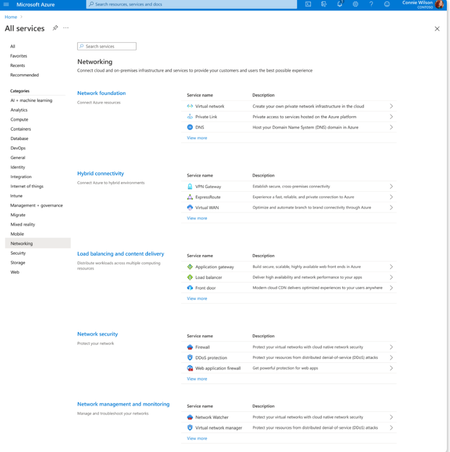
Overview Over the past decade, Azure Networking has expanded rapidly, bringing incredible tools and capabilities to help customers build, connect, and secure their cloud infrastructure. But we've also heard strong feedback: with over 40 different products, it hasn't always been easy to navigate and find the right solution. The complexity often led to confusion, slower onboarding, and missed capabilities. That's why we're excited to introduce a more focused, streamlined, and intuitive experience across Azure.com, the Azure portal, and our documentation pivoting around four core networking scenarios: Network foundations: Network foundations provide the core connectivity for your resources, using Virtual Network, Private Link, and DNS to build the foundation for your Azure network. Try it with this link: Network foundations Hybrid connectivity: Hybrid connectivity securely connects on-premises, private, and public cloud environments, enabling seamless integration, global availability, and end-to-end visibility, presenting major opportunities as organizations advance their cloud transformation. Try it with this link: Hybrid connectivity Load balancing and content delivery: Load balancing and content delivery helps you choose the right option to ensure your applications are fast, reliable, and tailored to your business needs. Try it with this link: Load balancing and content delivery Network security: Securing your environment is just as essential as building and connecting it. The Network Security hub brings together Azure Firewall, DDoS Protection, and Web Application Firewall (WAF) to provide a centralized, unified approach to cloud protection. With unified controls, it helps you manage security more efficiently and strengthen your security posture. Try it with this link: Network security This new structure makes it easier to discover the right networking services and get started with just a few clicks so you can focus more on building, and less on searching. What you’ll notice: Clearer starting points: Azure Networking is now organized around four core scenarios and twelve essential services, reflecting the most common customer needs. Additional services are presented within the context of these scenarios, helping you stay focused and find the right solution without feeling overwhelmed. Simplified choices: We’ve merged overlapping or closely related services to reduce redundancy. That means fewer, more meaningful options that are easier to evaluate and act on. Sunsetting outdated services: To reduce clutter and improve clarity, we’re sunsetting underused offerings such as white-label CDN services and China CDN. These capabilities have been rolled into newer, more robust services, so you can focus on what’s current and supported. What this means for you Faster decision-making: With clearer guidance and fewer overlapping products, it's easier to discover what you need and move forward confidently. More productive sales conversations: With this simplified approach, you’ll get more focused recommendations and less confusion among sellers. Better product experience: This update makes the Azure Networking portfolio more cohesive and consistent, helping you get started quickly, stay aligned with best practices, and unlock more value from day one. The portfolio consolidation initiative is a strategic effort to simplify and enhance the Azure Networking portfolio, ensuring better alignment with customer needs and industry best practices. By focusing on top-line services, combining related products, and retiring outdated offerings, Azure Networking aims to provide a more cohesive and efficient product experience. Azure.com Before: Our original Solution page on Azure.com was disorganized and static, displaying a small portion of services in no discernable order. After: The revised solution page is now dynamic, allowing customers to click deeper into each networking and network security category, displaying the top line services, simplifying the customer experience. Azure Portal Before: With over 40 networking services available, we know it can feel overwhelming to figure out what’s right for you and where to get started. After: To make it easier, we've introduced four streamlined networking hubs each built around a specific scenario to help you quickly identify the services that match your needs. Each offers an overview to set the stage, key services to help you get started, guidance to support decision-making, and a streamlined left-hand navigation for easy access to all services and features. Documentation For documentation, we looked at our current assets as well as created new assets that aligned with the changes in the portal experience. Like Azure.com, we found the old experiences were disorganized and not well aligned. We updated our assets to focus on our top-line networking services, and to call out the pillars. Our belief is these changes will allow our customers to more easily find the relevant and important information they need for their Azure infrastructure. Azure Network Hub Before the updates, we had a hub page organized around different categories and not well laid out. In the updated hub page, we provided relevant links for top-line services within all of the Azure networking scenarios, as well as a section linking to each scenario's hub page. Scenario Hub pages We added scenario hub pages for each of the scenarios. This provides our customers with a central hub for information about the top-line services for each scenario and how to get started. Also, we included common scenarios and use cases for each scenario, along with references for deeper learning across the Azure Architecture Center, Well Architected Framework, and Cloud Adoption Framework libraries. Scenario Overview articles We created new overview articles for each scenario. These articles were designed to provide customers with an introduction to the services included in each scenario, guidance on choosing the right solutions, and an introduction to the new portal experience. Here's the Load balancing and content delivery overview: Documentation links Azure Networking hub page: Azure networking documentation | Microsoft Learn Scenario Hub pages: Azure load balancing and content delivery | Microsoft Learn Azure network foundation documentation | Microsoft Learn Azure hybrid connectivity documentation | Microsoft Learn Azure network security documentation | Microsoft Learn Scenario Overview pages What is load balancing and content delivery? | Microsoft Learn Azure Network Foundation Services Overview | Microsoft Learn What is hybrid connectivity? | Microsoft Learn What is Azure network security? | Microsoft Lea Improving user experience is a journey and in coming months we plan to do more on this. Watch out for more blogs over the next few months for further improvements.3.2KViews4likes0Comments