azure backup
36 TopicsIntroducing Virtual Machine restore points – a simpler way to protect Azure workloads
Virtual Machine restore point are now generally available. Customers and Azure partners who are looking to build business continuity and disaster recovery solutions can use VM restore points to capture app consistent and crash consistent backups natively on the Azure platform. This can then be used to restore disks and VMs during scenarios such as data loss, data corruption or disaster recovery.21KViews5likes0Comments
Monitor your backups effectively using Azure Monitor Alerts for Azure Backup
As a backup admin, one of your key responsibilities is to stay on top of all critical backup incidents and ensure that these are routed to the right channels so that timely corrective action can be taken. Azure Backup now offers a new and improved alerting solution built on Azure Monitor to aid you in this regard. With this Azure Monitor integration, you can receive built-in alerts for critical scenarios which can be managed from Azure Monitor as well as Backup center. In addition, you can route these alerts to different notification channels. Benefits of Azure Monitor alerts for Azure Backup Ability to configure notifications to a wide range of notification channels - Azure Monitor supports a wide range of notification channels such as email, ITSM, webhooks, logic apps, and so on. You can configure notifications for backup alerts to any of these channels without needing to spend too much time creating custom integrations. Ability to select which scenarios to get notified about - With Azure Monitor alerts, you can choose which scenarios to get notified about. You also have the flexibility to choose whether to enable notifications for test subscriptions or not. Ability to manage alerts and notifications programmatically - You can leverage Azure Monitor’s REST APIs to manage alerts and notifications via non-portal clients as well. Ability to have a consistent alerts management experience for multiple Azure services including backup - Azure Monitor is the established paradigm for monitoring resources across Azure. With the integration of Azure Backup with Azure Monitor, backup alerts can be managed in the same way as alerts for other Azure services without requiring a separate paradigm. Alert scenarios Currently, Azure Backup has made two main categories of built-in alerts available for consumption via Azure Monitor: Security alerts: For scenarios such as deletion of backup data or disabling of soft-delete functionality for a vault, security alerts (of severity Sev 0) are fired by Azure Backup. Security alerts are generated by default and can't be turned off. However, you can control the scenarios for which the notifications (for example, emails) should be fired. Job failure alerts: For scenarios such as backup failure and restore failure, Azure Backup also provides built-in alerts (of Severity Sev 1). Unlike security alerts, you can choose to turn off Azure Monitor alerts for job failure scenarios - for example, if you have already configured custom alert rules for job failures via Log Analytics, and don't need built-in alerts to be fired for every job failure. By default, alerts for job failures are turned off. Refer to the documentation for more information on supported alert scenarios for each workload type. Notifications The aforementioned built-in alerts can be consumed via the Azure portal or other clients such as Azure PowerShell, CLI and REST API. In many cases, you might also want to configure notifications for these alerts - for example, email. To configure notifications, you can leverage Azure Monitor’s Action Groups and Action Rules. An Action Group is a collection of notification preferences defined by the owner of an Azure subscription. Azure Monitor alerts use action groups to notify you that an alert has been triggered. Various alerts may use the same action group or different action groups depending on your requirements. As highlighted earlier, Azure Monitor supports a wide range of action groups, including email, ITSM, webhooks, logic apps, and so on. An Action Rule lets you associate alerts to action groups. Action rules provide rich flexibility in allowing you to specify the scope of resources to which an action group should be attached, and the alert scenarios for which notifications should be generated. This article details the steps to configure email notifications for backup alerts using Action Groups and Action Rules. For configuring notifications to other channels, you can refer to the Azure Monitor documentation pages. Managing alerts and notifications from Backup center In addition to enabling you to manage the alerts from Azure Monitor dashboard, Azure Backup also provides an alerts management experience tailored to backups via Backup center. This experience provides the following additional benefits: Ability to view backup-related alerts at scale across vault. Ability to slice-and-dice alerts by backup-specific properties such as workload type, vault location, etc. Quick visibility into the active backup security alerts that require attention Ability to configure and manage notifications (action rules) for backup alerts from Backup center Actionable interfaces that enable navigation to the virtual machine or storage account that requires attention Frequently Asked Questions Q. What will happen to the earlier backup alerts solution for Recovery services vaults? A. For a period of time, the earlier backup alerts solution will co-exist with the newer Azure Monitor-based solution. This is meant to provide you sufficient time to familiarize yourself with the new experience. It is recommended to switch to using Action Groups for notifications as Azure Monitor integration is the forward-looking alerting and notification solution for Azure Backup. Note that the alerts visible in Backup center are all based on the Azure Monitor-based solution. Alerts generated by the earlier solution cannot be viewed in Backup center. Q. Do I have to pay anything to make use of built-in Azure Monitor alerts for Azure Backup? A. The alerts are fired by default and come at no additional cost. If you choose to configure notifications (action rules) for these alerts, notifications are free up to the limits specified in the free tier. If the volume of notifications falls beyond the free tier, there is a minor cost involved for the additional notifications generated. Refer to this page to learn more about the free tier for notifications and the cost of notifications beyond the free tier. Q. What if I want to create alerts based on custom rules, in addition to the built-in alerts? A. The Azure Backup team is actively working on enhancements in custom alerting. Write to AskAzureBackupTeam@microsoft.com if you’d like to learn more about the roadmap and the upcoming preview programs! In the meantime, you can always make use of alert rules based on Azure Monitor Logs if you have configured your vaults to send data to a Log Analytics workspace. Resources Learn more about monitoring your backups. New to Azure Backup? Sign up for a free Azure trial subscription. Need help? Reach out to Azure Backup forum for support or browse Azure Backup documentation. Follow us on Twitter @AzureBackup for the latest news and updates. 15KViews0likes0Comments
Protect Azure workloads with VM level consistency using Agentless Crash-Consistent Restore Points!
Today we are happy to announce public preview support for multi disk crash consistency mode in Virtual Machine (VM) restore points. A crash consistent VM restore point is an agentless solution that stores the VM configuration and point-in-time write-order consistent snapshots for all managed disks attached to a VM. This is same as the status of data in the VM after a power outage or a crash. VM restore points, announced in July’22, enabled reliable restoration of disks and VMs for data loss, corruption, disaster recovery, and infrastructure maintenance incidents. Using VM restore points, Azure Backup and ISV partners such as Commvault and Veritas offer BCDR solutions for customers. VM restore points are incremental, where the first VM restore point stores a full copy of your data. For each successive restore point of the VM, an incremental copy i.e., only the changes to your disks are stored. The incremental design enables you to benefit from the data protection of frequent backups while minimizing storage costs. You can also use the built-in copy functionality to copy your VM restore points to any region of your choice to get protection from regional failures. Key Benefits of Crash Consistent Restore Points Agentless solution Using agents for VM restore points is considered as a security, compliance, and management overhead by some partners/customers. Crash consistent restore points directly takes the multi-disk consistent snapshots from the host machine thereby removing the overhead of an agent inside the VM. OS agnostic support As an agentless solution, there is no dependency on the guest operating system (OS). All Windows and Linux OS types are supported by crash consistent restore points. Erstwhile unsupported Linux OS versions, 32-bit OS systems, Windows VMs with ARM64 etc. with application consistency mode are now supported with crash consistency mode. High Frequency support Crash consistent restore points support 1 hour frequency enabling lower RPO for applications running on Azure VMs. VM Level Consistency Prior to VM restore points, customers/partners had to use managed disk snapshots which are taken at per disk level. Due to this consistency at VM level could not be guaranteed and it was also cumbersome to manage. Resiliency solutions with crash consistent VM restore points Azure Backup: Providing first class backup support using VM restore points Azure Virtual Machine Backup enables you to create an enhanced policy to take multiple snapshots a day. This allows you to protect your virtual machines with Recovery Point Objective (RPO) as low as 4 hours. Azure Backup now supports crash consistent restore points (in private preview). Please enroll here to use the capability. “Azure Backup will enable customers to protect a wider set of Virtual Machines (VM) running Linux distributions that are not on the current support matrix as well as VMs that do not use Azure extensions using crash consistent restore points.” - Aravindan Gopalakrishnan, PRINCIPAL PDM MANAGER – Microsoft, Azure Backup Zerto – An HPE Company: Delivering Consistency efficiently with crash-consistent VM restore points Zerto an enterprise-class business continuity and disaster recovery company, is one of the first ISV partners to integrate the new crash-consistent snapshot capability into their product. This integration will enable whole VM protection with crash-consistent snapshots across multiple volumes. “Multi-volume consistency protection is one of the most sought after features by Azure Customers”. - Shannon Snowden, Senior Product Manager - Zerto, an HPE Company “Multi-volume virtual machine (VM) level crash consistency is critical in disaster recovery protection. With the new Azure crash consistent snapshot capability, it enables Zerto to create VM level crash-consistent restore points using underlying snapshots.” - Sandra Biton, Engineering Group Manager – Zerto, an HPE company Zerto 10 introduces multidisk consistency for Azure VMs, which protects VMs to, from, and within Azure with complete disk consistency. Moving away from snapshot-based replication, multidisk consistency for Azure VMs now leverages a new restore point API, offering an easier and more efficient way to manage replication and recovery operations. Get Started Click here to enrol in public preview of crash consistent VM restore points, Learn more about VM restore points. Please share your feedback or questions in the comments section below.9.6KViews2likes6CommentsProtect Azure Virtual Machines from failure and data loss using multi-disk consistent restore points
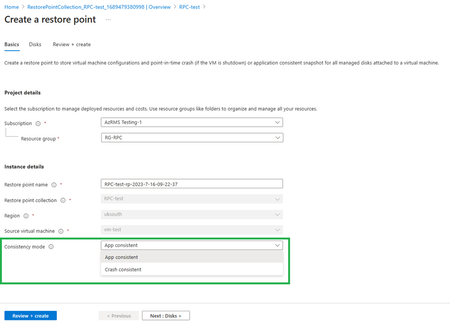
VM restore point is a new resource that stores VM configuration and a point-in-time application consistent snapshot of all the managed disks attached to the VM. VM restore points can be leveraged to easily capture VM multi-disk consistent backups.9.2KViews1like0Comments
Do You Have the Last Line of Defense Against Ransomware?
Do You Have the Last Line of Defense Against Ransomware? When it comes to protecting our organization assets against threats, ransomware remains at the top of everyone’s mind. More than 2/3 rd of businesses have faced some sort of outage in the last three years. For a large enterprise, every outage costs more than $100,000. That quickly adds up to a significant expense and loss of revenue for any organization. When we look at numbers like this, it makes it much simpler to create a business justification for preparing for ransomware. At this point, ransomware has made it to the mainstream news on many occasions, and it’s a term that IT practitioners are all too familiar with. We have watched countless organizations struggle with long recovery times, if they are able to recover at all. Just take the Colonial Pipeline incident for example. This attack caused major disruption, and the post mortem analysis showed it could have been easily prevented. The time is now for organizations to begin to take steps to ensure they are able to recover after an attack, but too many times organizations struggle trying to figure out where to start. There are so many different things to do in an environment to try to safeguard against a ransomware that projects designed to protect an environment can quickly spiral out of control without delivering results. The first line of defense is of course making sure the attackers don’t get in. It is important to have security tools in place to prevent attacks, and to quickly detect attackers if they do manage to get into the environment. We still need to plan for the worst case scenario in case they are not stopped or detected quickly. This means we need a plan to recover from an attack. It doesn’t have to be difficult to make sure we are ready to recover in the case of a ransomware attack. It all comes back to backup, the last line of defense against ransomware. If organizations are looking to do one thing to reduce the risk of downtime associated with ransomware, ensuring their backup processes are ready to provide a quick recovery is essential. An excellent backup strategy is key to ransomware recovery, and when you work with Microsoft and one of our ecosystem partners, it becomes simple to find a solution that will meet your business requirements and your budget. A little work up front goes a long way after a ransomware attack, so let’s review what we need to do to be able to recover later. Backup ALL Our Assets It’s important to make sure we are backing up all of our assets. If something was never backed up, we won’t be able to recover it later. We need to start by taking a good look at our environments, both on premises and in the cloud and ensure we are protecting our data. While the first step is having a backup, the second step is having a backup that meets our business requirements. It's here that it becomes so important for data protection teams to talk to business owners so they can understand the criticality of the data being protected and make sure it is protected properly. Through Business Impact Analysis (BIA) we can then understand the Recovery Time Objectives (RTOs) and Recovery Point Objectives (RPOs) for our applications, and what it means for our organization when we can’t meet these objectives. This is where the cost of downtime can really help us build a business case for data protection. After we understand the recovery objectives, we can make sure we are protecting our data accordingly. For example, in some cases with a lower RPO and RTO you may choose to replicate applications right to Azure so you always have a second copy of our production data that’s ready to be turned on at any moment. In other cases, we may have plenty of time to recover our applications, so a backup is fine, which brings us to our next point. Have Multiple Copies of Backup Data It’s very important to have multiple copies of backups for a number of reasons. What if something happens to the first copy? We know once threat actors are in an environment they try to cause as much damage as possible which includes trying to encrypt or delete backups. Offsite copies of backups are even better in order to provide segmentation and protection against threat actors in your environment and insider threats. This is where Azure really shines. By using Azure Backup or working with any of our ecosystem partners, we can easily have a copy of our data in Azure ready for recovery. If you don’t already have multiple copies of backup data, putting a copy in Azure is the single most impactful thing you can do right now to ensure you can recover later. It’s also simple and cost effective to do. Best of all? You can start right now; you don’t need to wait for new capacity or equipment to come online in your data center. Test Recovery After we have multiple copies of our backups, we need to test recovery. Testing recovery is an important aspect of data protection so we know exactly how long it will take to recover when disaster strikes. The tough part about a ransomware attack is we don’t know how it will unfold until it happens. That’s why regular recovery testing is so important, especially recovery testing in different locations. Azure makes it quick and easy to spin up a disaster recovery test or recover with a moment’s notice. A little up front planning and testing goes a long way when it comes to the day of the ransomware attack. This is why having multiple copies of your backup data is very important. If we want to test recovery in Azure for example, we want to make sure a copy of our backup data is ready and waiting for us for the fastest recovery possible. G&J Pepsi reflects on overcoming a ransomware attack, offers insights from the other side One of our customers, G&J Pepsi-Cola bottlers, shared their story recently. Azure Backup is the solution that G&J Pepsi used to save the day, and it’s only one of the many Microsoft Security solutions that the company put in place. In the words of Eric McKinney, Enterprise Infrastructure Director at G&J Pepsi-Cola Bottlers, “We got our environment up and running in seven hours, thanks to the data we saved with Azure Backup, “And we didn’t pay a cent to the attackers.”. This is a good example of how companies of all sizes can benefit from a ransomware protection strategy that includes backing up your data. No Environment is Immune Whether you’re operating on prem, in the cloud, or in a hybrid model, no environment is immune from malicious actors. You need to be properly protecting the VMs in your data center right along side your Azure VMs to make sure you can recover from a ransomware attack. Remember, it isn’t if you get attacked by ransomware, but when. We’ll be taking a deeper dive on how you can protect yourself from ransomware, both in your datacenter and in the Azure cloud. Learn more Defend Your Business From Ransomware | Microsoft Security Azure backup and restore plan to protect against ransomware | Microsoft Learn Cloud Backup Services | Microsoft Azure Backup and Disaster Recovery | Microsoft Azure6.9KViews1like0CommentsRevolutionize Business Continuity and Disaster Recovery with Azure Business Continuity Center
In the ever-evolving landscape of business, where innovation and resilience stand as pillars of success, business continuity is not merely a concern; it's the bedrock upon which organizations build their future. It involves meticulous planning and the fortification of resources through robust backup and disaster recovery measures, ensuring that enterprises can navigate disruptions without missing a beat. However, in the face of rapid technological advancements, this once straightforward journey has grown considerably intricate. To help customers on this journey, I’m excited to announce the Public Preview of Azure Business Continuity (ABC) Center. Below, we’ll describe how organizations can benefit from ABC center and take advantage of the new capabilities. Scenario Let's enter the world of Contoso, a forward-thinking organization. In their journey to adapt to the advent of digital transformations and the proliferation of hybrid work models, Contoso faces an unprecedented challenge—the growing menace of ransomware attacks. In today's digital age, the significance of backup and disaster recovery has never been more pronounced for Contoso, as for many other organizations. Contoso finds themselves at a crossroads where the demand to adapt isn't enough; they must excel in the face of adversity. One notable trend among businesses is the inclination to diversify their data protection strategies. Contoso, too, has embraced this trend by investing in multiple vendors to shield their data across a rapidly expanding array of platforms. However, the complexity of managing diverse environments, spanning on-premises infrastructure and cloud solutions, poses formidable challenges. It has given rise to fragmented experiences and data fragmentation, leading to a host of issues: Extended time spent navigating different dashboards to monitor business continuity, Complexity in governance and compliance, Increased overhead for large-scale protection configurations, Extended recovery times when grappling with fragmented experiences and many more Contoso meets Azure Business Continuity (ABC) Center To help navigate these formidable challenges, Contoso is introduced to the Azure Business Continuity Center. This powerful tool provides a comprehensive solution for Contoso’s business continuity and disaster recovery needs. With an intuitive and user-friendly web-based interface of the ABC Center, the management journey of Contoso’s backup and disaster recovery operations at scale has simplified meticulously. Contoso can use ABC Centers’ innovative platform to centralize the critical BCDR functions, with a single point of control across diverse environments and solutions. Contoso can now rest assured that their business continuity management is not only streamlined but optimized for peak performance with ABC Center. Let’s see how Contoso benefits from ABC Center: 1. Centralized Views and Operations: Contoso used multiple solutions for business continuity and so far, used separate interfaces to understand their protection estate and aggregated it manually. With ABC, Contoso can effortlessly view, monitor, govern, and audit compliance for protected items across various solutions and environments, including Azure and hybrid setups. Moreover, it equips Contoso admins with the ability to execute core actions from this unified interface. ABC has also simplified the process of finding, learning, and adopting the best fit BCDR solutions for Contoso. 2. Unified Monitoring: Contoso had built separate dashboards and used automation to monitor their protection with multiple solutions. But now no more. With ABC Center, now Contoso gets holistic visibility and actionable insights into their BCDR estate which significantly reduces the time required to detect issues and take remedial actions. Contoso now uses unified views like jobs, alerts, metrics along with guided alerting and notification experiences, integrated troubleshooting for backup and disaster recovery scenarios, and default critical security alerts, ensuring a proactive approach to security. 3. BCDR coverage for Security: In a world where security is paramount, Contoso had configured their environment to align with BCDR goals. But It's necessary for them to know if their configuration is in alignment with best practices for business continuity. So far, they have relied on consulting from MVPs and third-party partners. Now they are using the ABC Center proactive assessment capability for the configuration and able to quickly identify gaps in security settings. They can now evaluate the effectiveness of these settings to safeguard against threats like malware, ransomware, and intrusions, mitigating potential financial and data losses. 4. Governance and Audit Compliance: Contoso adheres to various compliance standards. It’s very important for them to audit and prove compliance against those standards to stay in business. Now they use ABC to maintain regulatory compliance and optimizing costs. They are now able to configure their environment, preventing misconfigurations, ensuring full protection, and evaluating drifts around BCDR objectives from ABC Centers compliance capabilities. This not only minimizes risk but also helps in achieving regulatory compliance. Contoso's management is delighted with the newfound sense of control and confidence. They can rely on the Azure Business Continuity Center to protect their data, applications, and services across hybrid environments, ensuring seamless business continuity. In the ever-changing landscape of business, where resilience is a key to success, Contoso is now well-prepared to navigate any challenges that come their way. Contoso's BCDR management has undergone a revolutionary shift, with being more streamlined, optimized for peak performance, making them a resilient and robust organization in the face of adversity. Learn more about ABC Center to understand how it can revolutionize your business continuity journey for the resources in all regions.6.9KViews2likes0Comments