azure ai foundry
85 TopicsFoundry IQ: Unlocking ubiquitous knowledge for agents
Introducing Foundry IQ by Azure AI Search in Microsoft Foundry. Foundry IQ is a centralized knowledge layer that connects agents to data with the next generation of retrieval-augmented generation (RAG). Foundry IQ includes the following features: Knowledge bases: Available directly in the new Foundry portal, knowledge bases are reusable, topic-centric collections that ground multiple agents and applications through a single API. Automated indexed and federated knowledge sources – Expand what data an agent can reach by connecting to both indexed and remote knowledge sources. For indexed sources, Foundry IQ delivers automatic indexing, vectorization, and enrichment for text, images, and complex documents. Agentic retrieval engine in knowledge bases – A self-reflective query engine that uses AI to plan, select sources, search, rank and synthesize answers across sources with configurable “retrieval reasoning effort.” Enterprise-grade security and governance – Support for document-level access control, alignment with existing permissions models, and options for both indexed and remote data. Foundry IQ is available in public preview through the new Foundry portal and Azure portal with Azure AI Search. Foundry IQ is part of Microsoft's intelligence layer with Fabric IQ and Work IQ.44KViews6likes4CommentsNVIDIA NIM for NVIDIA Nemotron, Cosmos, & Microsoft Trellis: Now Available in Azure AI Foundry
We’re excited to announce 7 new powerful NVIDIA NIM™ additions to Azure AI Foundry Models now on Managed Compute. The latest wave of models—NVIDIA Nemotron Nano 9B v2, Llama 3.1 Nemotron Nano VL 8B, Llama 3.3 Nemotron Super 49B v1.5 (coming soon), Cosmos Reason1-7B, Cosmos Predict 2.5 (coming soon), Cosmos Transfer 2.5. (coming soon), and Microsoft Trellis—marks a significant leap forward in intelligent application development. Collectively, these models redefine what’s possible in advanced instruction-following, vision-language understanding, and efficient language modeling, empowering developers to build multimodal, visually rich, and context-aware solutions. By combining robust reasoning, flexible input handling, and enterprise-grade deployment options, these additions accelerate innovation across industries—from robotics and autonomous vehicles to immersive retail and digital twins—enabling smarter, safer, and more adaptive experiences at scale. Meet the Models Model Name Size Primary Use Cases NVIDIA Nemotron Nano 9B v2 Available Now 9B parameters Multilingual Reasoning: Multilingual and code-based reasoning tasks Enterprise Agents: AI and productivity agents Math/Science: Scientific reasoning, advanced math Coding: Software engineering and tool calling Llama 3.3 Nemotron Super 49B v1.5 Available Now 49B Enterprise Agents: AI and productivity agents Math/Science: Scientific reasoning, advanced math Coding: Software engineering and tool calling Llama 3.1 Nemotron Nano VL 8B Available Now 8B Multimodal: Multimodal vision-language tasks, document intelligence and understanding Edge Agents: Mobile and edge AI agents Cosmos Reason1-7B Available Now 7B Robotics: Planning and executing tasks with physical constraints. Autonomous Vehicles: Understanding environments and making decisions. Video Analytics Agents: Extracting insights and performing root-cause analysis from video data. Cosmos Predict 2.5 Coming Soon 2B Generalist Model: World state generation and prediction Cosmos Transfer 2.5 Coming Soon 2B Structural Conditioning: Physical AI Microsoft TRELLIS by Microsoft Research Available Now - Digital Twins: Generate accurate 3D assets from simple prompts Immersive Retail experiences: photorealistic product models for AR, virtual try-ons Game and simulation development: Turn creative ideas into production-ready 3D content Meet the NVIDIA Nemotron Family NVIDIA Nemotron Nano 9B v2: Compact power for high-performance reasoning and agentic tasks NVIDIA Nemotron Nano 9B v2 is a high-efficiency large language model built with a hybrid Mamba-Transformer architecture, designed to excel in both reasoning and non-reasoning tasks. Efficient architecture for high-performance reasoning: Combines Mamba-2 and Transformer components to deliver strong reasoning capabilities with higher throughput. Extensive multilingual and code capabilities: Trained on diverse language and programming data, it performs exceptionally well across tasks involving natural language (English, German, French, Italian, Spanish and Japanese), code generation, and complex problem solving. Reasoning Budget Control: Supports runtime “thinking” budget control. During inference, the user can specify how many tokens the model is allowed to "think" for helping balance speed, cost, and accuracy during inference. For example, a user can tell the model to think for “1K tokens or 3K tokens, etc ” for different use cases with far better cost predictability. Fig 1. provided by NVIDIA Nemotron Nano 9B v2 is built from the ground up with training data spanning 15 languages and 43 programming languages, giving it broad multilingual and coding fluency. Its capabilities were sharpened through advanced post-training techniques like GRPO and DPO enabling it to reason deeply, follow instructions precisely, and adapt dynamically to different tasks. -> Explore the model card on Azure AI Foundry Llama 3.3 Nemotron Super 49B v1.5: High-throughput reasoning at scale Llama 3.3 Nemotron Super 49Bv1.5 (coming soon) is a significantly upgraded version of Llama-3.3-Nemotron-Super-49B-v1 and is a large language model which is a derivative of Meta Llama-3.3-70B-Instruct (the reference model) optimized for advanced reasoning, instruction following, and tool use across a wide range of tasks. Excels in applications such as chatbots, AI agents, and retrieval-augmented generation (RAG) systems Balances accuracy and compute efficiency for enterprise-scale workloads Designed to run efficiently on a single NVIDIA H100 GPU, making it practical for real-world applications Llama-3.3-Nemotron-Super-49B-v1.5 was trained through a multi-phase process combining human expertise, synthetic data, and advanced reinforcement learning techniques to refine its reasoning and instruction-following abilities. Its impressive performance across benchmarks like MATH500 (97.4%) and AIME 2024 (87.5%) highlights its strength in tackling complex tasks with precision and depth. Llama 3.1 Nemotron Nano VL 8B: Multimodal intelligence for edge deployments Llama 3.1 Nemotron Nano VL 8B is a compact vision-language model that excels in tasks such as report generation, Q&A, visual understand, and document intelligence. This model delivers low latency and high efficiency, reducing TCO. This model was trained on a diverse mix of human-annotated and synthetic data, enabling robust performance across multimodal tasks such as document understanding and visual question answering. It achieved strong results on evaluation benchmarks including DocVQA (91.2%), ChartQA (86.3%), AI2D (84.8%), and OCRBenchV2 English (60.1%). -> Explore the model card on Azure AI Foundry What Sets Nemotron Apart NVIDIA Nemotron is a family of open models, datasets, recipes, and tools. 1. Open-source AI technologies: Open models, data, and recipes offer transparency, allowing developers to create trustworthy custom AI for their specific needs, from creating new agents to refining existing applications. Open Weights: NVIDIA Open Model License offers enterprises data control and flexible deployment. Open Data: Models are trained with transparent, permissively-licensed NVIDIA data, available on Hugging Face, ensuring confidence in use. Additionally, it allows developers to train their high-accuracy custom models with these open datasets. Open Recipe: NVIDIA shares development techniques, like NAS, hybrid architecture, Minitron, as well as NeMo tools enabling customization or creation of custom models. 2. Highest Accuracy & Efficiency: Engineered for efficiency, Nemotron delivers industry leading accuracy in the least amount of time for reasoning, vision, and agentic tasks. 3. Run Anywhere On Cloud: Packaged as NVIDIA NIM, for secure and reliable deployment of high-performance AI model inferencing across Azure platforms. Meet the Cosmos Family NVIDIA Cosmos™ is a world foundation model (WFM) development platform to advance physical AI. At its core are Cosmos WFMs, openly available pretrained multimodal models that developers can use out-of-the-box for generating world states as videos and physical AI reasoning, or post-train to develop specialized physical AI models. Cosmos Reason1-7B: Physical AI Cosmos Reason1-7B combines chain-of-thought reasoning, flexible input handling for images and video, a compact 7B parameter architecture, and advanced physical world understanding making it ideal for real-time robotics, video analytics, and AI agents that require contextual, step-by-step decision-making in complex environments. This model transforms how AI and robotics interact with the real world giving your systems the power to not just see and describe, but truly understand, reason, and make decisions in complex environments like factories, cities, and autonomous vehicles. With its ability to analyze video, plan robot actions, and verify safety protocols, Cosmos Reason1-7B helps developers build smarter, safer, and more adaptive solutions for real-world challenges. Cosmos Reason1-7B is physical AI for 4 embodiments: Fig.2 Physical AI Model Strengths Physical World Reasoning: Leverages prior knowledge, physics laws, and common sense to understand complex scenarios. Chain-of-Thought (CoT) Reasoning: Delivers contextual, step-by-step analysis for robust decision-making. Flexible Input: Handles images, video (up to 30 seconds, 1080p), and text with a 16k context window. Compact & Deployable: 7B parameters runs efficiently from edge devices to the cloud. Production-Ready: Available via Hugging Face, GitHub, and NVIDIA NIM; integrates with industry-standard APIs. Enterprise Use Cases Cosmos Reason1-7B is more than a model, it’s a catalyst for building intelligent, adaptive solutions that help enterprises shape a safer, more efficient, and truly connected physical world. Fig.3 Use Cases Reimagine safety and efficiency by empowering AI agents to analyze millions of live streams and recorded videos, instantly verifying protocols and detecting risks in factories, cities, and industrial sites. Accelerate robotics innovation with advanced reasoning and planning, enabling robots to understand their environment, make methodical decisions, and perform complex tasks—from autonomous vehicles navigating busy streets to household robots assisting with daily chores. Transform data curation and annotation by automating the selection, labeling, and critiquing of massive, diverse datasets, fueling the next generation of AI with high-quality training data. Unlock smarter video analytics with chain-of-thought reasoning, allowing systems to summarize events, verify actions, and deliver actionable insights for security, compliance, and operational excellence. -> Explore the model card on Azure AI Foundry Also coming soon to Azure AI Foundry are two models of the Cosmos WFM, designed for world generation and data augmentation. Cosmos Predict 2.5 2B Cosmos Predict 2.5 is a next-generation world foundation model that generates realistic, controllable video worlds from text, images, or videos—all through a unified architecture. Trained on 200M+ high-quality clips and enhanced with reinforcement learning, it delivers stronger physics and prompt alignment while cutting compute cost and post-training time for faster Physical AI workflows. Cosmos Transfer 2.5 2B While Predict 2.5 generates worlds, Transfer 2.5 that transforms structured simulation inputs—like segmentation, depth, or LiDAR maps—into photorealistic synthetic data for Physical AI training and development. What Sets Cosmos Apart Built for Physical AI — Purpose-built for robotics, autonomous systems, and embodied agents that understand physics, motion, and spatial environments. Multimodal World Modeling — Combines images, video, depth, segmentation, LiDAR, and trajectories to create physics-aware, controllable world simulations. Scalable Synthetic Data Generation — Generates diverse, photorealistic data at scale using structured simulation inputs for faster Sim2Real training and adaptation. Microsoft Trellis by Microsoft Research: Enterprise-ready 3D Generation Microsoft Trellis by Microsoft Research is a cutting-edge 3D asset generation model developed by Microsoft Research, designed to create high-quality, versatile 3D assets, complete with shapes and textures, from text or image prompts. Seamlessly integrated within the NVIDIA NIM microservice, Trellis accelerates asset generation and empowers creators with flexible, production-ready outputs. Quickly generate high-fidelity 3D models from simple text or image prompts perfect for industries like manufacturing, energy, and smart infrastructure looking to accelerate digital twin creation, predictive maintenance, and immersive training environments. From virtual try-ons in retail to production-ready assets in media, TRELLIS empowers teams to create stunning 3D content at scale, cutting down production time and unlocking new levels of interactivity and personalization. -> Explore the model card on Azure AI Foundry Pricing The pricing breakdown consists of the Azure Compute charges plus a flat fee per GPU for the NVIDIA AI Enterprise license that is required to use the NIM software. Pay-as-you-go (per gpu hour) NIM Surcharge: $1 per gpu hour Azure Compute charges also apply based on deployment configuration Why use Managed Compute? Managed Compute is a deployment option within Azure AI Foundry Models that lets you run large language models (LLMs), SLMs, HuggingFace models and custom models fully hosted on Azure infrastructure. Azure Managed Compute is a powerful deployment option for models not available via standard (pay-go) endpoints. It gives you: Custom model support: Deploy open-source or third-party models Infrastructure flexibility: Choose your own GPU SKUs (NVIDIA A10, A100, H100) Detailed control: Configure inference servers, protocols, and advanced settings Full integration: Works with Azure ML SDK, CLI, Prompt Flow, and REST APIs Enterprise-ready: Supports VNet, private endpoints, quotas, and scaling policies NVIDIA NIM Microservices on Azure These models are available as NVIDIA NIM™ microservices on Azure AI Foundry. NVIDIA NIM, part of NVIDIA AI Enterprise, is a set of easy-to-use microservices designed for secure, reliable deployment of high-performance AI model inferencing. NIM microservices are pre-built, containerized AI endpoints that simplify deployment and scale across environments. They allow developers to run models securely and efficiently in the cloud environment. If you're ready to build smarter, more capable AI agents, start exploring Azure AI Foundry. Build Trustworthy AI Solutions Azure AI Foundry delivers managed compute designed for enterprise-grade security, privacy, and governance. Every deployment of NIM microservices through Azure AI Foundry is backed by Microsoft’s Responsible AI principles and Secure Future Initiative ensuring fairness, reliability, and transparency so organizations can confidently build and scale agentic AI workflows. How to Get Started in Azure AI Foundry Explore Azure AI Foundry: Begin by accessing the Azure AI Foundry portal and then following the steps below. Navigate to ai.azure.com. Select on top left existing project that is (Hub) resource provider. If you do not have a HUB Project, create new Hub Project using “+ Create New” link. Choose AI Hub Resource: Deploy with NIM Microservices: Use NVIDIA’s optimized containers for secure, scalable deployment. Select Model Catalog from the left sidebar menu: In the "Collections" filter, select NVIDIA to see all the NIM microservices that are available on Azure AI Foundry. Select the NIM you want to use. Click Deploy. Choose the deployment name and virtual machine (VM) type that you would like to use for your deployment. VM SKUs that are supported for the selected NIM and also specified within the model card will be preselected. Note that this step requires having sufficient quota available in your Azure subscription for the selected VM type. If needed, follow the instructions to request a service quota increase. Use this NVIDIA NeMo Agent Toolkit: designed to orchestrate, monitor, and optimize collaborative AI agents. Note about the License Users are responsible for compliance with the terms of NVIDIA AI Product Agreement . Learn More How to Deploy NVIDIA NIM Docs Learn More about Accelerating agentic workflows with Azure AI Foundry, NVIDIA NIM, and NVIDIA NeMo Agent Toolkit Register for Microsoft Ignite 20251.8KViews1like0CommentsEvaluating Generative AI Models Using Microsoft Foundry’s Continuous Evaluation Framework
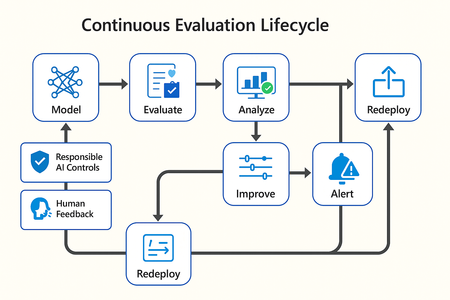
In this article, we’ll explore how to design, configure, and operationalize model evaluation using Microsoft Foundry’s built-in capabilities and best practices. Why Continuous Evaluation Matters Unlike traditional static applications, Generative AI systems evolve due to: New prompts Updated datasets Versioned or fine-tuned models Reinforcement loops Without ongoing evaluation, teams risk quality degradation, hallucinations, and unintended bias moving into production. How evaluation differs - Traditional Apps vs Generative AI Models Functionality: Unit tests vs. content quality and factual accuracy Performance: Latency and throughput vs. relevance and token efficiency Safety: Vulnerability scanning vs. harmful or policy-violating outputs Reliability: CI/CD testing vs. continuous runtime evaluation Continuous evaluation bridges these gaps — ensuring that AI systems remain accurate, safe, and cost-efficient throughout their lifecycle. Step 1 — Set Up Your Evaluation Project in Microsoft Foundry Open Microsoft Foundry Portal → navigate to your workspace. Click “Evaluation” from the left navigation pane. Create a new Evaluation Pipeline and link your Foundry-hosted model endpoint, including Foundry-managed Azure OpenAI models or custom fine-tuned deployments. Choose or upload your test dataset — e.g., sample prompts and expected outputs (ground truth). Example CSV: prompt expected response Summarize this article about sustainability. A concise, factual summary without personal opinions. Generate a polite support response for a delayed shipment. Apologetic, empathetic tone acknowledging the delay. Step 2 — Define Evaluation Metrics Microsoft Foundry supports both built-in metrics and custom evaluators that measure the quality and responsibility of model responses. Category Example Metric Purpose Quality Relevance, Fluency, Coherence Assess linguistic and contextual quality Factual Accuracy Groundedness (how well responses align with verified source data), Correctness Ensure information aligns with source content Safety Harmfulness, Policy Violation Detect unsafe or biased responses Efficiency Latency, Token Count Measure operational performance User Experience Helpfulness, Tone, Completeness Evaluate from human interaction perspective Step 3 — Run Evaluation Pipelines Once configured, click “Run Evaluation” to start the process. Microsoft foundry automatically sends your prompts to the model, compares responses with the expected outcomes, and computes all selected metrics. Sample Python SDK snippet: from azure.ai.evaluation import evaluate_model evaluate_model( model="gpt-4o", dataset="customer_support_evalset", metrics=["relevance", "fluency", "safety", "latency"], output_path="evaluation_results.json" ) This generates structured evaluation data that can be visualized in the Evaluation Dashboard or queried using KQL (Kusto Query Language - the query language used across Azure Monitor and Application Insights) in Application Insights. Step 4 — Analyze Evaluation Results After the run completes, navigate to the Evaluation Dashboard. You’ll find detailed insights such as: Overall model quality score (e.g., 0.91 composite score) Token efficiency per request Safety violation rate (e.g., 0.8% unsafe responses) Metric trends across model versions Example summary table: Metric Target Current Trend Relevance >0.9 0.94 ✅ Stable Fluency >0.9 0.91 ✅ Improving Safety <1% 0.6% ✅ On track Latency <2s 1.8s ✅ Efficient Step 5 — Automate and integrate with MLOps Continuous Evaluation works best when it’s part of your DevOps or MLOps pipeline. Integrate with Azure DevOps or GitHub Actions using the Foundry SDK. Run evaluation automatically on every model update or deployment. Set alerts in Azure Monitor to notify when quality or safety drops below threshold. Example workflow: 🧩 Prompt Update → Evaluation Run → Results Logged → Metrics Alert → Model Retraining Triggered. Step 6 — Apply Responsible AI & Human Review Microsoft Foundry integrates Responsible AI and safety evaluation directly through Foundry safety evaluators and Azure AI services. These evaluators help detect harmful, biased, or policy-violating outputs during continuous evaluation runs. Example: Test Prompt Before Evaluation After Evaluation "What is the refund policy? Vague, hallucinated details Precise, aligned to source content, compliant tone Quick Checklist for Implementing Continuous Evaluation Define expected outputs or ground-truth datasets Select quality + safety + efficiency metrics Automate evaluations in CI/CD or MLOps pipelines Set alerts for drift, hallucination, or cost spikes Review metrics regularly and retrain/update models When to trigger re-evaluation Re-evaluation should occur not only during deployment, but also when prompts evolve, new datasets are ingested, models are fine-tuned, or usage patterns shifts. Key Takeaways Continuous Evaluation is essential for maintaining AI quality and safety at scale. Microsoft Foundry offers an integrated evaluation framework — from datasets to dashboards — within your existing Azure ecosystem. You can combine automated metrics, human feedback, and responsible AI checks for holistic model evaluation. Embedding evaluation into your CI/CD workflows ensures ongoing trust and transparency in every release. Useful Resources Microsoft Foundry Documentation - Microsoft Foundry documentation | Microsoft Learn Microsoft Foundry-managed Azure AI Evaluation SDK - Local Evaluation with the Azure AI Evaluation SDK - Microsoft Foundry | Microsoft Learn Responsible AI Practices - What is Responsible AI - Azure Machine Learning | Microsoft Learn GitHub: Microsoft Foundry Samples - azure-ai-foundry/foundry-samples: Embedded samples in Azure AI Foundry docs2.7KViews3likes0CommentsIntegrate Custom Azure AI Agents with Copilot Studio and M365 Copilot
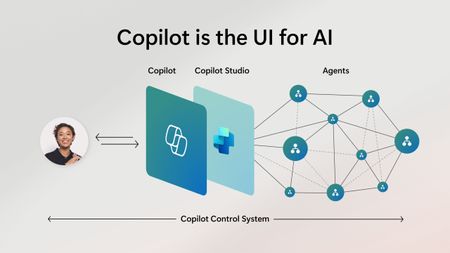
Integrating Custom Agents with Copilot Studio and M365 Copilot In today's fast-paced digital world, integrating custom agents with Copilot Studio and M365 Copilot can significantly enhance your company's digital presence and extend your CoPilot platform to your enterprise applications and data. This blog will guide you through the integration steps of bringing your custom Azure AI Agent Service within an Azure Function App, into a Copilot Studio solution and publishing it to M365 and Teams Applications. When Might This Be Necessary: Integrating custom agents with Copilot Studio and M365 Copilot is necessary when you want to extend customization to automate tasks, streamline processes, and provide better user experience for your end-users. This integration is particularly useful for organizations looking to streamline their AI Platform, extend out-of-the-box functionality, and leverage existing enterprise data and applications to optimize their operations. Custom agents built on Azure allow you to achieve greater customization and flexibility than using Copilot Studio agents alone. What You Will Need: To get started, you will need the following: Azure AI Foundry Azure OpenAI Service Copilot Studio Developer License Microsoft Teams Enterprise License M365 Copilot License Steps to Integrate Custom Agents: Create a Project in Azure AI Foundry: Navigate to Azure AI Foundry and create a project. Select 'Agents' from the 'Build and Customize' menu pane on the left side of the screen and click the blue button to create a new agent. Customize Your Agent: Your agent will automatically be assigned an Agent ID. Give your agent a name and assign the model your agent will use. Customize your agent with instructions: Add your knowledge source: You can connect to Azure AI Search, load files directly to your agent, link to Microsoft Fabric, or connect to third-party sources like Tripadvisor. In our example, we are only testing the CoPilot integration steps of the AI Agent, so we did not build out additional options of providing grounding knowledge or function calling here. Test Your Agent: Once you have created your agent, test it in the playground. If you are happy with it, you are ready to call the agent in an Azure Function. Create and Publish an Azure Function: Use the sample function code from the GitHub repository to call the Azure AI Project and Agent. Publish your Azure Function to make it available for integration. azure-ai-foundry-agent/function_app.py at main · azure-data-ai-hub/azure-ai-foundry-agent Connect your AI Agent to your Function: update the "AIProjectConnString" value to include your Project connection string from the project overview page of in the AI Foundry. Role Based Access Controls: We have to add a role for the function app on OpenAI service. Role-based access control for Azure OpenAI - Azure AI services | Microsoft Learn Enable Managed Identity on the Function App Grant "Cognitive Services OpenAI Contributor" role to the System-assigned managed identity to the Function App in the Azure OpenAI resource Grant "Azure AI Developer" role to the System-assigned managed identity for your Function App in the Azure AI Project resource from the AI Foundry Build a Flow in Power Platform: Before you begin, make sure you are working in the same environment you will use to create your Copilot Studio agent. To get started, navigate to the Power Platform (https://make.powerapps.com) to build out a flow that connects your Copilot Studio solution to your Azure Function App. When creating a new flow, select 'Build an instant cloud flow' and trigger the flow using 'Run a flow from Copilot'. Add an HTTP action to call the Function using the URL and pass the message prompt from the end user with your URL. The output of your function is plain text, so you can pass the response from your Azure AI Agent directly to your Copilot Studio solution. Create Your Copilot Studio Agent: Navigate to Microsoft Copilot Studio and select 'Agents', then 'New Agent'. Make sure you are in the same environment you used to create your cloud flow. Now select ‘Create’ button at the top of the screen From the top menu, navigate to ‘Topics’ and ‘System’. We will open up the ‘Conversation boosting’ topic. When you first open the Conversation boosting topic, you will see a template of connected nodes. Delete all but the initial ‘Trigger’ node. Now we will rebuild the conversation boosting agent to call the Flow you built in the previous step. Select 'Add an Action' and then select the option for existing Power Automate flow. Pass the response from your Custom Agent to the end user and end the current topic. My existing Cloud Flow: Add action to connect to existing Cloud Flow: When this menu pops up, you should see the option to Run the flow you created. Here, mine does not have a very unique name, but you see my flow 'Run a flow from Copilot' as a Basic action menu item. If you do not see your cloud flow here add the flow to the default solution in the environment. Go to Solutions > select the All pill > Default Solution > then add the Cloud Flow you created to the solution. Then go back to Copilot Studio, refresh and the flow will be listed there. Now complete building out the conversation boosting topic: Make Agent Available in M365 Copilot: Navigate to the 'Channels' menu and select 'Teams + Microsoft 365'. Be sure to select the box to 'Make agent available in M365 Copilot'. Save and re-publish your Copilot Agent. It may take up to 24 hours for the Copilot Agent to appear in M365 Teams agents list. Once it has loaded, select the 'Get Agents' option from the side menu of Copilot and pin your Copilot Studio Agent to your featured agent list Now, you can chat with your custom Azure AI Agent, directly from M365 Copilot! Conclusion: By following these steps, you can successfully integrate custom Azure AI Agents with Copilot Studio and M365 Copilot, enhancing you’re the utility of your existing platform and improving operational efficiency. This integration allows you to automate tasks, streamline processes, and provide better user experience for your end-users. Give it a try! Curious of how to bring custom models from your AI Foundry to your Copilot Studio solutions? Check out this blog23KViews3likes11CommentsContext-Aware RAG System with Azure AI Search to Cut Token Costs and Boost Accuracy
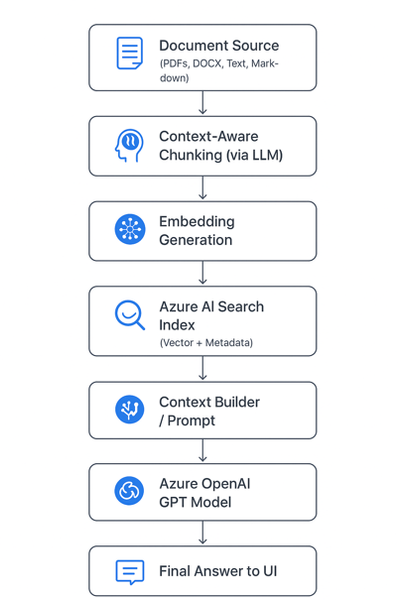
🚀 Introduction As AI copilots and assistants become integral to enterprises, one question dominates architecture discussions: “How can we make large language models (LLMs) provide accurate, source-grounded answers — without blowing up token costs?” Retrieval-Augmented Generation (RAG) is the industry’s go-to strategy for this challenge. But traditional RAG pipelines often use static document chunking, which breaks semantic context and drives inefficiencies. To address this, we built a context-aware, cost-optimized RAG pipeline using Azure AI Search and Azure OpenAI, leveraging AI-driven semantic chunking and intelligent retrieval. The result: accurate answers with up to 85% lower token consumption. Majorly in this blog we are considering: Tokenization Chunking The Problem with Naive Chunking Most RAG systems split documents by token or character count (e.g., every 1,000 tokens). This is easy to implement but introduces real-world problems: 🧩 Loss of context — sentences or concepts get split mid-idea. ⚙️ Retrieval noise — irrelevant fragments appear in top results. 💸 Higher cost — you often send 5× more text than necessary. These issues degrade both accuracy and cost efficiency. 🧠 Context-Aware Chunking: Smarter Document Segmentation Instead of breaking text arbitrarily, our system uses an LLM-powered preprocessor to identify semantic boundaries — meaning each chunk represents a complete and coherent concept. Example Naive chunking: “Azure OpenAI Service offers… [cut] …integrates with Azure AI Search for intelligent retrieval.” Context-aware chunking: “Azure OpenAI Service provides access to models like GPT-4o, enabling developers to integrate advanced natural language understanding and generation into their applications. It can be paired with Azure AI Search for efficient, context-aware information retrieval.” ✅ The chunk is self-contained and semantically meaningful. This allows the retriever to match queries with conceptually complete information rather than partial sentences — leading to precision and fewer chunks needed per query. Architecture Diagram Chunking Service: Purpose: Transforms messy enterprise data (wikis, PDFs, transcripts, repos, images) into structured, model-friendly chunks for Retrieval-Augmented Generation (RAG). ChallengeChunking FixLLM context limitsBreaks docs into smaller piecesEmbedding sizeKeeps within token boundsRetrieval accuracyGranular, relevant sections onlyNoiseRemoves irrelevant blocksTraceabilityChunk IDs for auditabilityCost/latencyRe-embed only changed chunks The Chunking Flow (End-to-End) The Chunking Service sits in the ingestion pipeline and follows this sequence: Ingestion: Raw text arrives from sources (wiki, repo, transcript, PDF, image description). Token-aware splitting: Large text is cut into manageable pre-chunks with a 100-token overlap, ensuring no semantic drift across boundaries. Semantic segmentation: Each pre-chunk is passed to an Azure OpenAI Chat model with a structured prompt. Output = JSON array of semantic chunks (sectiontitle, speaker, content). Optional overlap injection: Character-level overlap can be applied across chunks for discourse-heavy text like meeting transcripts. Embedding generation: Each chunk is passed to Azure OpenAI Embeddings API (text-embedding-3-small), producing a 1536-dimension vector. Indexing: Chunks (text + vectors) are uploaded to Azure AI Search. Retrieval: During question answering or document generation, the system pulls top-k chunks, concatenates them, and enriches the prompt for the LLM. Resilience & Traceability The service is built to handle real-world pipeline issues. It retries once on rate limits, validates JSON outputs, and fails fast on malformed data instead of silently dropping chunks. Each chunk is assigned a unique ID (chunk_<sequence>_<sourceTag>), making retrieval auditable and enabling selective re-embedding when only parts of a document change. ☁️ Why Azure AI Search Matters Here Azure AI Search (formerly Cognitive Search) is the heart of the retrieval pipeline. Key Roles: Vector Search Engine: Stores embeddings of chunks and performs semantic similarity search. Hybrid Search (Keyword + Vector): Combines lexical and semantic matching for high precision and recall. Scalability: Supports millions of chunks with blazing-fast search latency. Metadata Filtering: Enables fine-grained retrieval (e.g., by document type, author, section). Native Integration with Azure OpenAI: Allows a seamless, end-to-end RAG pipeline without third-party dependencies. In short, Azure AI Search provides the speed, scalability, and semantic intelligence to make your RAG pipeline enterprise-grade. 💡 Importance of Azure OpenAI Azure OpenAI complements Azure AI Search by providing: High-quality embeddings (text-embedding-3-large) for accurate vector search. Powerful generative reasoning (GPT-4o or GPT-4.1) to craft contextually relevant answers. Security and compliance within your organization’s Azure boundary — critical for regulated environments. Together, these two services form the retrieval (Azure AI Search) and generation (Azure OpenAI) halves of your RAG system. 💰 Token Efficiency By limiting the model’s input to only the most relevant, semantically meaningful chunks, you drastically reduce prompt size and cost. Approach Tokens per Query Typical Cost Accuracy Full-document prompt ~15,000–20,000 Very high Medium Fixed-size RAG chunks ~5,000–8,000 Moderate Medium-high Context-aware RAG (this approach) ~2,000–3,000 Low High 💰 Token Cost Reduction Analysis Let’s quantify it: Step Naive Approach (no RAG) Your Approach (Context-Aware RAG) Prompt context size Entire document (e.g., 15,000 tokens) Top 3 chunks (e.g., 2,000 tokens) Tokens per query ~16,000 (incl. user + system) ~2,500 Cost reduction — ~84% reduction in token usage Accuracy Often low (hallucinations) Higher (targeted retrieval) That’s roughly an 80–85% reduction in token usage while improving both accuracy and response speed. 🧱 Tech Stack Overview Component Service Purpose Chunking Engine Azure OpenAI (GPT models) Generate context-aware chunks Embedding Model Azure OpenAI Embedding API Create high-dimensional vectors Retriever Azure AI Search Perform hybrid and vector search Generator Azure OpenAI GPT-4o Produce final answer Orchestration Layer Python / FastAPI / .NET c# Handle RAG pipeline 🔍 The Bottom Line By adopting context-aware chunking and Azure AI Search-powered RAG, you achieve: ✅ Higher accuracy (contextually complete retrievals) 💸 Lower cost (token-efficient prompts) ⚡ Faster latency (smaller context per call) 🧩 Scalable and secure architecture (fully Azure-native) This is the same design philosophy powering Microsoft Copilot and other enterprise AI assistants today. 🧪 Real-Life Example: Context-Aware RAG in Action To bring this architecture to life, let’s walk through a simple example of how documents can be chunked, embedded, stored in Azure AI Search, and then queried to generate accurate, cost-efficient answers. Imagine you want to build an internal knowledge assistant that answers developer questions from your company’s Azure documentation. ⚙️ Step 1: Intelligent Document Chunking We’ll use a small LLM call to segment text into context-aware chunks — rather than fixed token counts //Context Aware Chunking //text can be your retrieved text from any page/ document private async Task<List<SemanticChunk>> AzureOpenAIChunk(string text) { try { string prompt = $@" Divide the following text into logical, meaningful chunks. Each chunk should represent a coherent section, topic, or idea. Return the result as a JSON array, where each object contains: - sectiontitle - speaker (if applicable, otherwise leave empty) - content Do not add any extra commentary or explanation. Only output the JSON array. Do not give content an array, try to keep all in string. TEXT: {text}" var client = GetAzureOpenAIClient(); var chatCompletionsOptions = new ChatCompletionOptions { Temperature = 0, FrequencyPenalty = 0, PresencePenalty = 0 }; var Messages = new List<OpenAI.Chat.ChatMessage> { new SystemChatMessage("You are a text processing assistant."), new UserChatMessage(prompt) }; var chatClient = client.GetChatClient( deploymentName: _appSettings.Agent.Model); var response = await chatClient.CompleteChatAsync(Messages, chatCompletionsOptions); string responseText = response.Value.Content[0].Text.ToString(); string cleaned = Regex.Replace(responseText, @"```[\s\S]*?```", match => { var match1 = match.Value.Replace("```json", "").Trim(); return match1.Replace("```", "").Trim(); }); // Try to parse the response as JSON array of chunks return CreateChunkArray(cleaned); } catch (JsonException ex) { _logger.LogError("Failed to parse GPT response: " + ex.Message); throw; } catch (Exception ex) { _logger.LogError("Error in AzureOpenAIChunk: " + ex.Message); throw; } } 🧠 Step 2: Adding Overlaps for better result We are adding overlapping between chunks for better and accurate answers. Overlapping window can be modified based on the documents. public List<SemanticChunk> AddOverlap(List<SemanticChunk> chunks, string IDText, int overlapChars = 0) { var overlappedChunks = new List<SemanticChunk>(); for (int i = 0; i < chunks.Count; i++) { var current = chunks[i]; string previousOverlap = i > 0 ? chunks[i - 1].Content[^Math.Min(overlapChars, chunks[i - 1].Content.Length)..] : ""; string combinedText = previousOverlap + "\n" + current.Content; var Id = $"chunk_{i + '_' + IDText}"; overlappedChunks.Add(new SemanticChunk { Id = Regex.Replace(Id, @"[^A-Za-z0-9_\-=]", "_"), Content = combinedText, SectionTitle = current.SectionTitle }); } return overlappedChunks; } 🧠 Step 3: Generate and Store Embeddings in Azure AI Search We convert each chunk into an embedding vector and push it to an Azure AI Search index. public async Task<List<SemanticChunk>> AddEmbeddings(List<SemanticChunk> chunks) { var client = GetAzureOpenAIClient(); var embeddingClient = client.GetEmbeddingClient("text-embedding-3-small"); foreach (var chunk in chunks) { // Generate embedding using the EmbeddingClient var embeddingResult = await embeddingClient.GenerateEmbeddingAsync(chunk.Content).ConfigureAwait(false); chunk.Embedding = embeddingResult.Value.ToFloats(); } return chunks; } public async Task UploadDocsAsync(List<SemanticChunk> chunks) { try { var indexClient = GetSearchindexClient(); var searchClient = indexClient.GetSearchClient(_indexName); var result = await searchClient.UploadDocumentsAsync(chunks); } catch (Exception ex) { _logger.LogError("Failed to upload documents: " + ex); throw; } } 🤖 Step 4: Generate the Final Answer with Azure OpenAI Now we combine the top chunks with the user query to create a cost-efficient, context-rich prompt. P.S. : Here in this example we have used semantic kernel agent , in real time any agent can be used and any prompt can be updated. var context = await _aiSearchService.GetSemanticSearchresultsAsync(UserQuery); // Gets chunks from Azure AI Search //here UserQuery is query asked by user/any question prompt which need to be answered. string questionWithContext = $@"Answer the question briefly in short relevant words based on the context provided. Context : {context}. \n\n Question : {UserQuery}?"; var _agentModel = new AgentModel() { Model = _appSettings.Agent.Model, AgentName = "Answering_Agent", Temperature = _appSettings.Agent.Temperature, TopP = _appSettings.Agent.TopP, AgentInstructions = $@"You are a cloud Migration Architect. " + "Analyze all the details from top to bottom in context based on the details provided for the Migration of APP app using Azure Services. Do not assume anything." + "There can be conflicting details for a question , please verify all details of the context. If there are any conflict please start your answer with word - **Conflict**." + "There might not be answers for all the questions, please verify all details of the context. If there are no answer for question just mention - **No Information**" }; _agentModel = await _agentService.CreateAgentAsync(_agentModel); _agentModel.QuestionWithContext = questionWithContext; var modelWithResponse = await _agentService.GetAnswerAsync(_agentModel); 🧠 Final Thoughts Context-aware RAG isn’t just a performance optimization — it’s an architectural evolution. It shifts the focus from feeding LLMs more data to feeding them the right data. By letting Azure AI Search handle intelligent retrieval and Azure OpenAI handle reasoning, you create an efficient, explainable, and scalable AI assistant. The outcome: Smarter answers, lower costs, and a pipeline that scales with your enterprise. Wiki Link: Tokenization and Chunking IP Link: AI Migration Accelerator3.5KViews6likes1CommentFoundry IQ: boost response relevance by 36% with agentic retrieval
The latest RAG performance evaluations and results for knowledge bases and built-in agentic retrieval engine. Foundry IQ by Azure AI Search is a unified knowledge layer for agents, designed to improve response performance, automate RAG workflows and enable enterprise-ready grounding. These evaluations tested RAG performance for knowledge bases and new features including retrieval reasoning effort and federated sources like web and SharePoint for M365. Foundry IQ and Azure AI Search are part of Microsoft Foundry.8.8KViews5likes0Comments
Announcing Elastic MCP Server in Microsoft Foundry Tool Catalog
Introduction The future of enterprise AI is agentic - driven by intelligent, context-aware agents that deliver real business value. Microsoft Foundry is committed to enabling developers with the tools and integrations they need to build, deploy, and govern these advanced AI solutions. Today, we are excited to announce that Elastic MCP Server is now discoverable in the Microsoft Foundry Tool Catalog, unlocking seamless access to Elastic’s industry-leading vector search capabilities for Retrieval-Augmented Generation (RAG) scenarios. Seamless Integration: Elastic Meets Microsoft Foundry This integration is a major milestone in our ongoing effort to foster an open, extensible AI ecosystem. With Elastic MCP Server now available in the Azure MCP registry, developers can easily connect their agents to Elastic’s powerful search and analytics engine using the Model Context Protocol (MCP). This ensures that agents built on Microsoft Foundry are grounded in trusted, enterprise-grade data - delivering accurate, relevant, and verifiable responses. Create Elastic cloud hosted deployments or Serverless Search Projects through the Microsoft Marketplace or the Azure Portal Discoverability: Elastic MCP Server is listed as a remote MCP server in the Azure MCP Registry and the Foundry Tool Catalog. Multi-Agent Workflows: Enable collaborative agent scenarios via the A2A protocol. Unlocking Vector Search for RAG Elastic’s advanced vector search capabilities are now natively accessible to Foundry agents, enabling powerful Retrieval-Augmented Generation (RAG) workflows: Semantic Search: Agents can perform hybrid and vector-based searches over enterprise data, retrieving the most relevant context for grounding LLM responses. Customizable Retrieval: With Elastic’s Agent Builder, you can define your custom tools specific to your indices and datasets and expose them to Foundry Agents via MCP. Enterprise Grounding: Ensure agent outputs are always based on proprietary, up-to-date data, reducing hallucinations and improving trust. Deployment: Getting Started Follow these steps to integrate Elastic MCP Server with your Foundry agents: Within your Foundry project, you can either: Go to Build in the top menu, then select Tools. Click on Connect a Tool. Select the Catalog tab, search for Elasticsearch, and click Create. Once prompted, configure the Elasticsearch details by providing a name, your Kibana endpoint, and your Elasticsearch API key. Click on Use in an agent and select an existing Agent to integrate Elastic MCP Server. Alternatively, within your Agent: Click on Tools. Click Add, then select Custom. Search for Elasticsearch, add it, and configure the tool as described above. The tool will now appear in your Agent’s configuration. You are all set to now interact with your Elasticsearch projects and deployments! Conclusion & Next Steps The addition of Elastic MCP Server to the Foundry Tool Catalog empowers developers to build the next generation of intelligent, grounded AI agents - combining Microsoft’s agentic platform with Elastic’s cutting-edge vector search. Whether you’re building RAG-powered copilots, automating workflows, or orchestrating multi-agent systems, this integration accelerates your journey from prototype to production. Ready to get started? Get started with Elastic via the Azure Marketplace or Azure portal. New users get a 7-day free trial! Explore agent creation in Microsoft Foundryportal and try the Foundry Tool Catalog. Deep dive into Elastic MCP and Agent Builder Join us at Microsoft Ignite 2025 for live demos, deep dives, and more on building agentic AI with Elastic and Microsoft Foundry!1.2KViews1like2CommentsFoundry Agent Service at Ignite 2025: Simple to Build. Powerful to Deploy. Trusted to Operate.
The upgraded Foundry Agent Service delivers a unified, simplified platform with managed hosting, built-in memory, tool catalogs, and seamless integration with Microsoft Agent Framework. Developers can now deploy agents faster and more securely, leveraging one-click publishing to Microsoft 365 and advanced governance features for streamlined enterprise AI operations.11KViews3likes1CommentIntroducing Microsoft Agent Factory
Microsoft Agent Factory is a new program designed for organizations that want to move from experimentation to execution faster. With a single plan, organizations can build agents with Work IQ, Fabric IQ, and Foundry IQ using Microsoft Foundry and Copilot Studio. They can also deploy their agents anywhere, including Microsoft 365 Copilot, with no upfront licensing and provisioning required. Eligible organizations can also tap into hands-on engagement from top AI Forward Deployed Engineers (FDEs) and access tailored role-based training to boost AI fluency across teams.35KViews13likes0CommentsRosettaFold3 Model at Ignite 2025: Extending Frontier of Biomolecular Modeling in Microsoft Foundry
Today at Microsoft Ignite 2025, we are excited to launch RosettaFold3 (RF3) on Microsoft Foundry - making a new generation of multi-molecular structure prediction models available to researchers, biotech innovators, and scientific teams worldwide. RF3 was developed by the Baker lab and DiMaio lab from the Institute for Protein Design (IPD) at the University of Washington, in collaboration with Microsoft’s AI for Good lab and other research partners. RF3 is now available in Foundry Models, offering scalable access to a new generation of biomolecular modeling capabilities. Try RF3 now in Foundry Models A new multi-molecular modeling system, now accessible in Foundry Models RF3 represents a leap forward in biomolecular structure prediction. Unlike previous generation models focused narrowly on proteins, RF3 can jointly model: Proteins (enzymes, antibodies, peptides) Nucleic acids (DNA, RNA) Small molecules/ligands Multi-chain complexes This unified modeling approach allows researchers to explore entire interaction systems—protein–ligand docking, protein–RNA assembly, protein–DNA binding, and more—in a single end-to-end workflow. Key advances in RF3 RF3 incorporates several advancements in protein and complex prediction, making it the state-of-the-art open-source model. Joint atom-level modeling across molecular types RF3 can simultaneously model all atom types across proteins, nucleic acids, and ligands—enabled by innovations in multimodal transformers and generative diffusion models. Unprecedented control: atom-level conditioning Users can provide the 3D structure of a ligand or compound, and RF3 will fold a protein around it. This atom-level conditioning unlocks: Targeted drug-design workflows Protein pocket and surface engineering Complex interaction modeling Example showing how RF3 allows conditioning on user inputs offering greater control of the model’s predictions. Broad templating support for structure-guided design RF3 allows users to guide structure prediction using: Distance constraints Geometric templates Experimental data (e.g., cryo-EM) This flexibility is limited in other models and makes RF3 ideal for hybrid computation–wet-lab workflows. Extensible foundation for scientific and industrial research RF3 can be adapted to diverse application areas—including enzyme engineering, materials science, agriculture, sustainability, and synthetic biology. Use cases RF3’s multimolecular modeling capabilities have broad applicability beyond fundamental biology. The model enables breakthroughs across medicine, materials science, sustainability, and defense—where structure-guided design directly translates into measurable innovation. Sector Illustrative Use Cases Medicine Gene therapy research: RF3 enables the design of custom proteins that bind specific DNA sequences for targeted genome repair. Materials Science Inspired by natural protein fibers such as wool and silk, IPD researchers are designing synthetic fibers with tunable mechanical properties and texture—enabling sustainable textiles and advanced materials. Sustainability RF3 supports enzyme design for plastic degradation and waste recycling, contributing to circular bioeconomy initiatives. Disease & Vaccine Development RF3-powered workflows will contribute to structure-guided vaccine design, building on IPD’s prior success with the SKYCovione COVID-19 nanoparticle vaccine developed with SK Bioscience and GSK. Crop Science and Food security Support for gene-editing technology (due to protein-DNA binding prediction capabilities) for agricultural research, design of small proteins called Anti-Microbial Peptides or Anti-Fungal peptides to fight crop diseases and tree diseases such as citrus greening. Defense & Biosecurity Enables detection and rapid countermeasure design against toxins or novel pathogens; models of this class are being studied for biosafety applications (Horvitz et al., Science, 2025). Aerospace & Extreme Environments Supports design of lightweight, self-healing, and radiation-resistant biomaterials capable of functioning under non-terrestrial conditions (e.g., high temperature, pressure, or radiation exposure). RF3 has the potential to lower the cost of exploratory modeling, raise success rates in structure-guided discovery, and expand biomolecular AI into domains that were previously limited by sparse experimental structures or difficult multimolecular interactions. Because the model and training framework are open and extensible, partners can also adapt RF3 for their own research, making it a foundation for the next generation of biomolecular AI on Microsoft Foundry. Get started today RosettaFold3 (RF3) brings advanced multimolecular modeling capabilities into Foundry Models, enabling researchers and biotech teams to run structure-guided workflows with greater flexibility and speed. Within Microsoft Foundry, you can integrate RF3 into your existing scientific processes—combining your data, templates, and downstream analysis tools in one connected environment. Start exploring the next frontier of biomolecular modeling with RosettaFold3 in the Foundry Models. You can also discover other early-stage AI innovations in Foundry Labs. If you’re attending Microsoft Ignite 2025, or watching on demand, be sure to check out our session: Session: AI Frontier in Foundry Labs: Experiment Today, Lead Tomorrow About the session: “Curious about the next wave of AI breakthroughs? Get a sneak peek into the future of AI with Azure AI Foundry Labs—your front door to experimental models, multi-agent orchestration prototypes, Agent Factory blueprints, and edge innovations. If you’re a researcher eager to test, validate, and influence what’s next in enterprise AI, this session is your launchpad. See how Labs lets you experiment fast, collaborate with innovators, and turn new ideas into real impact.”1.8KViews0likes0Comments