avdupdate
57 Topics
AVD connecton error
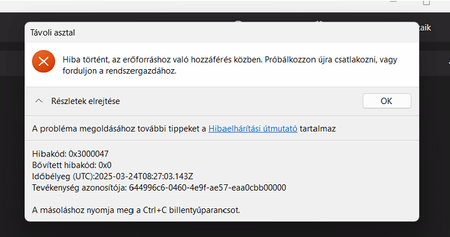
Hi! We are using Win11 multi user based OS-es. After we installed the 2025-03 march CU update (KB5053657) at weekend the session host started randomly having connection errors. The users experienced this error: The pool state first: You can say, the rdp agent are unhealthy of course the joining is not working. Even from the server in the save vnet i cant ping and cant rdp to them. The resolution was to reinstall agents, reboot computers, or deallate, start them, one of needed to be redeployed. After patch removal the issue seemd to be resolved, there were eventless couple days, yet today it happened again. Today only 2 servers were affected, march update not installed I checked. Agent health state shows all available, yet not able to ping, not able to rdp. One restarted from azure and one deallocated and started and started working. What can be this isse? Anyone met or experienced the same? How can I trouble shoot this, any idea? Tried searching event log, but I cant see the reason.819Views0likes4CommentsHow to fix error in AVD with VMs not being added to host pool or AD
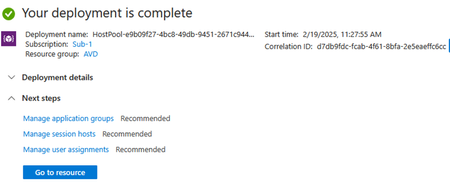
Problem Several users have commented and posted on different networks about the error that appears when adding virtual machines to their host pool, the error is when the VMs want to join to the AD. The first thing we need to know is that if we add or create a new hostpool (as in my case), the deployment will tell us Azure that everything is correct, that is, as if the machines have joined the AD. Here I show the deployment with everything correct. Now if we check the status of our hostpool machines, we will see that it tells us the total number of VMs and the option of which one we can connect to and which one we cannot. In my case we see that we can supposedly connect to one and not to the other. When testing the connection, it fails on both machines. This is normal since if we check the health status of both we see the following. Basically it tells us that there is a problem joining the domain with the VM. Solution Below I show the solution that has worked for me, from different tenants, different subscriptions that had the same problem. We are going to go to our subscription and in it, in the setting section, we are going to click on Resource provider as shown in the following image. Next we look for the provider "Microsoft.DesktopVirtualization" We select it and then click on "unregister" Now what we are going to do is re-register, that is, we click on "register" Confirm that register is correct again. Now we deploy AVD again and add the VMs we need to our Hostpool, and in this case I have chosen Enter ID to do the Join *you can select your preferens) Validate de new deployment As we see here, the deployment has also indicated that it was correct, so we are going to confirm it. Here we can see that we already have the machines ready for the session. I hope this helps you solve the problems you are having with VMs and hostpools.2.1KViews1like7CommentsHow to update to DesktopVirtualization API v. 2024-04-08-preview or API v. 2024-04-03?
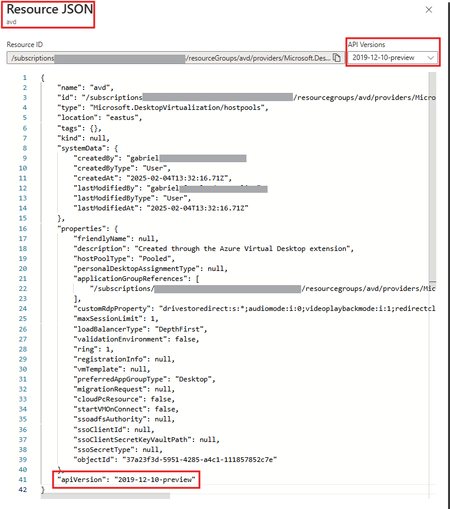
Hello everyone, The information from my side is also not clear. I understand that if ARM templates, Terraform, Bicep, or something similar are not used, it is not necessary, and Microsoft performs that operation transparently. The message is universal, meaning that all customers who have deployed AVD receive it, but they do not know who uses and specifies the API version. For example, when creating an AVD through the Azure portal, you do not specify the API version at any time. If we go to the Resource Provider and look for Microsoft.DesktopVirtualization, we see that the default API cannot be changed and is in version "2privatepreview." Interestingly and crazily enough, even with this default API, if you deploy an AVD, the system chooses an older version. So, if anyone has a clear response from Microsoft or has resolved this, it would be great if they could share it. Regards. At least until Microsoft indicates otherwise, I have conducted several tests in different environments and the result is the same and as follows: I deploy the Hostpool and here we see the Json file of the hostpool, as you can see the API version is 2019-12-10-preview. Now I am going to look inside the parameters used in the deployment and WOW, there we can see that the API used to deploy AVD is the latest one, 24-04-08-preview, which is the one Microsoft indicates to use. The 2019-04-01 is the schema version (another different one). To finish confirming this, we go to Resource Provider and as we see, if we go inside the resource type and select hostpool, we see that the default version that CANNOT be changed is 2022-01-12-preview. But among the eligible versions is the one that has been used for our hostpool deployment, that is, 2024-04-08-preview.759Views0likes4Comments
Add or Update Session Host failed
Hi, We have a Host Pool with 3 session hosts. We are using the "Session Host Configuration" feature (in preview). So far, we were able to update the Host Pool with a new image template or add a new session host to the pool without any errors; everything was working as expected. However, for the past few days, whenever we try to update or add a session host to the Host Pool, the session host fails to join the Active Directory. We encounter the errors "DomainJoinedCheck" and "DomainTrustCheck" failed. When I check the NetSetup log in C:\Windows\debug, it shows that the virtual desktop (VD) didn't attempt to reach the domain and remains in a workgroup state. The RD Agent is functioning as expected, and all related services are up and running. If I manually join the session host to the domain, it works, and the session host remains available. Do you have any ideas on what might be causing this issue?Solved973Views1like7CommentsPublic Preview: Faster reauthentication
We're excited to announce the public preview of faster reauthentication for Azure Virtual Desktop when single sign-on is enabled. This feature allows you to use the "Every time" sign-in frequency option in Conditional Access policies that target the Microsoft Remote Desktop and Windows Cloud Login Entra ID apps. This can help you provide a more secure environment, especially for BYOD and unmanaged devices. Getting started: The documentation to Enforce Microsoft Entra multifactor authentication will guide you through the key steps needed to enable this functionality.759Views2likes0CommentsWhat is new in Azure Virtual Desktop for February 2023
Here's what changed in February 2023: Symmetric NAT support for RDP Shortpath in public preview This feature is an extension of the generally available Remote Desktop Protocol (RDP) Shortpath feature that allows us to establish a User Datagram Platform (UDP) connection indirectly using a relay with the TURN (Traversal Using Relays around NAT) protocol for symmetric NAT (Network Address Translation). For more information, see our blog post or RDP Shortpath for Azure Virtual Desktop. Multimedia redirection enhancements now generally available Multimedia Redirection (MMR) is now generally available. MMR enables smooth video playback while viewing videos in a browser running on Azure Virtual Desktop. For more information, see our blog post or Understanding multimedia redirection for Azure Virtual Desktop. New User Interface for Azure Virtual Desktop web client now in public preview The Azure Virtual Desktop web client has a new user interface (UI) that's now in public preview. This new UI gives the web client a cleaner, more modern look and feel. For more information, see our blog post or Use features of the Remote Desktop Web client.3.9KViews0likes0CommentsWhat is new in Azure Virtual Desktop for January 2023
Here's what changed in January 2023: Watermarking for Azure Virtual Desktop now in public preview Watermarking for Azure Virtual Desktop is now in public preview for the Windows Desktop client. This feature protects sensitive information from being captured on client endpoints by adding watermarks to remote desktops. For more information, see our blog post or Watermarking in Azure Virtual Desktop. Give or Take Control for macOS Teams on Azure Virtual Desktop now generally available Version 1.31.2211.15001 of the WebRTC Redirector service includes support for Give or Take Control for macOS users. This version includes performance improvements for Give or Take Control on Windows. For more information, see Updates for version 1.31.2211.15001. Microsoft Teams application window sharing on Azure Virtual Desktop now generally available Previously, users could only share their full desktop windows or a Microsoft PowerPoint Live presentation during Teams calls. With application window sharing, users can now choose a specific window to share from their desktop screen and help reduce the risk of displaying sensitive content during meetings or calls. For more information, see our blog post. Windows 7 End of Support Starting January 10, 2023, Azure Virtual Desktop no longer supports Windows 7 as a client or host. We recommend upgrading to a supported Windows release. For more information, see our blog post.2.2KViews0likes0Comments