autonomous agents
16 Topics
New workflow designer accessing environment variables
Hi, I really enjoy using the new workflow designer. I've a triggered workflow (Email arrives) that I added into a solution. I'd like to use environment variables from within the workflow. The variables and the workflow are in the same solution. Unfortunatly the environment variables are not visible like they were in the old designer. How can I access them ? Thanks in advance724Views0likes4Comments
Environment Variable - New Workflow (Use Credits)
I’m unable to access the environment variables in the new workflow designer. The workflow is part of the same solution, and everything appears to be configured correctly. However, the issue persists. Please let me know if there is a workaround.186Views0likes1Comment
Using Dynamics 365 ERP MCP Server from a Standalone Copilot Studio Environment
We have a Copilot Studio environment that is not connected to Dataverse and is not linked to any Dynamics 365 Finance & Operations environment. We would like to use the Dynamics 365 ERP MCP Server from an agent in this Copilot Studio environment to retrieve data from F&O. Is this configuration supported? If so: What connection and authentication setup is required between Copilot Studio and the Dynamics 365 ERP MCP Server? Does the Copilot Studio environment need to be linked to the target F&O environment or Dataverse environment? Can the ERP MCP Server connect directly to F&O independently of the Copilot Studio environment? How is user authentication handled when the agent invokes MCP tools? Does the MCP connection use the authenticated user's F&O permissions, a service principal, or the connection owner's credentials? Are there any prerequisites, limitations, or recommended architectures for using the ERP MCP Server from a standalone Copilot Studio environment?111Views0likes0Comments
Custom Agent can’t read scanned PDF/Image received from Flows
I'm trying to build a Flow in Copilot Studio that triggers when a PDF/image is uploaded to SharePoint/OneDrive, passes it to a Custom Agent, which is able to extract text from the PDF/image to generate a standardized filename. The Custom Agent works well standalone (drag-and-dropping scanned PDF/image directly into the Copilot chat box works fine!) But passing the file to the Custom Agent via Flow fails. What I tried Approach A (Base64): Used Get file content, converted it to Base64 via base64(...), and sent a JSON payload (fileName, mimeType, documentBase64) to the Agent. Approach B (SharePoint Link): Used Create share link and passed the file's webUrl to the Agent instead of raw file content The issues Issue with Base64: The Agent receives the payload, but fails on scanned/image-based PDFs, replying: "The uploaded file content is a base64 stream for a PDF and contains no extractable text... requires manual verification." Issue with SharePoint Link: The Agent can't open/read the link, replying: "Since I cannot read SharePoint content directly from just the path, please upload the PDF file here." (even after added a SharePoint MCP tool for the Agent). Questions How can I pass a scanned PDF/Image via Flow so the Custom Agent can read & extract the text (just like it does on direct chat upload)? Thanks for any help!143Views0likes0CommentsWhat is the best file format for an AI agent knowledge base?
This is a best practice sharing the best format for an agent and show you why you should convert your PPT, PDF, WORD into a TXT markdown. I had an issue with my agent, time taken to answer was too long, and usually we spend a lot of time asking: What is the best prompt? Why is my agent slow? Why does retrieval sometimes work and sometimes fail? How can I improve answer quality? But I realised I was asking another question much less often: What is actually the best file format for the knowledge base? PDF? Raw text? Markdown? Pre-chunked text? Semantic sections? Context-enriched text? And more importantly: How much does the format alone affect agent performance? I tried to find a quantified benchmark answering this specific question, with the same agent, same source knowledge and same questions, but different knowledge representations. I couldn't find one that really answered what I wanted to measure. So I decided to run the experiment myself on a real case. My first exploratory tests were already surprising: depending on the representation, the agent could be significantly faster and more accurate, despite working from the exact same source information. So I decided to push the test further. My objective I want to identify, without assumptions and based on actual evaluation data, how a long document should be prepared for an LLM knowledge base so that the agent can retrieve, understand, ground and answer from it as reliably as possible. I focused on five dimensions: Answer quality Retrieval reliability Source grounding / citations Execution time Robustness across single-turn and multi-turn questions The broader question I'm trying to answer is: How should we structure knowledge so that an LLM can retrieve and use it as reliably as possible? The test case I deliberately chose a document that isn't particularly friendly for RAG: a 46-page European regulation, https://eur-lex.europa.eu/eli/reg/2011/1169/oj?locale=fr, on the provision of food information to consumers. The information is distributed across articles, definitions, exceptions, annexes, tables, numerical thresholds and cross-references. That makes it useful for testing retrieval: answering correctly often requires finding a very specific piece of information while preserving enough context to understand how it applies. I used the native PDF as the baseline and created 6 additional knowledge-base representations of the same document: Raw TXT Markdown Chunk-ready TXT RAG-oriented units Semantic TXT Contextual TXT One rule: same knowledge, same agent, same instructions, same questions. Only the knowledge representation changes. The benchmark I used two evaluation sets: 42 single-turn questions testing broad coverage of the document: direct facts, thresholds, exceptions, annexes, lists and cross-references. 5 multi-turn conversations containing 13 questions, to see what happens when a user asks a question and then follows up with things like: "And in this case?" "What are the exceptions?" "And for dietary fibre?" This gave me: 47 evaluated test cases / 55 actual questions per format Across all 7 formats: 329 evaluated conversations 385 user questions executed First results Metric Native PDF Best structured representation Overall pass rate 66.0% 85.1% - Contextual TXT Best single-turn score 69.0% 88.1% - Chunk-ready TXT Multi-turn benchmark 40% 80% - Contextual TXT Multi-turn execution time 14m24 5m54 Total benchmark time 44m31 24m49 The quality gap was already substantial: 66.0% → 85.1% That's +19.1 percentage points while keeping the underlying knowledge unchanged. I also saw a major difference in execution time. On the multi-turn test: 14m24 → 5m54 That's approximately 2.4× faster. Across the complete benchmark: 44m31 → 24m49 Around 44% less execution time. These timings represent the complete agent evaluation pipeline, so they shouldn't be interpreted as pure LLM inference latency. But the difference under identical test conditions is large enough that I want to understand it better. Findings There wasn't one format dominating every benchmark. Chunk-ready TXT scored highest on independent questions: 88.1%, while Contextual TXT performed better across multi-turn conversations and finished with the highest overall score. That may suggest that the way we optimise a document for isolated retrieval isn't exactly the same as the way we should prepare it for conversational retrieval. In the contextual version, I tried to make every section understandable when retrieved independently by keeping useful information around it: Source references Section context Retrieval cues Relevant cross-references For regulatory documents, this seems particularly important. A numerical value retrieved alone can be meaningless without knowing which rule it belongs to, under which conditions it applies, and whether another article contains an exception. Where I am now This remains an exploratory benchmark: One document One domain One agent setup One evaluation framework One run per configuration There are plenty of things I still want to test: repeated runs, retrieval-level evaluation, token consumption, larger knowledge bases, other document types, chunk sizes, overlap, contextual headers, and more. But these first results already convinced me that the preparation of the knowledge base deserves much more attention when evaluating an agent. We often spend hours refining instructions while the same information may behave very differently depending on how it reaches the retrieval layer. Next step I'll share the prompts, knowledge-base formats and evaluation methodology on GitHub so the experiment can be reproduced and challenged. I'll keep enriching the repository as I test new formats, improve the evaluation set and add new results. If people here have ideas, edge cases or formats worth testing, I'd genuinely like to include some of them in the next iteration. What would you test next?985Views3likes3Comments
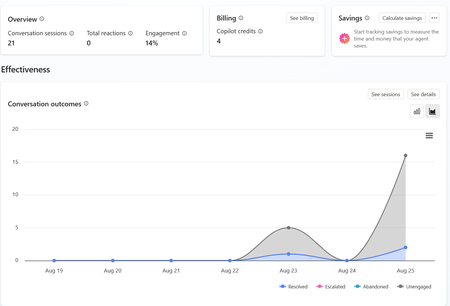
Copilot Studio Agent Shows Usage Limit Error Despite Low Credit Usage
a { text-decoration: none; color: #464feb; } tr th, tr td { border: 1px solid #e6e6e6; } tr th { background-color: #f5f5f5; } Hi everyone, We are experiencing an issue with a Copilot Studio agent and would appreciate any guidance from the community. Scenario: The agent works correctly in the Copilot Studio test environment and responds as expected. However, after integrating the same agent into our web application, users receive the following error: "This agent is currently unavailable. It has reached its usage limit. Please try again later." Additional Information: In Copilot Studio Usage Monitoring, we can only see approximately 4 credits consumed. Based on the reported consumption, we would not expect a usage limit to have been reached. The issue occurs only when accessing the agent through the web application. The Copilot Studio test interface continues to work normally. Questions: Has anyone experienced a similar issue? Could this be related to licensing, capacity allocation, authentication, or channel configuration? Is there any difference in credit consumption or capacity enforcement between the Copilot Studio test environment and embedded web channels? Are there additional monitoring locations where we can verify the actual credit usage and capacity status? Any insights or recommendations would be greatly appreciated.450Views0likes1CommentUpdate: Root Cause Identified
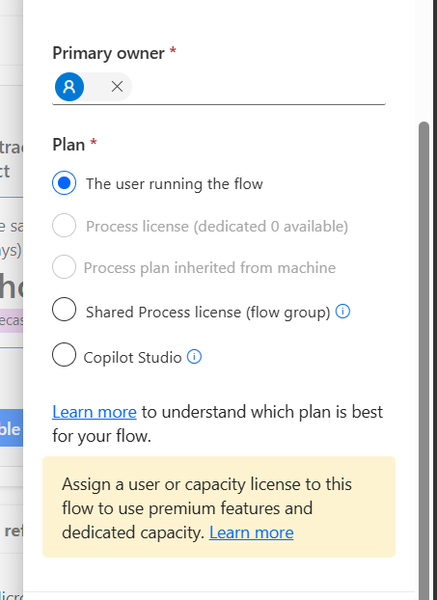
Hi everyone, I would like to share the root cause and solution in case someone else encounters the same issue. The Problem I created several agent flows directly in Power Automate using: https://make.powerautomate.com The flows were configured correctly: The flow starts with When an agent calls the flow The flow ends with Respond to the agent The flow and agent are in the same environment The flow is included in a solution The flow is published and fully functional The flows could be added to an agent and executed successfully. However, unlike flows created directly from Copilot Studio, they did not appear in the Global Tools directory. What I Investigated I verified: Trigger configuration Respond to the agent action Environment consistency Solution membership Publish all customizations Asynchronous response settings Synchronization delays between Power Automate and Copilot Studio None of these were the root cause. Root Cause The issue was related to the workflow Plan. I discovered that: Flows created directly in Power Automate were assigned: Plan = The user running the flow Flows created directly in Copilot Studio were assigned: Plan = Copilot Studio Although the Power Automate flow was fully functional and could be used by the agent, it was not visible in the Global Tools directory. Solution After changing the workflow Plan to: Plan = Copilot Studio the flow immediately appeared in the Global Tools directory. Configuration Location The setting can be found in the workflow properties under: Primary owner → Plan Important Note Based on my testing, changing the Plan to Copilot Studio appears to be a one-way operation and may not be reversible. It may be a good idea to export or save the flow before making the change. Acknowledgements Special thanks to sohnash for reproducing the scenario and providing troubleshooting suggestions, and to Patty_Velasquez for sharing similar observations that helped confirm the behavior. Hopefully this helps others who encounter the same issue. Best regards, Adhonaï KOUKA197Views1like0CommentsPower Automate Flows Created Outside Copilot Studio Not Appearing in Tools
Hello everyone, I'm facing an issue with Copilot Studio and would appreciate your advice. Context I have several Power Automate flows that I created directly from: https://make.powerautomate.com My goal is to use these flows as tools within a Copilot Studio agent. All components are in the same Power Platform environment. What I've verified The flows use the "When an agent calls a flow" trigger. The flows end with "Respond to the agent". The flows are saved and published. The agent and flows are added to the same Solution. The solution has been published. I am using the same account and environment for both Power Automate and Copilot Studio. The Issue Flows that are created directly from Copilot Studio appear correctly under: Tools → Add Tool However, flows created from Power Automate (make.powerautomate.com) do not appear in the Tools list, even though they have the same trigger and response configuration. Question Are there additional requirements for a Power Automate flow to be discoverable by Copilot Studio? For example: Does the flow need to be an Agent Flow rather than a standard Cloud Flow? Are there known synchronization or caching issues between Power Automate and Copilot Studio? Is there a specific setting, solution configuration, or publishing step that I may have missed? Any guidance or experience with a similar issue would be greatly appreciated. Thank you!741Views0likes5Comments
Saving a Model Generated File in SharePoint - New Copilot Studio
Hi everyone, I have spent the last two days trying to solve a problem that to me should be a straightforward functionality. I have an agent I made which generates Word file reports. The agent is Cluade Opus 4.8 and it generates the file wonderfully as per my brand guidelines. The document in not a simple content file. Rather these documents can get complex based on the user requirement. Currently the document generates fine and the user gets a popup to download the file. I however need the file to be saved in our share SharePoint library. I created a workflow tool that accepts a file input and then saves it to SharePoint, however when I tried to configure this tool in the agent, the file input parameter was not showing. I then tried to set up a workflow which accepts a url, but the agent cannot seem to access any url or pass it to my workflow. Using a create file tool within the agent and having the agent fill in the file name and content parameters was slow, and the agent was actually attempting to rewrite the file byte-by-byte which lead to the file being re-created and is not scalable for large files. Based on the agent, this is how the file is currently saved: "The file is saved inside my sandboxed container at: /app/created/Sample_Report.docx /app/created/ is a special output directory: any file I place there is automatically packaged by the platform and returned to you as the chat attachment (the Sample_Report.docx chip you see). This is a private, ephemeral location inside my container — it is not a shared network path, and it is not the SharePoint library. Neither you nor the SharePoint tool can reach /app/created/ directly; the platform's attachment mechanism is the only bridge out of it, and as we established, that bridge delivers a direct download rather than a hosted HTTPS URL. So to be precise: the file exists only (a) here in my container at /app/created/Sample_Report.docx, and (b) as the downloadable attachment the platform generated from it. It has not been saved to SharePoint." I need this functionality working as I will have several automations flows around report generation so no human will be available to download the file from within Copilot. Note: I cannot use the old copilot studio as the file generation capabilities are not on par with the new copilot studio experience. The same agent model does not output files, and the create word file node does not output files at the depth and formatting complexity I require. Can anyone please help with a reliable way to get the file save in SharePoint from the New Copilot Studio experience? I'm at my wits end here.Solved619Views0likes1Comment
Microsoft AI Agent Creator Associate Certificate
Hello everyone, I have a question about the Microsoft AI Agent Creator Associate certification. I’m passionate about artificial intelligence and Microsoft Copilot Studio. I’m currently taking the training course and working toward earning the Microsoft AI Agent Creator Associate certification. My question is: Will earning this certification improve my chances of getting a job at Microsoft? If anyone in this community has earned this certification or has experience with it, I’d really appreciate your feedback. Has it helped you get hired by Microsoft or one of its partners? Thank you in advance for your advice and insights!175Views0likes0Comments