automation
29 TopicsWhat's new: Earn your Microsoft Sentinel Black Belt Digital Badge!
Our Cloud Security Private Community Digital Badge program has introduced a new L5 Microsoft Sentinel Black Belt Digital Badge for you to earn and display proudly to show your prowess as a Microsoft recognized expert.21KViews12likes10CommentsAutomating Microsoft Sentinel: A blog series on enabling Smart Security
Welcome to the first entry of our blog series on automating Microsoft Sentinel. We're excited to share insights and practical guidance on leveraging automation to enhance your security posture. In this series, we'll explore the various facets of automation within Microsoft Sentinel. Whether you're a seasoned security professional or just starting, our goal is to empower you with the knowledge and tools to streamline your security operations and stay ahead of threats. Join us on this journey as we uncover the power of automation in Microsoft Sentinel and learn how to transform your security strategy from reactive to proactive. Stay tuned for our upcoming posts where we'll dive deeper into specific automation techniques and share success stories from the field. Let's make your security smarter, faster, and more resilient together. In this series, we will show you how to automate various aspects of Microsoft Sentinel, from simple automation of Microsoft Sentinel Alerts and Incidents to more complicated response scenarios with multiple moving parts. We’re doing this as a series so that we can build up our knowledge step-by-step and finishing off with a “capstone project” that takes SOAR into areas that most people aren’t aware of or even thought was possible. Here is a preview of what you can expect in the upcoming posts [we’ll be updating this post with links to new posts as they happen]: Part 1: [You are here] – Introduction to Automating Microsoft Sentinel Part 2: Automation Rules – Automate the mundane away Part 3: Playbooks 1 – Playbooks Part I – Fundamentals o Triggers o Entities o In-App Content / GitHub o Consumption plan vs. dedicated – which to choose and why? Part 4: Playbooks 2 – Playbooks Part II – Diving Deeper o Built-In 1 st and 3 rd Party Connections (ServiceNow, etc.) o REST APIs (everything else) Part 5: Azure Functions / Custom Code o Why Azure Functions? o Consumption vs. Dedicated – which to choose and why? Part 6: Capstone Project (Art of the Possible) – Putting it all together Part 1: Introduction to Automating Microsoft Sentinel Microsoft Sentinel is a cloud-native security information and event management (SIEM) platform that helps you collect, analyze, and respond to security threats across your enterprise. But did you know that it also has a native, integrated Security Orchestration, Automation, and Response (SOAR) platform? A SOAR platform that can do just about anything you can think of? It’s true! What is SOAR and why would I want to use it? A Security Orchestration, Automation, and Response (SOAR) platform helps your team take action in response to alerts or events in your SIEM. For example, let’s say Contoso Corp has a policy where if a user has a medium sign-in risk in Entra ID and fails their login three times in a row within a ten-minute timeframe that we force them to re-confirm their identity with MFA. While an analyst could certainly take the actions required, wouldn’t it be better if we could do that automatically? Using the Sentinel SOAR capabilities, you could have an analytic rule that automatically takes the action without the analyst being involved at all. Why Automate Microsoft Sentinel? Automation is a key component of any modern security operations center (SOC). Automation can help you: Reduce manual tasks and human errors Improve the speed and accuracy of threat detection and response Optimize the use of your resources and skills Enhance your visibility and insights into your security environment Align your security processes with your business objectives and compliance requirements Reduce manual tasks and human errors Alexander Pope famously wrote “To err is human; to forgive, divine”. Busy and distracted humans make mistakes. If we can reduce their workload and errors, then it makes sense to do so. Using automation, we can make sure that all of the proper steps in our response playbook are followed and we can make our analysts lives easier by giving them a simpler “point and click” response capability for those scenarios that a human is “in the loop” or by having the system run the automation in response to events and not have to wait for the analyst to respond. Improve the speed and accuracy of threat detection and response Letting machines do machine-like things (such as working twenty-four hours a day) is a good practice. Leveraging automation, we can let our security operations center (SOC) run around the clock by having automation tied to analytics. Rather than waiting for an analyst to come online, triage an alert and then take action, Microsoft Sentinel can stand guard and respond when needed. Optimize the use of your resources and skills Having our team members repeat the same mundane tasks is not optimal for the speed of response and their work satisfaction. By automating the mundane away, we can give our teams more time to learn new things or work on other tasks. Enhance your visibility and insights into your security environment Automation can be leveraged for more than just responding to an alert or incident. We can augment the information we have about entities involved in an alert or incident by using automation to call REST based APIs to do point-in-time lookups of the latest threat information, vulnerability data, patching statuses, etc. Align your security processes with your business objectives and compliance requirements If you have to meet particular regulatory requirements or internal KPIs, automation can help your team to achieve their goals quickly and consistently. What Tools and Frameworks Can You Use to Automate Microsoft Sentinel? Microsoft Sentinel provides several tools that enable you to automate your security workflows, such as: Automation Rules o Automation rules can be used to automate Microsoft Sentinel itself. For example, let’s say there is a group of machines that have been classified as business critical and if there is an alert related to those machines, then the incident needs to be assigned to a Tier 3 response team, and the severity of the alert needs to be raised to at least “high”. Using an automation rule, you can take one analytic rule, apply it to the entire enterprise, but then have an automation rule that only applies to those business-critical systems. That way only the items that need that immediate escalation receive it, quickly and efficiently. o Another great use of Automation Rules is to create Incident Tasks for analysts to follow. If you have a process and workflow, by using Incident Tasks, you can have those appear inside of an Incident right there for the analysts to follow. No need to go “look it up” in a PDF or other document. Playbooks: You can use playbooks to automatically execute actions based on triggers, such as alerts, incidents, or custom events. Playbooks are based on Azure Logic Apps, which allow you to create workflows using various connectors, such as Microsoft Teams, Azure Functions, Azure Automation, and third-party services. Azure Functions can be leveraged to run custom code like PowerShell or Python and can be called from Sentinel via Playbooks. This way if you have a process or code that’s beyond a Playbook , you can still call it from the normal Sentinel workflow. Conclusion In this blog post, we introduced the automation capabilities and benefits of SOAR in Microsoft Sentinel, and some of the tools and frameworks that you can use to automate your security workflows. In the next blog posts, we will dive deeper into each of these topics and provide some practical examples and scenarios of how to automate Microsoft Sentinel. Stay tuned for more updates and tips on automating Microsoft Sentinel! Additional Resources What are Automation Rules? Automate Threat Response with playbooks in Microsoft Sentinel3KViews8likes2CommentsSecurity Investigation with Azure Sentinel and Jupyter Notebooks – Part 1
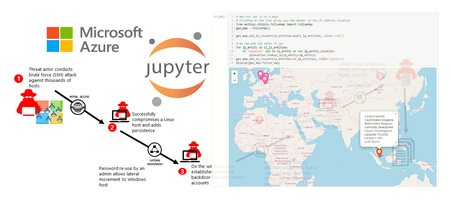
This is first of a three-part series about using Jupyter notebooks in Azure Sentinel to trace the path of a security breach in a organization's network. It is accompanied by the notebook and Python code.30KViews8likes2CommentsWhat’s new: Incident tasks
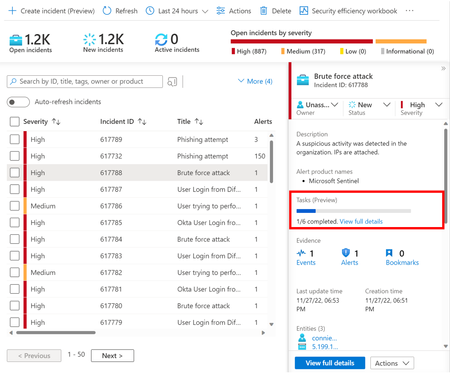
SOC analysts can follow checklists to handle the processes of incident triage, investigation, and response without worrying about missing a critical step; SOC managers and MSSPs can document, update, and align the standards of incident response across the analysts' teams and shifts.16KViews8likes1CommentIntroducing the new Microsoft Sentinel simplified pricing.
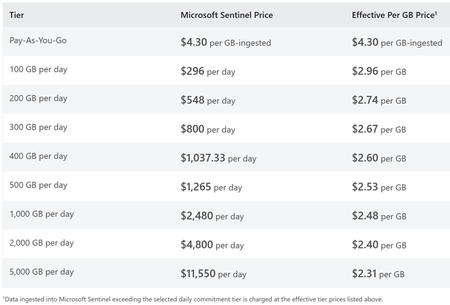
Learn about the new Microsoft Sentinel simplified price that combines the Azure Monitor Log Analytics and Microsoft Sentinel pricing tiers to a single combined tier - simplifying budgeting, billing, and cost management.54KViews6likes11CommentsAutomating Microsoft Sentinel: Part 2: Automate the mundane away
Welcome to the second entry of our blog series on automating Microsoft Sentinel. In this series, we’re showing you how to automate various aspects of Microsoft Sentinel, from simple automation of Sentinel Alerts and Incidents to more complicated response scenarios with multiple moving parts. So far, we’ve covered Part 1: Introduction to Automating Microsoft Sentinel where we talked about why you would want to automate as well as an overview of the different types of automation you can do in Sentinel. Here is a preview of what you can expect in the upcoming posts [we’ll be updating this post with links to new posts as they happen]: Part 1: Introduction to Automating Microsoft Sentinel Part 2: Automation Rules [You are here] – Automate the mundane away Part 3: Playbooks 1 – Playbooks Part I – Fundamentals Part 4: Playbooks 2 – Playbooks Part II – Diving Deeper Part 5: Azure Functions / Custom Code Part 6: Capstone Project (Art of the Possible) – Putting it all together Part 2: Automation Rules – Automate the mundane away Automation rules can be used to automate Sentinel itself. For example, let’s say there is a group of machines that have been classified as business critical and if there is an alert related to those machines, then the incident needs to be assigned to a Tier 3 response team and the severity of the alert needs to be raised to at least “high”. Using an automation rule, you can take one analytic rule, apply it to the entire enterprise, but then have an automation rule that only applies to those business-critical systems to make those changes. That way only the items that need that immediate escalation receive it, quickly and efficiently. Automation Rules In Depth So, now that we know what Automation Rules are, let’s dive in to them a bit deeper to better understand how to configure them and how they work. Creating Automation Rules There are three main places where we can create an Automation Rule: 1) Navigating to Automation under the left menu 2) In an existing Incident via the “Actions” button 3) When writing an Analytic Rule, under the “Automated response” tab The process for each is generally the same, except for the Incident route and we’ll break that down more in a bit. When we create an Automation Rule, we need to give the rule a name. It should be descriptive and indicative of what the rule is going to do and what conditions it applies to. For example, a rule that automatically resolves an incident based on a known false positive condition on a server named SRV02021 could be titled “Automatically Close Incident When Affected Machine is SRV02021” but really it’s up to you to decide what you want to name your rules. Trigger The next thing we need to define for our Automation Rule is the Trigger. Triggers are what cause the automation rule to begin running. They can fire when an incident is created or updated, or when an alert is created. Of the two options (incident based or alert based), it’s preferred to use incident triggers as they’re potentially the aggregation of multiple alerts and the odds are that you’re going to want to take the same automation steps for all of the alerts since they’re all related. It’s better to reserve alert-based triggers for scenarios where an analytic rule is firing an alert, but is set to not create an incident. Conditions Conditions are, well, the conditions to which this rule applies. There are two conditions that are always present: The Incident provider and the Analytic rule name. You can choose multiple criterion and steps. For example, you could have it apply to all incident providers and all rules (as shown in the picture above) or only a specific provider and all rules, or not apply to a particular provider, etc. etc. You can also add additional Conditions that will either include or exclude the rule from running. When you create a new condition, you can build it out by multiple properties ranging from information about the Incident all the way to information about the Entities that are tagged in the incident Remember our earlier Automation Rule title where we said this was a false positive about a server name SRV02021? This is where we make the rule match that title by setting the Condition to only fire this automation if the Entity has a host name of “SRV2021” By combining AND and OR group clauses with the built in conditional filters, you can make the rule as specific as you need it to be. You might be thinking to yourself that it seems like while there is a lot of power in creating these conditions, it might be a bit onerous to create them for each condition. Recall earlier where I said the process for the three ways of creating Automation Rules was generally the same except using the Incident Action route? Well, that route will pre-fill variables for that selected instance. For example, for the image below, the rule automatically took the rule name, the rules it applies to as well as the entities that were mapped in the incident. You can add, remove, or modify any of the variables that the process auto-maps. NOTE: In the new Unified Security Operations Platform (Defender XDR + Sentinel) that has some new best practice guidance: If you've created an automation using "Title" use "Analytic rule name" instead. The Title value could change with Defender's Correlation engine. The option for "incident provider" has been removed and replaced by "Alert product names" to filter based on the alert provider. Actions Now that we’ve tuned our Automation Rule to only fire for the situations we want, we can now set up what actions we want the rule to execute. Clicking the “Actions” drop down list will show you the options you can choose When you select an option, the user interface will change to map to your selected option. For example, if I choose to change the status of the Incident, the UX will update to show me a drop down menu with options about which status I would like to set. If I choose other options (Run playbook, change severity, assign owner, add tags, add task) the UX will change to reflect my option. You can assign multiple actions within one Automation Rule by clicking the “Add action” button and selecting the next action you want the system to take. For example, you might want to assign an Incident to a particular user or group, change its severity to “High” and then set the status to Active. Notably, when you create an Automation rule from an Incident, Sentinel automatically sets a default action to Change Status. It sets the automation up to set the Status to “Closed” and a “Benign Positive – Suspicious by expected”. This default action can be deleted and you can then set up your own action. In a future episode of this blog we’re going to be talking about Playbooks in detail, but for now just know that this is the place where you can assign a Playbook to your Automation Rules. There is one other option in the Actions menu that I wanted to specifically talk about in this blog post though: Incident Tasks Incident Tasks Like most cybersecurity teams, you probably have a run book of the different tasks or steps that your analysts and responders should take for different situations. By using Incident Tasks, you can now embed those runbook steps directly in the Incident. Incident tasks can be as lightweight or as detailed as you need them to be and can include rich formatting, links to external content, images, etc. When an incident with Tasks is generated, the SOC team will see these tasks attached as part of the Incident and can then take the defined actions and check off that they’ve been completed. Rule Lifetime and Order There is one last section of Automation rules that we need to define before we can start automating the mundane away: when should the rule expire and in what order should the rule run compared to other rules. When you create a rule in the standalone automation UX, the default is for the rule to expire at an indefinite date and time in the future, e.g. forever. You can change the expiration date and time to any date and time in the future. If you are creating the automation rule from an Incident, Sentinel will automatically assume that this rule should have an expiration date and time and sets it automatically to 24 hours in the future. Just as with the default action when created from an incident, you can change the date and time of expiration to any datetime in the future, or set it to “Indefinite” by deleting the date. Conclusion In this blog post, we talked about Automation Rules in Sentinel and how you can use them to automate mundane tasks in Sentinel as well as leverage them to help your SOC analysts be more effective and consistent in their day-to-day with capabilities like Incident Tasks. Stay tuned for more updates and tips on automating Microsoft Sentinel!2.1KViews4likes4CommentsIntroducing Threat Intelligence Ingestion Rules
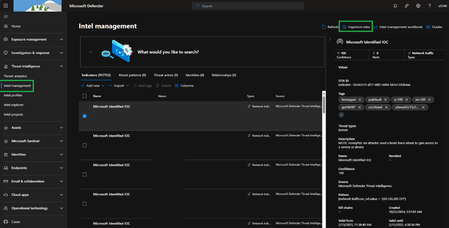
Microsoft Sentinel just rolled out a powerful new public preview feature: Ingestion Rules. This feature lets you fine-tune your threat intelligence (TI) feeds before they are ingested to Microsoft Sentinel. You can now set custom conditions and actions on Indicators of Compromise (IoCs), Threat Actors, Attack Patterns, Identities, and their Relationships. Use cases include: Filter Out False Positives: Suppress IoCs from feeds known to generate frequent false positives, ensuring only relevant intel reaches your analysts. Extending IoC validity periods for feeds that need longer lifespans. Tagging TI objects to match your organization's terminology and workflows Get Started Today with Ingestion Rules To create new “Ingestion rule”, navigate to “Intel Management” and Click on “Ingestion rules” With the new Ingestion rules feature, you have the power to modify or remove indicators even before they are integrated into Sentinel. These rules allow you to act on indicators currently in the ingestion pipeline. > Click on “Ingestion rules” Note: It can take up to 15 minutes for the rule to take effect Use Case #1: Delete IOC’s with less confidence score while ingesting When ingesting IOC's from TAXII/Upload API/File Upload, indicators are imported continuously. With pre-ingestion rules, you can filter out indicators that do not meet a certain confidence threshold. Specifically, you can set a rule to drop all indicators in the pipeline with a confidence score of 0, ensuring that only reliable data makes it through. Use Case #2: Extending IOC’s The following rule can be created to automatically extend the expiration date for all indicators in the pipeline where the confidence score is greater than 75. This ensures that these high-value indicators remain active and usable for a longer duration, enhancing the overall effectiveness of threat detection and response. Use Case #3: Bulk Tagging Bulk tagging is an efficient way to manage and categorize large volumes of indicators based on their confidence scores. With pre-ingestion rules, you can set up a rule to tag all indicators in the pipeline where the confidence score is greater than 75. This automated tagging process helps in organizing indicators, making it easier to search, filter, and analyze them based on their tags. It streamlines the workflow and improves the overall management of indicators within Sentinel. Managing Ingestion rules In addition to the specific use cases mentioned, managing ingestion rules gives you control over the entire ingestion process. 1. Reorder Rules You can reorder rules to prioritize certain actions over others, ensuring that the most critical rules are applied first. This flexibility allows for a tailored approach to data ingestion, optimizing the system's performance and accuracy. 2. Create From Creating new ingestion rules from existing ones can save you a significant amount of time and offer the flexibility to incorporate additional logic or remove unnecessary elements. Effectively duplicating these rules ensures you can quickly adapt to new requirements, streamline operations, and maintain a high level of efficiency in managing your data ingestion process. 3. Delete Ingestion Rules Over time, certain rules may become obsolete or redundant as your organizational needs and security strategies evolve. It's important to note that each workspace is limited to a maximum of 25 ingestion rules. Having a clean and relevant set of rules ensures that your data ingestion process remains streamlined and efficient, minimizing unnecessary processing and potential conflicts. Deleting outdated or unnecessary rules allows for a more focused approach to threat detection and response. It reduces clutter, which can significantly enhance the performance. By regularly reviewing and purging obsolete rules, you maintain a high level of operational efficiency and ensure that only the most critical and up-to-date rules are in place. Conclusion By leveraging these pre-ingestion rules effectively, you can enhance the quality and reliability of the IOC’s ingested into Sentinel, leading to more accurate threat detection and an improved security posture for your organization.6KViews4likes2CommentsUsing Microsoft Teams Adaptive Cards to enhance incident response in Microsoft Sentinel
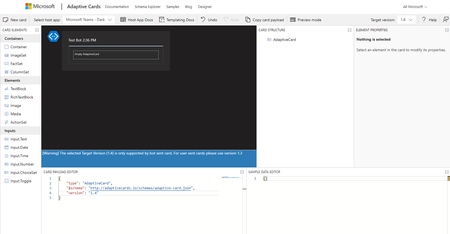
With the Microsoft Teams Logic App connector, we can utilize Adaptive Cards to send notifications to Teams and/or ask for feedback to act on a Microsoft Sentinel incident. The example we will be using in this blog is to send Microsoft Teams Adaptive Card on incident creation, with the option to change the incident's severity and/or status.28KViews4likes13CommentsMicrosoft Sentinel and Defender: ITSM Integrations Explained
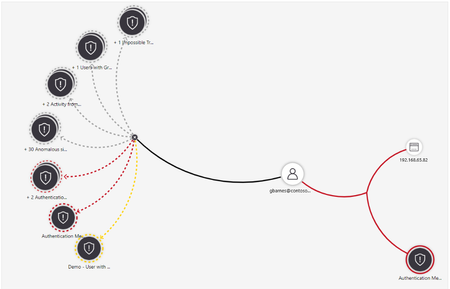
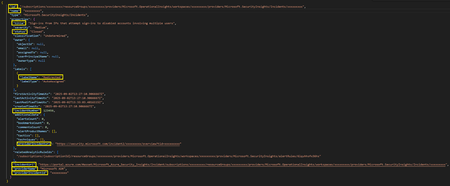
One of the main changes and advantages of onboarding Microsoft Sentinel to the Defender portal is the fact that alerts are automatically correlated into single incidents. Alert correlation will kick in when we have enough evidence that multiple alerts are related. This has great benefits, as it can quickly unveil multi-stage attacks that otherwise could look like unrelated harmless alerts. It also helps reduce the amount of incidents by merging those that are related. However, each organization has its own internal processes, teams, etc., so transitioning to this new way of working can be challenging. Furthermore, for organizations that use external ITSM tools to manage their incidents and alerts this means the logic in the incident synchronization must be considered before onboarding Microsoft Sentinel on Defender. This is critical as you will need to make sure that updates on incidents due to correlation are properly reflected on your tool. In this article, we will review the most relevant fields in the Azure management API and in the Microsoft security graph API. If you are building a new integration, we recommend transitioning to the Microsoft Graph security API. However, if you have an existing integration relying on the Microsoft Sentinel REST APIs, you can simply update what you have. If you are using ServiceNow as your ITSM tool, we recommend using this out-of-the-box app provided by ServiceNow. It relies on the Azure Management API: Microsoft Sentinel - ServiceNow Store. The latest version includes improvements that take care of the correlation logic. If you are using a different ITSM tool with an out-of-the-box integration, we recommend checking whether the latest version available already covers this change in the logic. Otherwise, if you wish to update or create your own integration logic, we are providing some guidance below. How does the correlation logic affect incidents Understanding how the correlation logic affects incidents and when it kicks in is the first step. We recommend reading our official documentation, which explains different scenarios for Incident correlation and merging. However, below we will describe in more detail how correlation affects incidents, bearing in mind how this can influence synchronization with external ITSM systems. Since correlation will automatically move alerts and close incidents, you need to understand how this works and check if your synchronization logic need modifications. When two or more alerts are identified as related, they are aggregated into a single incident. This can happen in two ways: Existing incidents: Alerts from different incidents may be moved into a new or existing “target” incident. The original (“source”) incidents will lose those alerts and will be automatically closed. On Defender, any references to the ”source” incident will be redirected to the “target” incident. On Microsoft Sentinel on Azure, you will still see the old incident, although it will be closed, it will contain the tag “redirected” and it will contain a link to the “target” incident. New alerts: Alerts that are not yet part of any incident may be directly added to the “target” incident. Please keep in mind that Sentinel alerts that are triggered without an incident (which is possible through the Sentinel analytic rules settings) will not be considered for correlation. In other words, when Sentinel alerts are correlated to a target incident, there will always be a “source” incident which will be closed. We recommend reading about the criteria for merging incidents is, as well as specific scenarios when incidents aren't merged. Using the Microsoft Sentinel REST APIs If you have an existing integration based on the Microsoft Sentinel REST APIs, these are the relevant endpoints: Get all incidents Incidents - List - REST API (Azure Sentinel) | Microsoft Learn Get a specific incident Incidents - Get - REST API (Azure Sentinel) | Microsoft Learn Get all alerts for a specific incident Incidents - List Alerts - REST API (Azure Sentinel) | Microsoft Learn What we observe in most organizations with external ITSM systems is that they generally synchronize incidents only, not alerts; and their analysts go to Microsoft Sentinel to view the alerts and other details, hunt, etc. Therefore, we will focus on the endpoint to get all incidents, which is probably the endpoint you are using today. Let us have a look at the payload for an incident that has been closed due to redirection: These are the relevant fields for you: id: resource ID of the incident on Azure, now closed name: the incident GUID on Azure title: the source incident title (now closed, the new incident will probably have a different name) status: it will always be closed in this scenario labelName: it will always be redirected in this scenario, this tag is automatically added to incidents closed by automatic alert correlation incidentNumber: the incident number of the source incident in Azure alertCount: this will always be zero in this scenario, as the incident was emptied and alerts were transferred to the target incident providerIncidentUrl: the url of the target incident on Defender where you can find the transferred alerts incidentUrl: the url of the source incident (now closed) on Sentinel on Azure. Opening this url takes you to the old incident, which contains a banner with the new target incident url providerName: Once you onboard your Microsoft Sentinel workspace to Defender, this field will always be Microsoft XDR, as all incidents (also Sentinel incidents) are created on Defender providerIncidentId: the target incident ID on Defender Updates you could make A logic you could implement is to have an automation rule that detects when an incident is updated with the tag “Redirected”: This should trigger a logic app that calls your ITSM system: On your ITSM system, make sure you are mapping the providerIncidentUrl (link to Defender), this is important for two reasons: The link on the ITSM system should take your analysts to Defender, as it contains all the details of the incident and the alerts The API only references the url of the target incident on Defender. Since you probably want to update the target incident on your ITSM system, you will need to find the “providerIncidentUrl” on your system. Close the source incident on the ITSM system Update the source incident on the ITSM system with a description/comment with a link to the providerIncidentUrl (which is the URL of the target incident) On the target incident (providerIncidentUrl) on the ITSM system, add a description/comment mentioning the incident absorbed the alerts from the former incident Potentially increase severity of your target incident on the ITSM system Other more complex logics could include updating the owner. Important! Bear in mind that Incident provider is no longer a condition you can select on Defender because, once you onboard Microsoft Sentinel to Defender, the incident provider is always Microsoft Defender XDR. If you use this condition today, please change it to Alert product names instead (if you wish to make a distinction between different alert providers) The incident title is no longer predictable, as incident names can change through merging. If you use incident title as a condition, please change it to Analytic rule name and select the analytic rule that should trigger the automation. You can use mariocuomo 's script, which generates a report with a list of all automation rules that contain either of these conditions, so you can update them before transitioned to Defender: mariocuomo/Sentinel-Transition-To-Defender-Helper-Script: This repository contains an helper script that I developed to assist Sentinel customer to adopt Sentinel in Defender. While other changes should not affect you in this logic, we recommend reading Configure automation rules and playbooks in Defender to understand what else changes. Using the Microsoft Graph security API If you are building a new integration, or if your previous integration needs multiple updates, we recommend creating your integration based on the Microsoft Graph security API. This is the API endpoint in the Microsoft security graph API to get your incidents: https://graph.microsoft.com/beta/security/incidents If you want to get alerts under your incidents as well, please use this endpoint to get incidents and corresponding alerts: https://graph.microsoft.com/beta/security/incidents?$expand=alerts Important! Please note that alerts triggered by Sentinel analytic rules where an incident is not created are not visible on Defender, although they will be visible on the SecurityAlert table (either on the Microsoft Sentinel Azure portal, or on Defender in Advanced Hunting). This means that the Microsoft Graph security APIs cannot be used yet to submit your alerts to an ITSM system. If you wish to send alerts to an ITSM system, please use the Microsoft Sentinel REST APIs. Now, let’s have a look at the API response for an incident that was redirected: These are the relevant fields for you: id: The id of the source incident on Defender status: it will always be “redirected” in this scenario. incidentWebUrl: this is the url of the source incident on Defender, now redirected redirectIncidentId: the ID of the target incident on Defender lastModifiedBy: In this scenario you will always see Microsoft 365 Defender-AlertCorrelation As you probably noticed, in the Graph API you will not find Azure Sentinel fields. What would my logic look like Assuming you are using the Microsoft Graph security API, you are already streaming your Defender incidents to your ITSM system. If you want to update your logic to close source incidents where alerts have been transferred to a target incident, your logic could look like this: Run a logic app every few minutes to check for incidents that changed the status to “redirected”. You can do it through such an API call: https://graph.microsoft.com/v1.0/security/incidents?$filter=status eq 'redirected' and lastUpdateDateTime ge 2025-09-03T11:15:00Z (add the correct timestamp here) Now, you can find those incidents on your ITSM system and update them: Close them on the ITSM system Add a description or comment with the new incident (redirectIncidentId) You could make more changes, like going to the target incident on your ITSM system and detail there that your incident has absorbed alerts from a source incident. Remember you can add tags to your incidents on Defender too, such as the incident ID on your ITSM system. This will make synchronization easier. You can refer to the field “customTags” for this purpose. Special thanks to my colleagues NChristis, sagiyagen365 and BenjiSec for reviewing and contributing to this article!3.2KViews3likes0Comments