automation
179 Topics
Microsoft Defender XDR / Defender for Endpoint data connectors inconsistent failures
Hello, We are deploying our SOC (Sentinel) environments via Bicep. Now the Defender XDR ( MicrosoftThreatProtection) and Defender for Endpoint ( MicrosoftDefenderAdvancedThreatProtection) data connectors are failing to deploy inconsistantly. It seems to be a known issue due to the following posts: - https://github.com/Azure/SimuLand/issues/23 - https://techcommunity.microsoft.com/t5/microsoft-sentinel/quot-missing-consent-invalid-license-quot-defender-for-endpoint/m-p/3027212 - https://github.com/Azure/Azure-Sentinel/issues/5007 Next to this issue I see almost no development on the data connectors API, is there some news to be spread how to enable data connectors automated in the future, since it seems to be moving to Content Hub. It is hard to find any docs about how to deploy this for example via Bicep!? Also I have a question regarding 'Tenant-based Microsoft Defender for Cloud (Preview)' data connector. We deploy this now via GenericUI data connector kind, but this has no option to enable it via automation. Same as the question in the previous paragraph, how would this be made possible?1.2KViews0likes1Comment
The Hidden Reason Your Sentinel Playbook Won't Show Up in Automation Rules (It's Not RBAC)
If a Logic App using the native Microsoft Sentinel incident trigger doesn't show up in the "Run playbook" picker of an Automation Rule — even though permissions, region, and connection are all correct — check the internal action name of the trigger in the JSON code view. If the Logic App was created while the Azure portal was set to a non-English language, the designer may generate a localized action name instead of the expected Microsoft_Sentinel_incident, and the playbook won't be picked up. Environment Microsoft Sentinel (Log Analytics workspace) Logic Apps (Consumption plan) Trigger: native Microsoft Sentinel connector, "Incident" trigger (/incident-creation path) Authentication: system-assigned Managed Identity Same subscription, resource group, and region as the Sentinel workspace Problem Two Logic Apps, both triggered by the native Microsoft Sentinel incident trigger, both using a system-assigned managed identity with the Microsoft Sentinel Responder role granted on the workspace. Same subscription, same resource group, same region. Only one of the two appeared in the "Run playbook" dropdown when configuring an Automation Rule in Sentinel. The other was simply absent — no error message, no warning, nothing in the run history to explain it. Investigation The usual suspects were checked and ruled out one by one: API connection health — one azuresentinel connection was indeed in an "Error" state, but it turned out not to be the one referenced by the affected trigger. Managed identity RBAC — the Microsoft Sentinel Responder role was correctly assigned to the Logic App's managed identity on the Sentinel workspace. User's own RBAC/PIM role — the Logic App Contributor role (required for the account configuring the Automation Rule to even see the resource) was active via PIM at the time of testing. Region/subscription/resource group — identical for both Logic Apps. Trigger type — both used the native "Incident in Microsoft Sentinel" trigger added through the visual designer, not a generic HTTP trigger or a deprecated connector. Every documented requirement was met. The playbook was still invisible. Root Cause Comparing the raw JSON (Logic app > Development tools > Code view) revealed the actual difference. Working Logic App (visible in the picker): "triggers": { "Microsoft_Sentinel_incident": { "type": "ApiConnectionWebhook", "inputs": { "body": { "callback_url": "@{listCallbackUrl()}" }, "path": "/incident-creation" } } } Broken Logic App (invisible in the picker): "triggers": { "Incident_dans_Microsoft_Sentinel": { "type": "ApiConnectionWebhook", "inputs": { "body": { "callback_url": "@listCallbackUrl()" }, "path": "/incident-creation" } } } The connector type and the path (/incident-creation) are identical. The one meaningful structural difference is the trigger's action name: Microsoft_Sentinel_incident versus Incident_dans_Microsoft_Sentinel. The second Logic App's trigger had been added while the Azure portal was set to French. The designer generated a localized action name instead of the canonical English one. Everything points to Sentinel's playbook discovery mechanism scanning Logic App definitions for that exact canonical action name (Microsoft_Sentinel_incident) to identify a resource as a valid Sentinel playbook — rather than relying solely on the connector type or the webhook path, as one would reasonably expect. Fix Renaming the trigger's action key in the JSON to the canonical name was enough: "triggers": { "Microsoft_Sentinel_incident": { ... } } No permission, connection, or region change was required — only this rename. Takeaways The Sentinel Automation Rule playbook picker appears to depend on the exact trigger action name, not just its type or functional behavior — a dependency that isn't documented anywhere in the official Microsoft docs as of this writing. The Azure portal's display language at the time a trigger is added has a direct impact on that Logic App's compatibility with Sentinel Automation Rules. A playbook can be fully functional (running without errors when triggered manually or through an older automation mechanism) while still being invisible in the newer Automation Rule selector — which makes this particular issue easy to miss, since nothing explicitly flags it. Recommendations Temporarily switch the Azure portal to English (Portal settings > Language and region) before adding a Sentinel trigger to a Logic App, if your team usually works in another language. If an existing Logic App won't show up despite an otherwise correct configuration, check the trigger's action name in the JSON code view first — it's a 30-second check that can save hours of RBAC/connection troubleshooting. Document this in your internal runbooks if your team works in a localized portal — this kind of detail is easy to lose and can cost significant troubleshooting time down the line. Has anyone else run into similar localization-related quirks in Sentinel or Logic Apps? Would be curious to hear about other cases in the comments.230Views0likes0CommentsThe Hidden Reason Your Sentinel Playbook Won't Show Up in Automation Rules (It's Not RBAC)
If a Logic App using the native Microsoft Sentinel incident trigger doesn't show up in the "Run playbook" picker of an Automation Rule — even though permissions, region, and connection are all correct — check the internal action name of the trigger in the JSON code view. If the Logic App was created while the Azure portal was set to a non-English language, the designer may generate a localized action name instead of the expected Microsoft_Sentinel_incident, and the playbook won't be picked up. Environment Microsoft Sentinel (Log Analytics workspace) Logic Apps (Consumption plan) Trigger: native Microsoft Sentinel connector, "Incident" trigger (/incident-creation path) Authentication: system-assigned Managed Identity Same subscription, resource group, and region as the Sentinel workspace Problem Two Logic Apps, both triggered by the native Microsoft Sentinel incident trigger, both using a system-assigned managed identity with the Microsoft Sentinel Responder role granted on the workspace. Same subscription, same resource group, same region. Only one of the two appeared in the "Run playbook" dropdown when configuring an Automation Rule in Sentinel. The other was simply absent — no error message, no warning, nothing in the run history to explain it. Investigation The usual suspects were checked and ruled out one by one: API connection health — one azuresentinel connection was indeed in an "Error" state, but it turned out not to be the one referenced by the affected trigger. Managed identity RBAC — the Microsoft Sentinel Responder role was correctly assigned to the Logic App's managed identity on the Sentinel workspace. User's own RBAC/PIM role — the Logic App Contributor role (required for the account configuring the Automation Rule to even see the resource) was active via PIM at the time of testing. Region/subscription/resource group — identical for both Logic Apps. Trigger type — both used the native "Incident in Microsoft Sentinel" trigger added through the visual designer, not a generic HTTP trigger or a deprecated connector. Every documented requirement was met. The playbook was still invisible. Root Cause Comparing the raw JSON (Logic app > Development tools > Code view) revealed the actual difference. Working Logic App (visible in the picker): "triggers": { "Microsoft_Sentinel_incident": { "type": "ApiConnectionWebhook", "inputs": { "body": { "callback_url": "@{listCallbackUrl()}" }, "path": "/incident-creation" } } } Broken Logic App (invisible in the picker): "triggers": { "Incident_dans_Microsoft_Sentinel": { "type": "ApiConnectionWebhook", "inputs": { "body": { "callback_url": "@listCallbackUrl()" }, "path": "/incident-creation" } } } The connector type and the path (/incident-creation) are235Views0likes0CommentsYour Sentinel AMA Logs & Queries Are Public by Default - AMPLS Architectures to Fix That
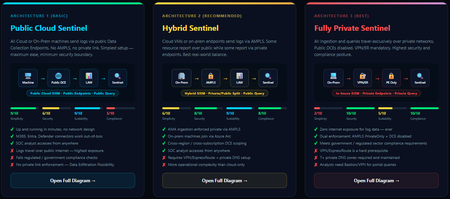
When you deploy Microsoft Sentinel, security log ingestion travels over public Azure Data Collection Endpoints by default. The connection is encrypted, and the data arrives correctly — but the endpoint is publicly reachable, and so is the workspace itself, queryable from any browser on any network. For many organisations, that trade-off is fine. For others — regulated industries, healthcare, financial services, critical infrastructure — it is the exact problem they need to solve. Azure Monitor Private Link Scope (AMPLS) is how you solve it. What AMPLS Actually Does AMPLS is a single Azure resource that wraps your monitoring pipeline and controls two settings: Where logs are allowed to go (ingestion mode: Open or PrivateOnly) Where analysts are allowed to query from (query mode: Open or PrivateOnly) Change those two settings and you fundamentally change the security posture — not as a policy recommendation, but as a hard platform enforcement. Set ingestion to PrivateOnly and the public endpoint stops working. It does not fall back gracefully. It returns an error. That is the point. It is not a firewall rule someone can bypass or a policy someone can override. Control is baked in at the infrastructure level. Three Patterns — One Spectrum There is no universally correct answer. The right architecture depends on your organisation's risk appetite, existing network infrastructure, and how much operational complexity your team can realistically manage. These three patterns cover the full range: Architecture 1 — Open / Public (Basic) No AMPLS. Logs travel to public Data Collection Endpoints over the internet. The workspace is open to queries from anywhere. This is the default — operational in minutes with zero network setup. Cloud service connectors (Microsoft 365, Defender, third-party) work immediately because they are server-side/API/Graph pulls and are unaffected by AMPLS. Azure Monitor Agents and Azure Arc agents handle ingestion from cloud or on-prem machines via public network. Simplicity: 9/10 | Security: 6/10 Good for: Dev environments, teams getting started, low-sensitivity workloads Architecture 2 — Hybrid: Private Ingestion, Open Queries (Recommended for most) AMPLS is in place. Ingestion is locked to PrivateOnly — logs from virtual machines travel through a Private Endpoint inside your own network, never touching a public route. On-premises or hybrid machines connect through Azure Arc over VPN or a dedicated circuit and feed into the same private pipeline. Query access stays open, so analysts can work from anywhere without needing a VPN/Jumpbox to reach the Sentinel portal — the investigation workflow stays flexible, but the log ingestion path is fully ring-fenced. You can also split ingestion mode per DCE if you need some sources public and some private. This is the architecture most organisations land on as their steady state. Simplicity: 6/10 | Security: 8/10 Good for: Organisations with mixed cloud and on-premises estates that need private ingestion without restricting analyst access Architecture 3 — Fully Private (Maximum Control) Infrastructure is essentially identical to Architecture 2 — AMPLS, Private Endpoints, Private DNS zones, VPN or dedicated circuit, Azure Arc for on-premises machines. The single difference: query mode is also set to PrivateOnly. Analysts can only reach Sentinel from inside the private network. VPN or Jumpbox required to access the portal. Both the pipe that carries logs in and the channel analysts use to read them are fully contained within the defined boundary. This is the right choice when your organisation needs to demonstrate — not just claim — that security data never moves outside a defined network perimeter. Simplicity: 2/10 | Security: 10/10 Good for: Organisations with strict data boundary requirements (regulated industries, audit, compliance mandates) Quick Reference — Which Pattern Fits? Scenario Architecture Getting started / low-sensitivity workloads Arch 1 — No network setup, public endpoints accepted Private log ingestion, analysts work anywhere Arch 2 — AMPLS PrivateOnly ingestion, query mode open Both ingestion and queries must be fully private Arch 3 — Same as Arch 2 + query mode set to PrivateOnly One thing all three share: Microsoft 365, Entra ID, and Defender connectors work in every pattern — they are server-side pulls by Sentinel and are not affected by your network posture. Please feel free to reach out if you have any questions regarding the information provided.1KViews3likes2Comments
Building Microsoft Sentinel Connectors in Minutes with the Sentinel Connector Builder Agent
Overview We previously announced the public preview of the Microsoft Sentinel connector builder agent via VS code extension, that helps developers build Microsoft Sentinel codeless connectors faster with low-code and AI-assisted prompts. This post walks through a hands-on lab using a mock Network Log API to demonstrate how the Sentinel connector builder agent simplifies building Codeless Connector Framework (CCF) pull connectors. Instead of manually creating ingestion infrastructure and configuration files, you’ll use a guided, conversational workflow in VS Code to generate connector artifacts, test them against a live API, and deploy them into Microsoft Sentinel. The lab focuses on the end-to-end experience ranging from API setup to validated connector deployment so you can see how quickly a working integration can be produced. For additional guidance beyond this lab, refer to our MS Learn documentation. The Lab Environment This lab is built around a mock Network Log API hosted as an Azure Function App. The purpose of the lab environment is to give us a live API that we can use to build, validate, and test the Sentinel CCF connector builder agent against end to end. The API exposes 50 synthetic network activity records that look and behave like a real product data source, including web traffic, DNS requests, blocked remote access attempts, malware command-and-control blocks, VPN activity, and other common network events. That makes it a useful stand-in for the type of telemetry many teams want to onboard into Microsoft Sentinel. The API is intentionally shaped like the kind of source a customer might expose for telemetry retrieval. It uses API key authentication through the X-API-Key header, returns paginated results through a nextLink model, and provides a predictable response structure that the builder agent can map into a pull connector configuration. The repo contains everything needed for the walkthrough. There is an ARM template to deploy the Function App, reference documentation for the API, and a sample connector package showing the generated polling config, table schema, DCR, and connector definition. The end goal of the lab is straightforward: use the builder agent to generate a CCF pull connector that ingests this API into the custom NetworkLogAPIGetNetworkLogs_CL table in Sentinel. Prerequisites Before starting, make sure you have the following: Azure subscription -- with Contributor access on a resource group (for deploying the Function App) and Microsoft Sentinel Contributor access on a Sentinel-enabled workspace (for deploying the connector) Microsoft Sentinel workspace -- an existing Log Analytics workspace with Sentinel enabled. See Onboard Microsoft Sentinel to a Log Analytics workspace for more information. Azure CLI -- See How to install the Azure CLI for more information. VS Code with the Microsoft Sentinel for Visual Studio Code extension installed. GitHub Copilot -- with access to premium models. The connector builder agent requires Claude Sonnet 4.5 or 4.6, which uses Copilot premium model credits. Lab Repository -- Once the aforementioned prerequisites are met, you can access the lab repository here: Azure-Sentinel/Tools/CCF-Connector-Builder-Agent-Accelerator at master · Azure/Azure-Sentinel Deploying the Mock API The full CLI commands for this section are available in the repo. For a simpler option, you can use GitHub Copilot to handle the deployment. Enter this prompt: Follow the deployment instructions in Sentinel-CCF-Pull-Connector-Builder-Agent-Accelerator/agent-instructions.md. Let’s deploy the Network Log API and build a CCF pull connector. At a high level, the setup is four steps: clone the repo, create a resource group, ensure you have a Sentinel-enabled workspace, and deploy the Function App using the included ARM template. The template takes two parameters: an ApiKey of your choice (the secret the CCF connector will use to authenticate) and your Log Analytics workspace resource ID for Application Insights. Deployment takes about two to three minutes and outputs the FunctionAppName and endpoint URLs you will need later. Once deployed, verify the API is live: curl -s -H "X-API-Key: <your-api-key>" \ "https://<functionappname>.azurewebsites.net/api/GetNetworkLogs?page=1&pageSize=3" </functionappname></your-api-key> You should see a response like this: The API also exposes an /api/RefreshData endpoint that regenerates the 50 sample records with fresh timestamps. This is useful later in the walkthrough when you want to produce new events and trigger an immediate ingestion cycle without waiting for the next polling interval: curl -s -X POST -H "X-API-Key: <your-api-key>" \ "https://<functionappname>.azurewebsites.net/api/RefreshData" </functionappname></your-api-key> Building the Connector with the Sentinel Connector Builder Agent With the Microsoft Sentinel extension installed and GitHub Copilot running in agent mode, open a Copilot chat and enter a single prompt pointing at the API documentation file: That is the entire invocation. The agent takes it from there. It works through a structured seven-step sequence: preparation, polling config, table schema, DCR, connector definition, package validation, and summary. The agent produces four files in a sentinel-connectors/NetworkLogAPI_CCF/ output folder: NetworkLogAPI_PollingConfig.json – This is the API poller configuration. The agent reads the documentation and correctly identifies the GET /api/GetNetworkLogs endpoint, configures API Key authentication via the X-API-Key header, sets up NextPageUrl pagination using $.metadata.nextLink with a $.metadata.hasNextPage stop condition, and wires up the since query parameter for incremental delta pulls using the timestamp field. The RefreshData endpoint is correctly excluded, which the agent recognizes as a maintenance operation, not a security data stream. NetworkLogAPI_Table.json – This is the custom Log Analytics table schema for NetworkLogAPIGetNetworkLogs_CL . All 20 fields from the API response are mapped to the correct column types, with timestamp promoted to TimeGenerated as the standard Sentinel time column. NetworkLogAPI_DCR.json – This is the Data Collection Rule. This defines the stream declaration, the workspace destination, and the KQL transform that maps the raw snake_case API fields ( sourceIp , destinationIp , threatIndicator , etc.) to their PascalCase table columns. NetworkLogAPI_ConnectorDefinition.json – This is the connector UI configuration. This drives what the connector page looks like in Microsoft Sentinel: the title, description, prerequisite instructions, the BaseUrl and ApiKey input fields, sample KQL queries, and the connectivity status logic. The only point where the agent paused for input was to propose a connector description and ask for confirmation before writing it to the file. Everything else such as endpoint selection, auth type, pagination pattern, schema mapping, KQL transform, cross-file consistency was selected autonomously. To put that in perspective: without the agent, a developer building this connector from scratch would need to manually author four JSON files, understand the CCF schema for polling configs, DCRs, and connector definitions, write the KQL transform by hand, and validate that every cross-file reference lines up correctly. The agent compresses that work, typically hours of reading documentation, trial-and-error, and portal debugging, into a single prompt. Testing the Connector Before deploying anything to a Sentinel workspace, the Microsoft Sentinel connector builder agent lets you validate the generated polling config against the live API directly from your editor. Right-click the sentinel-connectors/NetworkLogAPI_CCF folder, select Microsoft Sentinel → Test Connector (Preview), and a Configuration Variables panel opens asking for the two template variables from the polling config: BaseUrl and apiKey . For other API patterns, there may be additional and different inputs. For example, apiKey input could be swapped with clientID and secret if the API supports OAUTH. Enter the Function App base URL and your API key, and the test runner connects immediately. The panel shows a live polling session. Poll #1 returns HTTP 200 with 50 events, and a countdown timer shows when the next poll will fire. Switching to the Events tab displays the ingested records in a tabular view with columns for timestamp , severity , action , bytesIn , bytesOut , category , and the rest of the mapped fields fresh from the API. Additionally, there are tabs for Headers, Payload, and Response, which can be useful for verifying that your pollerconfig.json configuration provides the expected request to your api with a working response. Data Extracted: The Test Connector feature can be used to visualize the response data in a table format to verify that data will land in a Sentinel table based on your configuration. Request from Poller: The Test Connector feature can be used to validate the request and response headers that will go out to the API based on the generated poller configuration. Request Response: The Test Connector feature shows you the live response from the API with respect to the request going to the API based on the poller configuration. This is a meaningful pre-flight check. It confirms that auth is working, the $.data events path resolves correctly, pagination is functional, and the polling interval fires as configured all before a single file is deployed to Azure. The most common connector configuration issues (wrong base URL, incorrect header name, mismatched JSON path) surface here in seconds rather than after a failed deployment and a 20-minute wait for Sentinel to attempt its first ingestion cycle. It is also the fastest way to troubleshoot if something goes wrong after deployment, far quicker than pushing changes to Azure and waiting for the connector to poll again. Deploying and Enabling the Connector With the connector tested and passing, deployment is the same right-click menu: right-click the sentinel-connectors/NetworkLogAPI_CCF folder, select Microsoft Sentinel → Deploy Connector (Preview). If you are not already signed in to Azure, the extension will prompt you to authenticate. The agent will also provide a clickbox in the chat window to invoke a connector deployment. Right Click Deploy Connector: UI Prompt Based Deploy Method: Once signed in, a workspace picker lists all available Log Analytics workspaces across your subscriptions. Select the one with Sentinel enabled and click Deploy. The extension deploys all four files to the workspace in the correct order: table schema first, then DCR, polling config, and connector definition. Once deployed, navigate to your Sentinel workspace via https://security.microsoft.com, go to Data Connectors, and find the Network Log API connector. The connector page shows the description, prerequisite notes, and the two credential fields generated by the agent: API Base URL and API Key. Enter your Function App base URL and API key and click Connect. The status updates to show the connector is connected and the deployment succeeded. Note: Data will appear in the workspace within 5 to 30 minutes depending on the polling interval. Run this query in Log Analytics to confirm ingestion. Note that the agent derives the table name from the vendor name and endpoint, so yours may differ slightly from the example below. Check the agent's summary output or the NetworkLogAPI_Table.json file for the exact name: NetworkLogAPIGetNetworkLogs_CL | sort by TimeGenerated desc | take 10 If you want to generate a fresh batch of events immediately rather than waiting for the next polling cycle, use the RefreshData endpoint to reset the sample records with new timestamps: curl -s -X POST -H "X-API-Key: " \ "https://.azurewebsites.net/api/RefreshData" Next Steps If you want to go further: Try it with your own API. The lab repo includes documentation on adapting the polling config, schema, and KQL transform to a real data source. Review the CCF connector schema documentation to understand the full range of supported configurations: pagination patterns, auth types, incremental pull strategies, and delta filter expressions. Explore the Microsoft Sentinel content hub to see how published connectors are structured and what the certification requirements look like for production submissions. Conclusion Following these steps, you saw how a working Sentinel connector can be generated, tested, and deployed in minutes rather than requiring days of manual configuration and infrastructure setup. If you are an ISV building a Sentinel integration and want hands-on support, Microsoft’s App Assure program is available to help. We partner with ISVs on connector development, validation, and deployment and provide guidance through implementation, testing, and readiness for production. You can get started by reaching out through our intake form. See our other Sentinel connector feature’s hands-on labs Building a CCF Nested API Pull Connector: A Technical Lab Walkthrough1.1KViews0likes0CommentsSentinel Foundry - MCP Server (Github Community Release)
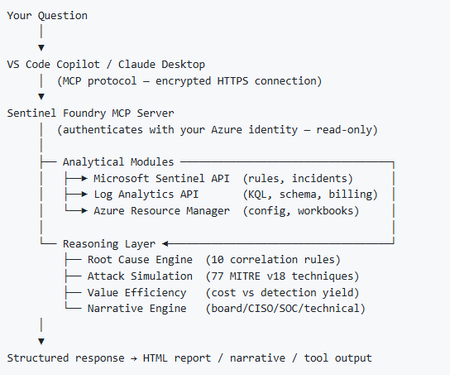
I’ve been cooking something that a lot of people in SOC have been struggling with — especially on the engineering side of Microsoft Sentinel. Thanks to the Microsoft Security team for shaping the capabilities of Sentinel even better with Sentinel Data Lake & Modern SecOps. Today’s the day I can finally share it. Note: This is not an official Microsoft product, but it is designed to make the Sentinel Build even better (complement) with much more intelligence. 🚀 Sentinel Foundry is now in public preview with 43 tools. (Sentinel Foundry - MCP Server) It’s an MCP server built to act like the brain of a strong Sentinel engineer — helping make building, improving, and operating Sentinel far more practical, faster, and honestly more enjoyable. For a lot of teams, the challenge is not understanding what Sentinel can do. The hard part is the engineering work around it: -> Deciding what data should actually be ingested -> Building a clean, scalable Sentinel foundation -> Writing useful detections instead of noisy ones -> Balancing security value with cost -> Turning ideas into deployable engineering outputs That is exactly why I built Sentinel Foundry to help communities grow stronger. It helps with the real engineering tasks behind Sentinel — from architecture thinking to detection design, deployment planning, ingestion strategy, automation ideas, and many of the workflows outlined in the GitHub project. How does it work? Here’s one of the flagship prompts I ran with it: “Give me a complete security posture report for our workspace. Score each pillar and tell me what to prioritise.” And within seconds, it produced a structured engineering blueprint that would normally take a lot longer to pull together manually. You can see the example prompts here in what it can do: https://github.com/prabhukiranveesam/Sentinel-Foundry#what-can-it-do I want building Sentinel to feel less like repetitive engineering overhead — and more like real security engineering that is fast, creative, and enjoyable. If you work with Sentinel as a SOC L2 analyst, engineer, detection engineer, consultant, or architect, I’d genuinely love for you to try it and tell me what you think. 🔗 Public Preview: https://github.com/prabhukiranveesam/Sentinel-Foundry This is just the start of an AI era — and I’m excited to keep shaping it with more powerful features over the coming days. This is very easy to set up and will be available to all of you at no cost during this month as part of the public preview, and your feedback is extremely valuable to shape this as a powerful solution.1.2KViews0likes2Comments
Extend sentinel/LAW table schema
Hi, we are working on migrating from a SIEM solution to sentinel and for users to migrate easily, we want to have some custom fields to LAW/Sentinel tables (eg) a filed named brand_CF needs to be added to common security log, syslog, etc tables … we can do vi a UI, but just wondering if it can be done via api/terraform , as we want to put it in code than UI… did anyone created custom columns via API? Further not all tables visible via UI under tables in LAW..Solved702Views0likes3Comments
Data Connectors Storage Account and Function App
Several data connectors downloaded via Content Hub has ARM deployment templates which is default OOB experience. If we need to customize we could however I wanted to ask community how do you go about addressing some of the infrastructure issues where these connectors deploy storage accounts with insecure configurations like infrastructure key requirement, vnet intergration, cmk, front door etc... Storage and Function Apps. It appears default configuration basically provisions all required services to get streams going but posture configuration seems to be dismissing security standards around hardening these services.359Views0likes1Comment
Sentinel SOAR migration to Unified portal: what broke? anyone evaluated the AI playbook generator?
I want to open a conversation specifically focused on the automation and SOAR side of the migration, because this is the area where problems most commonly surface after onboarding rather than during it. A quick orientation: the Unified portal introduces a specific constraint that catches teams by surprise. Alert-triggered automation for alerts created by Microsoft Defender XDR is not available in the Defender portal. The main use case for alert-triggered automation in this context is responding to alerts from analytics rules where incident creation is disabled. If you had alert-triggered playbooks firing on Defender XDR signals, those need to be re-evaluated against the incident trigger model. This is documented by Microsoft, but it is easy to miss in the volume of migration guidance. The automation failure mode I have seen most consistently: automation rules built around incident title conditions. The Defender XDR correlation engine assigns its own incident names, so any condition keyed to "if incident title contains X" stops matching without throwing an error. The rule is still active, the automation is still enabled, and everything looks fine until someone notices a class of enrichment or response has gone quiet. Microsoft's recommendation is to use Analytic rule name as the condition instead. There is also a firm near-term deadline separate from the March 2027 portal retirement: queries and automation need to be updated by July 1, 2026 for standardised account entity naming. The Name field will consistently hold only the UPN prefix from that date. Any automation comparing AccountName against a full UPN will break. A few specific questions for practitioners: When you onboarded or reviewed your automation post-onboarding, what broke silently versus what produced a visible error? Silent failures are the dangerous ones and sharing specific patterns would be genuinely useful for the community. Has anyone evaluated the new AI playbook generator in the Defender portal? It requires Security Copilot with SCUs available and generates Python-based automation coauthored with Cline in an embedded VS Code environment. Interested in real-world comparisons against existing Logic Apps workflows for the same use case. For those who have migrated alert-triggered playbooks to automation rule invocation: did you find edge cases in the migration, particularly around playbooks used by multiple analytics rules simultaneously? Writing this up as Part 4 of the migration series. Sharing the article link once it is live for anyone who wants the full detail.484Views0likes2Comments
Issue connecting Azure Sentinel GitHub app to Sentinel Instance when IP allow list is enabled
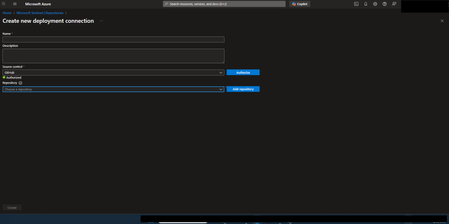
Hi everyone, I’m running into an issue connecting the Azure Sentinel GitHub app to my Sentinel workspace in order to create our CI/CD pipelines for our detection rules, and I’m hoping someone can point me in the right direction. Symptoms: When configuring the GitHub connection in Sentinel, the repository dropdown does not populate. There are no explicit errors, but the connection clearly isn’t completing. If I disable my organization’s IP allow list, everything works as expected and the repos appear immediately. I’ve seen that some GitHub Apps automatically add the IP ranges they require to an organization’s allow list. However, from what I can tell, the Azure Sentinel GitHub app does not seem to have this capability, and requires manual allow listing instead. What I’ve tried / researched: Reviewed Microsoft documentation for Sentinel ↔ GitHub integrations Looked through Azure IP range and Service Tag documentation I’ve seen recommendations to allow list the IP ranges published at //api.github.com/meta, as many GitHub apps rely on these ranges I’ve already tried allow listing multiple ranges from the GitHub meta endpoint, but the issue persists My questions: Does anyone know which IP ranges are used by the Azure Sentinel GitHub app specifically? Is there an official or recommended approach for using this integration in environments with strict IP allow lists? Has anyone successfully configured this integration without fully disabling IP restrictions? Any insight, references, or firsthand experience would be greatly appreciated. Thanks in advance!377Views0likes1Comment