application management
1316 Topics
Full-screen video freezing issue
한국어와 영어로 글을 남깁니다. 이 글을 남기기 이전에 기술 지원을 24시간 대기 중이라는 분에게서 받았습니다. 그 분은 가장 해결 확률이 높고 가장 해결이 완벽에 가까운 방식을 제안했습니다. 그건 코덱을 업데이트하거나 코덱을 설치하라는 것이었습니다. 전 이 방법이 해결방법에 가깝다고 느낍니다. 제가 드리려는 말은 우연히 이 문제를 해결했다고 생각하기에 그 해결 방법을 공유하는 것입니다. 윈도우 제품에는 사소한 버그가 있고 서로 다른 프로그램이 충돌하는 경우가 있을 수 있으며 특정 프로그램이 버그를 만들 때도 있기 때문입니다. 전 전체화면으로 영상을 시청할 때에 멈추는 증상이 해결이 안 되었어요. 신기한 건 다른 회사의 그래픽 카드를 사용할 때엔 이런 문제가 발생하지 않는다는 점이었습니다. 인텔 ARC 그래픽 카드는 이런 문제가 없어요. AMD의 라데온 그래픽 카드를 사용할 때에 다 좋은데 이 문제 때문에 좀 불편했습니다. 지금도 인텔 CPU와 인텔 GPU를 쓰면 문제가 없고, 인텔 CPU와 AMD GPU 혹은 AMD CPU와 AMD GPU를 쓰면 전체화면 영상이 멈춥니다. 모니터는 상관이 없던 것 같아요. 그래서 결론은 코덱을 찾아볼 수도 있는데 어떤 코덱이 필요한지 제가 정확하게 모르거든요. 우연하게 찾은 해결책은 윈도우 설정에 작업 표시줄 옵션이 있습니다. 거기서 작업 표시줄 단추 합치기 및 레이블 숨기기 / 작업 표시줄 단추 합치기 및 다른 작업 표시줄의 레이블 숨기기 / 더 작은 앱 아이콘 표시 옵션을 조절하는 것이었습니다. 항상-작업 표시줄이 꽉 찼을 때-안 함 중에 문제가 해결되는 옵션을 고르세요. 전 작업 표시줄이 꽉 찼을 때를 3개 모두 설정해 두니 전체화면 영상이 더 이상 멈추지 않아요. 라데온 그래픽카드 드라이버 문제일 수도 있고 이 라데온 프로그램이 윈도우와 우연하게 충돌이 일어나는 것일 수도 있을 것 같아요. 전 전문가가 아니라 우연히 옵션 조정으로 방법을 찾았다는 점만 말하고 싶습니다. 그러므로 이 문제는 해결이 될 수도 사용자에 따라서 해결이 되지 않을 수도 있습니다. 제가 지내던 커뮤니티에선 라데온 그래픽카드 드라이버 프로그램이 이전부터 전문적이지 않다는 이야기가 돌았는데 전 그 때 그 말을 믿지 않았지만 지금은 그 말에 신빙성이 있다는 생각도 듭니다. 엔비디아 지포스에서도 동일한 증상이나 멈춤 현상이 있는 것 같기는 합니다. 윈도우의 호환성 문제일 수도 있겠지요. 잘은 모르겠지만요. 도움이 되시길 바랍니다. I am posting this in both Korean and English. Before writing this, I received assistance from a technical support representative who was available around the clock. They suggested a solution that was highly likely to work and offered the most complete fix: updating or installing the necessary codecs. I believe this is the right approach. I am sharing this because I managed to resolve the issue—albeit somewhat by chance—and want to pass on the solution. Windows products can have minor bugs, conflicts between different programs can occur, and specific programs can sometimes trigger these issues. I wasn't able to resolve the issue where the video would freeze during full-screen playback. Interestingly, this problem didn't occur when using graphics cards from other manufacturers; Intel Arc graphics cards, for instance, don't have this issue. While AMD Radeon graphics cards are otherwise excellent, this specific problem was a bit of a hassle. Even now, I experience no issues when using an Intel CPU with an Intel GPU, but the video freezes in full-screen mode if I pair an Intel CPU with an AMD GPU or use an AMD CPU with an AMD GPU. The monitor didn't seem to be a factor. I suppose I could look into codecs, but I'm not exactly sure which ones are needed. I stumbled upon a solution within the Windows taskbar settings. The fix involved adjusting options such as "Combine taskbar buttons and hide labels," "Combine taskbar buttons and hide labels on other taskbars," and "Use small taskbar buttons." You should experiment with the available settings—"Always," "When taskbar is full," or "Never"—to find the one that resolves the issue. For me, setting all three options to "When taskbar is full" stopped the full-screen videos from freezing. This could be an issue with the Radeon graphics card driver, or perhaps a random conflict between the Radeon software and Windows. I am not an expert; I simply wanted to share a method I discovered by chance while tweaking settings. Consequently, this solution might work for some users but not for others. In the online community I frequent, there had long been talk that Radeon graphics card driver software wasn't exactly professional-grade; I didn't believe it at the time, but now I’m starting to think there might be some truth to it. That said, it seems like similar symptoms or freezing issues occur with Nvidia GeForce cards as well. It could be a Windows compatibility issue, though I’m not entirely sure. I hope this helps.60Views0likes2Comments
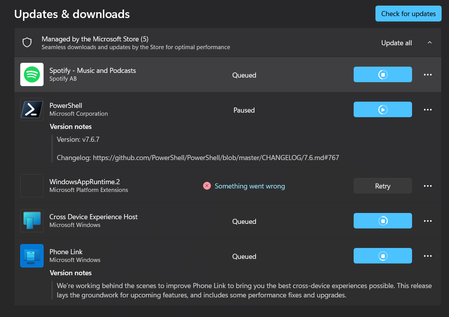
My Microsoft WebStore will not install anything. Everything is either in queue or not working.
I noticed it when I went to try and download MineCraft. Nothing will download, and what is not in queue just says "something went wrong." The WindowsAppRuntime.2 is particularly concerning. I have tried clearing the cache, resetting network settings, the works. I haven't messed with anything that can be permanent, though. This might be nothing, but my settings also won't finish the update scan. I am pretty sure I am up to date, but when I go to check for updates, it just keeps loading and loading.28Views0likes1Comment
WinGet sources cancelled system-wide after repair install
I’ve been troubleshooting a persistent WinGet issue where the winget and winget-font sources consistently fail to update, while the Microsoft Store source updates normally. The problem originally appeared alongside other Windows networking issues, but those were separately traced to Kaspersky encrypted connection scanning. After disabling that feature, normal HTTPS traffic started working again, including Outlook, YouTube Music, and direct curl requests. The WinGet issue, however, remained unchanged. I then checked Windows integrity. sfc /scannow initially found and repaired corruption, and a later scan reported no integrity violations. DISM also reported that the component store was repairable, so I ran the relevant repair commands. I later performed a Windows 11 repair reinstall that kept my files, applications, and settings. Microsoft Support also had me perform an in-place Windows 11 Pro repair install from an ISO using the "Keep personal files and apps" option. After all of this, the WinGet problem still persisted. My current WinGet version is v1.29.380, and Microsoft Desktop App Installer is version 1.29.380.0. The sources are registered correctly. winget source list shows the Microsoft Store source, the WinGet source at https://cdn.winget.microsoft.com/cache, and the WinGet font source at https://cdn.winget.microsoft.com/fonts. The main issue is reproducible every time I run winget source update. The Microsoft Store source updates successfully, but both winget and winget-font immediately return Cancelled. Running winget source reset --force completes successfully, but it does not fix the issue. After the reset, normal winget search commands still fail with the message that WinGet cannot open the sources. The verbose WinGet logs show the failure occurring while WinGet attempts to retrieve headers from https://cdn.winget.microsoft.com/cache/source2.msix. The failures include 0x80072EFF and 0x80072EFE, with messages indicating that the connection was reset or terminated abnormally. The same behavior occurs when WinGet attempts to access the equivalent source file under the winget-font endpoint. What makes this particularly strange is that the same CDN URLs work normally outside WinGet. For example, curl -I https://cdn.winget.microsoft.com/cache/source2.msix returns HTTP/1.1 200 OK. I also tested the same URL through the Windows WinHTTP COM interface using WinHttp.WinHttpRequest.5.1, and that request also returned status 200. WinHTTP proxy configuration shows direct access with no proxy server configured. I also verified the installed WinGet source package. Get-AppxPackage Microsoft.Winget.Source reports version 2026.1009.2124.28 with status OK, and this matches the source version advertised by the WinGet CDN. I re-registered Microsoft.DesktopAppInstaller as well. An earlier attempt failed because the package was in use, but after rebooting and closing related processes, the package was re-registered successfully. This did not change the behavior. IPv6 was also investigated. The current network does not have functional global IPv6 connectivity, but disabling IPv6 entirely made no difference to WinGet. Kaspersky was also fully disabled during testing, and the WinGet source cancellation still occurred, so the problem does not appear to be caused by Kaspersky. To rule out corruption in my main Windows profile, I created a completely fresh local administrator account and tested WinGet there. The exact same behavior occurred. winget --version worked normally, but winget source update showed msstore: Done, followed by winget: Cancelled and winget-font: Cancelled. A normal winget search command also failed to open the sources. This confirms that the issue is not specific to my main user profile. At this point, the issue survives source resets, App Installer re-registration, a fresh administrator account, DISM/SFC repairs, and a full in-place Windows repair installation. Direct access to the WinGet CDN works through other Windows networking methods, while WinGet itself consistently fails when opening or refreshing its pre-indexed package sources. Microsoft Support reviewed the troubleshooting and agreed that, because the issue occurs on a fresh local administrator account and still exists after an in-place Windows repair install, it appears to be a deeper WinGet or App Installer related issue rather than a normal profile or general network problem. They recommended escalating the issue to the WinGet engineering community for further investigation.23Views0likes1Comment
file explorer not responding
Weird circumstance. I download cinebench r23 rom the official maxon website. I ran the test remotely from my tablet(not sure if that might matter) via steam link(also official software) from an android tablet. It was working fine, but during the test I changed the priority of the cinebench software to realtime. Normally I put it on high because realtime borks 2026 but I thought I'd try to see if it works the same way. After it messed up steamlink disconected and I tried to reconect with chrome remote desktop. Neither could show the system online. I go into the room with the computer and it's running but frozen. I restart the system and find out that smart app has blocked cinebench 2023. The problem is I googled how to fix that, but file explorer now goes unresponsive whenever I try to do anything. It opens. But moving it or changing directories it becomes unresponsive with a white bar at the top instead of the normal grey(dark theme) showing (not responsive). How do I get this working again? Has smart app also blocked file explorer? I've restarted the computer several times and it has not fixed it. Does anyone have any idea what is going one?154Views0likes4Comments
Why is there a SoftwareDistribution folder in ProgramData dated before I even got the PC?
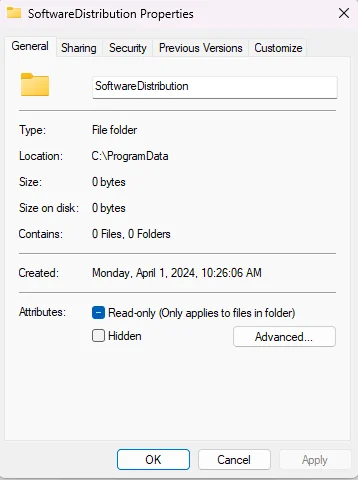
Why is there a SoftwareDistribution folder sitting in my ProgramData directory when it's supposed to live in the Windows folder, and why does it show a creation date of April 1st, 2024—before I even received this PC on April 20th? The folder is completely empty, and I only noticed it while organizing things. I also did a clean Windows install a few months ago, so I don't understand why it's still there. There are two other folders in ProgramData with the same April 1st date: "ssh" and "USOShared." The ssh folder is empty too, and USOShared contains logs, which seems normal, but the 2024 creation date is odd. Could all three be leftovers from the prebuilt image, from the Ubuntu install that was on the machine before I wiped it, or from something else entirely? Is this just a harmless artifact of how the system was imaged, or could it mean something didn't get fully cleaned up during my reinstall? And is it safe to delete these folders, or should I leave them alone?21Views0likes0Comments
Intel Extension 2.0.10200.8 keeps reappearing after successful installation
Windows Update repeatedly offers Intel – Extension – 2.0.10200.8, even though update history shows it was successfully installed. After restarting, the same update returns and requires another restart. This causes repeated mandatory restarts under our organisation’s update policy and affects device compliance. How can we safely clear this update from the queue and stop it reappearing without disabling other Windows updates?25Views0likes0Comments
Whatsapp App displays Notification Even After It was Closed!
Hi. I installed Whatsapp on my Windows 11. The bizzare thing that happened is that, even after I closed Whatsapp (it was not visible anymore neither on the task bar nor on the tray icon area), Whatsapp kept running on the background and displaying notifications of new messages arriving on my whatsapp on the screen! I certainly don't want apps running on the background after they were completely closed on the interface. How can I force Whatsapp to be closed completely when I close it? Certainly that raises the concern of how many other apps are running on the background after being closed? I'm talking here, obviously, of explicit apps that should work only when opened by the user and displayed on the screen. I'm not talking about normal background processes of apps used to improve performance. A background process to optimize performance is completely different of an app fully running and receiving messages after being closed. It's like closing Outlook Email and keep receiving notifications that a new Email arrived even though the app was closed. That didn't happen with outlook. but it's a good analogy. That behaviour from Whatsapp is unacceptable!Solved19KViews1like7Comments
Start menu programmes often missing since 26H2?
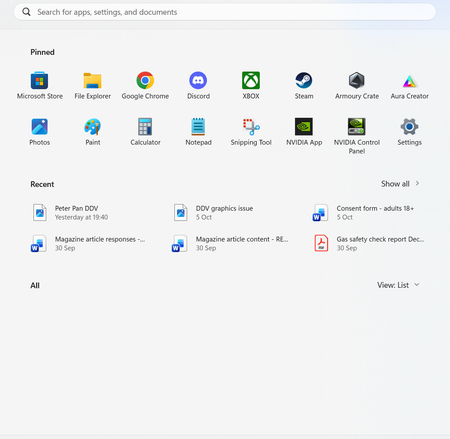
Is anyone else having this issue? Every now and again all my list of programmes doesn't show. It seems to just be cosmetic issue because as soon as I change the list they all appear again. It doesn't happen all the time and seems to have happened since I installed Windows 11 26H2 with the latest stable updates.27Views0likes0CommentsAnyone else scared of updates???? Recent KB5124010 Windows update has been one of the worst!
Bodged Windows updates have made me waste a lot of time before and created a lot of stress and the most recent one, KB5124010, has been one of the worst! It affected a number of software I use, including Outlook, leaving me not understanding what was going on. This time I didn't use their own technical service, instead I decided to use Google Gemini and it helped me solve the problems. But this is awfully unfair. I am swamped with work, awfully tired, and then having to solve problems that were not of my making???? Everything solved now, but it took many hours. Microsoft never apologizes or gives any type of compensation, therefore, until then, this will keep on happening! I am now terrified of accepting an update, and terrified of not accepting them! Last time an update causes many problems it was months ago. A huge number of people were affected and in the end I had to re-install Windows, with the help of their technicians. All was made worse because, as many of us now have a lot of sensitive data on our computers, I refuse to let them enter my system and I am not technical, which makes things even more difficult. I had the idea that they were AI anyway, just so polite and patient.... so, I may just as well use Google, which is not trying to help others at the same time. Nearly 2027, and this type of technology is working ever worse!!!! How come? All ever more complex? And if so, why not take more time to develop software properly? Look at all kinds of software you pay good money for, in my case video editing, recording, version after version, nothing works, but then the new ones are already there, and even if you have a lifetime License, you are told they won't fix that one anymore, just buy a new one, which tends to be even worse! All my friends who do this kind of work and who are happy with the software they use, as a rule have older versions, and those do work. Would welcome your views on all this, so fed up...156Views1like5CommentsAnyone else's Windows 11 taskbar just randomly freeze?
I'm on Windows 11 25H2 and lately my taskbar keeps freezing for a few seconds at a time. Clicking the Start button or trying to open the system tray does nothing, then it suddenly catches up. It happens randomly—sometimes right after boot, sometimes in the middle of working. I've already restarted Explorer and checked for updates, but it keeps coming back. Is this a known issue, or is it just my machine? If you've run into this, did you find a real fix, or are we all just waiting on Microsoft to patch it? I'd rather not do a clean install over something this stupid.33Views0likes0Comments