apis
33 TopicsVoice agents in Foundry Agent Service: architecture, trust boundaries, and real-audio latency
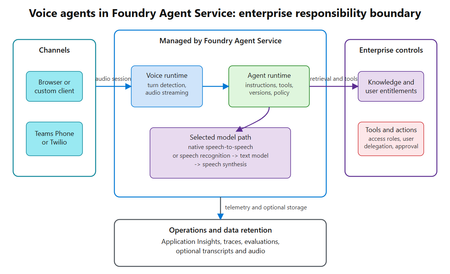
Assess where voice agents in Foundry Agent Service simplify the runtime, where enterprise trust boundaries remain, and what a 300-turn real-audio benchmark reveals about latency across six configurations.290Views0likes0CommentsPost-Stream Refinement is now generally available in Microsoft Foundry
When we introduced Post-Stream Refinement in public preview earlier this year, it closed the oldest trade-off in real-time speech: you could finally keep instant streaming results and get a highly accurate final transcript, with no penalty to first-token latency. A second recognition pass runs in parallel with streaming and replaces each final segment with a more accurate version once the utterance completes. Today, Post-Stream Refinement reaches general availability for Azure AI Speech in Microsoft Foundry, backed by a production SLA. Just as important, it now ships with the capabilities production transcription actually depends on: diarization to preserve who said what, phrase lists for your product names and domain vocabulary, and a much wider footprint of 19 locales across 22 Azure regions. Everything you already know about Post-Stream Refinement still applies. The real-time contract is unchanged, your partial results stream exactly as before, and you enable refinement by setting a single property on your existing SpeechConfig. What changes at GA is that the refined transcript is now production-grade and speaker-aware. 📖 Read the Documentation What's new at general availability If you have already used Post-Stream Refinement in preview, here is exactly what changes at GA, and what stays the same. The streaming path and SDK contract are untouched; the refinement pass is now production-ready and gains speaker and vocabulary features. How Post-Stream Refinement works Real-time and final results serve different needs. Partial results must appear quickly so captions, voice interfaces, and agent turn-taking stay responsive. Final results need enough context to support storage, search, summarization, and business workflows. Post-Stream Refinement runs both at once: a fast streaming pass and a deeper refinement pass over the same audio, in parallel. Because the two passes share one input stream, enabling refinement does not require a second transcription job or a separate client pipeline. Your existing recognition events and partial-result handling stay exactly as they are. Speaker attribution with diarization New at GA, diarization is supported on the Post-Stream Refinement path, so the refined final transcript keeps its speaker labels. That makes the release a strong fit for meetings, contact centers, interviews, and any workflow where the transcript needs to identify who spoke, not just what was said. The refinement pass improves the wording, including proper nouns and named entities, while every utterance stays attributed to the right speaker. Phrase lists for your vocabulary Phrase lists let the recognizer prioritize the names and terms that matter to your application: product catalogs, medical and technical vocabulary, organization names, and acronyms that general speech models might not recognize consistently. At GA you can pair phrase lists with refinement so the second pass has both broad audio context and your domain vocabulary to draw on, which is where the largest accuracy gains on named entities show up. Quality impact In internal testing and partner evaluations across supported locales, Post-Stream Refinement reduced final-transcript word error rate by double-digit relative percentages compared with standard real-time transcription, with the largest gains on the hardest content: long utterances, proper nouns, and domain-specific speech. Pairing phrase lists with refinement improves named-entity accuracy further. Partial-result latency is unchanged; only the final transcript is refined. The refined final result may add a small amount of latency to the final segment because refinement happens after the segment audio is received. Partial results are unaffected. Supported languages and regions General availability supports 19 locales. You declare one locale per session, so the service is tuned to the language you expect. Alongside the Tier-1 languages, GA adds Indic locales, including Bengali, Marathi, Punjabi, and Telugu. Post-Stream Refinement is generally available in 22 Azure regions across the Americas, Europe, and Asia Pacific. Proven at Microsoft scale The technology behind Post-Stream Refinement already powers meeting transcription and Microsoft 365 Copilot experiences in Microsoft Teams, serving millions of users across meetings, webinars, and live events every day. General availability brings the same quality bar to every Azure AI Speech customer through a supported SDK integration, not a research prototype. Preview customers across industries, including automotive, consumer electronics, and aviation, reported positive gains in transcription quality, with the clearest improvements on the hardest content: proper nouns, long-form speech, and domain-specific audio. Several are now moving those workloads into production on the GA release. Get started Enabling Post-Stream Refinement is a small configuration change on your existing SpeechConfig. You will need: Speech SDK 1.50 or later. Earlier versions do not support the refinement path. A Speech resource in one of the supported regions listed above. The session locale you expect, set on the recognizer. Set the post-processing option to PostRefinement. The example below also shows the optional phrase list for your domain vocabulary. import azure.cognitiveservices.speech as speechsdk speech_config = speechsdk.SpeechConfig( subscription="YourSpeechKey", region="YourSpeechRegion") # Declare one locale for the session speech_config.speech_recognition_language = "en-US" # 1) Refine the final transcript (Post-Stream Refinement) speech_config.set_property( speechsdk.PropertyId.SpeechServiceResponse_PostProcessingOption, "PostRefinement") audio_config = speechsdk.AudioConfig(use_default_microphone=True) recognizer = speechsdk.SpeechRecognizer( speech_config=speech_config, audio_config=audio_config) # 2) (Optional) Phrase list for names, acronyms, and domain terms phrase_list = speechsdk.PhraseListGrammar.from_recognizer(recognizer) for term in ["Contoso", "Fabrikam", "Foundry", "OAuth"]: phrase_list.addPhrase(term) Your existing recognition events and partial-result handling remain unchanged. For speaker attribution, enable diarization through the established real-time diarization path; refinement applies to the final transcript while speaker labels are preserved. Choose the right release for your workload Post-Stream Refinement now has two paths. They are the same product family with a different feature boundary, so match the path to what your customer needs. Monolingual PSR — generally available Multilingual PSR — public preview Language selection One locale declared per session Automatic detection and code-switching in a single stream (open-range, no locale declared) Supported locales 19 locales, including Indic bn / mr / pa / te 25 languages / 29 locales, auto-detected Azure regions 22 Azure regions across the Americas, Europe, and Asia Pacific 6 Azure regions Phrase lists & diarization Supported Only diarization is supported Working across languages? If a single stream needs to handle multiple languages or code-switching without a declared locale, use Multilingual Post-Stream Refinement, now in public preview. For a known session locale with phrase lists and diarization, monolingual GA is the right path. Try Post-Stream Refinement Today Turn on higher-accuracy, language-aware transcription in your Azure AI Speech applications with a single configuration change. 📖 Read the Documentation We would love your feedback. Try Post-Stream Refinement in your applications and tell us how it improves your transcription quality.807Views0likes0CommentsFor the first time, real-time transcription goes multilingual
When we introduced Post-Stream Refinement earlier this year, it closed the oldest gap in real-time speech: you could finally get instant streaming results and a highly accurate final transcript, with no latency penalty. But it kept one hard requirement — you had to tell the service, up front, which single language to expect. Real-world speech does not work that way. People code-switch mid-sentence, product and brand names cross languages, and a global app serves users who simply speak differently from one session to the next. Today we remove that requirement. Multilingual Post-Stream Refinement enters public preview for Azure AI Speech in Microsoft Foundry, and for the first time ever a single real-time stream can transcribe multiple languages in one session — the spoken language is detected automatically, no locale is declared in advance, and the final transcript is refined for accuracy. Everything you already know about Post-Stream Refinement still applies; what changes is that the refinement pass itself is now multilingual. 📖 Read the Documentation What's New in This Release If you have already used Post-Stream Refinement, here is exactly what changes with the multilingual preview — and what stays the same: Quality Impact In internal testing and partner evaluations across Tier-1 locales, multilingual Post-Stream Refinement reduced word error rate (WER) by approximately 10% relative on average, with double-digit relative reductions on the hardest cases — long utterances, proper nouns, and multilingual or code-switched speech. Partial-result latency is unchanged; only the final transcript is refined. Gains are relative reductions versus the standard real-time model and vary by language, acoustic conditions, and content type. The refined final result may add a small amount of latency to the final segment; partial results are unaffected. Supported Languages and Regions The public preview supports 15 Tier-1 locales. Because language is detected automatically, a single stream can contain any mix of them: Available in these Azure regions: Real-World Impact Preview customers across industries — including travel, consumer electronics, automotive, aviation, and media — have reported positive gains in transcription quality. Customers testing multilingual and domain-specific audio have observed the clearest improvements on the hardest content: proper nouns, code-switching, and long-form speech. Several are actively validating the feature on their own audio ahead of general availability. Get Started Enabling multilingual Post-Stream Refinement is a small configuration change on your existing SpeechConfig. You will need: Speech SDK 1.50 or later. Earlier versions do not support the multilingual path. A Speech resource in one of the supported regions listed above. Auto-detect language configuration (open range) so the service identifies the language from the audio — no candidate list required. Set the post-processing option to PostRefinement and pass an open-range AutoDetectSourceLanguageConfig when you create the recognizer. Here is a complete, copy-paste Python example, including the optional end-of-utterance detection line: import azure.cognitiveservices.speech as speechsdk speech_config = speechsdk.SpeechConfig( subscription="YourSpeechKey", region="YourSpeechRegion") # 1) Refine the final transcript (Post-Stream Refinement) speech_config.set_property( speechsdk.PropertyId.SpeechServiceResponse_PostProcessingOption, "PostRefinement") # 2) Multilingual auto-detect - no candidate language list needed auto_detect_config = speechsdk.languageconfig.AutoDetectSourceLanguageConfig() audio_config = speechsdk.AudioConfig(use_default_microphone=True) recognizer = speechsdk.SpeechRecognizer( speech_config=speech_config, auto_detect_source_language_config=auto_detect_config, audio_config=audio_config) 💡 Tip: Refinement matters most for applications that store or process the final transcript — meeting notes, call analytics, compliance archives, AI summarization. If you only use partial results for a live display and discard them, your real-time UX (already fast) is unchanged, while any final transcript you keep improves. Try Multilingual Post-Stream Refinement Today Turn on higher-accuracy, language-aware transcription in your Azure AI Speech applications with a single configuration change. Available now in public preview in Microsoft Foundry. 📖 Read the Documentation We would love your feedback. Try Post-Stream Refinement in your applications and tell us how it improves your transcription quality.772Views0likes0Comments
Troubleshooting Microsoft Foundry Accessing On‑Premises APIs Over Private Networking
Audience: Azure solution architects, network engineers, and AI practitioners deploying Microsoft Foundry in enterprise, network‑isolated environments. Scenario: Foundry Agent Service must call an on‑premises (or privately hosted) API over VPN or ExpressRoute using on‑premises corporate DNS. Connectivity works from a virtual machine (VM) in the virtual network (VNet), but fails when the same call is made from a Foundry agent. This post consolidates common field patterns observed across customer engagements and maps them directly to official Microsoft guidance. It highlights a frequently missed prerequisite for private connectivity: Project and Agent Capability Hosts. The Repeating Enterprise Pattern The architecture is familiar: Microsoft Foundry account and project Customer‑managed VNet with VPN or ExpressRoute to on‑premises Corporate (on‑premises) DNS used for API name resolution A VM in the VNet can successfully resolve and call the on‑prem API Foundry agents are configured to call the same API (often via an OpenAPI tool) Despite this, the agent fails with one or more of the following: DNS resolution failures Connection timeouts HTTP 401 or 403 responses Unexpected backend or proxy URLs appearing in logs The consistent question is: Why does this work from a VM in the VNet but not from the Foundry agents? Key Principle: Foundry Agents Do Not Automatically Run in Your VNet This is the most important mental model to reset. Creating a private endpoint for a Foundry Agent Service does not place agent runtime traffic into your VNet. Private endpoints are inbound constructs. Outbound connectivity from an agent only flows through your VNet when specific requirements are met. The most critical of those requirements is a Capability Host. What Is a Capability Host? A Capability Host defines where Foundry capabilities are allowed to execute. In private networking scenarios, the capability host: Binds a Foundry project or agent to a customer‑managed subnet Enables platform‑managed container injection into that subnet Ensures outbound traffic follows VNet routing, security controls, and DNS configuration Capability Host Scope Project Capability Host Associated at the project level Applies to all agents in the project Defines the customer subnet the project is allowed to use Agent Capability Host Associated at the individual agent level Can explicitly bind or override subnet placement Useful when agents require different isolation boundaries Key field insight: If no capability host is associated, the agent runtime is not injected into the VNet—even if VPN, ExpressRoute, private endpoints, and on‑prem DNS are correctly configured. Capability Host Lifecycle (Conceptual) 1 Microsoft Foundry Account ↓ Project ↓ Capability Host ↓ Delegated Agent Subnet (VNet) ↓ Agent Runtime (Container Injection) Without the capability host step, the chain breaks and the agent executes outside the customer network boundary. Why On‑Premises DNS Appears Correct—but Still Fails DNS is where most investigations stall. Teams typically confirm: On‑premises DNS resolves the API hostname VNet DNS settings forward queries to on‑prem DNS A VM in the subnet resolves and reaches the API Yet the agent still fails. The reason is simple: The VM is unquestionably inside the VNet The agent may not be Without a capability host, the agent runtime does not inherit: VNet DNS server settings Corporate DNS forwarding rules On‑premises name resolution paths As a result, DNS fails even though the DNS design itself is correct. Secondary Symptom: HTTP 401 Errors After subnet injection and DNS are corrected, some customers encounter HTTP 401 responses. This typically means: The API is now reachable The request is successfully routed through the private path Authentication or authorization is failing At this stage, troubleshooting moves from networking to identity: Validate the credential or token configured in the Foundry connection Confirm expected headers, audience, or auth flow Account for managed proxy hops in the request path A 401 at this point is progress—it confirms private connectivity is working. Permissions and Required Services for Capability Hosts Creating capability hosts requires both the correct Azure role-based access control (RBAC) permissions and the presence of specific dependent services. These prerequisites are frequently overlooked and can silently block capability host creation or leave hosts in a failed provisioning state. Required Permissions (RBAC) Microsoft documentation explicitly calls out the following minimum permissions: Contributor role on the Microsoft Foundry account to create capability hosts. User Access Administrator or Owner role on the subscription or resource group to grant the Foundry project’s managed identity access to dependent Azure resources when using standard agent setup. Without these roles, capability host creation may fail, or the host may be created without access to required downstream services. For details, see Role-based access control (RBAC) for Microsoft Foundry. Required Azure Services and Connections For standard and network-secured agent setups, capability hosts reference customer-owned Azure resources. The following services must exist and be connected to the Foundry project before creating the capability host: Azure Storage – for file uploads and artifacts Azure AI Search – for vector stores and retrieval Azure Cosmos DB – for thread and conversation storage Azure AI Services / Azure OpenAI – for model execution These services must be deployed in supported regions and, for private networking scenarios, in the same region as the virtual network. Capability hosts reference these resources through project connections, not raw resource IDs . Networking-Specific Requirements When using private networking: The agent subnet must already exist and be delegated appropriately. The capability host must reference the correct customer subnet at creation time. Required private endpoints and DNS resolution must be in place for dependent services. If networking or connections change, capability hosts cannot be updated in-place and must be deleted and recreated with the corrected configuration . Practical Fix Patterns 1. Create and Associate a Project Capability Host Bind the project to the intended delegated agent subnet Verify the customerSubnet reference Redeploy the agent after association This aligns directly with the Standard Setup with Private Networking model documented by Microsoft. 2. Validate Agent Placement and Network Inheritance Confirm the agent is associated with the expected capability host Verify the capability host references the correct subnet Ensure network and DNS settings are applied at the subnet level The agent inherits routing and DNS behavior only after successful subnet injection. 3. Validate DNS From the Agent Subnet Confirm VNet DNS settings point to on‑prem DNS Test name resolution from a VM in the same subnet Once injected, the agent uses the same DNS behavior as other resources in that subnet. 4. Use a Supported Foundry Experience Be aware of documented constraints: End‑to‑end network isolation is not supported in the newer Foundry portal experience Network‑isolated agent scenarios require the classic Foundry experience, SDK, or CLI Hosted agents do not support full isolation Mismatch here can make a correct network design appear broken. A Simple Checklist When a Foundry agent cannot reach an on‑prem API: Is a **Project Capability **Host associated? Is the capability host bound to the correct subnet? Is on‑prem DNS reachable from that subnet? Is a supported Foundry experience in use? If reachable, is authentication configured correctly? If items 1 and 2 are not satisfied, all other troubleshooting is premature. Closing Most private networking issues with Microsoft Foundry are not caused by VPNs or DNS infrastructure. They result from an incomplete understanding of **where the agent ****runtime ****actually **executes. Capability Hosts are the control point. When they are correctly configured, Foundry agents behave exactly as described in Microsoft guidance: they inherit VNet routing, DNS, and security controls and can securely access on‑premises systems over private connectivity. No capability host = no VNet injection = no on‑prem connectivity. References The following Microsoft‑published resources were referenced and aligned with throughout this article: Network‑secured agent setup (GitHub) – Reference implementation demonstrating a network‑secured Foundry Agent Service deployment with a customer‑managed virtual network, delegated agent subnet, and private connectivity patterns. This notebook illustrates how agent runtimes inherit network behavior only after subnet injection ralacher/network-secured-agent Set up private networking for Foundry Agent Service - Microsoft Foundry | Microsoft Learns .1KViews2likes0CommentsTurn Enterprise Knowledge into Answers with Copilot Studio and Azure AI Search
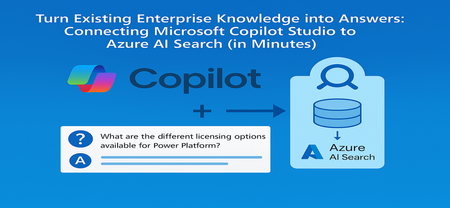
From the Field: Why This Integration Works As an experienced AI Cloud Solution Architect working in Greater China Region (GCR), I’ve seen one emerging pattern that delivers quick wins for some of my customers: combining Microsoft Copilot Studio with an existing Azure AI Search index. Teams choose this approach because it delivers two outcomes immediately: business users get grounded, reliable answers, and enterprises avoid re-building pipelines or re-platforming knowledge stores. This guide shows exactly how to connect Copilot Studio to an Azure AI Search index that is already live, so your copilot can answer confidently using your enterprise documents. What We Assume Is Already Ready To stay focused on the integration step, we assume: You have an Azure AI Search service deployed You have an index containing vectorized content (manuals, PDFs, policies, FAQs) Your platform/data team already handled ingestion, embeddings, and indexing In short, your Azure AI Search endpoint and admin key are ready, and the index already contains chunked content with embeddings. Step 1 - Collect Your Azure AI Search Connection Details From the Azure AI Search resource: Endpoint URL Azure AI Search → Overview → Url: https://<your-search-service>.search.windows.net Admin Key Azure AI Search → Keys Use either the primary or secondary key. Governance tip: For production, rotate keys regularly and use managed identities when possible. Step 2 - Add Azure AI Search as Knowledge Inside Copilot Studio Open your Copilot Studio agent Go to the Knowledge tab Select Add knowledge, choose Azure AI Search Provide: Endpoint URL Admin key Create or select the connection Choose your existing index from the dropdown Select Add to agent Step 3 - Test a Grounded Response Open the Test copilot pane and ask a question your indexed content can answer, such as: “What are the different licensing options available for Power Platform?” Verify that: The Activity Map shows Azure AI Search being invoked The answer reflects the correct document in your index Citations or references appear where applicable Conclusion Business value: You can activate grounded, explainable answers in Copilot Studio immediately by reusing your existing Azure AI Search index - no re-platforming, no new pipelines. Team model: Data/Platform teams own ingestion, enrichment, and vectorization. Business teams build and refine the copilot experience in Copilot Studio. Scale and governance: All components stay inside Azure, with enterprise-grade security, RBAC, and operational monitoring, while enabling low‑code agility for makers. For the full end-to-end lab (storage setup, embeddings, index creation), see: 🔗 https://github.com/Azure/Copilot-Studio-and-Azure (Lab 1.4). Acknowledgements This tutorial builds on foundational work by my EMEA colleague Pablo Carceller, whose GitHub repo on Copilot Studio and Azure has helped teams worldwide accelerate real customer implementations. 👉 GitHub - Copilot Studio and Azure: https://github.com/Azure/Copilot-Studio-and-Azure I would also like to thank the broader Cloud Accelerate Factory GCR team for their contributions, insights, and active collaboration in validating this pattern across customer engagements. Special appreciation to our AI Architects Dr. Longyu Qi, Jian (Jason) Shao, Lei (Leo) Ma, and Ethan Tseng, as well as our PM partners Yunxi (Rayne) Jin and Emma Wang, whose feedback and field experiences helped shape and refine this guide. Image credits: demo visuals adapted from materials by Pablo Carceller (GitHub Lab 1.4).693Views1like0CommentsTracking Every Token: Granular Cost and Usage Metrics for Microsoft Foundry Agents
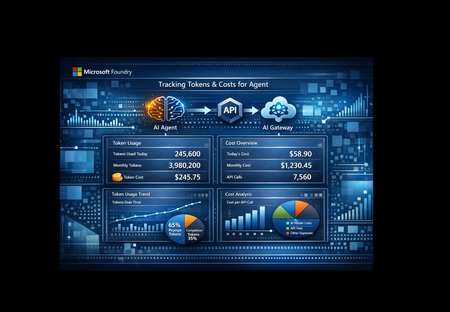
As organizations scale their use of AI agents, one question keeps surfacing: how much is each agent actually costing us? Not at the subscription level. Not at the resource group level. Per agent, per model, per request. This post walks through a solution that answers that question by combining three Azure services Microsoft AI Foundry, Azure API Management (APIM), and Application Insights into an observable, metered AI gateway with granular token-level telemetry including custom dates greater than a month for deeper analysis. The Problem: AI Costs Can be a Black Box Foundry’s built-in monitoring and cost views are ultimately powered by telemetry stored in Application Insights, and the out-of-the-box dashboards don’t always provide the exact per-request/per-caller token breakdown or the custom aggregations/joins teams may want for bespoke dashboards (for example, breaking down tokens by APIM subscription, product, tenant, user, route, or agent step). Using APIM to stamp consistent caller/context metadata (headers/claims), Foundry to generate the agent/model run telemetry, and App Insights as the queryable store to let you correlate gateway, agent run, tool/model calls and then build custom KQL-driven dashboards. With data captured in App Insights and custom KQL queries, questions such as below can be answered: Which agent consumed the most tokens last week? What's the average cost per request for a specific agent? How do prompt tokens vs. completion tokens break down per model? Is one agent disproportionately expensive compared to others? Why This Solution Was Built This solution was built to close the observability gap between "we deployed agents" and "we understand what those agents cost." The goals were straightforward: Per-agent, per-model cost attribution - Know exactly which agent is consuming what, down to the token. Real-time telemetry, not batch reports - Metrics flow into Application Insights within minutes, query via KQL. Zero agent modification - The agents themselves don't need to know about telemetry. The tracking happens at the gateway layer. Extensibility - Any agent hosted in Microsoft Foundry and exposed through APIM can be added with a single function call. How It Works The architecture is intentionally simple three services, one data flow. The notebook serves as a testing and prototyping environment, but the same `call_agent()` and `track_llm_usage()` code can be lifted directly into any production Python application that calls Foundry agents. Azure API Management acts as the AI Gateway. Every request to a Foundry-hosted agent flows through APIM, which handles routing, rate limiting, authentication, and tracing. APIM adds its own trace headers (`Ocp-Apim-Trace-Location`) so you can correlate gateway-level diagnostics with your application telemetry. After the API request is successfully completed, we can extract the necessary data from response headers. The notebook is designed for testing and rapid iteration call an agent, inspect the response, verify that telemetry lands in App Insights. It uses `httpx` to call agents through APIM, authenticating with `DefaultAzureCredential` and an APIM subscription key. After each response, it extracts the `usage` object `input_tokens`, `output_tokens`, `total_tokens` — and calculates an estimated cost based on built-in per-model pricing. Application Insights receives this telemetry via OpenTelemetry. The solution sends data to two tables: customMetrics - Cumulative counters for prompt tokens, completion tokens, total tokens, and cost in USD. These power dashboards and alerts. traces - Structured log entries with `custom_dimensions` containing agent name, model, operation ID, token counts, and cost per request. These power ad-hoc KQL queries. traces - stores your application’s trace/log messages (plus custom properties/measurements) as queryable records in Azure Monitor Logs. Demonstrating Granular Cost and Usage Metrics This is where the solution shines. Once telemetry is flowing, you can answer detailed questions with simple KQL queries. Per-Request Detail Query the `traces` table to see every individual agent call with full token and cost breakdown: traces | where message == "llm.usage" | extend cd = parse_json(replace_string( tostring(customDimensions["custom_dimensions"]), "'", "\"")) | extend agent_name = tostring(cd["agent_name"]), model = tostring(cd["model"]), prompt_tokens = toint(cd["prompt_tokens"]), completion_tokens = toint(cd["completion_tokens"]), total_tokens = toint(cd["total_tokens"]), cost_usd = todouble(cd["cost_usd"]) | project timestamp, agent_name, model, prompt_tokens, completion_tokens, total_tokens, cost_usd | order by timestamp desc This gives you a line-item audit trail every request, every agent, every token. Aggregated Metrics Per Agent Summarize across all requests to see averages and totals grouped by agent and model: traces | where message == "llm.usage" | extend cd = parse_json(replace_string( tostring(customDimensions["custom_dimensions"]), "'", "\"")) | extend agent_name = tostring(cd["agent_name"]), model = tostring(cd["model"]), prompt_tokens = toint(cd["prompt_tokens"]), completion_tokens = toint(cd["completion_tokens"]), total_tokens = toint(cd["total_tokens"]), cost_usd = todouble(cd["cost_usd"]) | summarize calls = count(), avg_prompt = avg(prompt_tokens), avg_completion = avg(completion_tokens), avg_total = avg(total_tokens), avg_cost = avg(cost_usd), total_cost = sum(cost_usd) by agent_name, model | order by total_cost desc Now you can see at a glance: Which agent is the most expensive across all calls Average token consumption per request useful for prompt optimization Prompt-to-completion ratio a high ratio may indicate verbose system prompts that could be trimmed Cost trends by model is GPT-4.1 worth the premium over GPT-4o-mini for a particular agent? The same can be done in code with your custom solution: from datetime import timedelta from azure.identity import DefaultAzureCredential from azure.monitor.query import LogsQueryClient KQL = r""" traces | where message == "llm.usage" | extend cd_raw = tostring(customDimensions["custom_dimensions"]) | extend cd = parse_json(replace_string(cd_raw, "'", "\"")) | extend agent_name = tostring(cd["agent_name"]), model = tostring(cd["model"]), operation_id = tostring(cd["operation_id"]), prompt_tokens = toint(cd["prompt_tokens"]), completion_tokens = toint(cd["completion_tokens"]), total_tokens = toint(cd["total_tokens"]), cost_usd = todouble(cd["cost_usd"]) | project timestamp, agent_name, model, operation_id, prompt_tokens, completion_tokens, total_tokens, cost_usd | order by timestamp desc """ def query_logs(): credential = DefaultAzureCredential() client = LogsQueryClient(credential) resp = client.query_resource( resource_id=APP_INSIGHTS_RESOURCE_ID, # defined in config cell query=KQL, timespan=None, # No time filter — returns all available data (up to 90-day retention) ) if resp.status != "Success": raise RuntimeError(f"Query failed: {resp.status} - {getattr(resp, 'error', None)}") table = resp.tables[0] rows = [dict(zip(table.columns, r)) for r in table.rows] return rows if __name__ == "__main__": rows = query_logs() if not rows: print("No telemetry found. Wait 2-5 min after running the agent cell and try again.") else: print(f"Found {len(rows)} records\n") print(f"{'Timestamp':<28} {'Agent':<16} {'Model':<12} {'Op ID':<12} " f"{'Prompt':>8} {'Completion':>11} {'Total':>8} {'Cost ($)':>10}") print("-" * 110) for r in rows[:20]: ts = str(r.get("timestamp", ""))[:19] print(f"{ts:<28} {r.get('agent_name',''):<16} {r.get('model',''):<12} " f"{r.get('operation_id',''):<12} {r.get('prompt_tokens',0):>8} " f"{r.get('completion_tokens',0):>11} {r.get('total_tokens',0):>8} " f"{r.get('cost_usd',0):>10.6f}") What You Can Build on Top Azure Workbooks - Build interactive dashboards showing cost trends over time, agent comparison charts, and token distribution heatmaps. Alerts - Trigger notifications when a single agent exceeds a cost threshold or when token consumption spikes unexpectedly. Azure Dashboard pinning - Pin KQL query results directly to a shared Azure Dashboard for team visibility. Power BI integration - Export telemetry data for executive-level cost reporting across all AI agents. Extensibility: Add Any Agent in One Line The solution is designed to scale with your agent portfolio. Any agent hosted in Microsoft Foundry and exposed through APIM can be integrated without modifying the telemetry pipeline. Adding a new agent is a single function call: response = call_agent("YourNewAgent", "Your prompt here") Token tracking, cost estimation, and telemetry export happen automatically. No additional configuration, no new infrastructure. From Notebook to Production The notebook is a testing harness, a fast way to validate agent connectivity, inspect raw responses, and confirm that telemetry arrives in App Insights. But the code isn't limited to notebooks. The core functions `call_agent()`, `track_llm_usage()`, and the OpenTelemetry configuration are plain Python. They can be dropped directly into any production application that calls Foundry agents through APIM: FastAPI / Flask web service - Wrap `call_agent()` in an endpoint and get per-request cost tracking out of the box. Azure Functions - Call agents from a serverless function with the same telemetry pipeline. Background workers or batch pipelines - Process multiple agent calls and aggregate cost data across runs. CLI tools or scheduled jobs - Run agent evaluations on a schedule with automatic cost logging. The pattern stays the same regardless of where the code runs: # 1. Configure OpenTelemetry + App Insights (once at startup) configure_azure_monitor(connection_string=APP_INSIGHTS_CONN) # 2. Call any agent through APIM response = call_agent("FinanceAgent", "Summarize Q4 earnings") # 3. Token usage and cost are tracked automatically # → customMetrics and traces tables in App Insights Start with the notebook to prove the pattern works. Then move the same code into your production codebase, the telemetry travels with it. Key Takeaways AI cost observability matters. As agent counts grow, per-agent cost attribution becomes essential for budgeting and optimization. APIM as an AI Gateway gives you routing, rate limiting, and tracing in one place without touching agent code. OpenTelemetry + Application Insights provides a battle-tested telemetry pipeline that scales from a single notebook to production workloads. KQL makes the data actionable. Per-request audits, per-agent summaries, and cost trending are all a query away. The solution is additive, not invasive. Agents don't need modification. The telemetry layer wraps around them. This approach gives developers the abiility to view metrics per user, API Key, Agent, request / tool call, or business dimensions(Cost Center, app, environment). If you're running AI agents in Microsoft Foundry and want to understand what they cost at a granular level this pattern gives you the visibility to make informed decisions about model selection, prompt design, and budget allocation. The full solution is available on GitHub: https://github.com/ccoellomsft/foundry-agents-apim-appinsights4.1KViews2likes0CommentsGenerally Available: Evaluations, Monitoring, and Tracing in Microsoft Foundry
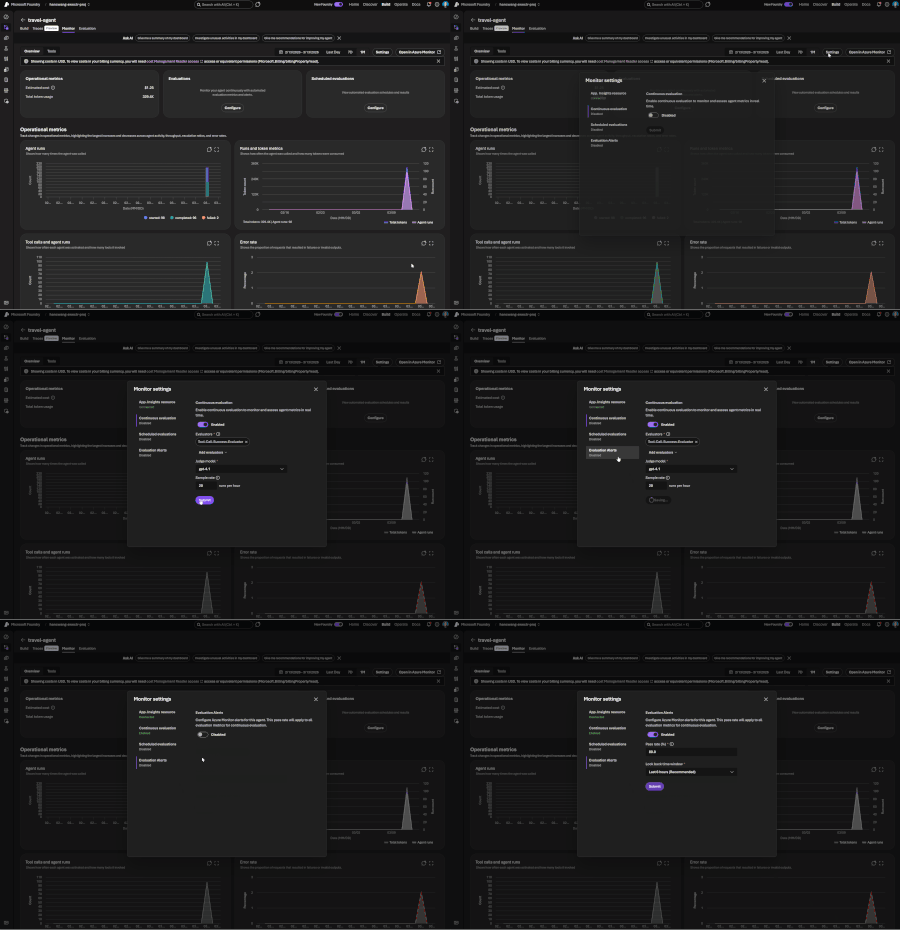
If you've shipped an AI agent to production, you've likely run into the same uncomfortable realization: the hard part isn't getting the agent to work - it's keeping it working. Models get updated, prompts get tweaked, retrieval pipelines drift, and user traffic surfaces edge cases that never appeared in your eval suite. Quality isn't something you establish once. It's something you have to continuously measure. Today, we're making that continuous measurement a first-class operational capability. Evaluations, Monitoring, and Tracing in Microsoft Foundry are now generally available through Foundry Control Plane. These aren't standalone tools bolted onto the side of the platform - they're deeply integrated with Azure Monitor, which means AI agent observability now lives in the same operational plane as the rest of your infrastructure. The Problem With Point-in-Time Evaluation Most evaluation workflows are designed around a pre-deployment gate. You build a test dataset, run your evals, review the scores, and ship. That approach has real value - but it has a hard ceiling. In production, agent behavior is a function of many things that change independently of your code: Foundation model updates ship continuously and can shift output style, reasoning patterns, and edge case handling in ways that don't always surface on your benchmark set. Prompt changes can have nonlinear effects downstream, especially in multi-step agentic flows. Retrieval pipeline drift changes what context your agent actually sees at inference time. A document index fresh last month may have stale or subtly different content today. Real-world traffic distribution is never exactly what you sampled for your test set. Production surfaces long-tail inputs that feel obvious in hindsight but were invisible during development. The implication is straightforward: evaluation has to be continuous, not episodic. You need quality signals at development time, at every CI/CD commit, and continuously against live production traffic - all using the same evaluator definitions so results are comparable across environments. That's the core design principle behind Foundry Observability. Continuous Evaluation Across the Full AI Lifecycle Built-In Evaluators Foundry's built-in evaluators cover the most critical quality and safety dimensions for production agent systems: Coherence and Relevance measure whether responses are internally consistent and on-topic relative to the input. These are table-stakes signals for any conversational or task-completion agent. Groundedness is particularly important for RAG-based architectures. It measures whether the model's output is actually supported by the retrieved context - as opposed to plausible-sounding content the model generated from its parametric memory. Groundedness failures are a leading indicator of hallucination risk in production, and they're often invisible to human reviewers at scale. Retrieval Quality evaluates the retrieval step independently from generation. Groundedness failures can originate in two places: the model may be ignoring good context, or the retrieval pipeline may not be surfacing relevant context in the first place. Splitting these signals makes it much easier to pinpoint root cause. Safety and Policy Alignment evaluates whether outputs meet your deployment's policy requirements - content safety, topic restrictions, response format compliance, and similar constraints. These evaluators are designed to run at every stage of the AI lifecycle: Local development - run evals inline as you iterate on prompts, retrieval config, or orchestration logic CI/CD pipelines - gate every commit against your quality baselines; catch regressions before they reach production Production traffic monitoring - continuously evaluate sampled live traffic and surface trends over time Because the evaluators are identical across all three contexts, a score in CI means the same thing as a score in production monitoring. See the Practical Guide to Evaluations and the Built-in Evaluators Reference for a deeper walkthrough. Custom Evaluators - Encoding Your Own Definition of Quality Built-in evaluators cover common signals well, but production agents often need to satisfy criteria specific to a domain, regulatory environment, or internal standard. Foundry supports two types of custom evaluators (currently in public preview): LLM-as-a-Judge evaluators let you configure a prompt and grading rubric, then use a language model to apply that rubric to your agent's outputs. This is the right approach for quality dimensions that require reasoning or contextual judgment - whether a response appropriately acknowledges uncertainty, whether a customer-facing message matches your brand tone, or whether a clinical summary meets documentation standards. You write a judge prompt with a scoring scale (e.g., 1–5 with criteria for each level) that evaluates a given {input} / {response} pair. Foundry runs this at scale and aggregates scores into your dashboards alongside built-in results. Code-based evaluators are Python functions that implement any evaluation logic you can express programmatically - regex matching, schema validation, business rule checks, compliance assertions, or calls to external systems. If your organization has documented policies about what a valid agent response looks like, you can encode those policies directly into your evaluation pipeline. Custom and built-in evaluators compose naturally - running against the same traffic, producing results in the same schema, feeding into the same dashboards and alert rules. Monitoring and Alerting - AI Quality as an Operational Signal All observability data produced by Foundry - evaluation results, traces, latency, token usage, and quality metrics - is published directly to Azure Monitor. This is where the integration pays off for teams already on Azure. What this enables that siloed AI monitoring tools can't: Cross-stack correlation. When your groundedness score drops, is it a model update, a retrieval pipeline issue, or an infrastructure problem affecting latency? With AI quality signals and infrastructure telemetry in the same Azure Monitor Application Insights workspace, you can answer that in minutes rather than hours of manual correlation across disconnected systems. Unified alerting. Configure Azure Monitor alert rules on any evaluation metric - trigger a PagerDuty incident when groundedness drops below threshold, send a Teams notification when safety violations spike, or create automated runbook responses when retrieval quality degrades. These are the same alert mechanisms your SRE team already uses. Enterprise governance by default. Azure Monitor's RBAC, retention policies, diagnostic settings, and audit logging apply automatically to all AI observability data. You inherit the governance framework your organization has already built and approved. Grafana and existing dashboards. If your team uses Azure Managed Grafana, evaluation metrics can flow into existing dashboards alongside your other operational metrics - a single pane of glass for application health, infrastructure performance, and AI agent quality. The Agent Monitoring Dashboard in the Foundry portal provides an AI-native view out of the box - evaluation metric trends, safety threshold status, quality score distributions, and latency breakdowns. Everything in that dashboard is backed by Azure Monitor data, so SRE teams can always drill deeper. End-to-End Tracing: From Quality Signal to Root Cause A groundedness score tells you something is wrong. A trace tells you exactly where the failure occurred and what the agent actually did. Foundry provides OpenTelemetry-based distributed tracing that follows each request through your entire agent system: model calls, tool invocations, retrieval steps, orchestration logic, and cross-agent handoffs. Traces capture the full execution path - inputs, outputs, latency at each step, tool call parameters and responses, and token usage. The key design decision: evaluation results are linked directly to traces. When you see a low groundedness score in your monitoring dashboard, you navigate directly to the specific trace that produced it - no manual timestamp correlation, no separate trace ID lookup. The connection is made automatically. Foundry auto-collects traces across the frameworks your agents are likely already built on: Microsoft Agent Framework Semantic Kernel LangChain and LangGraph OpenAI Agents SDK For custom or less common orchestration frameworks, the Azure Monitor OpenTelemetry Distro provides an instrumentation path. Microsoft is also contributing upstream to the OpenTelemetry project - working with Cisco Outshift, we've contributed semantic conventions for multi-agent trace correlation, standardizing how agent identity, task context, and cross-agent handoffs are represented in OTel spans. Note: Tracing is currently in public preview, with GA shipping by end of March. Prompt Optimizer (Public Preview) One persistent friction point in agent development is the iteration loop between writing prompts and measuring their effect. You make a change, run your evals, look at the delta, try to infer what about the change mattered, and repeat. Prompt Optimizer tightens this loop. It analyzes your existing prompt and applies structured prompt engineering techniques - clarifying ambiguous instructions, improving formatting for model comprehension, restructuring few-shot examples, making implicit constraints explicit - with paragraph-level explanations for every change it makes. The transparency is deliberate. Rather than producing a black-box "optimized" prompt, it shows you exactly what it changed and why. You can add constraints, trigger another optimization pass, and iterate until satisfied. When you're done, apply it with one click. The value compounds alongside continuous evaluation: run your eval suite against the current prompt, optimize, run evals again, see the measured improvement. That feedback loop - optimize, measure, optimize - is the closest thing to a systematic approach to prompt engineering that currently exists. What Makes our Approach to Observability Different There are other evaluation and observability tools in the AI ecosystem. The differentiation in Foundry's approach comes down to specific architectural choices: Unified lifecycle coverage, not just pre-deployment testing. Most existing evaluation tools are designed for offline, pre-deployment use. Foundry's evaluators run in the same form at development time, in CI/CD, and against live production traffic. Your quality metrics are actually comparable across the lifecycle - you can tell whether production quality matches what you saw in testing, rather than operating two separate measurement systems that can't be compared. No separate observability silo. Publishing all observability data to Azure Monitor means you don't operate a separate system for AI quality alongside your existing infrastructure monitoring. AI incidents route through your existing on-call rotations. AI quality data is subject to the same retention and compliance controls as the rest of your telemetry. Framework-agnostic tracing. Auto-instrumentation across Semantic Kernel, LangChain, LangGraph, and the OpenAI Agents SDK means you're not locked into a specific orchestration framework. The OpenTelemetry foundation means trace data is portable to any compatible backend, protecting your investment as the tooling landscape evolves. Composable evaluators. Built-in and custom evaluators run in the same pipeline, against the same traffic, producing results in the same schema, feeding into the same dashboards and alert rules. You don't choose between generic coverage and domain-specific precision - you get both. Evaluation linked to traces. Most systems treat evaluation and tracing as separate concerns. Foundry treats them as two views of the same event - closing the loop between detecting a quality problem and diagnosing it. Getting Started If you're building agents on Microsoft Foundry, or using Semantic Kernel, LangChain, LangGraph, or the OpenAI Agents SDK and want to add production observability, the entry point is Foundry Control Plane. Try it You'll need a Foundry project with an agent and an Azure OpenAI deployment. Enable observability by navigating to Foundry Control Plane and connecting your Azure Monitor workspace. Then walk through the Practical Guide to Evaluations, explore the Built-in Evaluators Reference, and set up end-to-end tracing for your agents.5.2KViews1like0CommentsEvaluating Generative AI Models Using Microsoft Foundry’s Continuous Evaluation Framework
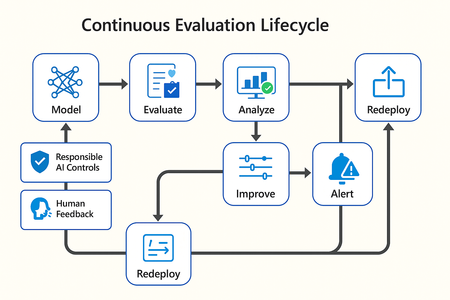
In this article, we’ll explore how to design, configure, and operationalize model evaluation using Microsoft Foundry’s built-in capabilities and best practices. Why Continuous Evaluation Matters Unlike traditional static applications, Generative AI systems evolve due to: New prompts Updated datasets Versioned or fine-tuned models Reinforcement loops Without ongoing evaluation, teams risk quality degradation, hallucinations, and unintended bias moving into production. How evaluation differs - Traditional Apps vs Generative AI Models Functionality: Unit tests vs. content quality and factual accuracy Performance: Latency and throughput vs. relevance and token efficiency Safety: Vulnerability scanning vs. harmful or policy-violating outputs Reliability: CI/CD testing vs. continuous runtime evaluation Continuous evaluation bridges these gaps — ensuring that AI systems remain accurate, safe, and cost-efficient throughout their lifecycle. Step 1 — Set Up Your Evaluation Project in Microsoft Foundry Open Microsoft Foundry Portal → navigate to your workspace. Click “Evaluation” from the left navigation pane. Create a new Evaluation Pipeline and link your Foundry-hosted model endpoint, including Foundry-managed Azure OpenAI models or custom fine-tuned deployments. Choose or upload your test dataset — e.g., sample prompts and expected outputs (ground truth). Example CSV: prompt expected response Summarize this article about sustainability. A concise, factual summary without personal opinions. Generate a polite support response for a delayed shipment. Apologetic, empathetic tone acknowledging the delay. Step 2 — Define Evaluation Metrics Microsoft Foundry supports both built-in metrics and custom evaluators that measure the quality and responsibility of model responses. Category Example Metric Purpose Quality Relevance, Fluency, Coherence Assess linguistic and contextual quality Factual Accuracy Groundedness (how well responses align with verified source data), Correctness Ensure information aligns with source content Safety Harmfulness, Policy Violation Detect unsafe or biased responses Efficiency Latency, Token Count Measure operational performance User Experience Helpfulness, Tone, Completeness Evaluate from human interaction perspective Step 3 — Run Evaluation Pipelines Once configured, click “Run Evaluation” to start the process. Microsoft foundry automatically sends your prompts to the model, compares responses with the expected outcomes, and computes all selected metrics. Sample Python SDK snippet: from azure.ai.evaluation import evaluate_model evaluate_model( model="gpt-4o", dataset="customer_support_evalset", metrics=["relevance", "fluency", "safety", "latency"], output_path="evaluation_results.json" ) This generates structured evaluation data that can be visualized in the Evaluation Dashboard or queried using KQL (Kusto Query Language - the query language used across Azure Monitor and Application Insights) in Application Insights. Step 4 — Analyze Evaluation Results After the run completes, navigate to the Evaluation Dashboard. You’ll find detailed insights such as: Overall model quality score (e.g., 0.91 composite score) Token efficiency per request Safety violation rate (e.g., 0.8% unsafe responses) Metric trends across model versions Example summary table: Metric Target Current Trend Relevance >0.9 0.94 ✅ Stable Fluency >0.9 0.91 ✅ Improving Safety <1% 0.6% ✅ On track Latency <2s 1.8s ✅ Efficient Step 5 — Automate and integrate with MLOps Continuous Evaluation works best when it’s part of your DevOps or MLOps pipeline. Integrate with Azure DevOps or GitHub Actions using the Foundry SDK. Run evaluation automatically on every model update or deployment. Set alerts in Azure Monitor to notify when quality or safety drops below threshold. Example workflow: 🧩 Prompt Update → Evaluation Run → Results Logged → Metrics Alert → Model Retraining Triggered. Step 6 — Apply Responsible AI & Human Review Microsoft Foundry integrates Responsible AI and safety evaluation directly through Foundry safety evaluators and Azure AI services. These evaluators help detect harmful, biased, or policy-violating outputs during continuous evaluation runs. Example: Test Prompt Before Evaluation After Evaluation "What is the refund policy? Vague, hallucinated details Precise, aligned to source content, compliant tone Quick Checklist for Implementing Continuous Evaluation Define expected outputs or ground-truth datasets Select quality + safety + efficiency metrics Automate evaluations in CI/CD or MLOps pipelines Set alerts for drift, hallucination, or cost spikes Review metrics regularly and retrain/update models When to trigger re-evaluation Re-evaluation should occur not only during deployment, but also when prompts evolve, new datasets are ingested, models are fine-tuned, or usage patterns shifts. Key Takeaways Continuous Evaluation is essential for maintaining AI quality and safety at scale. Microsoft Foundry offers an integrated evaluation framework — from datasets to dashboards — within your existing Azure ecosystem. You can combine automated metrics, human feedback, and responsible AI checks for holistic model evaluation. Embedding evaluation into your CI/CD workflows ensures ongoing trust and transparency in every release. Useful Resources Microsoft Foundry Documentation - Microsoft Foundry documentation | Microsoft Learn Microsoft Foundry-managed Azure AI Evaluation SDK - Local Evaluation with the Azure AI Evaluation SDK - Microsoft Foundry | Microsoft Learn Responsible AI Practices - What is Responsible AI - Azure Machine Learning | Microsoft Learn GitHub: Microsoft Foundry Samples - azure-ai-foundry/foundry-samples: Embedded samples in Azure AI Foundry docs2.7KViews3likes0CommentsDeployment Guide-Copilot Studio agent with MCP Server exposed by API Management using OAuth 2.0
Introduction In today’s enterprise landscape, enabling AI agents to interact with backend systems securely and at scale is critical. By exposing MCP servers through Azure API Management (APIM), organizations can provide controlled access to these services. When combined with OAuth 2.0 authorization code flow, this setup ensures robust, enterprise-grade security for AI agents built in Copilot Studio—empowering intelligent automation while maintaining strict access governance. Disclaimer & Caveats This article explores how to configure a MCP tool—exposed as a MCP server via APIM—for secure consumption by AI agents built in Copilot Studio. Leveraging the OAuth 2.0 Authorization Code Flow, this setup ensures enterprise-grade security by enabling delegated access without exposing user credentials. With Azure API Management now supporting MCP server capabilities in public preview, developers can expose REST APIs as MCP tools using a standardized JSON-RPC interface. This allows AI agents to invoke backend services securely and scalable, without the need to rebuild existing APIs. Copilot Studio, also in preview for MCP integration, empowers organizations to orchestrate intelligent agents that interact with these tools in real time. While this guide provides a foundational approach, every environment is unique. You can enhance security further by implementing app roles, conditional access policies, and extending your integration logic with custom Python code for advanced scenarios. ⚠️ Note: Both MCP server support in APIM and MCP tool integration in Copilot Studio are currently in public preview. As these platforms evolve rapidly, expect changes and improvements over time. Always refer to the https://learn.microsoft.com/en-us/azure/api-management/export-rest-mcp-server for the latest updates. This article is about consuming remote MCP servers. In Azure, managed identity can also be leveraged for APIM integration. What is Authorization Code Flow? The Authorization Code Flow is designed for applications that can securely store a client secret (like server-side apps). It allows the app to obtain an access token on behalf of the user without exposing their credentials. This flow uses an intermediate authorization code to exchange for tokens, adding an extra layer of security. Steps in the Flow User Authentication The user is redirected to the Authorization Server (In this case: Azure AD) to log in and grant consent. Authorization Code Issued After successful login, the Authorization Server sends an authorization code to the app via the redirect URI. Token Exchange The app sends the authorization code (plus client credentials) to the Token Endpoint to get: Access Token (for API calls) and Refresh Token (to renew access without user interaction) API Access The app uses the Access Token to call protected resources. Below diagram shows the Authorization code flow in detail. Press enter or click to view image in full size Microsoft identity platform and OAuth 2.0 authorization code flow — Microsoft identity platform | Microsoft Learn High Level Architecture Press enter or click to view image in full size This architecture can also be implemented with APIM backend app registration only. However, stay cautious in configuring redirect URIs appropriately. Remote MCP Servers using APIM Architecture APIM exposing Remote MCP servers, enabling AI agents—such as those built in Copilot Studio—to securely access backend services using standardized JSON-RPC interfaces. This integration offers a robust, scalable, and secure way to connect AI tools with enterprise APIs. Key Capabilities: Secure Gateway: APIM acts as an intelligent gateway, handling OAuth 2.0 Authorization Code Flow, authentication, and request routing. Monitoring & Observability: Integration with Azure Log Analytics and Application Insights enables deep visibility into API usage, performance, and errors. Policy Enforcement: APIM’s policy engine allows for custom rules, including token validation, header manipulation, and response transformation. Rate Limiting & Throttling: Built-in support for rate limits, quotas, and IP filtering helps protect backend services from abuse and ensures fair usage. Managed Identity & Entra ID: Secure service-to-service communication is enabled via system-assigned and user-assigned managed identities, with Entra ID handling identity and access management. Flexible Deployment: MCP servers can be hosted in Azure Functions, App Services, or Container Apps, and exposed via APIM with minimal changes to existing APIs. To learn more, visit https://learn.microsoft.com/en-us/samples/azure-samples/remote-mcp-apim-functions-python/remote-mcp-apim-functions-python/ Develop MCP server in VS Code This deployment guide provides sample MCP code written in python for ease of use. It is available on the following GitHub repo. However, you can also use your own MCP server. Clone the following repository and open in VS Code. git clone https://github.com/mafzal786/mcp-server.git Run the following to execute it locally. cd mcp-server uv venv uv sync uv run mcpserver.py Deploy MCP Server as Azure Container App In this deployment guide, MCP server is deployed in Azure Container App. It can also be deployed as Azure App service. Deploy the MCP server in Azure container App by running the following command. It can be deployed by many other various ways such as via VS Code or CI/CD pipeline. AZ Cli is used for simplicity. az containerapp up \ --resource-group <RESOURCE_GROUP_NAME> \ --name streamable-mcp-server2 \ --environment mcp \ --location <REGION> \ --source . Configure Authentication for Azure Container App 1. Sign in Azure portal. Visit the container App in Azure and Click “Authentication” as shown below. Press enter or click to view image in full size For more details, visit the following link: Enable authentication and authorization in Azure Container Apps with Microsoft Entra ID | Microsoft Learn Click Add Identity Provider as shown. 2. Select Microsoft from the drop down and leave everything as is as shown below. 3. This will create a new app registration for the container App. After it is all setup, it will look like as below. As soon as authentication is configured. it will make container app inaccessible except for OAuth. Note: If you have app registration for Azure Container App already configured, use that by selecting "pick an existing app registration in this directory" option. Review App Registration of Container App — Backend Visit App registration and click streamable-mcp-server2 as in this case. Click on Authentication tab. Verify the Redirect URIs. you should see a redirect URL for container app. URI will end with /.auth/login/aad/callback as shown in the green box in the below screenshot. Now click on “Expose an API”. Confirm Application ID URI is configured with scope as shown below. its format is api://<client id> Scope "user_impersonation" is created. Verify API Permission. Make sure you Grant admin consent for your tenant as shown below. More scope can be created depending on the requirement of data access. Note: Make sure to "Grant admin consent" before proceeding to next step. Create App registration for representing APIM API Lauch Azure Portal. Visit App registration. Click New registration. Create a new App registration as shown below. For example, "apim-mcp-backend-api" in this case. Click "Expose an API", configure Application ID URI, and add a scope as shown in the below diagram such as user_impersonation. Click "App roles" and create the following role as shown below. More roles can be created depending on the requirements and case by case basis. Here app roles are created to get the concept around it and how it will be used in APIM inbound policies in the coming sections. Create App Registration for Client App — Copilot Studio In these steps, we will be configuring app registration for the client app, such as copilot studio in this case acting as a client app. This is also mentioned in the “high level architecture” diagram in the earlier section of this article. Lauch Azure Portal. Visit App registration. Click New registration. Create a new App registration. leave the Redirect URL as of now, we will configure it later as it is provided by copilot studio when configuring custom MCP connector. 3. Click on API permission and click “Add a permission”. Click Microsoft Graph and then click “Delegated permissions”. Select email, openid, profile as shown below. 4. Make sure to Grant admin consent and it should look like as below. 5. Create a secret. click “Certificates & secrets”. Create a new client secret by clicking “New client secret”. store the value as it will be masked after some time. if that happens, you can always delete and re-create a new secret. 6. Capture the following as you would need it in configuring MCP tool in Copilot Studio. Client ID from the Overview Tab of app registration. Client secret from “Certificates & secrets” tab. 7. Configure API permissions for APIM API i.e. "apim-mcp-backend-api" in this case. Click “API permissions” tab. Click “Add a permission”. Click on “My APIs” tab as shown below and select "apim-mcp-backend-api". Note: If you don't see the app registration in "My APIs". Go to App registration. Click "Owners". Add your AD account as Owners. 8. Select "Delegated permissions". Then select the permission as shown below. 9. Select the Application permission. Select the App roles created in the apim-mcp-backend-api registration. Such as mcp.read in this case. You MUST “Grant admin consent” as final step. It is very important!!! I can’t emphasize more on that. without it, nothing will work!!! 10. End result of this client app registration should look like as mentioned in the below figure. Configure permissions for Container App registration Lauch Azure Portal. Visit app registration. Select app registration of Azure container app such as streamable-mcp-server2 in this case. Select API permissions. Add the following delegated and application permissions as shown in the below diagram. Note: Don't forget to Grant admin consent. Configure allowed token audience for Container App It defines which audience values (aud claim) in a token are considered valid for your app. When a client app requests an access token from Microsoft Entra ID (Azure AD), the token includes an aud claim that identifies the intended recipient. Your container app will only accept tokens where the aud claim matches one of the values in the Allowed Token Audiences list. This is important as it ensures that only tokens issued for your API or app are accepted and prevents misuse of tokens intended for other resources. This adds extra layer of security. In the Azure Portal, visit Azure Container App. i.e. streamable-mcp-server2. Click on "Authentication" Click "Edit" under identity provider Under "Allowed token audiences", add the application ID URI of "apim-mcp-backend-api". As this will be included as an audience in the access token. Best Practices Only include trusted client app IDs. Avoid using overly broad values like “allow all” (not recommended). Validate tokens using Microsoft libraries (MSAL) or built-in auth features. Configure MCP server in API Management Note: Provisioning an API Management resource is outside the scope of this document. If you do not already have an API Management instance, follow this QuickStart: https://learn.microsoft.com/en-us/azure/api-management/get-started-create-service-instance The following service tiers are available for preview: Classic Basic, Standard, Premium, and Basic v2, Standard v2, Premium v2. For the Classic Basic, Standard, or Premium tiers, you must join the AI Gateway Early Update group to enable MCP server features. Please allow up to 2 hours for the update to take effect. Expose an existing MCP server Follow these steps to expose an existing MCP server is API Management: In the Azure portal, navigate to your API Management instance. In the left-hand menu, under APIs, select MCP servers > + Create MCP server. Select Expose an existing MCP server. In Backend MCP server: Enter the existing MCP server base URL. Example: https://streamable-mcp-serverv2.kdhg489457dslkjgn,.eastus2.azurecontainerapps.io/mcpfor the Microsoft Azure Container App hosting MCP server. In Transport type, Streamable HTTP is selected by default. In New MCP server: Enter a Name the MCP server in API Management. In Base path, enter a route prefix for tools. Example: mcptools Optionally, enter a Description for the MCP server. Select Create. Below diagram shows the MCP servers configured in APIM for reference. Configure policies for MCP server Configure one or more API Management policies to help manage the MCP server. The policies are applied to all API operations exposed as tools in the MCP server and can be used to control access, authentication, and other aspects of the tools. To configure policies for the MCP server: In the Azure portal, navigate to your API Management instance. In the left-hand menu, under APIs, select MCP Servers. Select an MCP server from the list. In the left menu, under MCP, select Policies. In the policy editor, add or edit the policies you want to apply to the MCP server's tools. The policies are defined in XML format. <!-- - Policies are applied in the order they appear. - Position <base/> inside a section to inherit policies from the outer scope. - Comments within policies are not preserved. --> <!-- Add policies as children to the <inbound>, <outbound>, <backend>, and <on-error> elements --> <policies> <!-- Throttle, authorize, validate, cache, or transform the requests --> <inbound> <base /> <set-variable name="accessToken" value="@(context.Request.Headers.GetValueOrDefault("Authorization", "").Replace("Bearer ", ""))" /> <!-- Log the captured access token to the trace logs --> <trace source="Access Token Debug" severity="information"> <message>@("Access Token: " + (string)context.Variables["accessToken"])</message> </trace> <set-variable name="userId" value="@(context.Request.Headers.GetValueOrDefault("Authorization", "Bearer ").Split(' ')[1].AsJwt().Claims["oid"].FirstOrDefault())" /> <set-variable name="userName" value="@(context.Request.Headers.GetValueOrDefault("Authorization", "Bearer ").Split(' ')[1].AsJwt().Claims["name"].FirstOrDefault())" /> <trace source="User Name Debug" severity="information"> <message>@("username: " + (string)context.Variables["userName"])</message> </trace> <set-variable name="scp" value="@(context.Request.Headers.GetValueOrDefault("Authorization", "Bearer ").Split(' ')[1].AsJwt().Claims["scp"].FirstOrDefault())" /> <trace source="Scope Debug" severity="information"> <message>@("scope: " + (string)context.Variables["scp"])</message> </trace> <set-variable name="roles" value="@(context.Request.Headers.GetValueOrDefault("Authorization", "Bearer ").Split(' ')[1].AsJwt().Claims["roles"].FirstOrDefault())" /> <trace source="Role Debug" severity="information"> <message>@("Roles: " + (string)context.Variables["roles"])</message> </trace> <!-- <set-variable name="requestBody" value="@{ return context.Request.Body.As<string>(preserveContent:true); }" /> <trace source="Request Body information" severity="information"> <message>@("Request body: " + (string)context.Variables["requestBody"])</message> </trace> --> <validate-azure-ad-token tenant-id="{{tenant-id}}" header-name="Authorization" failed-validation-httpcode="401" failed-validation-error-message="Unauthorized. Access token is missing or invalid."> <client-application-ids> <application-id>{{client-application-id}}</application-id> </client-application-ids> <audiences> <audience>{{audience}}</audience> </audiences> <required-claims> <claim name="roles" match="any"> <value>mcp.read</value> </claim> </required-claims> </validate-azure-ad-token> </inbound> <!-- Control if and how the requests are forwarded to services --> <backend> <base /> </backend> <!-- Customize the responses --> <outbound> <base /> </outbound> <!-- Handle exceptions and customize error responses --> <on-error> <base /> <trace source="Role Debug" severity="error"> <message>@("username: " + (string)context.Variables["userName"] + " has error in accessing the MCP server, could be auth or role related...")</message> </trace> <return-response> <set-status code="403" reason="Forbidden" /> <set-body> {"error":"Missing required scope or role"} </set-body> </return-response> </on-error> </policies> Note: Update the above inbound policy with the tenant Id, client application id, and audience as per your environment. It is recommended to use APIM "Named values" instead of hard coding inside the policy. To learn more, visit Use named values in Azure API Management policies Configure Diagnostics for APIM In this solution, APIM diagnostics are configured to forward log data to Log Analytics. Testing and validation will be carried out using insights from Log Analytics. Note: Setting up diagnostics is outside the scope of this article. However, you can visit the following link for more information. https://learn.microsoft.com/en-us/azure/api-management/api-management-howto-use-azure-monitor Below diagram shows what Logs are being sent to Log Analytics workspace. MCP Tool configuration in Copilot Studio Lauch copilot studio at https://copilotstudio.microsoft.com/. Configuration of environment and agent is beyond the scope of this article. It is assumed, you already have environment setup and agent has been created. Following link will help you, how to create an agent in copilot studio. Quickstart: Create and deploy an agent — Microsoft Copilot Studio | Microsoft Learn Inside agent configuration, click "Add tool". 3. Click on New tool. 4. Select Model Context Protocol. 5. Provide all relevant information for MCP server. Make sure your server URL ends with your mcp setup. In this case, it is APIM MCP server URL, with base path configured in APIM in the end. Provide server name and server description. Select OAuth 2.0 radio button. 6. Provide the following in the OAuth 2.0 section Client ID of client app registration. In this case, copilot-studio-client as configured earlier. Client secret of copilot-studio-client app registration. Authorization URL: https://login.microsoftonline.com/common/oauth2/v2.0/authorize Token URL template & Refresh URL: https://login.microsoftonline.com/oauth2/v2.0/token Scopes: openid, profile, email — which we selected earlier for Microsoft Azure Graph permissions. Click “Create”. This will provide you Redirect URL. you need to configure the redirect URL in client app registration. In this case, it is copilot-agent-client. Configure Redirect URI in Client App Registration Visit client app registration. i.e. copilot-studio-client. Click Authentication Tab and provide the Web Redirect URIs as shown below. Note: Configure Redirect URIs MUST be configured in app registration. Otherwise, authorization will not complete and sign on will fail. Configure redirect URI in APIM API app registration Also configure apim-mcp-backend-api app registration with the same redirect URI as shown below. Modify MCP connector in PowerApps Now visit the https://make.powerapps.com and open the newly created connector as shown below. Select the security tab and modify the Resource URL with application ID URI of apim-mcp-backend-api configured earlier in app registration for expose an API. Add .default in the scope. Provide the secret of client app registration as it will not let you update the connector. This is extra security measure for updating the connector in Powerapps. Click Update connector. CORS Configuration CORS configuration is a MUST!!! Since our Azure Container App is a remote MCP server with totally different domain or origin. Power Apps and CORS for External Domains — Brief Overview When embedding or integrating Power Apps with external web applications or APIs, Cross-Origin Resource Sharing (CORS) becomes a critical consideration. CORS is a browser security feature that restricts web pages from making requests to a different domain than the one that served the page, unless explicitly allowed. Key Points: Power Apps hosted on *.powerapps.com or within Microsoft 365 domains will block calls to external APIs unless those APIs include the proper CORS headers. The external API must return: Access-Control-Allow-Origin: https://apps.powerapps.com (or * for all origins, though not recommended for production) Access-Control-Allow-Methods: GET, POST, OPTIONS (or as needed) Access-Control-Allow-Headers: Content-Type, Authorization (and any custom headers) If the API requires authentication (e.g., OAuth 2.0), ensure preflight OPTIONS requests are handled correctly. For scenarios where you cannot modify the external API, consider using: Power Automate flows as a proxy Azure API Management or Azure Functions to inject CORS headers Always validate security implications before enabling wide-open CORS. If the CORS are not setup. You will encounter following error in copilot studio after pressing F12 (Browser Developer) CORS policy — blocking the container app Azure container app provides very efficient way of configuring CORS in the Azure portal. Lauch Azure Portal. Visit Azure container app i.e. streamable-mcp-server2 in this case. Click on CORS under Networking section. Configure the following in Allowed Origin Section as shown below. localhost is added to make it work from local laptop, although it is not required for Copilot Studio. 4. Click on “Allowed Method” tab and provide the following. 5. Provide wild card “*” in “Allowed Headers”tab. Although, it is not recommended for production system. it is done for the sake for simplicity. Configure that for added security 6. Click “Apply”. This will configure CORS for remote application. Test the MCP custom connector We are in the final stages of configuring the connector. It is time to test it, if everything is configured correctly and works. Launch the http://make.powerapps.com and click on “Custom connectors”, select your configured connector and click “5. Test” tab as shown below. You will see Selected Connection as blank if you are running it first time. Click “+ New connection” 2. New connection will launch the Authorization flow and browser dialog will pop up for making a request for authorization code. 3. Click “Create”. 4. Complete the login process. This will create a successful connection. 5. Click “Test operation”. If the response is 406 means everything is configured correctly as shown below. Solution validation Add user in Enterprise Application for App roles Roles have been defined under the required claims in the APIM inbound policy and also configured in the apim-mcp-backend-api app registration. As a result, any request from Copilot Studio will be denied if this role is not properly assigned. This role is included in the JWT access token, which we will validate in the following sections. To assign role, perform the following steps. Visit Azure Portal. Visit Enterprise Application. Select APIM backend app registration. In this case for example, apim-mcp-backend-api Click "Users and groups" Select "Add user/group" 5. Select User or Group who should have access to the role. 6. Click "Assign". It will look like as below. Note: Role assignment for users or groups is an important step. If it is not configured, MCP server tests will fail in Copilot studio. Test MCP server in Copilot Studio Lauch copilot studio and click on the Agent you created in earlier steps and click on “Tools tab”. Select your MCP tool as shown the following figure. Make sure it is “Enabled” if you have other tools attached to the same agent, disable them for now for testing. Make sure you have connection available which we created during the testing of custom connector in earlier step. You can also initiate a fresh connection by clicking on the drop down under “Connection” as shown below. Refreshing the tools will show all the tools available in this MCP server. Provide the sample prompt such as “Give me the stock price of tesla”. This will trigger the MCP server and call the respective method to bring the stock price of Tesla. Now try a weather-related question to see more. Now invoking weather forecast tool in the MCP server. APIM Monitoring with Log Analytics We previously configured APIM diagnostic settings to forward log data to Log Analytics. In this section, we’ll review that data, as the inbound policy in APIM sends valuable information to Log Analytics. Run the Kusto query to retrieve data from the last 30 minutes. As shown, the logs capture the APIM API endpoint URL and the backend URL, which corresponds to the Azure Container App endpoint. Scrolling further, we find the TraceRecords section. This contains the information captured by APIM inbound policies and sent to Log Analytics. The figure below illustrates the TraceRecords data. In the inbound policy, we configured it to extract details from the access token—such as the token itself, username, scope, and roles—and forward them to Log Analytics. Now let's capture the access token in the clip board, launch the http://jwt.io which is JSON Web Token (JWT) debugger, and paste the access token in the ENCODED VALUE box as show below. Note the following information. aud: This shows the Application URI ID of apim-mcp-backend-api. which shows access token is requested for that audience. appid: This shows the client Id for copilot-studio-client app registration. You can also see roles and scope. These roles are specified in APIM inbound policy. Note: As you can see, roles are included in access token and if it is not assigned in the enterprise application for "apim-mcp-backend-api", all requests will be denied by APIM inbound policy configured earlier. Perform a test using another Azure AD account that does not have the app role assigned Now, let's try the copilot studio agent by logging in with another account which is not assigned for the "mcp.read" role. Let's, review the below diagram. Logged in as demo and tried to access the MCP tool in copilot studio agent. Request failed with the error "Missing required scope or roles". If you look at it, this is coming from the APIM policy configured earlier in <on-error> Let's review log analytics. As you can see request failed due to inbound APIM policy with 403 error and there is no backend URL. Error is also reported under TraceRecords as we configured it in APIM policy. Now copy the Access token from log analytics and paste it into jwt.io. You can notice in the below diagram, there is no "roles" in the access token, resulting access denied from APIM inbound policy definition to the APIM backend i.e. azure container app. Assign the app role to the demo account Let's assign the "mcp.read" role to the demo account and test if it accesses the tool. Visit Azure Portal, Lauch Enterprise application, and select "apim-mcp-backend-api" as in this example. Click "Users and groups" Click "+ Add user/group" Select demo Click "Select" Click "Assign" End result would look like as shown below. Now, login again as demo. Make sure a new access token is generated. Access token refresh happens after one hours. As you can see in the image below, this time the request is successful after assigning the "mcp.read" app roles. Now let's review the log analytics entries. Let's review the access token in JWT.io. As you can see, roles are included in the access token. Conclusion Exposing the MCP server through Azure API Management (APIM) and integrating it with Copilot Studio agents provides a secure and scalable way to extend enterprise capabilities. By implementing OAuth 2.0, you ensure robust authentication and authorization, protecting sensitive data and maintaining compliance with industry standards. Beyond security, APIM adds significant operational value. With APIM policies, you can monitor traffic, enforce rate limits, and apply fine-grained controls to manage access and performance effectively. This combination of security and governance empowers organizations to innovate confidently while maintaining control and visibility over API usage. In today’s enterprise landscape, leveraging APIM with OAuth 2.0 for MCP integration is not just best practice—it’s a strategic move toward building resilient, secure, and well-governed solutions.7.1KViews3likes2CommentsImplementing MCP Remote Servers with Azure Function App and GitHub Copilot Integration
Introduction In the evolving landscape of AI-driven applications, the ability to seamlessly connect large language models (LLMs) with external tools and data sources is becoming a cornerstone of intelligent system design. Model Context Protocol (MCP) — a specification that enables AI agents to discover and invoke tools dynamically, based on context. While MCP is powerful, implementing it from scratch can be daunting !!! That’s where Azure Functions comes in handy. With its event-driven, serverless architecture, Azure Functions now supports a preview extension for MCP, allowing developers to build remote MCP servers that are scalable, secure, and cloud-native. Further, In VS Code, GitHub Copilot Chat in Agent Mode can connect to your deployed Azure Function App acting as an MCP server. This connection allows Copilot to leverage the tools and services exposed by your function app. Why Use Azure Functions for MCP? Serverless Simplicity: Deploy MCP endpoints without managing infrastructure. Secure by Design: Leverage HTTPS, system keys, and OAuth via EasyAuth or API Management. Language Flexibility: Build in .NET, Python, or Node.js using QuickStart templates. AI Integration: Enable GitHub Copilot, VS Code, or other AI agents to invoke your tools via SSE endpoints. Prerequisites Python version 3.11 or higher Azure Functions Core Tools >= 4.0.7030 Azure Developer CLI To use Visual Studio Code to run and debug locally: Visual Studio Code Azure Functions extension An storage emulator is needed when developing azure function app in VScode. you can deploy Azurite extension in VScode to meet this requirement. Press enter or click to view image in full size You can run the Azurite in VS Code as shown below. C:\Program Files\Microsoft Visual Studio\2022\Enterprise\Common7\IDE\Extensions\Microsoft\Azure Storage Emulator> .\azurite.exe Press enter or click to view image in full size alternatively, you can also run Azurite in docker container as shown below. docker run -p 10000:10000 -p 10001:10001 -p 10002:10002 \ mcr.microsoft.com/azure-storage/azurite For more information about setting up Azurite, visit Use Azurite emulator for local Azure Storage development | Microsoft Learn Github Repositories Following Github repos are needed to setup this PoC. Repository for MCP server using Azure Function App https://github.com/mafzal786/mcp-azure-functions-python.git Repository for AI Foundry agent as MCP Client https://github.com/mafzal786/ai-foundry-agent-with-remote-mcp-using-azure-functionapp.git Clone the repository Run the following command to clone the repository to start building your MCP server using Azure function app. git clone https://github.com/mafzal786/mcp-azure-functions-python.git Run the MCP server in VS Code Once cloned. Open the folder in VS Code. Create a virtual environment in VS Code. Change directory to “src” in a new terminal window, install the python dependencies and start the function host locally as shown below. cd src pip install -r requirements.txt func start Note: by default this will use the webhooks route: /runtime/webhooks/mcp/sse. Later we will use this in Azure to set the key on client/host calls: /runtime/webhooks/mcp/sse?code=<system_key> Press enter or click to view image in full size MCP Inspector In a new terminal window, install and run MCP Inspector. npx @modelcontextprotocol/inspector Click to load the MCP inspector. Also provide the generated proxy session token. http://127.0.0.1:6274/#resources In the URL type and click “Connect”: http://localhost:7071/runtime/webhooks/mcp/sse Once connected, click List Tools under Tools and select “hello_mcp” tool and click “Run Tool” for testing as shown below. Press enter or click to view image in full size Select another tool such as get_stockprice and run it as shown below. Press enter or click to view image in full size Deploy Function App to Azure from VS Code For deploying function app to azure from vs code, make sure you have Azure Tools extension enabled in VS Code. To learn more about Azure Tools extension, visit the following Azure Extensions if your VS code environment is not setup for Azure development, follow Configure Visual Studio Code for Azure development with .NET — .NET | Microsoft Learn Once Azure Tools are setup, sign in to Azure account with Azure Tools Press enter or click to view image in full size Once Sign-in is completed, you should be able to see all of your existing resources in the Resources view. These resources can be managed directly in VS Code. Look for Function App in Resource, right click and click “Deploy to Function App”. Press enter or click to view image in full size If you already have it deployed, you will get the following pop-up. Click “Deploy” Press enter or click to view image in full size This will start deploying your function app to Azure. In VS Code, Azure tab will display the following. Press enter or click to view image in full size Once the deployment is completed, you can view the function app and all the tools in Azure portal under function app as shown below. Press enter or click to view image in full size Get the mcp_extension key from Functions → App Keys in Function App. Press enter or click to view image in full size This mcp_extension key would be needed in mcp.json file in VS code, if you would like to test the MCP server using Github Copilot in VS Code. Your entries in mcp.json file will look like as below for example. { "inputs": [ { "type": "promptString", "id": "functions-mcp-extension-system-key", "description": "Azure Functions MCP Extension System Key", "password": true }, { "type": "promptString", "id": "functionapp-name", "description": "Azure Functions App Name" } ], "servers": { "remote-mcp-function": { "type": "sse", "url": "https://${input:functionapp-name}.azurewebsites.net/runtime/webhooks/mcp/sse", "headers": { "x-functions-key": "${input:functions-mcp-extension-system-key}" } }, "local-mcp-function": { "type": "sse", "url": "http://0.0.0.0:7071/runtime/webhooks/mcp/sse" } } } Test Azure Function MCP Server in MCP Inspector Launch MCP Inspector and provide the Azure Function in MCP inspector URL. Provide authentication as shown below. Bearer token is mcp_extension key. Testing an MCP server with GitHub Copilot Testing an MCP server with GitHub Copilot involves configuring and utilizing the server within your development environment to provide enhanced context and capabilities to Copilot Chat. Steps to Test an MCP Server with GitHub Copilot: Ensure Agent Mode is Enabled: Open Copilot Chat in Visual Studio Code and select “Agent” mode. This mode allows Copilot to interact with external tools and services, including MCP servers. Add the MCP Server: Open the Command Palette (Ctrl+Shift+P or Cmd+Shift+P) and run the command MCP: Add Server. Press enter or click to view image in full size Follow the prompts to configure the server. You can choose to add it to your workspace settings (creating a .vscode/mcp.json file) . Select HTTP or Server-Sent events Press enter or click to view image in full size Specify the URL and click Enter Press enter or click to view image in full size Provide a name of your choice Press enter or click to view image in full size Select scope as Global or workspace. I selected Workspace Press enter or click to view image in full size This will generate mcp.json file in .vscode or create a new entry if mcp.json already exists as shown below. Click Start to “start” the server. Also make sure your Azure function app is locally running with func start command. Press enter or click to view image in full size Now Type the prompt as shown below. Press enter or click to view image in full size Try another tool as below. Press enter or click to view image in full size VS code terminal output for reference. Press enter or click to view image in full size Testing an MCP server with Claude Desktop Claude Desktop is a standalone AI application that allows users to interact with Claude AI models directly from their desktop, providing a seamless and efficient experience. you can download Claude desktop at Download Claude In this article, I have added another tool to utilize to test your MCP server running in Azure Function app. Modify claude_desktop_config.json with the following. you can find this file in window environment at C:\Users\<username>\AppData\Roaming\Claude { "mcpServers": { "my mcp": { "command": "npx", "args": [ "mcp-remote", "http://localhost:7071/runtime/webhooks/mcp/sse" ] } } } Note: If claude_desktop_config.json does not exists, click on setting in Claude desktop under user and visit developer tab. You will see you MCP server in Claude Desktop as shown below. Press enter or click to view image in full size Type the prompt such as “What is the stock price of Tesla” . After submitting, you will notice that it is invoking the tool “get_stockprice” from the MCP server running locally and configured in the .json earlier. Click Allow once or Allow always as shown below. Following output will be displayed. Press enter or click to view image in full size Now lets try weather related prompt. As you can see, it has invoked “get_weatheralerts” tool from MCP server. Press enter or click to view image in full size Azure AI Foundry agent as MCP Client Use the following Github repo to set up Azure AI Foundry agent as MCP client. git clone https://github.com/mafzal786/ai-foundry-agent-with-remote-mcp-using-azure-functionapp.git Open the code in VS code and follow the instructions mentioned in README.md file at Github repo. Once you execute the code, following output will show up in VS code. Press enter or click to view image in full size In this code, message is hard coded. Change the content to “what is weather advisory for Florida” and rerun the program. It will call get_weatheralerts tool and output will look like as below. Press enter or click to view image in full size Conclusion The integration of Model Context Protocol (MCP) with Azure Functions marks a pivotal step in democratizing AI agent development. By leveraging Azure’s serverless architecture, developers can now build remote MCP servers that scale automatically, integrate seamlessly with other Azure services, and expose modular tools to intelligent agents like GitHub Copilot. This setup not only simplifies the deployment and management of MCP servers but also enhances the developer experience — allowing tools to be invoked contextually by AI agents in environments like VS Code, GitHub Codespaces, or Copilot Studio[2]. Whether you’re building a tool to query logs, calculate metrics, or manage data, Azure Functions provides the flexibility, security, and scalability needed to bring your AI-powered workflows to life. As the MCP spec continues to evolve, and GitHub Copilot expands its agentic capabilities, this architecture positions you to stay ahead — offering a robust foundation for cloud-native AI tooling that’s both powerful and future-proof.2.2KViews1like1Comment