announcements
56 TopicsWelcome to the Skype for Business Community!
Greetings & welcome to the Skype for Business Community! We’re so glad you are here and excited to have this forum to collaborate and discuss all things Skype for Business. I am a Program Manager here at Microsoft within the Skype for Business Engineering team and am the Skype for Business Community Manager. My job is to make sure our customers and partners have a place to get answers to their questions and share information related to Skype for Business.15KViews11likes24CommentsIntroducing Support for SfB Hybrid with Modern Auth Enabled for Online Only
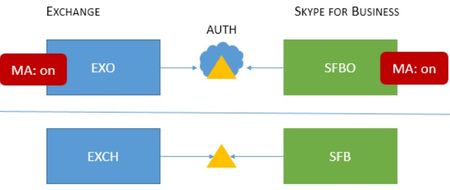
About a year ago Skype for Business started the journey to provide Modern Authentication (MA) for all of our users by providing MA to our online customers. Today, I am happy to announce an important subsequent step in that journey - full client support for a Hybrid SfB configuration with MA enabled for online only. Previously, this was supported for only the windows desktop client. Now, we also support iOS, Android and MAC clients in this configuration. For security conscious IT admins who are moving their onprem deployments to the cloud, this configuration is a very important one as they can start to use Modern Auth enabled security features such as Multi Factor Authentication (MFA), Cert Based Authentication (CBA), Conditional Access (CA) and Mobile Application Management (MAM) for users who are homed in the cloud. As many of you know, "hybrid" can mean many things. If you are wondering if your specific flavor of hybrid is supported, please see our new supportability article "Skype for Business topologies supported with Modern Authentication". It explains exactly what topologies are supported for which clients and which MA features. As we add more capabilities, this article will be updated, so feel free to bookmark it. Also, we are actively working on completely the MA journey by providing support for Hybrid with MA turned on for both online and onprem, and better support for MA on onprem. Expect to see more news in the coming months.6.1KViews11likes3CommentsAnnouncing Skype For Business Cloud Connector Edition version 2.0
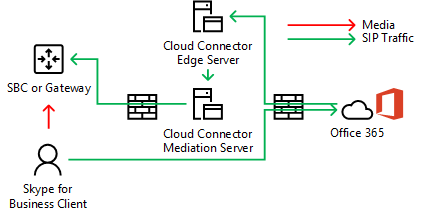
Today, we are announcing Skype for Business Cloud Connector Edition version 2.0. We announced general availability in April, 2016 letting customers integrate their existing PSTN trunks to Cloud PBX providing three modalities: Authentication of the local trunk to Office 365 Cloud PBX; Keep media within enterprise boundaries; Negotiation of codecs between the clients and a PSTN gateway/Session Border Controller (SBC) Since the GA of Cloud Connector Edition, we've seen momentum from companies of varied sizes who use CCE to connect their telephony trunks to Microsoft Cloud PBX. Cushman and Wakefield, a global property management company uses Cloud Connector and Skype for Business Cloud PBX to empower their employees to be productive on any device saving $1 million a year on telephony costs. We are pleased to release Skype for Business Cloud Connector Edition version 2.0 addressing the most requested improvements by our customers including media bypass, support of 16 Cloud Connector Editions per one PSTN site, the ability to manipulate SIP headers, use of Office 365 Skype for Business accounts and more. Media Bypass Media bypass allows a client to send media directly to the Public Switched Telephone Network (PSTN) next hop - a gateway or Session Border Controller (SBC) - and eliminate the Cloud Connector Edition component from the media path. Media bypass can improve voice quality by reducing latency, the possibility of packet loss, and the number of points of potential failure. Elimination of media processing for bypassed calls reduces the load on Cloud Connector, which enables a higher number of concurrent calls, and can improve scalability. Freeing Cloud Connector Edition from media processing tasks may also reduce the number of hardware an infrastructure requires. How media bypass affects media and signaling pathways While signaling takes the same path with or without media bypass, the media flow will differ. The following diagrams show media and signaling pathways in topologies with and without media bypass. For example, in the following topology - which does not employ media bypass - a Skype for Business client places a PSTN call to an external number, the SIP signaling goes to Office 365, and Office 365 then directs the signaling traffic according to the end-user voice policy. For Cloud Connector users, the voice policy directs signaling traffic to the Cloud Connector Edge Server, which then routes the signaling traffic to a PSTN Session Border Controller (SBC) or gateway via the Cloud Connector Mediation Server. Media flows from the Skype for Business client to the Cloud Connector Mediation Server, and then to the SBC or gateway, as shown in the following diagram: Media and signaling pathways without media bypass An inbound call from the PSTN uses the same signaling path in the reverse direction. For internal users, media will ultimately flow between the Skype for Business client and the Cloud Connector Mediation Server and then the SBC or gateway. In the next topology - which employs media bypass - signaling takes the same path, but media flows directly between the Skype for Business client and the SBC or gateway, as shown in the following diagram: Media and signaling pathways with media bypass For more information, go to TechNet to learn more on planning and deploying Media Bypass. Support of 16 Cloud Connector Editions per one PSTN Site Skype for Business PSTN site is a logical combination of Cloud Connectors in one physical location. You can assign users to a site to provide affinity between users and gateways. With the initial release, only four instances of Cloud Connector Editions are supported per PSTN site. Each instance of Cloud Connector can support up to 500 simultaneous calls. One site consisting of four instances of Cloud Connectors can support 1,500 simultaneous calls/lines (with one instance reserved for High Availability). This means one deployment of Cloud Connector Edition could support 9,000 to 15,000 users using a 1:6 to 1:10 ratio of available line to users. However, many large companies want to centralize Cloud Connectors in one location to minimize their costs. This is when the number of users can exceed 15,000 and require more instances per site. With the support of 16 CCEs, we can now support 45,000 to 75,000 simultaneous calls/lines. Ability to manipulate SIP headers for billing or interoperability purposes With version two of Cloud Connector Edition we enable manipulation of SIP headers via the INI file of Cloud Connector. The following headers can now be manipulated in the INI file: EnableFastFailoverTimer: With the default value "True" if outbound calls are not answered by the gateway within 10 seconds they will be routed to the next available gateway; if there are no additional trunks, the call will be dropped. In the case of slow networks and gateway responses, or when establishing calls takes more than 10 seconds, you will need to change the value to False if you encounter similar issues. Do not forget to change the corresponding setting on connected SBC or Gateway. ForwardCallHistory: These parameter turn on SIP headers that are used to report the initial caller in Simultaneous Ringing, Call Forwarding and Call Transfer Scenarios. Setting the parameters to True will turn on two SIP headers: History-Info: The History-Info header is used for retargeting SIP requests and "provide(s) a standard mechanism for capturing the request history information to enable a wide variety of services for networks and end-users" (RFC 4244 - Section 1.1, http://www.ietf.org/rfc/rfc4244.txt). For the Cloud Connector trunk interfaces, this is used in Simulring and Call Forwarding scenarios. Referred-By: For Call transfer scenarios the Referred-By header is used for retargeting SIP requests, specifically for Call Transfer scenarios with regards to the Cloud Connector trunk interface. In a call transfer scenario it may be necessary to provide the refer target with specific information about the referrer and the refer request itself. In the case of SIP trunks, the Referred-By header carries information (referrer's identity) which is typically used for authentication and billing purposes by the SIP trunk provider. Note that the Referred-By header sent by the Mediation Server to the SIP trunk provider will not be encrypted or signed. ForwardPAI: PAI is a private extension to SIP which enables SIP servers to assert the identity of authenticated users. For SIP trunk providers, PAI may be used for billing purposes in the event that History-Info and Referred-By headers are not present. When Forward P-Asserted-Identity is enabled in the configuration, Mediation Server will forward PAI headers with SIP & Tel URI's from Cloud Connector onto the SIP Trunk. Mediation Server will forward PAI headers with tel URI's & E.164 numbers ONLY received on the SIP trunk to Cloud Connector. Mediation Server will also forward any Privacy headers received in either direction. If the SIP Request sent by mediation server includes a Privacy header of the form - "Privacy: id" in conjunction with the PAI header then the asserted identity should be kept private outside of the network trust domain. More details about the History-Info and ForwardPAI headers can be found here http://download.microsoft.com/download/2/4/5/245583A7-E9E1-403B-BD15-AB711C7DF744/Lync%202013%20Headers%20for%20SIP%20trunk%20provider%20billing.docx Use of Office 365 Skype for Business account instead of a Global Administrator account Previously, we required a dedicated Office 365 account with Global Administrator rights to perform certain administrative tasks. Based on customer feedback, we now let any account with a Skype for Business administrator role to perform management tasks. This allows larger organizations with several administrators to easily administer the system while keeping strict rules on access rights. Autogenerated passwords for local administrators of Cloud Connector instances During the deployment of a Cloud Connector instance a new Active Directory forest is created for each appliance. There are two accounts created at the forest level and one account created for each VM: Domain Administrator account, Safe Mode Administrator account and an administrative account for each virtual machine. To lessen the burden on administrators, we no longer require manually creating a password for the forests administrators. Instead, the password for those accounts are auto generated during the installation. Introduction of Hybrid Voice flag in Mediation Service User Agent to better distinguish Cloud Connector calls in the Call Quality Dashboard When a call is placed, every Server or Client reports its name in SIP User-Agent header for diagnostic purposes. For example, when you place a call using a Cloud Connector before version two, RTCC/6.0.0.0 MediationServer was reported which led to confusion when there was a need to distinguish Cloud Connector calls from calls placed via other trunks. To better distinguish the calls, Cloud Connector Mediation Server now reports in SIP User-Agent Header to better distinguish Cloud Connector calls in Call Quality Dashboard. Improvements to self-monitoring and self-troubleshooting process The last improvement we made by customer request are improvements to the self-monitoring and troubleshooting mechanism. With this update, additional scenarios were added now detecting the following events: One or more Virtual Machines of a Cloud Connector instance are not connected to internal or internet virtual switch; One or more Virtual Machines of a Cloud Connector instance are in saved or stopped status; The following services are not running: On Central Management Store Virtual Machine: Skype for Business Master Replicator Agent; Skype for Business Replica Replicator Agent On Mediation Server Virtual Machine: Skype for Business Replica Replicator Agent Skype for Business Server Mediation On Edge Server Virtual Machine: Skype for Business Replica Replicator Agent; Skype for Business Server Access Edge; Skype for Business Server Audio/Video Edge; Skype for Business Server Audio/Video Authentication; Skype for Business Server Web Conferencing Edge If one of the events outlined above is detected, the entire instance of the Cloud Connector is drained and marked as offline. Disabling SSL 3.0 by default for all services used by Cloud Connector Edition We reviewed all services in Cloud Connector Edition and disabled use of SSL 3.0 by default according to the security advisory published on October, 2014 https://technet.microsoft.com/library/security/3009008 Since the release of Skype for Business Cloud Connector Edition, we've seen momentum from companies adopting the solution to achieve Hybrid PSTN. With CCE version 2.0, we have addressed some of the most requested improvements by our customers. As we look ahead, we are committed to improving the functionality of Cloud Connector Edition, so please provide feedback to us via skypefeedback.com and Technical Community. For more resources on Skype For Business Cloud Connector Edition, go to the following links: Documentation Plan for Skype for Business Cloud Connector Edition Configure Skype for Business Cloud Connector Edition Plan for media bypass in Cloud Connector Deploy media bypass in Cloud Connector Recorded Training Skype Academy: What's New in Cloud Connector Edition V2 - This session explain all the changes, improvements and new features that we are introducing with version of Cloud Connector Edition. Pptx attached to this blog. Skype Academy: Media Bypass in Cloud Connector Edition V2 - This session explains the concept of Media Bypass and goes into detail how to enable and manage it for Cloud Connector V2. Pptx attached to this blog.23KViews9likes23CommentsEnhancing Skype for Business Online Meetings for external participants
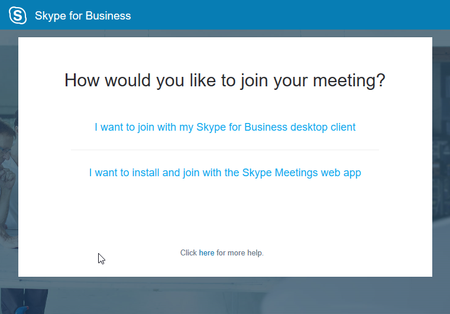
We heard you that joining online meetings for external participants was too complicated. We have worked hard to make improvements to this process, I am happy to share details on these improvements that will be live for all our Office 365 customers middle of April 2017: Simplified meeting join experience with single-click join experience for Internet Explorer Join audio conference via PSTN call back Always fresh client Optimized screen real-estate for content sharing and collaboration. This new experience has been released to our on-premises customers with the May 2017 update for Skype for Business Server 2015. See this article to learn how to enable this in your on-premises deployment. Let’s walk through a scenario to cover the entire meeting join experience and improvements end-to-end. Remember Garth from our training on Tenant Dial Plans? Garth is with Contoso, and he is scheduling a Skype meeting with his customer Alice. Garth schedules the meeting in his Outlook client and adds the Skype Meeting into the invite, and Alice accepts the meeting invite. However, Garth is now is wondering how Alice can join his meeting. Does Alice have Skype for Business? If not, how would she be able to join the meeting Can Alice download and install the Skype Web App on her PC? Does she have local administrator rights on her machine to do so? What about a headset, how will Alice be able to join with Audio into the Skype Meeting? Garth is wondering if is there a need to tell Alice what she needs to do to join the meeting? Let’s see what happens. Alice does not have Skype for Business installed on her PC, nor does she have local Administrative Rights on her machine. Alice clicks the Join Skype Meeting link in the invite and installs the Skype Web App. The installation requires no administrative rights on her machine and completes after a few seconds. After the installation, she clicks the Join the meeting button. The new Skype Web App starts, she enters her name, and is connected to the meeting. Garth already shared a PowerPoint deck, the Web App automatically selects the best layout for the shared content and they can start the meeting. The Skype Web App UI is optimized for screen real-estate for content sharing and collaboration. A yellow notification told her that she is using Skype for Business Audio and Video. She can also either dial-in or choose to use the call-me back function. This is useful in scenarios where external participants don't have an audio device like a headset available. Note: call-me back requires AllowAnonymousUsersToDialOut to be enabled by the IT Admin in the conferencing policy of the meeting organizer. The new Skype for Business Web App has several additional improvements: Experience a faster, reliable, and more efficient screen-sharing experience The new Web App supports video based screen sharing (VBSS) improving the overall user experience in the sharing session. Disabled controls Controls to share content are disabled for attendees. Once promoted to presenter, these controls will light up and they can start to share the screen or other content using the Skype for Business Web App. Save Settings When exiting the meeting, the Skype for Business Web App will ask to save the current settings like the display name and preferred audio join method (IP audio, dial-in or call-me when available) for the next meeting. Sign-In with Office 365 Account Instead of joining as a guest, you can also sign-in as an authenticated user using your Office 365 Account. Always Fresh Client The Web App will check for newer version when joining a meeting. If an update is available, it downloads in the background, and you will join the meeting. After the meeting has ended the Skype for Business Web App will update itself. Newer versions of the Web App are backward-compatible with earlier versions of the Web App, e.g., you don’t have to install an older version if you join a meeting that is hosted in an on-premises environment. Rate your meeting quality and help us improve A brief survey will be presented to users joining from a Windows computer through the new Skype for Business Web App experience; while you will not be able to access this data, Microsoft will use it to improve the experience further. Garth is happy again, Alice could join the meeting right away even as this was her very first meeting with Skype for Business.29KViews9likes26CommentsNow Available – Auto Attendant and Call Queues for Skype for Business Cloud PBX in Office 365
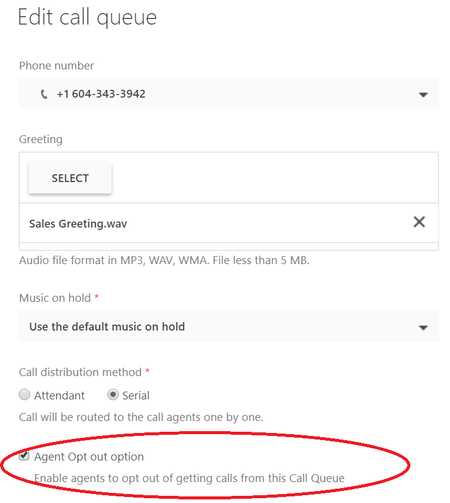
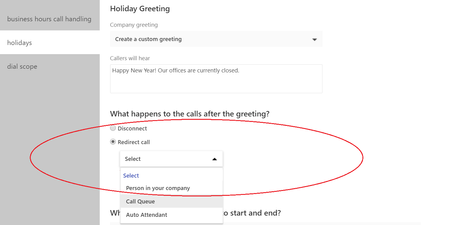
Customers around the world are replacing their traditional phone systems with our modern voice solution delivered in Office 365 with Skype for Business Online. Skype for Business Online provides end-users the ability to make and receive business calls in the office, at home and on the road using their phone, PC, or mobile device. As part of Office 365, we are able to innovate rapidly to deliver new capabilities to customers without the need to build out new servers or install software updates. This week at Enterprise Connect, we announced exciting new capabilities that are now available for our cloud voice customers. Generally grouped under the category of “media services”, these new features operate completely out of Office 365 and provide new experiences for the management of phone calls, from answering to call treatment to queueing to routing. What it means is that Office 365 customers everywhere now have an option for a truly powerful set of communications capabilities all driven out of the cloud. Auto Attendant provides an automated system to answer inbound phone calls to a company, play prompts to interact with the caller and determine the destination of the call. Prompts can be made from uploaded pre-recorded material or using text-to-speech in 27 languages while replies from callers can be captured using DTMF (touchtone) or speech recognition in 14 languages. Callers can speak the name of an end-user in the tenant directory to be routed directly to that person or they can be presented with a customized menu to support routing to different departments. Auto Attendant Call Queues implement an automated distribution system for calls that includes playing licensed music on hold for the caller and matching the caller with an available agent. Custom music on hold and custom prompts can also be uploaded to Office 365 for use with a customer’s Call Queue. Agents can be quickly configured for handing calls from a queue by using a simple distribution list, with calls routed in parallel to all agents who are signed in and configured to handle calls from the queue. Call Queues Both Auto Attendants and Call Queues are managed from Office 365 and allow customers to have powerful call management functionality homed completely out of the cloud. To support this capability, customers can acquire both toll and toll-free phone numbers from over 90 countries around the world, all without additional subscription cost. The system administrator then simply associates the numbers to the Auto Attendants and Call Queues directly from the Office 365 Admin Center or automates the process through PowerShell scripting. One of our first partners to take advantage of this new functionality with Skype for Business Online is Enghouse Interactive with their new attendant console. Utilizing the Skype for Business Client SDK, Auto Attendant, and Call Queues, their TouchPoint Attendant solution natively integrates into Microsoft’s Skype for Business Online and Office 365. Want to learn more? Check out the new documentation for Auto Attendant and Call Queues to learn more about these key enhancements. Sean Wilson & Marina Kolomiets recorded a broadcast on 4/28 on the topic, here. With these new capabilities, now is the time to upgrade your legacy phone systems and/or to start with new users in the cloud. If you aren’t using our cloud voice solution, you can upgrade your existing Office 365 subscriptions to Office 365 Enterprise E5, add Cloud PBX to any other Office 365 Enterprise plan, or you can get your own tenant with Cloud PBX at http://aka.ms/e5trial.39KViews7likes17Comments
What's new for Auto Attendants and Call Queues in July 2017?
Call Queue and Auto Attandant calls are now supported on Mac and Mobile endpoints! A user can be setup to make calls on behalf of a Call Queue or Auto Attendant, and support for 0365 Groups and enhancements in Speech Recognition and Text to Speech are now rolled out for Auto Attendants.11KViews6likes22Comments