alerts
382 TopicsUncover the latest cloud data security capabilities from Microsoft Defender for Cloud
Learn about the latest multicloud data security capabilities from Microsoft Defender for Cloud to strengthen your data security posture and protect your cloud data estate against data breaches and malware distribution.6.7KViews9likes0CommentsMicrosoft Sentinel MCP Entity Analyzer: Explainable risk analysis for URLs and identities
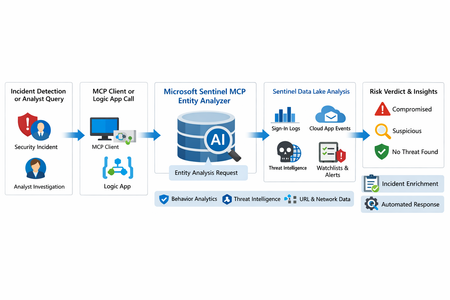
What makes this release important is not just that it adds another AI feature to Sentinel. It changes the implementation model for enrichment and triage. Instead of building and maintaining a chain of custom playbooks, KQL lookups, threat intel checks, and entity correlation logic, SOC teams can call a single analyzer that returns a reasoned verdict and supporting evidence. Microsoft positions the analyzer as available through Sentinel MCP server connections for agent platforms and through Logic Apps for SOAR workflows, which makes it useful both for interactive investigations and for automated response pipelines. Why this matters First, it formalizes Entity Analyzer as a production feature rather than a preview experiment. Second, it introduces a real cost model, which means organizations now need to govern usage instead of treating it as a free enrichment helper. Third, Microsoft’s documentation is now detailed enough to support repeatable implementation patterns, including prerequisites, limits, required tables, Logic Apps deployment, and cost behavior. From a SOC engineering perspective, Entity Analyzer is interesting because it focuses on explainability. Microsoft describes the feature as generating clear, explainable verdicts for URLs and user identities by analyzing multiple modalities, including threat intelligence, prevalence, and organizational context. That is a much stronger operational model than simple point-enrichment because it aims to return an assessment that analysts can act on, not just more raw evidence What Entity Analyzer actually does The Entity Analyzer tools are described as AI-powered tools that analyze data in the Microsoft Sentinel data lake and provide a verdict plus detailed insights on URLs, domains, and user entities. Microsoft explicitly says these tools help eliminate the need for manual data collection and complex integrations usually required for investigation and enrichment hat positioning is important. In practice, many SOC teams have built enrichment playbooks that fetch sign-in history, query TI feeds, inspect click data, read watchlists, and collect relevant alerts. Those workflows work, but they create maintenance overhead and produce inconsistent analyst experiences. Entity Analyzer centralizes that reasoning layer. For user entities, Microsoft’s preview architecture explains that the analyzer retrieves sign-in logs, security alerts, behavior analytics, cloud app events, identity information, and Microsoft Threat Intelligence, then correlates those signals and applies AI-based reasoning to produce a verdict. Microsoft lists verdict examples such as Compromised, Suspicious activity found, and No evidence of compromise, and also warns that AI-generated content may be incorrect and should be checked for accuracy. That warning matters. The right way to think about Entity Analyzer is not “automatic truth,” but “high-value, explainable triage acceleration.” It should reduce analyst effort and improve consistency, while still fitting into human review and response policy. Under the hood: the implementation model Technically, Entity Analyzer is delivered through the Microsoft Sentinel MCP data exploration tool collection. Microsoft documents that entity analysis is asynchronous: you start analysis, receive an identifier, and then poll for results. The docs note that analysis may take a few minutes and that the retrieval step may need to be run more than once if the internal timeout is not enough for long operations. That design has two immediate implications for implementers. First, this is not a lightweight synchronous enrichment call you should drop carelessly into every automation branch. Second, any production workflow should include retry logic, timeouts, and concurrency controls. If you ignore that, you will create fragile playbooks and unnecessary SCU burn. The supported access path for the data exploration collection requires Microsoft Sentinel data lake and one of the supported MCP-capable platforms. Microsoft also states that access to the tools is supported for identities with at least Security Administrator, Security Operator, or Security Reader. The data exploration collection is hosted at the Sentinel MCP endpoint, and the same documentation notes additional Entity Analyzer roles related to Security Copilot usage. The prerequisite many teams will miss The most important prerequisite is easy to overlook: Microsoft Sentinel data lake is required. This is more than a licensing footnote. It directly affects data quality, analyzer usefulness, and rollout success. If your organization has not onboarded the right tables into the data lake, Entity Analyzer will either fail or return reduced-confidence output. For user analysis, the following tables are required to ensure accuracy: AlertEvidence, SigninLogs, CloudAppEvents, and IdentityInfo. also notes that IdentityInfo depends on Defender for Identity, Defender for Cloud Apps, or Defender for Endpoint P2 licensing. The analyzer works best with AADNonInteractiveUserSignInLogs and BehaviorAnalytics as well. For URL analysis, the analyzer works best with EmailUrlInfo, UrlClickEvents, ThreatIntelIndicators, Watchlist, and DeviceNetworkEvents. If those tables are missing, the analyzer returns a disclaimer identifying the missing sources A practical architecture view An incident, hunting workflow, or analyst identifies a high-interest URL or user. A Sentinel MCP client or Logic App calls Entity Analyzer. Entity Analyzer queries relevant Sentinel data lake sources and correlates the findings. AI reasoning produces a verdict, evidence narrative, and recommendations. The result is returned to the analyst, incident record, or automation workflow for next-step action. This model is especially valuable because it collapses a multi-query, multi-tool investigation pattern into a single explainable decisioning step. Where it fits in real Sentinel operations Entity Analyzer is not a replacement for analytics rules, UEBA, or threat intelligence. It is a force multiplier for them. For identity triage, it fits naturally after incidents triggered by sign-in anomaly detections, UEBA signals, or Defender alerts because it already consumes sign-in logs, cloud app events, and behavior analytics as core evidence sources. For URL triage, it complements phishing and click-investigation workflows because it uses TI, URL activity, watchlists, and device/network context. Implementation path 1: MCP clients and security agents Microsoft states that Entity Analyzer integrates with agents through Sentinel MCP server connections to first-party and third-party AI runtime platforms. In practice, this makes it attractive for analyst copilots, engineering-side investigation agents, and guided triage experiences The benefit of this model is speed. A security engineer or analyst can invoke the analyzer directly from an MCP-capable client without building a custom orchestration layer. The tradeoff is governance: once you make the tool widely accessible, you need a clear policy for who can run it, when it should be used, and how results are validated before action is taken. Implementation path 2: Logic Apps and SOAR playbooks For SOC teams, Logic Apps is likely the most immediately useful deployment model. Microsoft documents an entity analyzer action inside the Microsoft Sentinel MCP tools connector and provides the required parameters for adding it to an existing logic app. These include: Workspace ID Look Back Days Properties payload for either URL or User The documented payloads are straightforward: { "entityType": "Url", "url": "[URL]" } And { "entityType": "User", "userId": "[Microsoft Entra object ID or User Principal Name]" } Also states that the connector supports Microsoft Entra ID, service principals, and managed identities, and that the Logic App identity requires Security Reader to operate. This makes playbook integration a strong pattern for incident enrichment. A high-severity incident can trigger a playbook, extract entities, invoke Entity Analyzer, and post the verdict back to the incident as a comment or decision artifact. The concurrency lesson most people will learn the hard way Unusually direct guidance on concurrency: to avoid timeouts and threshold issues, turn on Concurrency control in Logic Apps loops and start with a degree of parallelism of . The data exploration doc repeats the same guidance, stating that running multiple instances at once can increase latency and recommending starting with a maximum of five concurrent analyses. This is a strong indicator that the correct implementation pattern is selective analysis, not blanket analysis. Do not analyze every entity in every incident. Analyze the entities that matter most: external URLs in phishing or delivery chains accounts tied to high-confidence alerts entities associated with high-severity or high-impact incidents suspicious users with multiple correlated signals That keeps latency, quota pressure, and SCU consumption under control. KQL still matters Entity Analyzer does not eliminate KQL. It changes where KQL adds value. Before running the analyzer, KQL is still useful for scoping and selecting the right entities. After the analyzer returns, KQL is useful for validation, deeper hunting, and building custom evidence views around the analyzer’s verdict. For example, a simple sign-in baseline for a target user: let TargetUpn = "email address removed for privacy reasons"; SigninLogs | where TimeGenerated between (ago(7d) .. now()) | where UserPrincipalName == TargetUpn | summarize Total=count(), Failures=countif(ResultType != "0"), Successes=countif(ResultType == "0"), DistinctIPs=dcount(IPAddress), Apps=make_set(AppDisplayName, 20) by bin(TimeGenerated, 1d) | order by TimeGenerated desc And a lightweight URL prevalence check: let TargetUrl = "omicron-obl.com"; UrlClickEvents | where TimeGenerated between (ago(7d) .. now()) | search TargetUrl | take 50 Cost, billing, and governance GA is where technical excitement meets budget reality. Microsoft’s Sentinel billing documentation says there is no extra cost for the MCP server interface itself. However, for Entity Analyzer, customers are charged for the SCUs used for AI reasoning and also for the KQL queries executed against the Microsoft Sentinel data lake. Microsoft further states that existing Security Copilot entitlements apply The April 2026 “What’s new” entry also explicitly says that starting April 1, 2026, customers are charged for the SCUs required when using Entity Analyzer. That means every rollout should include a governance plan: define who can invoke the analyzer decide when playbooks are allowed to call it monitor SCU consumption limit unnecessary repeat runs preserve results in incident records so you do not rerun the same analysis within a short period Microsoft’s MCP billing documentation also defines service limits: 200 total runs per hour, 500 total runs per day, and around 15 concurrent runs every five minutes, with analysis results available for one hour. Those are not just product limits. They are design requirements. Limitations you should state clearly The analyze_user_entity supports a maximum time window of seven days and only works for users with a Microsoft Entra object ID. On-premises Active Directory-only users are not supported for user analysis. Microsoft also says Entity Analyzer results expire after one hour and that the tool collection currently supports English prompts only. Recommended rollout pattern If I were implementing this in a production SOC, I would phase it like this: Start with a narrow set of high-value use cases, such as suspicious user identities and phishing-related URLs. Confirm that the required tables are present in the data lake. Deploy a Logic App enrichment pattern for incident-triggered analysis. Add concurrency control and retry logic. Persist returned verdicts into incident comments or case notes. Then review SCU usage and analyst value before expanding coverage.1.3KViews8likes0CommentsIngesting Google Cloud Logs into Microsoft Sentinel: Native vs. Custom Architectures
Overview of GCP Log Types and SOC Value Modern Security Operations Centers (SOCs) require visibility into key Google Cloud Platform logs to detect threats and suspicious activities. The main log types include: GCP Audit Logs – These encompass Admin Activity, Data Access, and Access Transparency logs for GCP services. They record every administrative action (resource creation, modification, IAM changes, etc.) and access to sensitive data, providing a trail of who did what and when in the cloud. In a SOC context, audit logs help identify unauthorized changes or anomalous admin behavior (e.g. an attacker creating a new service account or disabling logging). They are essential for compliance and forensics, as they detail changes to configurations and access patterns across GCP resources. VPC Flow Logs – These logs capture network traffic flow information at the Virtual Private Cloud (VPC) level. Each entry typically includes source/destination IPs, ports, protocol, bytes, and an allow/deny action. In a SOC, VPC flow logs are invaluable for network threat detection: they allow analysts to monitor access patterns, detect port scanning, identify unusual internal traffic, and profile ingress/egress traffic for anomalies. For example, a surge in outbound traffic to an unknown IP or lateral movement between VMs can be spotted via flow logs. They also aid in investigating data exfiltration and verifying network policy enforcement. Cloud DNS Logs – Google Cloud DNS query logs record DNS requests/responses from resources, and DNS audit logs record changes to DNS configurations. DNS query logs are extremely useful in threat hunting because they can reveal systems resolving malicious domain names (C2 servers, phishing sites, DGA domains) or performing unusual lookups. Many malware campaigns rely on DNS; having these logs in Sentinel enables detection of known bad domains and anomalous DNS traffic patterns. DNS audit logs, on the other hand, track modifications to DNS records (e.g. newly added subdomains or changes in IP mappings), which can indicate misconfigurations or potential domain hijacking attempts. Together, these GCP logs provide comprehensive coverage: audit logs tell what actions were taken in the cloud, while VPC and DNS logs tell what network activities are happening. Ingesting all three into Sentinel gives a cloud security architect visibility to detect unauthorized access, network intrusions, and malware communication in a GCP environment. Native Microsoft Sentinel GCP Connector: Architecture & Setup Microsoft Sentinel offers native data connectors to ingest Google Cloud logs, leveraging Google’s Pub/Sub messaging for scalable, secure integration. The native solution is built on Sentinel’s Codeless Connector Framework (CCF) and uses a pull-based architecture: GCP exports logs to Pub/Sub, and Sentinel’s connector pulls from Pub/Sub into Azure. This approach avoids custom code and uses cloud-native services on both sides. Supported GCP Log Connectors: Out of the box, Sentinel provides connectors for: GCP Audit Logs – Ingests the Cloud Audit Logs (admin activity, data access, transparency). GCP Security Command Center (SCC) – Ingests security findings from Google SCC for threat and vulnerability management. GCP VPC Flow Logs – (Recently added) Ingests VPC network flow logs. GCP Cloud DNS Logs – (Recently added) Ingests Cloud DNS query logs and DNS audit logs. Others – Additional connectors exist for specific GCP services (Cloud Load Balancer logs, Cloud CDN, Cloud IDS, GKE, IAM activity, etc.) via CCF, expanding the coverage of GCP telemetry in Sentinel. Each connector typically writes to its own Log Analytics table (e.g. GCPAuditLogs, GCPVPCFlow, GCPDNS, etc.) and comes with built-in KQL parsers. Architecture & Authentication: The native connector uses Google Pub/Sub as the pipeline for log delivery. On the Google side, you will set up a Pub/Sub Topic that receives the logs (via Cloud Logging exports), and Sentinel will subscribe to that topic. Authentication is handled through Workload Identity Federation (WIF) using OpenID Connect: instead of managing static credentials, you establish a trust between Azure AD and GCP so that Sentinel can impersonate a GCP service account. The high-level architecture is: GCP Cloud Logging (logs from services) → Log Router (export sink) → Pub/Sub Topic → (Secure pull over OIDC) → Azure Sentinel Data Connector → Log Analytics Workspace. This ensures a secure, keyless integration. The Azure side (Sentinel) authenticates as a Google service account via OIDC tokens issued by Azure AD, which GCP trusts through the Workload Identity Provider. Below are the detailed setup steps: GCP Setup (Publishing Logs to Pub/Sub) Enable Required APIs: Ensure the GCP project hosting the logs has the IAM API and Cloud Resource Manager API enabled (needed for creating identity pools and roles). You’ll also need owner/editor access on the project to create the resources below. Create a Workload Identity Pool & Provider: In Google Cloud IAM, create a new Workload Identity Pool (e.g. named “Azure-Sentinel-Pool”) and then a Workload Identity Provider within that pool that trusts your Azure AD tenant. Google provides a template for Azure AD OIDC trust – you’ll supply your Azure tenant ID and the audience and issuer URIs that Azure uses. For Azure Commercial, the issuer is typically https://sts.windows.net/<TenantID>/ and audience api://<some-guid> as documented. (Microsoft’s documentation or Terraform scripts provide these values for the Sentinel connector.) Create a Service Account for Sentinel: Still in GCP, create a dedicated service account (e.g. email address removed for privacy reasons). This account will be what Sentinel “impersonates” via the WIF trust. Grant this service account two key roles: Pub/Sub Subscriber on the Pub/Sub Subscription that will be created (allows pulling messages). You can grant roles/pubsub.subscriber at the project level or on the specific subscription. Workload Identity User on the Workload Identity Pool. In the pool’s permissions, add a principal of the form principalSet://iam.googleapis.com/projects/<WIF_project_number>/locations/global/workloadIdentityPools/<Pool_ID>/* and grant it the role roles/iam.workloadIdentityUser on your service account. This allows the Azure AD identity to impersonate the GCP service account. Note: GCP best practice is often to keep the identity pool in a centralized project and service accounts in separate projects, but as of late 2023 the Sentinel connector UI expected them in one project (a limitation under review). It’s simplest to create the WIF pool/provider and the service account within the same GCP project to avoid connectivity issues (unless documentation confirms support for cross-project). Create a Pub/Sub Topic and Subscription: Open the GCP Pub/Sub service and create a Topic (for example, projects/yourproject/topics/sentinel-logs). It’s convenient to dedicate one topic per log type or use case (e.g. one for audit logs). As you create the topic, you can add a Subscription to it in Pull mode (since Sentinel will pull messages). Use a default subscription with an appropriate name (e.g. sentinel-audit-sub). You can leave the default settings (ack deadline, retention) as is, or extend retention if you want messages to persist longer in case of downtime (default is 7 days). Create a Logging Export (Sink): In GCP Cloud Logging, set up a Log Sink to route the desired logs into the Pub/Sub topic. Go to Logging > Logs Router and create a sink: Give it a descriptive name (e.g. audit-logs-to-sentinel). Choose Cloud Pub/Sub as the Destination and select the topic you created (or use the format pubsub.googleapis.com/projects/yourproject/topics/sentinel-logs). Scope and filters: Decide which logs to include. For Audit Logs, you might include ALL audit logs in the project (the sink can be set to include admin activity, data access, etc., by default for the whole project or even entire organization if created at org level). For other log types like VPC Flow Logs or DNS, you’d set an inclusion filter for those specific log names (e.g. logName:"compute.googleapis.com/vpc_flows" to capture VPC Flow Logs). You can also create organization-level sinks to aggregate logs from all projects. Permissions: When creating a sink, GCP will ask to grant the sink service account publish rights to the Pub/Sub topic. Accept this so logs can flow. Once the sink is created, verify logs are flowing: in Pub/Sub > Subscriptions, you can “Pull” messages manually to see if any logs appear. Generating a test event (e.g., create a VM to produce an audit log, or make a DNS query) can help confirm. At this point, GCP is set up to export logs. All requisite GCP resources (IAM federation, service account, topic/subscription, sink) are ready. Google also provides Terraform scripts (and Microsoft supplies Terraform templates in their GitHub) to automate these steps. Using Terraform, you can stand up the IAM and Pub/Sub configuration quickly if comfortable with code. Azure Sentinel Setup (Connecting the GCP Connector) With GCP publishing logs to Pub/Sub, configure Sentinel to start pulling them: Install the GCP Solution: In the Azure portal, navigate to your Sentinel workspace. Under Content Hub (or Data Connectors), find Google Cloud Platform Audit Logs (for example) and click Install. This deploys any needed artifacts (the connector definition, parser, etc.). Repeat for other GCP solutions (like GCP VPC Flow Logs or GCP DNS) as needed. Open Data Connector Configuration: After installation, go to Data Connectors in Sentinel, search for “GCP Pub/Sub Audit Logs” (or the relevant connector), and select it. Click Open connector page. In the connector page, click + Add new (or Add new collector) to configure a new connection instance. Enter GCP Parameters: A pane will prompt for details to connect: you need to supply the Project ID (of the GCP project where the Pub/Sub lives), the Project Number, the Topic and Subscription name, and the Service Account Email you created. You’ll also enter the Workload Identity Provider ID (the identifier of the WIF provider, usually in format projects/<proj>/locations/global/workloadIdentityPools/<pool>/providers/<provider>). All these values correspond to the GCP resources set up earlier – the UI screenshot in docs shows sample placeholders. Make sure there are no typos (a common error is mixing up project ID (name) with project number, or using the wrong Tenant ID). Data Collection Rule (DCR): The connector may also ask for a Data Collection Rule (DCR) and DCE (Data Collection Endpoint) names. Newer connectors based on CCF use the Log Ingestion API, so behind the scenes a DCR is used. If required, provide a name (the docs often suggest prefixing with “Microsoft-Sentinel-” e.g., Microsoft-Sentinel-GCPAuditLogs-DCR). The system will create the DCR and a DCE for you if not already created. (If you installed via Content Hub, this is often automated – just ensure the names follow any expected pattern.) Connect: Click Connect. Sentinel will attempt to use the provided info to establish connectivity. It performs checks like verifying the subscription exists and that the service account can authenticate. If everything is set up properly, the connector will connect and start streaming data. In case of an error, you’ll receive a detailed message. For example, an error about WIF Pool ID not found or subscription not found indicates an issue in the provided IDs or permissions. Double-check those values if so. Validation: After ~15-30 minutes, verify that logs are arriving. You can run a Log Analytics query on the new table, for example: GCPAuditLogs | take 5 (for audit logs) or GCPVPCFlow | take 5 for flow logs. You should see records if ingestion succeeded. Sentinel also provides a “Data connector health” feature – enable it to get alerts or status on data latency and volume for this connector. Data Flow and Ingestion: Once connected, the system works continuously and serverlessly: GCP Log Router pushes new log entries to Pub/Sub as they occur. The Sentinel connector (running in Azure’s cloud) polls the Pub/Sub subscription. It uses the service account credentials (via OIDC token) to call the Pub/Sub API and pull messages in batches. This happens at a defined interval (typically very frequently, e.g. every few seconds). Each message (which contains a log entry in JSON) is then ingested into Log Analytics. The CCF connector uses the Log Ingestion API on the backend, mapping the JSON fields to the appropriate table schema. The logs appear in the respective table (with columns for each JSON field or a dynamic JSON column, depending on the connector design). Sentinel’s built-in parser or Normalized Schemas (ASIM) can be used to query these logs in a friendly way. For instance, the Audit Logs solution includes KQL functions to parse out common fields like user, method, status, etc., from the raw JSON. This native pipeline is fully managed – you don’t have to run any servers or code. The use of Pub/Sub and OIDC makes it scalable and secure by design. Design Considerations & Best Practices for the Native Connector: Scalability & Performance: The native connector approach is designed for high scale. Pub/Sub itself can handle very large log volumes with low latency. The Sentinel CCF connectors use a SaaS, auto-scaling model – no fixed infrastructure means they will scale out as needed to ingest bursts of data. This is a significant advantage over custom scripts or function apps which might need manual scaling. In testing, the native connector can reliably ingest millions of log events per day. If you anticipate extremely high volumes (e.g. VPC flow logs from hundreds of VMs), monitor the connector’s performance but it should scale automatically. Reliability: By leveraging Pub/Sub’s at-least-once delivery, the integration is robust. Even if Azure or the connector has a transient outage, log messages will buffer in Pub/Sub. Once the connector resumes, it will catch up on the backlog. Ensure the subscription’s message retention is adequate (the default 7 days is usually fine). The connector acknowledges messages only after they’re ingested into Log Analytics, which prevents data loss on failures. This reliability is achieved without custom code – reducing the chance of bugs. Still, it’s good practice to use Sentinel’s connector health metrics to catch any issues (e.g., if the connector hasn’t pulled data in X minutes, indicating a problem). Security: The elimination of persistent credentials is a best practice. By using Workload Identity Federation, the Azure connector obtains short-lived tokens to act as the GCP service account. There is no need to store a GCP service account key file, which could be a leak risk. Ensure that the service account has the minimal roles needed. Typically, it does not need broad viewer roles on all GCP resources – it just needs Pub/Sub subscription access (and logging viewer only if you choose to restrict log export by IAM – usually not necessary since the logs are already exported via the sink). Keep the Azure AD application’s access limited too: the Azure AD app (which underpins the Sentinel connector) only needs to access the Sentinel workspace and doesn’t need rights in GCP – the trust is handled by the WIF provider. Filtering and Log Volume Management: A common best practice is to filter GCP logs at the sink to avoid ingesting superfluous data. For instance, if only certain audit log categories are of interest (e.g., Admin Activity and security-related Data Access), you could exclude noisy Data Access logs like storage object reads. For VPC Flow Logs, you might filter on specific subnetworks or even specific metadata (though typically you’d ingest all flows and use Sentinel for filtering). Google’s sink filters allow you to use boolean expressions on log fields. The community recommendation for Firewall or VPC logs, for example, is to set a filter so that only those logs go into that subscription. This reduces cost and noise in Sentinel. Plan your log sinks carefully: you may create multiple sinks if you want to separate log types (one sink to Pub/Sub for audit logs, another sink (with its own topic) for flow logs, etc.). The Sentinel connectors are each tied to one subscription and one table, so separating by log type can help manage parsing and access. Coverage Gaps: Check what the native connectors support as of the current date. Microsoft has been rapidly adding GCP connectors (VPC Flow Logs and DNS logs were in Preview in mid-2025 and are likely GA by now). If a needed log type is not supported (for example, if you have a custom application writing logs to Google Cloud Logging), you might consider the custom ingestion approach (see next section). For most standard infrastructure logs, the native route is available and preferable. Monitoring and Troubleshooting: Familiarize yourself with the connector’s status in Azure. In the Sentinel UI, each configured GCP connector instance will show a status (Connected/Warning/Error) and possibly last received timestamp. If there’s an issue, gather details from error messages there. On GCP, monitor the Pub/Sub subscription: pubsub subscriptions list --filter="name:sentinel-audit-sub" can show if there’s a growing backlog (unacked message count). A healthy system should have near-zero backlog with steady consumption. If backlog is growing, it means the connector isn’t keeping up or isn’t pulling – check Azure side for throttling or errors. Multi-project or Org-wide ingestion: If your organization has many GCP projects, you have options. You could deploy a connector per project, or use an organization-level log sink in GCP to funnel logs from all projects into a single Pub/Sub. The Sentinel connector can pull organization-wide if the service account has rights (the Terraform script allows an org sink by providing an organization-id). This centralizes management but be mindful of very large volumes. Also, ensure the service account has visibility on those logs (usually not an issue if they’re exported; the sink’s own service account handles the export). In summary, the native GCP connector provides a straightforward and robust way to get Google Cloud logs into Sentinel. It’s the recommended approach for supported log types due to its minimal maintenance and tight integration. Custom Ingestion Architecture (Pub/Sub to Azure Event Hub, etc.) In cases where the built-in connector doesn’t meet requirements – e.g., unsupported log types, custom formats, or corporate policy to use an intermediary – you can design a custom ingestion pipeline. The goal of custom architectures is the same (move logs from GCP to Sentinel) but you can incorporate additional processing or routing. One reference pattern is: GCP Pub/Sub → Azure Event Hub → Sentinel, which we’ll use as an example among other alternatives. GCP Export (Source): This part remains the same as the native setup – you create log sinks in GCP to continuously export logs to Pub/Sub topics. You can reuse what you’ve set up or create new, dedicated Pub/Sub topics for the custom pipeline. For instance, you might have a sink for Cloud DNS query logs if the native connector wasn’t used, sending those logs to a topic. Ensure you also create subscriptions on those topics for your custom pipeline to pull from. If you plan to use a GCP-based function to forward data, a Push subscription could be used instead (which can directly call an HTTP endpoint), but a Pull model is more common for custom solutions. Bridge / Transfer Component: This is the core of the custom pipeline – a piece of code that reads from Pub/Sub and sends data to Azure. Several implementation options: Google Cloud Function or Cloud Run (in GCP): You can deploy a Cloud Function that triggers on new Pub/Sub messages (using Google’s EventArc or a Pub/Sub trigger). This function will execute with the message as input. Inside the function, you would parse the Pub/Sub message and then forward it to Azure. This approach keeps the “pull” logic on the GCP side – effectively GCP pushes to Azure. For example, a Cloud Function (Python) could be subscribed to the sentinel-logs topic; each time a log message arrives, the function runs, authenticates to Azure, and calls the ingestion API. Cloud Functions can scale out automatically based on the message volume. Custom Puller in Azure (Function App or Container): Instead of running the bridging code in GCP, you can run it in Azure. For instance, an Azure Function with a timer trigger (running every minute) or an infinite-loop container in Azure Kubernetes Service could use Google’s Pub/Sub client library to pull messages from GCP. You would provide it the service account credentials (likely a JSON key) to authenticate to the Pub/Sub pull API. After pulling a batch of messages, it would send them to the Log Analytics workspace. This approach centralizes everything in Azure but requires managing GCP credentials securely in Azure. Using Google Cloud Dataflow (Apache Beam): For a heavy-duty streaming solution, you could write an Apache Beam pipeline that reads from Pub/Sub and writes to an HTTP endpoint (Azure). Google Dataflow runs Beam pipelines in a fully managed way and can handle very large scale with exactly-once processing. However, this is a complex approach unless you already use Beam – it’s likely overkill for most cases and involves significant development. No matter which method, the bridge component must handle reading, transforming, and forwarding logs efficiently. Destination in Azure: There are two primary ways to ingest the data into Sentinel: Azure Log Ingestion API (via DCR) – This is the modern method (introduced in 2022) to send custom data to Log Analytics. You’ll create a Data Collection Endpoint (DCE) in Azure and a Data Collection Rule (DCR) that defines how incoming data is routed to a Log Analytics table. For example, you might create a custom table GCP_Custom_Logs_CL for your logs. Your bridge component will call the Log Ingestion REST API endpoint (which is a URL associated with the DCE) and include a shared access signature or Azure AD token for auth. The payload will be the log records (in JSON) and the DCR rule ID to apply. The DCR can also perform transformations if needed (e.g., mappings of fields). This API call will insert the data into Log Analytics in real-time. This approach is quite direct and is the recommended custom ingestion method (it replaces the older HTTP Data Collector API). Azure Event Hub + Sentinel Connector – In this approach, instead of pushing directly into Log Analytics, you use an Event Hub as an intermediate buffer in Azure. Your GCP bridge will act as a producer, sending each log message to an Event Hub (over AMQP or using Azure’s SDK). Then, you need something to get data from Event Hub into Sentinel. There are a couple of options: Historically, Sentinel provided an Event Hub data connector (often used for Azure Activity logs or custom CEF logs). This connector can pull events from an Event Hub and write to Log Analytics. However, it typically expects the events to be in a specific format (like CEF or JSON with a known structure). If your logs are raw JSON, you might need to wrap them or use a compatible format. This method is somewhat less flexible unless you tailor your output to what Sentinel expects. Alternatively (and more flexibly), you can write a small Azure Function that triggers on the Event Hub (using Event Hub trigger binding). When a message arrives, the function takes it and calls the Log Ingestion API (similar to method (a) above) to put it into Log Analytics. Essentially, this just decouples the pulling from GCP (done by the first function) and the pushing to Sentinel (done by the second function). This two-stage design might be useful if you want to do more complex buffering or retries, but it does introduce more components. Using an Event Hub in the pipeline can be beneficial if you want a cloud-neutral queue between GCP and Azure (maybe your organization already consolidates logs in an Event Hub or Kafka). It also allows reusing any existing tools that read off Event Hubs (for example, maybe feeding the same data to another system in parallel to Sentinel). This pattern – Cloud Logging → Pub/Sub → Event Hub → Log Analytics – has been observed in real-world multi-cloud deployments, essentially treating Pub/Sub + Event Hub as a bridging message bus between clouds. Data Transformation: With a custom pipeline, you have full control (and responsibility) for any data transformations needed. Key considerations: Message Decoding: GCP Pub/Sub messages contain the log entry in the data field, which is a base64-encoded string of a JSON object. Your code must decode that (it’s a one-liner in most languages) to get the raw JSON log. After decoding, you’ll have a JSON structure identical to what you’d see in Cloud Logging. For example, an audit log entry JSON has fields like protoPayload, resourceName, etc. Schema Mapping: Decide how to map the JSON to your Log Analytics table. You could ingest the entire JSON as a single column (and later parse in KQL), but it’s often better to map important fields. For instance, for VPC Flow Logs, you might extract src_ip, dest_ip, src_port, dest_port, bytes_sent, action and map each to a column in a custom table. This requires that you create the custom table with those columns and configure the DCR’s transformation schema accordingly. If using the Log Ingestion API, the DCR can transform the incoming JSON to the table schema. If using the Data Collector API (legacy, not recommended now), your code would need to format records as the exact JSON that Log Analytics expects. Enrichment (optional): In a custom pipeline, you could enrich the logs before sending to Sentinel. For example, performing IP geolocation on VPC flow logs, or tagging DNS logs with threat intel (if a domain is known malicious) – so that the augmented information is stored in Sentinel. Be cautious: enrichment adds processing time and potential failure points. If it’s light (like a dictionary lookup), it might be fine; if heavy, consider doing it after ingestion using Sentinel analytics instead. Filtering: Another advantage of custom ingestion is that you can filter events at the bridge. You might decide to drop certain events entirely (to save cost or noise). For example, if DNS query logs are too verbose, you might only forward queries for certain domains or exclude known benign domains. Or for audit logs, you might exclude read-only operations. This gives flexibility beyond what the GCP sink filter can do, since you have the full event content to decide. The trade-off is complexity – every filter you implement must be maintained/justified. Batching: The Log Ingestion API allows sending multiple records in one call. It’s more efficient to batch a bunch of log events (say 100 at a time) into one API request rather than call per event. Your function can accumulate a short batch (with some timeout or max size) and send together. This improves throughput and lowers overhead. Ensure the payload stays within API limits (~1 MB per post, and 30,000 events per post for Log Ingestion API). Pub/Sub and Event Hub also have batch capabilities – you may receive multiple messages in one invocation or read them in a loop. Design your code to handle variable batch sizes. Authentication & Permissions (Custom Pipeline): You will effectively need to handle two authentications: GCP → Bridge, and Bridge → Azure: GCP to Bridge: If using a GCP Cloud Function triggered by Pub/Sub, GCP handles the auth for pulling the message (the function is simply invoked with the data). If pulling from Azure, you’ll need GCP credentials. The most secure way is to use a service account key with minimal permissions (just Pub/Sub subscriber on the subscription). Store this key securely (Azure Key Vault or as an App Setting in the Azure Function, possibly encrypted). The code uses this key (a JSON file or key string) to initialize the Pub/Sub client. Google’s libraries support reading the key from an environment variable. Alternatively, you could explore using the same Workload Identity Federation concept in reverse (Azure to GCP), but that’s non-trivial to set up manually for custom code. A service account key is straightforward but do rotate it periodically. On GCP’s side, you might also restrict the service account so it cannot access anything except Pub/Sub. Bridge to Azure: To call the Log Ingestion API, you need an Azure AD App Registration (client ID/secret) with permissions or a SAS token for the DCR. The modern approach: create an AAD app, grant it the role Monitoring Data Contributor on your Sentinel workspace or explicitly grant the DCR permissions (Log Ingestion Data Contributor). Then your code can use the app’s client ID and secret to get a token and call the API. This is a secure, managed way. Alternatively, the DCR can be configured with a shared access signature (SAS) that you generate in Azure – your code could use that SAS token in the API URL (so that no interactive auth is needed). The older Data Collector API used the workspace ID and a primary key for auth (HMAC SHA-256 header) – some existing solutions still use that, but since that API is being deprecated, it’s better to use the new method. In summary: ensure the Azure credentials are stored safely (Key Vault or GCP Secret Manager if function is in GCP) and that you follow principle of least privilege (only allow ingest, no read of other data). End-to-End Data Flow Example: To make this concrete, consider an example where we ingest Firewall/VPC logs using a custom pipeline (this mirrors a solution published by Microsoft for when these logs weren’t yet natively supported): A GCP Log Sink filters for VPC Firewall logs (the logs generated by GCP firewall rules, which are part of VPC flow logging) and exports them to a Pub/Sub topic. An Azure Function (in PowerShell, as in the example, or any language) runs on a timer. Every minute, it pulls all messages from the Pub/Sub subscription (using the Google APIs). The function authenticates with a stored service account key to do this. It then decodes each message’s JSON. The function constructs an output in the required format for Sentinel’s Log Ingestion API. In this case, they created a custom Log Analytics table (say GCPFirewall_CL) with columns matching the log fields (source IP, dest IP, action, etc.). The function maps each JSON field to a column. For instance, json.payload.sourceIp -> src_ip column. It then calls the Log Ingestion REST API to send a batch of log records. The call is authorized with an Azure AD app’s client ID/secret which the function has in its config. Upon successfully POSTing the data, the function sends an acknowledgment back to Pub/Sub for those messages (or, if using the Pub/Sub client in pull mode, it acks as it pulls). This removal is important to ensure the messages don’t get re-delivered. If the send to Azure fails for some reason, the function can choose not to ack, so that the message remains in Pub/Sub and will be retried on the next run (ensuring reliability). The logs show up in Sentinel under the custom table, and can now be used in queries and analytics just like any other log. The entire process from log generation in GCP to log ingestion in Sentinel can be only a few seconds of latency in this design, effectively near-real-time. Tooling & Infrastructure: When implementing the above, some recommended tools: Use official SDKs where possible. For example, Google Cloud has a Pub/Sub client library for Python, Node.js, C#, etc., which simplifies pulling messages. Azure has an SDK for the Monitor Ingestion API (or you can call the REST endpoints directly with an HTTP client). This saves time versus manually crafting HTTP calls and auth. Leverage Terraform or IaC for repeatability. You can automate creation of Azure resources (Function App, Event Hub, etc.) and even the GCP setup. For instance, the community SCC->Sentinel example provides Terraform scripts. This makes it easier to deploy the pipeline in dev/test and prod consistently. Logging and monitoring: implement robust logging in your function code. In GCP Cloud Functions, use Cloud Logging to record errors (so you can see if something fails). In Azure Functions, use Application Insights to track failures or performance metrics. Set up alerts if the function fails repeatedly or if an expected log volume drops (which could indicate a broken pipeline). Essentially, treat your custom pipeline as you would any production integration – monitor its health continuously. Example Use-Case – Ingesting All Custom GCP Logs: One key advantage of a custom approach is flexibility. Imagine you have a custom application writing logs to Google Cloud Logging (Stackdriver) that has no out-of-the-box Sentinel connector. You can still get those logs into Sentinel. As one cloud architect noted, they built a fully custom pipeline with GCP Log Sink -> Pub/Sub -> Cloud Function -> Sentinel, specifically to ingest arbitrary GCP logs beyond the built-in connectors. This unlocked visibility into application-specific events that would otherwise be siloed. While doing this, they followed many of the steps above, demonstrating that any log that can enter Pub/Sub can ultimately land in Sentinel. This extensibility is a major benefit of a custom solution – you’re not limited by what Microsoft or Google have pre-integrated. In summary, the custom ingestion route requires more effort up front, but it grants complete control. You can tune what you collect, transform data to your needs, and integrate logs that might not be natively supported. Organizations often resort to this if they have very specific needs or if they started building ingestion pipelines before native connectors were available. Many will start with custom for something like DNS logs and later switch to a native connector once available. A hybrid approach is also possible (using native connector for audit logs, but custom for a niche log source). Comparison of Native vs. Custom Ingestion Methods Both native and custom approaches will get your GCP logs into Microsoft Sentinel, but they differ in complexity and capabilities. The table below summarizes the trade-offs to help choose the right approach: Aspect Native GCP Connector (Sentinel Pub/Sub Integration) Custom Ingestion Pipeline (DIY via Event Hubs or API) Ease of Setup Low-Code Setup: Requires configuration in GCP and Azure, but no custom code. You use provided Terraform scripts and a UI wizard. In a few hours you can enable the connector if prerequisites (IAM, Pub/Sub) are met. Microsoft’s documentation guides the process step by step. High-Code Setup: Requires designing and writing integration code (function or app) and configuring cloud services (Function Apps, Event Hub, etc.). More moving parts mean a longer setup time – possibly days or weeks to develop and thoroughly test. Suitable if your team has cloud developers or if requirements demand it. Log Type Coverage Supported Logs: Out-of-the-box support for standard GCP logs (audit, SCC findings, VPC flow, DNS, etc.). However, it’s limited to those data types Microsoft has released connectors for. (As of 2025, many GCP services are covered, but not necessarily all Google products.) If a connector exists, it will reliably ingest that log type. Any Log Source: Virtually unlimited – you can ingest any log from GCP, including custom application logs or niche services, as long as you can export it to Pub/Sub. You define the pipeline for each new log source. This is ideal for custom logs beyond built-ins. The trade-off is you must build parsing/handling for each log format yourself. Development & Maintenance Minimal Maintenance: After initial setup, the connector runs as a service. No custom code to maintain; Microsoft handles updates/improvements. You might need to update configuration if GCP projects or requirements change, but generally it’s “configure and monitor.” Support is available from Microsoft for connector issues. Ongoing Maintenance: You own the code. Updates to log schemas, API changes, or cloud platform changes might require code modifications. You need to monitor the custom pipeline, handle exceptions, and possibly update credentials regularly. This approach is closer to software maintenance – expect to allocate effort for bug fixes or improvements over time. Scalability Cloud-Scale (Managed): The connector uses Azure’s cloud infrastructure which auto-scales. High volumes are handled by scaling out processing nodes behind the scenes. GCP Pub/Sub will buffer and deliver messages at whatever rate the connector can pull, and the connector is optimized for throughput. There’s effectively no hard limit exposed to you (aside from Log Analytics ingestion rate limits, which are very high). Custom Scaling Required: Scalability depends on your implementation. Cloud Functions and Event Hubs can scale, but you must configure them (e.g., set concurrency, ensure enough throughput units on Event Hub). If logs increase tenfold, you may need to tweak settings or upgrade plans. There’s more possibility of bottlenecks (e.g., a single-threaded function might lag). Designing for scale (parallelism, batching, multi-partition processing) is your responsibility. Reliability & Resilience Reliable by Design: Built on proven Google Pub/Sub durability and Azure’s reliable ingestion pipeline. The connector handles retries and acknowledgements. If issues occur, Microsoft likely addresses them in updates. Also, you get built-in monitoring in Sentinel for connector health. Reliability Varies: Requires implementing your own retry and error-handling logic. A well-built custom pipeline can be very reliable (e.g., using Pub/Sub’s ack/retry and durable Event Hub storage), but mistakes in code could drop logs or duplicate them. You need to test failure scenarios (network blips, API timeouts, etc.). Additionally, you must implement your own health checks/alerts to know if something breaks. Flexibility & Transformation Standardized Ingestion: Limited flexibility – it ingests logs in their native structure into pre-defined tables. Little opportunity to transform data (beyond what the connector’s mapping does). Essentially “what GCP sends is what you get,” and you rely on Sentinel’s parsing for analysis. All logs of a given type are ingested (you control scope via GCP sink filters, but not the content). Highly Flexible: You can customize everything – which fields to ingest, how to format them, and even augment logs with external data. For example, you could drop benign DNS queries or mask sensitive fields before sending. You can consolidate multiple GCP log types into one table or split one log type into multiple tables if desired. This freedom lets you tailor the data to your environment and use cases. The flip side is complexity: every transformation is custom logic to maintain. Cost Considerations Cost-Efficient Pipeline: There is no charge for the Sentinel connector itself (it’s part of the service). Costs on GCP: Pub/Sub charges are minimal (especially for pulling data) and logging export has no extra cost aside from the egress of the data. On Azure: you pay for data ingestion and storage in Log Analytics as usual. No need to run VMs or functions continuously. Overall, the native route avoids infrastructure costs – you’re mainly paying for the data volume ingested (which is unavoidable either way) and a tiny cost for Pub/Sub (pennies for millions of messages). Additional Costs: On top of Log Analytics ingestion costs, you will incur charges for the components you use. An Azure Function or Cloud Function has execution costs (though modest, they add up with high volume). An Event Hub has hourly charges based on throughput units and retention. Data egress from GCP to Azure will be charged by Google (network egress fees) – this also applies to the native connector, though in that case GCP egress is typically quite small cost. If your pipeline runs 24h, ensure to factor in those platform costs. Custom pipelines can also potentially reduce Log Analytics costs by filtering out data (saving money by not ingesting noise), so there’s a trade-off: spend on processing to save on storage, if needed. Support & Troubleshooting Vendor-Supported: Microsoft supports the connector – if things go wrong, you can open a support case. Documentation covers common setup issues. The connector UI will show error messages (e.g., authentication failures) to guide troubleshooting. Upgrades/improvements are handled by Microsoft (e.g., if GCP API changes, Microsoft will update the connector). Self-Support: You build it, you fix it. Debugging issues might involve checking logs across two clouds. Community forums and documentation can help (e.g., Google’s docs for Pub/Sub, Azure docs for Log Ingestion API). When something breaks, your team must identify whether it’s on the GCP side (sink or Pub/Sub) or Azure side (function error or DCR issue). This requires familiarity with both environments. There’s no single vendor to take responsibility for the end-to-end pipeline since it’s custom. In short, use the native connector whenever possible – it’s easier and reliably maintained. Opt for a custom solution only if you truly need the flexibility or to support logs that the native connectors can’t handle. Some organizations start with custom ingestion out of necessity (before native support exists) and later migrate to native connectors once available, to reduce their maintenance burden. Troubleshooting Common Issues Finally, regardless of method, you may encounter some hurdles. Here are common issues and ways to address them in the context of GCP-to-Sentinel log integration: No data appearing in Sentinel: If you’ve set up a connector and see no logs, first be patient – initial data can take ~10–30 minutes to show up. If nothing appears after that, verify the GCP side: Check the Log Router sink status in GCP (did you set the correct inclusion filters? Are logs actually being generated? You can view logs in Cloud Logging to confirm the events exist). Go to Pub/Sub and use the “Pull” option on the subscription to see if messages are piling up. If you can pull messages manually but Sentinel isn’t getting them, the issue is likely on the Azure side. In Sentinel, ensure the connector shows as Connected. If it’s in an error state, click on it to see details. A common misconfiguration is an incorrect Project Number or Service Account in the connector settings – one typo in those will prevent ingestion. Update the parameters if needed and reconnect. Authentication or Connectivity errors (native connector): These show up as errors like “Workload Identity Pool ID not found” or “Subscription does not exist” in the connector page. This usually means the values entered in the connector are mismatched: Double-check the Workload Identity Provider ID. It must exactly match the one in GCP (including correct project number). If you created the WIF pool in a different project than the Pub/Sub, remember the connector (until recently) expected them in one project. Ensure you used the correct project ID/number for all fields. Verify the service account email is correct and that you granted the Workload Identity User role on it. If not, the Azure identity cannot assume the service account. Check that the subscription name is correct and that the service account has roles/pubsub.subscriber on it. If you forgot to add that role, Azure will be denied access to Pub/Sub. Ensure the Azure AD app (which is automatically used by Sentinel) wasn’t deleted or disabled in your tenant. The Sentinel connector uses a multi-tenant app provided by Microsoft (identified by the audience GUID in the docs), which should be fine unless your org blocked third-party Azure apps. If you have restrictions, you might need to allow Microsoft’s Sentinel multi-cloud connector app. Tip: Try running the Terraform scripts provided by Microsoft if you did things manually and it’s failing. The scripts often can pinpoint what’s missing by setting everything up for you. Partial data or specific logs missing: If some expected events are not showing up: Revisit your sink filter in GCP. Perhaps the filter is too narrow. For example, for DNS logs, you might need to include both _Default logs and DNS-specific log IDs. Or for audit logs, remember that Data Access logs for certain services might be excluded by default (you have to enable Data Access audit logs in GCP for some services). If those aren’t enabled in GCP, they won’t be exported at all. If using the SCC connector, ensure you enabled continuous export of findings in SCC to Pub/Sub – those findings won’t flow unless explicitly configured. Check Sentinel’s table for any clues – sometimes logs might arrive under a slightly different table or format. E.g., if the connector was set up incorrectly initially, it might have sent data to a custom table with a suffix. Use Log Analytics query across all tables (or search by a specific IP or timestamp) to ensure the data truly isn’t there. Duplicate logs or high event counts (custom ingestion): If your custom pipeline isn’t carefully handling acknowledgments, you might ingest duplicates. For instance, if your function crashes after sending data to Sentinel but before acking Pub/Sub, the message will be retried later – resulting in the same log ingested twice. Over time this could double-count events. Solution: Ensure idempotency or proper ack logic. One way is to include a unique ID with each log (GCP audit logs have an insertId which is unique per log event; VPC flow logs have unique flowID for each flow chunk). You could use that as a de-duplication key on the Sentinel side (e.g., ingest it and deduplicate in queries). Or design the pipeline to mark messages as processed in an external store. However, the simplest is to acknowledge only after successful ingestion and let Pub/Sub handle retries. If you notice duplicates in Sentinel, double-check that your code isn’t calling ack too early or multiple times. Log Ingestion API errors (custom pipeline): When calling the Log Ingestion API, you might encounter HTTP errors: 400 Bad Request – often schema mismatch. This means the JSON you sent doesn’t match the DCR’s expected format. Check the error details; the API usually returns a message indicating which field is wrong. Common issues: sending a string value for a column defined as integer, missing a required column, or having an extra column that’s not in the table. Adjust your transformation or DCR accordingly. 403 Forbidden – authentication failure. Your Azure AD token might be expired or your app doesn’t have rights. Make sure the token is fresh (fetch a new one for each function run, or use a managed identity if supported and authorized). Also verify the app’s role assignments. 429 Too Many Requests / Throttling – you might be sending data too fast. The Log Ingestion API has throughput limits (per second per workspace). If you hit these, implement a backoff/retry and consider batching more. This is rare unless you have a very high log rate. Azure Function timeouts – if using Functions, sometimes the default timeout (e.g., 5 minutes for an HTTP-triggered function) might be hit if processing a large batch. Consider increasing the timeout setting or splitting work into smaller chunks. Connector health alerts: If you enabled the health feature for connectors, you might get alerted that “no logs received from GCP Audit Logs in last X minutes” etc. If this is a false alarm (e.g., simply that there were genuinely no new logs in GCP during that period), you can adjust the alert logic or threshold. But if it’s a real issue, treat it as an incident: check GCP’s Cloud Logging to ensure new events exist (if not, maybe nothing happened – e.g., no admin activity in the last hour). If events do exist in GCP but none in Sentinel, you have a pipeline problem – refer to the earlier troubleshooting steps for auth/connectivity. Updating or Migrating pipelines: Over time, you might replace a custom pipeline with a native connector (or vice versa). Be cautious of duplicate ingestion if both are running simultaneously. For example, if you enable the new GCP DNS connector while your custom DNS log pipeline is still on, you’ll start ingesting DNS logs twice. Plan a cutover: disable one before enabling the other in production. Also, if migrating, note that the data may land in a different table (the native connector might use GCPDNS table whereas your custom went to GCP_DNS_Custom_CL). You may need to adjust your queries and workbooks to unify this. It could be worthwhile to backfill historical data for continuity if needed. By following these practices and monitoring closely, you can ensure a successful integration of GCP logs into Microsoft Sentinel. The end result is a centralized view in Sentinel where your Azure, AWS, on-prem, and now GCP logs all reside – empowering your SOC to run advanced detections and investigations across your multi-cloud environment using a single pane of glass.1.3KViews8likes5CommentsApp Assure’s promise: Migrate to Sentinel with confidence
In today's evolving cyber-threat landscape, enterprises need the most up-to-date tools for detection, investigation, and response. Cloud-native, AI-driven solutions like Microsoft's Sentinel provide businesses with faster implementation, greater integration and automation capabilities, and intelligent event correlation. But when moving from on-prem to the cloud, or from one SIEM to another, migrating can seem risky and complex for Security Operations Centers (SOCs) that have spent years investing in customized solutions. One challenge businesses face is how to port over third-party connectors, especially ones processing large data volumes, which can reach terabytes per day. For customers with such needs, Microsoft has built the Codeless Connector Framework (CCF) in Microsoft Sentinel. Microsoft Sentinel’s Codeless Connector Framework reduces friction for enterprises migrating to the cloud For enterprises ready to modernize their security operations, Microsoft recommends leveraging integrations built on CCF. These integrations are built to handle large data workloads and provide a number of powerful benefits: CCF connectors are a scalable and reliable SaaS offering, capable of handling high-volume data ingestion effortlessly. Its Data Collection Rules (DCRs) enable log filtering and transformation at ingestion, reducing data volume and lowering costs. CCF also streamlines installation and deployment. What formerly took hundreds of lines of code to configure, now takes a few simple mouse clicks. CCF communication is conducted privately between Microsoft services without being exposed to the public internet, thus aligning with Microsoft's security best practices to provide a secure and robust integration environment. What makes CCF an even more compelling and powerful tool is that our App Assure team stands behind the platform to uphold Microsoft’s Sentinel compatibility promise. Microsoft’s Sentinel promise How App Assure delivers on this promise Backed by Microsoft engineering, App Assure is here to help. If a Microsoft Sentinel ISV solution is not yet available or you have an issue with a solution already published by an ISV, App Assure may be able to assist with the following customer scenarios: Working with ISVs to develop new CCF solutions. Working with ISVs to add new features to existing CCF solutions. For supported scenarios, an App Assure Manager will be assigned to guide you through the process, ensuring you can leverage the full power of Sentinel. For customer scenarios that are not supported, App Assure will help you identify available resources. To engage App Assure and learn more about what we support, submit a request for assistance. Partner Testimonials App Assure has already been working with many ISVs on behalf of our customers to fulfil Microsoft’s Sentinel promise. Two recent engagements where we facilitated the integration of tools that our customers rely on include: 1Password Netskope2.2KViews6likes0CommentsAnnouncing the enhanced Microsoft Sentinel AWS CloudTrail solution, powered by new MITRE-Based Rules
Use the updated Microsoft Sentinel AWS CloudTrail solution to better protect your AWS environment. The updated solution includes over 70 MITRE-based rules, and monitoring and alerting capabilities to detect suspicious activity in your environment.14KViews5likes5Comments
Unifying AWS and Azure Security Operations with Microsoft Sentinel
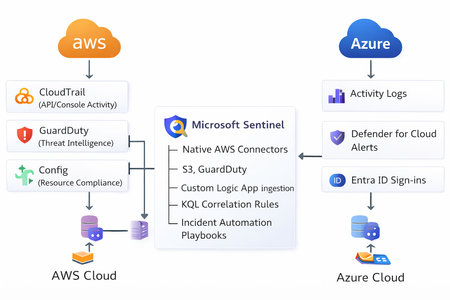
The Multi-Cloud Reality Most modern enterprises operate in multi-cloud environments using Azure for core workloads and AWS for development, storage, or DevOps automation. While this approach increases agility, it also expands the attack surface. Each platform generates its own telemetry: Azure: Activity Logs, Defender for Cloud, Entra ID sign-ins, Sentinel analytics AWS: CloudTrail, GuardDuty, Config, and CloudWatch Without a unified view, security teams struggle to detect cross-cloud threats promptly. That’s where Microsoft Sentinel comes in, bridging Azure and AWS into a single, intelligent Security Operations Center (SOC). Architecture Overview Connect AWS Logs to Sentinel AWS CloudTrail via S3 Connector Enable the AWS CloudTrail connector in Sentinel. Provide your S3 bucket and IAM role ARN with read access. Sentinel will automatically normalize logs into the AWSCloudTrail table. AWS GuardDuty Connector Use the AWS GuardDuty API integration for threat detection telemetry. Detected threats, such as privilege escalation or reconnaissance, appear in Sentinel as the AWSGuardDuty table. Normalize and Enrich Data Once logs are flowing, enrich them to align with Azure activity data. Example KQL for mapping CloudTrail to Sentinel entities: AWSCloudTrail | extend AccountId = tostring(parse_json(Resources)[0].accountId) | extend User = tostring(parse_json(UserIdentity).userName) | extend IPAddress = tostring(SourceIpAddress) | project TimeGenerated, EventName, User, AccountId, IPAddress, AWSRegion Then correlate AWS and Azure activities: let AWS = AWSCloudTrail | summarize AWSActivity = count() by User, bin(TimeGenerated, 1h); let Azure = AzureActivity | summarize AzureActivity = count() by Caller, bin(TimeGenerated, 1h); AWS | join kind=inner (Azure) on $left.User == $right.Caller | where AWSActivity > 0 and AzureActivity > 0 | project TimeGenerated, User, AWSActivity, AzureActivity Automate Cross-Cloud Response Once incidents are correlated, Microsoft Sentinel Playbooks (Logic Apps) can automate your response: Example Playbook: “CrossCloud-Containment.json” Disable user in Entra ID Send a command to the AWS API via Lambda to deactivate IAM key Notify SOC in Teams Create ServiceNow ticket POST https://api.aws.amazon.com/iam/disable-access-key PATCH https://graph.microsoft.com/v1.0/users/{user-id} { "accountEnabled": false } Build a Multi-Cloud SOC Dashboard Use Sentinel Workbooks to visualize unified operations: Query 1 – CloudTrail Events by Region AWSCloudTrail | summarize Count = count() by AWSRegion | render barchart Query 2 – Unified Security Alerts union SecurityAlert, AWSGuardDuty | summarize TotalAlerts = count() by ProviderName, Severity | render piechart Scenario Incident: A compromised developer account accesses EC2 instances on AWS and then logs into Azure via the same IP. Detection Flow: CloudTrail logs → Sentinel detects unusual API calls Entra ID sign-ins → Sentinel correlates IP and user Sentinel incident triggers playbook → disables user in Entra ID, suspends AWS IAM key, notifies SOC Strengthen Governance with Defender for Cloud Enable Microsoft Defender for Cloud to: Monitor both Azure and AWS accounts from a single portal Apply CIS benchmarks for AWS resources Surface findings in Sentinel’s SecurityRecommendations table545Views4likes0Comments
How to stop incidents merging under new incident (MultiStage) in defender.
Dear All We are experiencing a challenge with the integration between Microsoft Sentinel and the Defender portal where multiple custom rule alerts and analytic rule incidents are being automatically merged into a single incident named "Multistage." This automatic incident merging affects the granularity and context of our investigations, especially for important custom use cases such as specific admin activities and differentiated analytic logic. Key concerns include: Custom rule alerts from Sentinel merging undesirably into a single "Multistage" incident in Defender, causing loss of incident-specific investigation value. Analytic rules arising from different data sources and detection logic are merged, although they represent distinct security events needing separate attention. Customers require and depend on distinct, non-merged incidents for custom use cases, and the current incident correlation and merging behavior undermines this requirement. We understand that Defender’s incident correlation engine merges incidents based on overlapping entities, timelines, and behaviors but would like guidance or configuration best practices to disable or minimize this automatic merging behavior for our custom and analytic rule incidents. Our goal is to maintain independent incidents corresponding exactly to our custom alerts so that hunting, triage, and response workflows remain precise and actionable. Any recommendations or advanced configuration options to achieve this separation would be greatly appreciated. Thank you for your assistance. Best regardsSolved1.5KViews4likes7Comments