ai agents
16 TopicsStep-by-Step: Deploy the Architecture Review Agent Using AZD AI CLI
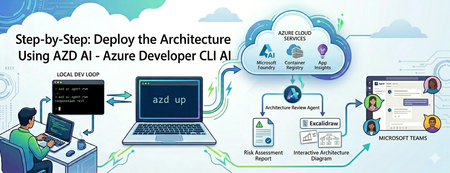
Building an AI agent is easy; operating it is an infrastructure trap. Discover how to use the azd ai CLI extension to streamline your workflow. From local testing to deploying a live Microsoft Foundry hosted agent and publishing it to Microsoft Teams—learn how to do it all without writing complex deployment scripts or needing admin permissions.346Views0likes0CommentsIntegrating Microsoft Foundry with OpenClaw: Step by Step Model Configuration
Step 1: Deploying Models on Microsoft Foundry Let us kick things off in the Azure portal. To get our OpenClaw agent thinking like a genius, we need to deploy our models in Microsoft Foundry. For this guide, we are going to focus on deploying gpt-5.2-codex on Microsoft Foundry with OpenClaw. Navigate to your AI Hub, head over to the model catalog, choose the model you wish to use with OpenClaw and hit deploy. Once your deployment is successful, head to the endpoints section. Important: Grab your Endpoint URL and your API Keys right now and save them in a secure note. We will need these exact values to connect OpenClaw in a few minutes. Step 2: Installing and Initializing OpenClaw Next up, we need to get OpenClaw running on your machine. Open up your terminal and run the official installation script: curl -fsSL https://openclaw.ai/install.sh | bash The wizard will walk you through a few prompts. Here is exactly how to answer them to link up with our Azure setup: First Page (Model Selection): Choose "Skip for now". Second Page (Provider): Select azure-openai-responses. Model Selection: Select gpt-5.2-codex , For now only the models listed (hosted on Microsoft Foundry) in the picture below are available to be used with OpenClaw. Follow the rest of the standard prompts to finish the initial setup. Step 3: Editing the OpenClaw Configuration File Now for the fun part. We need to manually configure OpenClaw to talk to Microsoft Foundry. Open your configuration file located at ~/.openclaw/openclaw.json in your favorite text editor. Replace the contents of the models and agents sections with the following code block: { "models": { "providers": { "azure-openai-responses": { "baseUrl": "https://<YOUR_RESOURCE_NAME>.openai.azure.com/openai/v1", "apiKey": "<YOUR_AZURE_OPENAI_API_KEY>", "api": "openai-responses", "authHeader": false, "headers": { "api-key": "<YOUR_AZURE_OPENAI_API_KEY>" }, "models": [ { "id": "gpt-5.2-codex", "name": "GPT-5.2-Codex (Azure)", "reasoning": true, "input": ["text", "image"], "cost": { "input": 0, "output": 0, "cacheRead": 0, "cacheWrite": 0 }, "contextWindow": 400000, "maxTokens": 16384, "compat": { "supportsStore": false } }, { "id": "gpt-5.2", "name": "GPT-5.2 (Azure)", "reasoning": false, "input": ["text", "image"], "cost": { "input": 0, "output": 0, "cacheRead": 0, "cacheWrite": 0 }, "contextWindow": 272000, "maxTokens": 16384, "compat": { "supportsStore": false } } ] } } }, "agents": { "defaults": { "model": { "primary": "azure-openai-responses/gpt-5.2-codex" }, "models": { "azure-openai-responses/gpt-5.2-codex": {} }, "workspace": "/home/<USERNAME>/.openclaw/workspace", "compaction": { "mode": "safeguard" }, "maxConcurrent": 4, "subagents": { "maxConcurrent": 8 } } } } You will notice a few placeholders in that JSON. Here is exactly what you need to swap out: Placeholder Variable What It Is Where to Find It <YOUR_RESOURCE_NAME> The unique name of your Azure OpenAI resource. Found in your Azure Portal under the Azure OpenAI resource overview. <YOUR_AZURE_OPENAI_API_KEY> The secret key required to authenticate your requests. Found in Microsoft Foundry under your project endpoints or Azure Portal keys section. <USERNAME> Your local computer's user profile name. Open your terminal and type whoami to find this. Step 4: Restart the Gateway After saving the configuration file, you must restart the OpenClaw gateway for the new Foundry settings to take effect. Run this simple command: openclaw gateway restart Configuration Notes & Deep Dive If you are curious about why we configured the JSON that way, here is a quick breakdown of the technical details. Authentication Differences Azure OpenAI uses the api-key HTTP header for authentication. This is entirely different from the standard OpenAI Authorization: Bearer header. Our configuration file addresses this in two ways: Setting "authHeader": false completely disables the default Bearer header. Adding "headers": { "api-key": "<key>" } forces OpenClaw to send the API key via Azure's native header format. Important Note: Your API key must appear in both the apiKey field AND the headers.api-key field within the JSON for this to work correctly. The Base URL Azure OpenAI's v1-compatible endpoint follows this specific format: https://<your_resource_name>.openai.azure.com/openai/v1 The beautiful thing about this v1 endpoint is that it is largely compatible with the standard OpenAI API and does not require you to manually pass an api-version query parameter. Model Compatibility Settings "compat": { "supportsStore": false } disables the store parameter since Azure OpenAI does not currently support it. "reasoning": true enables the thinking mode for GPT-5.2-Codex. This supports low, medium, high, and xhigh levels. "reasoning": false is set for GPT-5.2 because it is a standard, non-reasoning model. Model Specifications & Cost Tracking If you want OpenClaw to accurately track your token usage costs, you can update the cost fields from 0 to the current Azure pricing. Here are the specs and costs for the models we just deployed: Model Specifications Model Context Window Max Output Tokens Image Input Reasoning gpt-5.2-codex 400,000 tokens 16,384 tokens Yes Yes gpt-5.2 272,000 tokens 16,384 tokens Yes No Current Cost (Adjust in JSON) Model Input (per 1M tokens) Output (per 1M tokens) Cached Input (per 1M tokens) gpt-5.2-codex $1.75 $14.00 $0.175 gpt-5.2 $2.00 $8.00 $0.50 Conclusion: And there you have it! You have successfully bridged the gap between the enterprise-grade infrastructure of Microsoft Foundry and the local autonomy of OpenClaw. By following these steps, you are not just running a chatbot; you are running a sophisticated agent capable of reasoning, coding, and executing tasks with the full power of GPT-5.2-codex behind it. The combination of Azure's reliability and OpenClaw's flexibility opens up a world of possibilities. Whether you are building an automated devops assistant, a research agent, or just exploring the bleeding edge of AI, you now have a robust foundation to build upon. Now it is time to let your agent loose on some real tasks. Go forth, experiment with different system prompts, and see what you can build. If you run into any interesting edge cases or come up with a unique configuration, let me know in the comments below. Happy coding!8.6KViews2likes2CommentsCreating a Fun Multi-Agent Content Strategy System with Microsoft Agent Framework
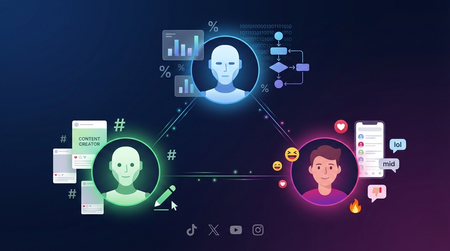
This tutorial walks you through building a multi-agent content strategy system using Microsoft's AutoGen framework. Three specialised AI agents — a Content Creator, an Algorithm Simulator, and an Audience Persona — collaborate to help gaming content creators pressure-test their social media posts before publishing. Using live Google Trends data and platform-specific scoring rubrics for TikTok, Twitter/X, YouTube, and Instagram, the system generates content, predicts how each platform's algorithm would distribute it, and simulates authentic audience reactions. The tutorial covers core multi-agent patterns including role specialisation, structured evaluation, iterative feedback loops, and resilient tool integration — all running on GitHub Models' free tier.529Views0likes0CommentsBuilding an AI Study Agent - How GitHub Copilot CLI & SDK helped Reimagine LMS
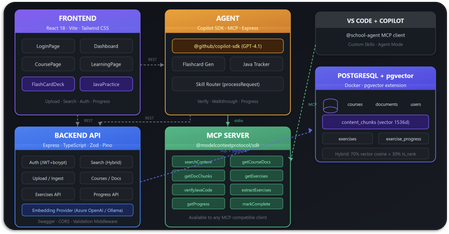
Building an AI Study Agent - How GitHub Copilot CLI & SDK helped Reimagine LMS. What if your Learning Management System didn't just host lecture documents, assignments, and grades - but actually understood them? Meet - School Agent, an AI learning management system that uses Retrieval-Augmented Generation (RAG), the Model Context Protocol (MCP), Microsoft Foundry (Embedding model), PostgreSQL (+pgvector) and GitHub's recently released Copilot SDK to turn static course content into an interactive, personalized study experience, built in hours using GitHub Copilot CLI.580Views0likes0CommentsLevel up your Python + AI skills with our complete series
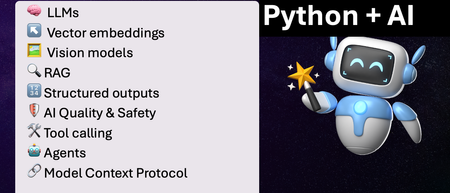
We've just wrapped up our live series on Python + AI, a comprehensive nine-part journey diving deep into how to use generative AI models from Python. The series introduced multiple types of models, including LLMs, embedding models, and vision models. We dug into popular techniques like RAG, tool calling, and structured outputs. We assessed AI quality and safety using automated evaluations and red-teaming. Finally, we developed AI agents using popular Python agents frameworks and explored the new Model Context Protocol (MCP). To help you apply what you've learned, all of our code examples work with GitHub Models, a service that provides free models to every GitHub account holder for experimentation and education. Even if you missed the live series, you can still access all the material using the links below! If you're an instructor, feel free to use the slides and code examples in your own classes. If you're a Spanish speaker, check out the Spanish version of the series. Python + AI: Large Language Models 📺 Watch recording In this session, we explore Large Language Models (LLMs), the models that power ChatGPT and GitHub Copilot. We use Python to interact with LLMs using popular packages like the OpenAI SDK and LangChain. We experiment with prompt engineering and few-shot examples to improve outputs. We also demonstrate how to build a full-stack app powered by LLMs and explain the importance of concurrency and streaming for user-facing AI apps. Slides for this session Code repository with examples: python-openai-demos Python + AI: Vector embeddings 📺 Watch recording In our second session, we dive into a different type of model: the vector embedding model. A vector embedding is a way to encode text or images as an array of floating-point numbers. Vector embeddings enable similarity search across many types of content. In this session, we explore different vector embedding models, such as the OpenAI text-embedding-3 series, through both visualizations and Python code. We compare distance metrics, use quantization to reduce vector size, and experiment with multimodal embedding models. Slides for this session Code repository with examples: vector-embedding-demos Python + AI: Retrieval Augmented Generation 📺 Watch recording In our third session, we explore one of the most popular techniques used with LLMs: Retrieval Augmented Generation. RAG is an approach that provides context to the LLM, enabling it to deliver well-grounded answers for a particular domain. The RAG approach works with many types of data sources, including CSVs, webpages, documents, and databases. In this session, we walk through RAG flows in Python, starting with a simple flow and culminating in a full-stack RAG application based on Azure AI Search. Slides for this session Code repository with examples: python-openai-demos Python + AI: Vision models 📺 Watch recording Our fourth session is all about vision models! Vision models are LLMs that can accept both text and images, such as GPT-4o and GPT-4o mini. You can use these models for image captioning, data extraction, question answering, classification, and more! We use Python to send images to vision models, build a basic chat-with-images app, and create a multimodal search engine. Slides for this session Code repository with examples: openai-chat-vision-quickstart Python + AI: Structured outputs 📺 Watch recording In our fifth session, we discover how to get LLMs to output structured responses that adhere to a schema. In Python, all you need to do is define a Pydantic BaseModel to get validated output that perfectly meets your needs. We focus on the structured outputs mode available in OpenAI models, but you can use similar techniques with other model providers. Our examples demonstrate the many ways you can use structured responses, such as entity extraction, classification, and agentic workflows. Slides for this session Code repository with examples: python-openai-demos Python + AI: Quality and safety 📺 Watch recording This session covers a crucial topic: how to use AI safely and how to evaluate the quality of AI outputs. There are multiple mitigation layers when working with LLMs: the model itself, a safety system on top, the prompting and context, and the application user experience. We focus on Azure tools that make it easier to deploy safe AI systems into production. We demonstrate how to configure the Azure AI Content Safety system when working with Azure AI models and how to handle errors in Python code. Then we use the Azure AI Evaluation SDK to evaluate the safety and quality of output from your LLM. Slides for this session Code repository with examples: ai-quality-safety-demos Python + AI: Tool calling 📺 Watch recording In the final part of the series, we focus on the technologies needed to build AI agents, starting with the foundation: tool calling (also known as function calling). We define tool call specifications using both JSON schema and Python function definitions, then send these definitions to the LLM. We demonstrate how to properly handle tool call responses from LLMs, enable parallel tool calling, and iterate over multiple tool calls. Understanding tool calling is absolutely essential before diving into agents, so don't skip over this foundational session. Slides for this session Code repository with examples: python-openai-demos Python + AI: Agents 📺 Watch recording In the penultimate session, we build AI agents! We use Python AI agent frameworks such as the new agent-framework from Microsoft and the popular LangGraph framework. Our agents start simple and then increase in complexity, demonstrating different architectures such as multiple tools, supervisor patterns, graphs, and human-in-the-loop workflows. Slides for this session Code repository with examples: python-ai-agent-frameworks-demos Python + AI: Model Context Protocol 📺 Watch recording In the final session, we dive into the hottest technology of 2025: MCP (Model Context Protocol). This open protocol makes it easy to extend AI agents and chatbots with custom functionality, making them more powerful and flexible. We demonstrate how to use the Python FastMCP SDK to build an MCP server running locally and consume that server from chatbots like GitHub Copilot. Then we build our own MCP client to consume the server. Finally, we discover how easy it is to connect AI agent frameworks like LangGraph and Microsoft agent-framework to MCP servers. With great power comes great responsibility, so we briefly discuss the security risks that come with MCP, both as a user and as a developer. Slides for this session Code repository with examples: python-mcp-demo8.5KViews3likes0CommentsPrivyDoc: Building a Zero-Data-Leak AI with Foundry Local & Microsoft's Agent Framework
Tired of choosing between powerful AI insights and sacrificing your data's privacy? PrivyDoc offers a groundbreaking solution. In this article, Microsoft MVP in AI, Shivam Goyal, introduces his innovative project that brings robust AI document analysis directly to your local machine, ensuring zero data ever leaves your device. Discover how PrivyDoc leverages two cutting-edge Microsoft technologies: Foundry Local: The secret sauce for 100% on-device AI processing, allowing advanced models to run securely without cloud dependency. Microsoft Agent Framework: The intelligent orchestrator that builds a sophisticated multi-agent pipeline, handling everything from text extraction and entity recognition to summarization and sentiment analysis. Learn about PrivyDoc's intuitive web UI, its multi-format support, and crucial features that make it perfect for sensitive industries like legal, healthcare, and finance. Say goodbye to privacy concerns and hello to AI-powered document intelligence without compromise.486Views3likes0CommentsGetting Started with AI Agents: A Student Developer’s Guide to the Microsoft Agent Framework
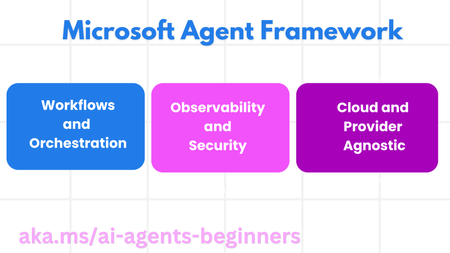
AI agents are becoming the backbone of modern applications, from personal assistants to autonomous research bots. If you're a student developer curious about building intelligent, goal-driven agents, Microsoft’s newly released Agent Framework is your launchpad. In this post, we’ll break down what the framework offers, how to get started, and why it’s a game-changer for learners and builders alike. What Is the Microsoft Agent Framework? The Microsoft Agent Framework is a modular, open-source toolkit designed to help developers build, orchestrate, and evaluate AI agents with minimal friction. It’s part of the AI Agents for Beginners curriculum, which walks you through foundational concepts using reproducible examples. At its core, the framework helps you: Define agent goals and capabilities Manage memory and context Route tasks through tools and APIs Evaluate agent performance with traceable metrics Whether you're building a research assistant, a coding helper, or a multi-agent system, this framework gives you the scaffolding to do it right. What’s Inside the Framework? Here’s a quick look at the key components: Component Purpose AgentRuntime Manages agent lifecycle, memory, and tool routing AgentConfig Defines agent goals, tools, and memory settings Tool Interface Lets you plug in custom tools (e.g., web search, code execution) MemoryProvider Supports semantic memory and context-aware responses Evaluator Tracks agent performance and goal completion The framework is built with Python and .NET and designed to be extensible, perfect for experimentation and learning. Try It: Your First Agent in 10 Minutes Here’s a simplified walkthrough to get you started: Clone the repo git clone https://github.com/microsoft/ai-agents-for-beginners Open the Sample cd ai-agents-for-beginners/14-microsoft-agent-framework Install dependencies pip install -r requirements.txt Run the sample agent python main.py You’ll see a basic agent that can answer questions using a web search tool and maintain context across turns. From here, you can customize its goals, memory, and tools. Why Student Developers Should Care Modular Design: Learn how real-world agents are structured—from memory to evaluation. Reproducible Workflows: Build agents that can be debugged, traced, and improved over time. Open Source: Contribute, fork, and remix with your own ideas. Community-Ready: Perfect for hackathons, research projects, or portfolio demos. Plus, it aligns with Microsoft’s best practices for agent governance, making it a solid foundation for enterprise-grade development. Why Learn? Here are a few ideas to take your learning further: Build a custom tool (e.g., a calculator or code interpreter) Swap in a different memory provider (like a vector DB) Create an evaluation pipeline for multi-agent collaboration Use it in a class project or student-led workshop Join the Microsoft Azure AI Foundry Discord https://aka.ms/Foundry/discord share your project and build your AI Engineer and Developer connections. Star and Fork the AI Agents for Beginners repo for updates and new modules. Final Thoughts The Microsoft Agent Framework isn’t just another library, it’s a teaching tool, a playground, and a launchpad for the next generation of AI builders. If you’re a student developer, this is your chance to learn by doing, contribute to the community, and shape the future of agentic systems. So fire up your terminal, fork the repo, and start building. Your first agent is just a few lines of code away.874Views0likes1CommentA Recap of the Build AI Agents with Custom Tools Live Session
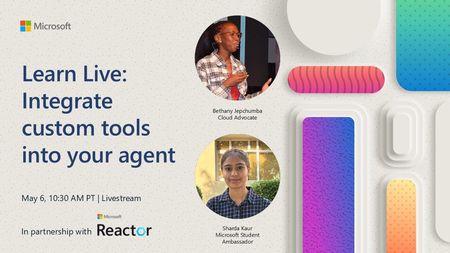
Artificial Intelligence is evolving, and so are the ways we build intelligent agents. On a recent Microsoft YouTube Live session, developers and AI enthusiasts gathered to explore the power of custom tools in AI agents using Azure AI Studio. The session walked through concepts, use cases, and a live demo that showed how integrating custom tools can bring a new level of intelligence and adaptability to your applications. 🎥 Watch the full session here: https://www.youtube.com/live/MRpExvcdxGs?si=X03wsQxQkkshEkOT What Are AI Agents with Custom Tools? AI agents are essentially smart workflows that can reason, plan, and act — powered by large language models (LLMs). While built-in tools like search, calculator, or web APIs are helpful, custom tools allow developers to tailor agents for business-specific needs. For example: Calling internal APIs Accessing private databases Triggering backend operations like ticket creation or document generation Learn Module Overview: Build Agents with Custom Tools To complement the session, Microsoft offers a self-paced Microsoft Learn module that gives step-by-step guidance: Explore the module Key Learning Objectives: Understand why and when to use custom tools in agents Learn how to define, integrate, and test tools using Azure AI Studio Build an end-to-end agent scenario using custom capabilities Hands-On Exercise: The module includes a guided lab where you: Define a tool schema Register the tool within Azure AI Studio Build an AI agent that uses your custom logic Test and validate the agent’s response Highlights from the Live Session Here are some gems from the session: Real-World Use Cases – Automating customer support, connecting to CRMs, and more Tool Manifest Creation – Learn how to describe a tool in a machine-understandable way Live Azure Demo – See exactly how to register tools and invoke them from an AI agent Tips & Troubleshooting – Best practices and common pitfalls when designing agents Want to Get Started? If you're a developer, AI enthusiast, or product builder looking to elevate your agent’s capabilities — custom tools are the next step. Start building your own AI agents by combining the power of: Microsoft Learn Module YouTube Live Session Final Thoughts The future of AI isn't just about smart responses — it's about intelligent actions. Custom tools enable your AI agent to do things, not just say things. With Azure AI Studio, building a practical, action-oriented AI assistant is more accessible than ever. Learn More and Join the Community Learn more about AI Agents with https://aka.ms/ai-agents-beginnersOpen Source Course and Building Agents. Join the Azure AI Foundry Discord Channel. Continue the discussion and learning: https://aka.ms/AI/discord Have questions or want to share what you're building? Let’s connect on LinkedIn or drop a comment under the YouTube video!302Views0likes0CommentsHow to build Tool-calling Agents with Azure OpenAI and Lang Graph
Introducing MyTreat Our demo is a fictional website that shows customers their total bill in dollars, but they have the option of getting the total bill in their local currencies. The button sends a request to the Node.js service and a response is simply returned from our Agent given the tool it chooses. Let’s dive in and understand how this works from a broader perspective. Prerequisites An active Azure subscription. You can sign up for a free trial here or get $100 worth of credits on Azure every year if you are a student. A GitHub account (not necessarily) Node.js LTS 18 + VS Code installed (or your favorite IDE) Basic knowledge of HTML, CSS, JS Creating an Azure OpenAI Resource Go over to your browser and key in portal.azure.com to access the Microsoft Azure Portal. Over there navigate to the search bar and type Azure OpenAI. Go ahead and click on + Create. Fill in the input boxes with appropriate, for example, as shown below then press on next until you reach review and submit then finally click on Create. After the deployment is done, go to the deployment and access Azure AI Foundry portal using the button as show below. You can also use the link as demonstrated below. In the Azure AI Foundry portal, we have to create our model instance so we have to go over to Model Catalog on the left panel beneath Get Started. Select a desired model, in this case I used gpt-35-turbo for chat completion (in your case use gpt-4o). Below is a way of doing this. Choose a model (gpt-4o) Click on deploy Give the deployment a new name e.g. myTreatmodel, then click deploy and wait for it to finish On the left panel go over to deployments and you will see the model you have created. Access your Azure OpenAI Resource Key Go back to Azure portal and specifically to the deployment instance that we have and select on the left panel, Resource Management. Click on Keys and Endpoints. Copy any of the keys as shown below and keep it very safe as we will use it in our .env file. Configuring your project Create a new project folder on your local machine and add these variables to the .env file in the root folder. AZURE_OPENAI_API_INSTANCE_NAME= AZURE_OPENAI_API_DEPLOYMENT_NAME= AZURE_OPENAI_API_KEY= AZURE_OPENAI_API_VERSION="2024-08-01-preview" LANGCHAIN_TRACING_V2="false" LANGCHAIN_CALLBACKS_BACKGROUND = "false" PORT=4556 Starting a new project Go over to https://github.com/tiprock-network/mytreat.git and follow the instructions to setup the new project, if you do not have git installed, go over to the Code button and press Download ZIP. This will enable you get the project folder and follow the same procedure for setting up. Creating a custom tool In the utils folder the math tool was created, this code show below uses tool from Langchain to build a tool and the schema of the tool is created using zod.js, a library that helps in validating an object’s property value. The price function takes in an array of prices and the exchange rate, adds the prices up and converts them using the exchange rate as shown below. import { tool } from '@langchain/core/tools' import { z } from 'zod' const priceConv = tool((input) =>{ //get the prices and add them up after turning each into let sum = 0 input.prices.forEach((price) => { let price_check = parseFloat(price) sum += price_check }) //now change the price using exchange rate let final_price = parseFloat(input.exchange_rate) * sum //return return final_price },{ name: 'add_prices_and_convert', description: 'Add prices and convert based on exchange rate.', schema: z.object({ prices: z.number({ required_error: 'Price should not be empty.', invalid_type_error: 'Price must be a number.' }).array().nonempty().describe('Prices of items listed.'), exchange_rate: z.string().describe('Current currency exchange rate.') }) }) export { priceConv } Utilizing the tool In the controller’s folder we then bring the tool in by importing it. After that we pass it in to our array of tools. Notice that we have the Tavily Search Tool, you can learn how to implement in the Additional Reads Section or just remove it. Agent Model and the Call Process This code defines an AI agent using LangGraph and LangChain.js, powered by GPT-4o from Azure OpenAI. It initializes a ToolNode to manage tools like priceConv and binds them to the agent model. The StateGraph handles decision-making, determining whether the agent should call a tool or return a direct response. If a tool is needed, the workflow routes the request accordingly; otherwise, the agent responds to the user. The callModel function invokes the agent, processing messages and ensuring seamless tool integration. The searchAgentController is a GET endpoint that accepts user queries (text_message). It processes input through the compiled LangGraph workflow, invoking the agent to generate a response. If a tool is required, the agent calls it before finalizing the output. The response is then sent back to the user, ensuring dynamic and efficient tool-assisted reasoning. //create tools the agent will use //const agentTools = [new TavilySearchResults({maxResults:5}), priceConv] const agentTools = [ priceConv] const toolNode = new ToolNode(agentTools) const agentModel = new AzureChatOpenAI({ model:'gpt-4o', temperature:0, azureOpenAIApiKey: AZURE_OPENAI_API_KEY, azureOpenAIApiInstanceName:AZURE_OPENAI_API_INSTANCE_NAME, azureOpenAIApiDeploymentName:AZURE_OPENAI_API_DEPLOYMENT_NAME, azureOpenAIApiVersion:AZURE_OPENAI_API_VERSION }).bindTools(agentTools) //make a decision to continue or not const shouldContinue = ( state ) => { const { messages } = state const lastMessage = messages[messages.length -1] //upon tool call we go to tools if("tool_calls" in lastMessage && Array.isArray(lastMessage.tool_calls) && lastMessage.tool_calls?.length) return "tools"; //if no tool call is made we stop and return back to the user return END } const callModel = async (state) => { const response = await agentModel.invoke(state.messages) return { messages: [response] } } //define a new graph const workflow = new StateGraph(MessagesAnnotation) .addNode("agent", callModel) .addNode("tools", toolNode) .addEdge(START, "agent") .addConditionalEdges("agent", shouldContinue, ["tools", END]) .addEdge("tools", "agent") const appAgent = workflow.compile() The above is implemented with the following code: Frontend The frontend is a simple HTML+CSS+JS stack that demonstrated how you can use an API to integrate this AI Agent to your website. It sends a GET request and uses the response to get back the right answer. Below is an illustration of how fetch API has been used. const searchAgentController = async ( req, res ) => { //get human text const { text_message } = req.query if(!text_message) return res.status(400).json({ message:'No text sent.' }) //invoke the agent const agentFinalState = await appAgent.invoke( { messages: [new HumanMessage(text_message)] }, {streamMode: 'values'} ) //const agentFinalState_b = await agentModel.invoke(text_message) /*return res.status(200).json({ answer:agentFinalState.messages[agentFinalState.messages.length - 1].content })*/ //console.log(agentFinalState_b.tool_calls) res.status(200).json({ text: agentFinalState.messages[agentFinalState.messages.length - 1].content }) } There you go! We have created a basic tool-calling agent using Azure and Langchain successfully, go ahead and expand the code base to your liking. If you have questions you can comment below or reach out on my socials. Additional Reads Azure Open AI Service Models Generative AI for Beginners AI Agents for Beginners Course Lang Graph Tutorial Develop Generative AI Apps in Azure AI Foundry Portal4.7KViews1like2CommentsLearn How to Build Smarter AI Agents with Microsoft’s MCP Resources Hub
If you've been curious about how to build your own AI agents that can talk to APIs, connect with tools like databases, or even follow documentation you're in the right place. Microsoft has created something called MCP, which stands for Model‑Context‑Protocol. And to help you learn it step by step, they’ve made an amazing MCP Resources Hub on GitHub. In this blog, I’ll Walk you through what MCP is, why it matters, and how to use this hub to get started, even if you're new to AI development. What is MCP (Model‑Context‑Protocol)? Think of MCP like a communication bridge between your AI model and the outside world. Normally, when we chat with AI (like ChatGPT), it only knows what’s in its training data. But with MCP, you can give your AI real-time context from: APIs Documents Databases Websites This makes your AI agent smarter and more useful just like a real developer who looks up things online, checks documentation, and queries databases. What’s Inside the MCP Resources Hub? The MCP Resources Hub is a collection of everything you need to learn MCP: Videos Blogs Code examples Here are some beginner-friendly videos that explain MCP: Title What You'll Learn VS Code Agent Mode Just Changed Everything See how VS Code and MCP build an app with AI connecting to a database and following docs. The Future of AI in VS Code Learn how MCP makes GitHub Copilot smarter with real-time tools. Build MCP Servers using Azure Functions Host your own MCP servers using Azure in C#, .NET, or TypeScript. Use APIs as Tools with MCP See how to use APIs as tools inside your AI agent. Blazor Chat App with MCP + Aspire Create a chat app powered by MCP in .NET Aspire Tip: Start with the VS Code videos if you’re just beginning. Blogs Deep Dives and How-To Guides Microsoft has also written blogs that explain MCP concepts in detail. Some of the best ones include: Build AI agent tools using remote MCP with Azure Functions: Learn how to deploy MCP servers remotely using Azure. Create an MCP Server with Azure AI Agent Service : Enables Developers to create an agent with Azure AI Agent Service and uses the model context protocol (MCP) for consumption of the agents in compatible clients (VS Code, Cursor, Claude Desktop). Vibe coding with GitHub Copilot: Agent mode and MCP support: MCP allows you to equip agent mode with the context and capabilities it needs to help you, like a USB port for intelligence. When you enter a chat prompt in agent mode within VS Code, the model can use different tools to handle tasks like understanding database schema or querying the web. Enhancing AI Integrations with MCP and Azure API Management Enhance AI integrations using MCP and Azure API Management Understanding and Mitigating Security Risks in MCP Implementations Overview of security risks and mitigation strategies for MCP implementations Protecting Against Indirect Injection Attacks in MCP Strategies to prevent indirect injection attacks in MCP implementations Microsoft Copilot Studio MCP Announcement of the Microsoft Copilot Studio MCP lab Getting started with MCP for Beginners 9 part course on MCP Client and Servers Code Repositories Try it Yourself Want to build something with MCP? Microsoft has shared open-source sample code in Python, .NET, and TypeScript: Repo Name Language Description Azure-Samples/remote-mcp-apim-functions-python Python Recommended for Secure remote hosting Sample Python Azure Functions demonstrating remote MCP integration with Azure API Management Azure-Samples/remote-mcp-functions-python Python Sample Python Azure Functions demonstrating remote MCP integration Azure-Samples/remote-mcp-functions-dotnet C# Sample .NET Azure Functions demonstrating remote MCP integration Azure-Samples/remote-mcp-functions-typescript TypeScript Sample TypeScript Azure Functions demonstrating remote MCP integration Microsoft Copilot Studio MCP TypeScript Microsoft Copilot Studio MCP lab You can clone the repo, open it in VS Code, and follow the instructions to run your own MCP server. Using MCP with the AI Toolkit in Visual Studio Code To make your MCP journey even easier, Microsoft provides the AI Toolkit for Visual Studio Code. This toolkit includes: A built-in model catalog Tools to help you deploy and run models locally Seamless integration with MCP agent tools You can install the AI Toolkit extension from the Visual Studio Code Marketplace. Once installed, it helps you: Discover and select models quickly Connect those models to MCP agents Develop and test AI workflows locally before deploying to the cloud You can explore the full documentation here: Overview of the AI Toolkit for Visual Studio Code – Microsoft Learn This is perfect for developers who want to test things on their own system without needing a cloud setup right away. Why Should You Care About MCP? Because MCP: Makes your AI tools more powerful by giving them real-time knowledge Works with GitHub Copilot, Azure, and VS Code tools you may already use Is open-source and beginner-friendly with lots of tutorials and sample code It’s the future of AI development connecting models to the real world. Final Thoughts If you're learning AI or building software agents, don’t miss this valuable MCP Resources Hub. It’s like a starter kit for building smart, connected agents with Microsoft tools. Try one video or repo today. Experiment. Learn by doing and start your journey with the MCP for Beginners curricula.3.4KViews2likes2Comments