ai agents
180 TopicsFoundry IQ: Unlocking ubiquitous knowledge for agents
Introducing Foundry IQ by Azure AI Search in Microsoft Foundry. Foundry IQ is a centralized knowledge layer that connects agents to data with the next generation of retrieval-augmented generation (RAG). Foundry IQ includes the following features: Knowledge bases: Available directly in the new Foundry portal, knowledge bases are reusable, topic-centric collections that ground multiple agents and applications through a single API. Automated indexed and federated knowledge sources – Expand what data an agent can reach by connecting to both indexed and remote knowledge sources. For indexed sources, Foundry IQ delivers automatic indexing, vectorization, and enrichment for text, images, and complex documents. Agentic retrieval engine in knowledge bases – A self-reflective query engine that uses AI to plan, select sources, search, rank and synthesize answers across sources with configurable “retrieval reasoning effort.” Enterprise-grade security and governance – Support for document-level access control, alignment with existing permissions models, and options for both indexed and remote data. Foundry IQ is available in public preview through the new Foundry portal and Azure portal with Azure AI Search. Foundry IQ is part of Microsoft's intelligence layer with Fabric IQ and Work IQ.44KViews6likes4CommentsMore powerful agents and workflows for autonomous business processes: Introducing a new harness for Copilot Studio
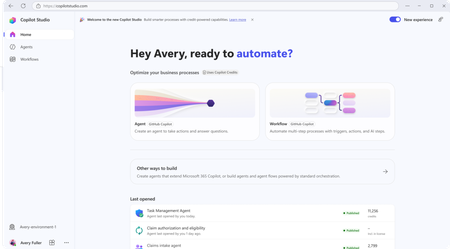
Over the past two months, we’ve been previewing a new capability within Copilot Studio that lets you build agents capable of taking on more complex business processes. Today, we’re excited to share that this capability is now generally available for production use and to introduce its new name: the GitHub Copilot harness in Copilot Studio. Meet the GitHub Copilot harness The GitHub Copilot harness gives Copilot Studio the coding and reasoning capabilities behind our most advanced agent experiences (like Copilot Cowork and the GitHub Copilot coding agent). This means your agents can now handle work that used to be out of reach, including processes that have many steps, many sources, and ambiguous decision points. The new harness is built for complex, long-horizon work using the latest frontier reasoning models like Opus 5, GPT-5.6 Sol, and Fable 5. It can plan, reason through dynamic problems, run an agentic loop, use skills, integrate workflows, connect to tools and agents in other platforms, and produce rich, multi-part outputs. In our own testing with real world business process evals, Copilot Studio shows significant performance and quality gains when using the GitHub Copilot harness. Improvements in multi-tool use, file analysis, code analysis, and knowledge quality mean these agents are more capable of taking on your most complex business processes. To help you build these more capable agents, we’re also delivering new experiences for makers building agents with the GitHub Copilot harness. The agent designer is more intuitive for authoring, putting the most important tools right within reach to make authoring faster, while retaining full agent lifecycle management features. Then, the workflow designer gives a visual canvas to understand and edit workflows, including adding agent nodes and running workflow evals. And soon, natural language authoring will let you describe your business goal and assemble the right combination of agents and workflows through a multi-turn conversation. Agents running on the GitHub Copilot harness use usage-based billing for all work, regardless of Microsoft 365 Copilot licensing. You pay for your agent’s usage based on the models you choose, the organizational context and tools you add, and runtime used. Certain AI-driven maker experiences, like natural language authoring, evaluations, and testing, will also fall under usage-based billing if building with the GitHub Copilot harness. You can learn more about Copilot Studio usage-based billing here. Continued Support for Copilot Chat and Standard harnesses Adding a new harness does not change the ones you already rely on. Different harnesses can be optimized for different outcomes, so rather than relying on a single one-size-fits-all approach, Copilot Studio now lets you choose the harness that best fits your scenario. This means Copilot Studio supports three harnesses today: The Copilot Chat harness, which uses the same harness as Microsoft 365 Copilot Chat and is ideal for customizing Copilot Chat experiences. The Standard harness, which most agents built in Copilot Studio use today and is great for conversational agents with rules-based topics. The new GitHub Copilot harness, which uses the power of GitHub Copilot SDK to automate complex, agentic business processes. We will continue to support the Copilot Chat and Standard harnesses in Copilot Studio for both existing agents and authoring of new agents. Microsoft 365 Copilot licensed users continue to benefit from fair use of Copilot Chat or Standard harness agents included in their Microsoft 365 Copilot license. For all other usage, the Copilot Chat and Standard harnesses will continue to be billed using the existing fixed rate card. Get started today The GitHub Copilot harness is generally available now, and you can start creating these agents directly from the Copilot Studio homepage. We can’t wait to see what you build. Share your thoughts using the feedback control in the top right corner of the product. Your input directly shapes what we build—and how you build—next. Try Copilot Studio today!44KViews10likes11CommentsIntroducing Microsoft Agent Factory
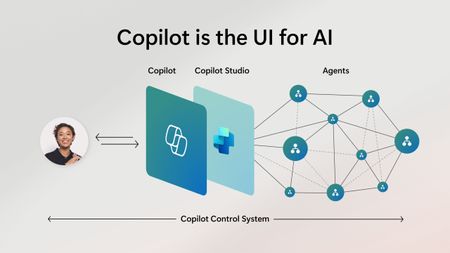
Microsoft Agent Factory is a new program designed for organizations that want to move from experimentation to execution faster. With a single plan, organizations can build agents with Work IQ, Fabric IQ, and Foundry IQ using Microsoft Foundry and Copilot Studio. They can also deploy their agents anywhere, including Microsoft 365 Copilot, with no upfront licensing and provisioning required. Eligible organizations can also tap into hands-on engagement from top AI Forward Deployed Engineers (FDEs) and access tailored role-based training to boost AI fluency across teams.35KViews13likes0CommentsIntegrate Custom Azure AI Agents with Copilot Studio and M365 Copilot
Integrating Custom Agents with Copilot Studio and M365 Copilot In today's fast-paced digital world, integrating custom agents with Copilot Studio and M365 Copilot can significantly enhance your company's digital presence and extend your CoPilot platform to your enterprise applications and data. This blog will guide you through the integration steps of bringing your custom Azure AI Agent Service within an Azure Function App, into a Copilot Studio solution and publishing it to M365 and Teams Applications. When Might This Be Necessary: Integrating custom agents with Copilot Studio and M365 Copilot is necessary when you want to extend customization to automate tasks, streamline processes, and provide better user experience for your end-users. This integration is particularly useful for organizations looking to streamline their AI Platform, extend out-of-the-box functionality, and leverage existing enterprise data and applications to optimize their operations. Custom agents built on Azure allow you to achieve greater customization and flexibility than using Copilot Studio agents alone. What You Will Need: To get started, you will need the following: Azure AI Foundry Azure OpenAI Service Copilot Studio Developer License Microsoft Teams Enterprise License M365 Copilot License Steps to Integrate Custom Agents: Create a Project in Azure AI Foundry: Navigate to Azure AI Foundry and create a project. Select 'Agents' from the 'Build and Customize' menu pane on the left side of the screen and click the blue button to create a new agent. Customize Your Agent: Your agent will automatically be assigned an Agent ID. Give your agent a name and assign the model your agent will use. Customize your agent with instructions: Add your knowledge source: You can connect to Azure AI Search, load files directly to your agent, link to Microsoft Fabric, or connect to third-party sources like Tripadvisor. In our example, we are only testing the CoPilot integration steps of the AI Agent, so we did not build out additional options of providing grounding knowledge or function calling here. Test Your Agent: Once you have created your agent, test it in the playground. If you are happy with it, you are ready to call the agent in an Azure Function. Create and Publish an Azure Function: Use the sample function code from the GitHub repository to call the Azure AI Project and Agent. Publish your Azure Function to make it available for integration. azure-ai-foundry-agent/function_app.py at main · azure-data-ai-hub/azure-ai-foundry-agent Connect your AI Agent to your Function: update the "AIProjectConnString" value to include your Project connection string from the project overview page of in the AI Foundry. Role Based Access Controls: We have to add a role for the function app on OpenAI service. Role-based access control for Azure OpenAI - Azure AI services | Microsoft Learn Enable Managed Identity on the Function App Grant "Cognitive Services OpenAI Contributor" role to the System-assigned managed identity to the Function App in the Azure OpenAI resource Grant "Azure AI Developer" role to the System-assigned managed identity for your Function App in the Azure AI Project resource from the AI Foundry Build a Flow in Power Platform: Before you begin, make sure you are working in the same environment you will use to create your Copilot Studio agent. To get started, navigate to the Power Platform (https://make.powerapps.com) to build out a flow that connects your Copilot Studio solution to your Azure Function App. When creating a new flow, select 'Build an instant cloud flow' and trigger the flow using 'Run a flow from Copilot'. Add an HTTP action to call the Function using the URL and pass the message prompt from the end user with your URL. The output of your function is plain text, so you can pass the response from your Azure AI Agent directly to your Copilot Studio solution. Create Your Copilot Studio Agent: Navigate to Microsoft Copilot Studio and select 'Agents', then 'New Agent'. Make sure you are in the same environment you used to create your cloud flow. Now select ‘Create’ button at the top of the screen From the top menu, navigate to ‘Topics’ and ‘System’. We will open up the ‘Conversation boosting’ topic. When you first open the Conversation boosting topic, you will see a template of connected nodes. Delete all but the initial ‘Trigger’ node. Now we will rebuild the conversation boosting agent to call the Flow you built in the previous step. Select 'Add an Action' and then select the option for existing Power Automate flow. Pass the response from your Custom Agent to the end user and end the current topic. My existing Cloud Flow: Add action to connect to existing Cloud Flow: When this menu pops up, you should see the option to Run the flow you created. Here, mine does not have a very unique name, but you see my flow 'Run a flow from Copilot' as a Basic action menu item. If you do not see your cloud flow here add the flow to the default solution in the environment. Go to Solutions > select the All pill > Default Solution > then add the Cloud Flow you created to the solution. Then go back to Copilot Studio, refresh and the flow will be listed there. Now complete building out the conversation boosting topic: Make Agent Available in M365 Copilot: Navigate to the 'Channels' menu and select 'Teams + Microsoft 365'. Be sure to select the box to 'Make agent available in M365 Copilot'. Save and re-publish your Copilot Agent. It may take up to 24 hours for the Copilot Agent to appear in M365 Teams agents list. Once it has loaded, select the 'Get Agents' option from the side menu of Copilot and pin your Copilot Studio Agent to your featured agent list Now, you can chat with your custom Azure AI Agent, directly from M365 Copilot! Conclusion: By following these steps, you can successfully integrate custom Azure AI Agents with Copilot Studio and M365 Copilot, enhancing you’re the utility of your existing platform and improving operational efficiency. This integration allows you to automate tasks, streamline processes, and provide better user experience for your end-users. Give it a try! Curious of how to bring custom models from your AI Foundry to your Copilot Studio solutions? Check out this blog23KViews3likes11CommentsStep-by-Step Tutorial: Building an AI Agent Using Azure AI Foundry
This blog post provides a comprehensive tutorial on building an AI agent using Azure AI Agent service and the Azure AI Foundry portal. AI agents represent a powerful new paradigm in application development, offering a more intuitive and dynamic way to interact with software. They can understand natural language, reason about user requests, and take actions to fulfill those requests. This tutorial will guide you through the process of creating and deploying an intelligent agent on Azure. We'll cover setting up an Azure AI Foundry hub, crafting effective instructions to define the agent's behavior, including recognizing user intent, processing requests, and generating helpful responses. We'll also discuss testing the agent's conversational abilities and provide additional resources for expanding your knowledge of AI agents and the Azure AI ecosystem. This hands-on guide is perfect for anyone looking to explore the practical application of Azure's conversational AI capabilities and build intelligent virtual assistants. Join us as we dive into the exciting world of AI agents.18KViews2likes2CommentsThe Launch of "AI Agents for Beginners": Your Gateway to Building Intelligent Systems
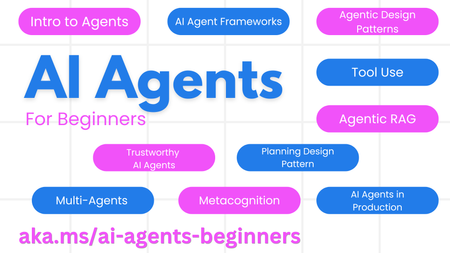
🌱 Getting Started Each lesson covers fundamental aspects of building AI Agents. Whether you're a novice or have some experience, you'll find valuable insights and practical knowledge. We also support multiple languages, so you can learn in your preferred language. To see the available languages, click here. If this is your first time working with Generative AI models, we highly recommend our "Generative AI For Beginners" course, which includes 21 lessons on building with GenAI. Remember to star (🌟) this repository and fork it to run the code! 📋 What You Need The course includes code examples that you can find in the code_samples folder. Feel free to fork this repository to create your own copy. The exercises utilize Azure AI Foundry and GitHub Model Catalogs for interacting with Language Models: Github Models - Free / Limited Azure AI Foundry - Azure Account Required We also leverage the following AI Agent frameworks and services from Microsoft: Azure AI Agent Service Semantic Kernel AutoGen For more information on running the code for this course, visit the Course Setup. 🙏 Want to Help? We welcome contributions from the community! If you have suggestions or spot any errors, please raise an issue or create a pull request. If you encounter any difficulties or have questions about building AI Agents, join our Azure AI Community on Discord. 📂 Each Lesson Includes A written lesson located in the README (Videos Coming March 2025) Python code samples supporting Azure AI Foundry and Github Models (Free) Links to extra resources to continue your learning 🗃️ Lessons Overview Intro to AI Agents and Use Cases Exploring Agentic Frameworks Understanding Agentic Design Patterns Tool Use Design Pattern Agentic RAG Building Trustworthy AI Agents Planning Design Pattern Multi-Agent Design Pattern Metacognition Design Pattern AI Agents in Production 🌐 Multi-Language Support We offer translations in several languages and will updating these on a regular basis. 🚀 Go Fork or Clone this repo and get started on your AI Agents journey 🤖 at https://aka.ms/ai-agents-beginners16KViews3likes4CommentsIntroducing OpenAI’s GPT-5.4 mini and GPT-5.4 nano for low-latency AI
Imagine you’re a developer building a research assistant agent on top of GPT‑5.4. The agent retrieves documents, summarizes findings, and answers follow‑up questions across multiple turns. In early testing, the reasoning quality is strong, but as the agent chains together retrieval, tool calls, and generation, latency starts to add up. For interactive experiences, those delays matter—so many teams adopt a multi‑model approach, using a larger model to plan and smaller models to execute subtasks quickly at scale. This is where GPT‑5.4 mini and GPT‑5.4 nano come in. These smaller variants of GPT-5.4 are optimized for developer workloads where latency, cost savings, and agentic design are top of mind. GPT-5.4 mini and GPT-5.4 nano will be rolling out today in Microsoft Foundry, so you can evaluate them in the model catalog and deploy the right option for each workload. GPT-5.4 mini: efficient reasoning for production workflows GPT-5.4 mini distills GPT-5.4’s strengths into a smaller, more efficient model for developer workloads where responsiveness matters. It significantly improves over GPT-5 mini across coding, reasoning, multimodal understanding, and tool use while running about 2X faster. Text and image inputs: build multimodal experiences that combine prompts with screenshots or other images. Tool use and function calling: reliably invoke tools and APIs for agentic workflows. Web search and file search: ground responses in external or enterprise content as part of multi-step tasks. Computer use: support software-interaction loops where the model interprets UI state and takes well-scoped actions. Where GPT-5.4 mini thrives Developer copilots and coding assistants: latency-sensitive coding help, code review suggestions, and fast iteration loops where turnaround time matters. Multimodal developer workflows: applications that interpret screenshots, understand UI state, or process images as part of coding and debugging loops. Computer-use sub-agents: fast executors that take well-scoped actions in software (for example, navigating UIs or completing repetitive steps) within a larger agent loop coordinated by a planner model. GPT-5.4 nano: ultra-low latency automation at scale GPT-5.4 nano is the smallest and fastest model in the lineup, designed for low-latency and low-cost API usage at high throughput. It’s optimized for short-turn tasks like classification, extraction, and ranking, plus lightweight sub-agent work where speed and cost are the priority and extended multi-step reasoning isn’t required. Strong instruction following: consistent adherence to developer intent across short, well-defined interactions. Function and tool calling: dependable invocation of tools and APIs for lightweight agent and automation scenarios. Coding support: optimized performance for common coding tasks where fast turnaround is required. Image understanding: multimodal image input support for basic image interpretation alongside text. Low-latency, low-cost execution: designed to deliver responses quickly and efficiently at scale. Where GPT-5.4 nano thrives GPT-5.4 nano is a strong fit when you need predictable behavior at very high throughput and the task can be expressed as short, well-scoped instructions. Classification and intent detection: fast labeling and routing decisions for high-volume requests. Extraction and normalization: pull structured fields from text, validate formats, and standardize outputs. Ranking and triage: reorder candidates, prioritize tickets/leads, and select best-next actions under tight latency budgets. Guardrails and policy checks: lightweight safety and policy classification, prompt gating, and enforcement decisions before dispatching to tools or larger models. High-volume text processing pipelines: batch transformation, cleanup, deduping, and normalization steps where unit cost and throughput dominate. Routing and prioritization at the edge: select the right downstream workflow (template, queue, or model) for each request under tight latency budgets. Choosing the right GPT-5.4 model Microsoft Foundry makes it possible to deploy multiple GPT-5.4 variants side by side, so teams can route requests to the model that best fits each task. Here’s a practical way to think about the lineup: Model Best suited for Typical workloads GPT-5.4 Sustained, multi-step reasoning with reliable follow-through Agentic workflows, research assistants, document analysis, complex internal tools GPT-5.4 Pro Deeper, higher-reliability reasoning for complex production scenarios High-stakes agentic workflows, long-form analysis and synthesis, complex planning, advanced internal copilots GPT-5.4 mini Balanced reasoning with lower latency for interactive systems Real-time agents, developer tools, retrieval-augmented applications GPT-5.4 nano Ultra-low latency and high throughput High-volume request routing, real-time chat, lightweight automation Responsible AI in Microsoft Foundry At Microsoft, our mission to empower people and organizations remains constant. In the age of AI, trust is foundational to adoption, and earning that trust requires a commitment to transparency, safety, and accountability. Microsoft Foundry provides governance controls, monitoring, and evaluation capabilities to help organizations deploy GPT-5.4 models responsibly in production environments, aligned with Microsoft's Responsible AI principles. Pricing Model Deployment Input (USD $/M tokens) Cached input (USD $/M tokens) Output (USD $/M tokens) GPT-5.4 mini Standard Global $0.75 $0.075 $4.5 GPT-5.4 nano Standard Global $0.20 $0.02 $1.25 The models are also available in Data Zone US. It is rolling out to Data Zone EU. Getting started Explore the models in Microsoft Foundry. Sign in to the Foundry portal and browse the model catalog to evaluate GPT-5.4 mini and GPT-5.4 nano alongside other options, then deploy the right model for each workload.15KViews0likes1CommentThe Future of AI: Computer Use Agents Have Arrived
Discover the groundbreaking advancements in AI with Computer Use Agents (CUAs). In this blog, Marco Casalaina shares how to use the Responses API from Azure OpenAI Service, showcasing how CUAs can launch apps, navigate websites, and reason through tasks. Learn how CUAs utilize multimodal models for computer vision and AI frameworks to enhance automation. Explore the differences between CUAs and traditional Robotic Process Automation (RPA), and understand how CUAs can complement RPA systems. Dive into the future of automation and see how CUAs are set to revolutionize the way we interact with technology.15KViews6likes0CommentsCI/CD for AI Agents on Microsoft Foundry
Introduction Building an AI agent is the straightforward part. Shipping it reliably to production with version control, evaluation-driven quality gates, multi-environment promotion, and enterprise governance is where most teams run into friction. Microsoft Foundry changes this. It is Microsoft's AI app and agent factory: a fully managed platform for building, deploying, and governing AI agents at scale. It provides a first-class agent runtime with built-in lifecycle management, making it possible to apply the same CI/CD rigour you already use for application software to AI agents — regardless of whether you are building containerised hosted agents or declarative prompt-based agents. This post walks through a complete, production-ready reference architecture for doing exactly that. You will find the GitHub Actions workflow, the Azure DevOps pipeline YAML, and the architecture diagram linked throughout. Reference implementation repository: foundry-agents-lifecycle and CI/CD for AI Agents on Microsoft Foundry Why Agent CI/CD Is Different Traditional software pipelines gate releases on test pass/fail. Agent pipelines require an additional, critical layer: evaluation-driven quality gates. Before any agent version can be promoted to the next environment, it must pass three categories of evaluation: Quality — answer correctness, task completion rate, hallucination rate Safety — grounded responses, policy compliance, tool usage validation Performance — token usage per query, p95 response latency A second key difference is the deployment unit. You are not deploying a binary or a container tag in isolation. You are deploying an agent version — an immutable artefact that bundles the model selection, system instructions, tool definitions, and configuration together. This is what enables deterministic promotion and full auditability across environments. "Agents follow a standard CI/CD pattern, but with a critical shift: promotion happens at the agent version level, and release gates are driven by evaluation outcomes, not just test results." Reference Architecture Figure 1: End-to-end CI/CD reference architecture for hosted and prompt-based agents on Microsoft Foundry. The architecture has five logical layers, flowing from developer commit to production monitoring: Layer 1 — Developer Layer The developer layer is a standard source-controlled repository in GitHub or Azure DevOps. It contains: Agent code written in Python or .NET agent.yaml or prompt definition files for prompt-based agents Tool configurations: MCP servers, REST API connectors, or other integrations Infrastructure as Code: Bicep or ARM templates for provisioning the Foundry project and dependencies Layer 2 — CI Pipeline (Build · Validate · Evaluate) Every push or pull request triggers the CI pipeline. It performs five steps: Docker build — for hosted agents, build and tag the container image Static checks — lint with ruff , security scan with bandit , agent YAML schema validation Unit and tool tests — pytest suites covering agent logic and tool integrations Evaluation gate — run evaluation datasets; fail the pipeline if thresholds are breached Image push — push the validated container to Azure Container Registry (ACR) Prompt-based agents skip the Docker build step. Instead, the YAML definition and prompt bundle are validated against schema and evaluated against golden datasets. Layer 3 — CD Pipeline (Multi-stage Promotion) A single agent version is promoted through three Foundry project environments: Stage Environment Activities Gate Stage 1 Dev Foundry Project Deploy vNext version, smoke tests, developer evals Eval quality thresholds Stage 2 Test / QA Foundry Project Scenario tests, HITL validation, safety evaluation Eval gates + human approval Stage 3 Production Foundry Project Promote version, enable endpoint, post-deploy smoke test Required reviewer approval Rollback is straightforward: switch the active version pointer back to the previous agent version. No re-deployment is needed. Layer 4 — Microsoft Foundry Agent Service The Foundry Agent Service runtime provides: Hosted agent runtime — managed container execution supporting Agent Framework, LangGraph, Semantic Kernel, or custom code Prompt-based agent runtime — declarative agent definitions, no container required Built-in lifecycle operations — version, start, stop, rollback Entra Agent Identity — each deployed version receives a dedicated Microsoft Entra managed identity RBAC and policy enforcement — Azure role-based access controls per project Observability — distributed traces, structured logs, and evaluation signals Layer 5 — Monitoring, Governance, and Control Plane Foundry control plane: agent registry, environment configuration, version history OpenTelemetry forwarded to Azure Monitor and Application Insights Continuous evaluation pipelines for ongoing quality, grounding, and safety monitoring Azure Policy and RBAC enforcement at the platform level Environment Topology There are two topology options. We recommend Option A for all production workloads: Option Structure Best for Trade-off A — Recommended Dev Project → Test Project → Prod Project (separate Foundry projects) Enterprise workloads Full isolation, clean RBAC boundaries, easier governance B — Lightweight Single Foundry project with agent version tags (dev/test/prod) Small teams, prototyping Simpler setup, but weaker environment separation Separate projects mean separate RBAC policies, separate connection strings, and separate evaluation signals. A developer service principal has access only to the Dev project; the CI/CD identity has restricted access to promote to Test and Production. Evaluation Gates — The Core Difference Evaluation gates transform a standard software pipeline into an AI-safe deployment pipeline. They run at two points: pre-merge (CI) and pre-promotion (CD). Defining the Gates Category Metric CI threshold Prod threshold Quality Hallucination rate < 5% < 3% Quality Task completion rate > 90% > 95% Safety Grounded response rate > 95% > 98% Safety Policy violations 0 0 Performance p95 latency < 4 000 ms < 3 000 ms Cost Token usage per query Track only Alert on > 20% regression Gate Enforcement (Python) import json import sys def check_gates(results_path: str) -> None: with open(results_path) as f: results = json.load(f) failures = [] if results["hallucination_rate"] > 0.05: failures.append(f"Hallucination rate {results['hallucination_rate']:.1%} exceeds 5% threshold") if results["task_completion_rate"] < 0.90: failures.append(f"Task completion {results['task_completion_rate']:.1%} below 90% threshold") if results["latency_p95_ms"] > 4000: failures.append(f"p95 latency {results['latency_p95_ms']}ms exceeds 4000ms threshold") if results.get("policy_violations", 0) > 0: failures.append(f"Policy violations detected: {results['policy_violations']}") if failures: for f in failures: print(f"GATE FAILED: {f}", file=sys.stderr) sys.exit(1) print("All evaluation gates passed — proceeding to deployment") if __name__ == "__main__": check_gates(sys.argv[1]) Hosted vs Prompt-Based Agents — Pipeline Differences Capability Hosted Agents Prompt-Based Agents Deployment unit Container image + agent definition YAML / prompt configuration bundle Build step required Yes — Docker build + ACR push No — YAML validation only Supported frameworks Agent Framework, LangGraph, Semantic Kernel, custom Foundry declarative runtime Promotion artefact Versioned agent with container image reference Versioned prompt/config bundle CI focus Code quality, tool tests, evaluation Prompt schema validation, evaluation Rollback mechanism Switch active agent version Switch active agent version Runtime management Foundry manages container lifecycle Foundry manages declarative runtime CI Pipeline Walkthrough The following steps are representative of the full GitHub Actions workflow available in github-actions-pipeline.yml alongside this post. Hosted Agent CI # 1. Static checks ruff check . bandit -r src/ -ll python scripts/validate_agent_config.py --config agent.yaml # 2. Tests pytest tests/unit/ -v --tb=short pytest tests/tools/ -v --tb=short # 3. Evaluation gate python scripts/run_evaluations.py \ --dataset eval/datasets/golden_set.jsonl \ --output eval/results/results.json python scripts/check_eval_gates.py \ --results eval/results/results.json \ --max-hallucination 0.05 \ --min-task-completion 0.90 \ --max-latency-p95 4000 # 4. Push container image az acr build \ --registry myregistry.azurecr.io \ --image "myagent:$SHA" \ --file Dockerfile . Prompt-Based Agent CI # Validate YAML / prompt definitions python scripts/validate_agent_config.py --config agent.yaml # Evaluation against golden dataset python scripts/run_evaluations.py \ --dataset eval/datasets/golden_set.jsonl \ --output eval/results/results.json python scripts/check_eval_gates.py \ --results eval/results/results.json CD Pipeline Walkthrough Stage 1 — Dev Deployment python scripts/deploy_agent.py \ --env dev \ --image "myregistry.azurecr.io/myagent:$SHA" \ --foundry-endpoint $FOUNDRY_ENDPOINT_DEV \ --agent-config agent.yaml # Returns the new agent version ID, stored for promotion AGENT_VERSION=$(python scripts/get_active_version.py --env dev) Stage 2 — Promote to Test (after approval gate) python scripts/promote_agent.py \ --from-env dev \ --to-env test \ --agent-version $AGENT_VERSION \ --foundry-endpoint $FOUNDRY_ENDPOINT_TEST # Run scenario tests and safety evaluation python scripts/run_evaluations.py \ --dataset eval/datasets/scenario_set.jsonl \ --output eval/results/test-results.json python scripts/check_eval_gates.py \ --results eval/results/test-results.json \ --max-hallucination 0.03 \ --min-task-completion 0.95 Stage 3 — Promote to Production (after required reviewer approval) python scripts/promote_agent.py \ --from-env test \ --to-env prod \ --agent-version $AGENT_VERSION \ --foundry-endpoint $FOUNDRY_ENDPOINT_PROD # Enable the production endpoint python scripts/enable_agent_endpoint.py \ --agent-version $AGENT_VERSION \ --foundry-endpoint $FOUNDRY_ENDPOINT_PROD Rollback # Switch the active version to the previous known-good version python scripts/promote_agent.py \ --from-env prod \ --to-env prod \ --agent-version $PREVIOUS_AGENT_VERSION \ --foundry-endpoint $FOUNDRY_ENDPOINT_PROD # OR delete the failing version python scripts/delete_agent_version.py \ --agent-version $AGENT_VERSION \ --foundry-endpoint $FOUNDRY_ENDPOINT_PROD Deployment Using the Azure AI Projects SDK The azure-ai-projects SDK provides programmatic control over the full agent lifecycle. This is the recommended approach for CI/CD scripts where you need deterministic, scriptable deployment. from azure.identity import DefaultAzureCredential from azure.ai.projects import AIProjectClient # Connect to the Foundry project client = AIProjectClient( endpoint=FOUNDRY_PROJECT_ENDPOINT, credential=DefaultAzureCredential() ) # List existing agents (useful for idempotent deploy scripts) for agent in client.agents.list(): print(f"Agent: {agent.name} version: {agent.id}") # Create a new agent version (hosted agent) agent = client.agents.create_agent( model="gpt-4o", name="my-enterprise-agent", instructions="You are a helpful assistant ...", tools=[...], # tool definitions metadata={"version": GIT_SHA, "environment": "dev"} ) print(f"Created agent version: {agent.id}") For hosted agents, the SDK call also references the container image pushed to ACR. Refer to the Deploy a hosted agent — Microsoft Foundry documentation for the full SDK flow including container image registration and version polling. Reference Implementation Stack Concern Technology Source control and pipelines GitHub Actions or Azure DevOps Pipelines Infrastructure and agent deployment Azure Developer CLI ( azd up ) Programmatic agent lifecycle azure-ai-projects Python SDK Agent evaluation azure-ai-evaluation Python SDK Agent runtime Microsoft Foundry Agent Service Container registry Azure Container Registry (hosted agents only) Observability OpenTelemetry, Azure Monitor, Application Insights Identity and access Microsoft Entra (Agent ID, OIDC workload identity federation) Governance Azure Policy, RBAC, Foundry control plane Governance and Responsible AI Shipping AI agents at enterprise scale requires governance beyond what a traditional CI/CD pipeline provides. Microsoft Foundry addresses this at the platform level: RBAC per environment — each Foundry project has independent access controls. Developers deploy to Dev; only CI/CD service principals (with audited OIDC tokens) can promote to Test and Production. Agent registry and audit trail — the Foundry control plane records which agent version is active in each environment, who deployed it, and when. This satisfies enterprise audit requirements without additional tooling. Content safety and policy enforcement — Azure Policy governs model access, data handling, and content safety rules at the infrastructure level, not just at the application code level. Policy violations block deployment automatically. Entra Agent Identity — each deployed agent version receives a dedicated, short-lived managed identity. Agents authenticate to downstream services using least-privilege credentials scoped to that specific deployment. Continuous evaluation in production — evaluation pipelines run on sampled production traffic, alerting when quality, safety, or cost metrics drift from their baseline. A key trade-off to be transparent about: evaluation datasets must be maintained and updated as the agent's tasks evolve. Stale datasets produce misleading pass/fail signals. Treat your golden evaluation set as a first-class engineering artefact alongside the agent code itself. Pipeline Files Two pipeline files accompany this reference architecture. Both implement the same four-stage pipeline (CI Build, CI Evaluate, CD Dev, CD Test, CD Production) with environment-appropriate approval gates. github-actions-pipeline.yml — GitHub Actions workflow. Uses GitHub Environments for approval gates and OIDC Workload Identity Federation for passwordless Azure authentication. No stored Azure credentials required. azure-devops-pipeline.yml — Azure DevOps multi-stage YAML pipeline. Uses ADO Environments with required approvers and variable groups per environment. Both pipelines share these security practices: OIDC / Workload Identity Federation — no long-lived Azure credentials stored in pipeline secrets Per-environment variable groups, each with scoped connection strings and endpoints Evaluation quality gates enforced before every promotion step Mandatory human approval before production deployment Summary The full pipeline in one view: Developer commit | CI Pipeline ├── Docker build (hosted agents) / YAML validation (prompt agents) ├── Static checks + unit tests + tool tests └── Evaluation gate ← quality · safety · performance | Agent Version created ← immutable, versioned artefact | CD Pipeline ├── Deploy to Dev → smoke tests + eval gate ├── Promote to Test → scenario tests + HITL + approval gate └── Promote to Prod → enable endpoint + monitoring | Microsoft Foundry Agent Service └── Versioned runtime · Entra identity · RBAC · Observability | Control Plane └── Agent registry · Governance · Continuous evaluation Microsoft Foundry provides the platform primitives — versioned agent deployments, multi-environment Foundry projects, built-in lifecycle management, and an enterprise observability stack — needed to operate AI agents with the same confidence as any production software system. The key takeaway: treat the agent version as your deployment artefact, and evaluation outcomes as your release gate. The rest follows familiar CI/CD patterns you already know and trust. Next Steps Clone the CI/CD Repo at leestott/foundry-cicd Clone the reference demo: foundry-agents-lifecycle on GitHub Set up your environment: Set up your environment for Foundry Agent Service Deploy your first hosted agent: Quickstart: Deploy your first hosted agent Understand hosted agent concepts: Foundry Hosted Agents concepts Automate deployments in CI/CD: Automate deployment of Microsoft Foundry agents Manage agent versions: Manage hosted agents — Microsoft Foundry Deploy via SDK: Deploy a hosted agent — Microsoft Foundry SDK and endpoint reference: Microsoft Foundry SDK and Endpoints reference Azure AI Projects SDK: azure-ai-projects Python SDK Azure Developer CLI: Azure Developer CLI (azd) overview Microsoft Foundry documentation hub: Microsoft Foundry on Microsoft Learn15KViews8likes0Comments