agents in teams
3 TopicsTurn GitHub notifications into code with GitHub Copilot in Microsoft Teams
GitHub can now bring repository updates into a channel, group chat, or private chat. When an update needs action, reply to the notification and @mention GitHub with the task you want GitHub Copilot to carry out. GitHub Copilot uses the issue or pull request linked in the notification and the conversation in the thread to understand the task. It can reproduce a bug, run tests, implement a fix, and prepare a pull request for review. Turn an issue notification into a pull request If the player doesn’t load, open the video in a new window: Open video For a bug report, the workflow starts in the notification thread: A GitHub Issue notification arrives in a Teams channel with a link to the reported bug. You @mention GitHub to investigate the issue and prepare a proposed fix in a pull request. The team reviews the pull request, iterates with GitHub Copilot, tests the proposed changes, and decides whether to merge. Starting from the linked issue and thread lets your team delegate the work to GitHub Copilot without rebuilding the request from scratch. The same workflow can be used to implement a feature, expand test coverage, update documentation, and more. Product and engineering teams at Microsoft are already leveraging the GitHub app in Teams to build products today. Get started Explore the new GitHub app in Microsoft Teams (previously called GitHub Notifications). If you already have GitHub Notifications installed, update the app to the latest version. The legacy GitHub app will be renamed “GitHub (deprecated)” and retired on November 16. Learn more at teams.github.com! Turn the updates your team follows into code your team can review.1.1KViews2likes0Comments
New Diagnostic: Copilot Agent Functionality in Microsoft Teams.
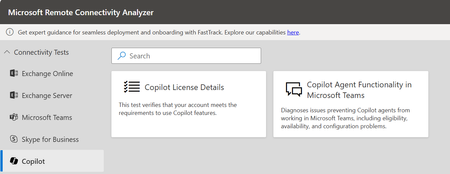
As Microsoft Copilot for Microsoft 365 continues to evolve, ensuring reliable agent performance within Microsoft Teams is critical to delivering a seamless user experience. To support this, we’re introducing the Copilot Agent Functionality Diagnostic—a powerful tool designed to identify and resolve issues that may prevent Copilot agents from operating in Teams. This includes validating eligibility, confirming service availability, and checking for configuration compliance. With this test, organizations can quickly verify that their environment is optimized for Copilot agents, helping users fully leverage the capabilities of Copilot within Teams. Why This Matters For Copilot agents to function seamlessly in Microsoft Teams, several dependencies must be in place—including user authentication, valid license assignment, tenant app settings, and the ability to run required custom apps in preview. If any of these prerequisites are misconfigured, users may face errors, limited functionality, or even lose access to Copilot features altogether. That’s where our Diagnostics comes in -The Copilot Agent Functionality Test helps eliminate these risks by proactively checking authentication, confirming license validity, validating Teams app configurations, and identifying settings that could block Copilot agents. By addressing these issues early, organizations can ensure users experience the full value of Copilot in Teams without disruption. What the Diagnostic Does The Copilot Agent Functionality Diagnostic is designed to help both customers and support engineers validate the critical requirements that enable Copilot agents to work seamlessly in Microsoft Teams. It performs a series of checks to confirm: Successful retrieval of Teams user authentication information Verification that users hold a valid Microsoft 365 Copilot license for Teams Confirmation that custom apps in preview are enabled to support Copilot agents Validation of Teams tenant app settings for proper permissions and availability Identification of configuration gaps that may block agent functionality By running these validations, the diagnostic ensures that the Teams environment is properly configured, reducing the likelihood of errors and empowering organizations to deliver a consistent Copilot experience in Microsoft Teams. Who Should Use It? Note: A Global Administrator account is required to run this diagnostic. IT Admins validating Teams settings, app configurations, and license prerequisites to ensure Copilot agents function correctly. Support Engineers troubleshooting Copilot agent issues related to authentication, configuration, or feature availability. Adoption & Change Management Leads confirming the Teams environment is properly prepared for users to engage with Copilot agents during rollout. Get Started To run the diagnostic, you’ll need a Global Administrator account. To access the new customer facing diagnostic, navigate to Microsoft Remote Connectivity Analyzer, select COPILOT, then click on the “Copilot Agent Functionality in Microsoft Teams”. A Big Thank you to Rui Andre Tabares.1.3KViews1like0Comments